Thermal printer not printing? Find your symptom, then fix it in order.
Start with paper, power and connection. Scratch both sides: if one marks, face it toward the print head; if neither marks, try a fresh roll. Then check power, cover and network. EasyKOT saves the sale first and retries a queued print for 5 minutes.
Works for any thermal receipt printer · each section ends with what the EasyKOT Desktop App does for you
Find your symptom: the cause, the fix, and whether the Desktop App can see it
Each row links to a page with the full fix. The last column is honest about what software can know: where it says No, the slip in your hand is the only check, whatever billing app you use.
| What you see | Usual cause | First fix | Can the EasyKOT Desktop App see it? |
|---|---|---|---|
| Printer prints blank | Roll loaded coated side out | Scratch test, flip the roll | No. The row stays Connected. |
| Print is faint or fading | Old, hot or cheap paper; a dirty head | Fresh roll, clean the head | No. Darkness is set in the printer, not in EasyKOT. |
| Printer prints garbage or boxes | Wrong paper width, wrong serial speed, or the printer is not in ESC/POS mode | Match the self-test page, then Test print | No. The test slip shows it. |
| Printer does not cut | No cutter on this model, or chips in the slot | Check the self-test page; clear the slot with the printer off | No. Slips come out joined. |
| Printer was working, now shows Offline | The router gave the printer a new address | EasyKOT looks for it by hardware address first; then a static IP | Yes: Offline. |
| Nothing finds the printer, even by IP | AP isolation, guest Wi-Fi, or a second router | Cable the printer to the router, or turn AP isolation off | Often: “Your router is keeping devices apart”. |
| Printer is on a different network | Laptop and printer on different Wi-Fi | Join the main network, not Guest | Yes: “Printer is on a different network”. |
| USB printer not found | A charge-only cable, a missing USB-serial driver or another program holding the port | Use a data cable; check Device Manager | Yes: Offline. |
| Bluetooth printer is paired but nothing prints | Windows made no COM port, or another phone is holding the printer | Add an outgoing COM port; forget the printer on the other phone | When asked: Check printer or a failed job shows Offline. |
| Printer prints once, then stops | The printer fell asleep, its buffer is full, or it ran out of paper quietly | Switch it off and on, print again | Sometimes: Connected or Can’t verify, with tickets waiting. |
| Two bills came out | A print was cut off, then reprinted | Nothing: the copy says DUPLICATE | Yes: it asks whether the bill came out. |
| Paper out | The roll is finished | New roll, thermal side to the head | Yes, if the printer answers status questions. |
| Cover open | The lid is not latched | Press it down until it clicks | Yes, if the printer answers. |
| Cutter jammed | Paper chips in the blade | Printer off, clear the slot | Yes, if the printer answers. |
| Can’t verify — will still try to print | The printer does not answer status questions | Nothing; many printers never do | This is the Desktop App telling you it cannot see. |
| macOS is blocking local network | The Mac's Local Network permission was refused | System Settings → Privacy & Security → Local Network | Yes. |
| The KOT never reached the kitchen | No printer set to Kitchen (KOT), or the kitchen printer failed | Check the role, then Reprint last KOT | Partly: a failed job shows in the queue, a slip on the kitchen floor does not. |
Why is my thermal printer not printing anything?
No noise, no paper moving. On any printer and any billing app, this is power or connection far more often than software. Work down these five in order:
- Check the printer is actually switched on. The power light can stay lit from the adapter while the switch is off, so the light is not the check: the switch is.
- Click the paper cover fully shut. Most printers refuse to print with the lid a millimetre open, and say nothing about it.
- Print the printer's own self-test. Hold the Feed button while switching the printer on. If a self-test slip comes out, the printer and its paper are fine and the problem is the connection.
- Press Test connection in Settings → Printers & KDS. On EasyKOT a network printer answers with something like “Connected to 192.168.1.50:9100”. On another app, use its own test print. No answer means the laptop cannot reach the printer.
- Check the laptop and the printer are on the same network. A laptop that hopped onto a guest Wi-Fi or a phone hotspot is the classic cause, and it takes every network printer in the building out at once.
In EasyKOT: The sale is saved before anything is sent to the printer, so a dead printer only delays paper. The job waits on the laptop and retries after 1, 2, 5, 15, 30 and 60 seconds, then every minute, but only for 5 minutes from the original KOT fire or bill-print request. Past that it stops trying on its own: its queue row reads “Not printed — waiting for your choice” and offers Print, sending it to another printer, or discarding it.
Why does my thermal printer print blank paper?
A reversed roll is common, but old paper, a dirty print head or a printer fault can also produce a blank slip. Test both paper faces and a fresh roll first.
- Scratch the paper firmly with a fingernail or a coin. A dark line appears on the printable side.
- Reload the roll so that side faces the print head. On most counter-top printers the paper comes off the underside of the roll, not over the top.
- Print a test slip again. If neither side marks, the paper is dead rather than backwards: open a fresh roll.
In EasyKOT: No billing software can see this one, EasyKOT included. No printer reports a roll that is in backwards, so the row keeps saying Connected. What the Desktop App can see is an empty roll: a printer that reports its paper sensor shows Paper out, and printing pauses until you reload.
Why is the print faint, fading or half missing?
Faint everywhere is nearly always the paper: old, cheap, or stored somewhere hot. A clean band missing down every slip is the print head. A bill that was fine at the counter and went pale in a drawer is storage.
- Try a fresh roll from a sealed pack first. Thermal paper darkens with heat, which is how it prints, so heat and sunlight before printing wear it out: a roll kept near the tandoor or on a sunny shelf prints grey.
- Switch the printer off, let it cool, and clean the print head with a cotton bud and a little isopropyl alcohol. Dust and paper fibre cause most streaks.
- Raise the darkness (print density) in the printer's own settings: the maker's utility, or the DIP switch table in the manual. Many budget models have no such setting.
- If a vertical strip stays blank after cleaning, the head has dead dots. Get a quote before paying for a new head: on a budget 58 mm printer, a whole new printer (about ₹1,500 to ₹1,800 in September 2026 Flipkart listings) can cost about the same.
In EasyKOT: There is no darkness setting in EasyKOT. It sends standard ESC/POS, so how dark the slip prints is the printer's decision, and a faint slip never shows on the Desktop App's screen.
What paper costs, and how to store it
| Roll | Price, about | Bills per roll, about | Per bill, about |
|---|---|---|---|
| 80 mm printer: 79 mm × 50 m | ₹67 a roll, in a pack of 30 | 330, if a bill is 15 cm | ₹0.20 |
| 58 mm printer: 57 mm × 15 m | ₹27 a roll | 125, if a bill is 12 cm | ₹0.22 |
Prices from Flipkart and IndiaMART listings, September 2026. Bill lengths are our assumption: a long order or a logo makes each slip longer.
- Keep spare rolls in the dark, below 25 °C and below 65% humidity. The coating is made to turn black at roughly 60 to 100 °C.
- Keep them away from the tandoor, the tawa and any hot corner: kitchen heat can grey a roll before it is ever used.
- Keep printed bills out of soft plastic (PVC) sleeves and away from wet or oily hands: both fade or mark the coating.
Why does my printer print garbage characters or boxes?
The printer is receiving data but reading it with the wrong settings. Something comes out, just not your words.
- Print the printer's self-test page (hold Feed while switching it on). It lists the paper width, the character set and, for a serial printer, the speed.
- Match the paper width in your billing app to the roll. A bill laid out for 80 mm on a 58 mm roll wraps into nonsense.
- On a wired serial (RS-232) printer, match the baud rate to the self-test page. 9600 is the usual default; some models use 19200, 38400 or 115200.
- A Star printer that is not in ESC/POS emulation mode prints garbage from ESC/POS software. Switch the mode with its DIP switch or Star's utility, as the manual shows.
- Any other printer with DIP switches: an emulation switch flipped out of ESC/POS mode gives exactly this.
In EasyKOT: You must pick a paper size, 80 mm, 58 mm or 80mm wide, when you add a printer; the form will not save without it. The Test print slip prints a ruler of digits, 42 wide for 80 mm, 32 for 58 mm and 48 for 80mm wide. If the ruler breaks onto two lines, pick the next narrower size (80mm wide to 80 mm, 80 mm to 58 mm); if it leaves a wide blank margin, pick a wider one. The Baud rate field is for a wired serial printer only, and Bluetooth ignores it.
Why does it show Offline when the printer is clearly on?
A lit printer says nothing about whether the laptop can reach it. Offline means the software knocked on the printer's address and nobody answered.
- Print the self-test page and read the printer's IP address off it. The first three numbers must match the laptop's (192.168.1.x with 192.168.1.x).
- If they differ, the printer has moved or sits on another network: the two pages linked below cover both.
- Give the printer a fixed address: reserve its IP in the router (often called DHCP reservation or address binding), or set a static IP from the printer's settings page. It then stays put after a power cut.
- Check nothing else took the old address. A phone or smart TV handed the printer's old IP will answer the knock and confuse everybody.
- Guest Wi-Fi and AP isolation stop the laptop talking to the printer at all. Put both on the main network, or plug the printer into the router with a cable.
In EasyKOT: Which printers the Desktop App can check, honestly: a network or USB printer is asked for its status in the background, every few seconds. A Bluetooth or serial printer is asked only when you press Check printer or Test connection, and otherwise judged by whether its last job went through. A printer added as System printer goes through the computer's print queue, which reports nothing back. Plenty of inexpensive printers answer nothing on any cable: those read “Can’t verify — will still try to print”, an honest grey rather than a false green, and every ticket is still sent. The Desktop App also names network causes by itself: “Your router is keeping devices apart”, “Printer is on a different network”, and on a Mac, “macOS is blocking local network”.
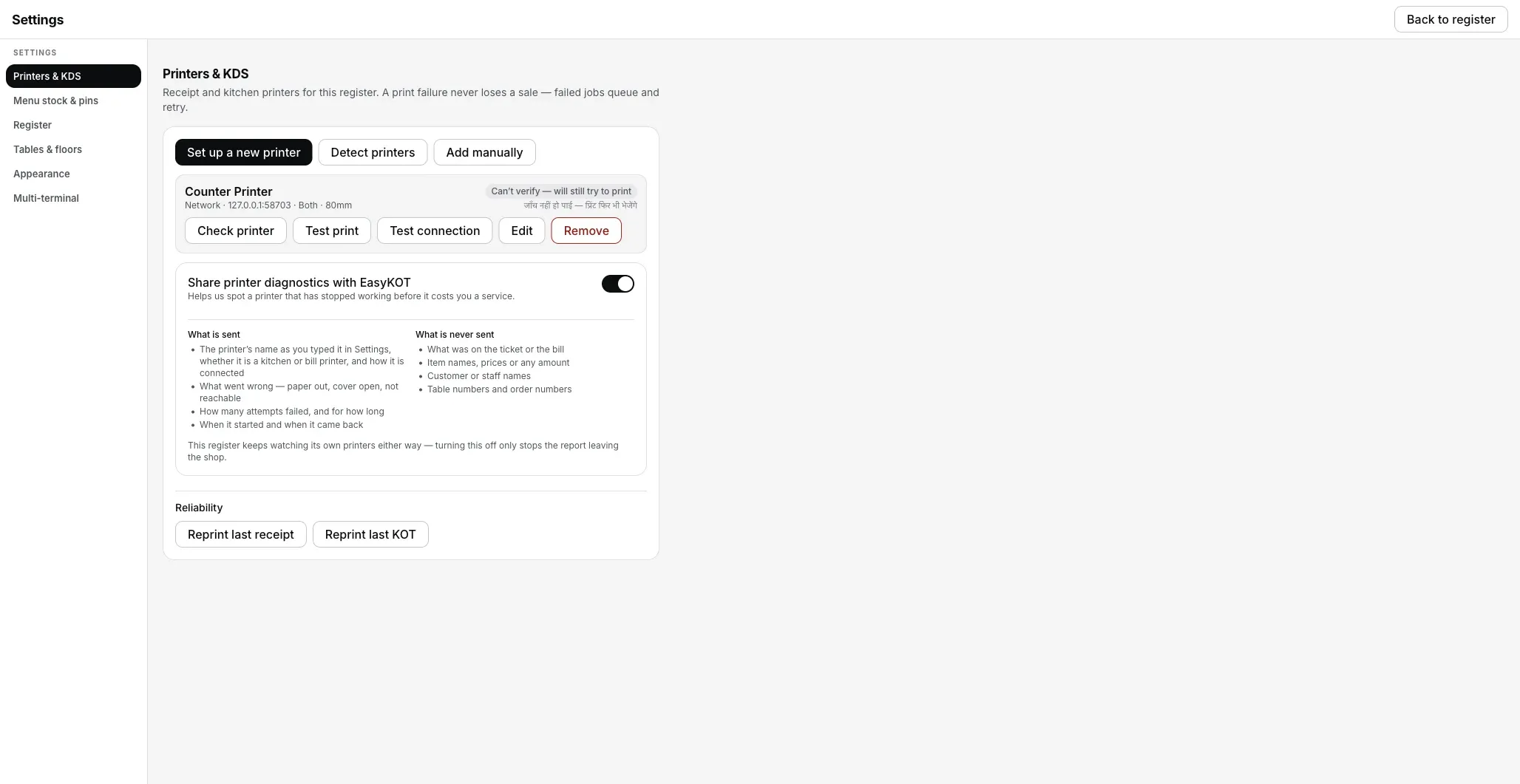
The honest grey: a printer that never answers status questions, still queued for every ticket.
Press Check printer on the row before you touch anything else. It asks five questions in order (can it reach the printer, is the cover shut, does it speak ESC/POS, is it healthy, does a test slip come out) and names the first one that needs you, with a guided fix and a QR code to the matching page on this site.
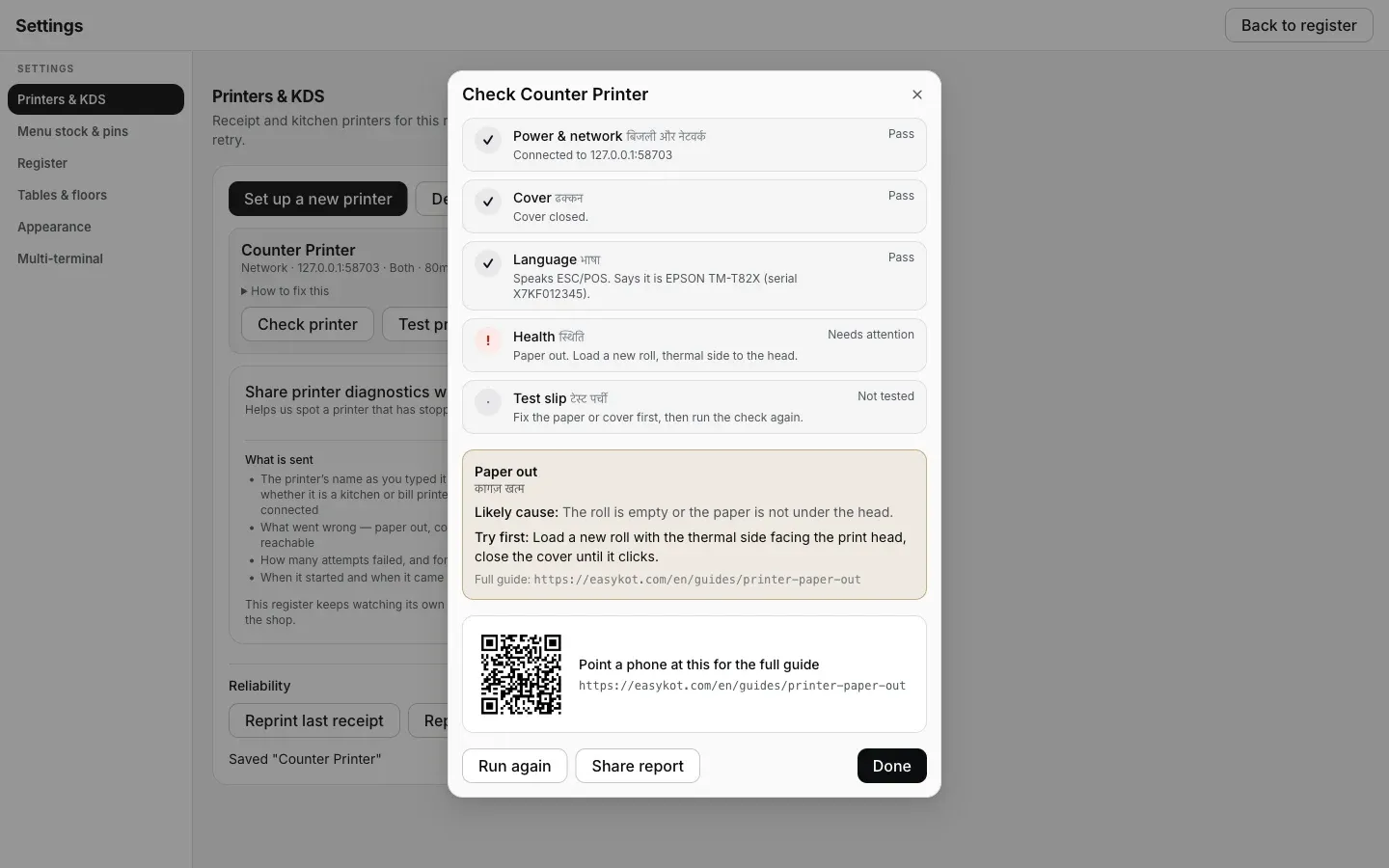
Check printer naming the exact fault (here, paper out) with its guided fix and a QR code to this same site.
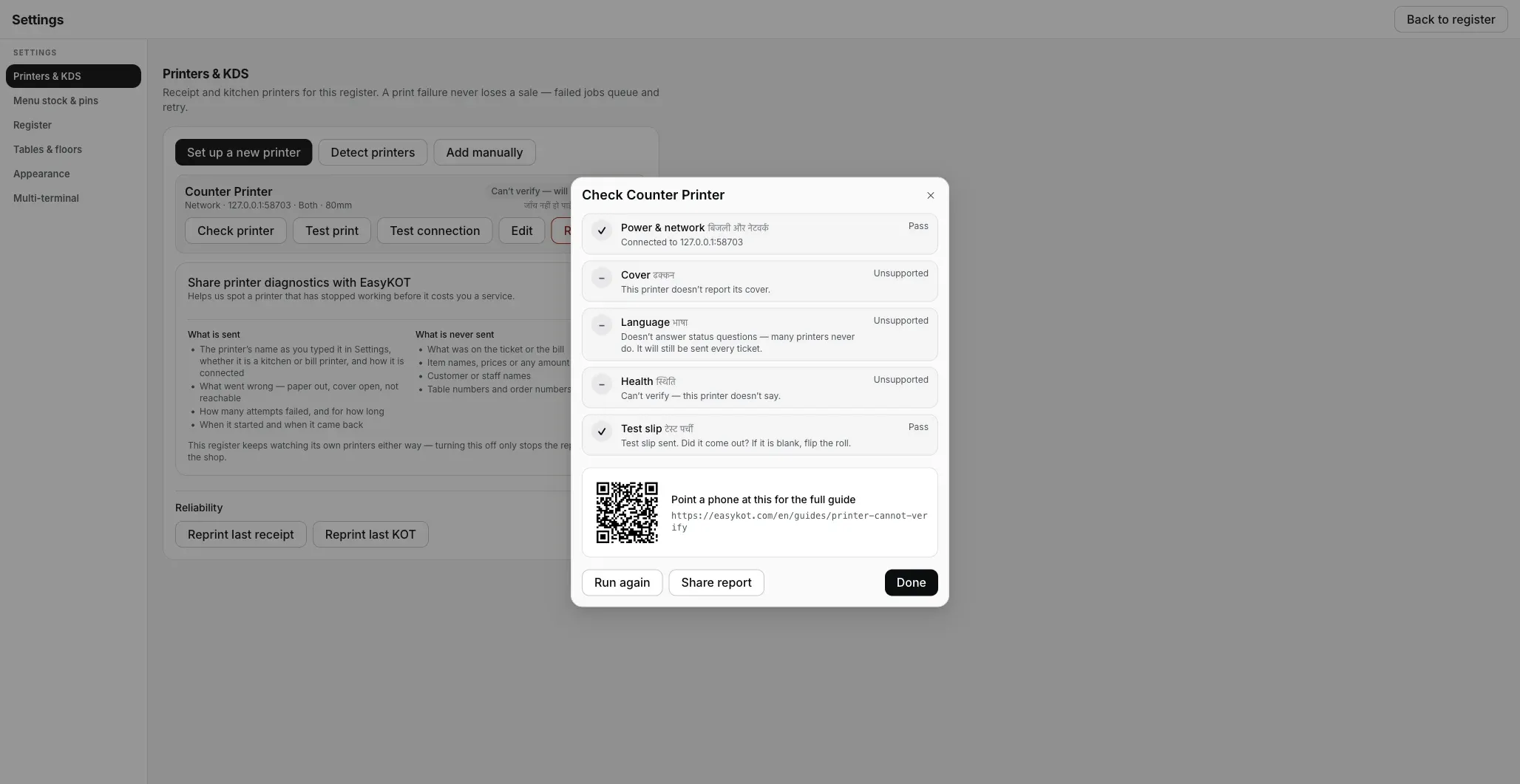
A printer that never answers status questions: every step but the test slip reads Unsupported, which is honest, not broken.
On a laptop, a paired Bluetooth printer appears in Detect printers under Other devices on this computer and is added as Serial / Bluetooth. Laptop Bluetooth printing has not yet been proven on our own hardware, so a network cable or USB is the path we recommend.
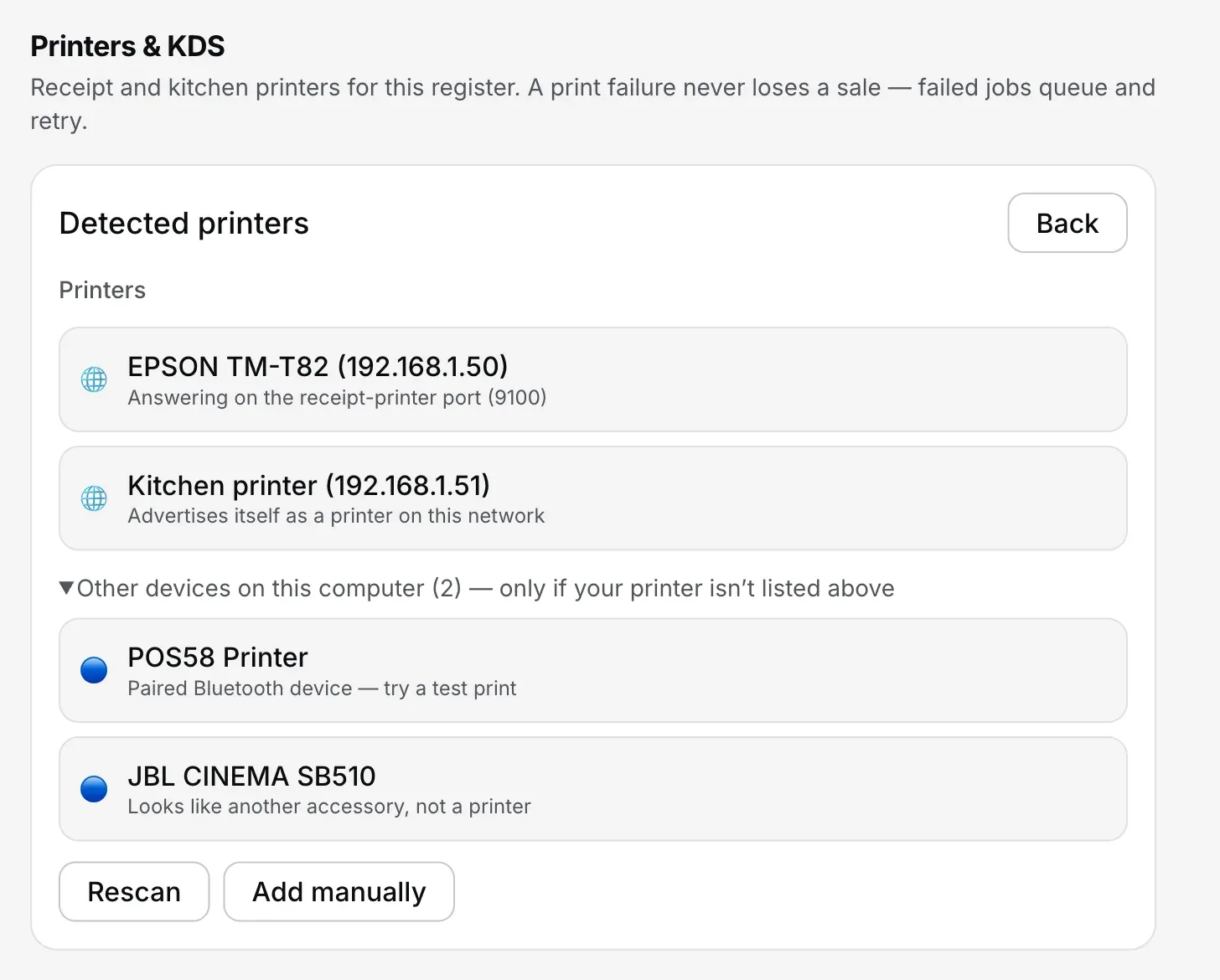
Settings → Printers & KDS → Detect printers → Other devices on this computer.
Printer not found even by IP: the router fix · Printer on a different network · Bluetooth printer on an Android phone
What does a blinking red light mean? Self-test, overheating and reset
Every maker uses its own light codes, so the manual's error table is the real answer. On most counter-top models a red or orange light that blinks means one of four things: paper out, cover open, the print head too hot, or the cutter stuck.
- Open the cover, check the roll and the cutter slot, and close it until it clicks.
- If the printer ran hot through a long rush, switch it off for 10 to 15 minutes and let the head cool. Keep it away from the tandoor and out of direct sun.
- Print the self-test page: hold Feed while switching the printer on, and let go when it starts printing. A clean self-test means the printer is fine and the problem is the cable, the network or the software.
- Leave a factory reset for last, and only when the maker's support asks for it. On a network printer it can wipe the IP address you set, and then nothing finds it.
In EasyKOT: On a printer that answers status questions, the Desktop App names the fault on the printer's row instead of a light code: Paper out, Cover open, Cutter jammed, Printer cooling down (it resumes by itself), or Printer paused. Printing pauses and tickets wait in the queue until it clears.
The bill printed, but the KOT never reached the kitchen
Two printers, two different fates. First work out which printer the ticket went to.
- Walk to the pass and look, then look at the counter printer too. In many billing apps a KOT with no kitchen printer set comes out at the counter.
- Print a test slip on the kitchen printer on its own. If that fails, work through the checks above for that printer.
- Reprint the KOT once it is fixed, and tell the kitchen by voice for that one order meanwhile.
In EasyKOT: In Settings → Printers & KDS, check the kitchen printer's Role reads Kitchen (KOT). With no printer in that role, KOTs go to a printer set to Both, then to the receipt printer. A failed KOT shows in the N failed pill under Reliability, and Reprint last KOT sends it again. The screen cannot see a ticket lying in the kitchen, so the pass is the check.
It worked yesterday and not today. Was there a power cut?
Something on the network moved overnight, usually after a power cut or a router restart. Nothing in the billing app changes by itself.
- The printer's IP address is the usual answer. Routers lend addresses, and after a restart the printer can come back on a different one while the app keeps looking at the old one.
- A new router or a router reset means a new network, and both devices need to be on it. A laptop that auto-joined a neighbour's Wi-Fi or a hotspot cannot see the printer at all.
- Fix it for good: reserve the printer's address in the router, or give it a static IP. It takes a few minutes once and saves every future evening.
In EasyKOT: EasyKOT remembers each network printer by its hardware (MAC) address, not only its IP. When the printer moves, the Desktop App asks the network where that hardware went before it asks you, so a router reshuffle is often something you never see. If it still cannot find it, Detect printers rescans the whole network.
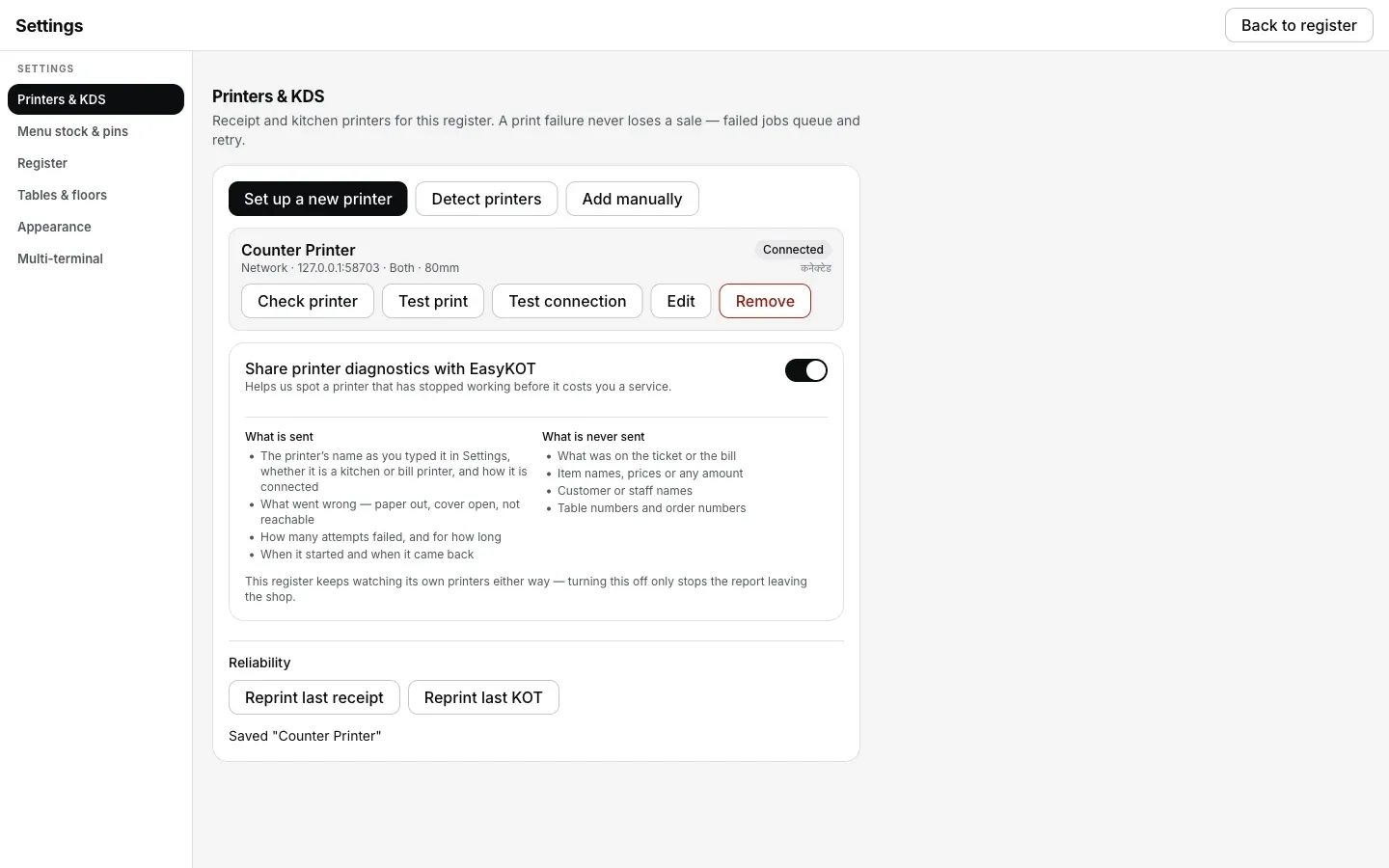
Once the address is right again, the row settles back to Connected, no different from a printer that never moved.
Printer offline after a router restart · Connect the printer again from scratch · Billing when the internet is down
“Check your printer and try again”: the Chrome print error
“Something went wrong when trying to print. Please check your printer and try again.” That message is Chrome's, not your printer's. It appears when billing runs in a browser, Chrome hands the bill to the Windows print queue, and the queue cannot deliver it.
- Check the printer is on, has paper, and shows as ready in Windows: Settings → Bluetooth & devices → Printers & scanners.
- Open that printer's queue and cancel every stuck job. One stuck job holds up every bill behind it.
- Restart the Print Spooler: press Windows + R, type services.msc, find Print Spooler, and choose Restart.
- In Chrome's print dialog, check the Destination is the thermal printer, not Save as PDF or an old copy of the same printer, and set the paper size to your roll.
- Print a Windows test page from the printer's properties. If that fails too, the problem is the printer, its cable or its driver, not the browser.
In EasyKOT: The EasyKOT Desktop App runs on your computer, not as a web page. It sends the slip straight to a network, USB or Bluetooth printer, so there is no print dialog and this Chrome message cannot appear. The one exception is a printer added as System printer, which goes through the computer's own print queue (still without a dialog). A stuck Windows queue can hold those bills, so Network or USB is the better choice on Windows.
Did I lose the bill? No. How EasyKOT keeps the sale safe.
EasyKOT saves the bill into the laptop's own database before it queues anything to print. A printer that is off, out of paper or on the wrong network cannot cost you a sale: it can only delay a piece of paper.
- Every ticket is a job stored on the laptop until it prints. Closing the app or losing power does not lose it.
- It retries by itself: after 1 second, then 2, 5, 15, 30 and 60, then every minute, for up to 5 minutes from the original KOT fire or bill-print request. Load paper back within that window and the queue drains on its own; past it, a ticket stops and waits in the print queue for Print.
- The Desktop App says so out loud: the status rail shows No printer · N waiting, and Settings shows an N failed pill under Reliability.
- If a print fails while you settle, four choices open on the spot: Retry now, Fix printer, Send to another printer, or Skip — keep it for reprint. If the printer stopped mid-bill, it asks whether the bill came out instead of guessing, so it never prints twice by accident.

Older tickets stay held. Review lets you choose which paper is still needed while service continues.
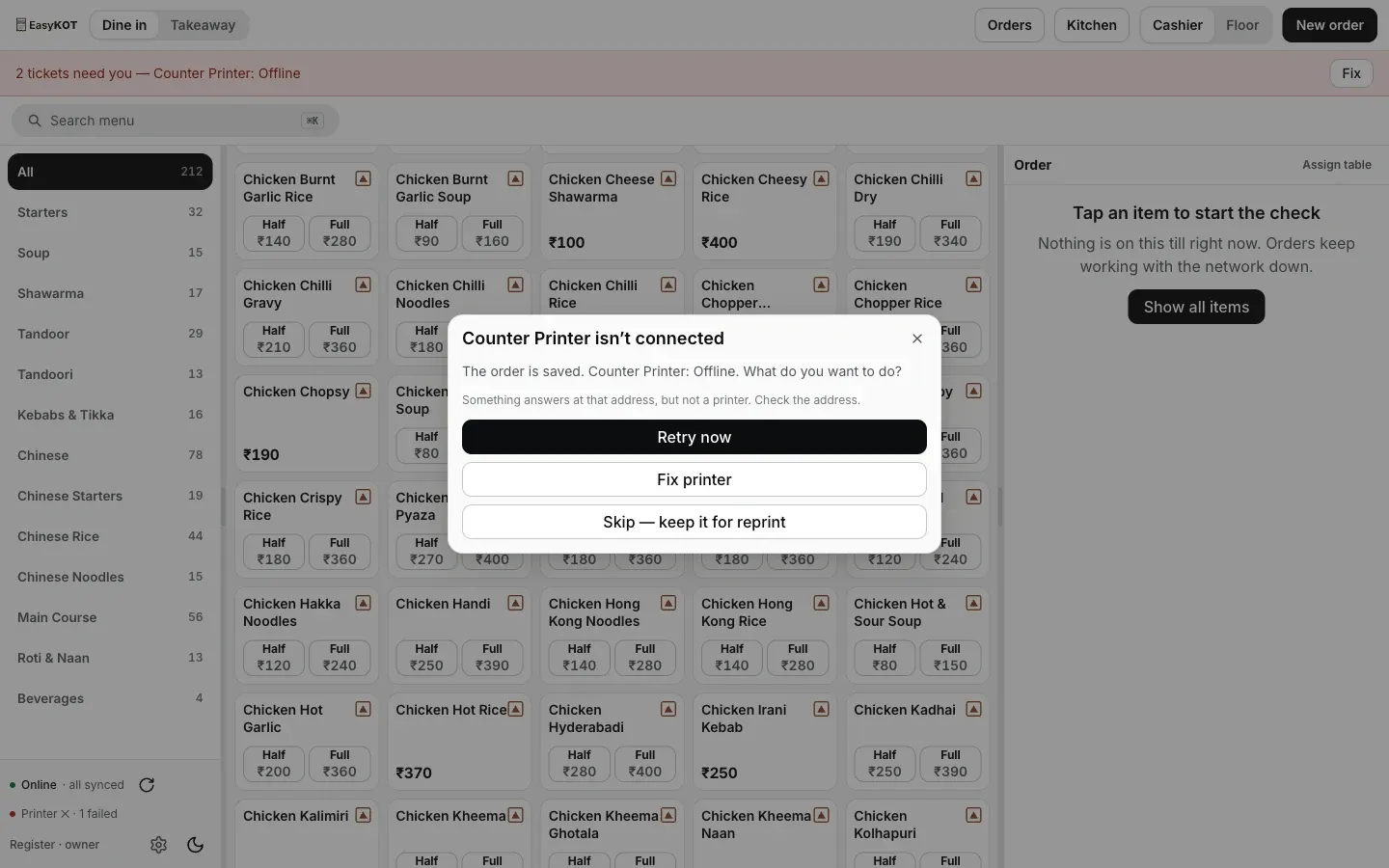
The four-choice dialog that opens the instant a print fails, never a bare error.
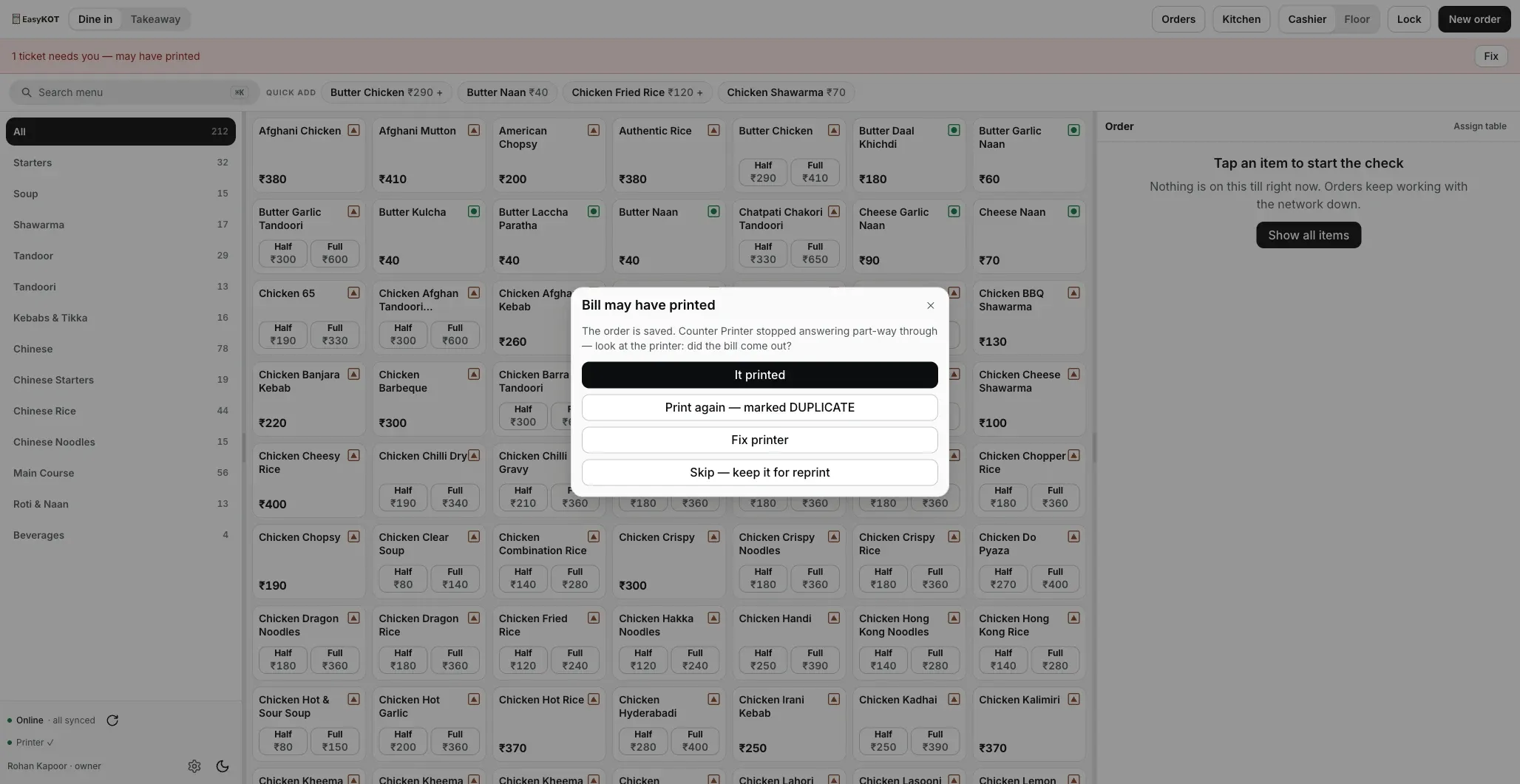
A different question when the printer stopped mid-job: did it come out? Retrying blindly here could print the bill twice, so EasyKOT asks instead of guessing.
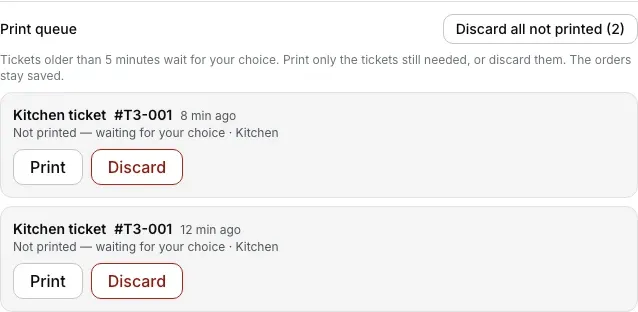
Settings → Printers & KDS → Print queue: older tickets wait until you choose Print.
Send us a photo of the slip.
A picture of what came out, even a blank slip, can help. Before sending it on WhatsApp, hide the customer's name, phone, address, GSTIN and order details. Add the connection type and the Test print result.
Support comes from the people who built it, and it is included, not a paid tier.
Not on EasyKOT yet? A print failure never loses a sale here: that is the point. 3 months free, ₹0 today, no card. On a laptop you can also try the Desktop App in your browser first; sample bills and KOTs open through the normal print dialog.
Straight answers.
Thermal printer not printing: what should I check first?
Why does my thermal printer print blank paper?
Do I lose the bill if the printer fails mid-rush?
How do I reprint a bill or a KOT?
Why does the reprint say DUPLICATE?
Do I need to reinstall a driver?
What does Check printer actually check?
Why does my printer say Can’t verify?
Related: connect a thermal printer to your laptop · kitchen KOT printer and the cash drawer · the print queue and reprints · all EasyKOT guides
Run it 3 months, then pay for it.
Three months free, full product, no card. Made in India, for the counter: built inside a running restaurant.