The restaurant captain app that runs on your waiters' own phones.
A captain opens the table on their phone and taps the dishes: Half or Full, add-ons, a "less spicy" note. One press of "Send KOT" saves the round on the phone. Its kitchen delivery status is shown separately while the bill builds in the EasyKOT Desktop App. No paper pad, no typing the order twice, no charge per waiter.
Already running the Desktop App on a laptop? Choose "Take orders at the tables" on the waiter's phone. No laptop? See the Android phone counter setup first. Ready to install? Start with the EasyKOT Captain on Google Play.
Android 8+ · works on the same Wi-Fi as the Desktop App and over the internet · ₹299 + GST/month, every phone included
Watch EasyKOT on Android
Read the video transcript
This is the recorded narration. Screen labels and steps reflect the video as published.
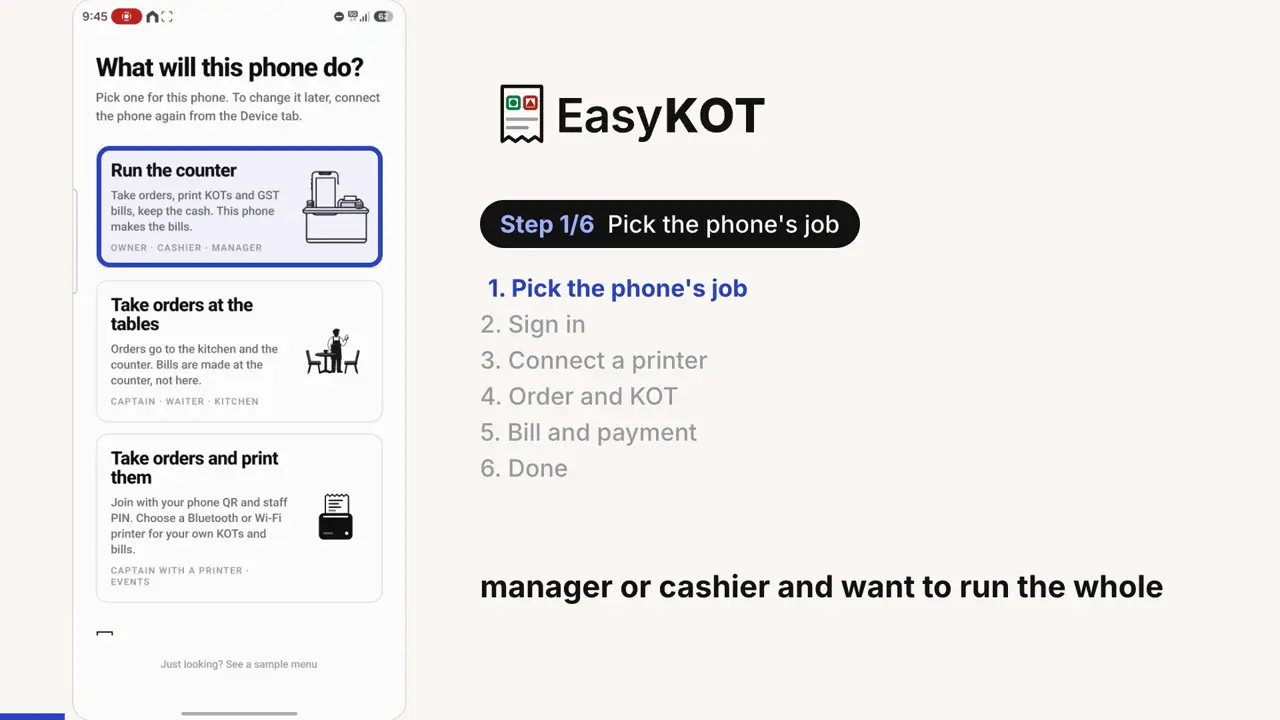
EasyKOT on Android. In this video, we will follow the complete process on the phone. After installing the app, this is the first screen you see. There are three options.
The first option is Run the counter. Choose this if you are the owner, manager or cashier and want to run the whole point of sale on your Android phone. You can take orders on the phone. The setup will let you connect a printer.
Once it is connected, you can print kitchen tickets and bills directly from this phone. The second option is take orders at the tables. Suppose your register app is running on a laptop at the restaurant's billing counter. Your waiters or captains walk to the tables and take orders on their phones.
Suppose orders and kitchen tickets go to the billing counter. The printer connected to the counter handles the printing. The captain does not need a separate printer in this setup. Orders are taken at the tables while the main printer stays at the billing counter.
This is the second option. The third option is for a different setup. For example, at an event, function or wedding, there may be several food counters. Carrying a laptop to every counter may not be convenient.
Several waiters or captains may be moving around and taking orders. With this option, you can give each person their own printer. They take orders on their phone and print their own kitchen tickets and bills on their own printer. With the second option, printing went to one main printer at the billing counter.
With this third option, each person uses their own printer. That is how you can have several people, each with a separate printer. For this walkthrough, we will use the first option. Tap Run the counter.
Use the same email and password that you created when signing up in the admin panel. Enter those credentials here, then tap sign in. If you have forgotten your password, use Forgot your password? to reset it.
This recording uses a test account to demonstrate the process. The phone is now connected and the menu has loaded. The next screen takes us to printer setup. We are using a Seznik thermal printer here.
First, open the phone's Bluetooth settings and pair the printer. This phone already has it paired. If yours is not paired yet, select the printer and complete the pairing request. The list shows the paired devices.
Once the printer is paired, tap done and return to the app. Now tap Add printer. There are several ways to connect a printer. Along with Bluetooth, you can connect a network printer by its IP address, whether it is on Wi-Fi or LAN.
We are using Bluetooth in this walkthrough. A Bluetooth printer must first be paired in Android settings. You can then choose it from the list of paired devices in the app. Select the Seznik printer.
Choose everything for both kitchen tickets and bills. Then select the paper size. This printer uses 58 mm paper. Save the printer settings.
Now tap Test print. A test slip should come out of the printer. Watch the actual printer footage alongside the screen. The test slip has printed.
This confirms the connection and the print on paper. Next, choose print from this phone. We want this phone to print directly rather than send the printing to a separate billing counter. The order screen now opens.
Running orders appear here. There are none yet in this recording. Use Choose table to select a table. You can see tables such as T1 and T2.
Tables are set up through the admin panel and register app. If your setup uses takeaway instead of tables, you can choose the takeaway option. Tap takeaway to open the full menu. Add the dishes you want, where half and full options are available.
Choose the portion you need. After adding the dishes, open Review order. The top shows that this is a takeaway order. You can use Assign table if you want to put it on a table.
Check the dishes and quantities here. Add a note if needed such as a request about spice. Now tap Send KOT, the order is sent for the kitchen. In this setup, the kitchen ticket prints on the printer connected to this phone.
Watch the actual ticket come out. If the customer wants something else later, tap + Add items. Here we add butter garlic naan and return to Review order. The first four dishes are already under Sent to kitchen.
The new dish is under to send. Tap Send KOT again. This time only the new dish prints. The four items sent earlier are not printed again, so the kitchen does not receive a duplicate order.
When the order is complete, open settle. There are cash and UPI options for recording payment. Collect the payment from the customer first. You can also enter the customer's name and phone number if you want those details on the bill.
Here we enter the name and then the phone number. These customer details are optional. We choose UPI to record the payment. The bill now comes out of the printer.
It includes the complete order, the customer details and the total. You can configure GST and other billing settings in the admin panel. Those settings will be covered in a separate video. That is the complete process for taking orders, printing kitchen tickets and making the final bill with EasyKOT on your Android phone.
The opening covers all three phone roles. The walkthrough then chooses Run the counter and shows owner sign-in, a Bluetooth printer, an order, its KOT and the bill. The audio is in English. It does not show the waiter-phone QR or PIN setup.
What is a captain app?
A captain app is the app a captain or waiter uses to take the order at the table, on a phone, instead of a paper pad. Pick the table, tap the dishes, press "Send KOT". The kitchen gets a KOT and the counter gets the same lines on the bill, so the order is written exactly once.
On a busy night that means the kitchen starts cooking while the captain is still at the table, nobody argues over handwriting at the pass, and the bill at the end is the order that was actually taken. Three waiters on three phones cost the same as one, because EasyKOT charges per restaurant, not per phone.
- The full menu in their pocket. Search, veg/non-veg marks, Half/Full portions, add-ons and notes, as the Desktop App shows them. Change the menu once on the dashboard and every phone has it.
- Sold-out dishes show at the table. Mark a dish out on the dashboard and it greys out on every connected phone, labelled "Out of stock", and cannot be tapped.
- Running tables, live. On a waiter's phone,Only my orders starts checked and lists that captain's tabs with time and amount; Show all brings the other store tabs back.
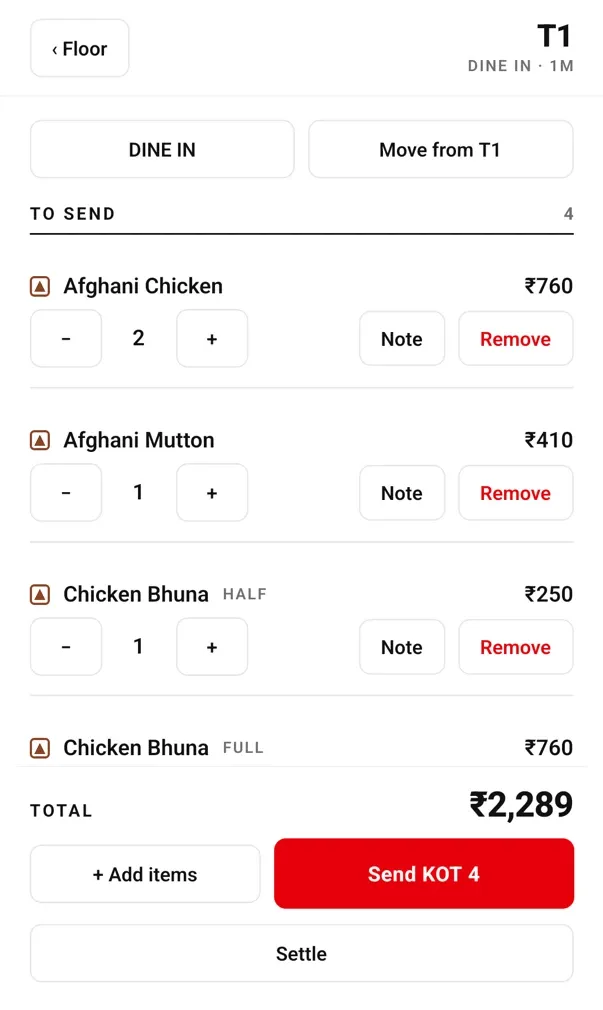
One order, table to kitchen.
The waiter's PIN, then the table
The waiter signs in with their own PIN, taps a free table or opens a takeaway order for a parcel. Turning a dine-in order into takeaway later asks "Make this takeaway?" first, so one stray tap cannot empty a table.
Tap the dishes
Half or Full, add-ons, and a note like "no onions". A dish the kitchen has run out of cannot be tapped, so the captain never has to walk back to the table with bad news.
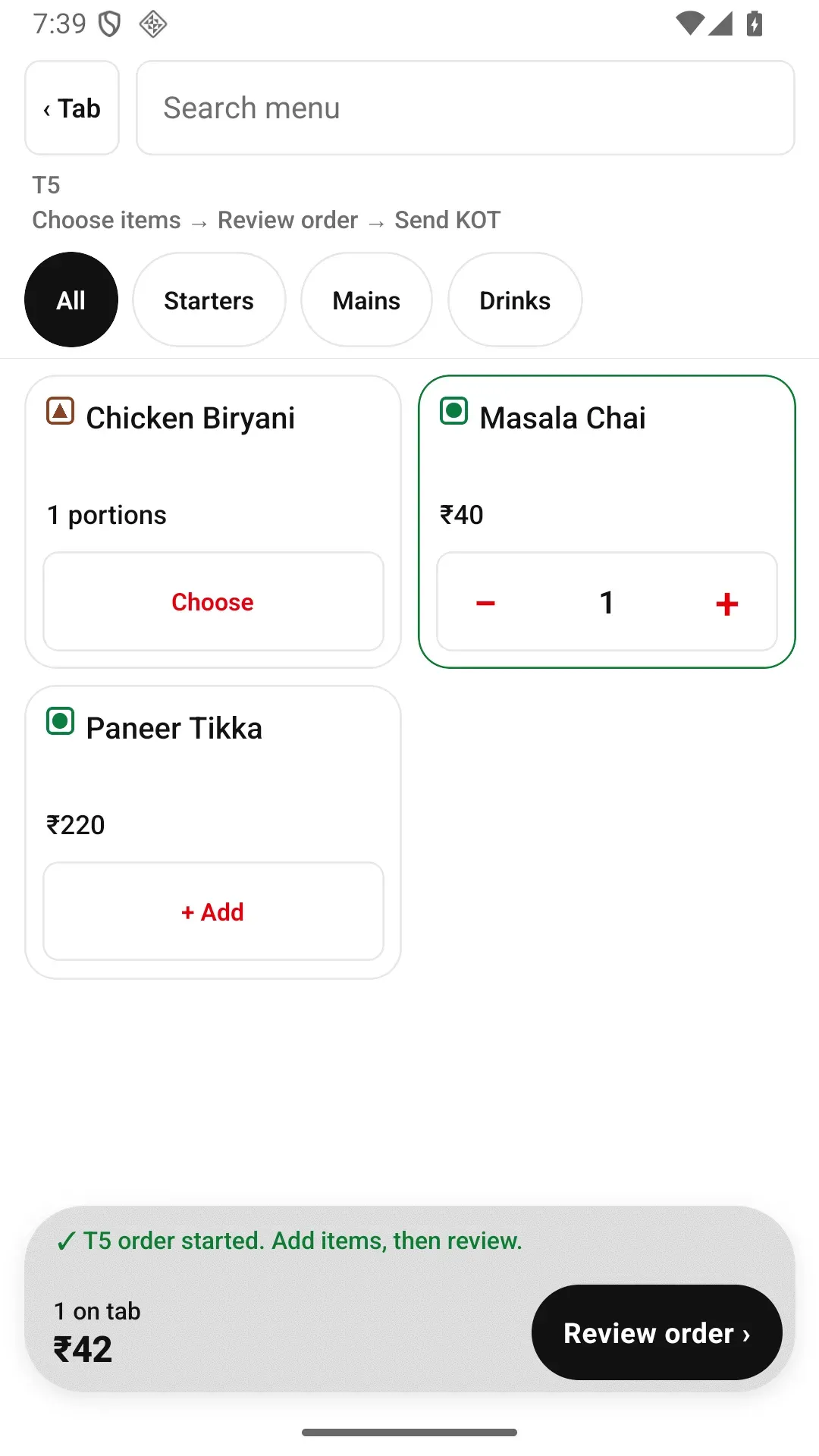
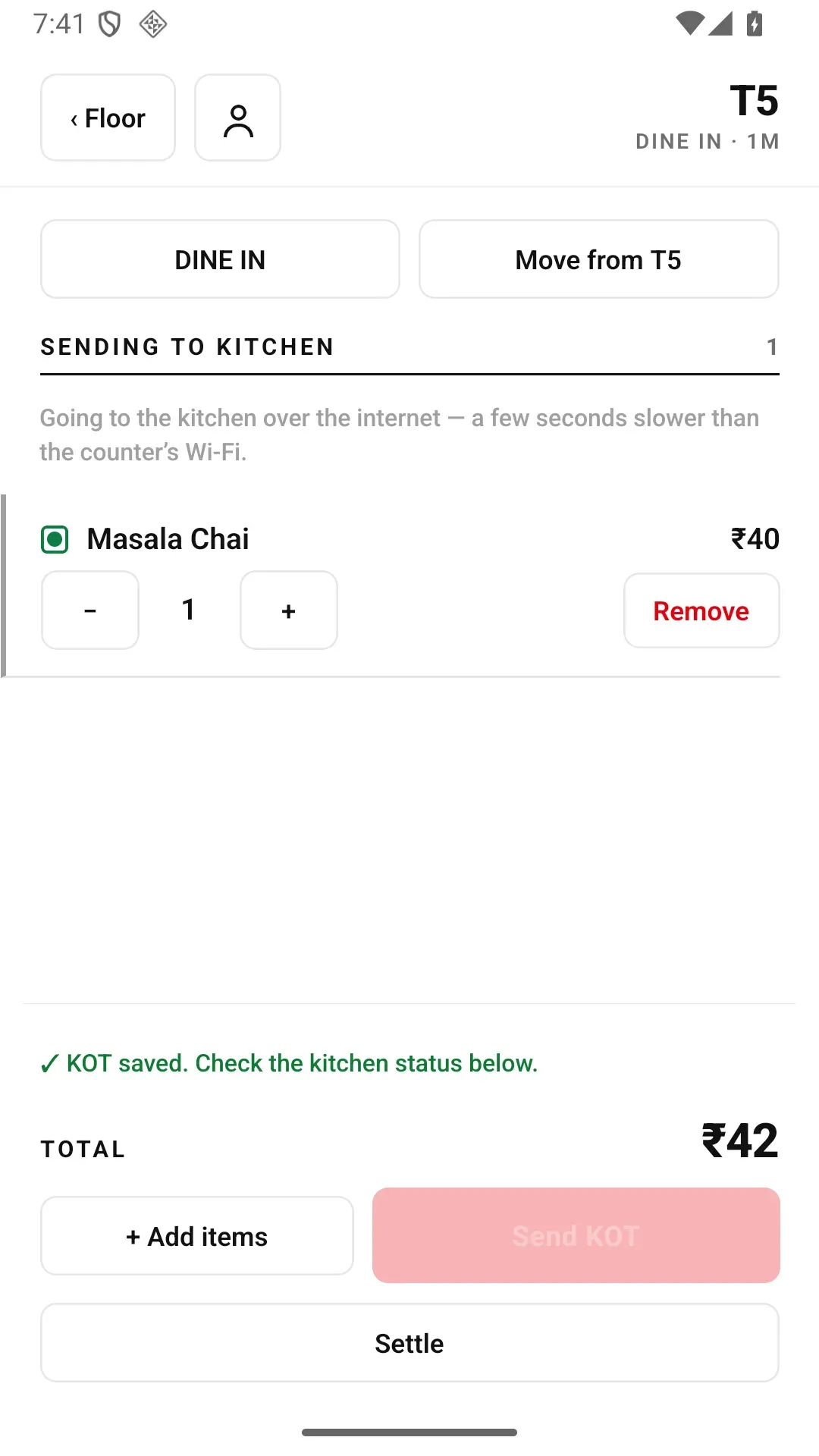
The first dish is saved for T5; the phone confirms the table and next step.
Press "Send KOT"
The button carries a count, as in "Send KOT 4", and sends only what is new. When the table asks for two more rotis, the next KOT has two rotis on it, not the whole table again. The phone confirms "KOT saved" and shows kitchen delivery separately.
The KOT in the kitchen, the round on the counter
The counter's kitchen printer prints the KOT, or the ticket lands on the kitchen display. On the same Wi-Fi as the Desktop App that is one direct hop; over the internet it takes a few seconds. The counter sees the same round on that table's cart, and rounds from captains and from the counter settle as one GST bill.
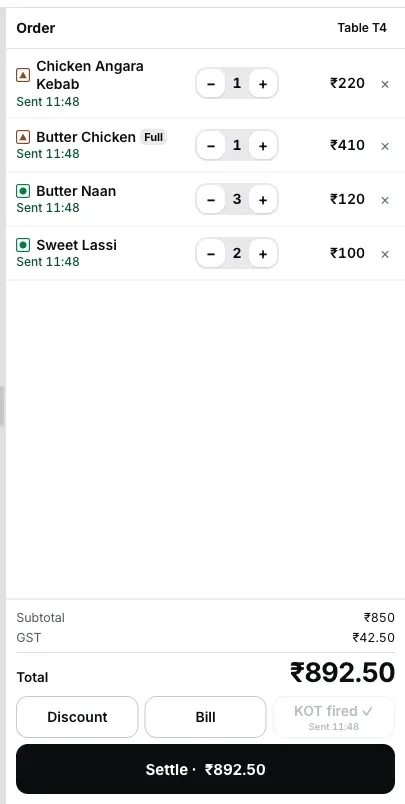
Something to take off? One confirm
To remove a dish already sent, press Remove. The app asks once and reminds the captain to tell the kitchen; no manager PIN. The removed line stays in the order's history. The whole order? Press "Cancel order", tap a reason and check the table and bill in the dialog; once any money is recorded on the bill, that is the counter's job. Opened the order on the wrong table? The "Move from" button moves it to another one.
The bill from the counter, the payment marked on the phone
Open Settle and press "Print bill at the counter": the bill prints on the counter's printer, which also gives it its GST bill number. When the guest pays, mark Cash or UPI. The phone opens no drawer and reads no card, and says so on screen: "Marking only — no drawer opens and no card is read here." A captain can print their own tables on their printer. Whole-store fallback is separate: follow the Print from this phone prompts in Device → Printing. Stop the old printing phone first; two active store printers can produce duplicate slips.
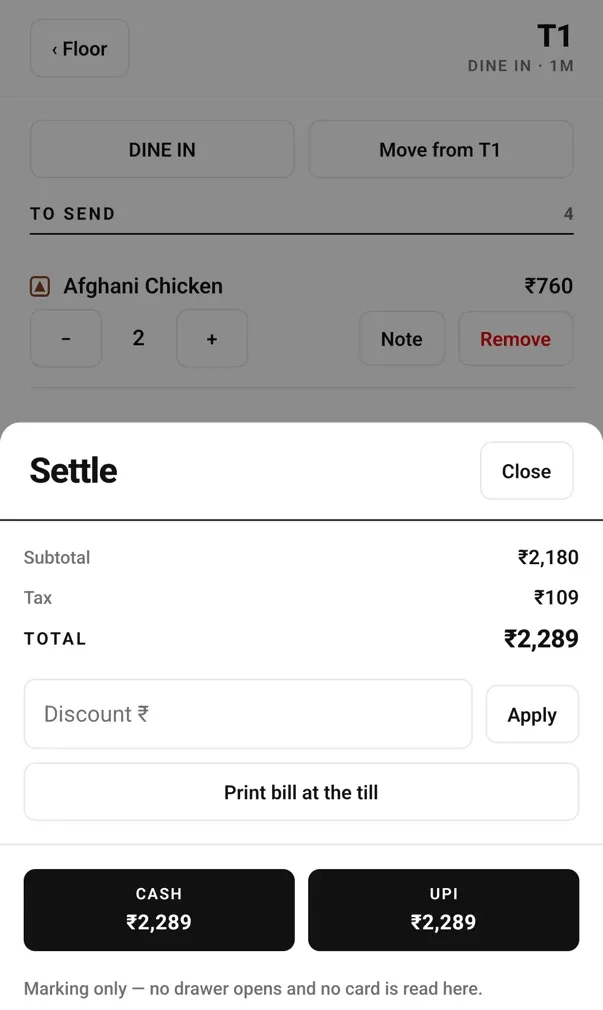
Settle: the bill comes from the counter, Cash or UPI is only marked.
When the Wi-Fi drops
Every captain app says it works offline. The question that matters is where the order is when the Wi-Fi goes. In EasyKOT the phone picks the route by itself and the waiter chooses nothing. There are three states, and in each one the phone says plainly where the order has got to.
| Where the phone is | What the phone shows | Where the order is |
|---|---|---|
| On the same Wi-Fi as the Desktop App | "KOT saved"; Desktop App confirmation follows | At the Desktop App in one hop, confirmed by it. The internet can be down. |
| Off the Wi-Fi, internet up | "Away from the counter — orders reach the kitchen over the internet" | Travelling over the internet, a few seconds slower, under "Sending to kitchen" until the counter takes it. |
| No Wi-Fi, no internet | "Counter offline — rounds you fire are held on this phone" | Safe on the phone, under a red "Not sent to kitchen" and the line "The counter hasn't got this. Stay on the restaurant Wi-Fi, or tell the kitchen." It goes by itself once either the Wi-Fi or the internet is back. |
How the Desktop App keeps billing with the internet down is in the offline billing guide.
Paper KOT vs captain app
| Paper pad | Calling out to the pass | EasyKOT captain app | |
|---|---|---|---|
| Order written | Once, by hand | Never | Once, tapped |
| Typed again at the counter | Yes | Yes | No |
| What the kitchen reads | Handwriting | Memory | A printed KOT or a screen |
| Sold-out dish known at the table | No | No | Yes, greyed "Out of stock" |
| A later round | A new slip | Shout again | Only the new dishes go |
| Proof of what was ordered | The slip, if kept | None | Every line, removals included |
Where wrong orders come from and what stops them: reducing order mistakes.
What a captain can and cannot do
The "Take orders at the tables" card says it on the first screen: "Bills are made at the counter, not here." Money and bill numbers stay with the counter; everything else is on the captain's phone. Since Captain 0.2.12, a third Android role, "Take orders and print them", gives a captain carrying a small printer a bill series and prints the KOTs and bills for that captain's tables from the same phone.
| Can | Cannot, today |
|---|---|
| Open a table or a takeaway; add dishes with portion, add-ons, note | Merge two tables into one bill |
| Send the round with "Send KOT"; later rounds carry only new dishes | Split a bill |
| Move an order to another table | Number a GST bill (the counter does in the current waiter mode) |
| See running tables with their time and amount | Refund, or take a card |
| Remove a sent dish, or cancel the whole order with a reason (no PIN, kept in history) | Give a discount without a manager PIN ("A manager must approve this.") |
| Ask the counter to print the bill; mark Cash or UPI | Run on iPhone (not in the App Store yet) |
| Keep taking orders with no network; rounds wait on the phone | Show its screens in Hindi (they are in English) |
| See today's orders (Paid, Running, Cancelled) on the Today tab and reprint a paid bill | Look up an earlier day's bills, or search them |
| Turn a spare phone into the kitchen screen (the chef signs in) | Split a phone's kitchen screen by station (it shows the whole kitchen) |
Who can do what is set by each person's role: set up staff PINs and roles.
What it costs, with any number of waiters
Many POS apps charge for each waiter phone, or keep the captain app in a higher plan, which turns a fourth waiter into a budgeting decision. EasyKOT has one price for the whole restaurant: ₹299 + GST a month, with as many phones as you need. Put the per-phone rate from any quote you have into the last column.
| Waiter phones | EasyKOT, per month | Per-phone pricing, per month |
|---|---|---|
| 3 | ₹299 + GST | 3 × the per-phone rate in your quote |
| 5 | ₹299 + GST | 5 × the per-phone rate in your quote |
| 10 | ₹299 + GST | 10 × the per-phone rate in your quote |
The first three months are free, no card. The full price is on the pricing page.
Setup: one question and a code
On a new phone, install EasyKOT Captain from Google Play. Play also handles its updates. If a phone already has the old website APK, update it from Device → Updates and do not uninstall it to switch sources while it has pending orders. The first screen asks "What will this phone do?"; a captain carrying a printer picks "Take orders and print them". In Staff & pay, the owner adds the captain and taps Connect phone. The captain scans the one-use QR, waits for the restaurant to download, then enters their own staff PIN. No email or password is needed on the waiter phone. The Wi-Fi link to the Desktop App is optional. The captain app setup guide has every step.
Before the weekend rush, on every captain phone
- Android 8 or newer, with enough free storage for the app.
- Mobile data or Wi-Fi for internet. Save the restaurant Wi-Fi only for a network printer or the optional local Desktop App link.
- A PIN for each waiter, never a shared one.
- The phone connected to the Desktop App with "Scan the Desktop App code", when billing runs on a laptop.
- One test KOT: a cheap dish, "Send KOT", and a walk to the kitchen to see it come out.
- A charger at the pass.
No laptop? On Android, a phone and a thermal printer can run the whole counter, and the waiters' phones take orders against it.
Questions
What is a captain app in a restaurant?
Can waiters use their own phones?
Does an order go through without the internet?
What does it cost? Is there a charge per waiter?
Does it run on iPhone?
Can a waiter give a discount?
Can the bill be printed from the table?
Can I move or merge tables?
Does it work with a kitchen display?
What is the difference between a captain app and a KOT app?
Can a waiter save the customer's number from the phone?
Do I need a laptop or a POS machine?
Phone live? Here is how a waiter takes an order, step by step. Tables not set up yet? Start with the floor plan, and the KOT printer setup for the kitchen. The difference between a KOT machine and KOT software is in this post.
Run it 3 months, then pay for it.
Three months free, full product, no card. Made in India, for the counter: built inside a running restaurant.