A PIN for every person — you decide who can do what.
The EasyKOT Desktop App should know who is standing at it. Give every person their own PIN and a role that matches their job, and the Desktop App does the enforcing for you: the new cashier cannot write off cooked food alone, the waiter's phone cannot hand out discounts unseen, and the kitchen screen can never wander into the money. Set up once in the dashboard; it works offline forever after.
Dashboard to Desktop App — four steps.
Create the person in your dashboard
Staff live at easykot.com, not on the Desktop App: open Staff in the owner dashboard, add the name, pick the role, and set a PIN, 4 to 12 digits, typed or generated. The list syncs down to every Desktop App and captain phone on its own. There is deliberately no 'add staff' on the Desktop App itself: hiring is an owner's desk job, not a rush-hour key.
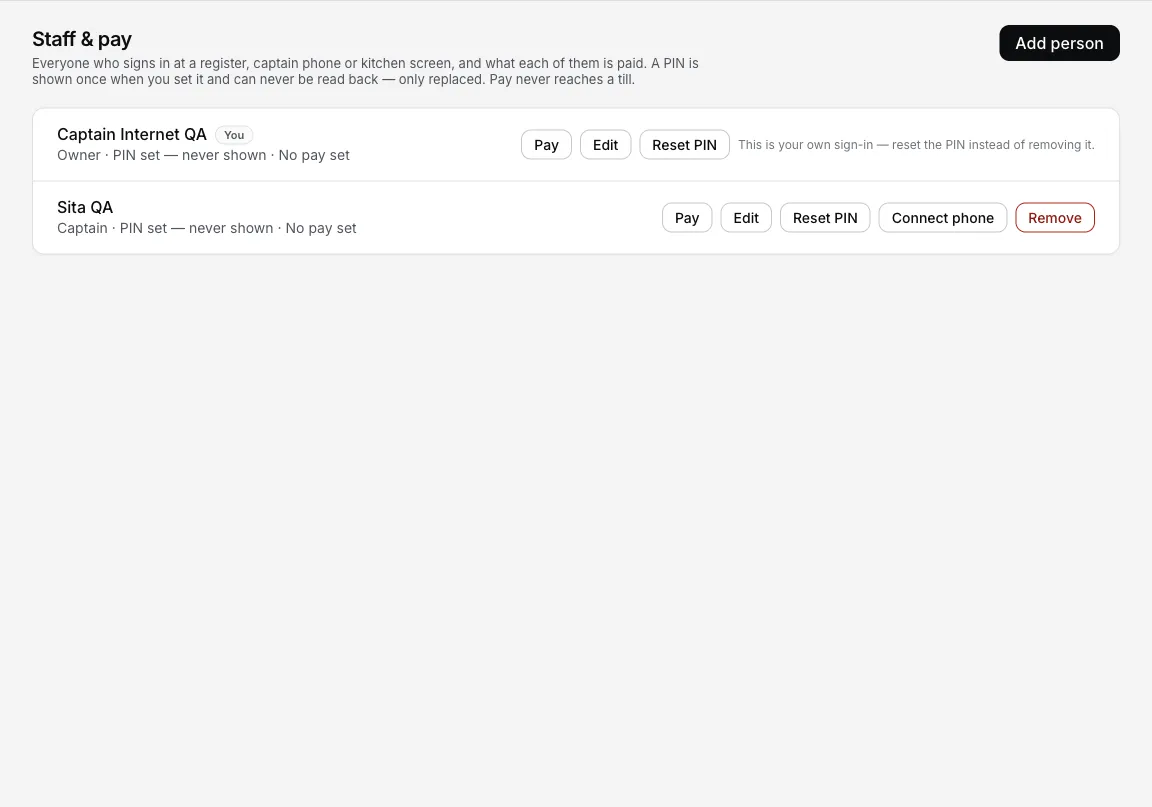
Staff & pay keeps each person's role and PIN private; captains also have Connect phone.
Pick the role that matches the job
Owner and Manager can do everything on the Desktop App, Settings included. Cashier bills, settles and discounts, and starts a refund that a manager's or owner's PIN then approves; voids a dish the kitchen already cooked by picking a reason, and never sees Settings. Captain takes orders and fires KOTs from the phone, with money keys held behind a manager's approval. Chef is the narrowest of all: the PIN that turns a screen into the kitchen display and nothing else.
Sign in, lock, switch — all on the PIN pad
The Desktop App greets a staffed store with a PIN pad: 'Enter your PIN to start your shift'. It checks the PIN against the Desktop App's own synced list, entirely offline: the internet being down has never kept anyone out. Mid-shift, the header's Lock key drops back to the pad so the next person signs in as themselves; whoever rang the sale is on the sale.
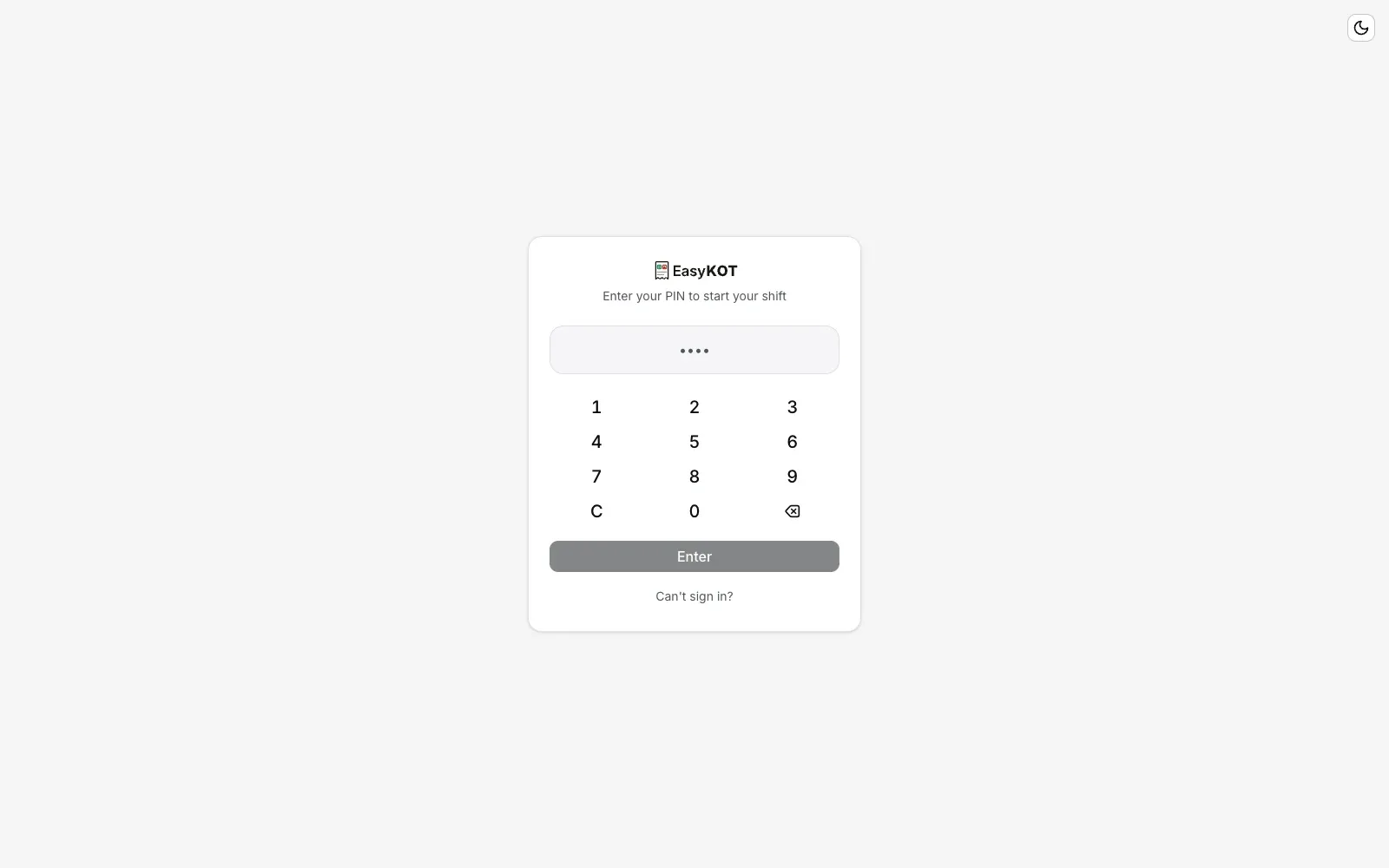
Step 3: the pad checks the PIN against the Desktop App's own list, offline.
Let the Desktop App ask for a manager when it should
A cashier refunding a settled bill, or a captain giving a discount on the phone, does not need to hunt anyone down or swap accounts: a manager-PIN prompt opens on the spot. The manager types their PIN, the action goes through, and their name rides the event. The person who asked stays signed in; the approval is one line on the record, not a shift change. Voiding a dish the kitchen already cooked is not on this list: it takes a reason, recorded under whoever is signed in.
Five roles, one honest comparison.
- Owner & Manager, everything: billing, refunds, voids, discounts, Settings, the floor builder, and the dashboard. Managers are also the PIN that answers every approval prompt.
- Cashier, the job at the Desktop App: orders, KOTs, bills, settle, discounts, and starting a refund. Cannot approve that refund alone (a manager's PIN does), voids a fired dish with a reason under their own name, cannot open Settings. This is the right role for almost everyone behind the counter.
- Captain, the phone job: tables, orders, fire. A discount at the table asks a manager to type their PIN on the spot. See the captain app setup.
- Chef, one capability: the kitchen board. Sign a paired screen in with a chef PIN and it is the KDS, locked: every other screen on the device leads back to the pass. See the kitchen screen setup.
- Every approval is a record, not a favour. When a manager types their PIN over someone else's action, the event carries both names: who asked, who approved. The review month reads itself.
Straight answers.
Do PINs work when the internet is down?
What exactly can each role do?
Does a cashier need a manager to void a dish that was already fired?
What happens if no staff have downloaded yet?
Can someone brute-force a 4-digit PIN?
Can I record what each person is paid?
What if someone forgets their PIN?
Put the roles to work.
Captain app on a waiter's phone
Enroll the phone, sign in with the captain's PIN, and orders fire from beside the guest.
Set up the captain app →Kitchen screen setup
The chef PIN in action: a spare tablet becomes the pass display, locked to the kitchen.
Set up the KDS →Closing the day
Where the manager PIN earns its keep: signing for food that really went unpaid, with a reason, on the record.
Close the day →Every guide in this cluster is listed on the guides hub.
Run it 3 months, then pay for it.
Three months free, full product, no card. Made in India, for the counter: built inside a running restaurant.