Connect a thermal printer to your laptop: LAN, Wi-Fi or USB.
The short answer: plug the counter printer into your router with a LAN cable, or straight into the laptop with USB. Then open the Desktop App's Settings → Printers & KDS, press Set up a new printer, pick the brand, let it scan, choose 80mm or 58mm, print a test slip, then print a sample bill and check its layout and total. Network and USB printers need no driver.
Windows + Mac Desktop App · LAN, Wi-Fi, USB, serial and your OS print queue · no driver for network or USB
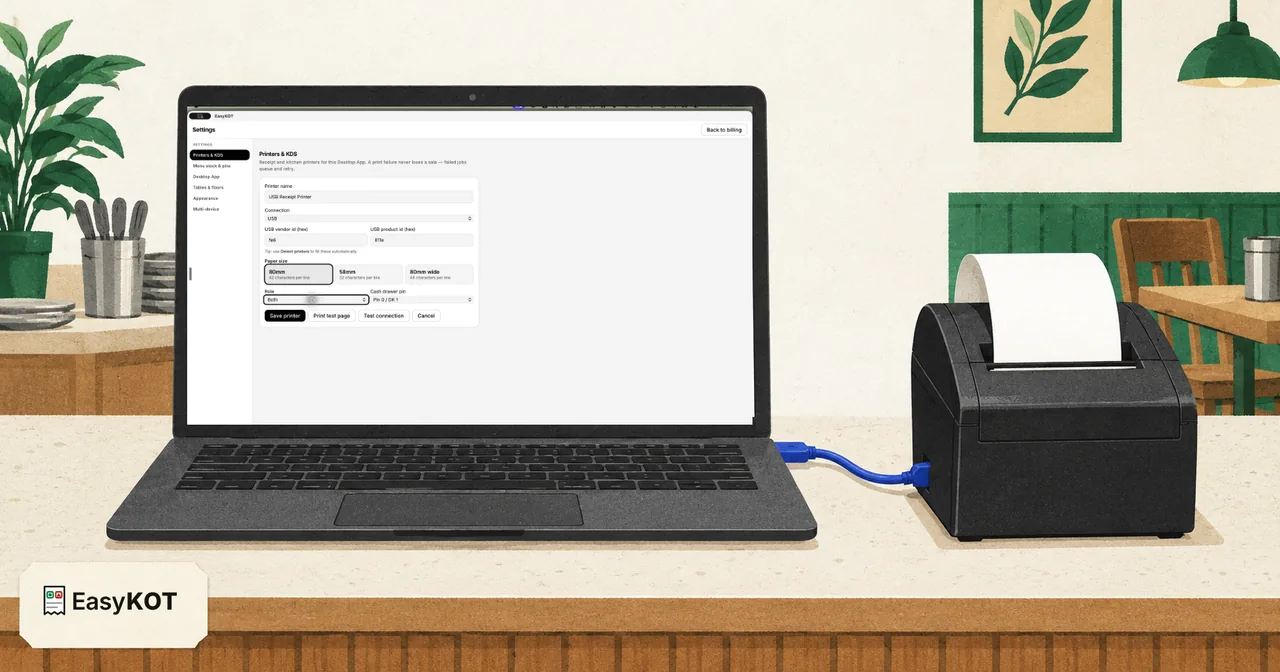
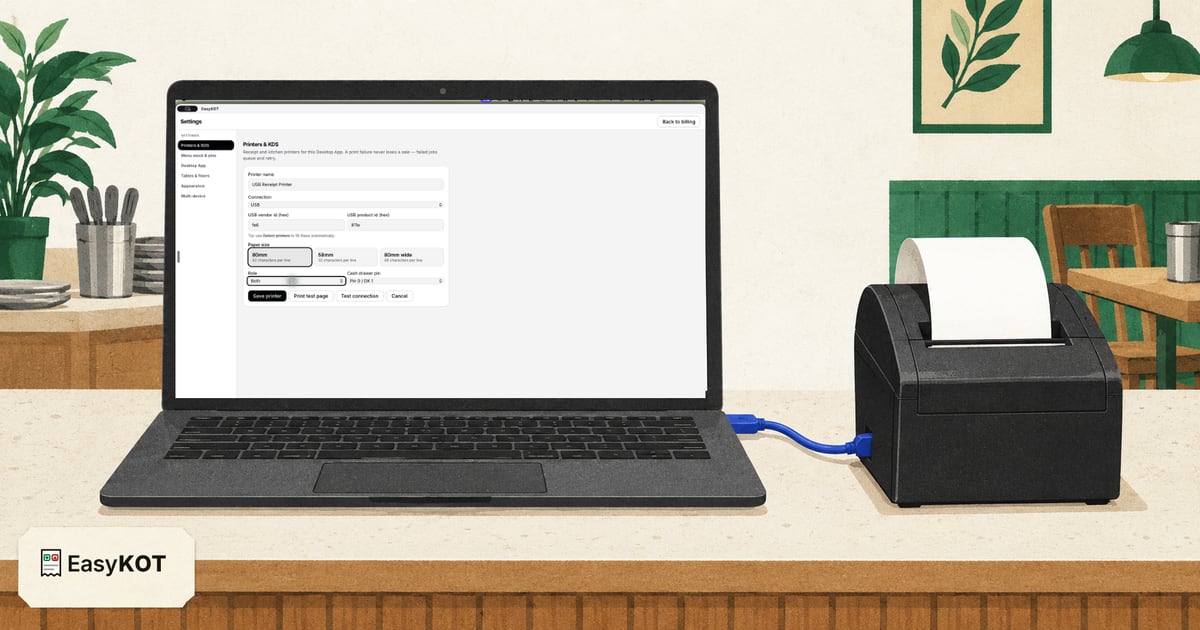
Three things on the counter.
- The Desktop App, installed and signed in. Download the Desktop App for Windows or Mac if you have not yet: printer setup lives inside it, not on the website.
- A thermal printer with paper in it, switched on. Use a compatible ESC/POS model whose exact connection is supported on the device running your Desktop App. Before buying, print a test slip and a sample bill on that unit.
- The right paper roll. 80 mm or 58 mm: measure the roll you buy, because the answer changes how the bill is laid out.
No printer yet? You can still try the Desktop App in your browser and see the whole billing flow, then open a sample bill or KOT through the normal print dialog. The browser cannot discover a printer or print automatically. You never have to hunt for this screen: an empty Desktop App nudges you itself with “Set up your printer: Connect a receipt printer so kitchen tickets and bills come out on paper. You can do this later — sales work without it”, and its button opens straight here.
LAN, Wi-Fi, USB or Bluetooth: which connection should you use?
Look at the ports on the back of the printer, then read across. The first three columns hold whatever billing software you run. The last two are about EasyKOT, and they say what is true today rather than what would look good.
| Connection | Best for | Router “AP isolation” | Live status in EasyKOT | Proven on real hardware (our record) |
|---|---|---|---|---|
| LAN cable (printer to router) | The counter or the kitchen, anywhere a cable reaches. The most dependable. | Not affected: the cable goes into the router, so the wireless setting never applies. | Yes. Checked every 5 seconds, easing off to once a minute while it does not answer. | Not yet. Our network tests run against a software printer, so on yours the test slip is the proof. |
| Wi-Fi | When running a cable is not practical. | Can be blocked. Some routers keep wireless devices apart, and then even typing the IP does nothing. | Yes, same as LAN. | Same as LAN: not yet, the test slip is the proof. |
| USB | A printer right next to the laptop. | Not on the network, so not affected. | Yes, checked in the background. | Yes. A USB print on the Mac Desktop App, 17 Sept 2026 (owner report). |
| Bluetooth (from a laptop) | Not recommended with a laptop yet. Bluetooth is the phone's job. | Not on the network, so not affected. | No. Status is read only when you press Check printer or Test connection. | No. We have no record yet of a healthy Bluetooth print from a laptop. |
Our advice: a LAN cable or USB at the counter. On both, the Desktop App watches the printer for you and no router setting can get in the way. If the printer is meant to live with an Android phone, read pairing a Bluetooth printer with an Android phone instead.
In EasyKOT: LAN and Wi-Fi are both Network (Wi-Fi / Ethernet), USB is its own choice, and Bluetooth sits under Serial / Bluetooth. Type a public address by mistake and the Desktop App refuses it: a printer has to be on the store's own network. That is a safety rail, not a bug.
Find the printer's IP address, and move a factory IP onto your network
Print the printer's own status page: hold the feed button while you switch it on. The slip shows its IP address, and usually its MAC address too. Then check the laptop's address: ipconfig in Command Prompt on Windows, or System Settings → Wi-Fi → Details on a Mac.
The rule is short: the first three numbers of both addresses must match. 192.168.1.20 and 192.168.1.87 are on the same network; 192.168.1.20 and 192.168.123.100 are not. That is the whole check.
They don't match? Move the printer onto your network, once
- Plug the printer into the router with a LAN cable. For makers like Rongta and Xprinter the wizard's tip says the same: cable first.
- For a few minutes, give the laptop an address in the printer's range with a different last number: printer on 192.168.123.100, laptop on 192.168.123.50, subnet 255.255.255.0. On Windows: Settings → Network & internet → Wi-Fi or Ethernet → IP assignment → Edit → Manual. On a Mac: System Settings → Network → Details → TCP/IP → Configure IPv4: Manually.
- Open the printer's address in a browser, for example
http://192.168.123.100. Many network printers show their settings page there. Some makers use a small setup program over USB instead: check the disc in the box or the maker's site. - Enter an address on your own network (the router's first three numbers, then a free last number such as .200), or switch DHCP on so the router hands one out. Save; the printer restarts.
- Set the laptop back to Automatic (DHCP). Print the status page again and check the new address.
In EasyKOT: pick the brand in the wizard and Detect tries that maker's factory address first. If the printer is still on it when setup finishes, the Desktop App says “Still on its factory address”: it works today, but a second printer of the same make would collide with it, so move it when you have a minute.
Where each maker's network printers ship from the factory
These are facts about how the printers leave the factory, not a list of supported printers. They are the four tips the Desktop App's wizard shows. ESC/POS alone is not a support guarantee; test the exact model and interface with both a test slip and a sample bill.
| Maker | Factory address | First connection | Status page |
|---|---|---|---|
| Epson | 192.168.192.168 | Asks the router for an address. Plug it into the router and switch it on. If its status page still shows 192.168.192.168, move it onto your Wi-Fi with Epson's free TM Utility. | Hold Feed while switching on; release when it starts printing. |
| TVS | 192.168.0.31 | Fixed address; does not ask the router. If your Wi-Fi is not 192.168.0.x, join the printer's network once (a cable to the router, or a laptop set to 192.168.0.50) and give it an address on your network from its settings page. | Hold Feed while switching on; the status page shows its address. |
| Rongta | 192.168.1.87 | Cable first. On a 192.168.1.x network it just works; otherwise set its address from the settings page once, while on the cable. | Hold Feed while switching on. |
| Xprinter | 192.168.123.100 | Cable first. That range almost never matches your Wi-Fi: set its address from the settings page while on the cable, then move it to Wi-Fi. | Hold Feed while switching on. |
| Another brand / not sure | Read it off the status page | Print the status page, read the address, then Detect or type it in. | Most printers: hold Feed while switching on. |
Models vary. Your printer's own status page is the final word.
Reserve the printer's address on your router, so a power cut can't move it
A router lends each device an address; it does not give it one for keeps. After a power cut or a router restart the printer can come back on a different address, and every Desktop App looking at the old one sees it Offline. A reservation pins it. Two minutes now saves a bad evening later.
- Find the sticker under or behind the router. It has the admin page's address (often 192.168.1.1 or 192.168.0.1), a username and a password.
- On the same Wi-Fi, open that address in a browser and log in.
- Under DHCP or LAN settings, find the option. Routers name it differently: DHCP Reservation, Address Reservation, Static Lease or DHCP Binding.
- Pick the printer by its MAC address (it is on the status page) and give it the IP it has now.
- Save. Switch the printer off and on, and check the address on its status page.
Some internet providers' routers hide this option or leave it out. Then set a fixed (static) IP on the printer's own settings page instead, using a number outside the router's DHCP range.
In EasyKOT: after the first good connection the Desktop App remembers the printer by its hardware address, and when the address moves it goes looking there first. The wizard's closing “Keep this address” note points you at this reservation all the same, because it is the surer fix. Still Offline? Read printer Offline after a router restart.
Add it to the Desktop App: the setup wizard, seven steps.
Printer on your network, or plugged in over USB? Now the Desktop App. Every screenshot below is the real Desktop App, not a mock-up.
Read the video transcript
This is the recorded narration. Screen labels and steps reflect the video as published.
On Counter 1, unlock as an owner and open Settings, then Printers & KDS. With the USB cable connected and paper ready, select Detect printers. The scan finds RONGTA USB Receipt Printer. Because this store already has a saved printer profile, go Back instead of selecting the detected candidate and creating a duplicate. Select Edit on the existing printer row. This keeps the saved profile while updating its connection. Set Connection to USB. Choose eighty millimetre, forty-two chars, and set Role to Both for Kay O Teas and bills. Select Print test page. The sent message confirms only that the command was handed off. Check the real paper. If the test page is clear, select Yes. Select Save printer. The existing profile returns as Connected. Now create the real five-hundred-and-thirty-rupee order: one Malvani Fish Curry Full, two Tandoori Roti, and two Solkadhi. Fire the Kay O Tea to send the new dishes to the kitchen. Check the printed item names and quantities. Print the matching bill. Here, Order T1-001 shows a total of five hundred and thirty rupees. Check the total before handing the bill to the customer.
Open Settings → Printers & KDS and press Set up a new printer
Click the gear in the EasyKOT Desktop App's status rail and pick Settings. Printers & KDS opens by default, and with nothing connected yet it offers three buttons: Set up a new printer, Detect printers and Add manually. Set up a new printer is the guided path: it walks the other two for you and finishes with a test slip.
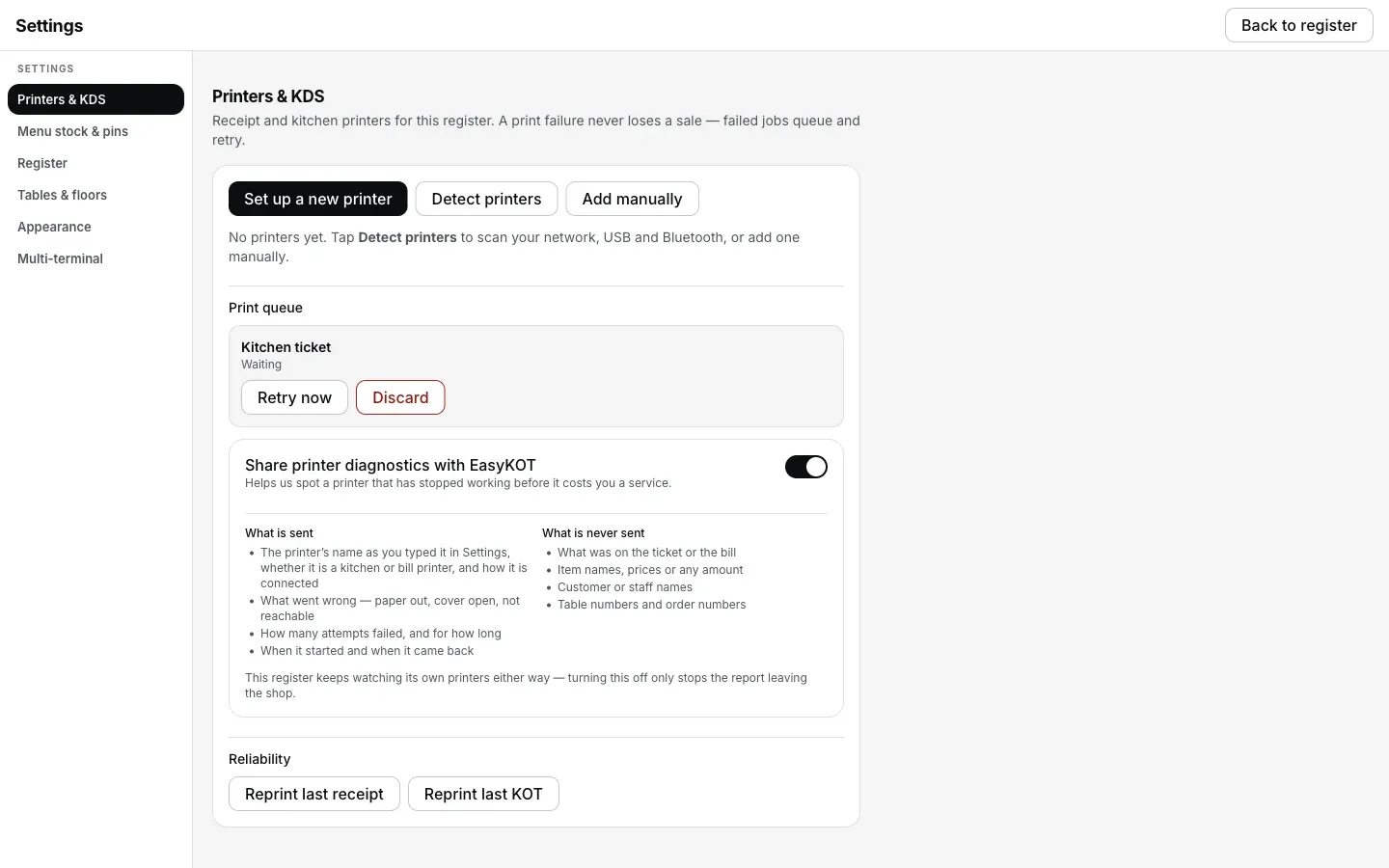
Settings → Printers & KDS, before any printer is added.
Tell it which printer it is
Pick Epson, TVS, Rongta or Xprinter, or Another brand / not sure if you don't know or it is something else. This only changes which factory address is tried first and which tip appears next. ESC/POS and paper width alone do not guarantee compatibility: verify the exact model and connection with both a test slip and a test bill.
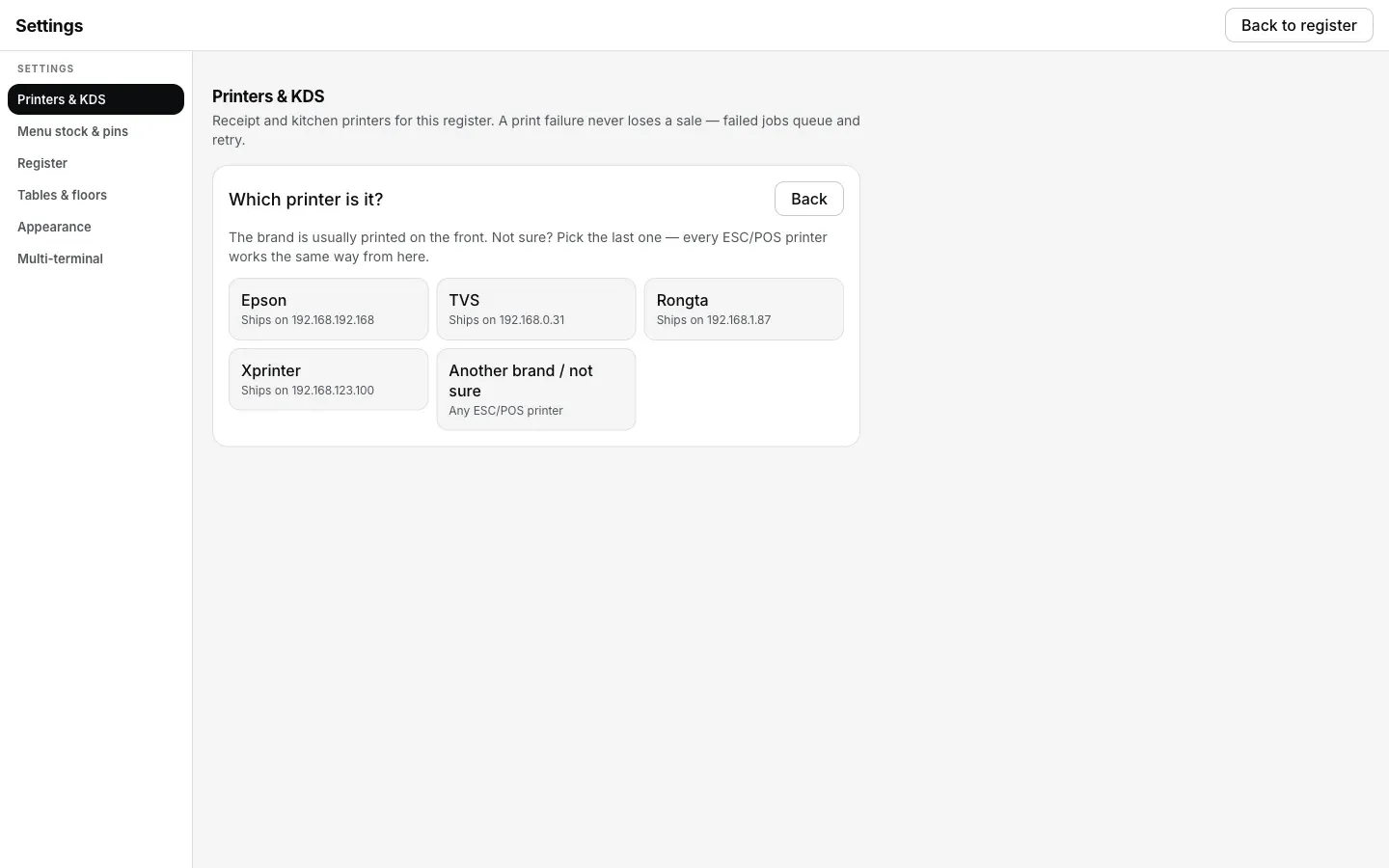
Settings → Printers & KDS → Set up a new printer → Which printer is it?
Read the brand's tip, then let it scan
Each brand gets one paragraph of practical advice: Epson asks the router for an address and finds itself; TVS, Rongta and Xprinter ship on a fixed factory address and need one visit over a cable. Detect then runs four rounds: this computer's USB and Bluetooth ports, the printers' factory addresses, a broadcast asking the network which printers are there, and a sweep of the Wi-Fi for anything on port 9100. A heading names the round it is on.
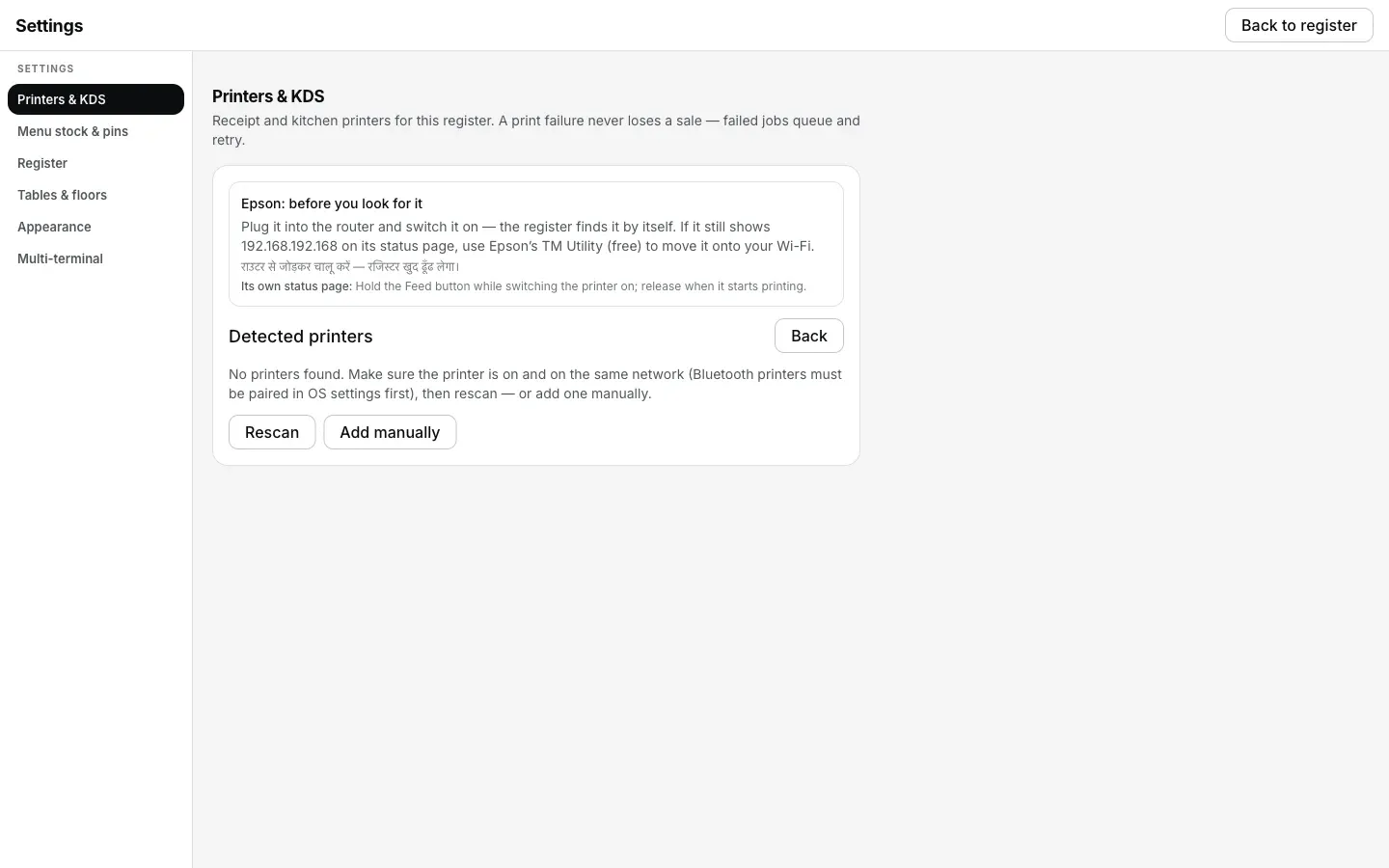
The Epson tip, shown above Detect for the brand you picked.
Pick your printer from the list, or add it by hand
A result carries a plain reason, like “Answered a receipt-printer command — this is a printer”, or, for a device that only answered on the port, “Answering on the receipt-printer port; its network card is made by TP-Link”. If yours is missing, open “Other devices on this computer” for everything else the scan saw, or press Add manually and fill in the connection yourself: a host and port 9100 for network, vendor/product id for USB, a port path for serial, or Bluetooth once it is paired in your OS settings.
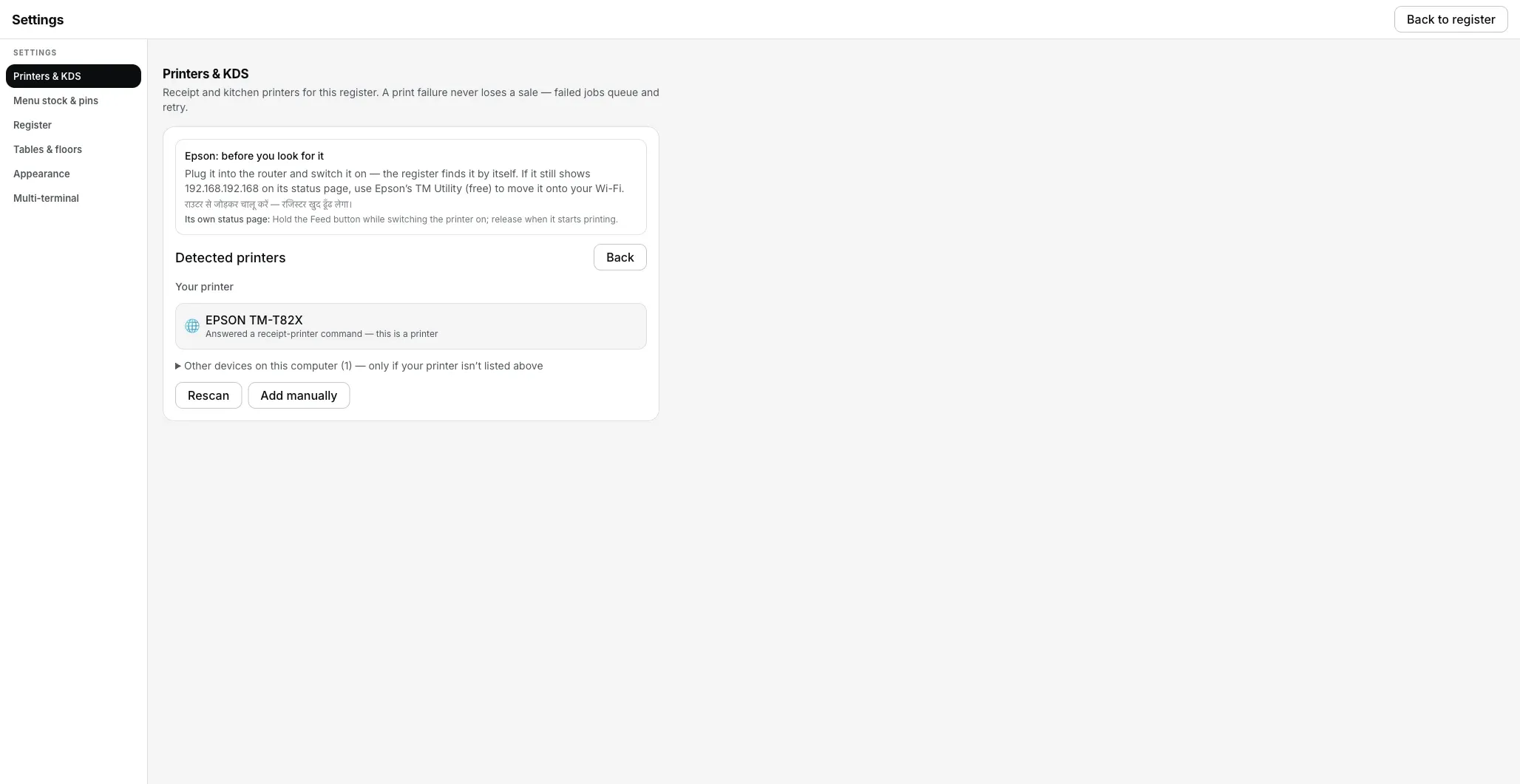
Detect printers: a real printer found on the network.
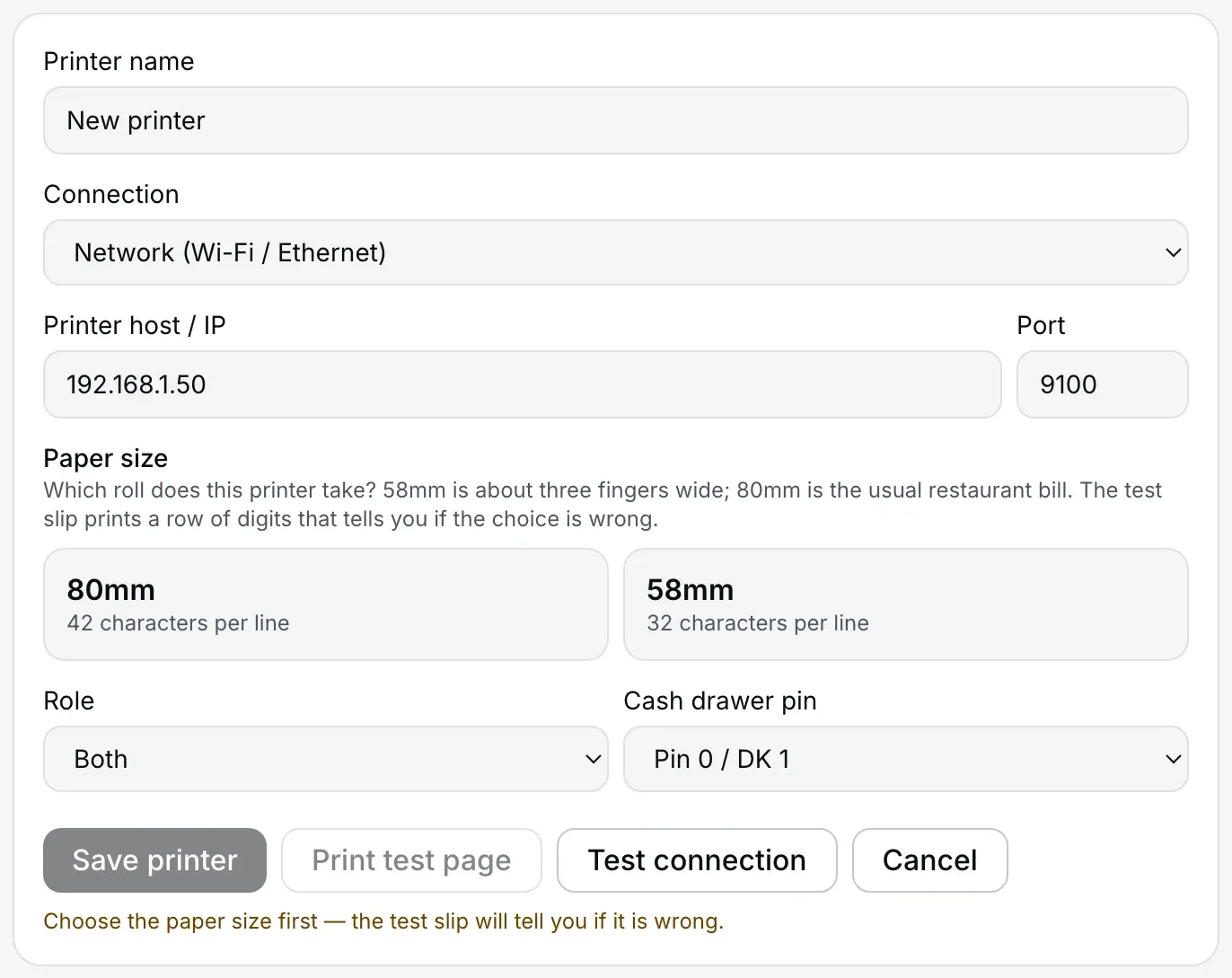
Adding it by hand: the same form from every entry point, here on Network (Wi-Fi / Ethernet).
Choose 80mm, 58mm or 80mm wide to match your paper roll
Paper size is three buttons, 80mm, 58mm and 80mm wide, each with its characters per line under it (42, 32 and 48). 80mm wide is for an 80mm printer that fits 48 characters a line; if you are not sure, start with 80mm. None is picked for you: Save printer and Print test page stay disabled with “Choose the paper size first — the test slip will tell you if it is wrong” until you tap one. The test slip then checks your answer: it prints a row of digits exactly as wide as the size you chose, so a wrong pick shows up on the paper, not just in the settings.
Save the printer, print a test slip, then check a test bill
Press Save printer. If you came through Set up a new printer, the screen shows “<name> is set up” with Print a test slip and Check printer. After a clean test slip, print a test bill and check item names, totals, width and cut. A reversed roll commonly causes a blank slip, but also test fresh paper and the printer's own self-test.
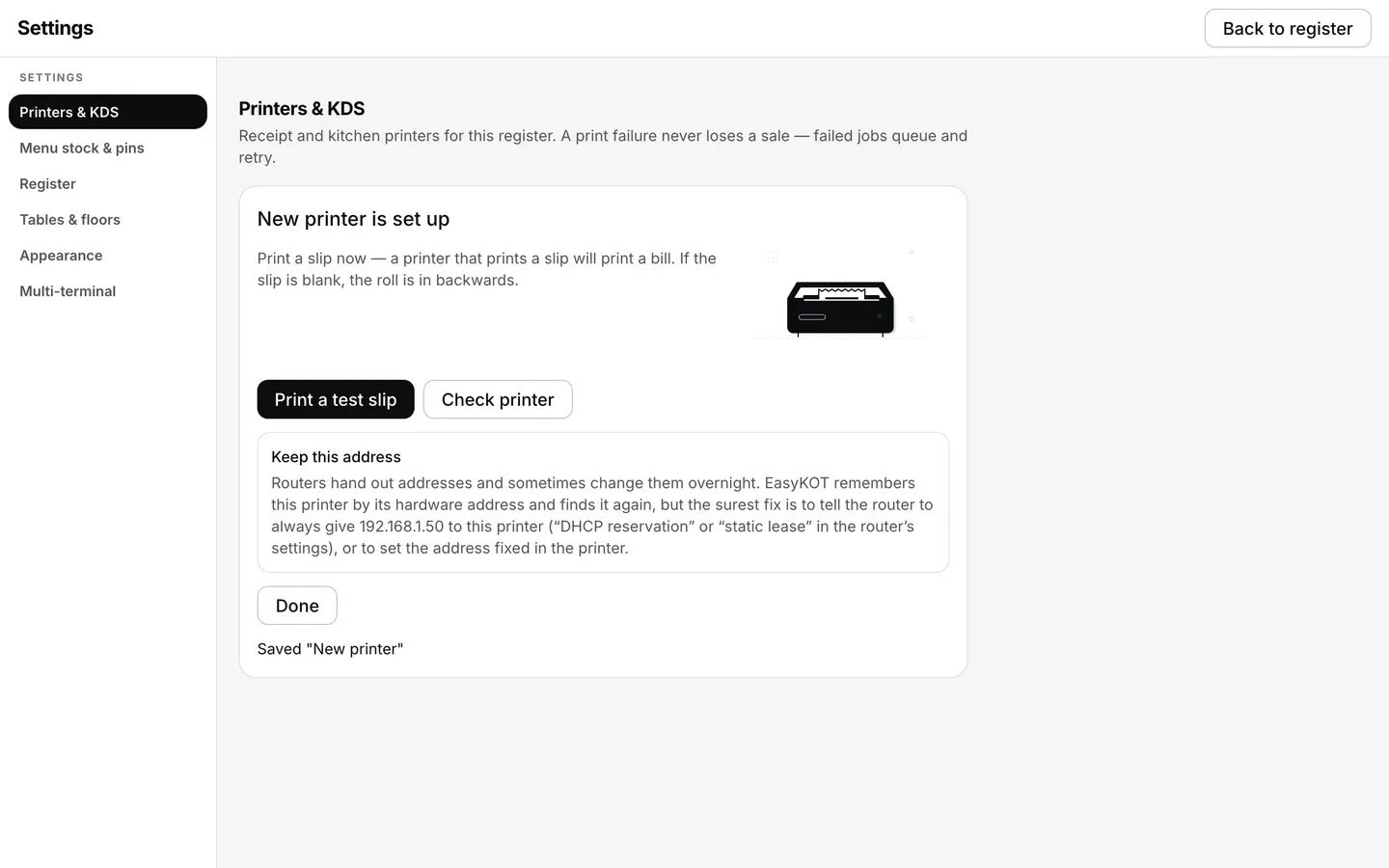
The wizard's finish step, right after Save printer.
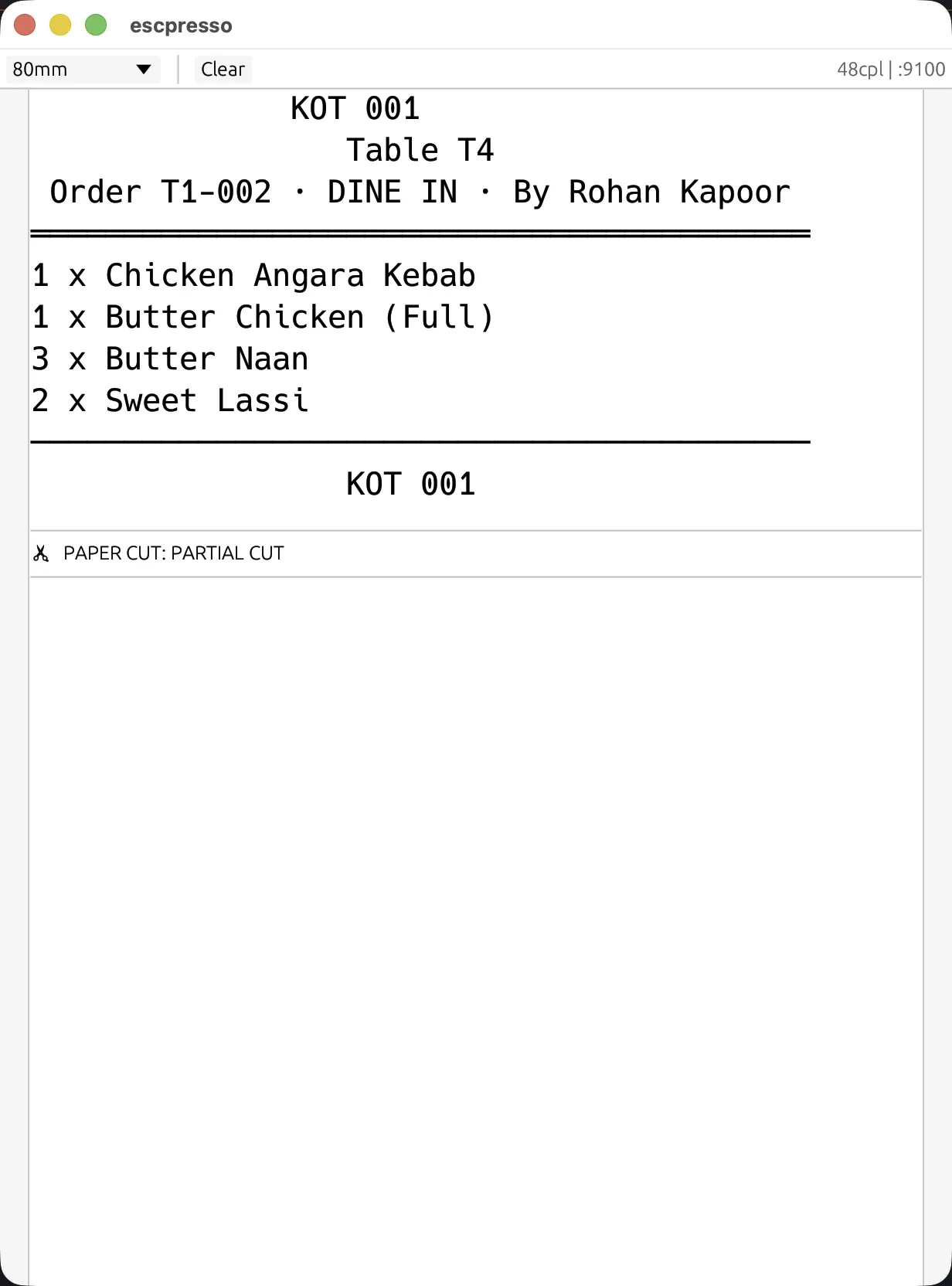
What comes off the printer: the Desktop App's real print bytes rendered by a virtual ESC/POS printer, not a mockup.
Keep the address it found
The finish screen ends with one piece of address advice. If the printer is still on its brand's factory address, it says “Still on its factory address”; otherwise “Keep this address” asks you to reserve the address on your router, which is the section above. EasyKOT also remembers the printer by its hardware address and looks for it there after a router reshuffle, but the reservation is the surer fix.
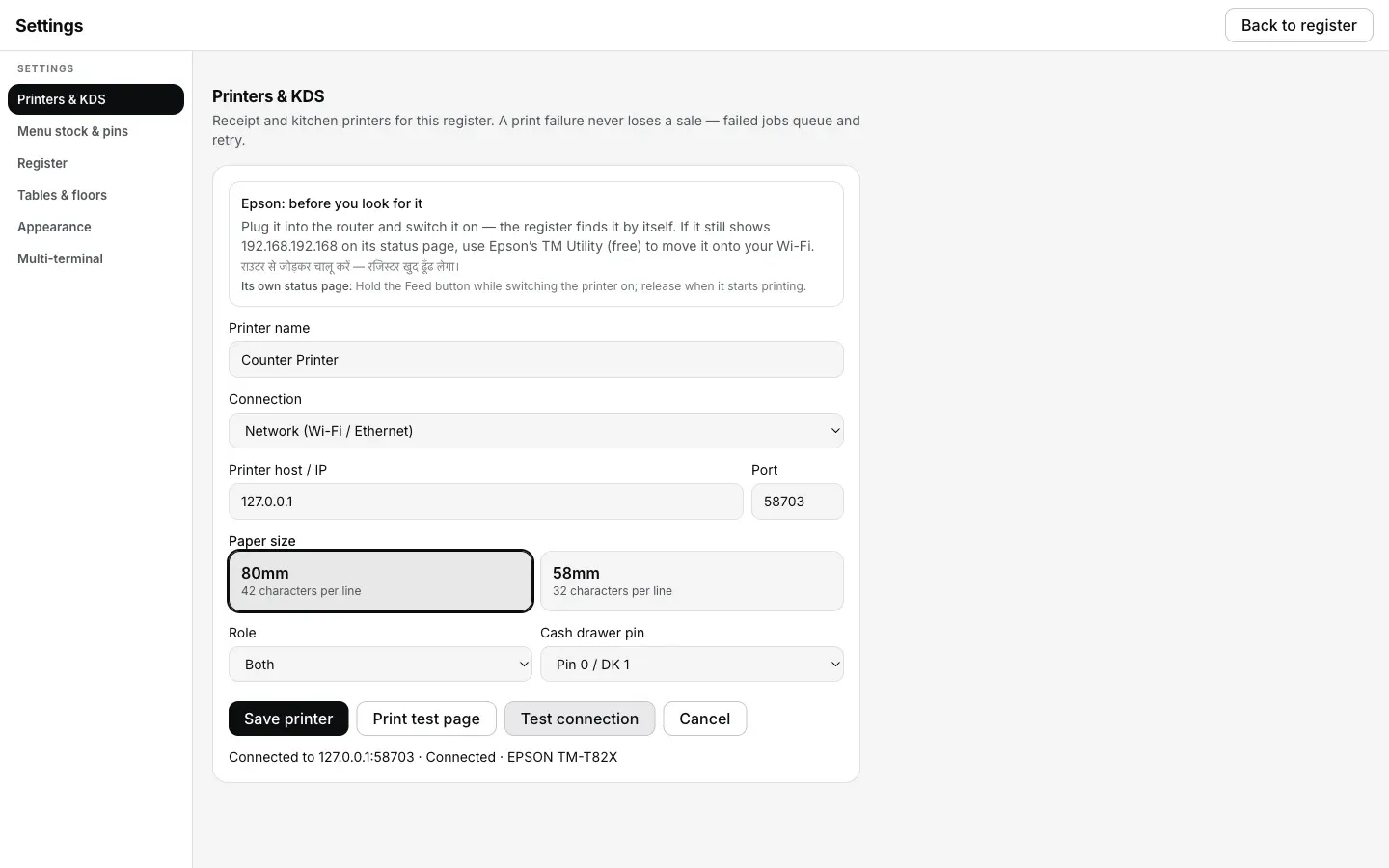
Test connection: a live answer from the printer, not a guess.
₹299/month or ₹2,990/year, plus 18% GST · 3 months free · ₹0 today, no card
USB: the cable straight into the laptop
The generic part first. Not every USB cable carries data: some only charge, and they look identical, so use the cable that came with the printer. On Windows, a maker's driver sometimes holds the port, and then no program can open the printer.
In EasyKOT, run Detect printers with the cable plugged in and the vendor id and product id fill themselves in, because a USB printer says what it is. There is no driver to install for EasyKOT; on Windows the built-in USB printing driver is enough.
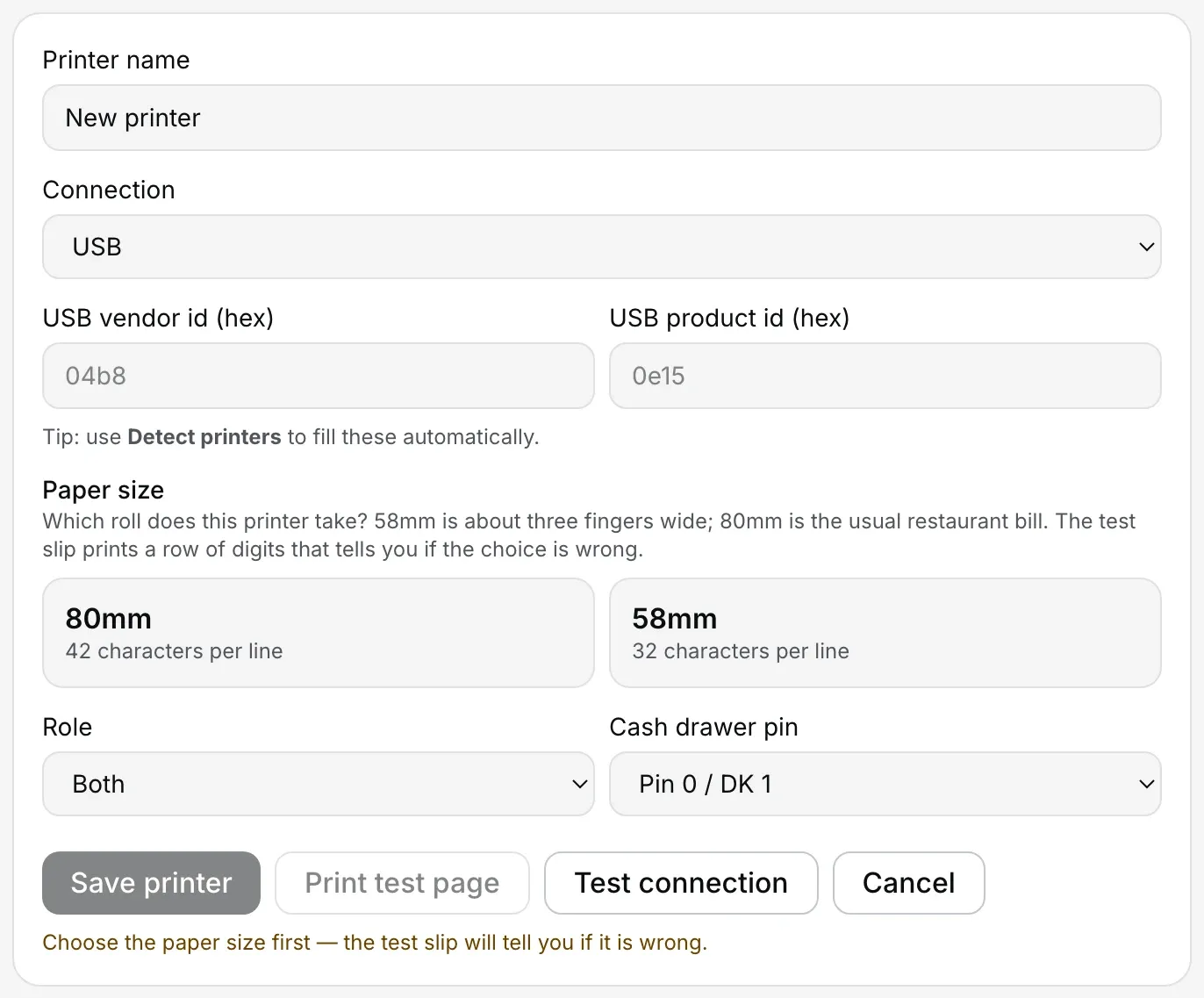
Settings → Printers & KDS → Add manually, on USB.
Detect does not list it at all? Read USB printer not found: the cable, the driver, and the Windows fallback.
Live status: the Desktop App checks a USB printer in the background, just like a network one. A cheap printer that never answers status questions reads Can't verify — will still try to print, which is honest rather than a false green. For those, the test slip is the real check, so print one before the rush.
Serial and Bluetooth from a laptop: possible, not the first choice
Both live behind one choice, Serial / Bluetooth, because a Bluetooth printer paired in your operating system's Bluetooth settings appears to the laptop as a serial port. Pair it there first; then it shows up here.
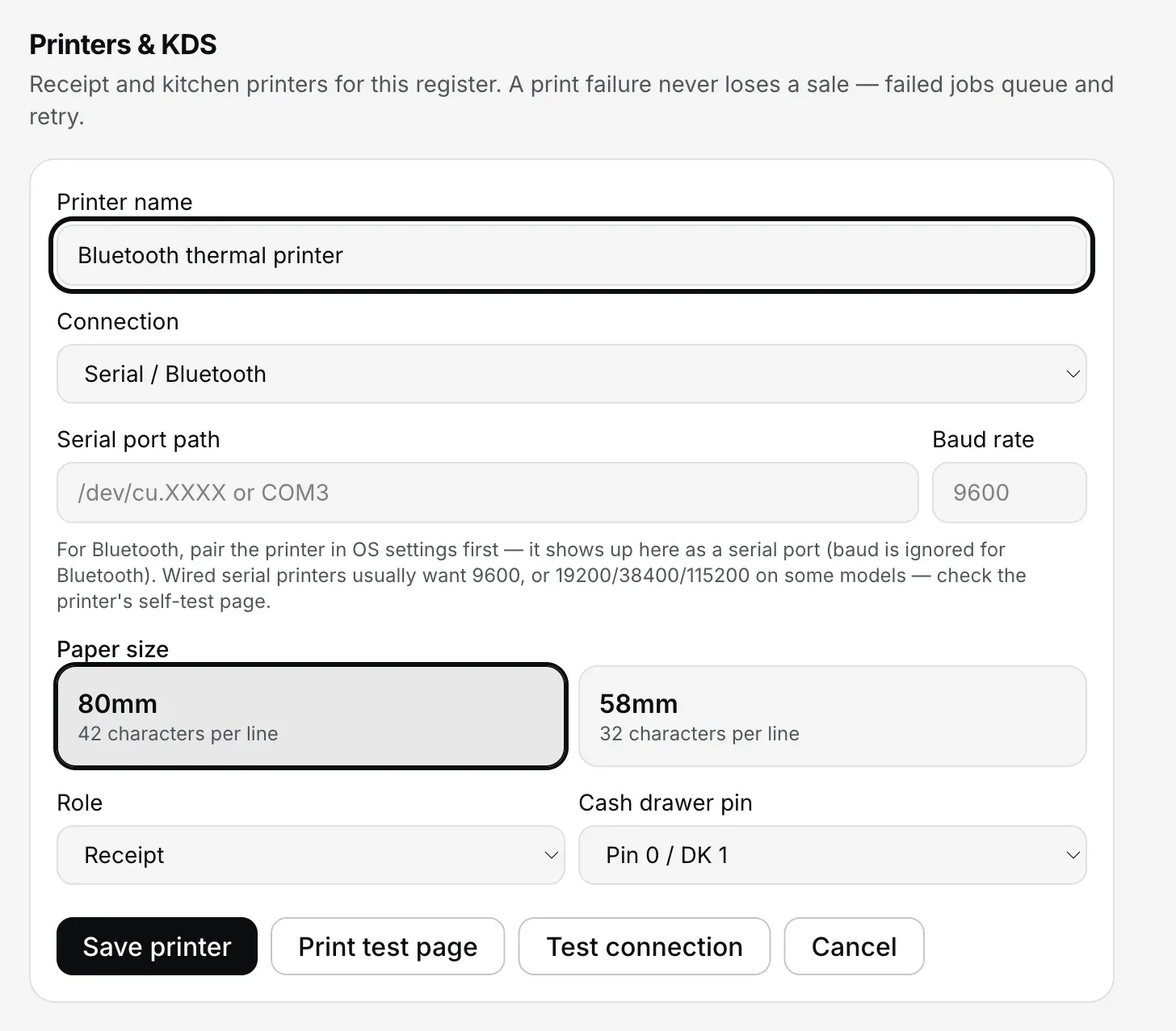
Settings → Printers & KDS → Add manually, on Serial / Bluetooth.
- The port path. On a Mac it starts with
/dev/cu.; on Windows it is a COM number, usually COM3. - Baud rate is for wired serial only. 9600 suits most; some models want 19200, 38400 or 115200, and the printer's self-test slip tells you. For Bluetooth the field is ignored.
- No live status. The Desktop App asks a serial or Bluetooth printer how it is only when you press Check printer or Test connection. Asking in the background would fight the print queue for the same port, so it deliberately does not.
- The honest part. We have no record yet of a healthy Bluetooth print from a laptop. On a Mac a Bluetooth link can stall; the Desktop App gives up after 10 seconds with an error instead of hanging. For the counter, use LAN or USB.
- Paired but nothing prints? Bluetooth printer paired but not printing. Printing from a phone is a different job: the Android phone guide.
System printer: your computer's own print queue
If the printer is already installed as a normal printer on your computer, EasyKOT can send bills through that queue instead of talking to it directly. On Windows the connection is labelled Windows printer (driver queue — no live status); on Mac and Linux it is System printer (OS driver). Jobs go through CUPS on Mac and Linux or the Windows spooler on Windows. On this path the Desktop App can only tell whether the queue exists; it cannot read paper-out or cover-open back.
- Type the queue name exactly as your OS shows it. On Windows that is the name in Printers & scanners; on a Mac, the name in System Settings → Printers.
- Prefer Network or USB when you have the choice. Both give the Desktop App live status. System printer is the right call when a printer is already wired into the OS and you would rather not touch it.
- The Windows spooler path has not been through our hardware runbook yet, so there too the test print is the real check.
58 mm or 80 mm: match the roll you actually buy
- The printed area is narrower than the roll. About 72 mm on an 80 mm roll and about 48 mm on a 58 mm roll; the exact figure varies by model.
- On 80 mm, EasyKOT prints 42 characters a line. Long dish names, portion labels and the GST split all fit without wrapping. This is the counter default. Some 80 mm printers fit 48: choose 80mm wide for those, and if its 48-digit test row wraps, your printer is a 42 and 80mm is the right pick.
- On 58 mm, 32. Cheaper rolls, sold in every stationery shop, and perfectly fine for a short menu or a takeaway counter, as long as the setting matches.
- The test slip catches a wrong guess. It prints a row of digits exactly as wide as the size you chose: 42 for 80 mm, 32 for 58 mm. Choose 80 mm on a 58 mm roll and the row wraps, and the slip says so: “If the digits wrapped onto a second line, choose 58mm in Settings > Printers & KDS.” Choose 58 mm on 80 mm paper and you get a wide blank margin on the right, with the slip telling you to choose 80mm. The paper tells you before a customer sees a wrong bill.
- Money prints as “Rs.”, on purpose. The ₹ sign is missing from the character sets thermal printers ship with, so a printed bill reads Rs. 480.00. On screen it is still ₹.
Still choosing a printer? The thermal printer buying guide covers 58 vs 80 mm and what to look for.
One printer for bills and KOTs, or a second one for the kitchen?
Every saved printer has a Role, and there are three: Both, Receipt and Kitchen (KOT). One printer on the counter set to Both runs an entire small restaurant.
- Receipt takes the customer bill, the reprints and the cash-drawer kick.
- Kitchen (KOT) takes the kitchen tickets. With no kitchen printer set up, KOTs go to a printer marked Both, and failing that to the receipt printer: the kitchen never silently misses a ticket.
- A second printer for the kitchen is the natural next step: set up the kitchen KOT printer and the cash drawer. A kitchen across the building is where a LAN cable earns its keep.
- Drinks and food on separate paper? Set up kitchen stations once your first two printers are running.
- Two Desktop Apps in one store? Add a second Desktop App.
- The cash drawer is not a separate device. It plugs into the receipt printer's DK port, and the Cash drawer pin setting on the form picks which pin fires it.
Check printer: the five questions a support call would ask
Every saved printer's row has a Check printer button. It asks the five questions a support call would and answers them itself: can the Desktop App reach it, is the cover shut, does it speak ESC/POS, is it healthy, and does a test slip come out. Each step ends Pass, Needs attention, Unsupported (this printer just doesn't say) or Not tested.
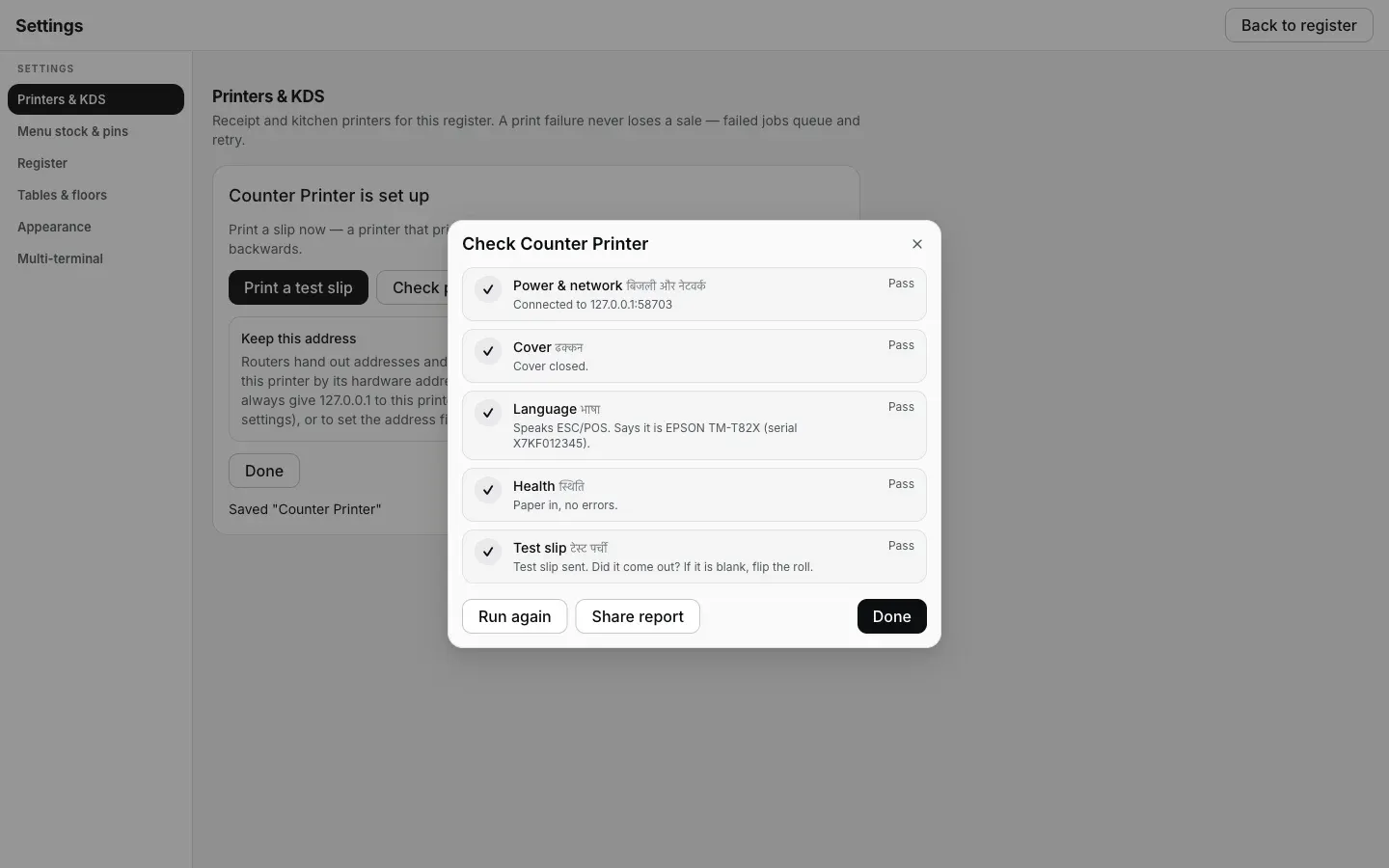
Settings → Printers & KDS → Check printer: a healthy printer, five for five.
- The first thing that needs attention gets its fix. A card names the likely cause and the first thing to try, plus a QR code that opens the matching easykot.com guide on a phone.
- Share report copies plain text: the printer, its connection, the five results and the guide link, ready to paste into WhatsApp. It never includes what was on a ticket or a bill.
- Unsupported is not a failure. Plenty of inexpensive printers never answer status questions; they still print every ticket, and the test slip is the check for them.
No slip came out? Start with these three
Almost every case is one of three: paper loaded the wrong way up, the printer not actually powered, or the laptop on a different network from the printer. Then run Check printer; it usually names the exact one.
- Thermal printer not printing: every symptom, fixed in order
- Nothing finds the printer, even by IP (the router keeps devices apart)
- Every printer unreachable on a Mac: the Local Network permission
The important part first, though: the sale is already saved. EasyKOT writes the bill to the laptop before it queues the print, and a failed ticket retries by itself (1, 2, 5, 15, 30 and 60 seconds, then every minute) for up to 5 minutes before it asks a person for help. You can also read how the Desktop App's print queue and reprints work.
Straight answers.
How do I connect a thermal printer to my laptop?
How do I connect a thermal printer over Wi-Fi?
How do I find my printer's IP address?
How do I change my printer's IP address?
Do I need to install a driver?
LAN or USB: which is better?
Can one printer print both bills and KOTs?
Which thermal printers work with EasyKOT?
Does the printer need the internet?
Next: add a second printer for the kitchen · printer not printing · all EasyKOT guides
Printer connected? Now set its receipt font size and bill/KOT layout settings.
Run it 3 months, then pay for it.
Three months free, full product, no card. Made in India, for the counter: built inside a running restaurant.