Nothing finds the printer, even by IP
Detect turns up nothing and typing the address by hand does nothing either. That combination is not a printer fault. It is the router refusing to let two of its own devices talk to each other: AP isolation, a guest network, or a second router in the shop. The setting has to change, not the printer.
Whatever the printer does, the sale is already saved: the Desktop App writes the bill to its own database first and queues the paper second. The full symptom table covers the rest.
The router can see both devices and will not introduce them.
- AP isolation is on. Sold as Wireless Isolation, Client Isolation or AP Isolation, it stops wireless devices talking to each other while both still reach the internet perfectly. It is on by default on some ISP routers and is switched on by anyone setting up guest Wi-Fi.
- One of them is on the guest network. A guest network is isolation with a friendly name. If the printer was set up on the shop's guest SSID, or the laptop was, nothing either of them does will help.
- There is a second router in the shop. A router plugged into another router makes a second, private network behind it. Devices on the inner one can reach the outer, but not the other way round.
Do this first.
Let the Desktop App tell you it is the network
When a network printer goes quiet, the EasyKOT Desktop App does not just report a failure: it checks whether the router answers, whether the printer's hardware address is known to the network, and what the knock on the printer's port actually did. Gateway answering plus a known printer plus total silence on the port is the signature of isolation, and the Desktop App says so in those terms rather than blaming the printer.
Turn off AP Isolation in the router
Open the router's admin page (usually 192.168.1.1 or 192.168.0.1, printed on a sticker underneath it) and look under Wireless or Wi-Fi, often on an Advanced tab. Switch off AP Isolation / Wireless Isolation / Client Isolation and save. The router restarts its Wi-Fi; everything reconnects within a minute.
Or plug the printer into the router with a cable
This avoids the setting altogether and is the fix worth making permanent. Any spare network cable from the printer's LAN port to a free port on the router. The printer picks up an address as usual and Detect finds it on the next scan.
Check both devices are on the main network
On the laptop, look at which Wi-Fi name it is joined to. On the printer, hold the feed button while switching it on to print its status slip. If one says the shop's name and the other says something ending in Guest, that is your answer and no router setting needs changing, just rejoin the right one.
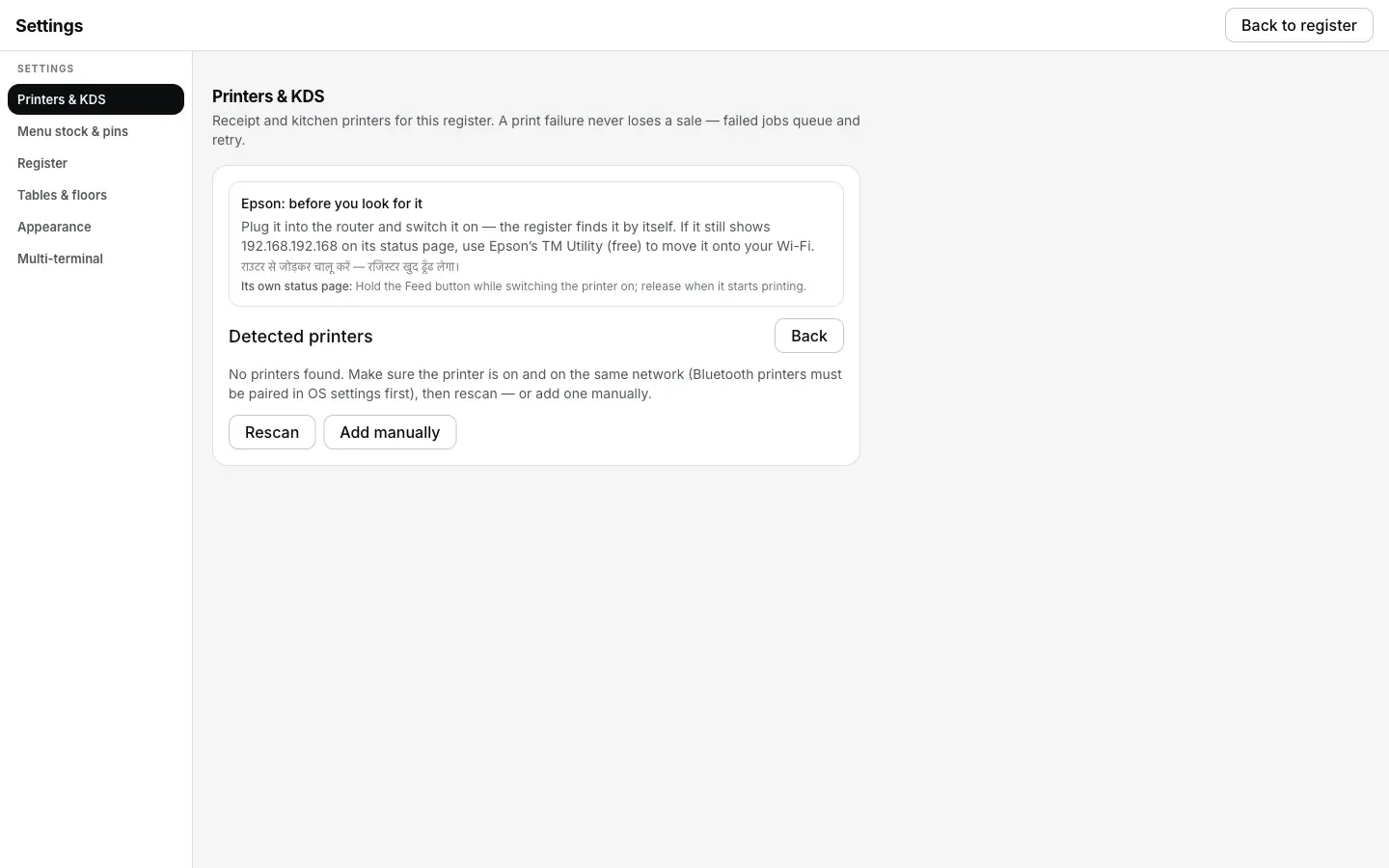
Detect turning up nothing is what sends the Desktop App looking at the gateway, the printer's hardware address and the port itself, before it blames the printer.
What the printer's row says.
Every printer you have added has a row in Settings → Printers & KDS, and the row carries its own status in words rather than a green dot. These are the exact words for this one.
- While it is wrong: “Offline” first, while the Desktop App is still knocking. Then, once it has run its network check, the row changes to “Your router is keeping devices apart”, with the line “Plug the printer into the router with a cable, or turn off AP Isolation.” That second reading is a diagnosis rather than another retry, and it is the one to act on.
- Once it is fixed: “Connected”, and any queued ticket still inside its 5-minute window drains in order on its own; one that has waited longer needs Print.
This is the one printer fault where the printer is definitely healthy. It answers its own self-test, it holds an address, the router knows it is there, and the Desktop App still cannot open a connection to it. Anyone can waste an evening on the printer before suspecting the router, which is why the Desktop App names the router out loud.
Printing what was missed.
- Everything fired meanwhile is in the queue. Settings → Printers & KDS lists each waiting ticket with what it is waiting on. Nothing was lost while the router was in the way.
- A second printer gets you through service. Send to <another printer> on the queue row (or in the dialog that appears at the moment of failure) moves the ticket to whatever else is connected, so the kitchen keeps getting paper while you deal with the router afterwards.
- Skip keeps it for later. Skip — keep it for reprint leaves the job in the queue rather than dropping it, so it is still there when the router is fixed.
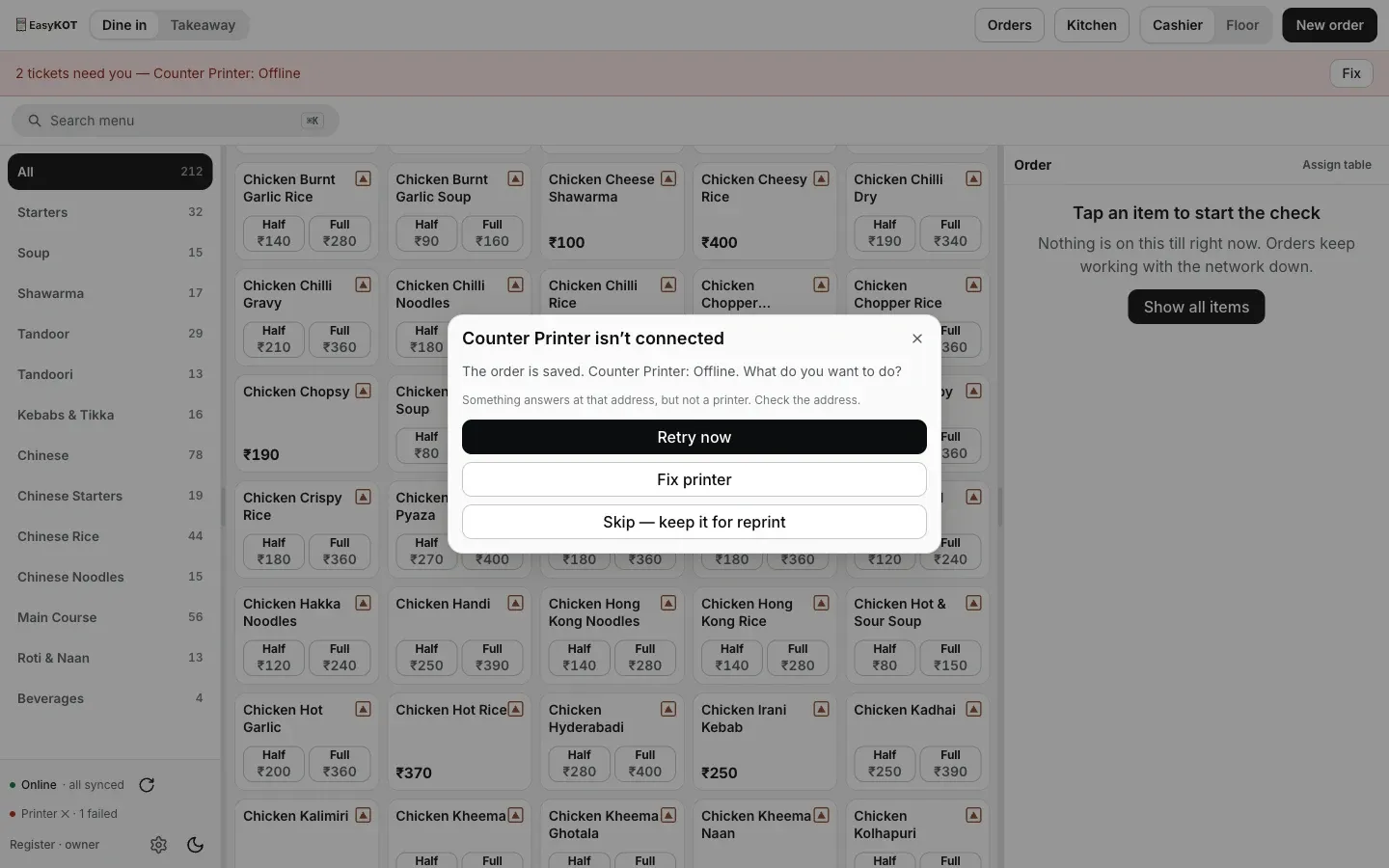
The Desktop App offers the same recovery choices whatever kept the printer unreachable: this dialog's own wording says Offline, though the cause here is the router, not a dead printer.
Nothing finds the printer — the questions that follow.
I would rather not touch the router settings — is there another way?
What is AP isolation and why would it be on?
How do I know it is isolation and not a dead printer?
Does this affect the captain phones and the kitchen screen too?
If that was not it.
Printer is on a different network
The other network fault: two addresses that were never going to reach each other.
Compare the networks →Printer shows Offline
It worked yesterday. The address moved overnight, and what the Desktop App does about that on its own.
Chase the address →Second Desktop App & kitchen screen
Everything else that talks over the shop Wi-Fi, and the pairing the same router setting can break.
Add a Desktop App →Every printer guide is listed on the guides hub.
Run it 3 months, then pay for it.
Three months free, full product, no card. Made in India, for the counter: built inside a running restaurant.