The morning email, the evening truth — how the business is doing.
From 08:00 store time, EasyKOT prepares the previous trading date's snapshot; delivery can follow later. Sales follow each bill's trading date. Cash, UPI, Card and refunds follow the date the money was recorded. Offline facts appear in Reports after they sync.
Inbox to deep report — three steps.
Start with the morning email
From 08:00 store time, EasyKOT prepares the previous trading date's summary for delivery. Cash, UPI and Card add up to Captured; Refunds stay separate, and Net collected is Captured minus Refunds. Orders, Average order and Net sales follow each bill's trading date, while collections and refunds follow the day the money was recorded. Delivery can be delayed, and a still-open business window makes the snapshot provisional. A date with no bill, captured payment or refund stays quiet.
Open Reports when a number needs a why
Open Reports for four clear families: Sales & collections, Menu performance, Money & costs, and Close & exceptions. Keep the same dates while you move from the overview to a fixed table, or open the matching bills behind a menu row.
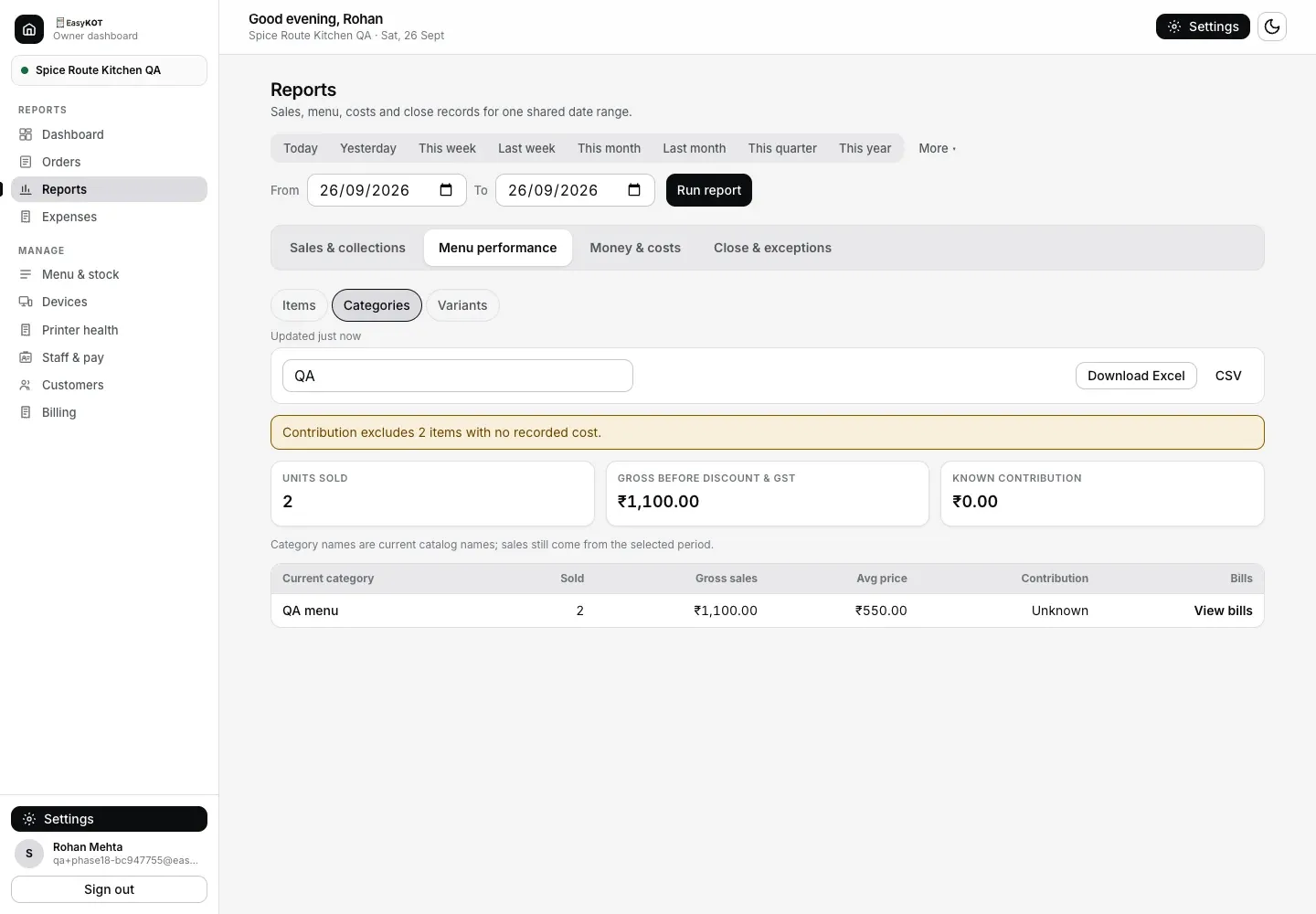
Step 2: one Reports page keeps the date and context while you group menu sales and open the matching bills.
Use the deep reports for real decisions
Sales & collections keeps bill sales on the bill's trading date and Cash, UPI and Card on the date each payment was captured. Menu performance groups the same sold facts by Item, Category or Variant and opens the exact matching bills. Money & costs carries P&L, expenses, labour and recorded movements. Close & exceptions keeps bills, cash counts and morning-summary history together. Pick your range once; fixed tables download as Excel or CSV with that context.
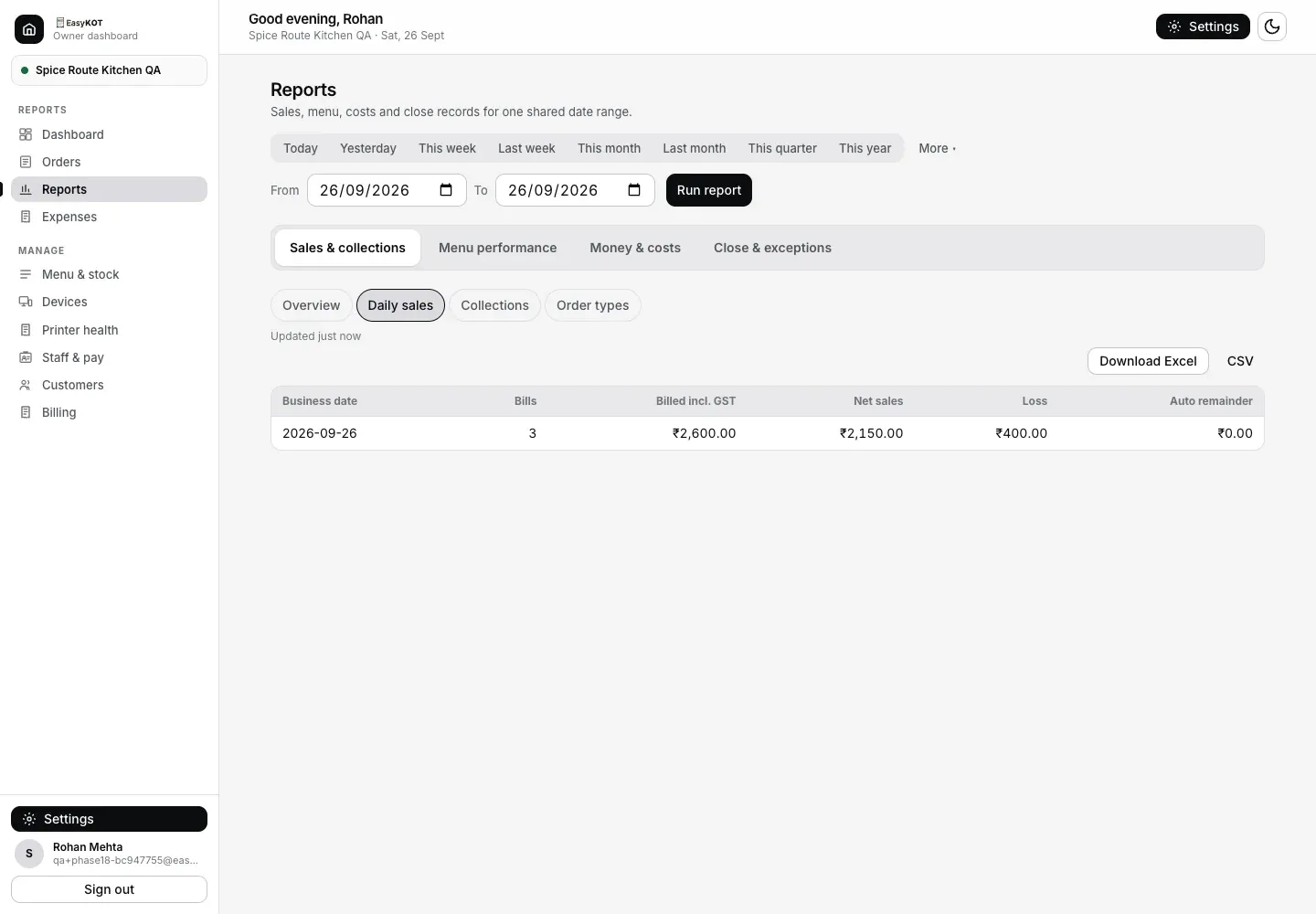
Step 3a: Daily sales keeps billed value, net sales, Sales loss and the automatic remainder separate.
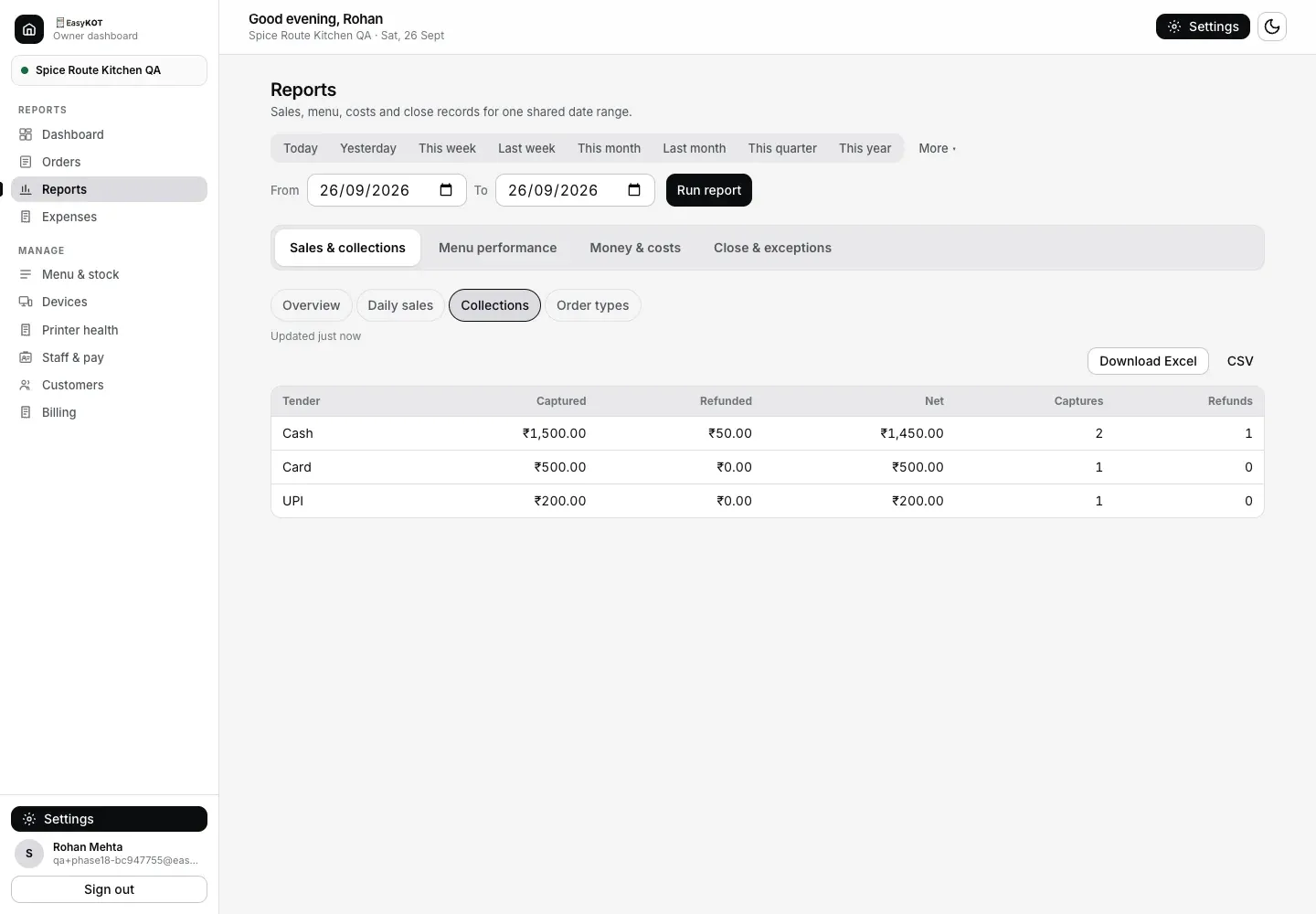
Step 3b: collections keep Captured, Refunded and Net separate for each tender.
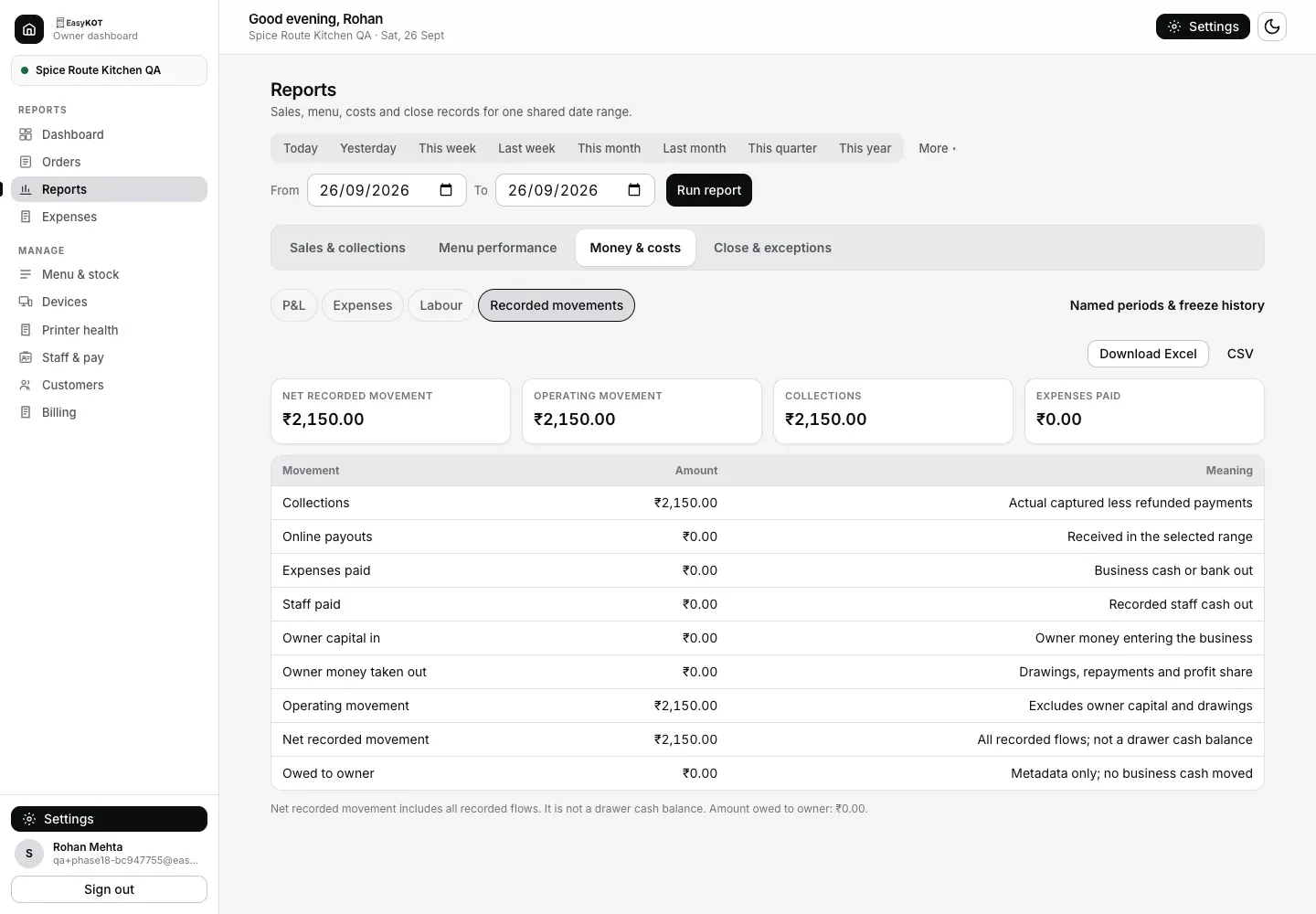
Step 3c: recorded money in and out, with owner money separate and no claim that it is the drawer balance.
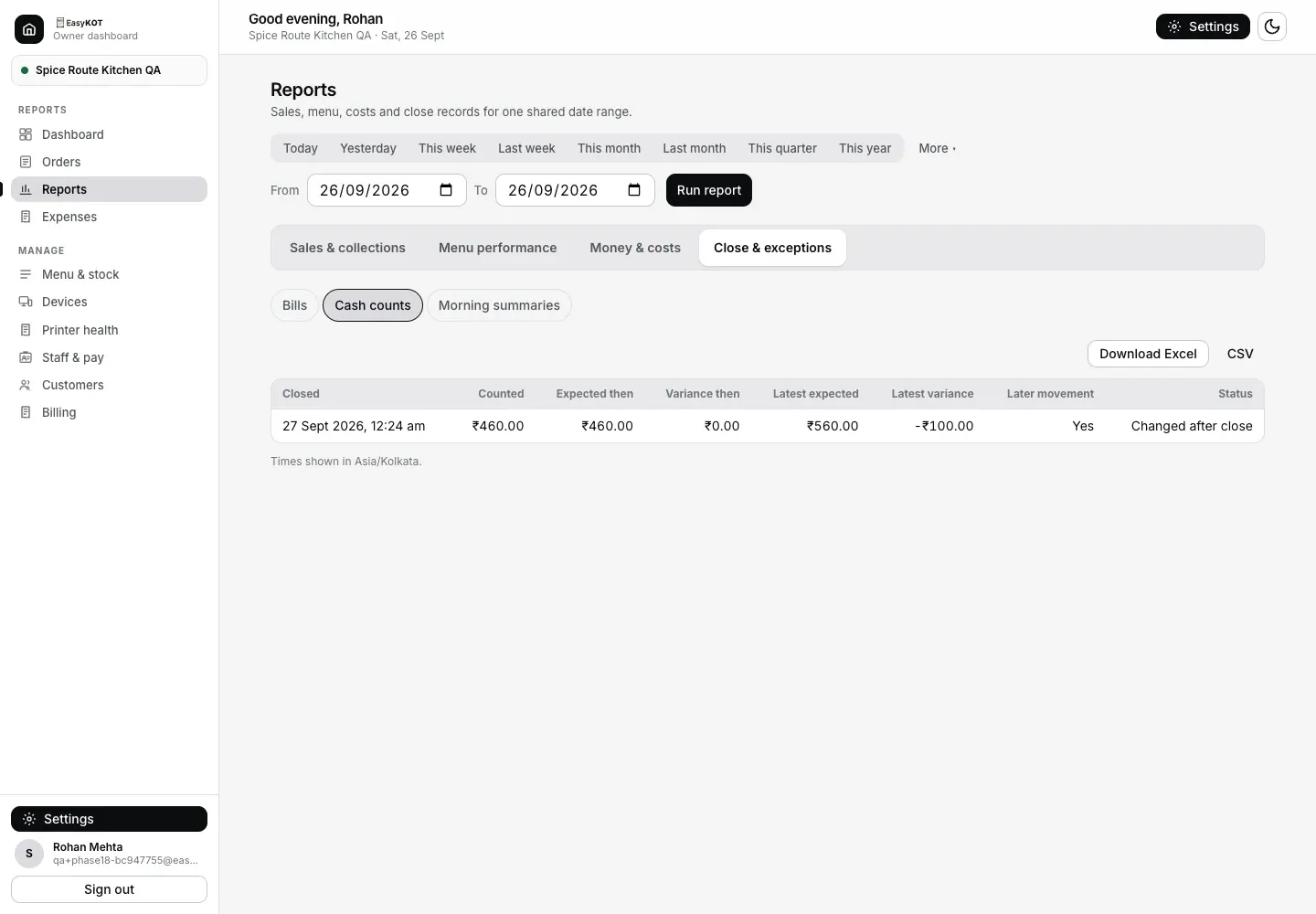
Step 3d: Cash counts preserves what was expected at close and shows when later money changes today's view.
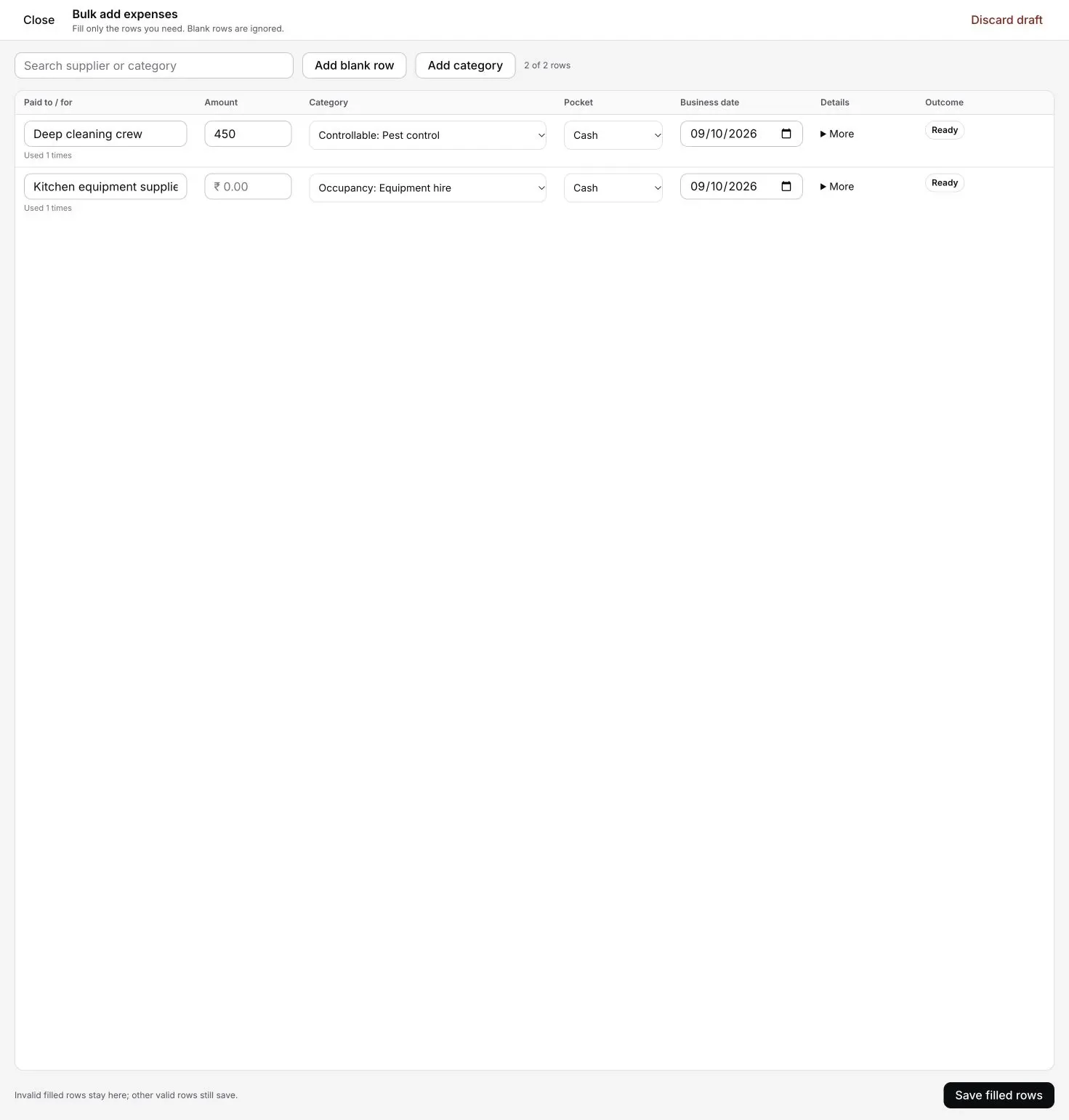
Step 3e: Bulk add is optional. Use it in the owner dashboard, or from Settings → Add expenses on an online Desktop App. The full ledger and reports stay in the dashboard.
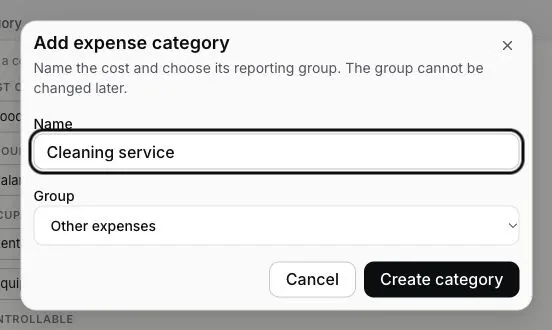
Add your own expense category: In Settings → Reports & accounts, press "Add category" beside Expense categories. You can also open Expenses in the owner dashboard and press "Add expense" or "Bulk add", then "Add category". Enter "Name", choose "Group" and press "Create category". The four groups are "Food & purchases", "Staff costs", "Premises & utilities" and "Other expenses". Choose carefully because the group cannot be changed later. The category name appears in Expenses, P&L and expense CSV downloads.
Looking for one bill, or what sold best? Orders lists each bill with its table, items and payment. Reports → Menu performance groups sold facts by Item, Category or Variant and opens the exact matching bills. See the Orders and menu performance guide.
Turn the email off (or on) yourself: dashboard → Settings → Notifications → "Daily summary". It is on by default, and it goes to every person with dashboard access: the partner sees what you see.
Straight answers.
When does the daily summary email arrive, and what's in it?
Whose 'day' is it — calendar midnight or my restaurant's night?
Where is the Star, Plowhorse, Puzzle and Dog quadrant?
Can I download reports as PDF or Excel?
Where do food cost and labour numbers come from?
Can I add several expenses from the EasyKOT Desktop App?
Feed the numbers.
Closing the day
Review open orders, the optional cash count and bill series separately. Time depends on the volume.
Close the day →Old unpaid checks
Why a bill reads No payment recorded, and which answer at Day close moves it into the collections.
Answer the question →Settling & payments
Where the tender split is born: cash, UPI, card, part pay.
See the settle guide →Getting started
The five signup steps that put this dashboard in your hands.
Start here →Every guide in this cluster is listed on the guides hub.
Run it 3 months, then pay for it.
Three months free, full product, no card. Made in India, for the counter: built inside a running restaurant.