Subah ka summary aur detailed reports: dhandha kaisa chal raha hai.
Har subah 8 baje aapke store ke time par pichhle trading day ka hisaab taiyaar hota hai. Email aane mein thoda waqt lag sakta hai. Sales bill ki trading date mein gini jaati hai. Cash, UPI, Card aur refund ki entry jis din record hoti hai, usi din ke hisaab mein dikhti hai. Offline entries sync ke baad Reports mein aa jaati hain.
Inbox se deep report tak — teen steps.
Subah ka summary padhe
08:00 store time se pichhle trading date ka snapshot prepare hota hai. Captured mein Cash, UPI aur Card aate hain; Refunds alag rehte hain; Net collected mein refund ghata hota hai. Bill sales aur actual collection ko ek number na samjhe.
Number ka reason chahiye toh Reports khole
Reports mein Sales & collections, Menu performance, Money & costs aur Close & exceptions milte hain. Date range same rakhe aur overview se matching bill ya table tak jaaye.
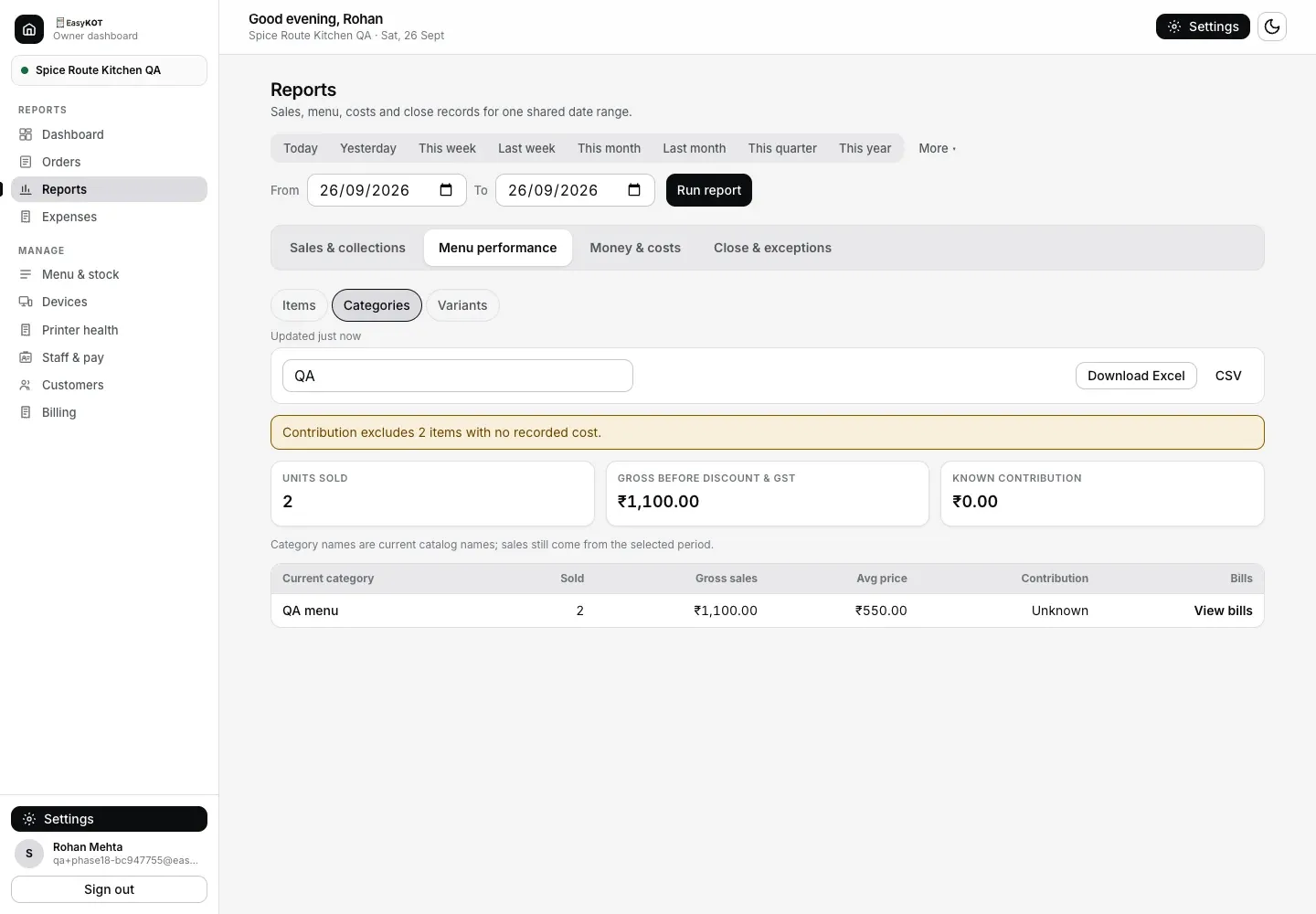
Step 2: Menu sales ko group karte aur matching bills kholte waqt Reports date aur context sambhal kar rakhta hai.
Sales, collection aur cash ko alag padhe
Sales bill ki trading date par rehti hai. Payment aur refund record hone ki date par collections mein aate hain. Opening float, cash-in, paid-out aur counted drawer cash Cash counts mein milte hain; Cash counts ke amounts net sales se alag hain.
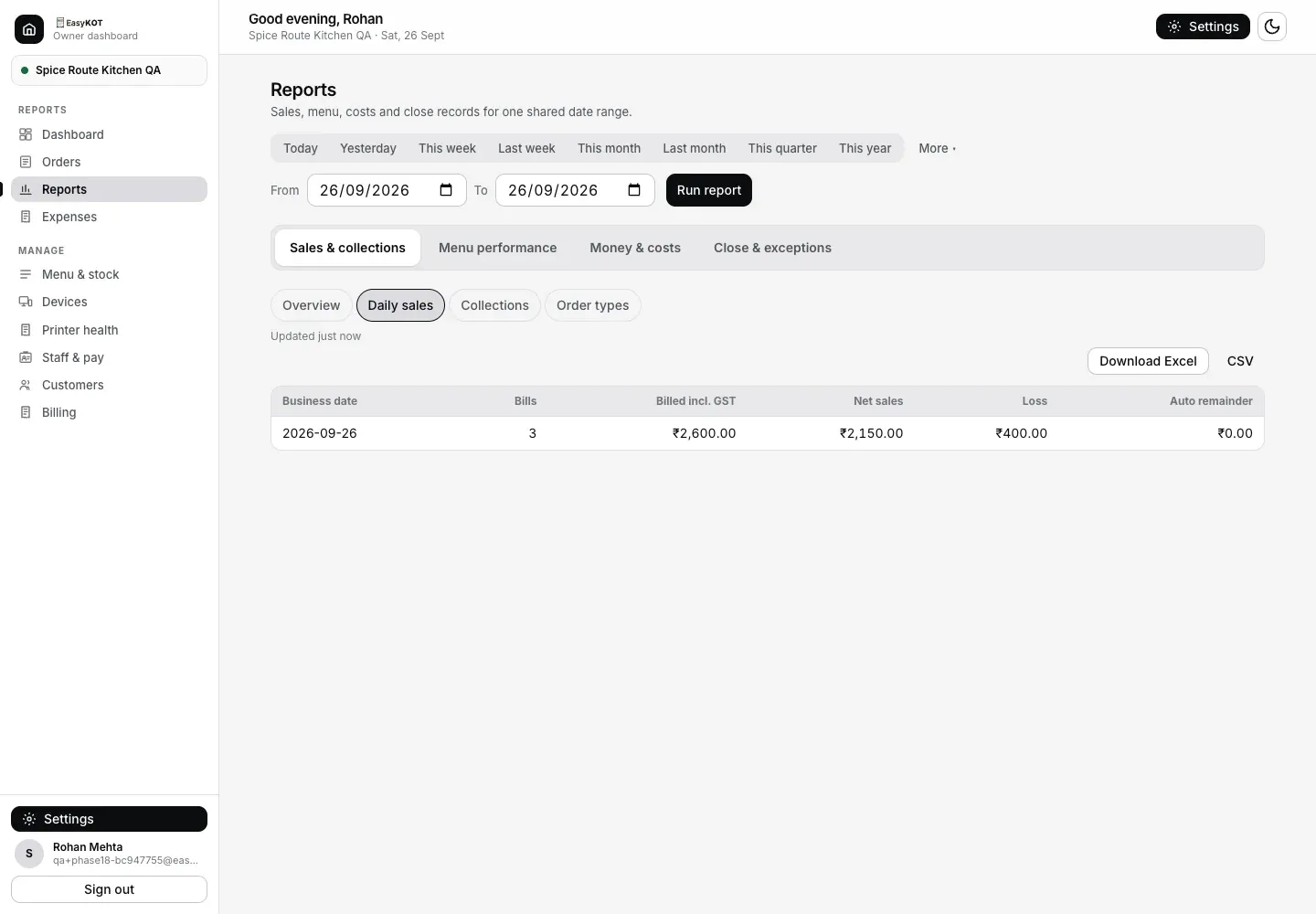
Step 3a: Daily sales billed value, net sales, Sales loss aur automatic remainder ko alag rakhta hai.
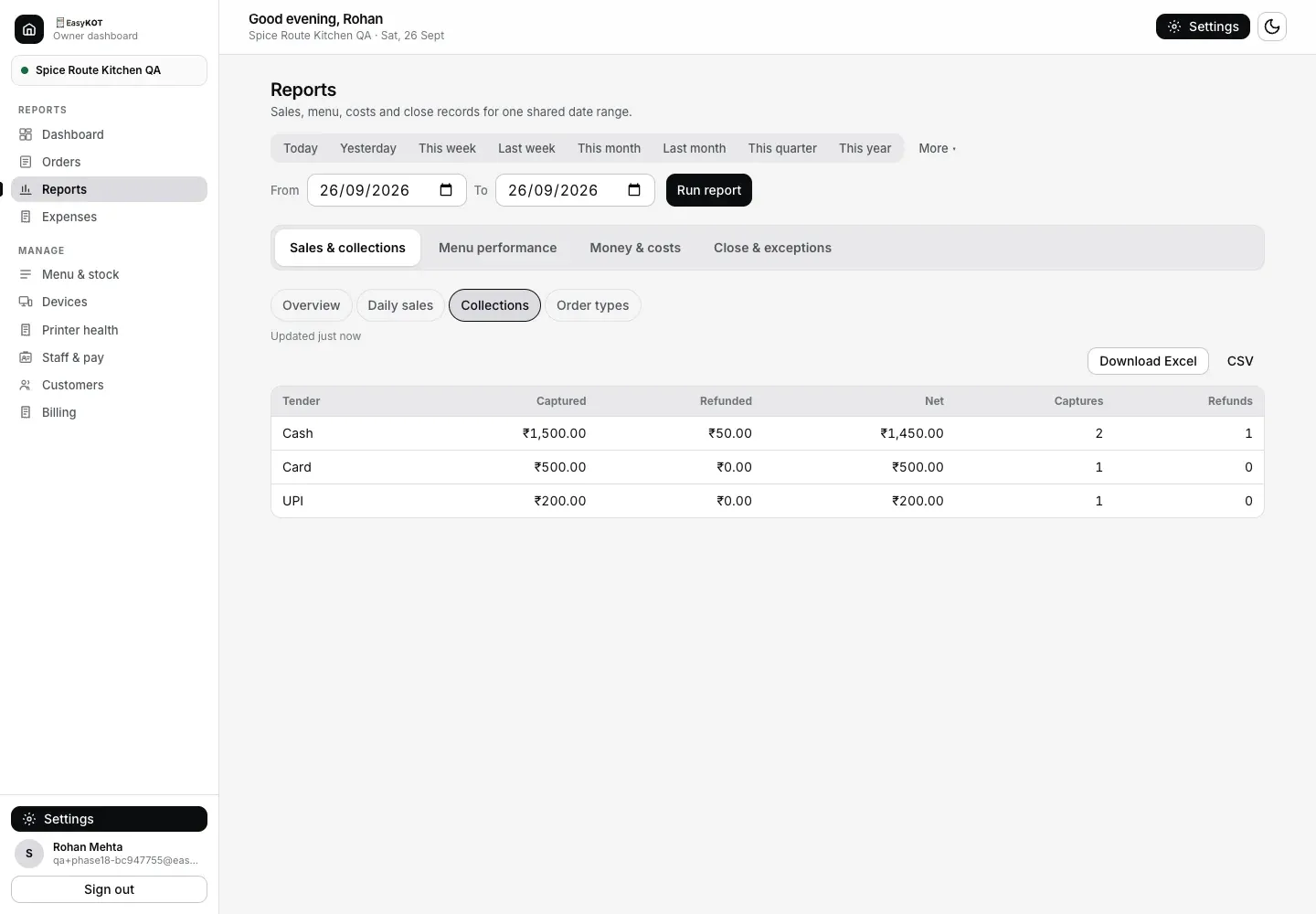
Step 3b: Har payment method ke Captured, Refunded aur Net amounts alag dikhte hain.
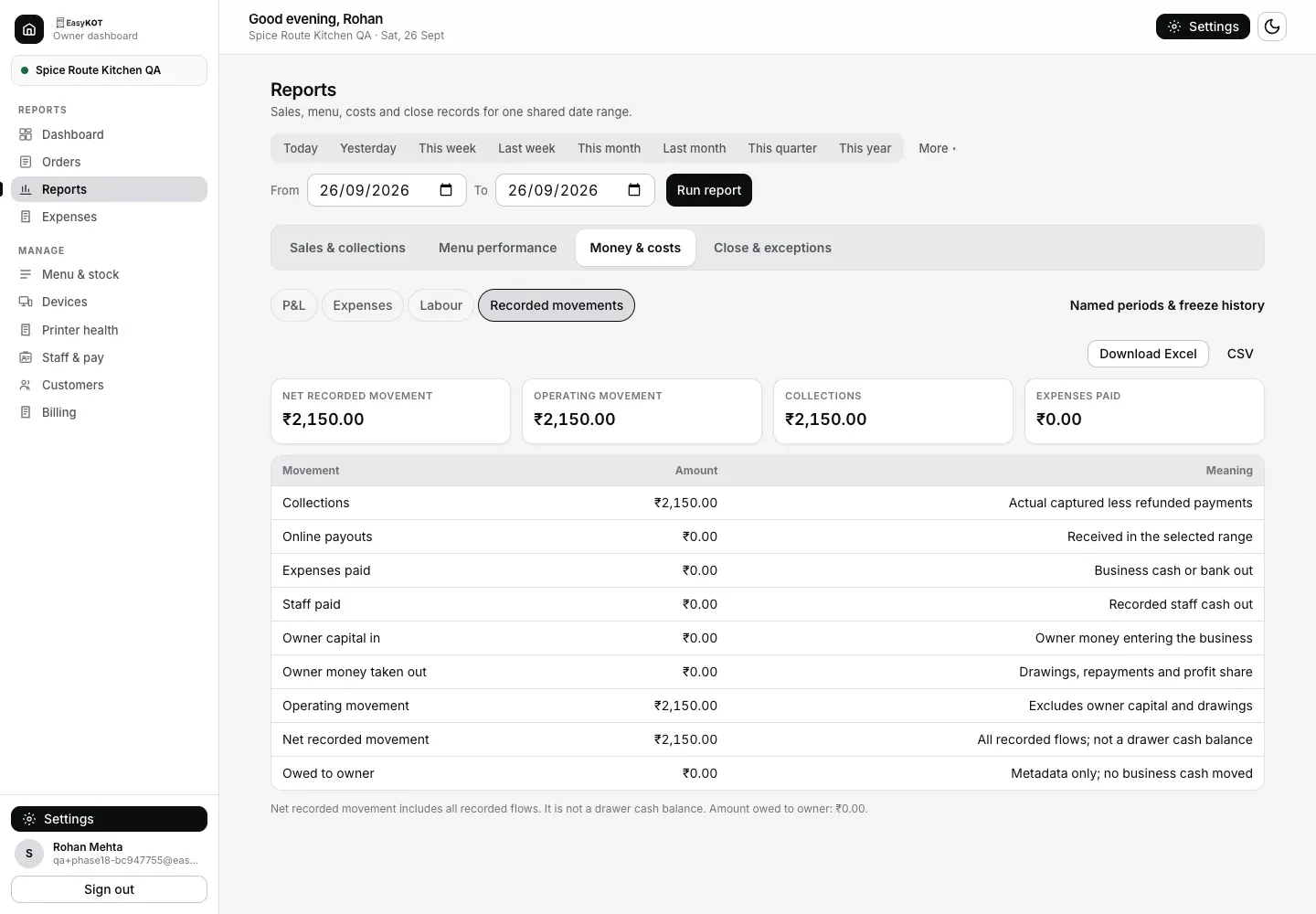
Step 3c: Record hua paisa in aur out, owner money alag; ise drawer balance nahi bataya jaata.
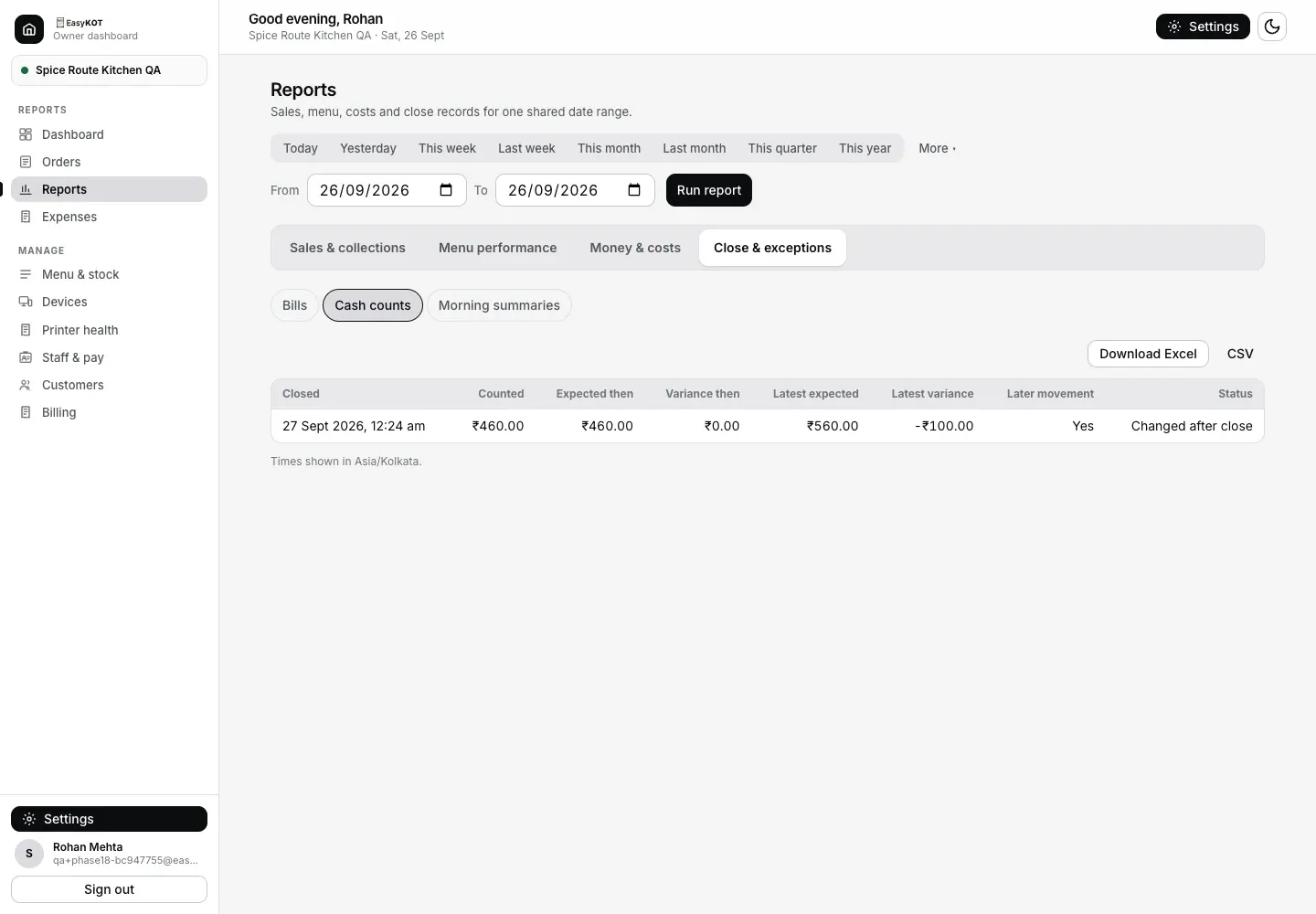
Step 3d: Cash counts close ke waqt ka expected amount sambhalta hai aur baad ke movement ka aaj ke view par asar dikhata hai.
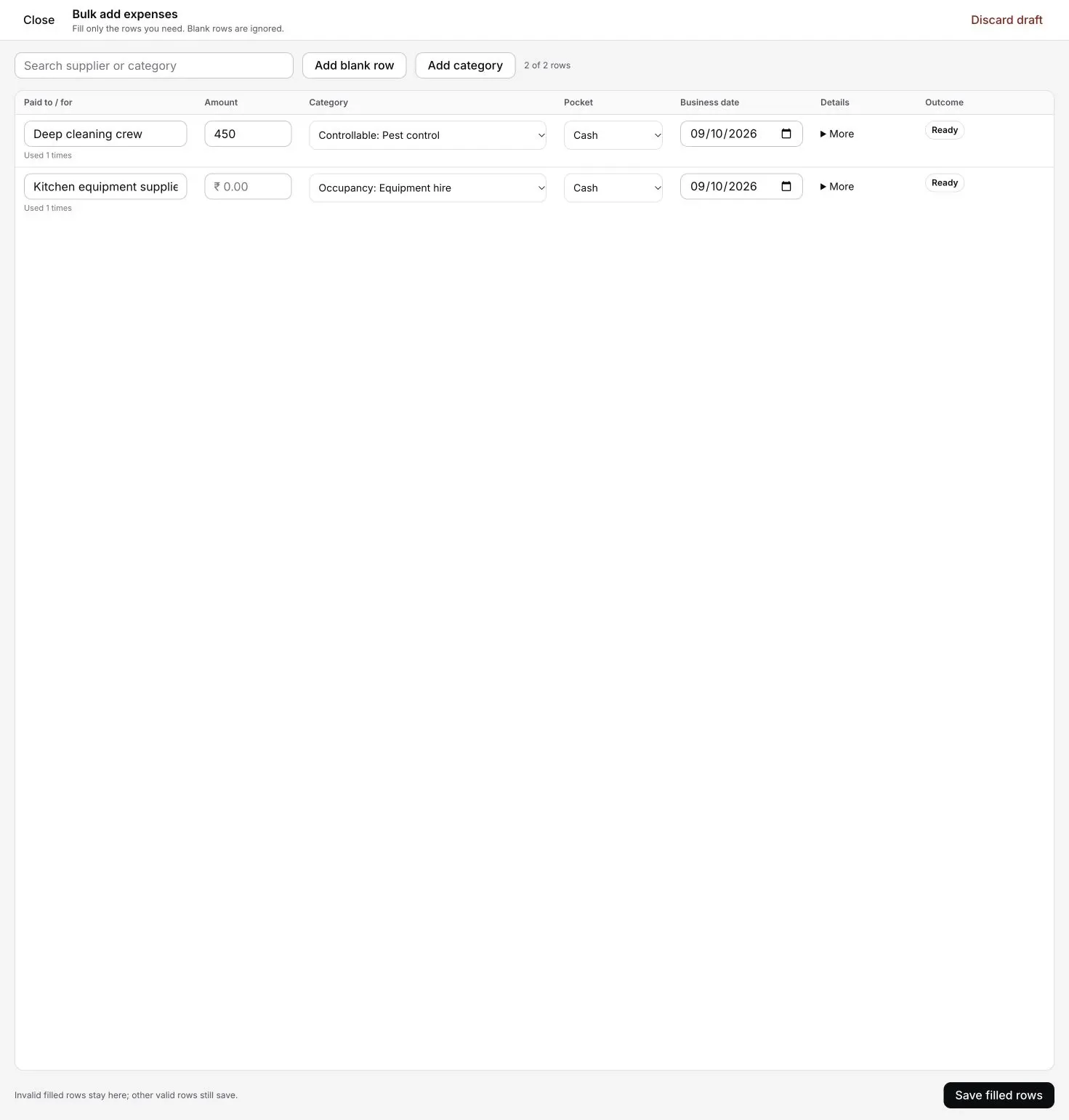
Step 3e: Bulk add optional hai. Owner dashboard mein, ya online Desktop App par Settings → Add expenses se use kare. Poora ledger aur reports dashboard mein rehte hain.
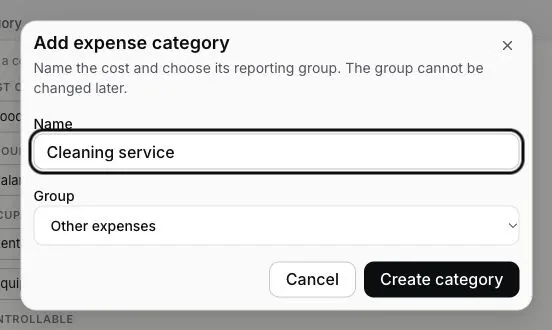
Apni expense category add kare: Settings → Reports & accounts mein Expense categories ke paas "Add category" dabaye. Expenses se bhi bana sakte ho: "Add expense" ya "Bulk add" dabaye, phir "Add category". "Name" bhare, "Group" chune aur "Create category" dabaye. Chaar groups hain: "Food & purchases", "Staff costs", "Premises & utilities" aur "Other expenses". Group dhyan se chune, baad mein badalta nahi hai. Category ka naam Expenses, P&L aur expense CSV download mein bhi dikhega.
Ek bill ya best-selling item dhoondh rahe hain? Orders har bill ke saath table, items aur payment dikhata hai. Reports → Menu performance sold facts ko Item, Category ya Variant ke hisaab se group karke exact matching bills kholta hai. Orders aur menu performance guide dekhe.
Email khud off ya on kare: dashboard → Settings → Notifications → 'Daily summary'. Yeh default mein on hai aur dashboard access wale har person ko jaata hai, isliye partner ko bhi wahi summary milti hai.
Seedhe jawaab.
Roz ka summary email kab aata hai, aur kya hota hai usmein?
Report ka din midnight se badalta hai ya restaurant ke trading day se?
Star, Plowhorse, Puzzle aur Dog quadrant kahan milega?
Kya reports PDF ya Excel mein download kar sakte hain?
Food cost aur labour ke numbers kahan se aate hain?
EasyKOT Desktop App se ek saath expenses add kar sakta hoon?
Sahi records se sahi reports banaye.
Day close
Khule orders, optional cash count aur bill series ko alag check kare. Time volume par depend karta hai.
Day close guide dekhe →Purane unpaid checks
Bill pe No payment recorded kyun dikhta hai, aur Day close ka kaunsa jawaab use collections mein laata hai.
Sawaal ka jawaab de →Settlement aur payment record
Cash, UPI, Card ya Part pay ka record settlement se kaise banta hai.
Settlement guide dekhe →Shuru kaise kare
Signup se dashboard tak ke 5 steps.
Yahan se shuru kare →Is topic ki baaki guides guides hub par milengi.
3 mahine try kare, phir plan chune.
Restaurant ka kaam hum samajhte hain, kyunki shuruaat bhi wahin se hui. 3 mahine free try kare, bina card details. Hamari kahani padhe.