Restaurant captain app: waiter ke phone se order aur KOT.
Captain table pe khade khade phone pe order leta hai: dish, Half ya Full, add-on, "thoda kam teekha" wala note. "Send KOT" dabane par phone round save hone ka message dikhata hai; kitchen tak pahunchne ka status alag dikhta hai. Bill EasyKOT Desktop App pe ban raha hai. Na paper pad, na counter pe dobara typing, na har waiter ka alag charge.
Laptop pe Desktop App hai? Waiter ke phone par "Take orders at the tables" chune. Laptop nahi hai? Pehle Android phone ko counter banane ka setup dekhe. App install karna hai toh Google Play par EasyKOT Captain se shuru kare.
Android 8+ · Desktop App wale Wi-Fi ho ya internet, dono pe chalta hai · ₹299 + GST/month, har phone included
Android pe EasyKOT, video mein dekhe.
Read the video transcript
This is the recorded narration. Screen labels and steps reflect the video as published.
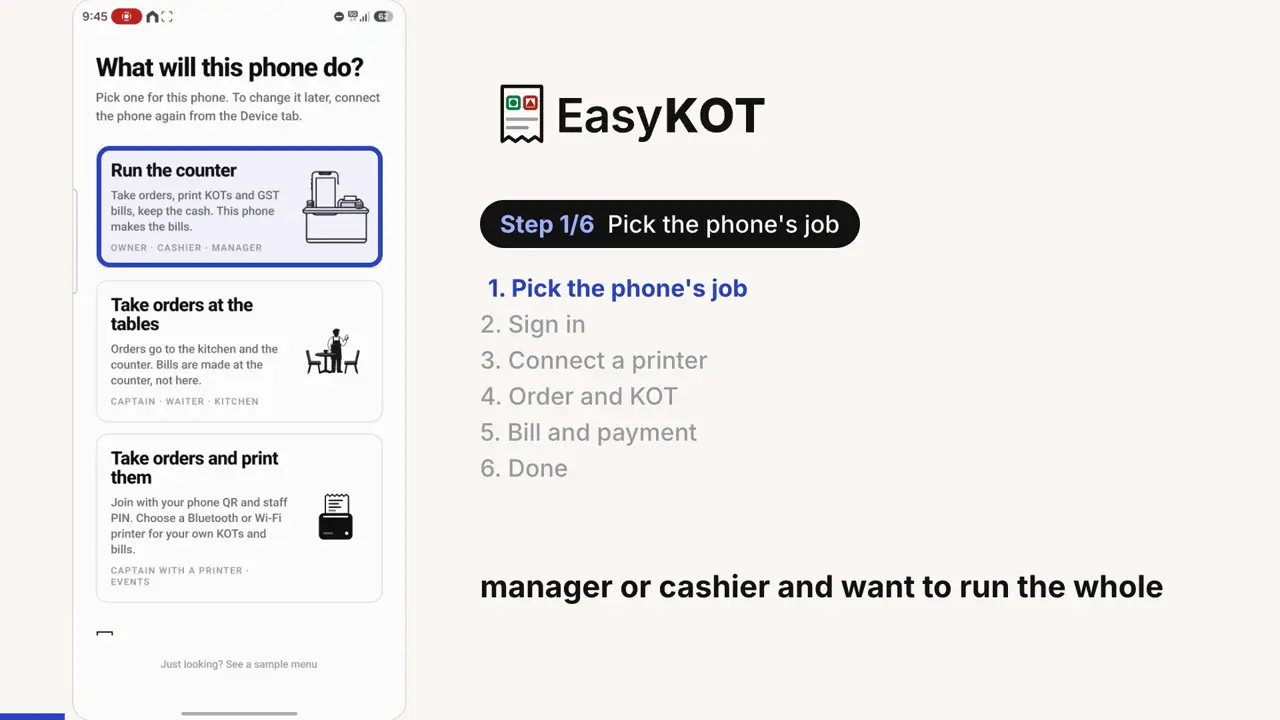
EasyKOT on Android. In this video, we will follow the complete process on the phone. After installing the app, this is the first screen you see. There are three options.
The first option is Run the counter. Choose this if you are the owner, manager or cashier and want to run the whole point of sale on your Android phone. You can take orders on the phone. The setup will let you connect a printer.
Once it is connected, you can print kitchen tickets and bills directly from this phone. The second option is take orders at the tables. Suppose your register app is running on a laptop at the restaurant's billing counter. Your waiters or captains walk to the tables and take orders on their phones.
Suppose orders and kitchen tickets go to the billing counter. The printer connected to the counter handles the printing. The captain does not need a separate printer in this setup. Orders are taken at the tables while the main printer stays at the billing counter.
This is the second option. The third option is for a different setup. For example, at an event, function or wedding, there may be several food counters. Carrying a laptop to every counter may not be convenient.
Several waiters or captains may be moving around and taking orders. With this option, you can give each person their own printer. They take orders on their phone and print their own kitchen tickets and bills on their own printer. With the second option, printing went to one main printer at the billing counter.
With this third option, each person uses their own printer. That is how you can have several people, each with a separate printer. For this walkthrough, we will use the first option. Tap Run the counter.
Use the same email and password that you created when signing up in the admin panel. Enter those credentials here, then tap sign in. If you have forgotten your password, use Forgot your password? to reset it.
This recording uses a test account to demonstrate the process. The phone is now connected and the menu has loaded. The next screen takes us to printer setup. We are using a Seznik thermal printer here.
First, open the phone's Bluetooth settings and pair the printer. This phone already has it paired. If yours is not paired yet, select the printer and complete the pairing request. The list shows the paired devices.
Once the printer is paired, tap done and return to the app. Now tap Add printer. There are several ways to connect a printer. Along with Bluetooth, you can connect a network printer by its IP address, whether it is on Wi-Fi or LAN.
We are using Bluetooth in this walkthrough. A Bluetooth printer must first be paired in Android settings. You can then choose it from the list of paired devices in the app. Select the Seznik printer.
Choose everything for both kitchen tickets and bills. Then select the paper size. This printer uses 58 mm paper. Save the printer settings.
Now tap Test print. A test slip should come out of the printer. Watch the actual printer footage alongside the screen. The test slip has printed.
This confirms the connection and the print on paper. Next, choose print from this phone. We want this phone to print directly rather than send the printing to a separate billing counter. The order screen now opens.
Running orders appear here. There are none yet in this recording. Use Choose table to select a table. You can see tables such as T1 and T2.
Tables are set up through the admin panel and register app. If your setup uses takeaway instead of tables, you can choose the takeaway option. Tap takeaway to open the full menu. Add the dishes you want, where half and full options are available.
Choose the portion you need. After adding the dishes, open Review order. The top shows that this is a takeaway order. You can use Assign table if you want to put it on a table.
Check the dishes and quantities here. Add a note if needed such as a request about spice. Now tap Send KOT, the order is sent for the kitchen. In this setup, the kitchen ticket prints on the printer connected to this phone.
Watch the actual ticket come out. If the customer wants something else later, tap + Add items. Here we add butter garlic naan and return to Review order. The first four dishes are already under Sent to kitchen.
The new dish is under to send. Tap Send KOT again. This time only the new dish prints. The four items sent earlier are not printed again, so the kitchen does not receive a duplicate order.
When the order is complete, open settle. There are cash and UPI options for recording payment. Collect the payment from the customer first. You can also enter the customer's name and phone number if you want those details on the bill.
Here we enter the name and then the phone number. These customer details are optional. We choose UPI to record the payment. The bill now comes out of the printer.
It includes the complete order, the customer details and the total. You can configure GST and other billing settings in the admin panel. Those settings will be covered in a separate video. That is the complete process for taking orders, printing kitchen tickets and making the final bill with EasyKOT on your Android phone.
Shuru mein phone ke 3 roles dikhte hain. Uske baad walkthrough Run the counter chunta hai: owner sign-in, Bluetooth printer, order, KOT aur bill. Audio English mein hai. Waiter phone ka QR ya PIN setup is video mein nahi dikhaya gaya.
Captain app kya hai?
Captain app woh app hai jisse captain ya waiter table pe hi, apne phone pe order leta hai. Paper pad ki zaroorat nahi. Table chune, dishes tap kare aur "Send KOT" dabaye. Kitchen ko KOT milta hai, counter ko wahi lines bill pe. Order ek hi baar likha jaata hai, bas.
Friday raat ke rush mein fark yeh padta hai: captain abhi table pe hi hai aur kitchen ne kaam shuru kar diya. Pass pe handwriting padhne ka jhagda khatam. Aur end mein bill wahi hai jo order liya tha. 3 waiter ke 3 phone ka kharcha utna hi jitna ek ka, kyunki EasyKOT restaurant ka price leta hai, phone ka nahi.
- Poora menu jeb mein. Search, veg/non-veg mark, Half/Full portion, add-ons aur note, bilkul Desktop App jaisa. Menu dashboard par ek baar badle, har phone par aa jaata hai.
- Khatam hui dish table pe hi pata chalti hai. Dashboard pe dish out mark ki, toh har connected phone pe woh grey ho jaati hai, "Out of stock" likha aata hai aur tap nahi hoti.
- Running tables live. Waiter phone peOnly my orders pehle se tick hota hai; us captain ke tabs time aur amount ke saath dikhte hain, aur Show all se baaki store tabs khulte hain.
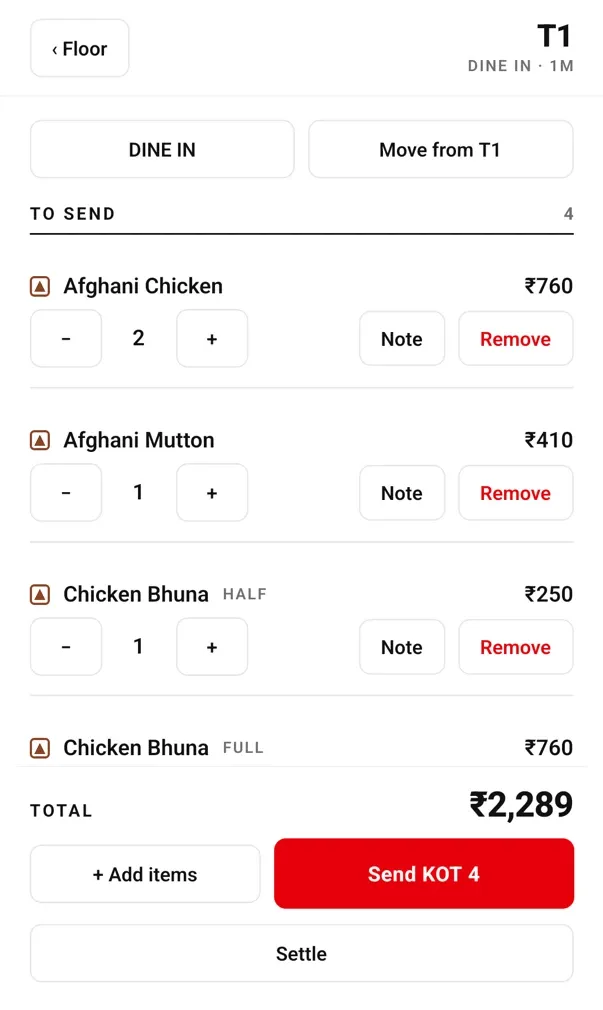
Ek order ka safar, table se kitchen tak.
Waiter ka PIN, phir table
Waiter apne PIN se sign in karta hai. Free tables mein se table tap kare, ya parcel ke liye takeaway order khole. Dine-in order ko baad mein takeaway banana ho toh app pehle poochta hai "Make this takeaway?", taaki galti se table khaali na ho jaaye.
Dishes tap kare
Half ya Full, add-on, aur "pyaaz nahi" jaisa note. Jo dish khatam hai woh tap hi nahi hoti, toh kitchen se wapas aane wala "sir, woh khatam hai" wala scene nahi hota.
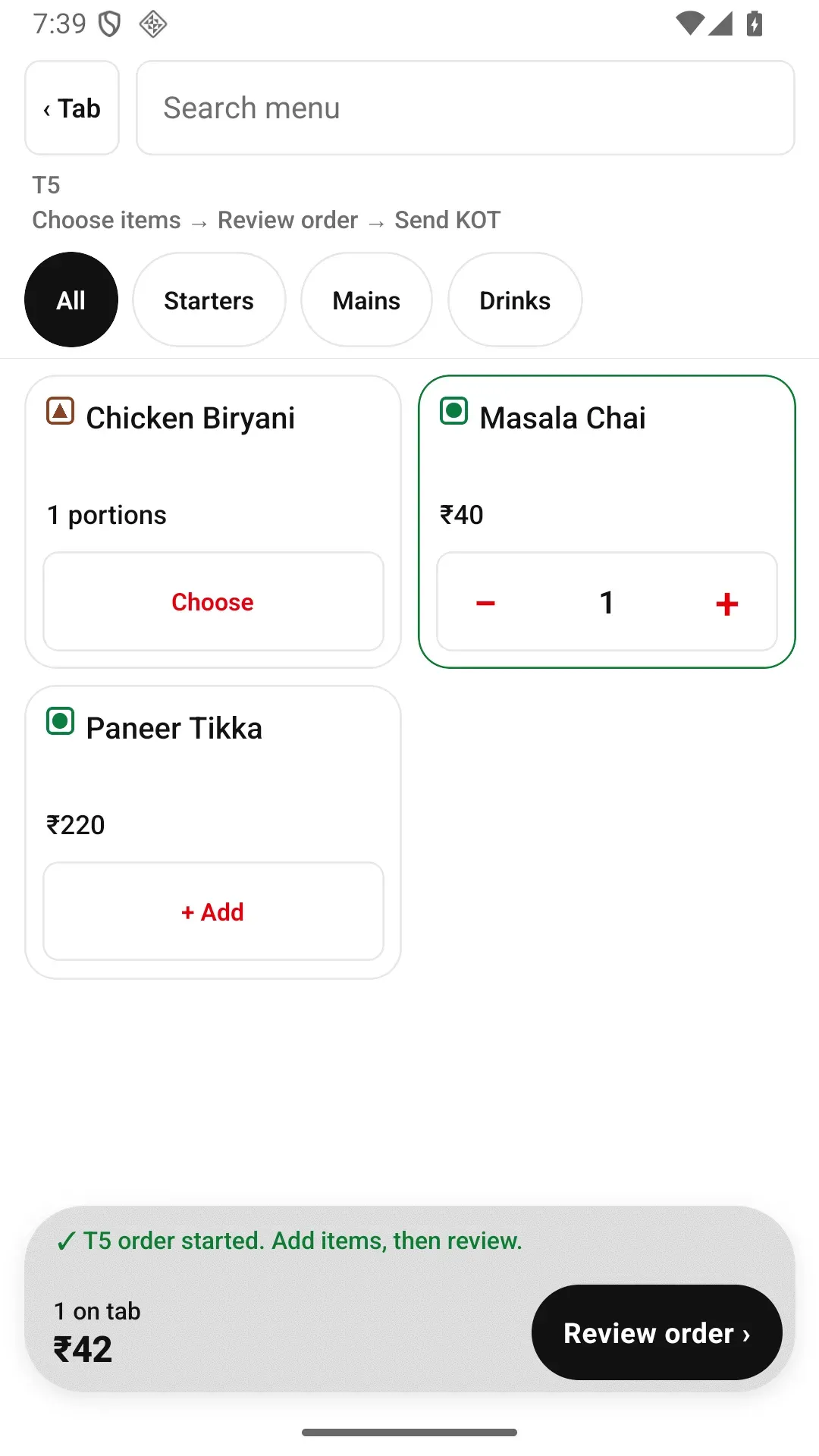
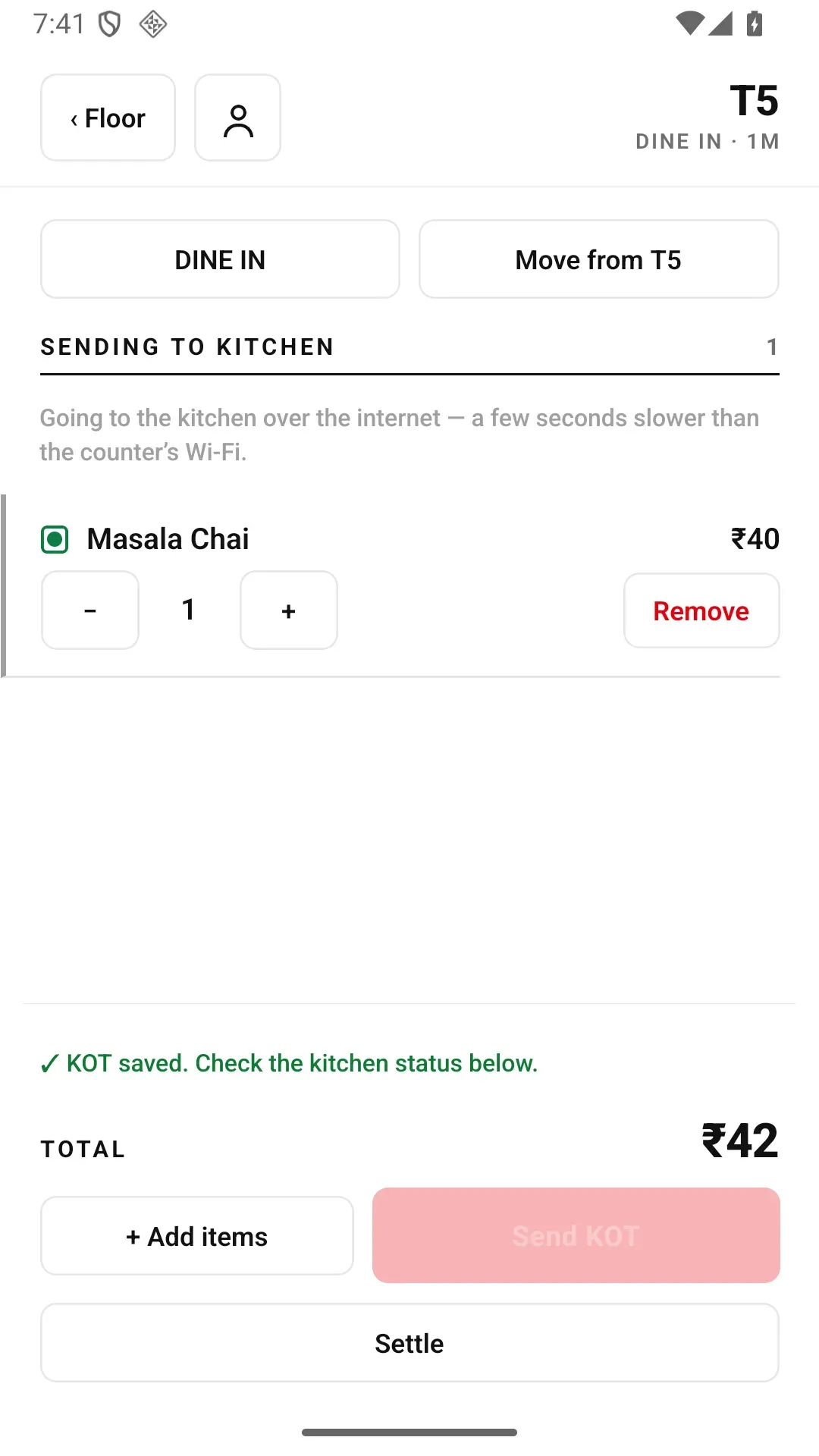
T5 ka pehla dish save hua; phone table aur agla step confirm karta hai.
"Send KOT" dabaye
Button pe count likha hota hai, jaise "Send KOT 4". Sirf naye items jaate hain. Customer ne baad mein roti aur mangwayi, toh agla KOT sirf roti ka chhapega, poori table dobara nahi. Phone "KOT saved" dikhata hai aur kitchen delivery ka status alag rakhta hai.
KOT kitchen mein, round counter pe
Counter ka kitchen printer KOT chhapta hai, ya kitchen display pe ticket aata hai. Desktop App wale Wi-Fi pe yeh seedha ek hop hai; internet se kuch second lagte hain. Counter pe wahi round usi table ke cart pe dikhta hai, aur captain ke round aur counter pe punch kiye round ek hi GST bill mein settle hote hain.
Kuch hatana hai? Ek confirm, bas
Bheja hua item hatana ho toh Remove dabaye. App ek baar poochta hai aur yaad dilata hai ki kitchen ko bhi bata de. Manager PIN nahi lagta. Hata hua item history mein rehta hai, gayab nahi hota. Poora order hi cancel karna hai? "Cancel order" dabaye, ek reason tap kare aur dialog mein table aur bill check kare; bill par paisa record ho gaya ho toh phone se nahi, counter se. Order galat table pe khul gaya? "Move from" button se doosri table par shift kare.
Bill counter se, paisa phone pe mark
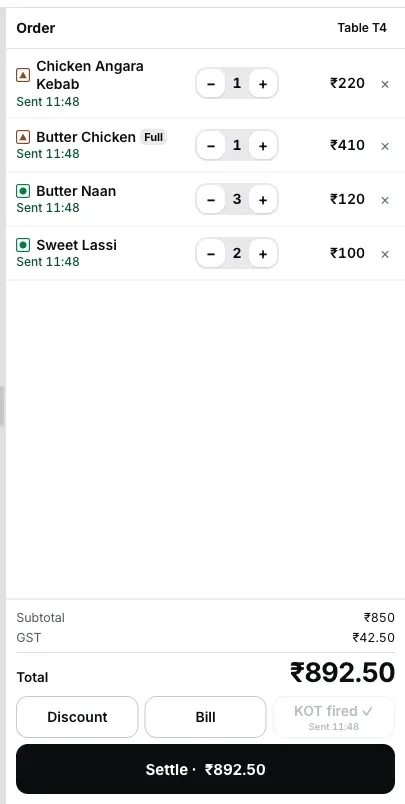
Settle khole aur "Print bill at the counter" dabaye: bill counter ke printer se nikalta hai, GST bill ka number bhi counter hi deta hai. Customer ne pay kiya toh Cash ya UPI mark kare. Phone par cash drawer nahi khulta aur card read nahi hota, screen pe hi likha hai: "Marking only — no drawer opens and no card is read here." Captain apne tables ke KOT aur bill apne printer par nikaal sakta hai. Poore store ka fallback alag hai: Device → Printing mein Print from this phone ke screen steps follow kare. Purane printing phone ko pehle stop kare; do active store printers se duplicate slips aa sakti hain.
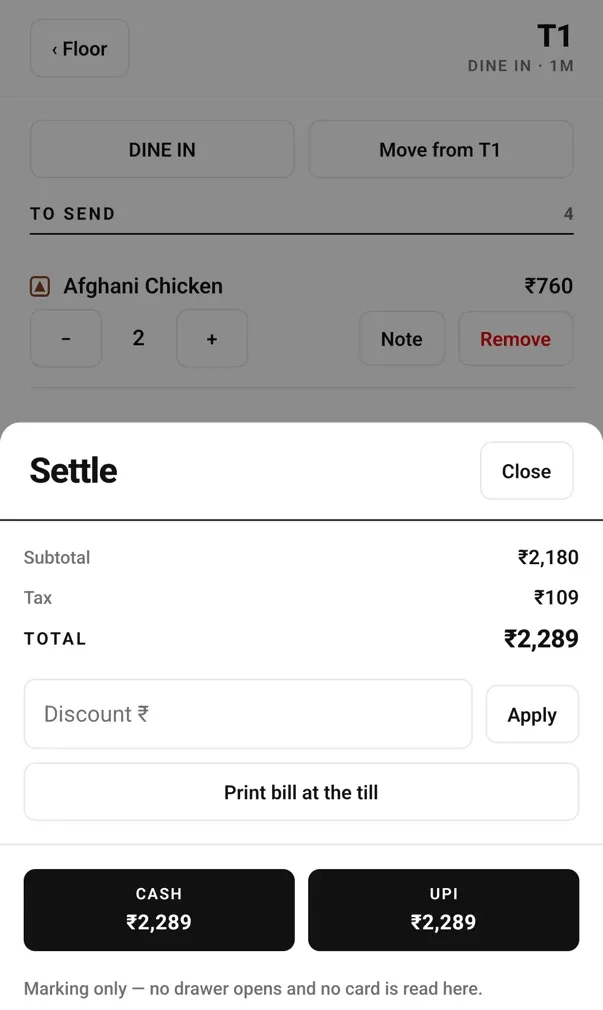
Settle: bill counter se, Cash ya UPI sirf mark hota hai.
Wi-Fi gaya toh order kahan hai?
Har captain app bolta hai "offline chalta hai". Asli sawaal yeh hai ki Wi-Fi gaya toh order kahan hai. EasyKOT mein phone khud raasta chunta hai, waiter ko kuch select nahi karna. Teen haalat hain, aur har ek mein phone saaf batata hai ki order kahan pahuncha. Terrace wali table ho ya parking, signal hai toh order jaata hai.
| Phone kahan hai | Phone pe kya dikhta hai | Order kahan hai |
|---|---|---|
| Desktop App wale Wi-Fi pe | "KOT saved"; Desktop App ka confirm alag | Seedha Desktop App tak, ek hop mein, Desktop App ka confirm aata hai. Internet band ho tab bhi. |
| Wi-Fi se bahar, internet chalu | "Away from the counter — orders reach the kitchen over the internet" | Internet se counter tak, kuch second late. Jab tak counter le na le, round ke upar "Sending to kitchen". |
| Na Wi-Fi, na internet | "Counter offline — rounds you fire are held on this phone" | Phone mein hi safe. Laal "Not sent to kitchen", saath mein "The counter hasn't got this. Stay on the restaurant Wi-Fi, or tell the kitchen." Wi-Fi ya internet aate hi round khud chala jaata hai. |
Desktop App khud internet ke bina kaise bill banata hai, woh offline billing guide mein hai.
Paper KOT vs captain app
| Paper pad | Pass pe awaaz lagana | EasyKOT captain app | |
|---|---|---|---|
| Order likha jaata hai | Ek baar, haath se | Kabhi nahi | Ek baar, tap karke |
| Counter pe dobara type | Haan | Haan | Nahi |
| Kitchen kya padhta hai | Handwriting | Yaaddasht | Printed KOT ya screen |
| Khatam dish table pe pata | Nahi | Nahi | Haan, grey "Out of stock" |
| Baad ka round | Nayi parchi | Phir se awaaz | Sirf nayi dishes jaati hain |
| Kya order hua tha, proof | Parchi, agar bachi | Kuch nahi | Har line, hataye hue items bhi |
Galat order kahan se aate hain aur kaise rukte hain, uska poora hisaab order mistakes wale blog mein hai.
Captain kya kar sakta hai, kya nahi
Pehli screen pe "Take orders at the tables" wala card khud bolta hai: "Bills are made at the counter, not here." Paisa aur bill ka number counter ke paas rehta hai. Baaki sab captain ke phone pe. Captain 0.2.12 se teesra Android card, "Take orders and print them", apna chhota printer carry karne wale captain ke liye hai. Uski tables ke KOT aur numbered bills usi phone se print hote hain.
| Kar sakta hai | Abhi nahi kar sakta |
|---|---|
| Table ya takeaway kholna; dish ke saath portion, add-on, note | Do tables ko ek bill mein jodna (merge) |
| "Send KOT" se round bhejna; baad ke round mein sirf nayi dishes | Bill split karna |
| Order doosri table pe shift karna | GST bill ka number dena (current waiter mode mein counter deta hai) |
| Running tables time aur amount ke saath dekhna | Refund karna, ya card se payment lena |
| Bheja hua item hatana, ya reason ke saath poora order cancel karna (PIN nahi, history mein rehta hai) | Manager PIN ke bina discount ("A manager must approve this.") |
| Counter se bill print karwana; Cash ya UPI mark karna | iPhone pe chalna (App Store pe abhi nahi) |
| Network na ho tab bhi order lena; round phone pe rukta hai | Hindi mein screens (app ki screens English mein hain) |
| Today tab mein aaj ke orders (Paid, Running, Cancelled) dekhna aur paid bill reprint karna | Pichhle din ke bills dekhna, ya bills search karna |
| Spare phone ko kitchen screen banana (chef apne PIN se) | Phone wali kitchen screen pe station ke hisaab se tickets (poora kitchen ek saath dikhta hai) |
Kaun kya kar sakta hai, yeh staff ke role se tay hota hai: staff PIN aur roles set kare.
Kitna kharcha, kitne bhi waiter
Kai POS apps har waiter phone ka alag charge lete hain, ya captain app ko upar wale plan mein rakhte hain. Tab chautha waiter rakhna bhi ek hisaab-kitaab ban jaata hai. EasyKOT mein poore restaurant ka ek price hai: ₹299 + GST har mahine, jitne chahe phone. Neeche apne quote ka per-phone rate daalkar comparison dekhe.
| Waiter phones | EasyKOT, har mahine | Per-phone pricing, har mahine |
|---|---|---|
| 3 | ₹299 + GST | 3 × aapke quote ka per-phone rate |
| 5 | ₹299 + GST | 5 × aapke quote ka per-phone rate |
| 10 | ₹299 + GST | 10 × aapke quote ka per-phone rate |
Pehle 3 mahine free, bina card details. Poora price pricing page pe hai.
Setup: ek sawaal aur ek code
Naye phone par EasyKOT Captain Google Play se install kare. Play app ke updates bhi sambhalta hai. Purana website APK pehle se installed hai toh Device → Updates se usi source ka update le; pending orders wale phone par source badalne ke liye app uninstall na kare. Pehli screen poochti hai "What will this phone do?"; printer wale captain ke phone pe "Take orders and print them" chuno. Owner Staff & pay mein captain add karke Connect phone dabata hai. Waiter one-use QR scan karta hai, restaurant download hone deta hai, phir apna staff PIN daalta hai. Email ya password nahi chahiye. Desktop App ka Wi-Fi link optional hai. Poore steps captain app setup guide mein hain.
Saturday ke rush se pehle, har captain phone pe
- Android 8 ya naya, aur app ke liye kaafi free storage.
- Internet ke liye mobile data ya Wi-Fi. Network printer ya optional Desktop App link ke liye restaurant Wi-Fi save karo.
- Har waiter ka apna PIN, share kiya hua nahi.
- Laptop pe Desktop App ho toh local link optional hai: "Optional: connect to the Desktop App over Wi-Fi".
- Ek test KOT: sasti dish, "Send KOT", aur kitchen mein jaakar confirm kare ki slip nikli.
- Pass ke paas ek charger.
Laptop hi nahi hai? Android pe phone aur thermal printer poora counter chala sakte hain, aur waiter ke phone us counter ke saath order lete hain.
Sawaal jawaab
Captain app kya hota hai?
Kya waiter apne phone pe chala sakta hai?
Internet nahi hai toh order jaayega?
Kitna kharcha hai? Per waiter charge hai kya?
iPhone pe chalega?
Waiter khud discount de sakta hai?
Bill table se nikal sakte hain?
Table change ho sakta hai? Do table merge?
Kitchen display ke saath chalega?
Captain app aur KOT app mein kya fark hai?
Waiter phone se customer ka number save kar sakta hai?
Laptop ya POS machine chahiye kya?
Phone chalu ho gaya? Waiter order kaise leta hai, step by step. Floor pe tables abhi set nahi hain toh floor plan setup, aur kitchen printer ke liye KOT printer setup. KOT machine aur KOT software ka fark is blog mein.
3 mahine try kare, phir plan chune.
Restaurant ka kaam hum samajhte hain, kyunki shuruaat bhi wahin se hui. 3 mahine free try kare, bina card details. Hamari kahani padhe.