Thermal printer ko laptop se connect kare: LAN, Wi-Fi ya USB.
Seedha jawaab: counter ka printer LAN cable se router mein lagaye, ya USB se seedha laptop mein. Phir Desktop App mein Settings → Printers & KDS khole, Set up a new printer dabaye, company chune, scan hone de, 80mm ya 58mm chune aur test slip nikale. Slip aa gayi, matlab bill bhi aayega. Network aur USB printer ke liye koi driver install nahi karna.
Windows + Mac Desktop App · LAN, Wi-Fi, USB, serial aur computer ka print queue · network aur USB pe driver nahi
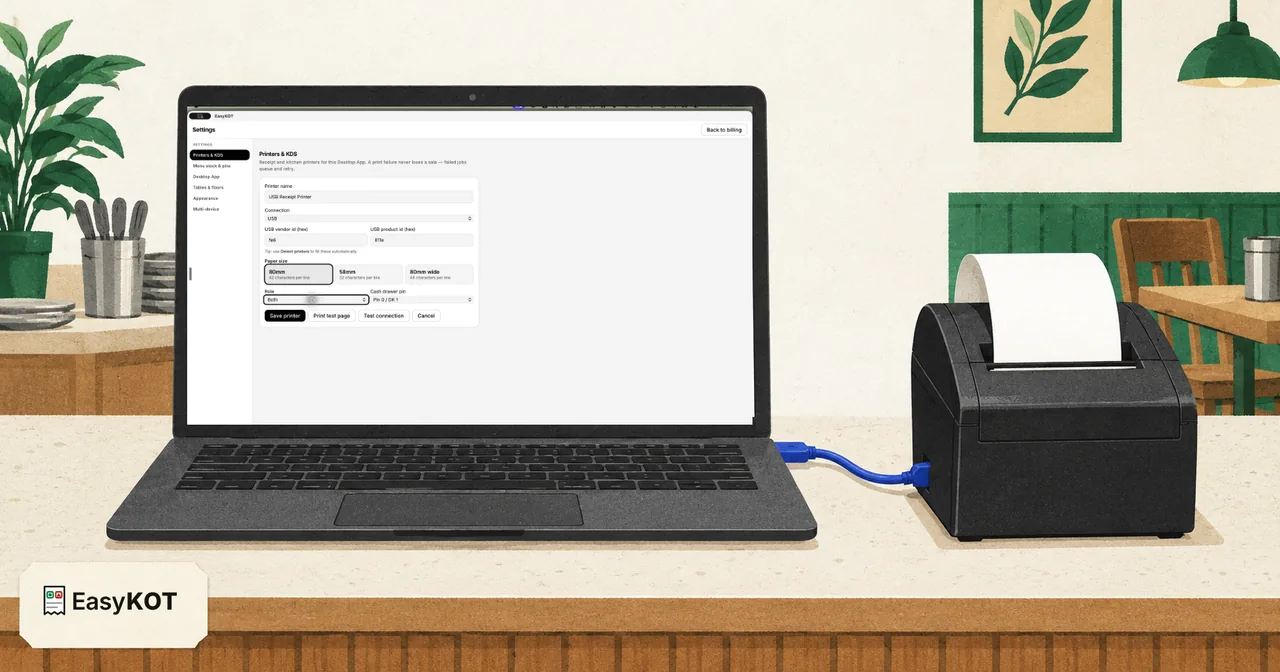
Counter pe yeh teen cheezein ready rakhe.
- Desktop App install aur sign in. Windows ya Mac ke liye Desktop App download kare. Printer ka setup Desktop App ke andar hota hai, website pe nahi.
- Thermal printer, paper ke saath, on. Compatible ESC/POS model chahiye jiska exact connection aapke Desktop App wale device par supported ho. Kharidne se pehle usi unit par test slip aur sample bill nikalkar check kare.
- Sahi paper roll. 80 mm ya 58 mm: roll naap le, kyunki bill ka layout isi pe tika hai.
Printer abhi nahi hai? Desktop App browser mein chala kar dekhe, poora billing flow dikhega aur sample bill ya KOT normal print dialog mein khulega. Browser printer detect nahi kar sakta aur automatic print nahi karta. Aur yeh screen dhoondhni bhi nahi padti: khaali Desktop App khud yaad dilata hai, “Set up your printer: Connect a receipt printer so kitchen tickets and bills come out on paper. You can do this later — sales work without it”, aur uska button seedha yahin khulta hai.
LAN, Wi-Fi, USB ya Bluetooth: kaunsa connection chune?
Printer ke peeche dekhe kaunse port hain. Billing software koi bhi ho, yeh table same rahega. Aakhri do column EasyKOT ke baare mein hain, aur unmein wahi likha hai jo sach hai, jo accha lagta hai woh nahi.
| Connection | Kab sahi hai | Router ka “AP isolation” | EasyKOT mein live status | Asli printer pe proven? (hamara record) |
|---|---|---|---|---|
| LAN cable (printer se router) | Counter ya kitchen, jahan tak cable pahunche. Sabse bhareinsemand. | Koi asar nahi. Cable router mein hai, toh Wi-Fi ki deewar beech mein aati hi nahi. | Haan. Har 5 second, printer jawaab na de toh dheere-dheere 1 minute tak. | Abhi nahi. Hamare network test ek software printer pe chale hain. Aapke printer ka proof test slip hai. |
| Wi-Fi | Jab cable kheenchna mushkil ho. | Ho sakta hai. Kuch routers Wi-Fi devices ko alag rakhte hain, tab IP type karne se bhi kuch nahi hota. | Haan, LAN jaisa hi. | LAN jaisa: abhi nahi, test slip hi proof. |
| USB | Printer laptop ke bilkul paas ho. | Network hi nahi, toh koi asar nahi. | Haan, background mein check hota rehta hai. | Haan. Mac Desktop App pe USB se print hua, 17 Sept 2026 (owner ka report). |
| Bluetooth (laptop se) | Laptop ke saath abhi recommend nahi. Yeh phone ka kaam hai. | Network nahi, koi asar nahi. | Nahi. Status sirf tab padha jaata hai jab aap Check printer ya Test connection dabate hain. | Nahi. Laptop se healthy Bluetooth print ka record abhi nahi hai. |
Hamari salah: counter pe LAN cable ya USB. Dono pe Desktop App printer ka haal khud dekhta rehta hai, aur router ki koi setting beech mein nahi aati. Printer Android phone ke saath rehna hai, toh Bluetooth printer Android phone se pair kare wala guide padhe.
EasyKOT mein: LAN aur Wi-Fi dono Network (Wi-Fi / Ethernet) hain, USB alag option hai, aur Bluetooth Serial / Bluetooth ke andar hai. Galti se koi public IP address daal diya, toh Desktop App mana kar deta hai: printer store ke network pe hi hona chahiye. Yeh safety hai, bug nahi.
Printer ka IP kaise pata kare, aur factory IP apne network pe kaise laaye?
Printer ka apna status page nikale: feed button daba ke rakhe aur printer on kare. Slip pe IP address aata hai, aur aksar MAC address bhi. Ab laptop ka IP dekhe: Windows pe Command Prompt mein ipconfig, Mac pe System Settings → Wi-Fi → Details.
Rule simple hai: dono address ke pehle teen number same hone chahiye. 192.168.1.20 aur 192.168.1.87 ek network pe hain. 192.168.1.20 aur 192.168.123.100 nahi. Bas itna check karna hai.
Number match nahi karte? Printer ko ek baar apne network pe laaye
Printer ka factory address aur aapka Wi-Fi alag-alag mohalle mein rehte hain. Ek baar milaye, phir jhanjhat khatam.
- Printer ko LAN cable se router mein lagaye. Rongta, Xprinter jaise printers ke liye wizard ka tip bhi pehle cable hi bolta hai.
- Laptop ko thodi der ke liye printer ke range ka IP de, aakhri number alag. Printer 192.168.123.100 pe hai toh laptop 192.168.123.50, subnet 255.255.255.0. Windows pe: Settings → Network & internet → Wi-Fi ya Ethernet → IP assignment → Edit → Manual. Mac pe: System Settings → Network → Details → TCP/IP → Configure IPv4: Manually.
- Browser mein printer ka address khole, jaise
http://192.168.123.100. Kaafi network printer yahan apna settings page dikhate hain. Kuch companies ka setup program USB pe chalta hai: printer ke saath aayi CD ya company ki site dekhe. - Settings page mein apne network ka address daale: pehle teen number router wale, aakhri number koi khaali wala, jaise .200. Ya DHCP on kare taaki router khud address de. Save kare, printer restart hoga.
- Laptop ka IP wapas Automatic (DHCP) pe kare. Printer ka status page dobara nikale aur naya address check kare.
EasyKOT mein: wizard mein company chune, toh Detect us company ka factory address pehle try karta hai. Setup ke end mein printer abhi bhi factory address pe mila, toh “Still on its factory address” ka note aata hai: aaj chal jaayega, par usi company ka doosra printer aaya toh dono ek hi address pe takraayenge. Time mile tab address badal do.
Kaunsi company ka printer factory se kis address pe aata hai?
Yeh printers ke baare mein facts hain, supported printers ki list nahi. Desktop App ka wizard inhi 4 companies ke tips dikhata hai, aur neeche wahi likha hai. ESC/POS label support ki guarantee nahi hai; exact model aur interface par test slip aur sample bill dono check kare.
| Company | Factory address | Pehli baar kaise lagaye | Status page |
|---|---|---|---|
| Epson | 192.168.192.168 | Router se address khud maangta hai. Router mein lagaye aur on kare. Status page pe phir bhi 192.168.192.168 dikhe, toh Epson ki free TM Utility se apne Wi-Fi pe le jao. | Feed daba ke on kare, print shuru ho toh Feed chhod de. |
| TVS | 192.168.0.31 | Fixed address, router se address nahi maangta. Aapka Wi-Fi 192.168.0.x nahi hai, toh ek baar printer ke network pe jao (cable router mein, ya laptop 192.168.0.50 pe) aur settings page se apne network ka address de. | Feed daba ke on kare. Status page pe address aata hai. |
| Rongta | 192.168.1.87 | Pehle cable. Aapka network 192.168.1.x hai toh seedha chalega. Warna cable pe rehte hue settings page se ek baar address set kare. | Feed daba ke on kare. |
| Xprinter | 192.168.123.100 | Pehle cable. Yeh range aapke Wi-Fi se lagbhag kabhi match nahi karti: cable pe settings page se address set kare, phir printer ko Wi-Fi par le jaaye. | Feed daba ke on kare. |
| Koi aur / pata nahi | Status page pe dekhe | Status page nikale, address padhe, phir Detect kare ya address type kare. | Zyada tar printer: Feed daba ke on kare. |
Model ke hisaab se alag ho sakta hai. Aapke printer ka status page hi final jawaab hai.
Router pe printer ka address reserve kare, taaki bijli jaane ke baad bhi na badle
Router har device ko address udhaar deta hai, hamesha ke liye nahi. Bijli gayi, router restart hua, aur printer ko naya address mil sakta hai. Reservation ke baad printer ka address pakka ho jaata hai. 2 minute ka kaam hai, aur ek kharab shaam bach jaati hai.
- Router ke neeche ya peeche sticker dekhe. Wahan admin page ka address (aksar 192.168.1.1 ya 192.168.0.1), username aur password likha hota hai.
- Laptop se, usi Wi-Fi pe rehke, browser mein woh address khole aur login kare.
- DHCP ya LAN settings mein yeh option dhoondho. Har router pe naam alag hota hai: DHCP Reservation, Address Reservation, Static Lease ya DHCP Binding.
- Printer ko uske MAC address se pehchano (status page pe likha hota hai), aur use wahi IP do jo abhi uske paas hai.
- Save kare. Printer ek baar off-on kare aur status page pe address check kare.
Kuch internet company ke routers mein yeh option chhupa hota hai, ya hota hi nahi. Tab printer ke settings page pe hi fixed (static) IP daal do, router ki DHCP range ke bahar wala number.
EasyKOT mein: ek baar accha connection hua, toh Desktop App printer ko uske hardware address se yaad rakhta hai. Address badla toh pehle khud dhoondhta hai. Setup ke end mein “Keep this address” wala note isi reservation ki yaad dilata hai, kyunki woh sabse pakka fix hai. Printer phir bhi Offline dikhe, toh router restart ke baad printer Offline wala guide dekhe.
Desktop App mein printer add kare: setup wizard ke 7 steps.
Printer network pe aa gaya, ya USB laga hai? Ab Desktop App ki baari. Har screenshot asli Desktop App ka hai, mockup nahi.
Video transcript padhe
Yeh recorded narration hai. Screen labels aur steps published video ke time ke hain.
Counter 1 पर owner के रूप में unlock करो, फिर Settings और Printers & KDS खोलो। USB cable connect और paper ready होने पर Detect printers select करो। Scan में RONGTA USB Receipt Printer मिलता है। इस store में printer profile पहले से saved है, इसलिए detected candidate select करके duplicate बनाने के बजाय Back जाओ। Existing printer row पर Edit select करो। इससे saved profile बना रहता है और उसका connection update होता है। Connection को USB set करो। अस्सी millimetre, बयालीस chars चुनो, और Kay O Teas और bills के लिए Role को Both set करो। Print test page select करो। Sent message सिर्फ command handoff confirm करता है। Real paper check करो। Test page clear हो, तो Yes select करो। Save printer select करो। Existing profile वापस Connected दिखता है। अब पाँच सौ तीस रुपये का real order बनाओ: एक Malvani Fish Curry Full, दो Tandoori Roti, और दो Solkadhi। Kay O Tea fire करके नए dishes kitchen को भेजो। Printed item names और quantities check करो। Matching bill print करो। यहाँ Order T1-001 का total पाँच सौ तीस रुपये है। Customer को bill देने से पहले total check करो।
Settings → Printers & KDS khole aur Set up a new printer dabaye
EasyKOT Desktop App ki status rail mein gear pe click kare aur Settings chune. Printers & KDS khud khulta hai. Abhi koi printer nahi hai, toh teen button dikhte hain: Set up a new printer, Detect printers aur Add manually. Set up a new printer guided raasta hai: baaki dono ka kaam khud karta hai aur end mein test slip nikalwata hai.
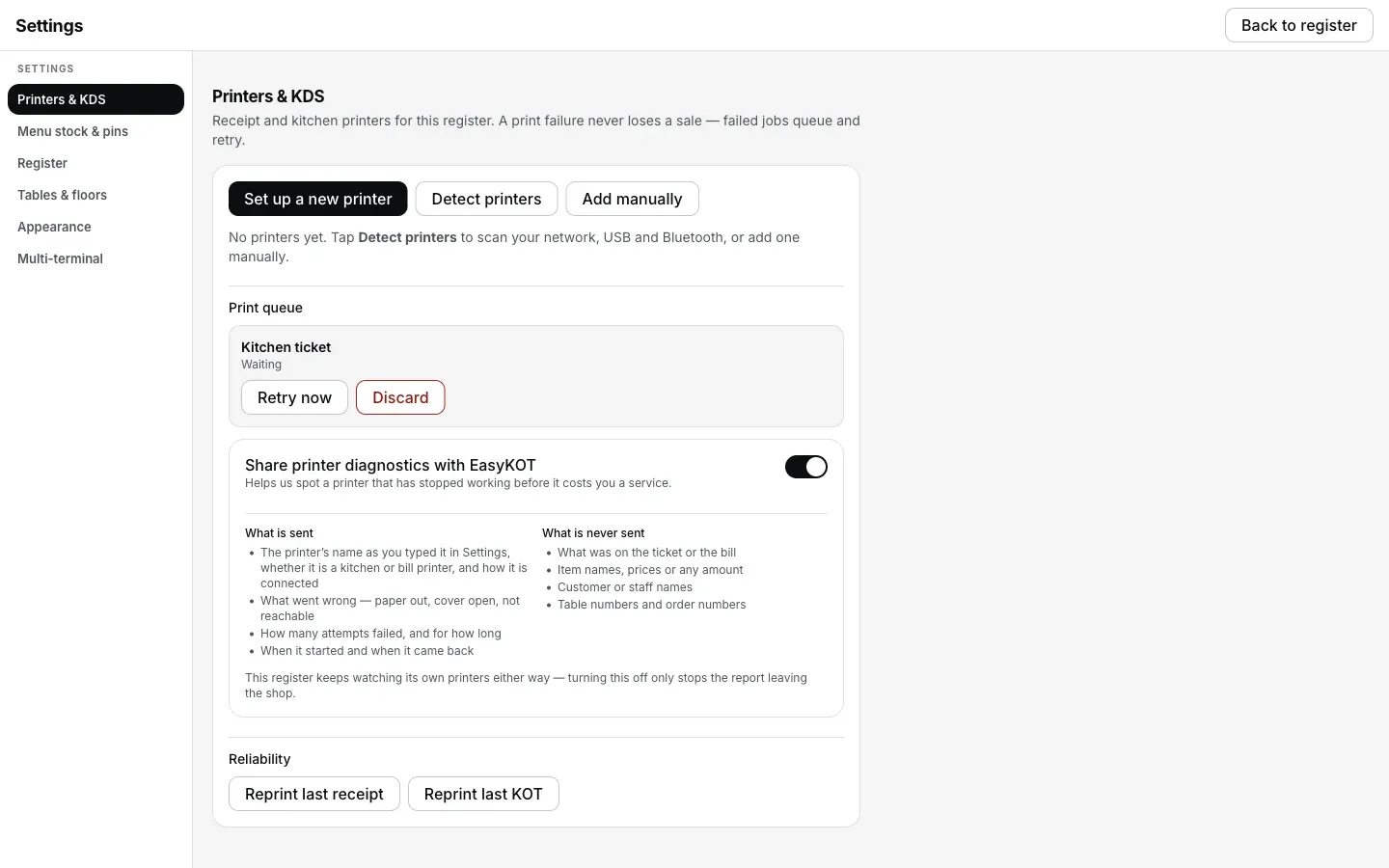
Settings → Printers & KDS, pehla printer add karne se pehle.
Printer ki company bataye
Epson, TVS, Rongta ya Xprinter chune. Pata nahi, ya company koi aur hai, toh Another brand / not sure. Isse bas itna badalta hai ki pehle kaunsa factory address try hoga aur kaunsa tip dikhega. ESC/POS aur paper width akele compatibility guarantee nahi karte: exact model aur connection ko test slip aur test bill se check kare.
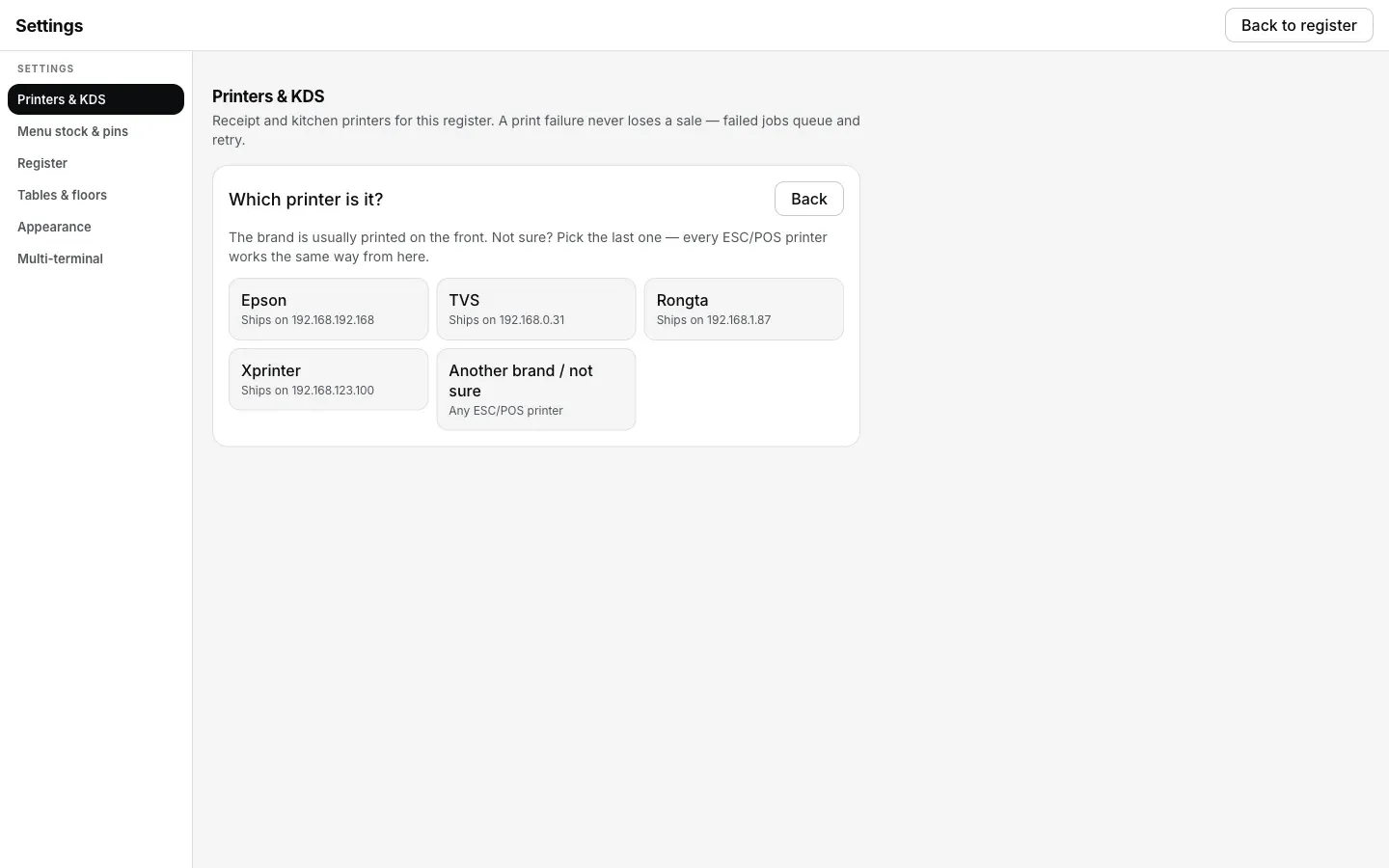
Set up a new printer ke baad pehla sawaal: Which printer is it?
Company ka tip padhe, phir scan hone de
Har company ke liye ek paragraph ki kaam ki baat aati hai: Epson router se khud address le leta hai, TVS, Rongta aur Xprinter factory address pe aate hain aur ek baar cable pe set karne padte hain. Phir Detect chaar round chalata hai: is computer ke USB aur Bluetooth port, printers ke factory address, network pe broadcast, aur Wi-Fi pe port 9100 wali har cheez ka sweep. Upar ki heading batati hai ki abhi kaunsa round chal raha hai.
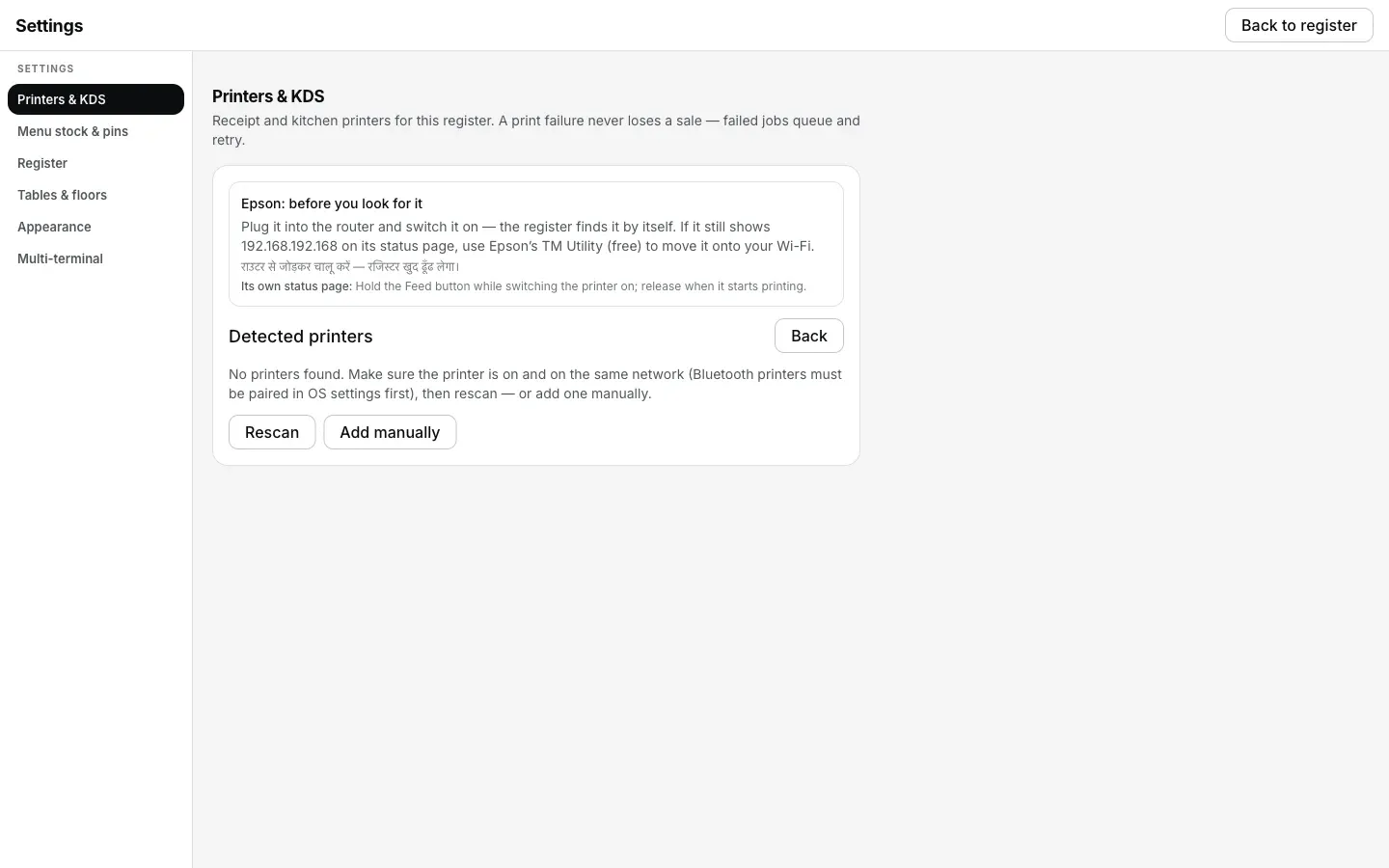
Epson ka tip, jo company chuni uske liye Detect ke upar dikhta hai.
List se apna printer chune, ya haath se add kare
Har result ke saath uski wajah likhi hoti hai, jaise “Answered a receipt-printer command — this is a printer”. Sirf port pe jawaab aaya toh kuch aisa: “Answering on the receipt-printer port; its network card is made by TP-Link”. Apna printer list mein nahi dikha? “Other devices on this computer” khole, ya Add manually dabaye aur connection khud bhare: network ke liye host aur port 9100, USB ke liye vendor/product id, serial ke liye port ka path, aur Bluetooth OS mein pair karne ke baad.
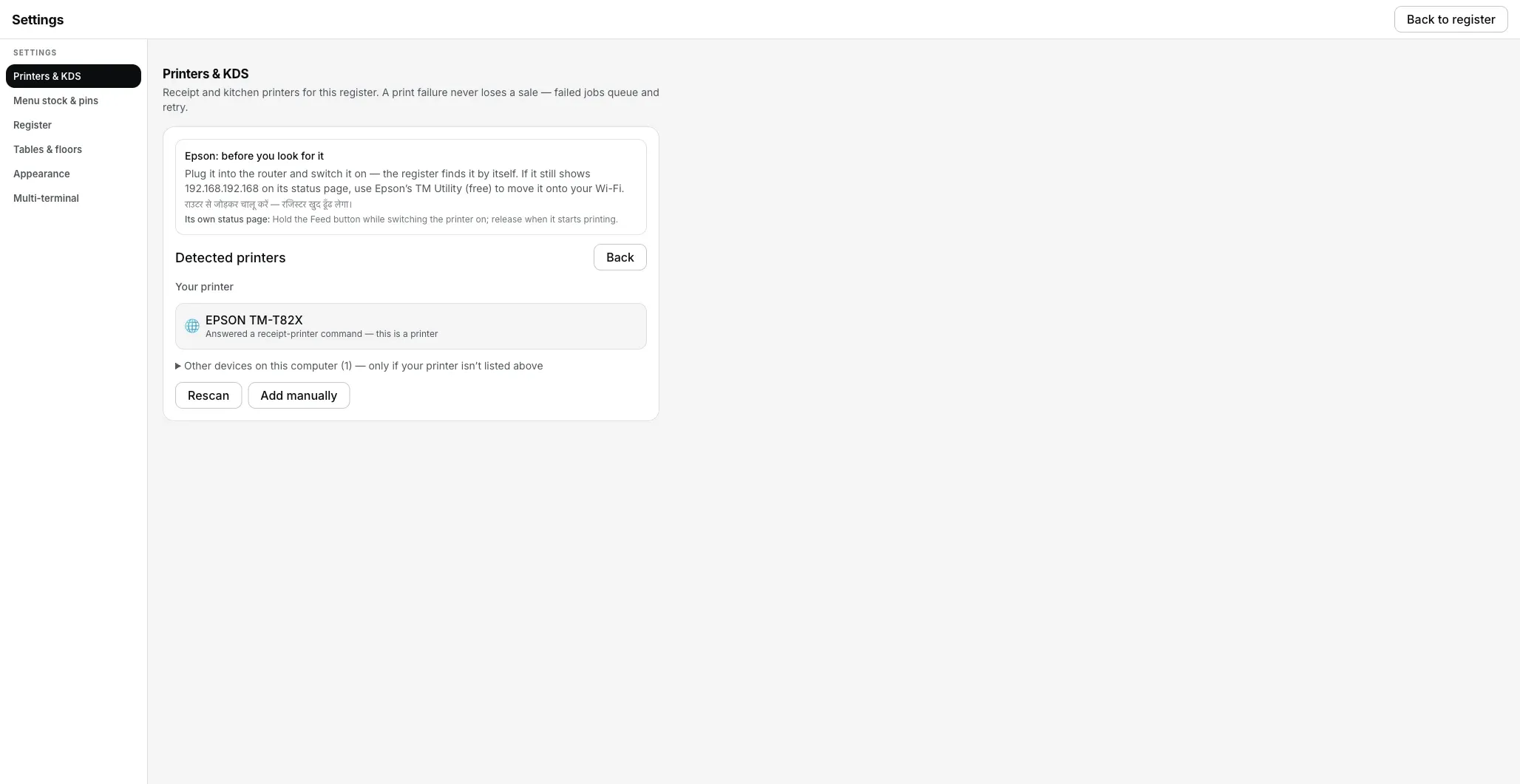
Detect printers: network pe ek asli printer mil gaya.
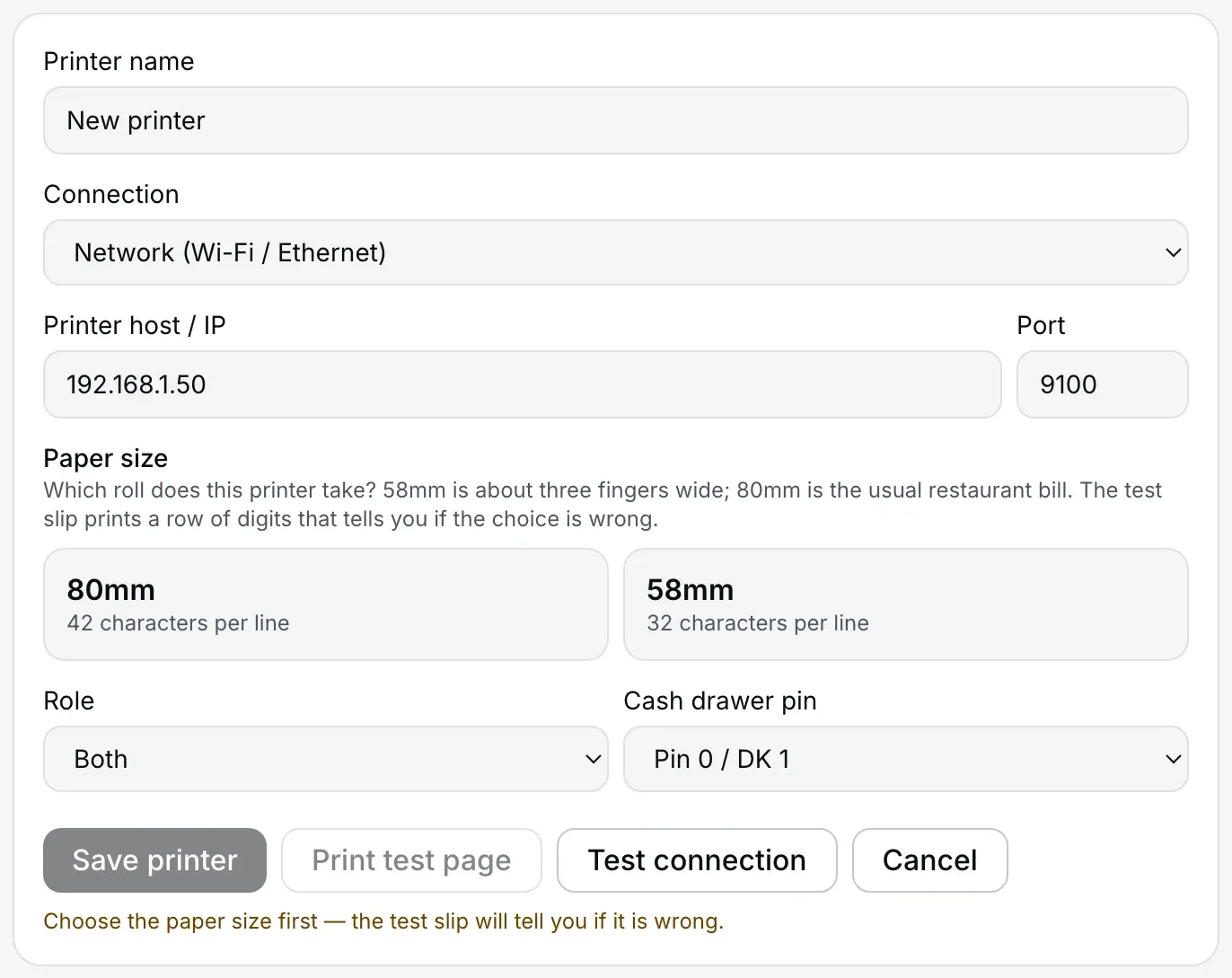
Haath se add karna ho toh yahi form, har raaste se same. Yahan Network (Wi-Fi / Ethernet) pe.
Paper roll ke hisaab se 80mm, 58mm ya 80mm wide chune
Paper size ke teen button hain: 80mm, 58mm aur 80mm wide, har ek ke neeche likha hai ek line mein kitne characters (42, 32, 48). 80mm wide un 80mm printers ke liye hai jo ek line mein 48 le lete hain; pakka nahi pata toh 80mm se shuru kare. Koi bhi pehle se select nahi hota. Jab tak aap ek nahi chunte, Save printer aur Print test page band rehte hain aur neeche likha aata hai “Choose the paper size first — the test slip will tell you if it is wrong”. Test slip aapka jawaab khud check karti hai: chuni hui width jitni lambi digits ki line chhapti hai, toh galat choice paper pe hi dikh jaati hai.
Save kare, test slip nikale, phir test bill check kare
Save printer dabaye. Set up a new printer se aaye hain toh screen par “<name> is set up” ke saath Print a test slip aur Check printer milega. Test slip saaf aaye toh ek test bill bhi print kare aur item names, totals, paper width aur cut check kare. Blank slip mein roll ki direction common wajah hai, lekin fresh paper aur printer self-test bhi check kare.
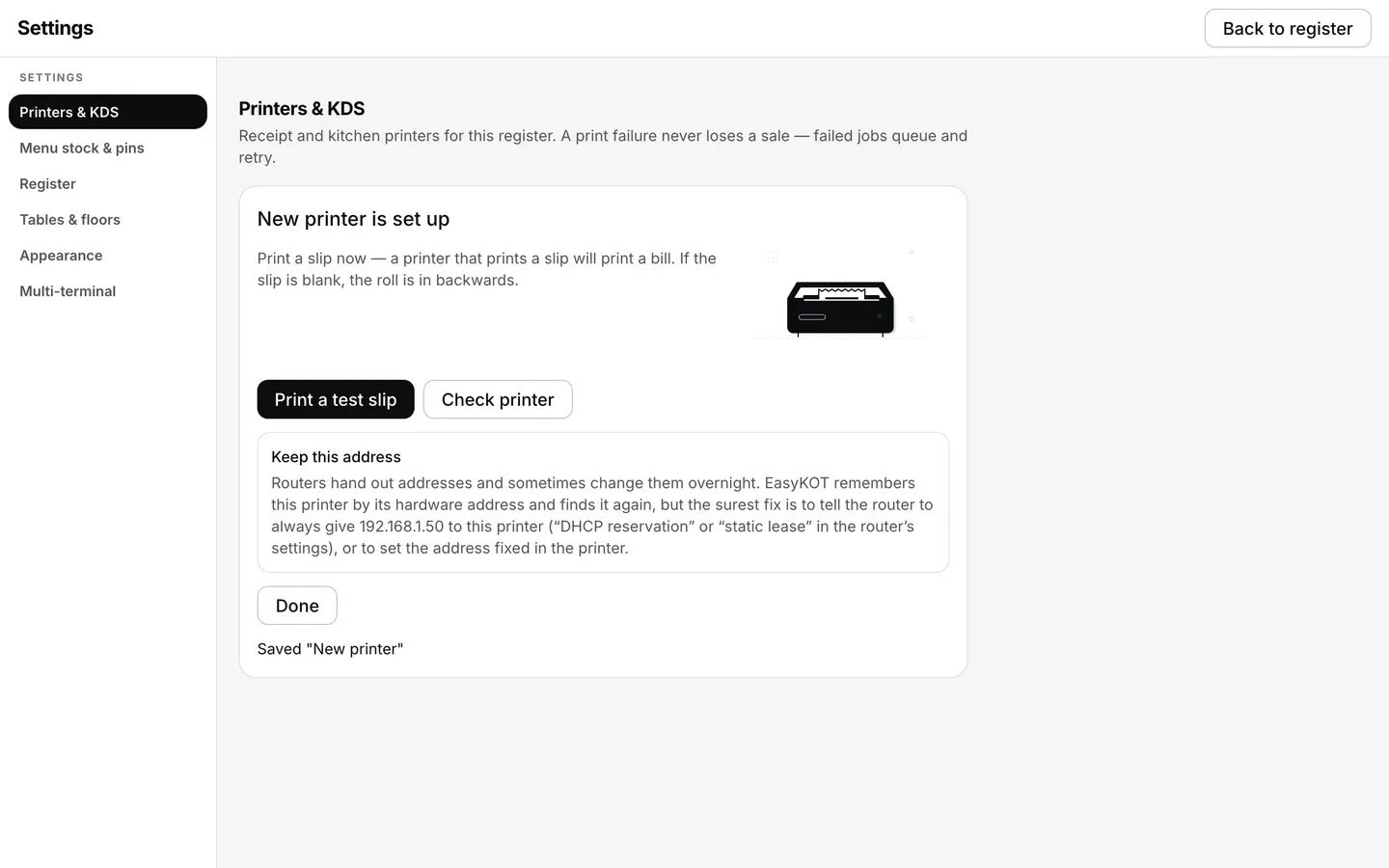
Save printer ke turant baad wizard ka aakhri step.
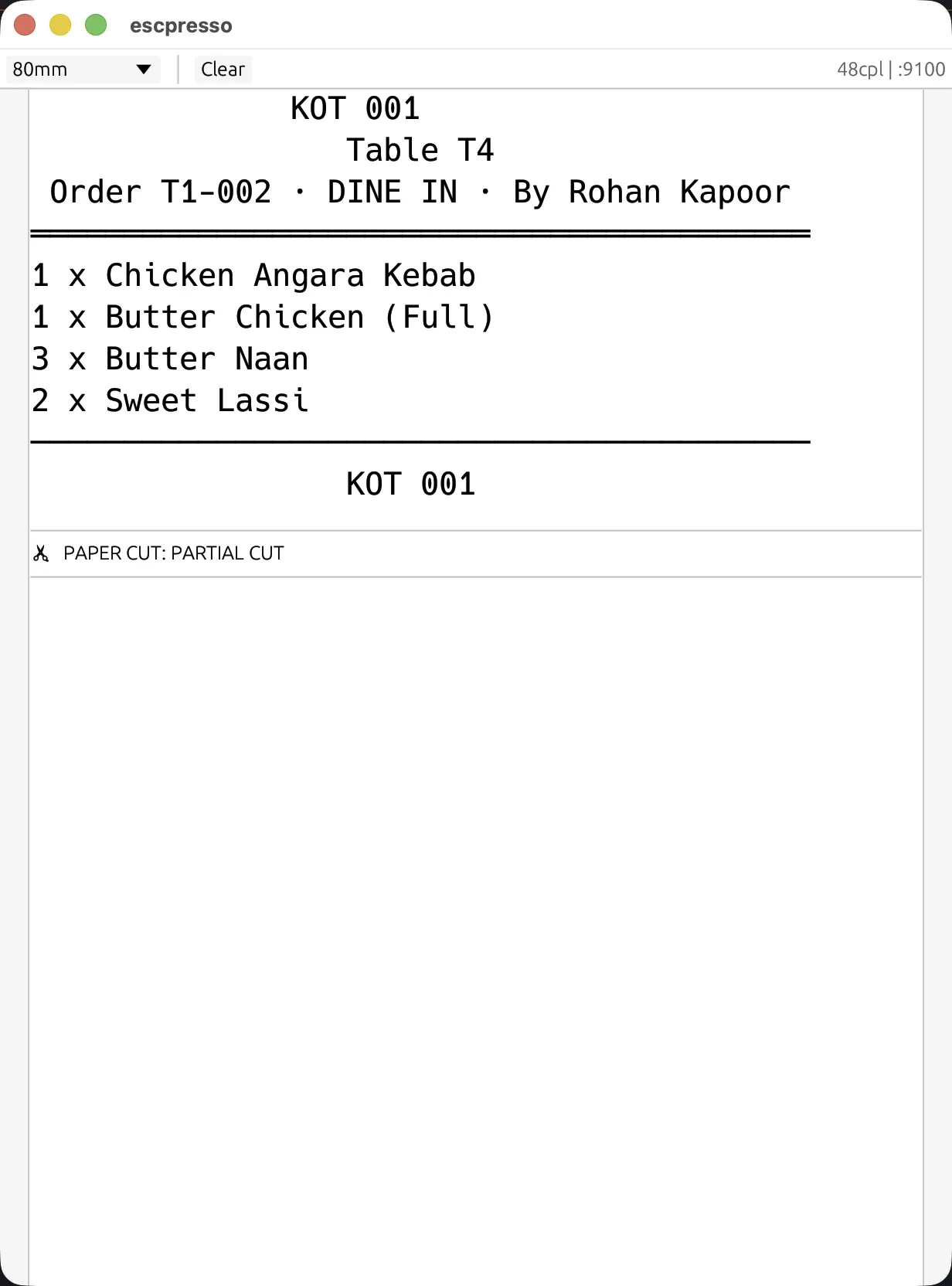
Printer se jo nikalta hai: Desktop App ke asli print bytes, ek virtual ESC/POS printer pe. Mockup nahi.
Printer ka address pakka kare
Setup ke end mein address ki ek salah aati hai. Printer abhi bhi apne factory address pe hai, toh “Still on its factory address” aata hai. Warna “Keep this address”, jo router pe reservation karne ko bolta hai (upar ke steps wahi hain). EasyKOT printer ko uske hardware address se bhi yaad rakhta hai, par reservation sabse pakka fix hai.
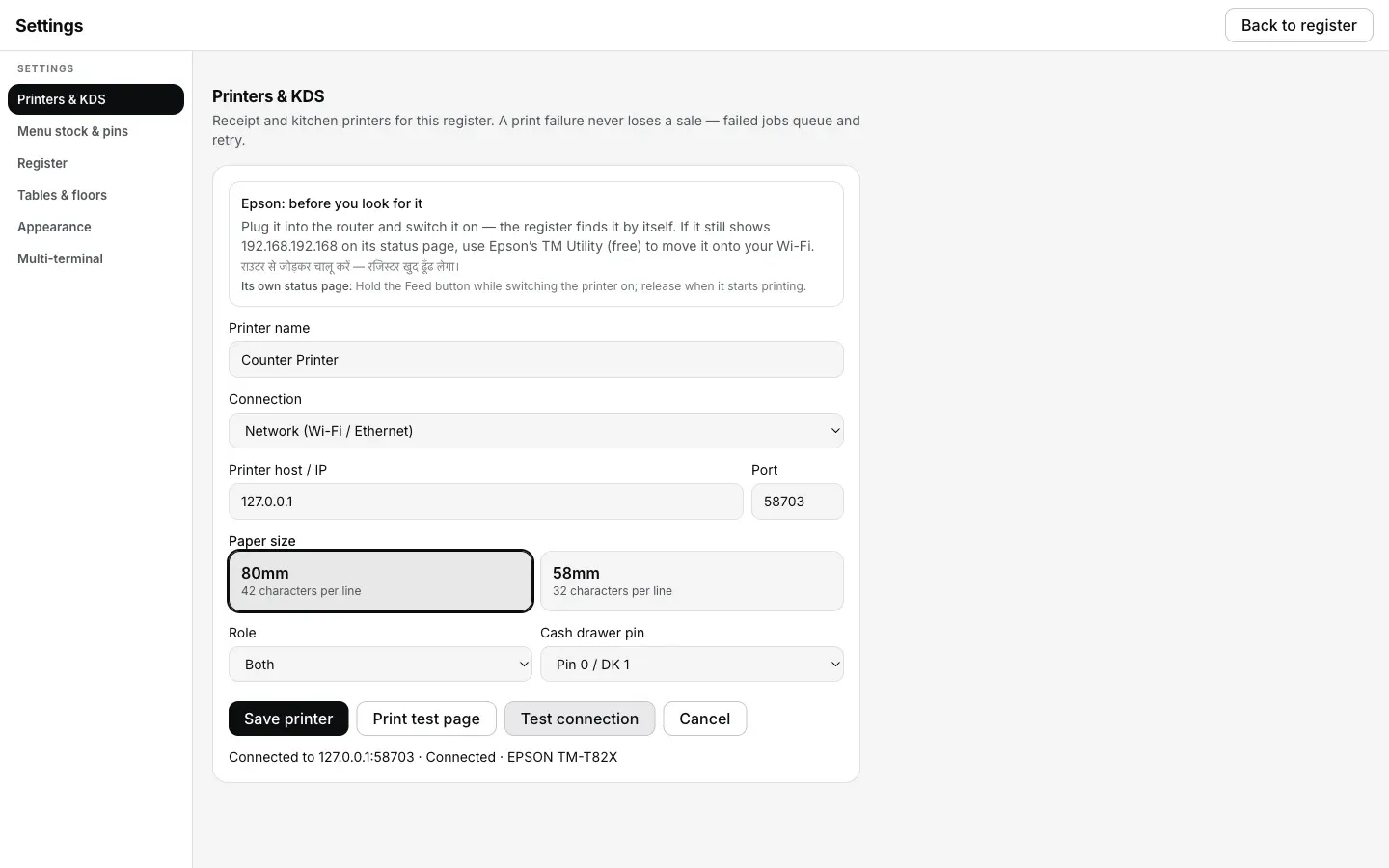
Test connection: printer ka live jawaab, andaaza nahi.
₹299/month ya ₹2,990/year, plus 18% GST · 3 mahine free · aaj ₹0, bina card details
USB printer: cable seedha laptop mein
Pehle generic baat. Phone ke saath aaya har USB cable data nahi le jaata. Kuch sirf charging karte hain aur dikhte bilkul same hain, toh printer ke saath aaya cable hi lagaye. Windows pe kabhi printer company ka driver port pakad ke baith jaata hai, tab koi bhi software printer khol nahi paata.
EasyKOT mein cable laga ke Detect printers chalaye: vendor id aur product id khud bhar jaate hain, kyunki USB printer apni pehchaan khud batata hai. EasyKOT ke liye koi driver install nahi karna. Windows pe uska apna built-in USB printing driver kaafi hai.
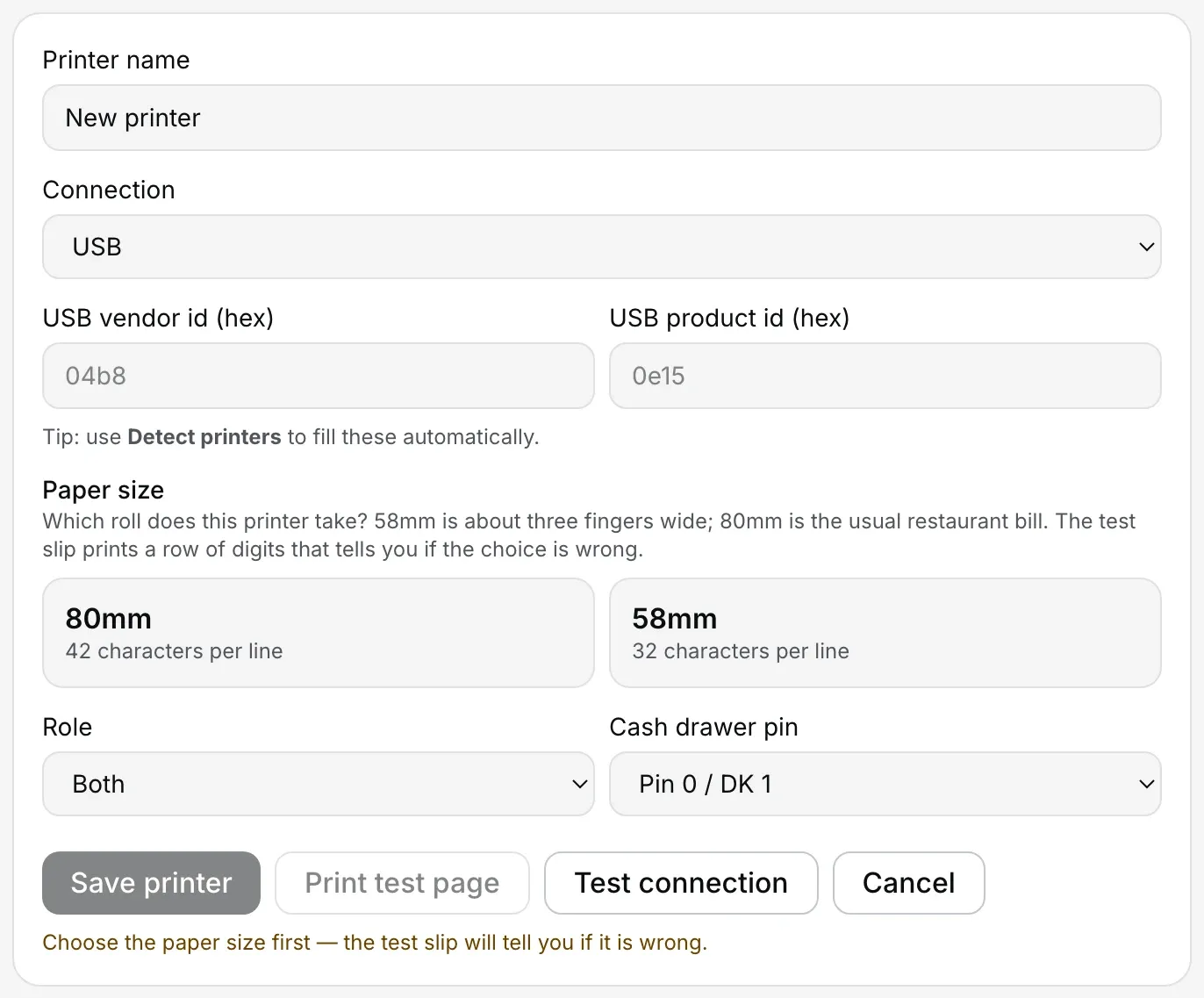
Settings → Printers & KDS → Add manually, USB pe.
Detect mein USB printer dikha hi nahi? USB printer not found wala guide padhe: cable, driver, aur Windows ka fallback.
Live status: USB printer ko Desktop App background mein check karta rehta hai, network printer ki tarah. Jo sasta printer status ka jawaab hi nahi deta, uspe Can't verify — will still try to print aata hai. Yeh jhootha green nahi, seedha sach hai. Aise printer ka proof test slip hai, toh rush se pehle ek slip nikaal le.
Laptop se Serial aur Bluetooth: chalta hai, par pehli choice nahi
Dono ek hi option mein hain, Serial / Bluetooth, kyunki laptop ki Bluetooth settings mein pair kiya printer laptop ko serial port jaisa dikhta hai. Pehle OS mein pair kare, phir yahan dikhega.
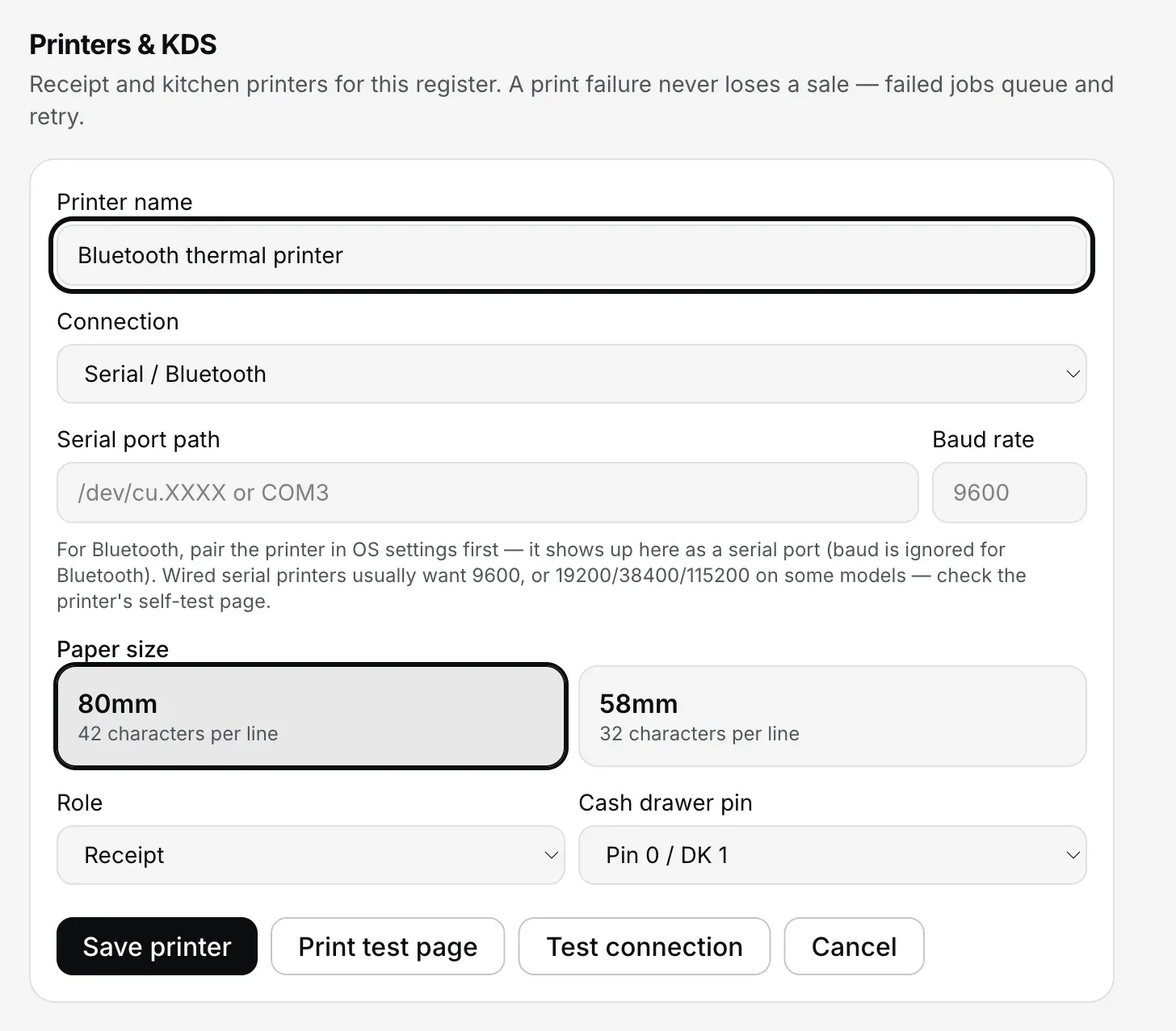
Settings → Printers & KDS → Add manually, Serial / Bluetooth pe.
- Port ka path. Mac pe
/dev/cu.se shuru hota hai, Windows pe COM number hota hai, aksar COM3. - Baud rate sirf wire wale serial ke liye. Zyada tar 9600 pe chalte hain, kuch 19200, 38400 ya 115200 maangte hain: printer ki self-test slip batati hai. Bluetooth ke liye yeh field ignore hoti hai.
- Live status nahi. Serial aur Bluetooth printer ka haal Desktop App sirf tab poochta hai jab aap Check printer ya Test connection dabate hain. Background mein poochega toh wahi port print queue se takraayega, isliye jaan-boojh ke nahi poochta.
- Seedhi baat. Laptop se healthy Bluetooth print ka record hamare paas abhi nahi hai. Mac pe Bluetooth link kabhi atak jaata hai: Desktop App 10 second ke baad error dikhata hai, hang nahi hota. Counter ke liye LAN ya USB chune.
- Pair hai par print nahi? Bluetooth printer paired hai par print nahi karta. Phone se print karna ho toh Android phone wala guide.
System printer: computer ka apna print queue
Printer pehle se computer pe normal printer ki tarah install hai, toh EasyKOT bill usi queue se bhej sakta hai. Windows pe iska naam Windows printer (driver queue — no live status) hai, Mac aur Linux pe System printer (OS driver). Jobs Mac aur Linux pe CUPS se, Windows pe Windows spooler se jaate hain. Is raaste pe Desktop App bas yeh dekhta hai ki woh queue hai ya nahi. Paper khatam ya cover khula, yeh use nahi dikhta.
- Queue ka naam bilkul waisa hi likhe jaisa OS dikhata hai. Windows pe Printers & scanners wala naam, Mac pe System Settings → Printers wala.
- Choice ho toh Network ya USB lo. Un dono pe Desktop App ko live status milta hai. System printer tab sahi hai jab printer pehle se computer mein set hai aur aap uski wiring nahi chhedna chahte.
- Windows spooler wala raasta abhi hamare hardware runbook se nahi guzra hai, isliye wahan bhi test print hi asli check hai.
58 mm ya 80 mm: jo roll aap khareedte hain, wahi chune
- Chhapne ki jagah roll se kam hoti hai. 80 mm roll pe lagbhag 72 mm, 58 mm pe lagbhag 48 mm. Model ke hisaab se thoda upar-neeche.
- 80 mm pe EasyKOT ek line mein 42 characters chhapta hai. Lambe dish ke naam, portion aur GST ka split aaram se aata hai. Counter ke liye yahi default. Kuch 80 mm printer 48 le lete hain, unke liye 80mm wide chune. Uski test slip pe 48 digits ki line toot gayi, toh aapka printer 42 wala hai: 80mm hi chune.
- 58 mm pe 32. Roll sasta hai aur har stationery wale ke paas milta hai. Chhote menu ya takeaway counter ke liye bilkul theek, bas setting match honi chahiye.
- Galat choice test slip pakad leti hai. Slip chuni hui width jitni lambi digits ki line chhapti hai: 80 mm ke liye 42, 58 mm ke liye 32. 58 mm roll pe 80 mm chuna, toh line doosri line pe chali jaati hai aur slip khud bolti hai: “If the digits wrapped onto a second line, choose 58mm in Settings > Printers & KDS.” Ulta kiya toh right side pe khaali jagah bachti hai, aur slip 80mm chunne ko bolti hai. Customer ko galat bill dikhne se pehle paper hi bata deta hai.
- Bill pe “Rs.”, screen pe ₹. Thermal printer ke paas ₹ ka symbol hota hi nahi, woh “?” chhaap deta hai. Isliye bill pe Rs. 480.00 jaata hai.
Naya printer lena hai? Restaurant ke liye thermal printer kaunsa le, 58 aur 80 mm ke fark ke saath.
Bill aur KOT ek printer se, ya kitchen ke liye doosra?
Har saved printer ka ek Role hota hai, aur teen hain: Both, Receipt aur Kitchen (KOT). Chhote restaurant mein counter pe ek printer Both pe, bas, poora dhanda chal jaata hai.
- Receipt pe customer ka bill, reprint aur cash drawer.
- Kitchen (KOT) pe kitchen tickets. Kitchen printer set nahi hai, toh KOT Both wale printer pe jaata hai, woh bhi nahi toh receipt printer pe. Kitchen ka ticket chupchaap gayab nahi hota.
- Kitchen ke liye doosra printer agla natural step hai: kitchen KOT printer aur cash drawer set up kare. Kitchen door hai toh wahan LAN cable sabse accha raasta hai.
- Tandoor aur bar ke tickets alag paper pe? Kitchen stations set up kare, pehle do printer chalne ke baad.
- Do Desktop App, ek store? Doosra Desktop App add kare.
- Cash drawer alag device nahi hai. Woh receipt printer ke DK port mein lagta hai, aur form ki Cash drawer pin setting batati hai ki kaunsa pin use khole.
Check printer: support call ke 5 sawaal, Desktop App khud poochta hai
Har saved printer ki row pe Check printer button hai. Woh wahi 5 sawaal poochta hai jo support wala phone pe poochta: Desktop App printer tak pahunch raha hai, cover band hai, printer ESC/POS bolta hai, printer theek hai, aur test slip nikli. Har step ka result Pass, Needs attention, Unsupported (yeh printer batata hi nahi) ya Not tested.
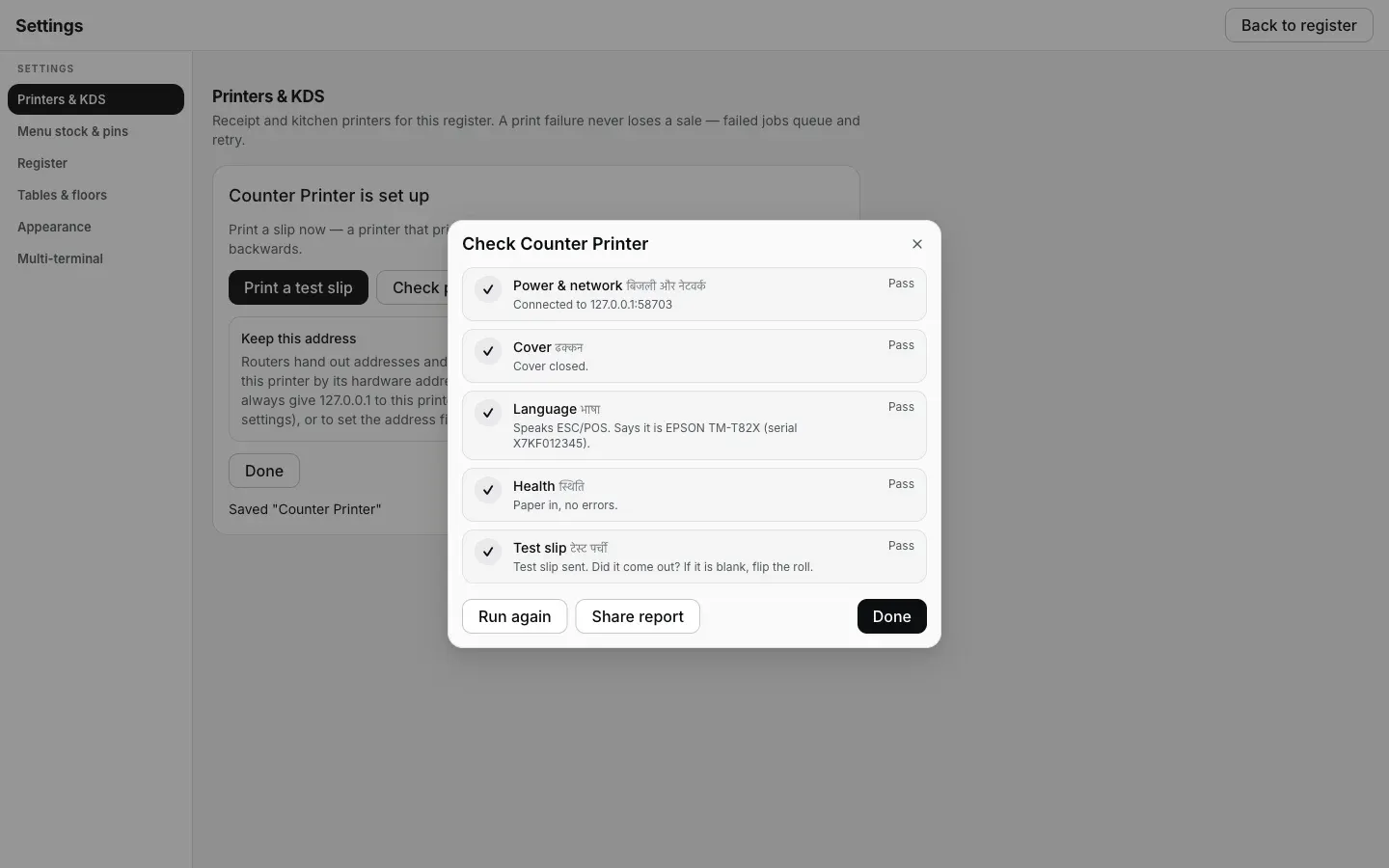
Settings → Printers & KDS → Check printer: healthy printer, 5 mein se 5.
- Jahan pehli dikkat, wahan uska fix. Ek card wajah batata hai aur pehle kya try karna hai, saath mein QR code jo phone pe seedha easykot.com ka matching guide kholta hai.
- Share report plain text copy karta hai: printer, connection, 5 results aur guide ka link, WhatsApp pe paste karne ke liye ready. Ticket ya bill pe kya tha, woh kabhi nahi jaata.
- Unsupported fail nahi hai. Bahut saste printer status ka jawaab dete hi nahi, par har ticket print karte hain. Unke liye test slip hi check hai.
Slip nahi nikli? Pehle yeh teen cheezein
Lagbhag har case in teen mein se ek hota hai: paper ulta laga hai, printer asal mein on nahi hai, ya laptop aur printer alag network pe hain. Phir Check printer chalaye, woh aksar inmein se sahi wala bata deta hai.
- Printer print nahi kar raha: poori checklist, sahi order mein
- IP daal ke bhi printer nahi mil raha (router devices ko alag rakh raha hai)
- Mac pe har printer unreachable dikhe toh macOS ki Local Network permission
Sabse zaroori baat pehle: sale save ho chuki hai. EasyKOT bill ko print queue mein daalne se pehle laptop pe save karta hai. Fail hua ticket khud retry hota hai: 1, 2, 5, 15, 30 aur 60 second, phir har minute, lekin sirf 5 minute tak. Itni der mein print nahi hua toh hi woh aapko bulata hai. Print queue aur reprint kaise kaam karte hain yahan padhe.
Seedhe jawaab.
Thermal printer laptop se kaise connect kare?
Printer Wi-Fi se kaise connect kare?
Printer ka IP address kaise pata kare?
Printer ka IP address kaise change kare?
Driver install karna padega?
LAN ya USB, kaunsa better hai?
Ek printer se bill aur KOT dono nikal sakte hain?
Kaunse thermal printer EasyKOT ke saath chalte hain?
Printer ke liye internet chahiye kya?
Aage: kitchen ke liye doosra printer · printer print nahi kar raha · saare EasyKOT guides
Printer connect ho gaya? Ab set kare: bill aur KOT ka font size aur layout.
3 mahine try kare, phir plan chune.
Restaurant ka kaam hum samajhte hain, kyunki shuruaat bhi wahin se hui. 3 mahine free try kare, bina card details. Hamari kahani padhe.