Doosra EasyKOT Desktop App, teesra Desktop App — ek hi store, ek hi floor.
The day one Desktop App stops being enough is a good day: the queue got long. Adding the second Desktop App is a five-minute pairing, not an IT project: one Desktop App hosts a meeting point on your own Wi-Fi, the rest join with a code, and the whole counter works one floor, one order list, one kitchen, internet optional.
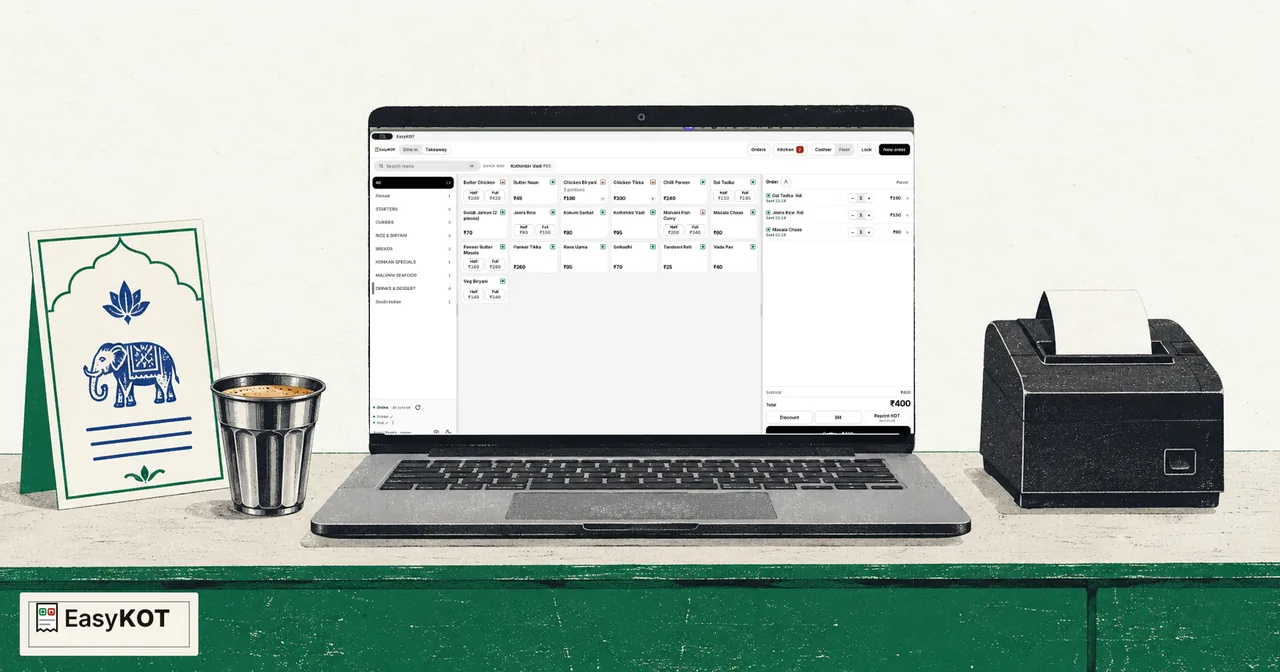
Ek Desktop App se poore counter tak — teen steps.
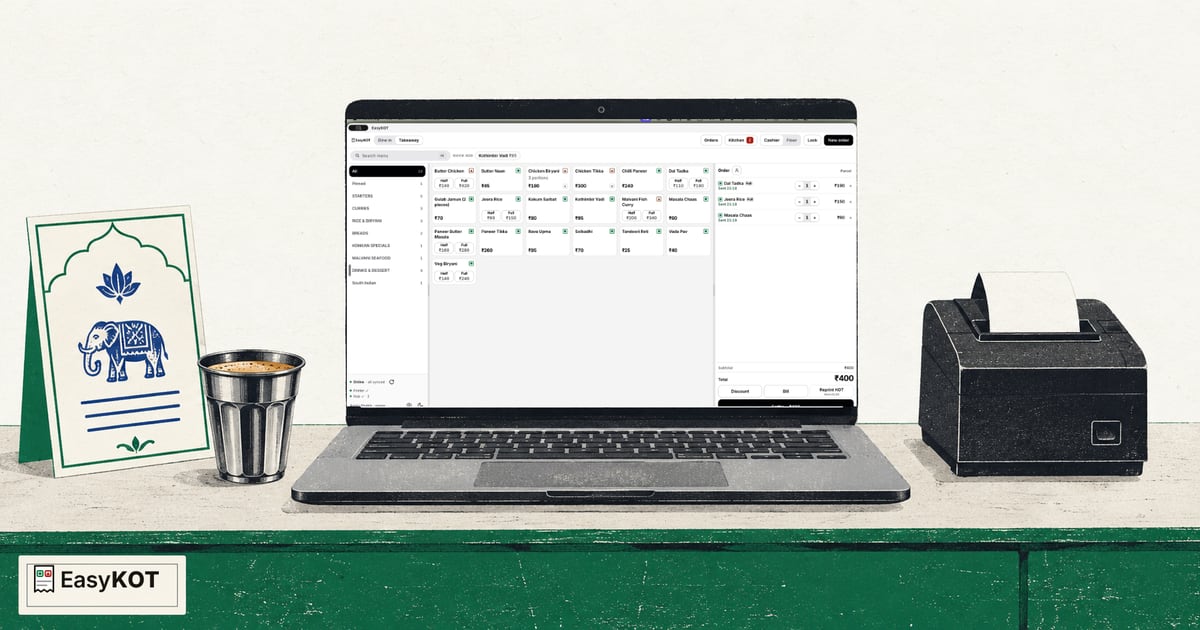
Video transcript padhe
Yeh recorded narration hai. Screen labels aur steps published video ke time ke hain.
Counter 1 और Counter 2, दोनों पहले से एक ही Konkan Kitchen store से connected हैं। दोनों को restaurant के local Wi-Fi पर रखो। Counter 1 पर Settings, फिर Multi-device खोलो। Host the hub select करो। Service के दौरान यह laptop awake और EasyKOT running रहना चाहिए। यहाँ दिखाया address इस्तेमाल करो, फिर Code for a Desktop App select करो। यह single-use code पाँच मिनट में expire होता है। Counter 2 पर Multi-device खोलकर Join a hub select करो। Find hub चुनो, या Counter 1 पर दिखाया exact address डालो। Pairing code डालो, फिर Pair and save select करो। Paired. This Desktop App has its own hub credential दिखने दो। अब Counter 1 device list में इसे दिखाता है, और दोनों status bars live hub दिखाते हैं। अब Counter 2 पर चार सौ रुपये का real T2-001 order शुरू करो। हर laptop locally save करता है, इसलिए यह setup future internet problem में counter को चालू रखने के लिए designed है। इस recording में internet on रहता है। Local hub वही order Counter 1 की Orders list से share करता है। वहाँ वही order दिखने के बाद ही Counter 2 से Kay O Tea fire करो। Paired store में Counter 1 print server है। Kitchen printer वहीं configure करो, और service से पहले real Kay O Tea verify करो। Cloud sync हर laptop पर अलग चलता रहता है। Live sharing और printing के लिए Counter 1 running रखो। Counter 1 restart हो, तो नया code बनाकर Counter 2 को फिर pair करो।
Make one Desktop App the hub
On your main Desktop App: Settings → Connected devices → 'Main register'. The screen shows the address other devices will find it at on your shop's network. That's the whole job of the hub: a meeting point on your own Wi-Fi; there is no server to install and no cloud dependency for the Desktop Apps to talk.
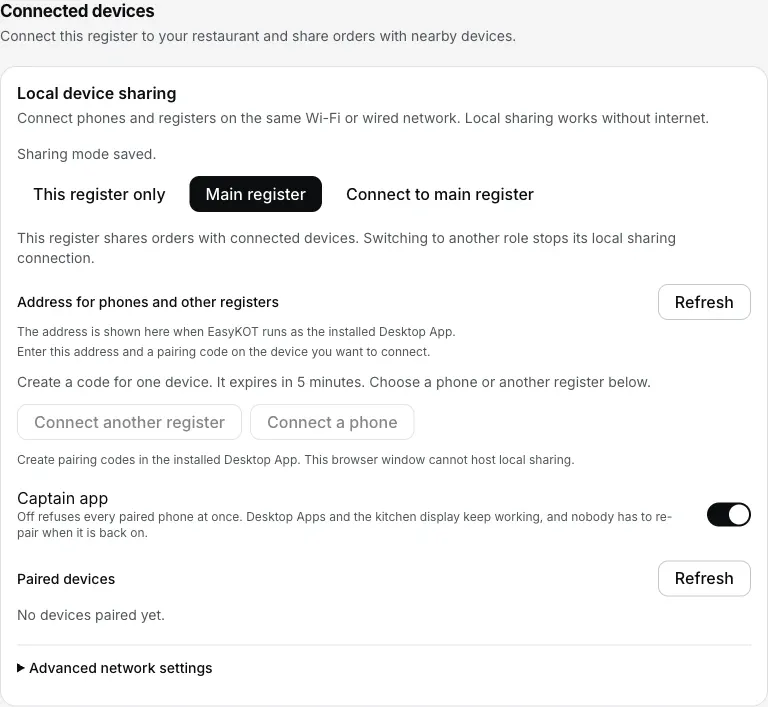
Step 1: choose Main register. In the installed Desktop App, this panel shows the network address and creates one-use device codes.
Pair the second Desktop App with a five-minute code
Tap 'Connect another register': a single-use code, alive for five minutes, shown big and as a QR. On the new Desktop App: 'Connect to main register', let it find the hub by itself (or type the address if your network is strict), enter the code, 'Connect this register'. Done. Pairing a waiter's phone is even shorter: mint 'Connect a phone' and the captain app scans the QR in one step.
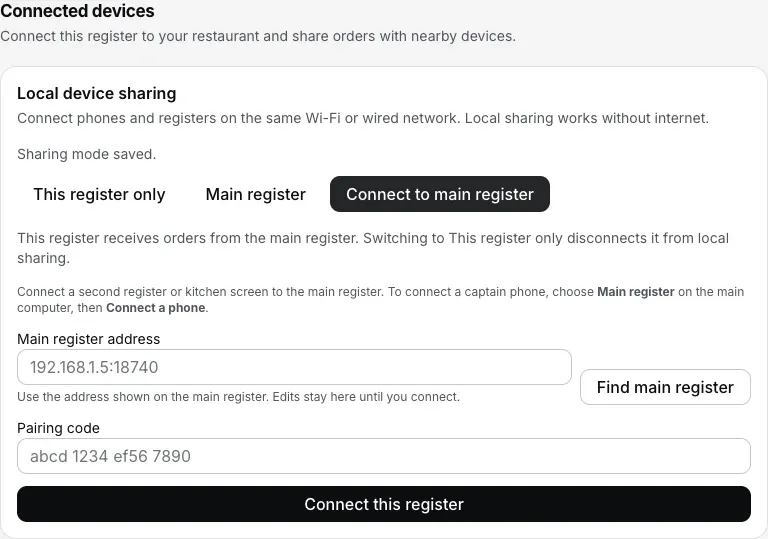
Step 2: find the main register or type its address, enter the five-minute code, then choose Connect this register.
Work as one store
From that moment the Desktop Apps share the floor, the open orders and the kitchen display. A table seated on the first Desktop App is seated on the second; a KOT fired at the counter lands on the kitchen screen by the pass; a check opened here settles there. Each Desktop App still keeps its own complete local database and its own bill-number series, which is why the whole arrangement keeps billing through an internet outage.
The same hub is how everything else joins the store: the kitchen screen pairs as a Desktop App and locks itself to the pass, and the captain app on a waiter's phone scans its QR in one step.
Straight answers.
Does multi-device need the internet?
Jo Desktop App hub hai, woh band ho jaye toh?
How do I remove a device — a sold laptop, a staff phone that left?
My Wi-Fi doesn't find the hub automatically. Stuck?
Can two different restaurants on the same Wi-Fi see each other?
Do both Desktop Apps print bills with the same numbers?
Build out the counter.
Kitchen screen setup
A paired Desktop App + a chef PIN = the pass display. Stations, prep lane, the works.
Set up the KDS →Captain app setup
The phone side of the same pairing: orders fired from beside the guest.
Set up the captain app →Billing with the internet down
Why a shared floor keeps working when the fibre dies: the design underneath this page.
See the outage walkthrough →Every guide in this cluster is listed on the guides hub.
3 mahine try kare, phir plan chune.
Restaurant ka kaam hum samajhte hain, kyunki shuruaat bhi wahin se hui. 3 mahine free try kare, bina card details. Hamari kahani padhe.