Internet band ho toh billing kaise chalegi?
Pehle se configured EasyKOT Desktop App par billing internet ke bina chalti rehti hai. Order aur payment laptop ke local database mein save hote hain aur connection aane par sync hote hain. Network printer, captain phone aur KDS ke liye router aur local Wi-Fi chalna zaroori hai.
Internet, router aur power teen alag outages hain. Internet band ho toh local billing chalti hai. Router band ho toh local devices ka connection ruk sakta hai. Power band ho toh laptop, router aur printer ko battery ya backup chahiye. Desktop App ko har 30 din mein kam se kam ek online sync chahiye; day 20 se reminder aur day 30 par sync tak selling pause hoti hai.
Chhota sample dekhna hai? Homepage ka offline simulator khole. Internet toggle OFF karke local billing ka example dekhe. Yeh physical printer ya payment test nahi hai.
Kya locally chalta rahega?
- Tables aur order banaye. Menu pehle se laptop par hai. Search, categories, Half/Full portions, add-ons aur item notes locally use kare.
- KOT bheje. Configured kitchen printer local network ya cable par kaam kar sakta hai. Internet band hona aur router/printer band hona alag baat hai. Queue aur kitchen mein delivery check kare.
- Payment record aur bill print kare. Cash, UPI ya Card marking, part payment aur cash change local Desktop App par available hain. UPI apne merchant ya bank app mein verify kare. Printer aur drawer ke liye configured hardware aur power chahiye.
- Staff PIN aur approvals. Pehle se synced staff PIN offline use ho sakte hain. Discount ya whole-check action ke liye jo permission aur manager approval chahiye, woh offline bhi apply hoti hai. Item removal ka reason/staff attribution alag flow hai.
- Reprint se pehle check kare. Last receipt, last KOT ya settled order dobara print kar sakte hain. Bill copy par DUPLICATE aata hai; KOT copy par nahi. Status uncertain ho toh kitchen se poochhe bina ticket dobara na bheje.
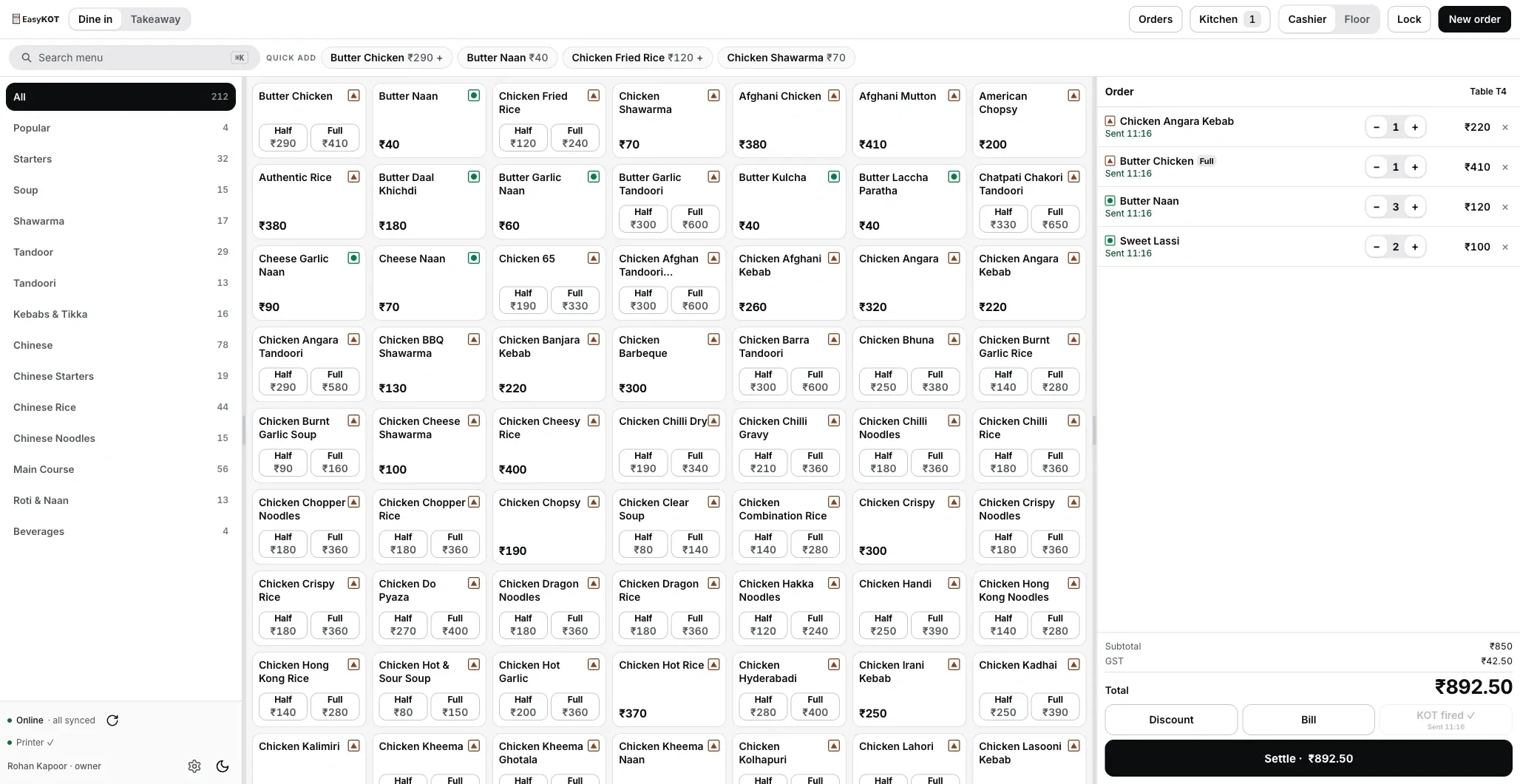
Service ke dauraan sample cart. Internet band hone par local cart rehta hai; rail ka offline status aur print queue alag check kare.
In kaamon ke liye internet chahiye.
- Signup aur naya device connect karna. Account banane, menu load karne aur Desktop App ka one-time setup code lene ke liye internet chahiye. Service se pehle setup poora kare.
- Dashboard sync. Sales server par bhejna aur updated menu download karna internet par hota hai. Pending data connection wapas aane par background mein sync hota hai.
- Owner dashboard. Reports, menu edits, staff aur devices browser mein manage hote hain. Internet band ho toh dashboard changes ruk sakte hain; Desktop App pehle se synced menu se bill karta hai.
Local billing ke liye internet ka wait nahi hota. Printer ya shared-device delivery ke liye working connection aur power phir bhi chahiye.
Offline badge ka matlab samjhe.
- Online status dekhe. Left rail ke neeche green dot ke saath “Online · all synced” dikhta hai.
- Offline status dekhe. Internet na ho toh grey dot ke saath “Offline · sales keep working” aata hai. Printer aur captain ke statuses alag check kare; yeh badge kitchen delivery ka proof nahi hai.
- Status ke words bhi padhe. Green ya grey ke saath written status diya hai, taaki sirf colour dekhkar decision na lena pade.
- Menu refresh offline nahi chalta. Button disabled ho toh tooltip “No network — sales still work offline; sync when back online” dikhta hai. Internet aane par menu refresh use kar sakte hain; billing ke liye ise baar-baar dabana zaroori nahi.
Offline records kahan rehte hain?
Completed orders aur payments Desktop App ke local database mein rehte hain. Dashboard tak upload alag kaam hai. Offline status ka matlab sync pending ho sakta hai; locally settled sale apni jagah recorded hai.
- Completed records local disk par hain. Order aur payment database mein save hote hain. App restart ke baad tables check kare. Device ya storage kharaab ho toh unsynced data ki cloud copy nahi hoti.
- Correction ka record alag rehta hai. Order aur payment ke records overwrite nahi hote. Correction naya ledger record banati hai, taaki baad mein history aur totals review kar sake.
- Invoice series local hai. Desktop App apni configured series se number issue karta hai. Setup ke business aur tax details review kare. Series ka example first-GST-bill guide mein dekhe. First GST bill guide.
- Sync retry ka duplicate record nahi banta. Har write ka apna ID hai. Wahi write upload retry hone par dobara record nahi banti. Yeh paper printer ya dish ko dobara bhejne ke liye blanket guarantee nahi hai.
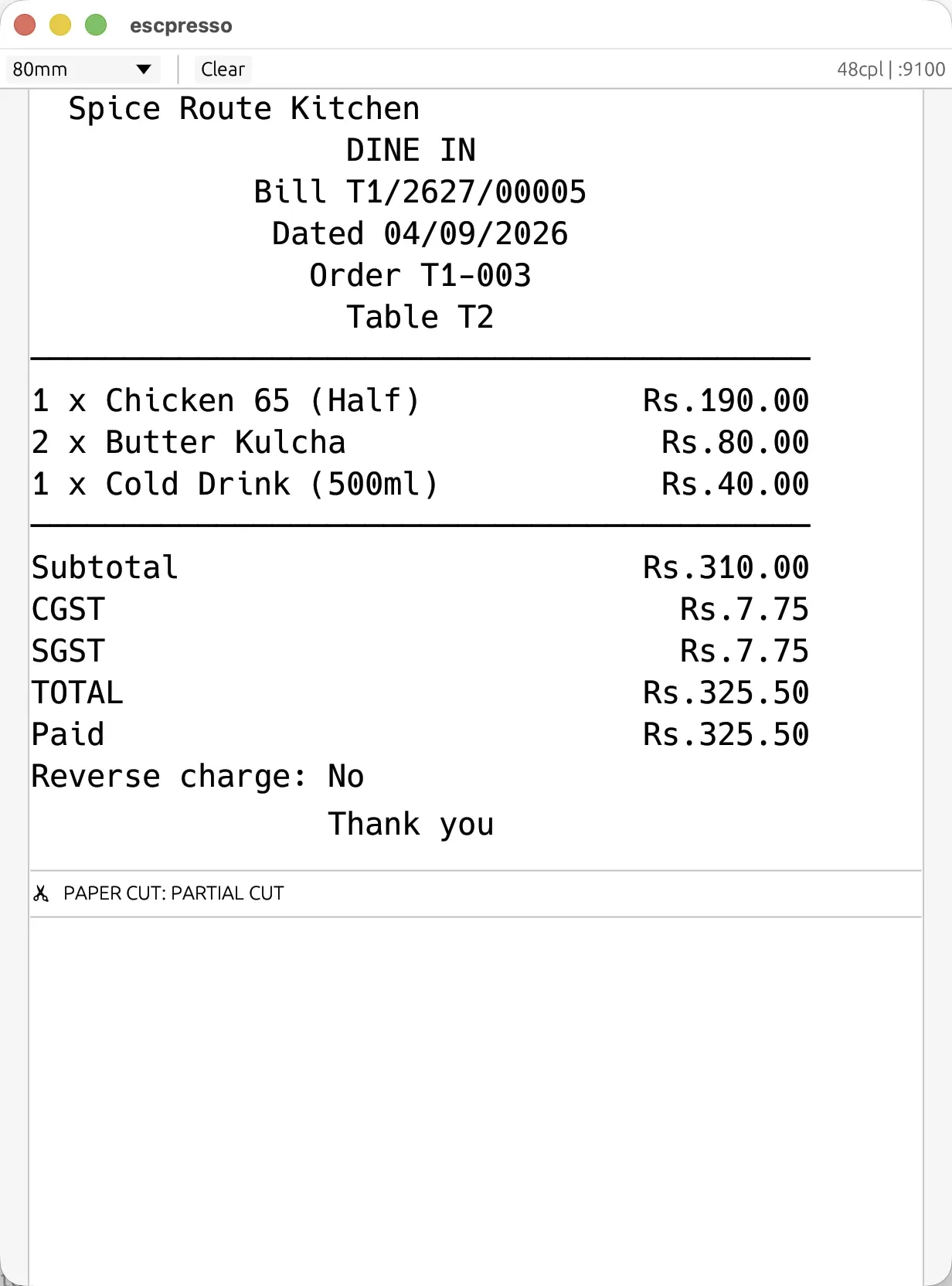
This is what prints while you are offline: the same numbered GST bill, CGST and SGST split, that prints when the line is up. Rendered here by a virtual ESC/POS printer: the exact bytes the Desktop App sends, not a photo of paper.
Printer bhi band ho toh kya kare?
Router reboot, printer power ya paper khatam hone se printing ruk sakti hai. Settled sale pehle record hoti hai; paper delivery alag check hoti hai. Print fail par wahi sale dobara banane ke badle queue aur Orders dekhe.
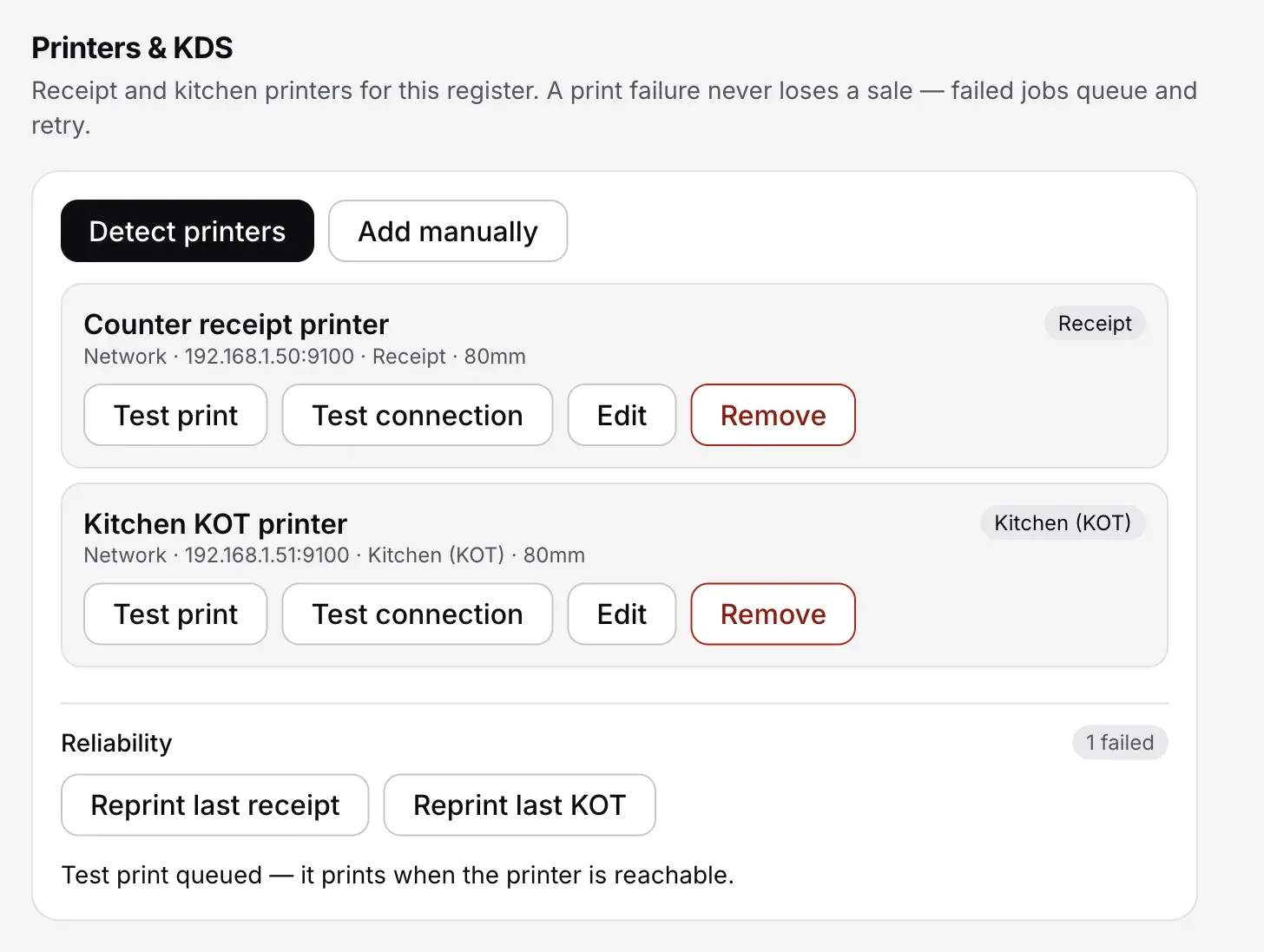
- Definite failure queue mein retry hota hai. Schedule 1, 2, 5, 15, 30 seconds aur phir har minute hai, queued hone se 5 minute tak. Uske baad Settings → Printers & KDS mein Print chahiye. Ambiguous send possibly_printed par park hota hai; paper shayad nikla ho, isliye kitchen check kare.
- Printer status rail mein dekhe. Configured printer fail ho toh “Printer ✕” aa sakta hai. Printer set nahi ho toh “No printer · 3 waiting” jaisa status, aur failed jobs ke liye “· 2 failed” dikh sakta hai. Yeh example counts hain.
- Reliability mein failed jobs dekhe. Settings mein “N failed”, Reprint last receipt aur Reprint last KOT controls milte hain. Manual reprint se pehle queue aur kitchen check kare, khaaskar jab status unclear ho.
- Drawer fail ho toh settled sale ko dobara na banaye. App receipt ya drawer queue error dikhata hai aur batata hai ki sale recorded hai. Orders mein bill dekhe; zaroorat par reprint kare.
Network printer ko working Wi-Fi/LAN aur power chahiye. Internet line band ho tab bhi configured local printer chal sakta hai. Printer troubleshooting ke checks dekhe.
Local Wi-Fi aur internet alag hain.
Router restaurant ke local devices ko jodta hai. Internet line bahar ke server aur dashboard tak le jaati hai. Dono mein se kaunsa connection band hai, pehle yeh check kare.
- Router chalu, internet band. Configured captain phone aur Desktop App shop Wi-Fi par local hub se baat kar sakte hain. Round ka acknowledgment aur KOT/kitchen result check kare; printer failure alag ho sakta hai.
- Phone shop Wi-Fi se bahar hai. Phone aur printing counter dono server tak pahunch sake toh server sync path use ho sakta hai. Arrival time assume na kare; confirmed ya not-sent status dekhe.
- Local Wi-Fi aur internet dono nahi hain. Round phone par save reh sakta hai. App ke words padhe: “The counter hasn't got this. Stay on the restaurant Wi-Fi, or tell the kitchen.” Counter confirm kare tab delivery maane; zaroorat par kitchen ko bataye.
- Power band hai. Laptop, router aur printer ko working battery ya backup chahiye. App kholne par completed local records aur open tables check kare. Sirf internet outage ka offline support power ka replacement nahi hai.
Captain phone ko restaurant aur Desktop App se connect kare. Local hub ke liye same Wi-Fi chahiye. Desktop kitchen display bhi configured local network use karta hai.
Connection aaye toh sync check kare.
- Connection wapas aaye toh sync shuru hota hai. Configured Desktop App background mein upload karta hai; billing saath chal sakti hai. Sync errors ho toh status review kare.
- Sync complete status dekhe. Pending uploads complete hone par “Online · all synced” dikhta hai. Sirf Wi-Fi icon aane ko completed sync na maane.
- Dashboard mein records aate hain. Offline sales ki original transaction time rehti hai. Sale aur payment/refund dates alag report calculations mein use ho sakti hain; selected date aur report heading check kare.
- Updated menu next sync par milta hai. Dashboard mein price change hua ho toh Desktop App use next sync par download karta hai. Online ho toh menu refresh se jaldi pull kar sakte hain.
Demo refresh karke saved table check kare.
Laptop-size browser demo mein local data save rehna check kare. Account ya install nahi chahiye. Sample bill aur KOT normal print dialog mein khulte hain; multi-device delivery ke liye installed apps aur configured hardware chahiye.
- Laptop ya desktop par browser demo khole. Sample restaurant load hone de.
- Test table khole, do sample items add kare aur Fire KOT chune.
- Load hone ke baad page refresh karke saved table check kare. Khuli loaded tab mein internet band karke local ordering try kare.
- Same browser mein refreshed page par saved table aur fired round rehna chahiye. Site data clear kare toh demo data delete hota hai. Uncached page ko dobara load karne ke liye internet chahiye ho sakta hai.
Demo ka sample data isi browser mein rehta hai. Koi asli payment ya customer data use na kare. Chhote illustration ke liye Homepage ka offline simulator.
Print dialog khulna paper nikalne ka proof nahi hai. Printer detection, automatic printing aur multi-device setup ke liye Installed Desktop App aur configured hardware chahiye.
Seedhe jawaab.
Kya EasyKOT internet ke bina billing kar sakta hai?
Kitne din offline billing kar sakte hain?
Offline waqt laptop band ho jaaye toh data ka kya hoga?
Internet band ho toh waiter ke phone chalenge?
Offline billing mein invoice number kaise banta hai?
Internet ke bina KOT printer tak jaayega?
Sync complete hua hai ya nahi, kaise dekhe?
Saath mein yeh guides dekhe.
Pehla GST bill
Punch, fire, settle, print: the four steps to a slip carrying your GSTIN with CGST and SGST split out.
Pehla bill guide dekhe →Printer print nahi kar raha
Blank paper, galat characters ya kitchen tak na pahuncha KOT: checks sahi order mein kare.
Checks dekhe →Captain app setup
Waiter ke phones Desktop App se pair kare. Internet band ho toh bhi local connection ke liye router aur devices powered rehne chahiye.
Phone setup dekhe →Desktop App ka flow billing page par dekhe. Baaki setup aur troubleshooting help guides mein hai.
3 mahine try kare, phir plan chune.
Restaurant ka kaam hum samajhte hain, kyunki shuruaat bhi wahin se hui. 3 mahine free try kare, bina card details. Hamari kahani padhe.