Pehla order se pehla GST bill — chaar steps.
Punch the dishes, fire the KOT, settle the table, print. The EasyKOT Desktop App puts your outlet name, GSTIN, item lines, CGST, SGST and the round-off on the slip by itself. You set the GST rate once in your dashboard, on your CA's advice. The bill prints whether or not the internet is up.
No printer yet, no account yet? Do all four steps right now in the live demo. It runs the real Desktop App in your browser, on a laptop-size screen.
Three settings that must be right.
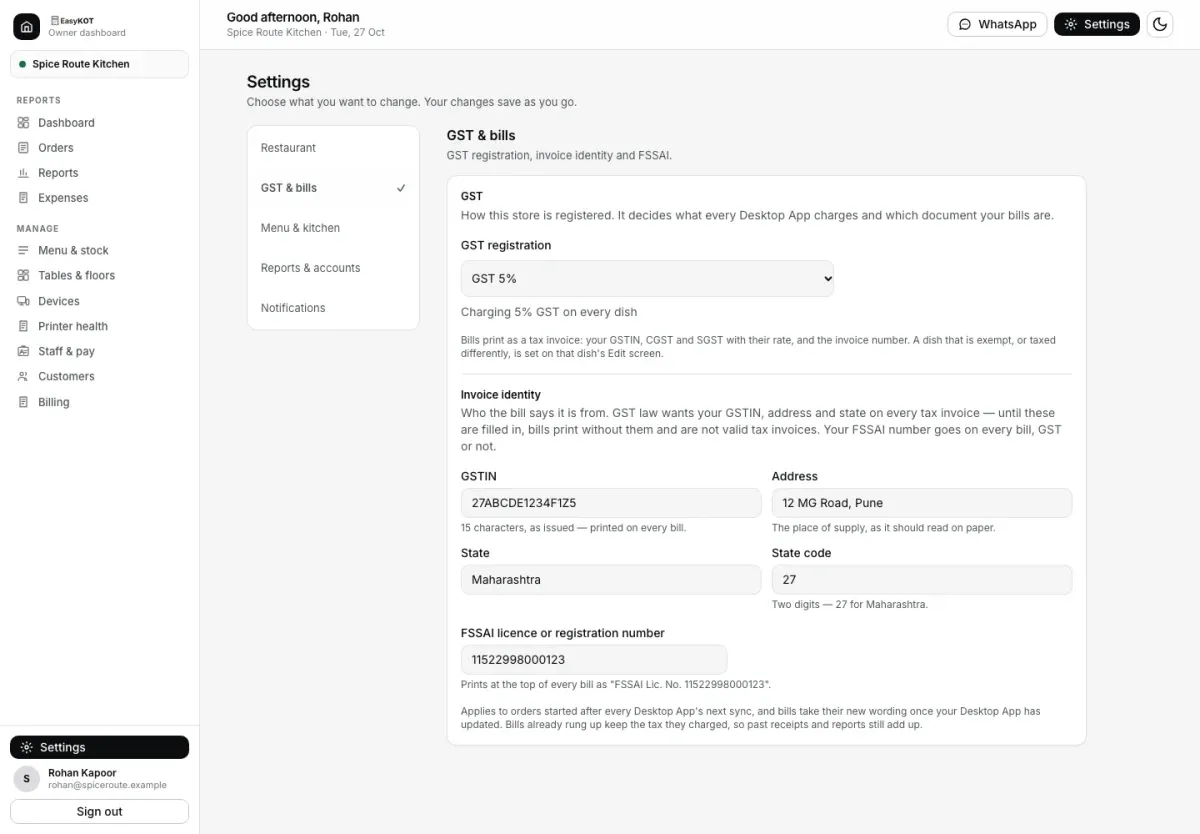
- Your invoice identity. In the owner dashboard, under Settings → GST & bills → Invoice identity, fill in GSTIN, Address, State and State code. This is the supplier block that has to sit at the top of a tax invoice.
- How your store is registered. One picker on the same Settings section, GST & bills, under GST registration: Not GST-registered, GST 5%, "GST 18% (restaurant in a hotel)" or Composition scheme. These are the current UI labels. GST 18% (where applicable) must be confirmed with your accountant. Pick GST 5% and the card reads "Charging 5% GST on every dish". Pick Not GST-registered and dishes ring at their menu price with no tax line on the paper. Hotel location alone does not establish the 18% rate; specified-premises rules and declarations matter.
- Review item tax settings. You do not tag dishes one by one. Saving the GST choice puts every dish in your menu on the store's rate, and a dish you import or add later gets it too. Confirm the store rate before using the bulk action. If some older dishes still have none, the Menu page says so, "14 dishes charge no GST, so bills collect ₹0 tax on them", beside one button that applies your rate to all of them. Configure item tax treatment only after your accountant confirms it. The item Edit screen offers No GST; selling an item separately may have different tax treatment from supplying it as part of restaurant service.
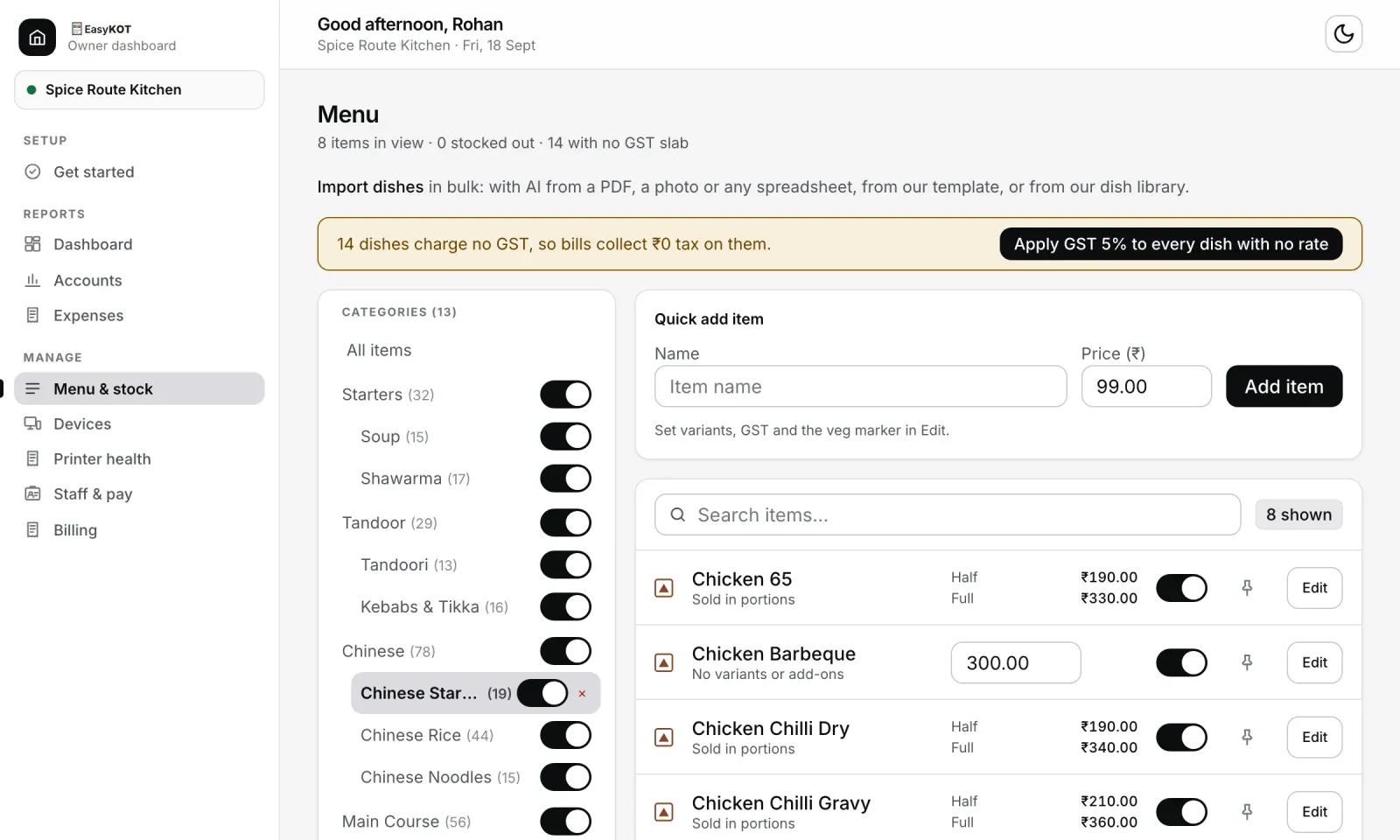
The Menu page counts dishes with no rate across the whole menu. One button puts them all on the store's rate.
Review before live sales. Printing a bill does not confirm tax compliance. Fill in your business details and GST settings, then review a sample bill with your accountant.
Not set up yet? The five signup steps come first, and the thermal printer connects in about two minutes.
Order se printed slip tak — four steps.
Punch the order
Open a table or tap Parcel for takeaway, then tap the dishes. Search or use the category rail, pick Half or Full where the dish has portions, and add a line note like 'no onions' or 'less spicy'. Tap the same dish again and the quantity on that line goes up. You are not building a second line.
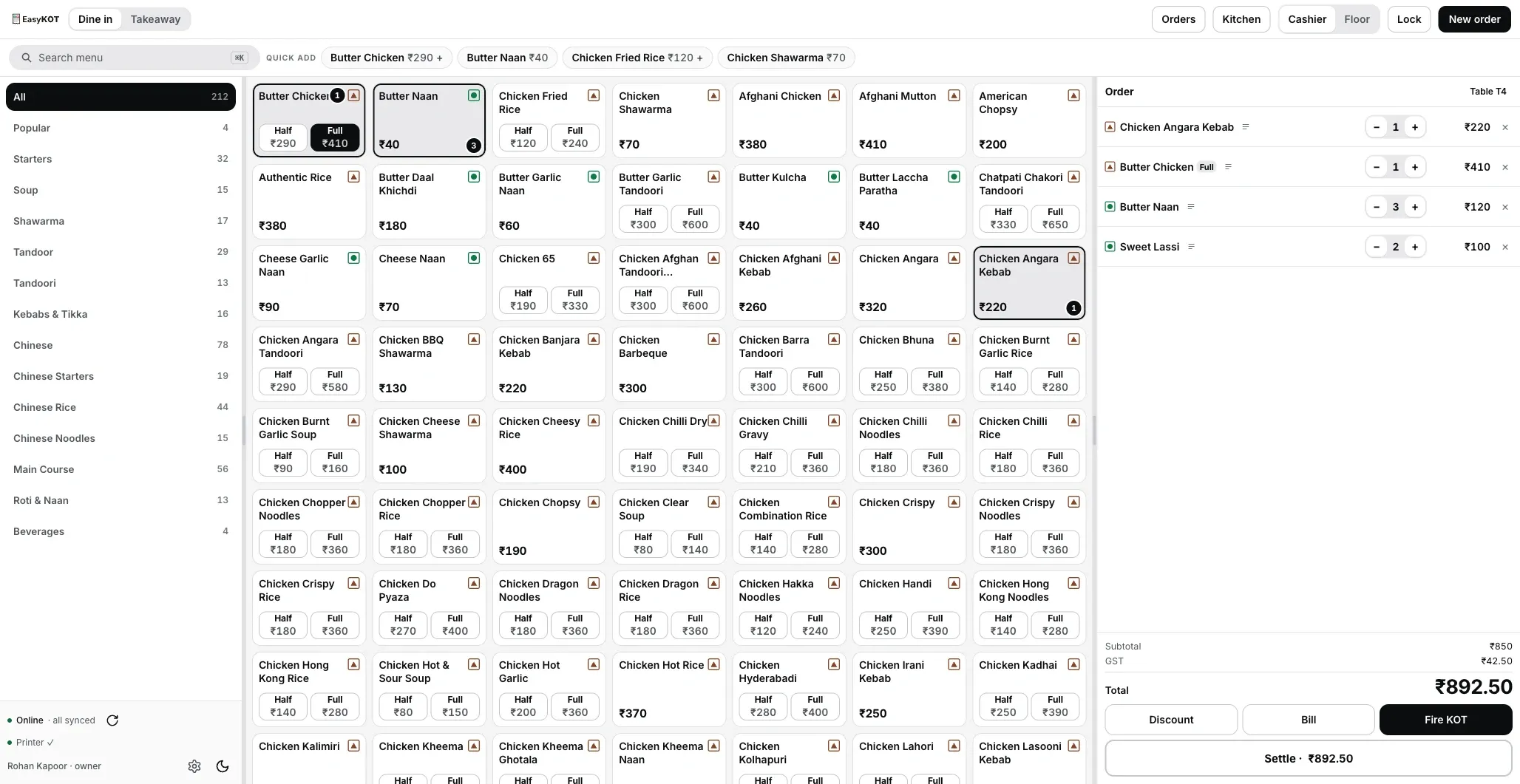
Step 1: tap the dishes; the cart on the right builds as you go.
Fire the KOT
Press Fire KOT. The kitchen ticket goes to the kitchen printer (or to the kitchen screen) and the key changes to Reprint KOT with the time it was sent. Those lines are now locked to this table's bill. Order more later and the next KOT carries only the new items, so nothing cooks twice.
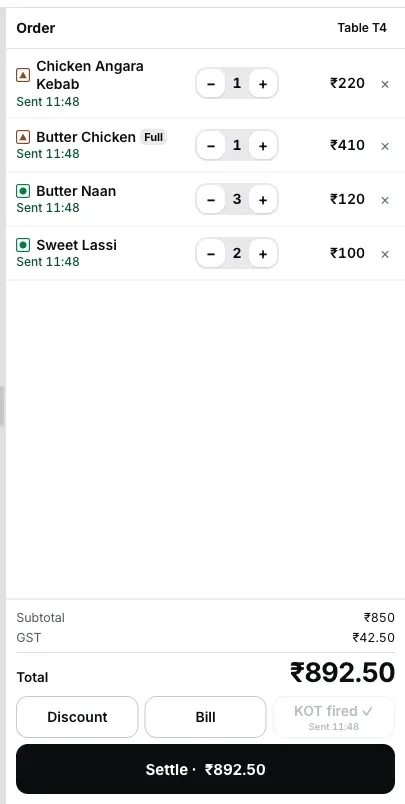
Step 2: fired lines lock to the bill and the key shows when they were sent.
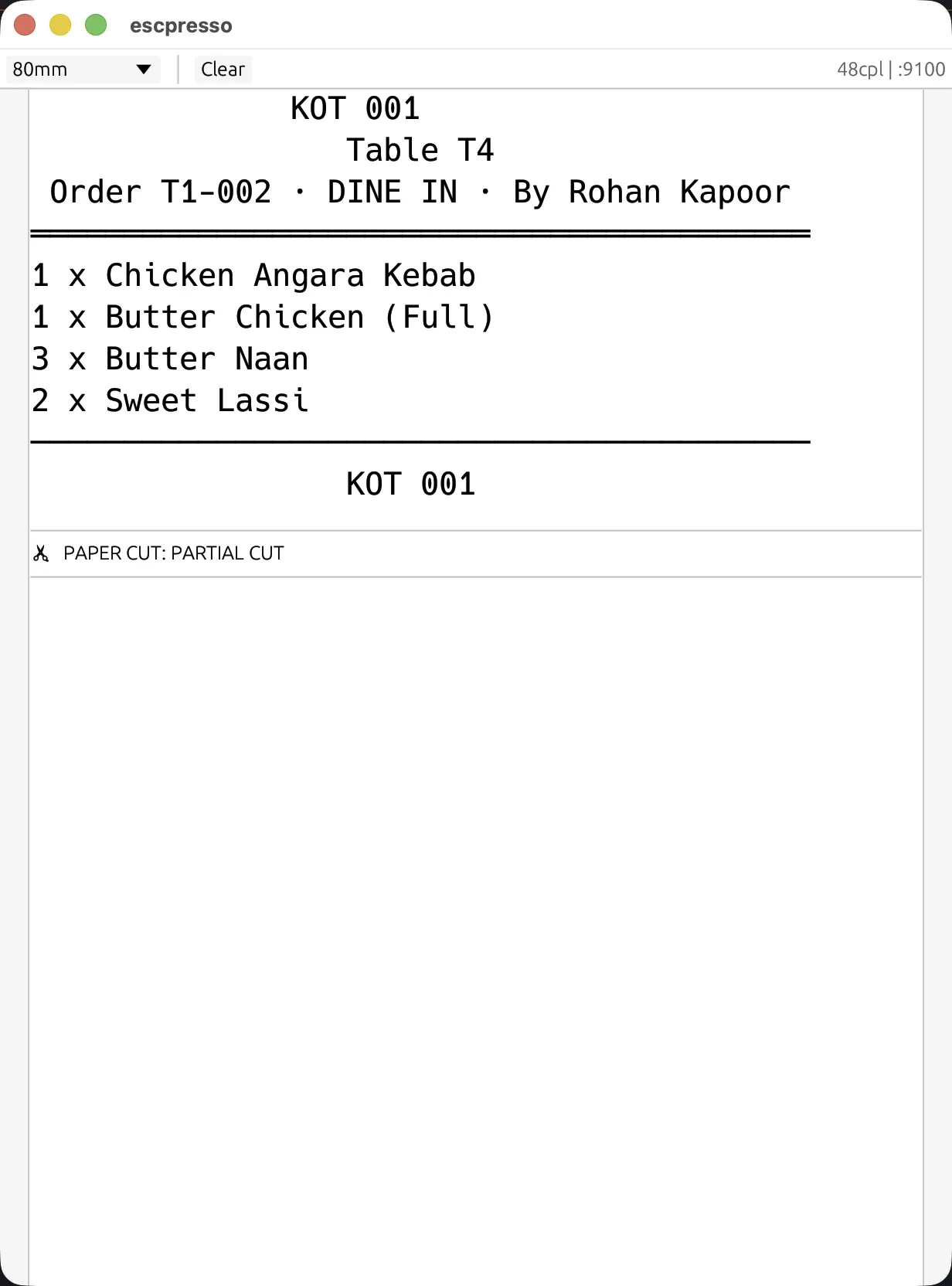
What actually comes off the kitchen printer when you fire: no prices, only what to cook. Rendered here by a virtual ESC/POS printer, the exact bytes the Desktop App sends.
Settle — cash, UPI, card or part payment
Press the Settle key. Type what the guest handed over in 'Amount received', pick the tender (UPI, Cash or Card) and the Desktop App works out the change. Use Part pay when the table splits it. The cash drawer kicks open on the settle.
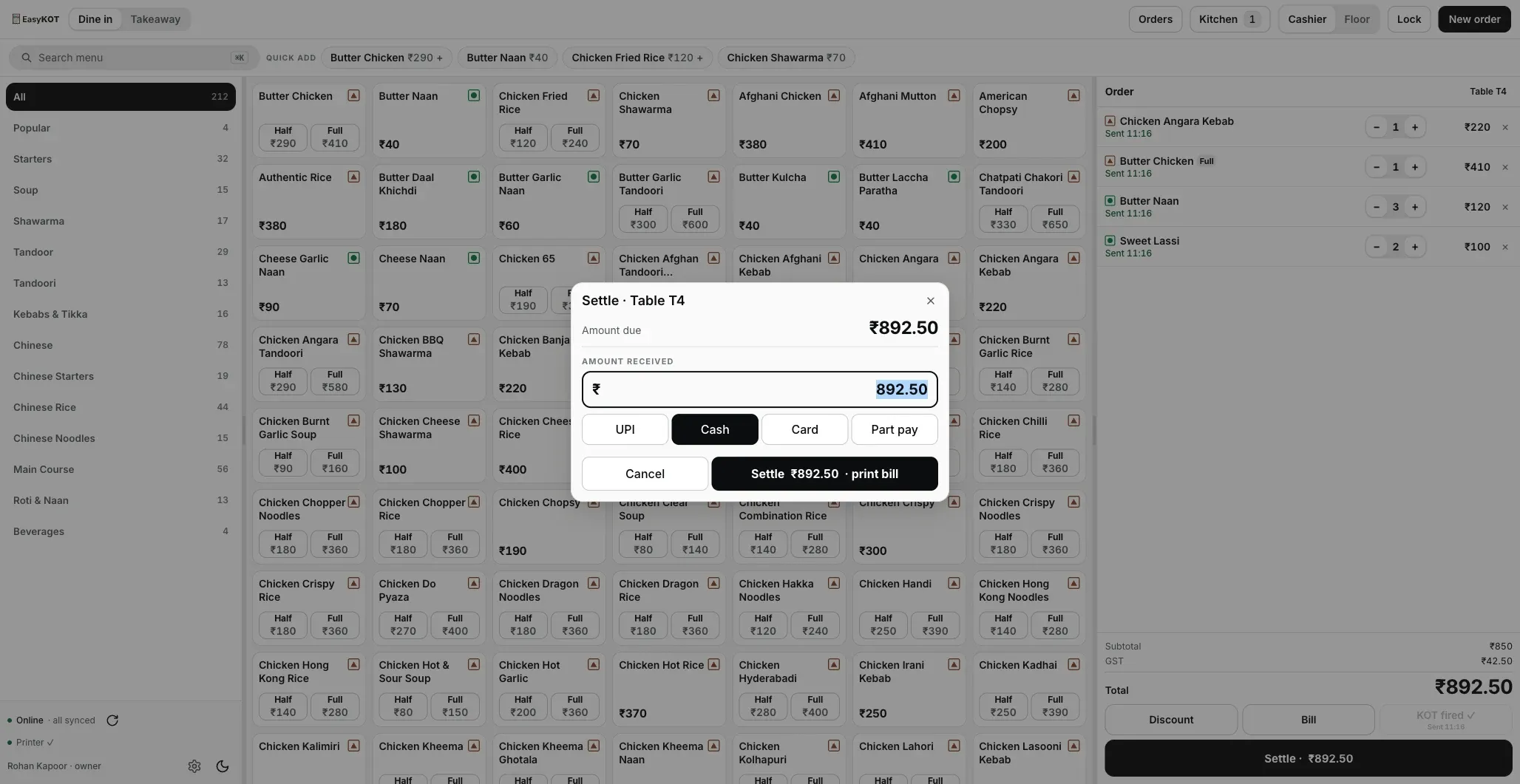
Step 3: type what the guest handed over; here it matches the bill exactly, so there is no change to return.
The bill prints
Settling queues the printed bill straight away, with business details when configured and applicable: your store name, GSTIN, address and state, a GST invoice number and its date, every item line, CGST and SGST on separate lines, round-off, the total and how it was paid. Guest wants the bill before paying? Press Bill first: that prints what is owed and uses the same invoice number, and it also tells the floor this table is waiting to pay.
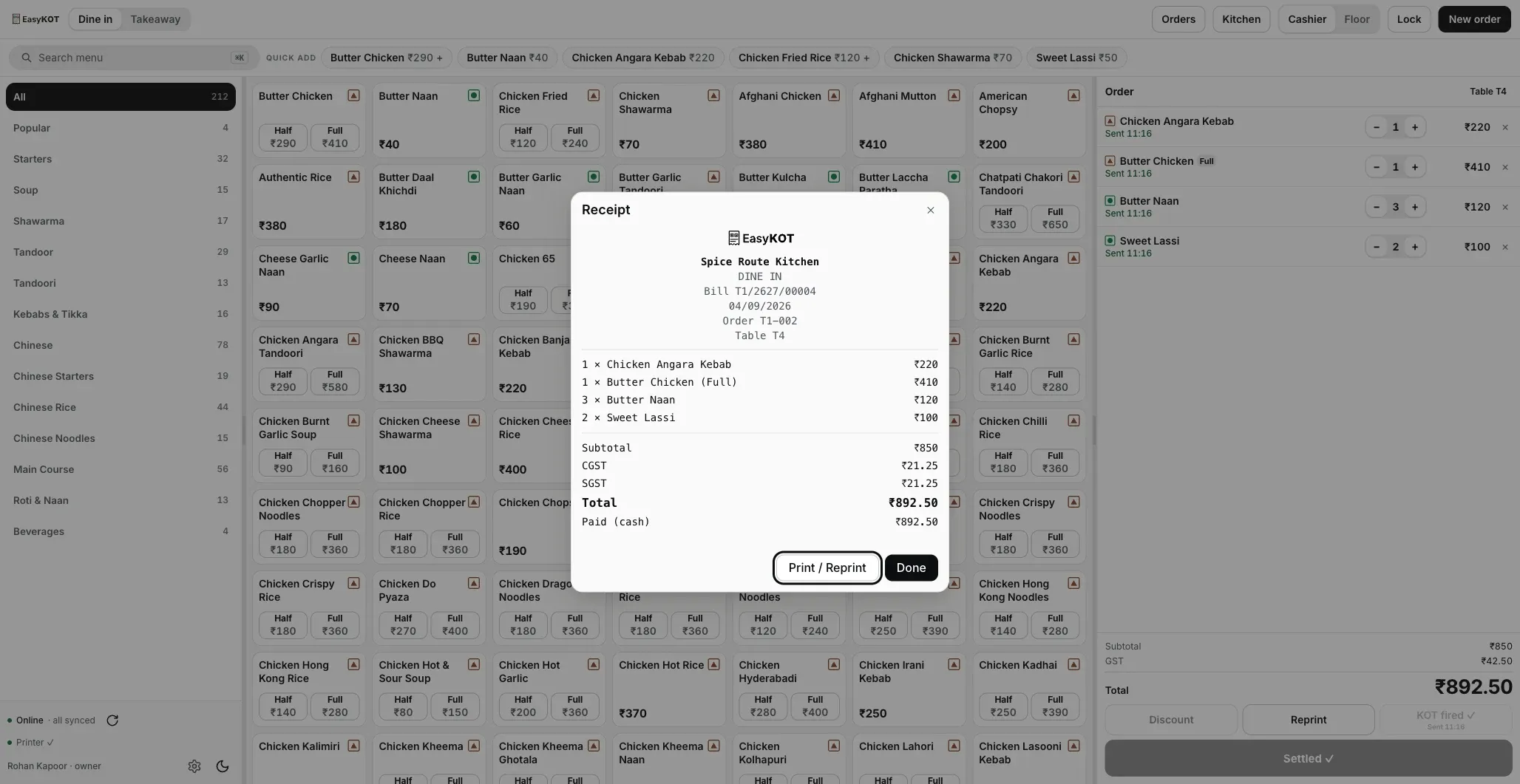
Step 4: the receipt is ready; Print / Reprint sends it to the printer, exactly as it reads here.
Or rehearse it with nothing installed: the live demo runs the same four steps in your browser.
What comes out, line by line.
- The header. Your outlet name, then the supplier block: GSTIN, address, state and state code, exactly as you typed them in the dashboard.
- The document line. The GST invoice number and the date it was issued. That date is pinned when the number is minted, so a reprint in March still shows the day the bill was made.
- The order line. Dine-in or parcel, the table, and the short handle staff say out loud: T1-042, the one a guest can quote before a bill exists.
- The items. Quantity, dish, portion folded into the name ("Chicken Manchurian (Half)"), any add-ons, and the line amount.
- The tax block. Subtotal, then CGST and SGST on separate lines: an intra-state bill splits the tax in half, and any odd paise goes to CGST so the two always add back to the total exactly.
- Round-off and total, then what was paid and by which tender. The round-off line only prints when there is one.
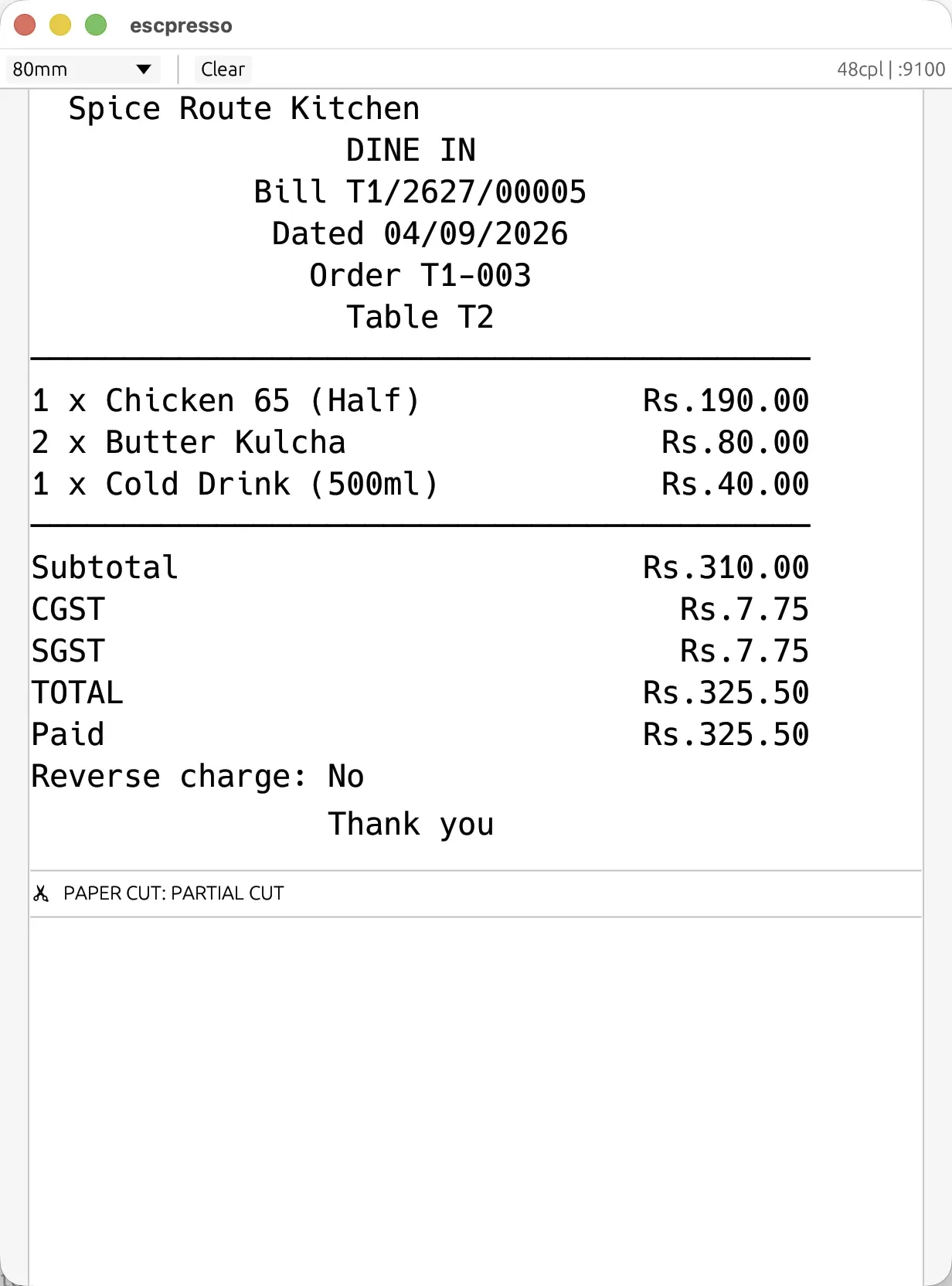
Every line above, on the actual slip: CGST and SGST split in half, the invoice number and date, the total. Rendered by a virtual ESC/POS printer, the exact bytes the Desktop App sends.
Why the slip says "Rs." and not "₹". The rupee glyph does not exist in the character sets thermal printers use, so amounts print as Rs. 913.50. That is deliberate, and it is what stops a bill coming out full of question marks on a cheap printer. On the Desktop App's own screen the amounts still show ₹.
80 mm paper gives you 42 characters a line (48 on the 80mm wide setting, for a printer that fits them), 58 mm gives 32: the width you pick in printer setup changes the layout, not just a label.
Your CA picks it. We only carry it.
EasyKOT prints from your configured GST settings. Confirm the applicable rate and scheme with your accountant first. Rates are not freely interchangeable. GST 18% (where applicable) depends on specified-premises rules and applicable declarations, not hotel location alone.
- You pick the rate once, for the whole store, in the dashboard under Settings → GST & bills. Configure item tax treatment only after your accountant confirms it, including theNo GST option on the item Edit screen. Tax treatment may differ when an item is sold separately versus supplied as part of restaurant service.
- The rate is frozen onto the sale at the moment the item is rung up. Change the rate next month and last month's bills and reports keep the tax that was actually charged: nothing is rewritten behind you.
- Not registered? Pick Not GST-registered. The bill then prints with no tax line. Confirm your registration status and sample bill with your accountant.
- Ask your CA which rate your outlet falls under before the first live bill, and review item tax treatment too.
One invoice series per Desktop App.
- The number looks like T1/2627/00001: the Desktop App, the financial year, and a consecutive count that resets on 1 April. Review the invoice format with your accountant.
- It is minted late: when you press Bill or Settle, not when the table opens. A table that walks out without ordering does not reserve an invoice number. Review any unexplained gap in the day-close document register.
- Two Desktop Apps run two series and each stays internally consecutive, which is why a second Desktop App can keep billing through an outage with no coordination at all. Billing with the internet down covers what else keeps running.
- A reprint is stamped DUPLICATE with its copy number and keeps the original number and date. The kitchen's copy works the other way round: a reprinted KOT is the same ticket again, because the pass wants the ticket, not a reissue.
If the printer is dead when you settle, the sale still stands. Settling writes the ledger first and the paper second: the ticket waits in a queue and retries by itself for 5 minutes. Still stuck after that, it stops rather than trying forever, so press "Reprint last receipt" in Settings to send it again. A print failure has never lost a sale.
Straight answers.
What business and GST details can EasyKOT print?
Which GST rate should my restaurant use?
Can I print a bill if I am not GST-registered?
Can I reprint a bill after the guest has left?
Do bill numbers stay continuous if I bill offline?
Can I send the bill on WhatsApp instead of printing it?
Pehla bill banane mein kitna time lagta hai?
After the first bill.
Connect a thermal printer
Wi-Fi, USB or serial: find it, pick 58 mm or 80 mm, and run the test print before service.
Connect the printer →Kitchen KOT printer
Add a second printer for the kitchen so bills stay on the counter and tickets go to the pass.
Set up the KOT printer →Billing with the internet down
What keeps working at 8:40 pm when the fibre dies, and where those bills go until it comes back.
See the outage walkthrough →The Desktop App itself is described on the billing page, and every guide in this cluster is listed on the guides hub.
3 mahine try kare, phir plan chune.
Restaurant ka kaam hum samajhte hain, kyunki shuruaat bhi wahin se hui. 3 mahine free try kare, bina card details. Hamari kahani padhe.