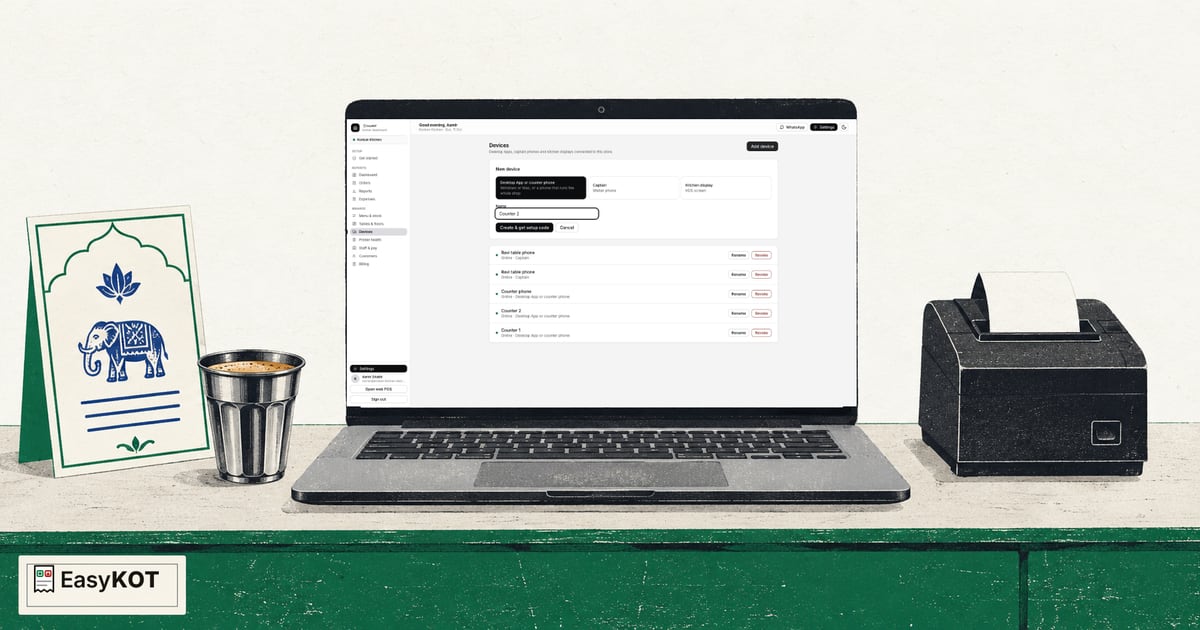
EasyKOT setup: account se actual KOT aur bill tak
Poora setup order mein dekhe: account, menu, Desktop App, owner aur Captain phone, doosra counter, USB printer, KOT aur bill.
Step-by-step guide padhe →Video transcript padhe →
Counter par bill banaye, waiter ke phone se order le aur kitchen mein KOT bheje. Laptop hai toh usi par shuru kare. Laptop nahi hai? Android phone aur compatible thermal printer se counter chala sakte hain. Browser demo mein billing karke dekhe, bina signup ya install.
₹299 + GST Trial ke baad mahina3 mahine ₹0, bina card details, bina AutoPayCompatible ESC/POS printerLaptop ya Android phoneCancellation aur refund ke terms dekhe
Browser mein Mezbaan ka sample menu khulta hai. Test order banaye, KOT bheje aur payment record karke bill dekhe. Demo load hone ke baad offline bhi practice kar sakte hain. Asli payment nahi hota.
2 minutesLoad hone ke baad offline bhi try kareDemo ka data isi browser mein rehta hai
₹299/month ya ₹2,990/year, plus 18% GST mein ek outlet ke Desktop Apps, captain phones, kitchen screens aur reports par per Desktop App ya per order alag charge nahi hai. Har feature detail mein dekhe →
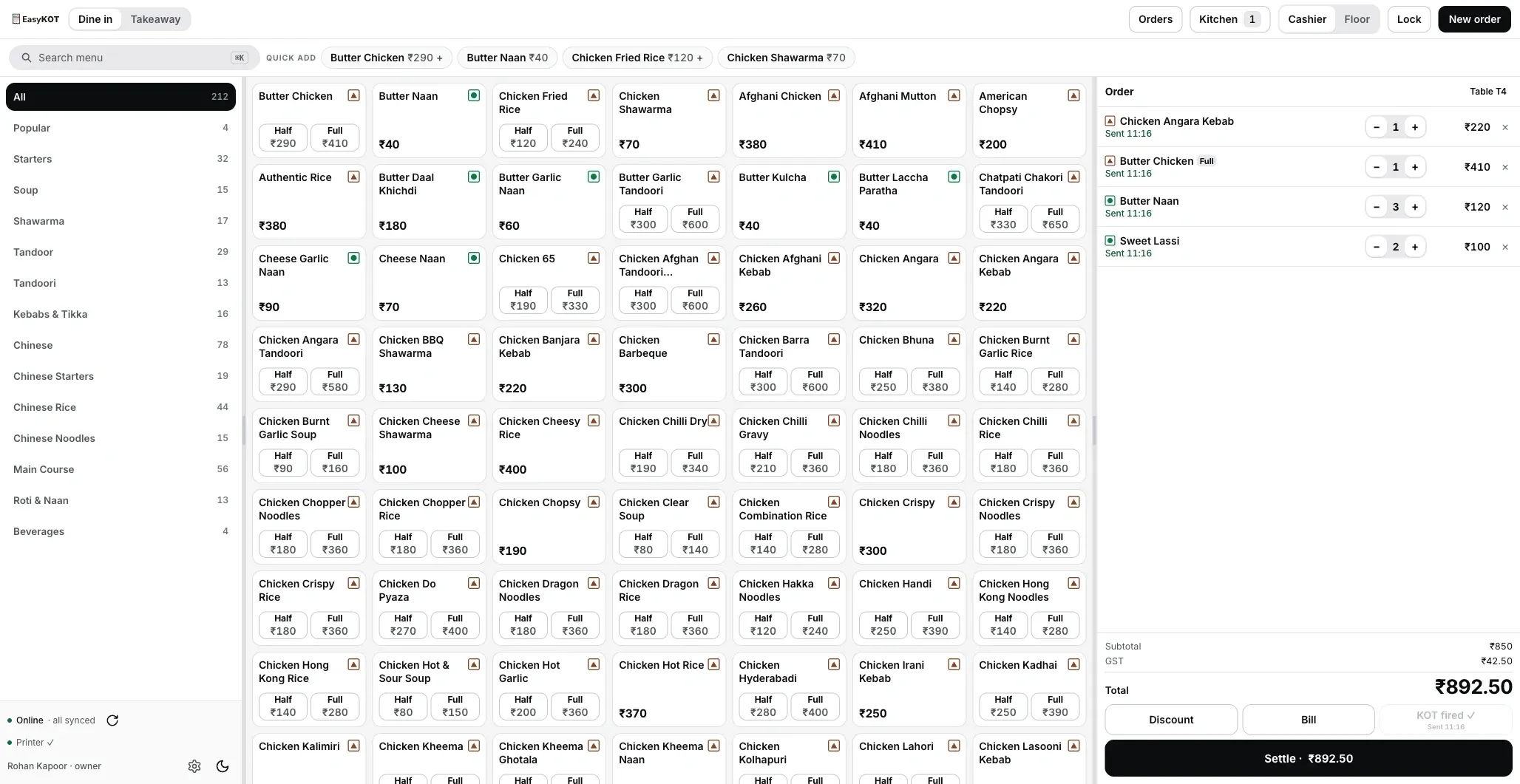
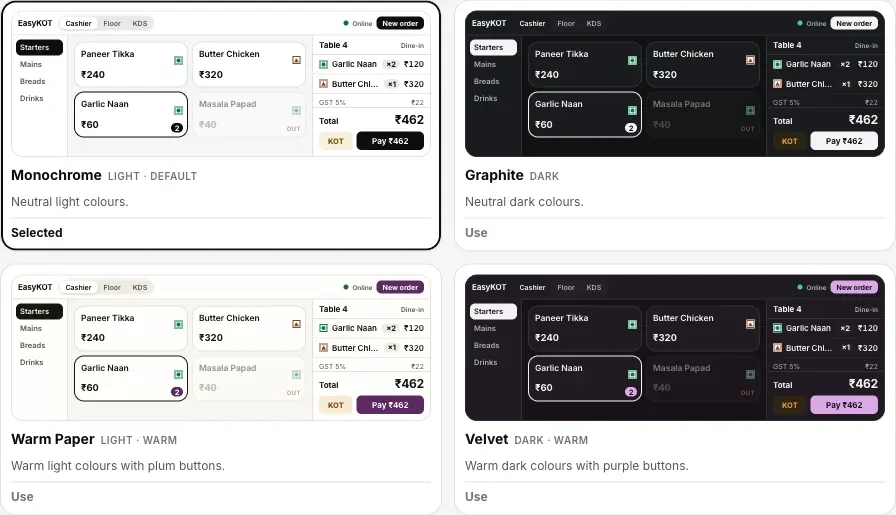
Categories, menu aur cart ek screen par. Search, quick-add, Half/Full portions, "less spicy" ya "Jain" notes, tables aur takeaway ke saath.
IncludedKOT bheje, phir delivery status check kare. Configured printer connection available ho toh kitchen slip niklegi; paired kitchen screen online ho toh ticket dikhega. Agla round alag bhej sakte hain. KOT reprint se pehle kitchen ko bataye, kyunki bill jaisa DUPLICATE stamp nahi hota.
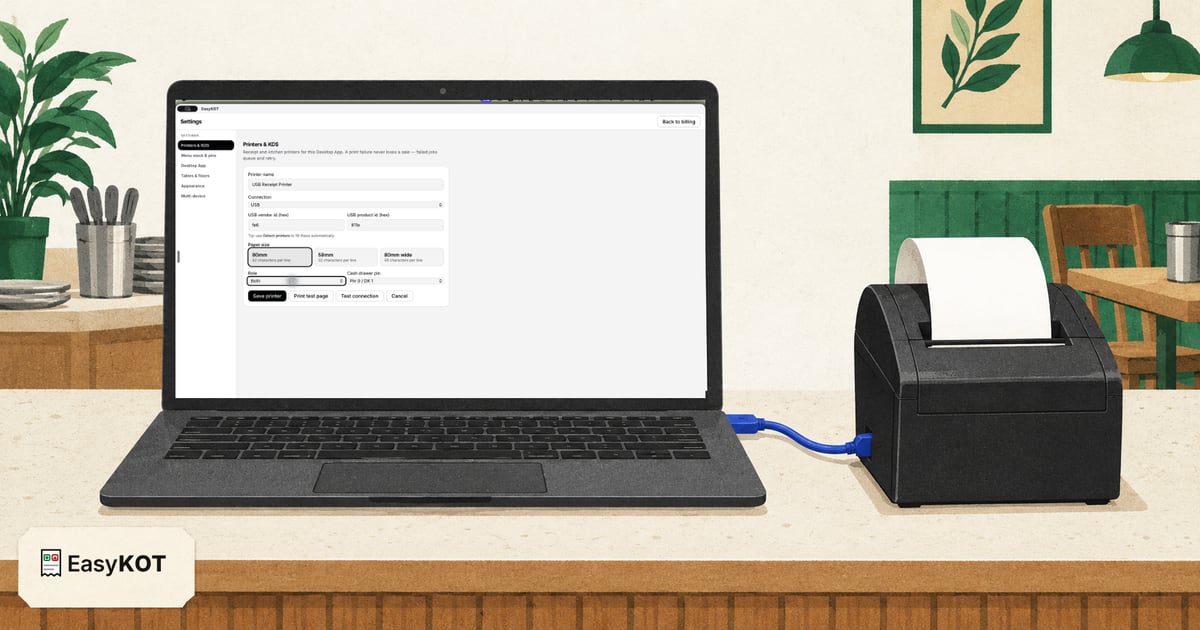
IncludedNetwork, USB, serial ya Bluetooth path model aur device ke hisaab se configure kare. Failed print 5 minute retry hota hai; phir Retry now ya Discard chune. Possibly printed job park hota hai: printer check karke It printed ya Print again (marked duplicate) chune. Bill copy par DUPLICATE aata hai; KOT same ticket hai, isliye kitchen ko bataye. Sale save rehti hai.
IncludedApni business details aur GST settings ke hisaab se bill print kare. Bill par invoice number aur tax ka breakup dikhega. Live billing shuru karne se pehle ek sample bill apne accountant se check karwaye.
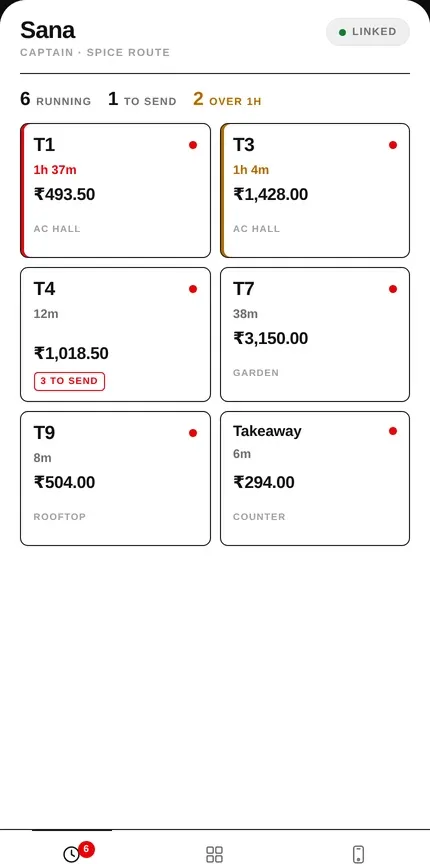
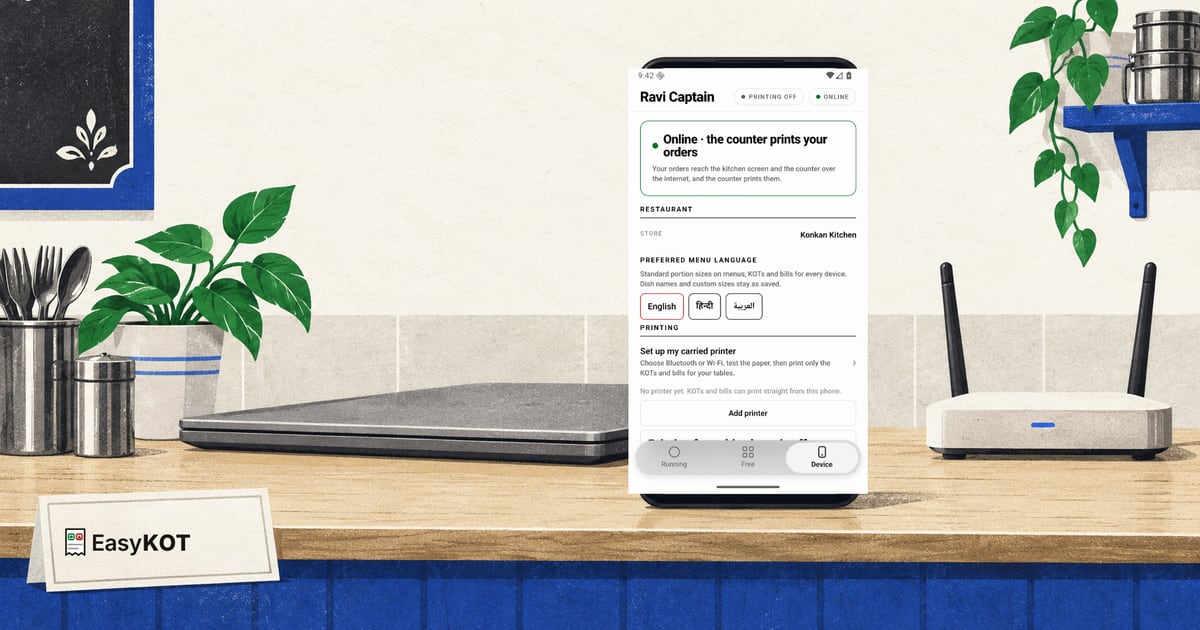
IncludedWaiter table par order le, KOT bheje aur running tables dekhe. Default mein printing counter se hoti hai. Manager kisi joined phone ko tested printer ke saath whole-store fallback bana sakta hai, aur printer carry karne wala captain apni tables ke KOT aur bill khud print kar sakta hai.
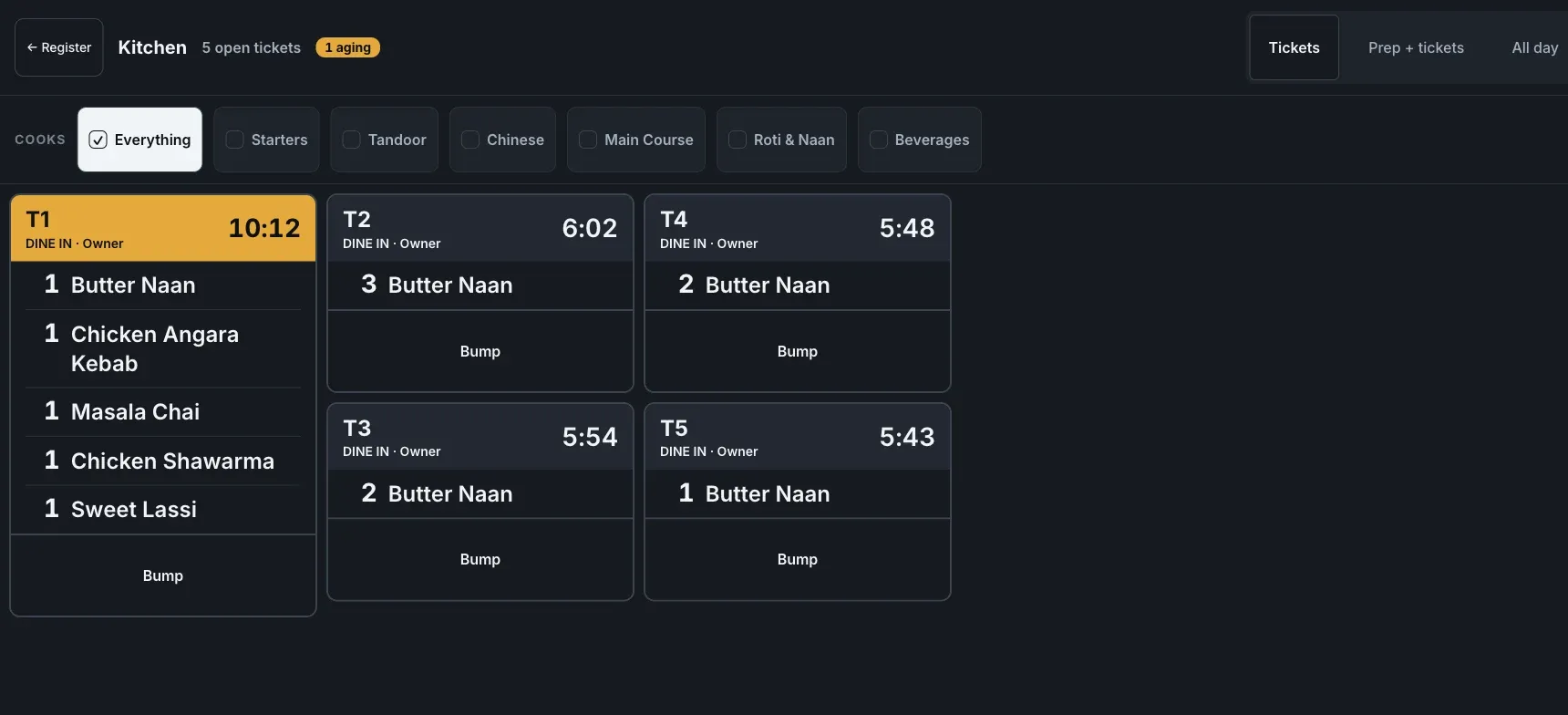
IncludedDesktop kitchen station ko monitor par chalaiye, ya paired Android device par Chef view kholiye. Dono ko configure aur pair karna hota hai; router/LAN aur devices powered rehne chahiye. Internet na ho tab bhi local network par tickets chal sakte hain.
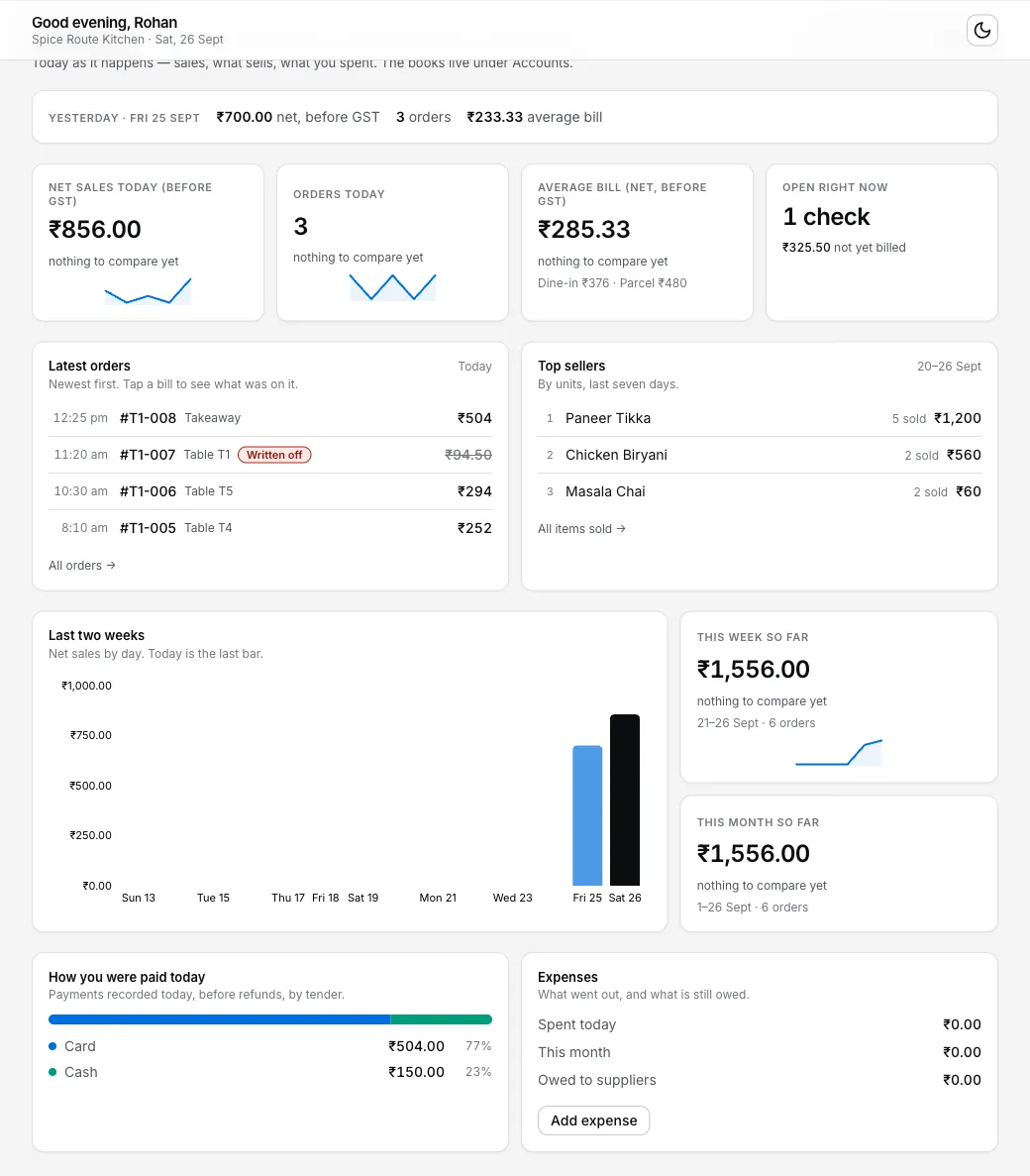
IncludedKal ki net sales, aaj ke orders, average bill, open checks, recent orders, top sellers, payment mix aur expenses dekhiye. Detailed reports mein P&L, labour, menu performance aur close history milti hai.
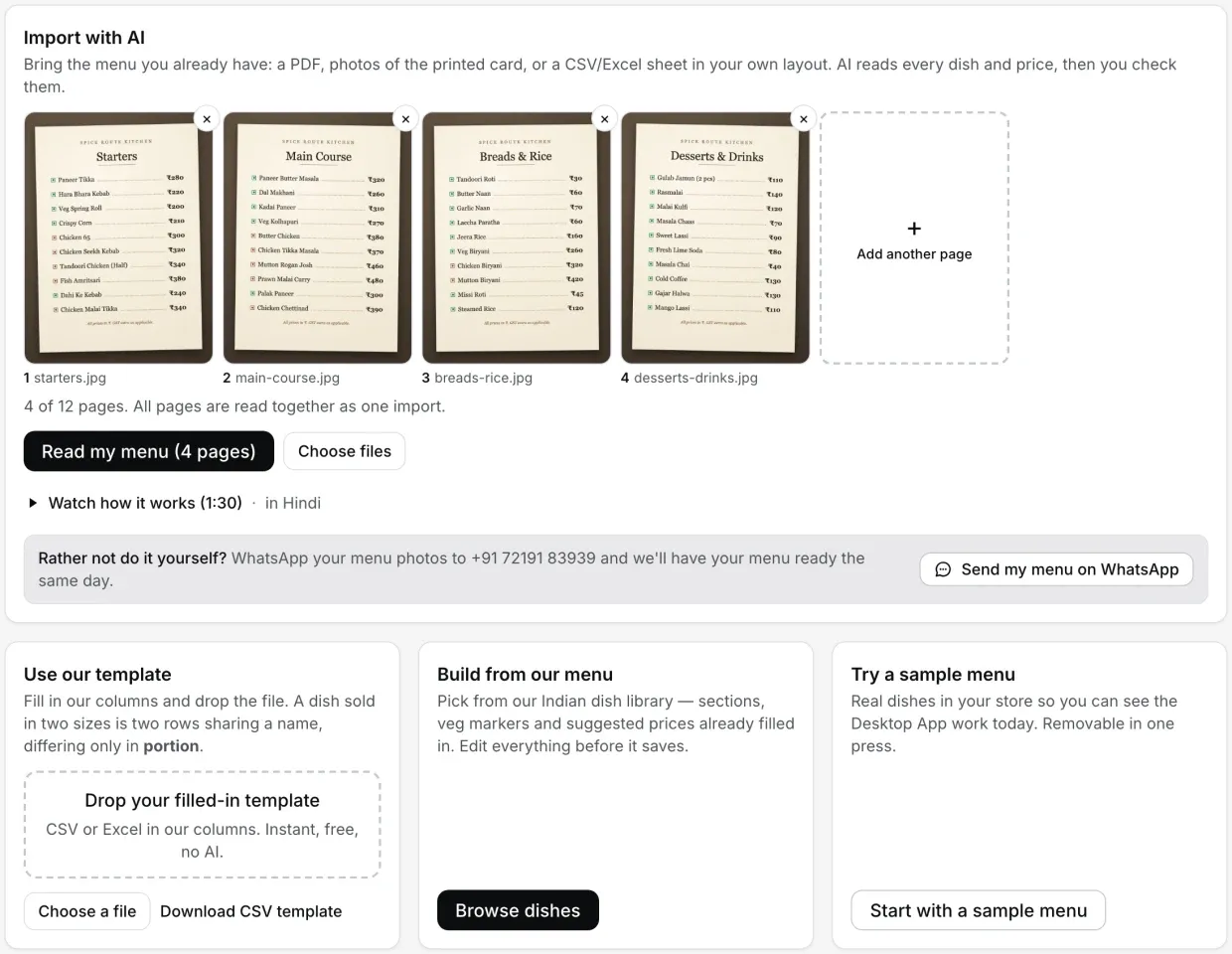
IncludedPrinted menu ka PDF ya photo upload kare. AI draft banata hai; har item, price aur veg mark review karke approve karne ke baad hi menu mein save kare. Ya master menu ko starting point banaye.
IncludedChai ka daam aapke stall ka hai. Hamara yahin chhapa hai: ₹299 + GST mahina, koi setup ya AMC nahi.
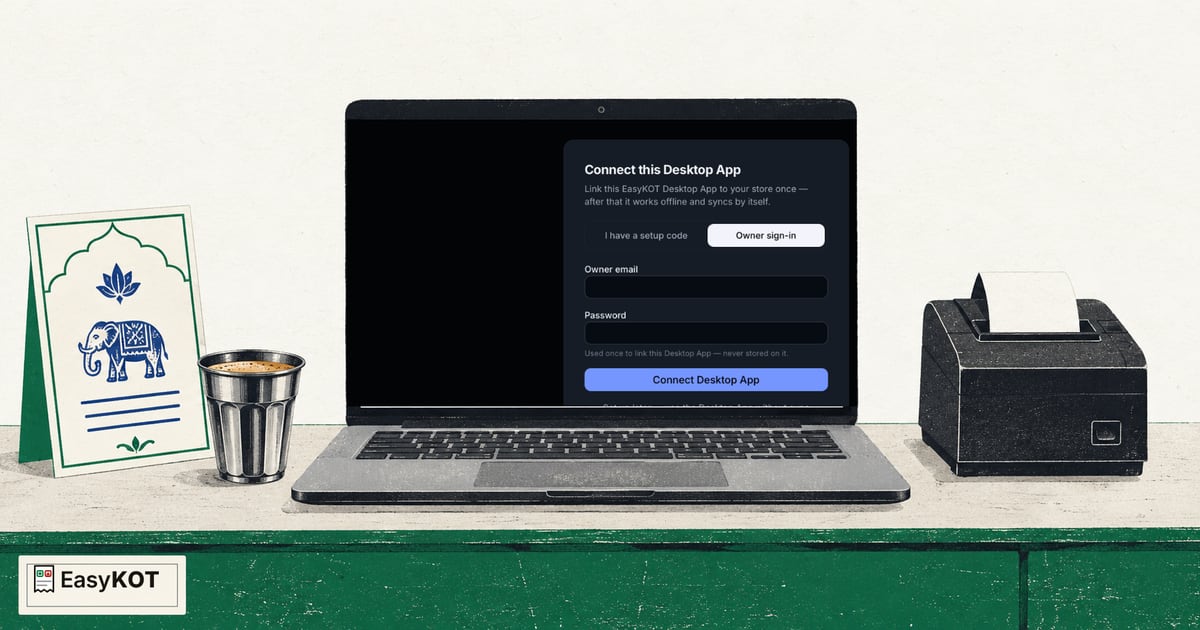
Pehle se configured Desktop App par internet band hone ke baad bhi order aur billing locally save hote hain. Printing ke liye configured printer connection aur power chahiye. Waiter phone ki local delivery ke liye configured desktop hub aur local network chalu rahe. Internet wapas aaye toh pending data dashboard se sync hota hai. Online check-in kam se kam har 30 din mein kare.
Rush mein internet band ho toh kya kare? →
Yeh sirf illustration hai: asli printer ya payment nahi. Device par saved order aur kitchen mein delivered order alag statuses hain; print queue check kare.
Order se bill tak, sab phone se. KOT kitchen mein bheje aur shift ke end mein cash ka hisaab kare. Kuch features ke liye Desktop App chahiye.
Android phone Bluetooth aur Wi-Fi printers se print karta hai; USB printer Desktop App ke saath chalta hai. iPhone build abhi App Store par available nahi hai. Phone ka basic Kitchen screen open tickets, Done aur Prep list dikhata hai; station filters aur All day view desktop KDS par hain.
Neeche Desktop App aur owner dashboard ke asli screenshots hain.
Menu ki PDF ya photos upload kare, ek baar mein 12 pages tak. AI items, portions (Half/Full) aur prices padhta hai. Grid mein result check karke save kare; approval se pehle menu live nahi hota. Jaldi hai? Get started mein Other ways in ke neeche "Load a sample menu to try the Desktop App today" chune aur Desktop App par practice kare.
Aapka poora menu ek screen pe, veg aur non-veg marks ke saath, jitne bhi dishes hon (yeh demo 212 ka hai). Item chune, Half ya Full select kare aur zaroorat ho toh "less spicy" jaisa note daale. Fire KOT se configured kitchen printer ko ticket bheje; queue mein print ka result check kare. Payment apne merchant app ya bank mein verify karke Cash, UPI ya Card record kare. Part pay bhi kar sakte hain; cash ka change dialog mein dikhta hai.
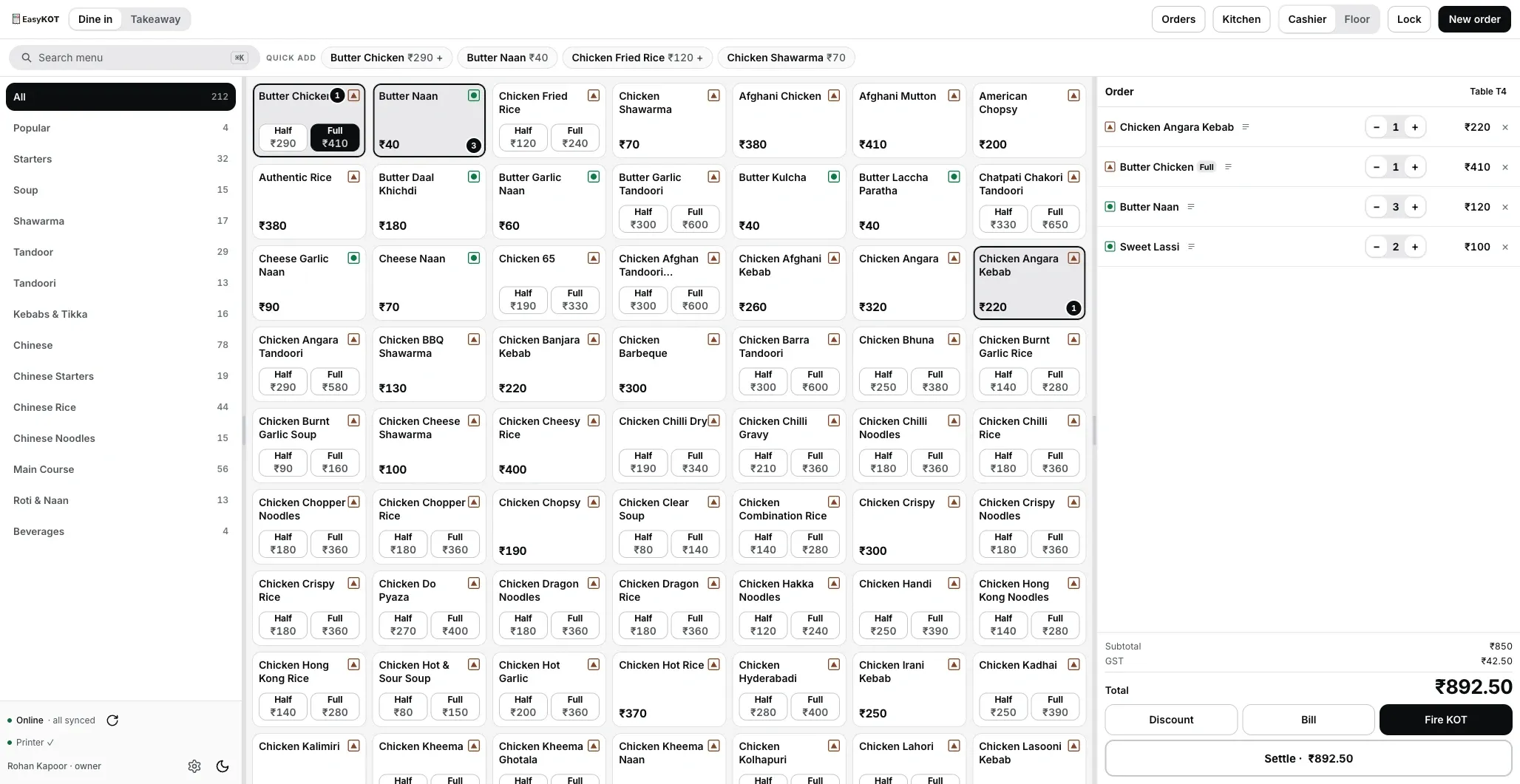
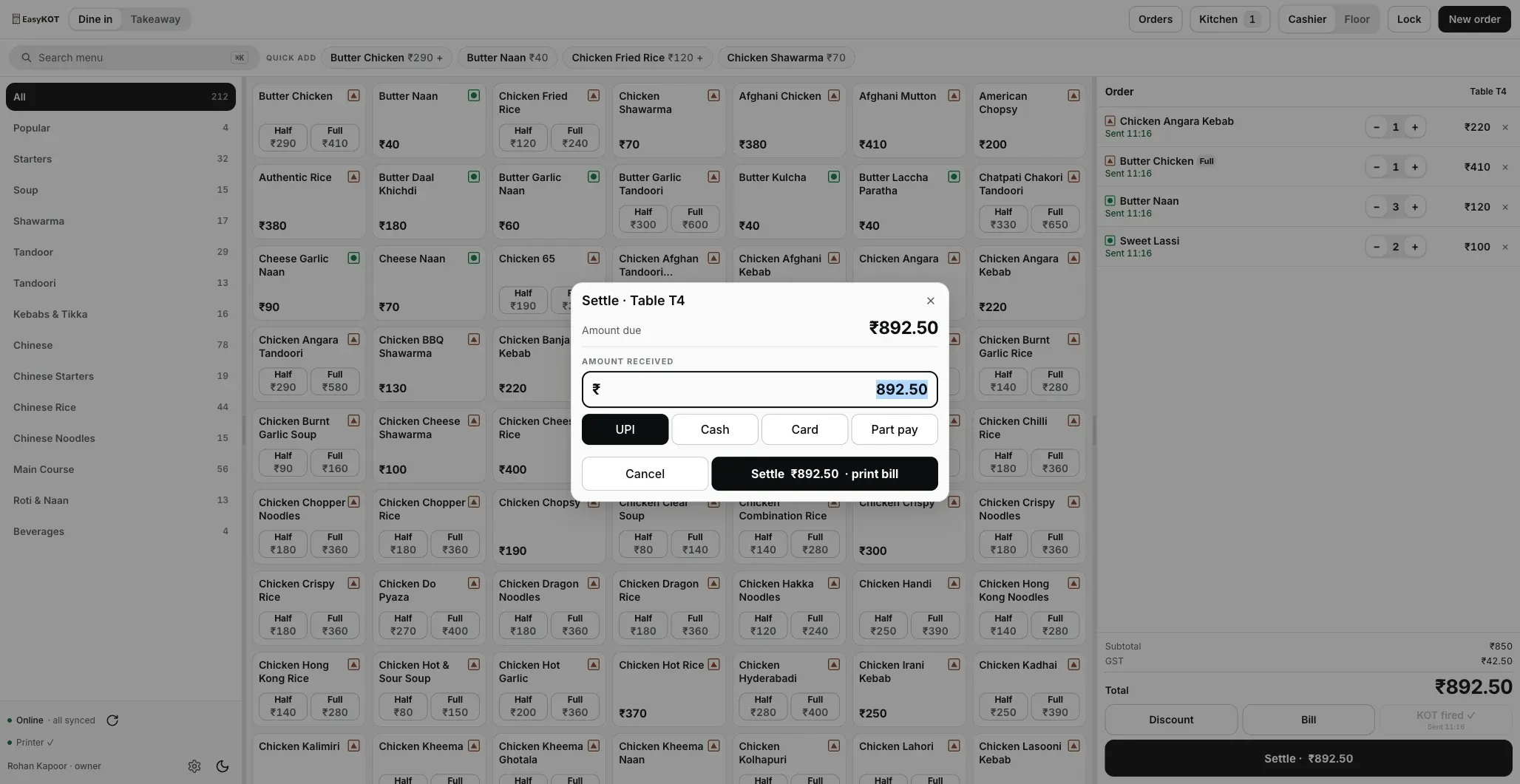
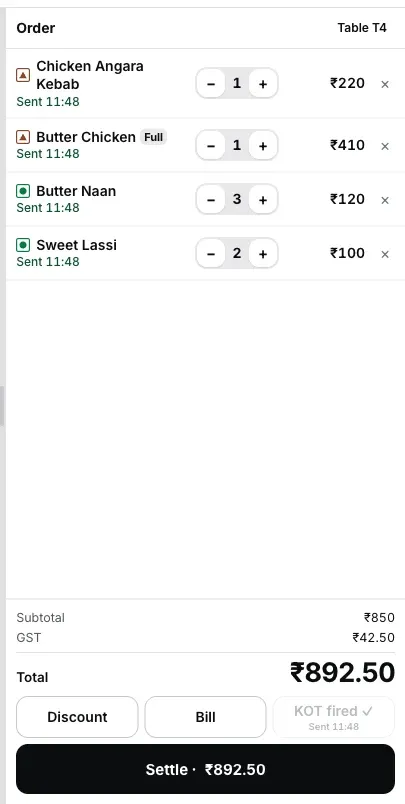
Table T4 par aur items aaye? Fire KOT phir chune: agle KOT mein sirf naye items aate hain. Cart mein bheje gaye items ka time dikhta hai. Print fail ya status unclear ho toh dobara bhejne se pehle queue aur kitchen check kare. Kitchen display par ticket timer ke saath dikhta hai. Order ready ho toh chef Bump chune: ticket board se hat jaata hai.
Day close aapke CA ke liye GST document report dikhata hai. Phone pe owner dashboard kal ka net sales, orders aur average bill dikhata hai; aaj ke cards mein open checks, latest orders, top sellers, payment mix aur expenses milte hain.
Aapka compatible printer, laptop ya Android phone se. Desktop App network, USB, serial aur Bluetooth paths support karta hai. Android phone Bluetooth ya Wi-Fi/network printer par KOT aur bill print kar sakta hai. Har model aur connection ko live use se pehle test kare.
Account se pehle printed bill tak poora setup dekhe. Ya jis step par help chahiye, uska short video chala le. English aur Hindi, dono mein.
Poora setup order mein dekhe: account, menu, Desktop App, owner aur Captain phone, doosra counter, USB printer, KOT aur bill.
Step-by-step guide padhe →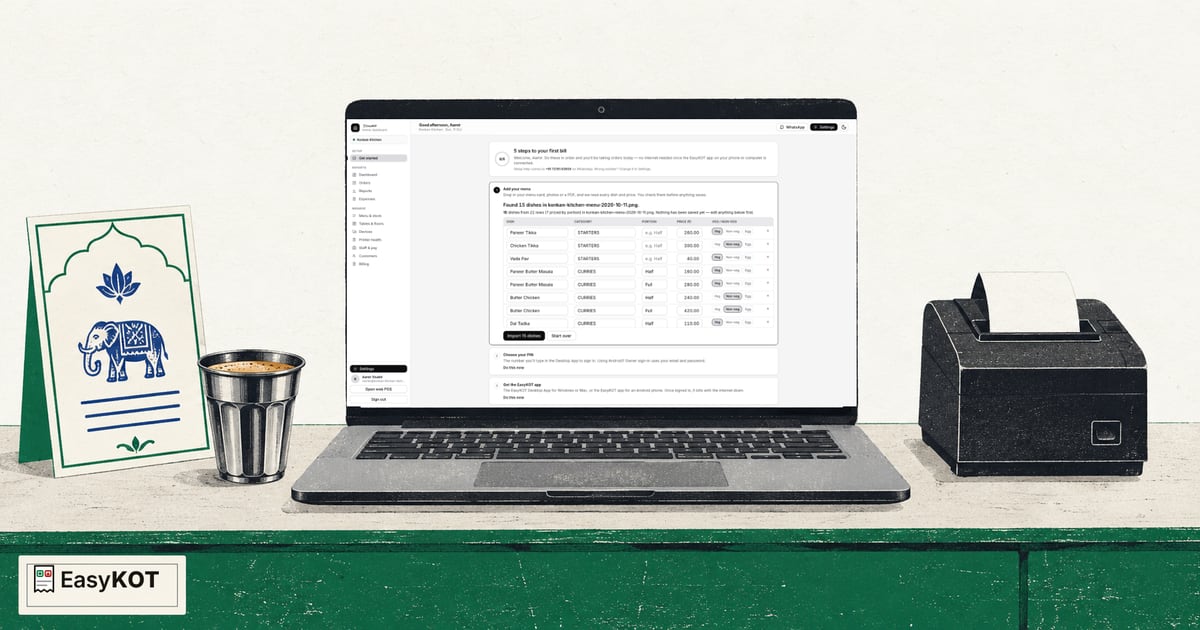
Subscription, setup, AMC aur add-ons ka apna kharcha chune. Neeche ke amounts sirf example hain; yeh kisi competitor ka verified quote nahi hai.
Dono taraf prices GST se pehle hain. EasyKOT ka yearly software plan: ₹2,990 + GST. 3 mahine ka trial alag hai. Device aur printer khareedne ka kharcha is software price mein nahi hai.
Pehle 3 months free hain. Uske baad pay once ya AutoPay chune. Ek outlet ke bill, KOT aur staff phones ka per-use software charge nahi hai. Poora price, tax aur sawaal-jawaab dekhe →
Aaj payment nahi. Paid month 3 free months ke end par shuru hota hai; Billing mein trial ke bache din aur end date dikhte hain.
Aaj ₹0. Paid year 3 free months ke end par shuru hota hai; annual saving trial se alag hai.
Apna supported Windows/Mac laptop ya Android phone aur compatible ESC/POS printer use kare. Laptop network, USB, serial aur Bluetooth paths support karta hai; Android paired Bluetooth aur Wi-Fi printers. Apne setup se test print kare. Subscription prices exclude 18% GST. The total including GST is shown before payment.
3 mahine ke trial mein menu, printer aur staff ka flow check kare. Practice ke liye test orders use kare. Live sales shuru karne par ek sale ko do systems mein record na kare.
Menu ka PDF ya photo upload kare. Prices, portions aur veg marks check karke save kare. Import ke liye internet chahiye.
Compatible printer connect kare. Test page ke baad test order ka KOT aur bill layout dekhe. Staff se order, payment recording aur settle ki practice karaye.
Setup theek chale toh live billing ki date tay kare. Trial ke baad continue karna ho toh plan chune. Trial bina card details shuru kare.
Restaurant ka kaam hum samajhte hain, kyunki shuruaat bhi wahin se hui. 3 mahine free try kare, bina card details. Hamari kahani padhe.
Windows aur Mac ke liye EasyKOT Desktop App download kare. Android ke liye EasyKOT Captain Google Play par milega. Downloads dekhe →