Menu ki typing AI se karwao — aap sirf check karo.
The menu is the one genuinely long job in setting up an EasyKOT Desktop App: two hundred dishes is an afternoon of typing or ten minutes of checking. EasyKOT reads your existing menu from photos, a PDF or a spreadsheet into a review grid; you correct what needs correcting, press import, and the Desktop App is selling it. Here is the whole path, stock-outs included.
No menu file? Type it in instead: the menu-by-hand guide. The wider menu tooling (categories, pricing, images) lives on the menu management page.
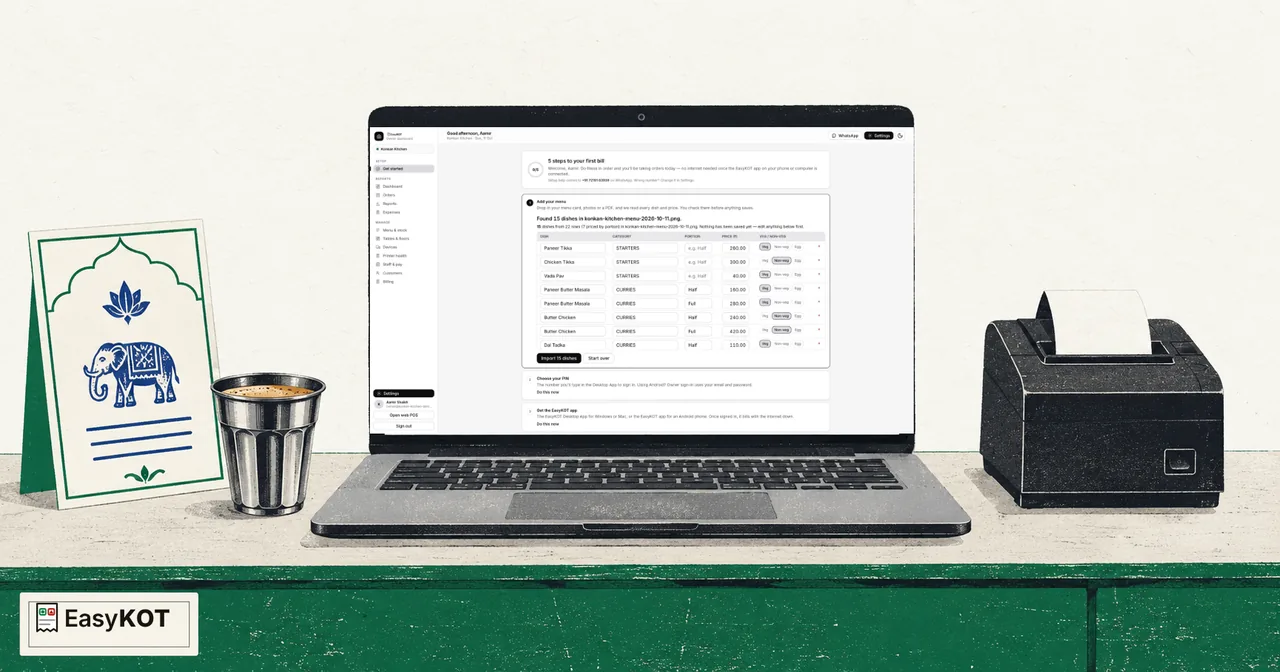
Photo ya PDF se Desktop App tak — chaar steps.
Pick your lane: AI import, template, library, or sample
The dashboard's menu setup opens with four doors. Have a menu already? 'Import with AI', the wide card on top, takes photos, a PDF, or a CSV/Excel sheet in whatever layout it already has. Already typed your dishes into our columns? 'Use our template' reads that file instantly, with no AI. Starting fresh? 'Build from our menu' offers a 245-dish Indian library to tick dishes from. Just exploring? Install the sample menu, poke at it, remove it later. Nothing locks you in: every lane ends at the same editable menu. On a new store, Get started's first step puts the same AI import right on the card, with a Type dishes myself button under it for an owner with no menu card, and the sample and the dish library under Other ways in.
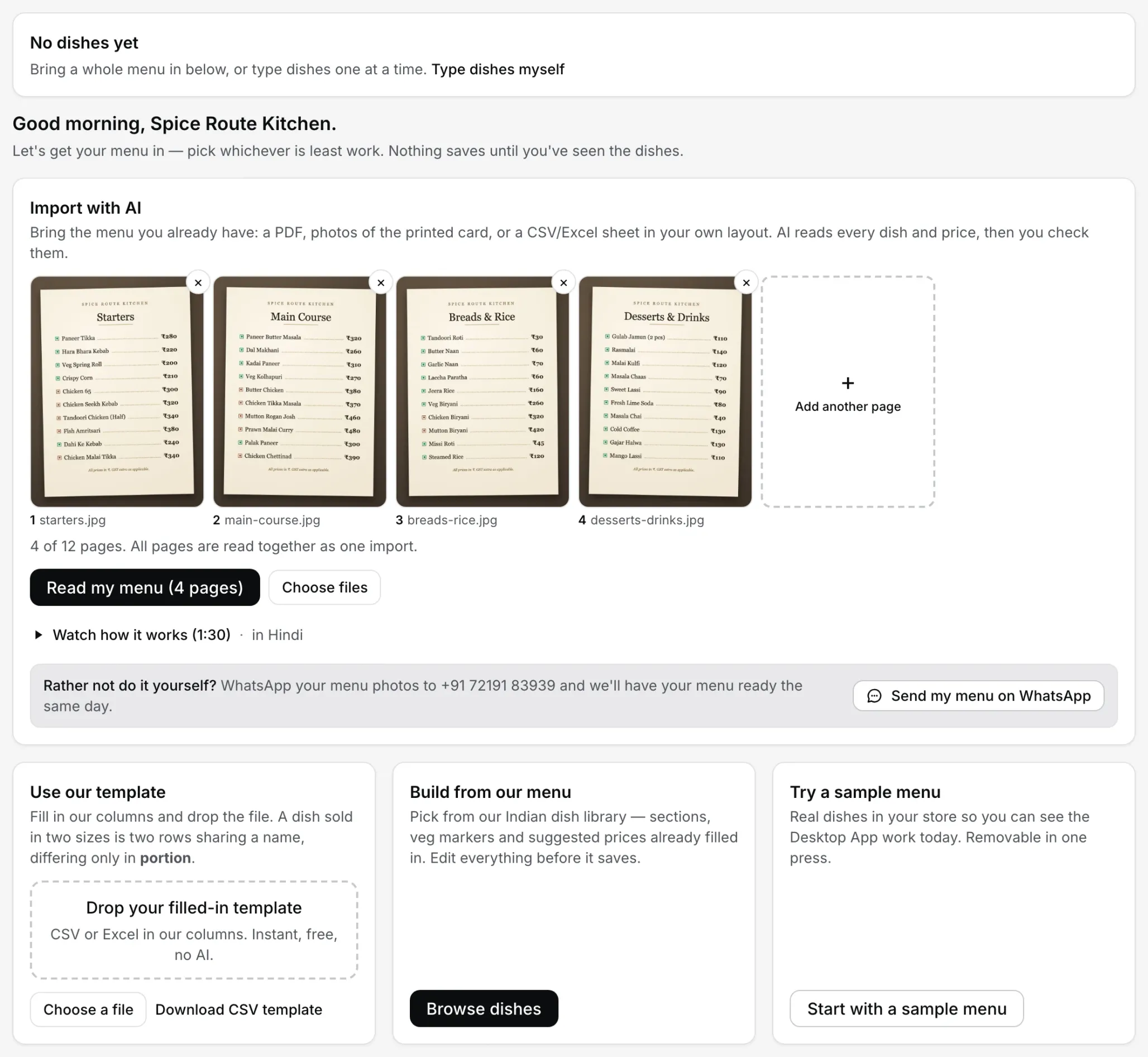
Step 1: four doors, one editable menu at the end of each.
Drop the menu and let it read
On Import with AI, add up to 12 pages of one menu: photos, PDFs or a mix, dropped in together or one at a time. They collect in a tray, each with its page number and a × to remove it, and nothing is uploaded until you press 'Read my menu'. Then every page is read together as one menu, in the order you added them, so a menu of several pages uses one AI import, not one per page. A spreadsheet goes up on its own. Each photo can be up to 10 MB, with 80 MB in all per import; go over and the page tells you what to trim before anything is sent. The progress line tells you what is actually happening (Reading your menu, Double-checking dishes and prices, Running final checks). A spreadsheet dropped here is uploaded and read by the AI the same way a PDF is, so its columns can have any names in any order. Each import uses one of your store's AI menu imports, however many pages it has. A file already in our template's columns goes on 'Use our template' instead: a CSV there is parsed in your browser and never uploaded, an Excel file is uploaded and read in a moment, and neither uses an AI import. Dishes that come in as Half/Full fold into one dish with portions, not two.
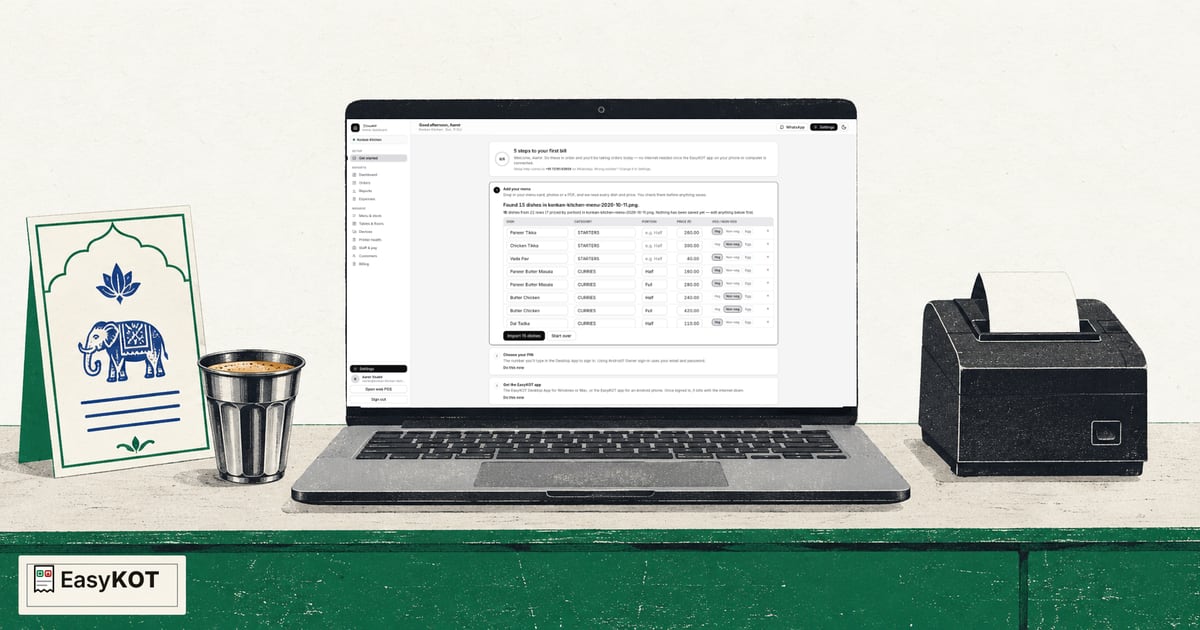
Check the review grid — nothing saves until you say so
Every dish lands in an editable table: name, category, portion, price, veg or non-veg. Rows the reader wasn't sure about wear a flag: a red flag blocks the import until you fix the row, an amber one just asks for a glance. Edit anything in place, delete what's wrong, then press 'Import N dishes'. Until that press, your menu hasn't changed by one paisa.
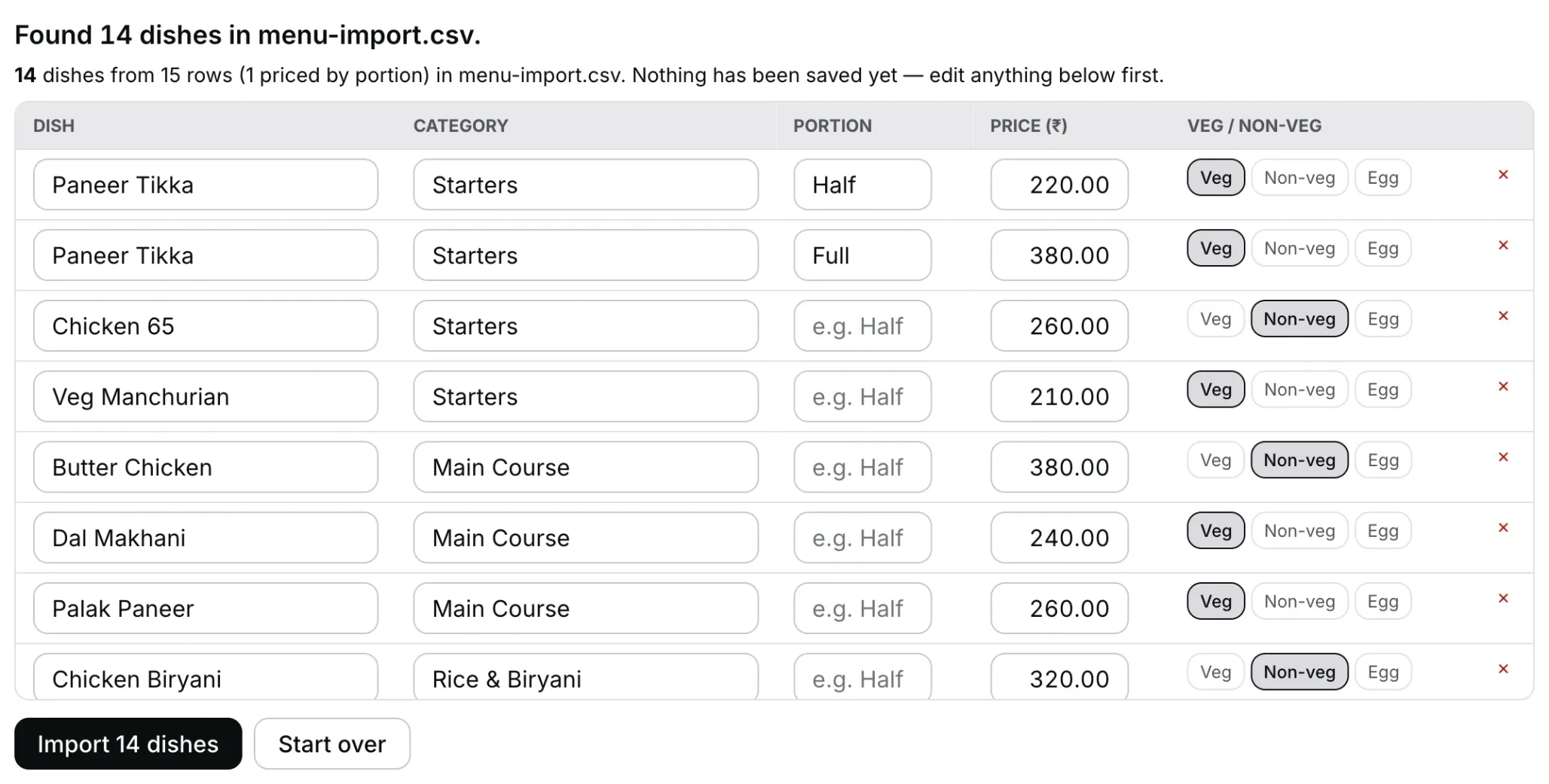
Step 3. The AI types, you check: nothing saves until 'Import N dishes'.
Finish the details, then run the Desktop App from the Desktop App
After import, open any dish to set what a photo can't carry: portions, add-on groups like extra cheese, variants, a description. Under Portions, '+ Sell in portions' starts Half and Full at the dish's price; type Quarter (or any size) beside '+ Add size', price it, and press 'Save portions'. The same screen shows the dish's GST slab beside its price, with a live price-including-tax preview. It starts on your store's rate. Configure item tax treatment, including No GST, only after your accountant confirms it. Tax treatment may differ when an item is sold separately versus supplied as part of restaurant service. Day to day, the Desktop App's own 'Menu availability' screen handles the kitchen reality: flip a dish off when it runs out and its tile greys on every Desktop App, pin the counter's favourites to the top. Works offline, syncs everywhere.
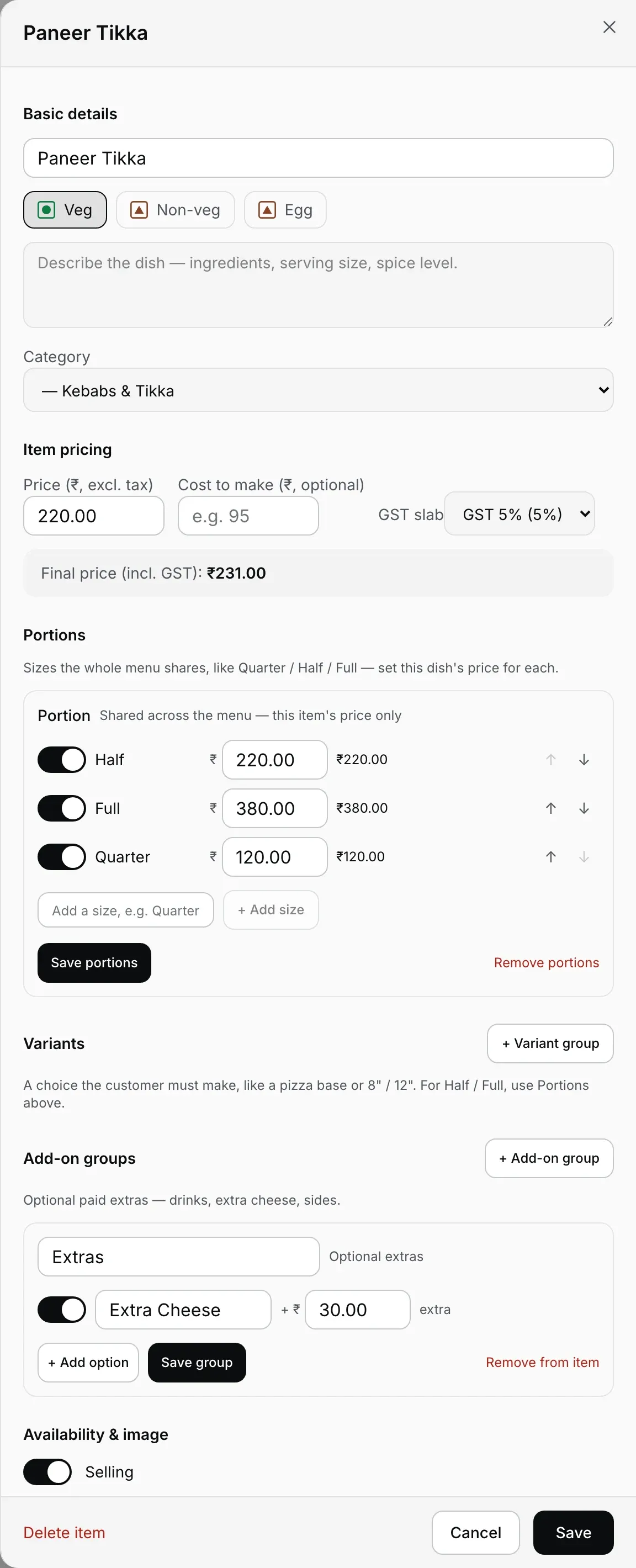
Step 4a. The details a photo can't carry: portions and add-ons. The GST slab is already on your store's rate.
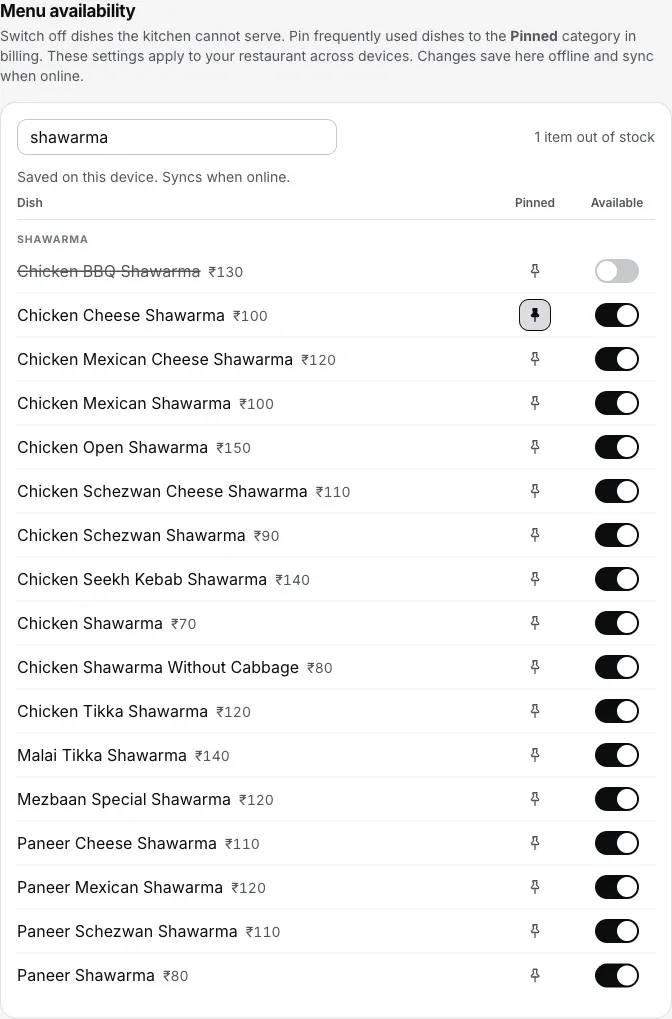
Step 4b: 86 a dish from the Desktop App itself; its tile greys on every Desktop App.
GST is not a pass you do dish by dish. The reader never guesses your tax registration, and it does not have to: imported dishes take the rate you picked under Settings → GST & bills, on your CA's advice. If older dishes still have no rate, the Menu page counts them and one button puts them all on it. The first-GST-bill guide shows where it lands on the paper.
Straight answers.
AI galat price daal de toh?
What files can I import from?
Does the import set GST on my dishes too?
How do portions like Half/Full work?
How do I mark a dish sold out during service?
I changed the menu in the dashboard — when does the Desktop App see it?
Kya EasyKOT mera menu daal sakta hai?
With the menu in.
Your first GST bill
The four steps from the freshly imported menu to a printed tax invoice.
Make the first bill →Draw your floor plan
Tables where they really stand: the other half of setup day.
Build the floor →Menu management, in full
Categories, pricing, images, stock-outs: the feature tour of the dashboard side.
See menu management →Every guide in this cluster is listed on the guides hub.
3 mahine try kare, phir plan chune.
Restaurant ka kaam hum samajhte hain, kyunki shuruaat bhi wahin se hui. 3 mahine free try kare, bina card details. Hamari kahani padhe.