Net down. Billing on. — what actually happens.
A previously configured EasyKOT Desktop App keeps billing through an internet outage. Orders and payments save to its local database and sync when the connection returns. Network printers, captain phones and KDS still need the router and local Wi-Fi.
Internet, router and power failures are different. Local billing survives an internet cut. A router cut can stop local devices. A power cut needs battery or backup for the laptop, router and printer. The Desktop App must sync online at least once every 30 days; reminders start on day 20 and selling pauses on day 30 until it syncs.
Want a short illustration? Open the homepage offline simulator. Switch its internet toggle OFF to see the local billing example. It does not test a physical printer or payment.
What keeps working — the honest list.
- Opening tables and punching orders. The menu is already on the laptop. Search, categories, Half/Full portions, add-ons, line notes: all local, all the same speed as ten minutes ago.
- Firing KOTs. The kitchen printer sits on your own network or on a cable. A ticket has no reason to travel the internet to cross a kitchen, and it doesn't.
- Settling and printing. Cash, UPI or card marking, part payment, the change calculation, the cash drawer, and the printed GST bill with its invoice number: the whole close of a table.
- Staff PINs and manager approvals. PINs come from the dashboard but they work offline, so a discount or a void that needs a manager still gets one, and still gets stamped with who approved it.
- Reprints. Last receipt, last KOT or a settled order can be reprinted. Receipt copies are marked DUPLICATE; KOT copies are not. Check the kitchen before repeating an uncertain ticket.
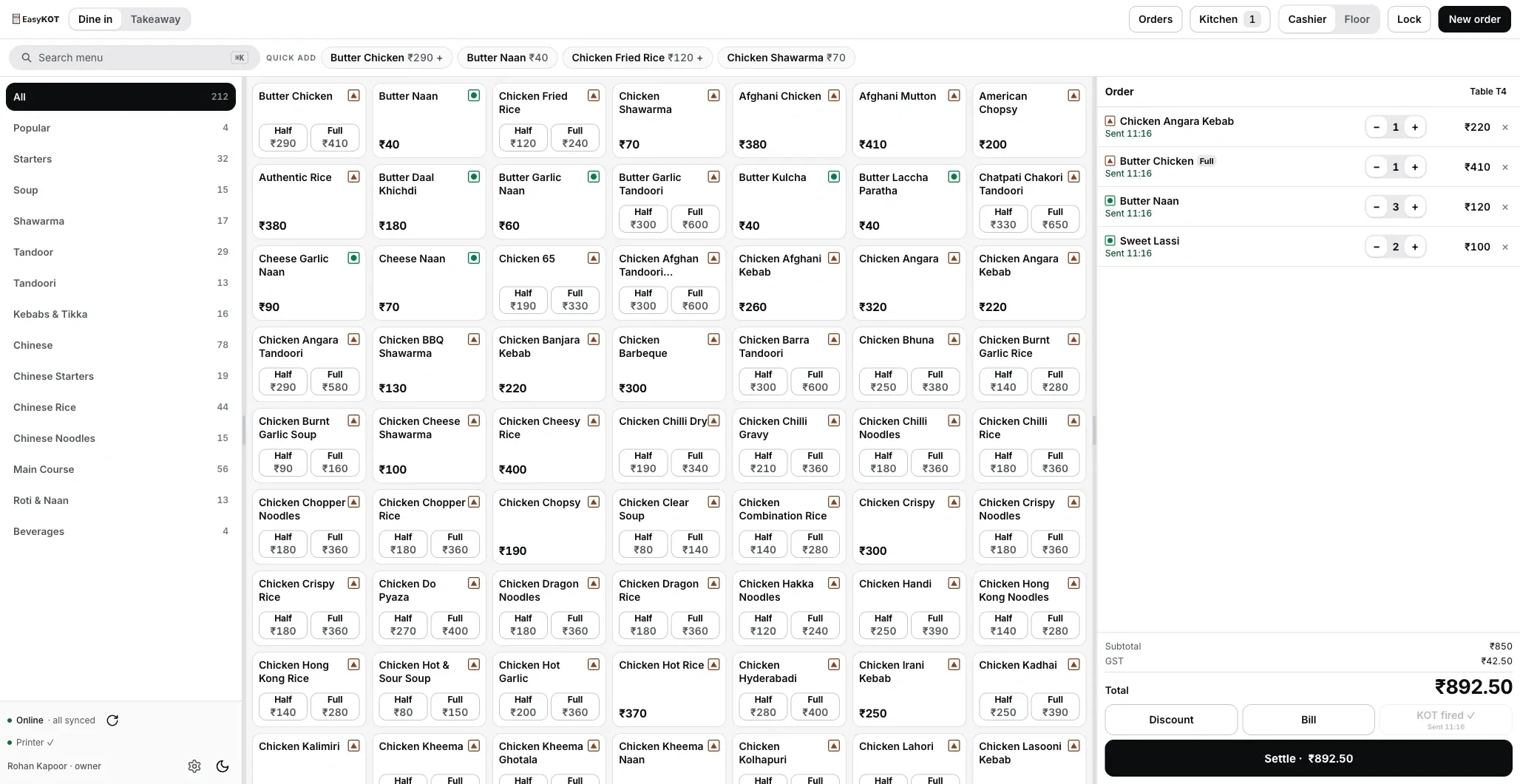
The sample cart during service. An internet outage leaves the local cart available; check the offline rail status and print queue separately.
What does need internet.
- Signing up, and the one-time code that links a new Desktop App to your store. Both are day-one jobs, not service-time jobs.
- Sync: sending today's sales up and pulling menu changes down. It is background work, and it catches up on its own.
- The owner dashboard. Reports, menu edits, staff and device management all live on the web, so an outage means you cannot change the menu until it is back. The Desktop App carries on selling the menu it already has.
Local billing does not wait for internet. Printer and shared-device delivery still need a working connection and power.
An offline badge, not an error.
- Online, the rail foot reads "Online · all synced" with a green dot.
- Offline, it reads "Offline · sales keep working" with a grey one. This describes sync, not kitchen or printer delivery. Check those statuses separately; local payment recording can continue.
- The colour never carries it alone: the words say the state too, because a status you can only see if you can distinguish green from grey is a status a busy cashier will miss.
- The refresh glyph beside it goes quiet. Hover it while you are down and it says "No network — sales still work offline; sync when back online". It is a nice-to-have for pulling a menu change early, never something you have to press.
Where records stay while internet is down.
Completed orders and payments stay in the Desktop App's local database. Upload is separate. Offline status can mean dashboard sync is pending; a locally settled sale is still recorded.
- Saved locally. Completed records are in the local database. After a restart, check tables and the print queue. Unsynced data has no cloud copy if the device or storage fails.
- Append-only. Every order and payment is a ledger row; nothing is overwritten. A correction is a new row that explains itself, which is why the day-end still adds up after a messy evening.
- Invoice numbers keep coming from the Desktop App's own series, so the paper you hand a guest at 9 pm is a properly numbered tax invoice, not a placeholder to be fixed later. The first-GST-bill guide covers how that series is built.
- Every write carries its own id. When the upload finally runs and a request gets retried, the same bill cannot land twice.
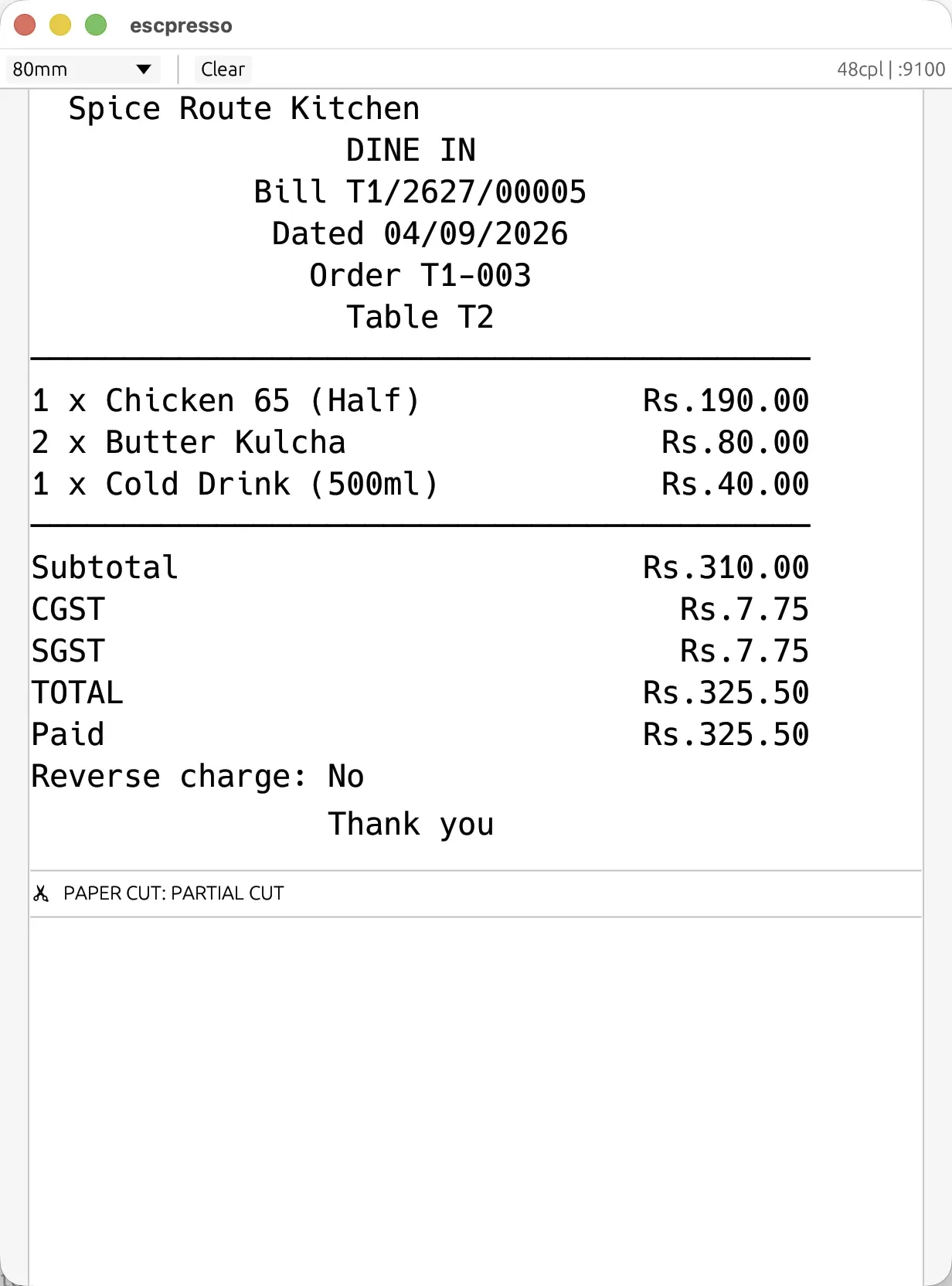
This is what prints while you are offline: the same numbered GST bill, CGST and SGST split, that prints when the line is up. Rendered here by a virtual ESC/POS printer: the exact bytes the Desktop App sends, not a photo of paper.
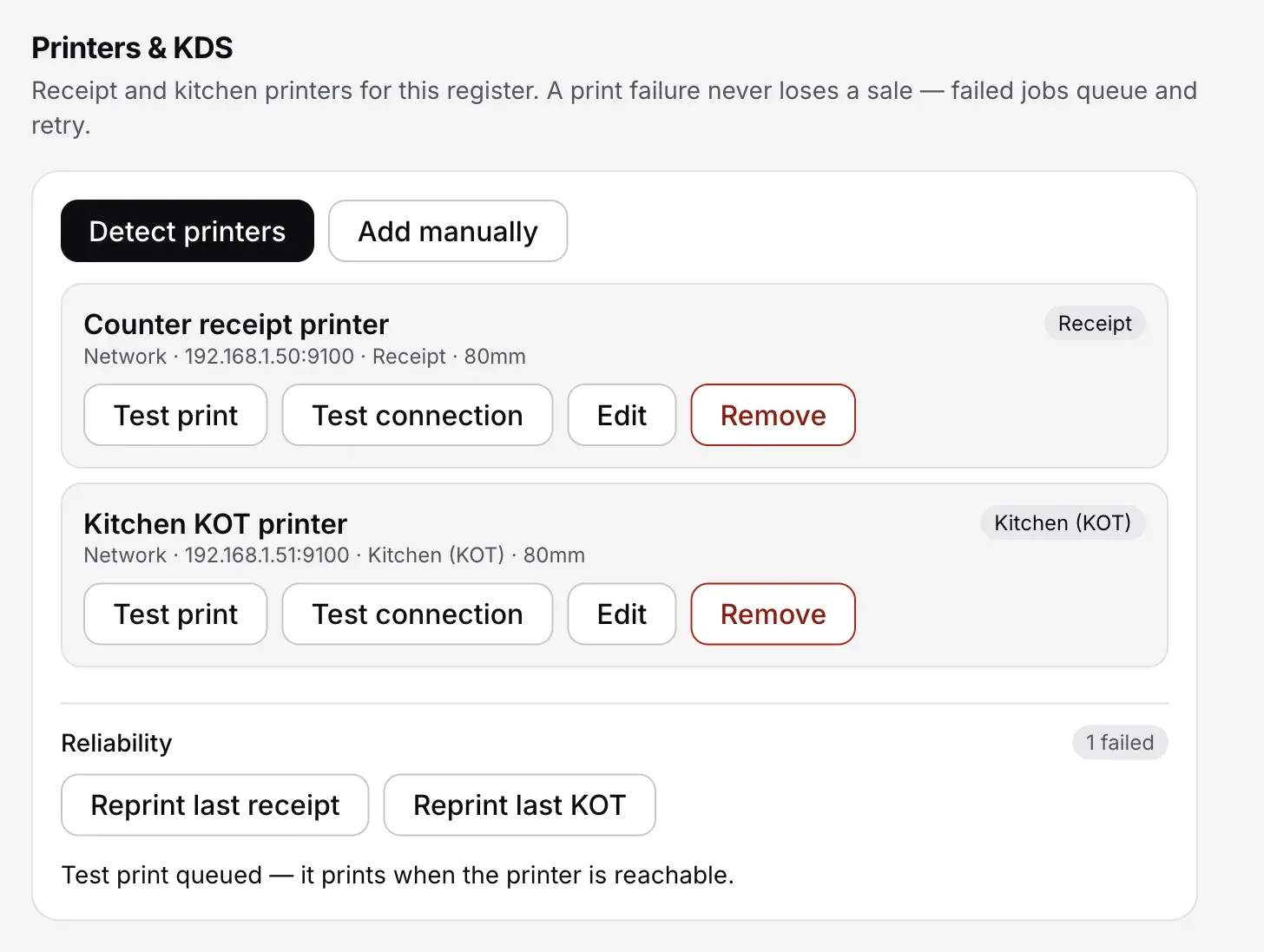
If the printer drops too.
A router reboot, printer power loss or empty roll can stop printing. Settlement records the sale first; paper delivery is checked separately. Review the queue and Orders instead of creating the same sale again.
- The ticket becomes a job, not a dialog. It waits in a queue on the laptop and retries on its own for 5 minutes (after 1 second, then 2, 5, 15, 30, then every minute), with automatic retry for definite failures within that window. An ambiguous send is parked because paper may already have printed. Check the kitchen before Print again. Still unprinted after 5 minutes, it stops and waits in Settings → Printers & KDS for Print.
- The rail tells you. "Printer ✕" when a configured printer stops answering, "No printer · 3 waiting" on a Desktop App that has none set up, and "· 2 failed" appended when tickets have actually failed.
- Settings shows the same count as an "N failed" pill under Reliability, with Reprint last receipt and Reprint last KOT next to it: the screenshot above. That is your manual override when you do not want to wait for the retry.
- The drawer failing does not undo the settle either. The Desktop App says the receipt or drawer could not be queued and tells you the sale still stands, with the reprint waiting in Orders.
A network printer needs working Wi-Fi/LAN and power. It can keep working through an internet cut when its local connection remains available. See the printer troubleshooting checks.
Wi-Fi is not internet — and that decides everything.
The router connects devices inside the restaurant. The internet line connects them to the server and dashboard. First check which connection is unavailable.
- Router alive, internet dead. Configured captain phones and the Desktop App can communicate over the restaurant Wi-Fi through the local hub. Check the round acknowledgment and the printer or kitchen-screen result separately.
- Internet alive, phone off the shop Wi-Fi. The server sync path may carry the round if both phone and printing counter can reach the server. Do not assume arrival time; check the confirmed or not-sent status.
- Neither. The round is held on the phone, both sides keep retrying, and the app says so in words a waiter can act on: "The counter hasn't got this. Stay on the restaurant Wi-Fi, or tell the kitchen." A fired round stays badged until the counter confirms it.
- Power cut. The laptop, router and printer need working batteries or backup power. After restarting, check completed local records, open tables and any interrupted actions or prints before continuing. Internet-offline support does not replace power.
Connect the Captain phone to the restaurant and the Desktop App. The local hub needs the same Wi-Fi. The desktop kitchen display also uses the configured local network.
When the connection comes back.
- Nobody presses anything. The Desktop App notices the line is back and starts uploading in the background, while the Desktop App carries on billing on top of it.
- The status line flips to "Online · all synced". That is your confirmation the queue has drained: the same line that told you it was down.
- The dashboard fills in. Every bill you rang during the outage appears with the time it was actually taken, not the time it uploaded, so the evening reads correctly in reports.
- Menu changes arrive on sync. Dashboard edits download on the next successful sync. When online, menu refresh can request the update sooner.
Refresh the demo and check your saved table.
Test local persistence in the laptop-size browser demo without an account or install. Sample bills and KOTs open through the normal print dialog; multi-device delivery needs installed apps and configured hardware.
- Open the browser demo on a laptop or desktop. Let the sample restaurant finish loading.
- Open a test table, add two sample dishes and choose Fire KOT.
- After the demo loads, refresh to check the saved table. In the loaded open tab, disconnect internet to try local ordering.
- The saved table and fired round should remain after refresh in the same browser. Clearing site data removes demo data. Reopening an uncached page may need internet to load its files.
Demo sample data stays in this browser. Do not use real payments or customer data. For a shorter illustration, open the homepage offline simulator.
Opening the print dialog does not prove that paper came out. For printer discovery, automatic printing and multi-device setup, use the installed Desktop App and configured hardware.
Straight answers.
Does EasyKOT work without internet?
How long can I keep billing offline?
Will I lose data if the laptop shuts down while it is offline?
Do the waiters' phones work when the internet is down?
Will GST bill numbering stay continuous if I bill through an outage?
Will the KOT reach the kitchen with no internet?
How do I know when everything has synced?
Related guides.
Your first GST bill
Punch, fire, settle, print: the four steps to a slip carrying your GSTIN with CGST and SGST split out.
Make the first bill →Printer not printing
Blank paper, wrong characters or an undelivered KOT: follow the checks in order.
Work through the fixes →Captain app setup
Pair waiter phones with the Desktop App. During an internet outage, the local connection still needs the router and devices powered on.
Set up the phones →See the Desktop App workflow on the billing page. Find more setup and troubleshooting help in the guides hub.
Run it 3 months, then pay for it.
Three months free, full product, no card. Made in India, for the counter: built inside a running restaurant.