Menu management with AI import: the whole menu, in minutes.
Drop your menu as a PDF, photos of the printed card or an Excel sheet. AI reads the dishes, categories, Half/Full prices and veg marks into a grid, you check it, and nothing saves until you approve. After that, categories, portions, add-ons, GST and stock-outs all live in one place, and every change reaches the EasyKOT Desktop Apps and captain phones on its own.
PDF · photo · CSV/Excel · 245-dish Indian library · nothing saves until you approve it
Drop the menu, check the grid.
- 1 · Upload what you have: the printed menu's PDF, photos of its pages, or a CSV/Excel export from your old system, in whatever columns it came out with. That is Import with AI.
- 2 · AI reads it into a review grid: Dish, Category, Portion, Price and Veg / Non-veg, one row per dish and size.
- 3 · You check, then approve. Fix a name, correct a price, drop a row. Nothing goes live until you say so.
Measured, not promised: our pilot restaurant's printed menu, a 7.3 MB PDF, went through the live import on 16 Sep 2026. It was ready to review in about 2 minutes, with 317 of 317 prices matching the PDF. The review grid is still there for the day a photo is blurry.
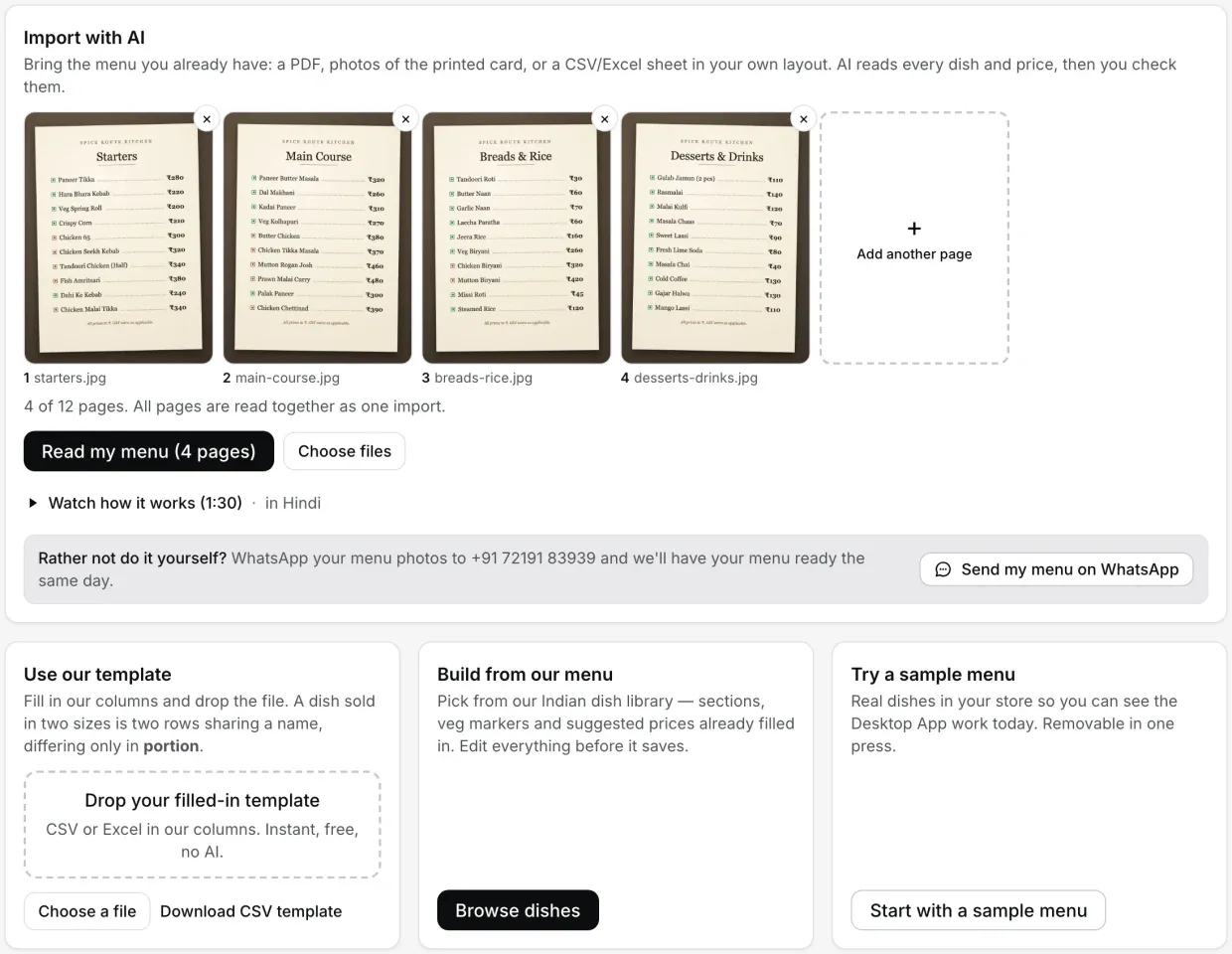
Which way in?
The setup card has four doors. Pick by the state your menu is in today:
| Your menu today | Use | AI? | How long |
|---|---|---|---|
| Printed card, a PDF or photos | Import with AI | Yes | About 2 minutes for our 7.3 MB pilot PDF, then your review |
| Excel or CSV in your own layout | Import with AI | Yes | The AI read, then your review |
| Excel or CSV in our template's columns | Use our template | No | Instant |
| Nothing written down | Build from our menu (245 dishes) | No | As long as picking and pricing takes |
| You just want to see the Desktop App work | Start with a sample menu | No | Instant, and removable in one press |
Step by step with screenshots: AI menu import guide. Building it yourself? The menu by hand guide.
Change it once, it changes everywhere.
- Live on every surface. The approved menu appears on the Desktop App and every captain phone, and the KOTs carry its dish names and portions.
- Changes sync on their own. Edit a price in the dashboard and the Desktop Apps and captain phones pick it up. For this very second, the Desktop App has a refresh icon beside Online, labelled “Sync menu now”.
- Stock-out in one tap. Every dish in Menu & stock has a switch. Turn it off and the dashboard shows “Stock out”, the Desktop App greys the tile as “Out of stock”, and nobody can order it from the Desktop App or a captain phone until you switch it back on. A whole category has its own switch too.
- Your order, not the alphabet's. “Reorder” in the Categories panel moves categories up and down, sub-categories stay under their parent, and the Desktop App lists them in that order. Portion sizes reorder the same way in the dish editor, and the new order holds on every dish.
- Pin what sells. The pin beside a dish puts it on the Desktop App's “Pinned” shelf and in the “Quick add” strip.
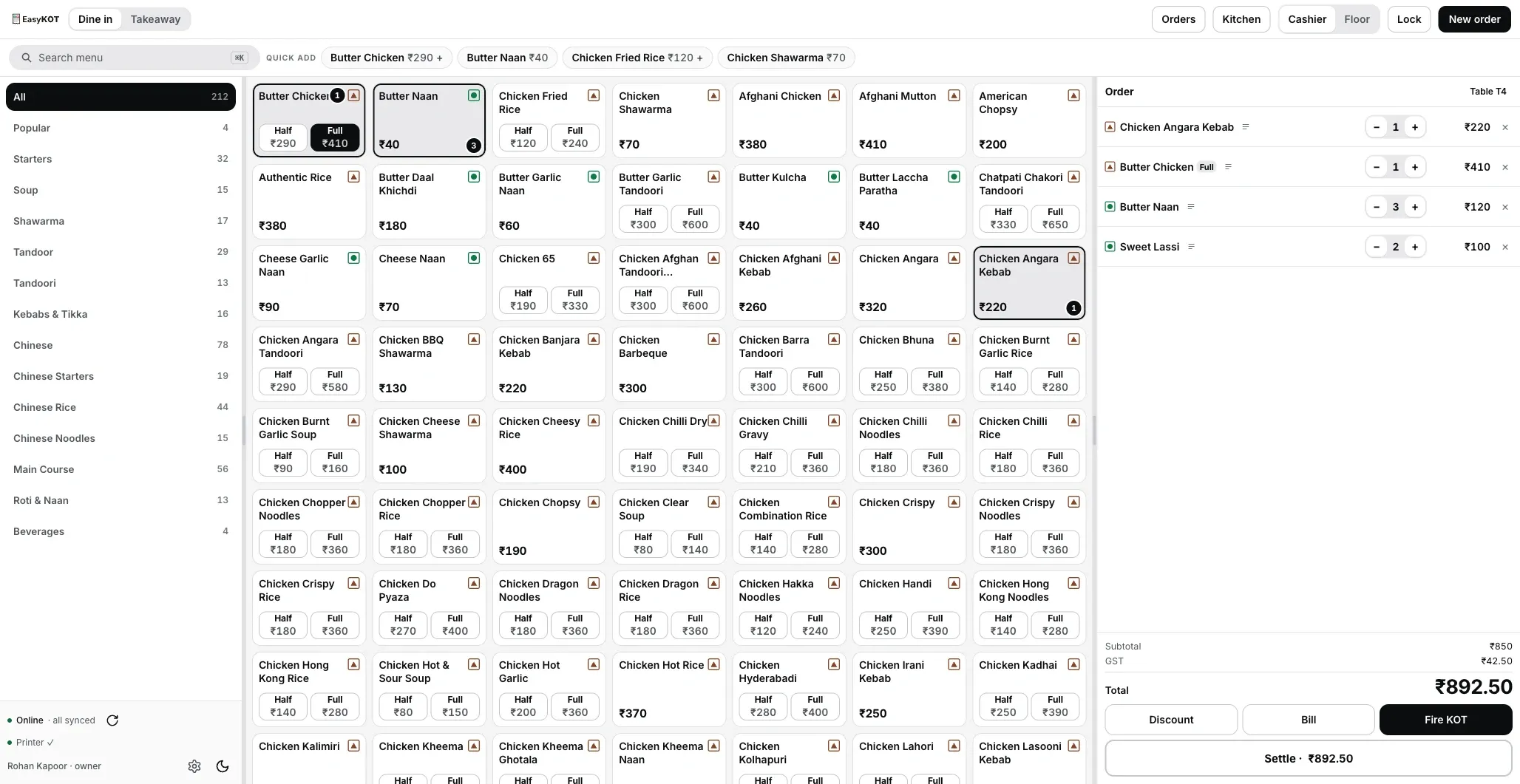
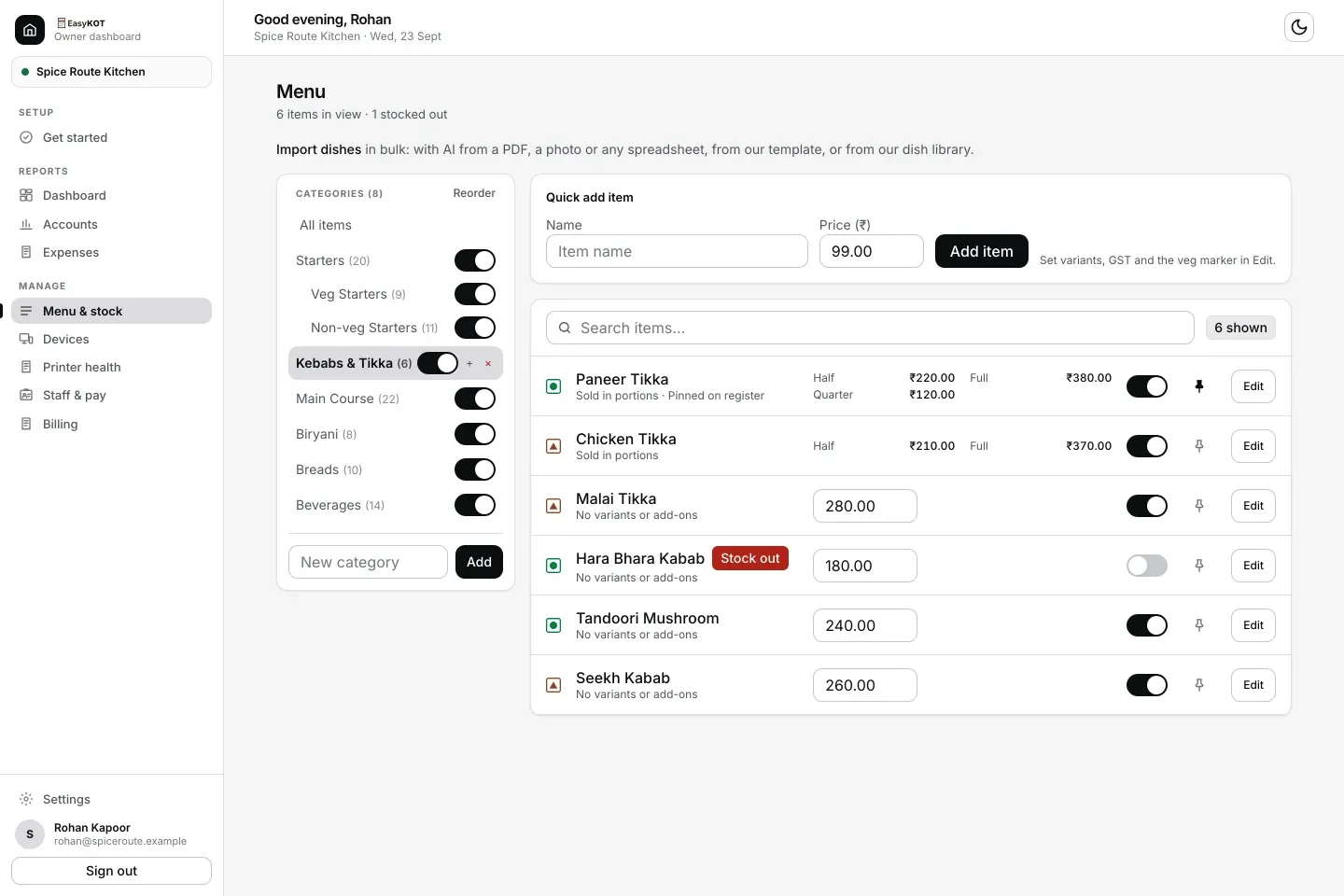
Menu & stock in the owner dashboard, captured 23 Sep 2026. The switch on each dish is the stock-out switch: Hara Bhara Kabab is off, so it wears a Stock out badge. Reorder, at the top of the Categories panel, sets the order the Desktop App lists them in.
One dish, opened up.
- Veg, Non-veg or Egg. The mark shows on every Desktop App tile and order line, on the captain's menu and in the dashboard. Printed KOTs and bills stay text only: a thermal printer prints one colour, so a green and a red mark would come out the same grey.
- Price excluding tax, with the GST slab beside it and the final price including GST underneath, so nobody has to do the arithmetic to know what the customer pays. The slab is the one rate you set for the whole store in Settings. Configure item tax treatment, including “No GST”, only after your accountant confirms it. Tax treatment may differ when an item is sold separately versus supplied as part of restaurant service. A new store starts as “Not GST-registered”, with no tax line on bills until you switch GST on. See the first GST bill guide.
- Portions are shared across the menu. Half and Full are defined once, and each dish fills in its own prices. Need a Quarter? Type it into “+ Add size” on any dish; the other dishes keep selling what they sold until you price it for them.
- “Cost to make”, if you want it. Fill in what a plate costs you and the “Menu performance” report can show profit per dish. Leave it blank and the dish stays out of the margin analysis.
- Variants and add-on groups for the dishes that need a choice or a paid extra, and nothing for the ones that don't.
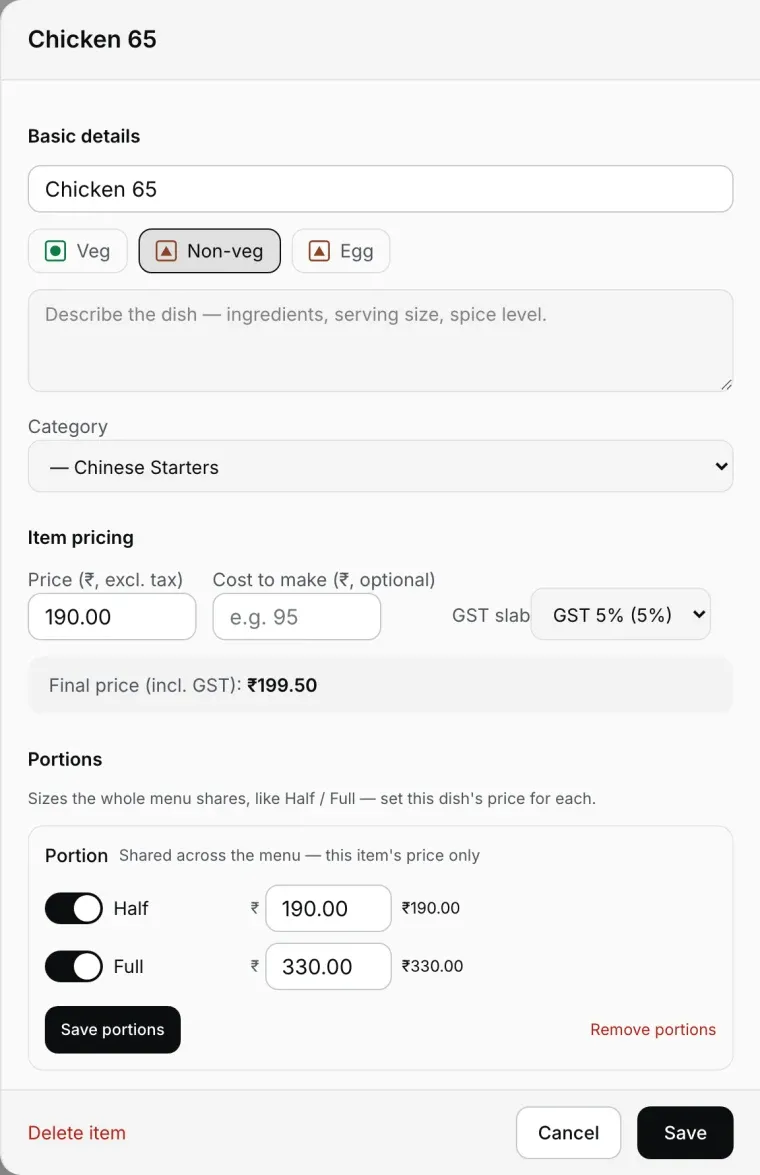
The dish editor: veg mark, GST slab, and Half/Full prices on one screen.
Before you import: the menu-card checklist
Decide these 8 things first and the review grid goes twice as fast. Print it and keep it with the menu card.
| Decide | Why it matters | Where it lives in EasyKOT |
|---|---|---|
| Your portion names (Half/Full, Quarter) | Defined once for the menu; each dish just gets a price per size | Dish editor, Portions |
| Which dishes are Veg, Non-veg, Egg | Shown on every tile and on the captain's menu | Review grid, then the dish editor |
| Accountant-confirmed GST status and rate | Configure store settings on your accountant's advice | Dashboard Settings |
| Item tax treatment | Use “No GST” only after accountant confirmation | Dish editor |
| Category order, and what is a sub-category | The Desktop App lists categories in this order | Menu & stock, Reorder |
| Dishes that need a choice or a paid extra | Variants and add-on groups | Dish editor |
| What each plate costs you (optional) | Profit per dish in Menu performance | Dish editor, Cost to make |
| Your 5-10 fastest sellers | Pin them onto the Pinned shelf and Quick add | Menu & stock, pin |
The full settings tour: owner dashboard settings.
Straight answers.
What can I import the menu from?
How accurate is the AI import?
How do price changes reach the Desktop App?
Can I mark a dish out of stock?
Do veg and non-veg marks print on the KOT and the bill?
Can I change the order of categories?
Does a new store charge GST?
How long does menu setup really take?
The menu is step 2 of setup: see the whole signup-to-first-bill walkthrough.
Run it 3 months, then pay for it.
Three months free, full product, no card. Made in India, for the counter: built inside a running restaurant.