Signup to first bill, on a laptop or phone.
Sign up free, import and review your menu, then put EasyKOT on your laptop or Android phone. The Desktop App needs a PIN and a setup code or owner sign-in; Android owner sign-in uses email and password, with an optional PIN. Connect your device and ring a test sale. Get started walks you through each step and ticks them off with proof: "42 dishes ready", not just a tick.
3 months free · no card · no need to switch off your current POS
What you need before you start.
Use your existing supported laptop or Android phone and a compatible printer. Print this list and tick it off; skip the rows that don't fit your restaurant.
| Setup | You need | Cost beyond the subscription | |
|---|---|---|---|
| Desktop App only | Windows 10/11 or macOS 13.3+ laptop + compatible ESC/POS printer (58/80 mm), supported cable/network and paper rolls | The printer, if you don't have one | |
| No laptop | Android 8+ phone + a compatible Bluetooth or Wi-Fi thermal printer | The printer, if you don't have one | |
| Waiters | Their own Android phones, on the counter's Wi-Fi | ₹0 | |
| Kitchen screen | Supported tablet or laptop connected to the Desktop App on the same network | ₹0 | |
| Second Desktop App | Another laptop on the same Wi-Fi | ₹0, no fee per Desktop App | |
| Staff | A PIN each, 4 to 12 digits (you choose the owner's on Get started) | ₹0 |
Buying a printer first? Read how to connect a thermal printer to a laptop. No laptop? See running the whole day on one Android phone.
Exactly what the dashboard will ask of you.
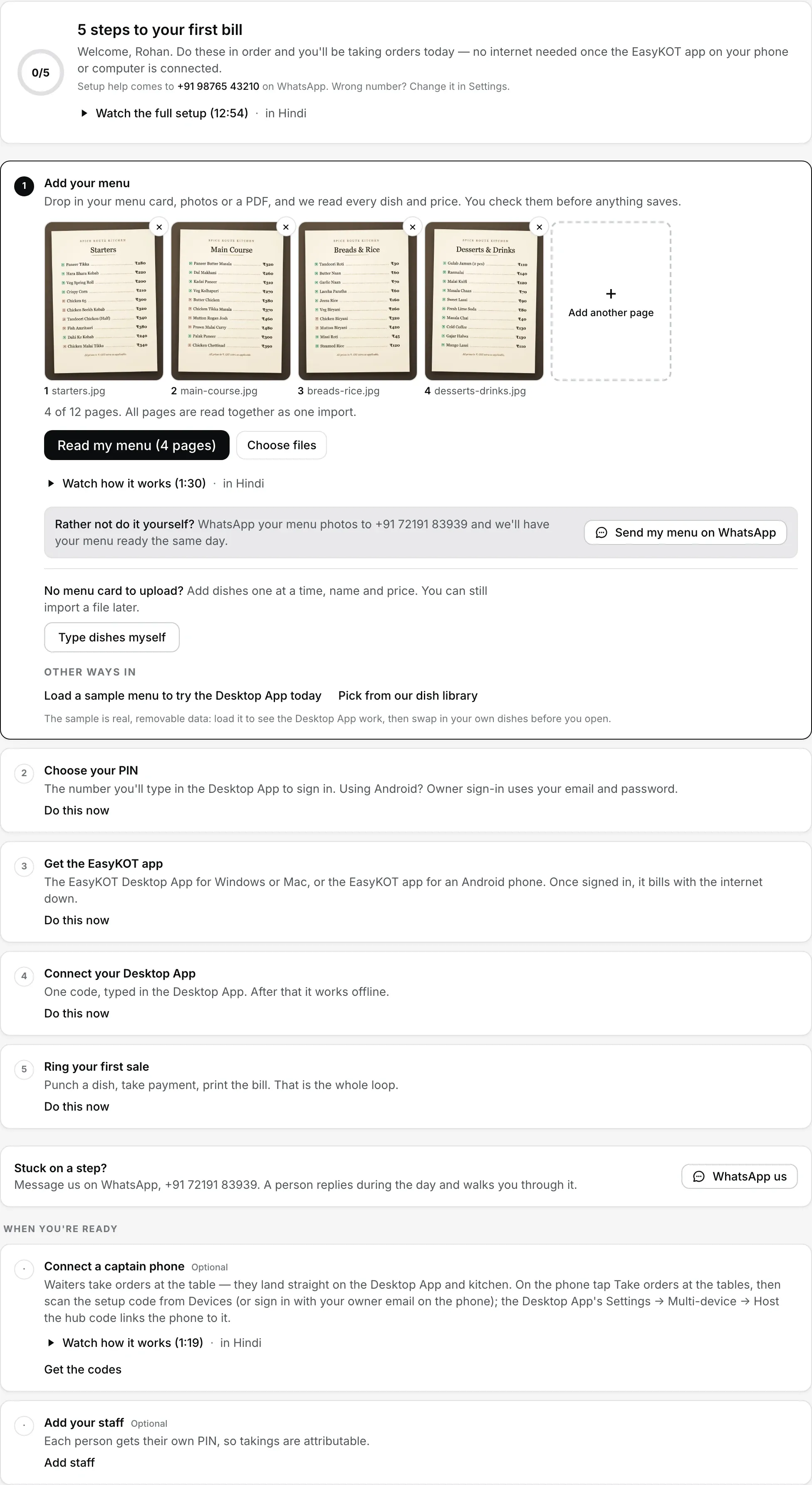
Signup lands here. The next step is already open, and Do this now opens any other one out of order. The steps tick themselves: dishes saved, PIN set, Desktop App connected.
Add your menu
Create your store at app.easykot.com (free for 3 months, no card, no sales call) and the dashboard opens on Get started. The first step is the import itself: drop your menu in as photos or PDFs (up to 12 pages, mixed is fine) or a spreadsheet in any layout. AI reads the dishes, portions and prices into a review grid, and nothing saves until you approve it. In a hurry? Under Other ways in, load a sample menu or pick dishes from the dish library. No menu card to upload? Type dishes myself opens the Menu page on Quick add item, ready for your first dish.
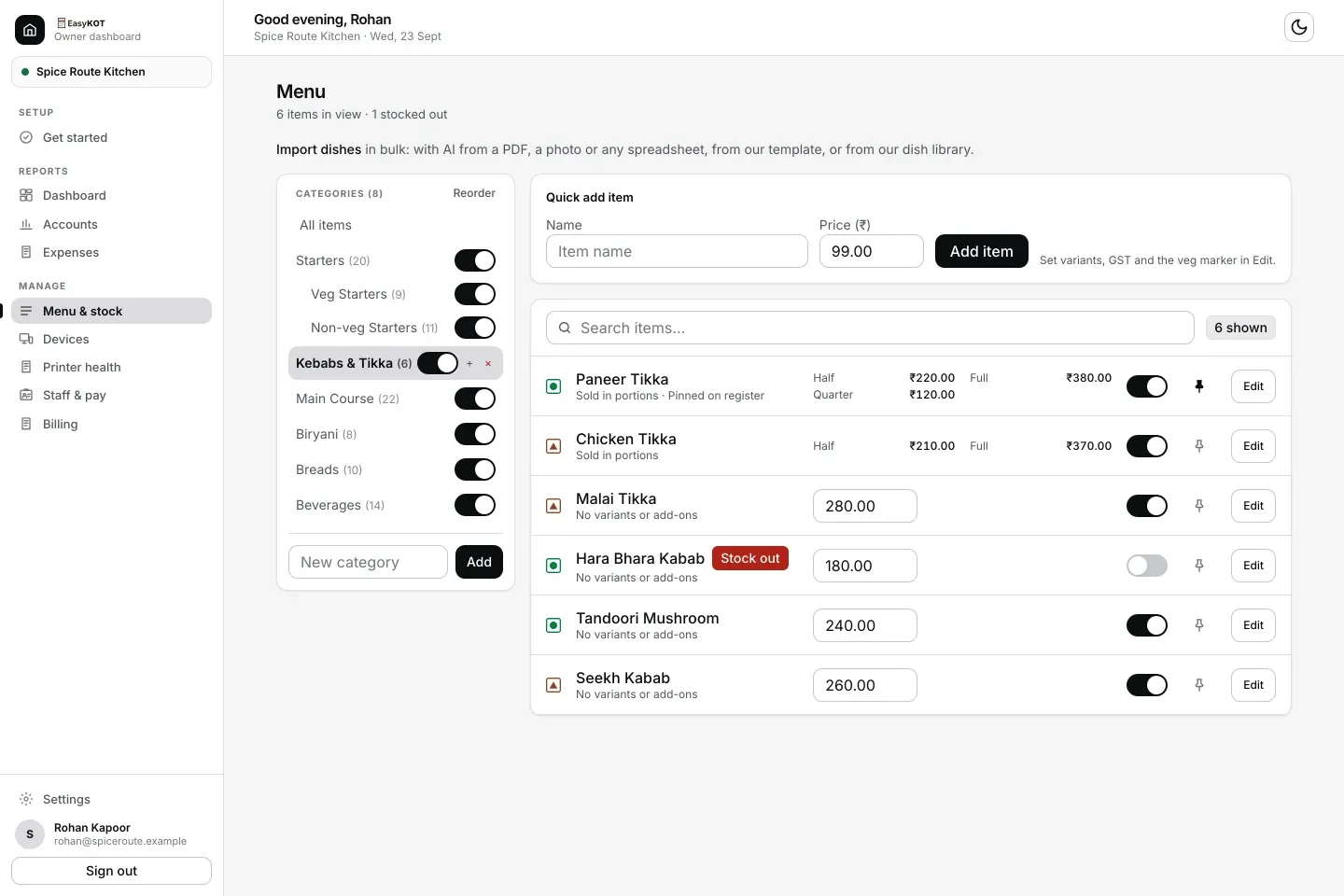
Where the menu lands once it is read: categories on the left, dishes and prices on the right, each with its own stock switch.
Choose your PIN
For the Desktop App, type a PIN of 4 to 12 digits, type it again and press Save PIN. Connect with Owner sign-in and the Desktop App opens straight on the register as you. Connect with a setup code, or lock the register later, and it shows a PIN pad where this is the number you type, so pick one you will remember. Android owner sign-in uses email and password, so Choose your PIN is optional on the phone path. Staff get their own PINs later, under Staff & pay.
Get the EasyKOT app
Get started lists the Windows .exe, the Mac .dmg and a Google Play link for Android. Choose Windows or Mac and a short first-open guide opens: on Windows, More info, then Run anyway; on a Mac, drag EasyKOT to Applications and paste the one Terminal line it shows. No laptop? An Android phone can run the counter and print to a Bluetooth or Wi-Fi thermal printer. For an Android app already installed, choose Already have the Android app? Use this phone. On a laptop, choose Desktop App already installed? Skip this step.
Connect your phone or Desktop App
On Get started, name the Desktop App and press Create setup code (the same code comes from Dashboard → Devices → Create & get setup code). In the Desktop App, paste it under I have a setup code, or use Owner sign-in, and the step ticks itself. For Android, open Connect your phone. If the Desktop App card is showing, choose I’m using the Android app. In the app, tap Run the counter, sign in with your owner email and password, then connect a printer or skip printer setup and start billing. No laptop or setup code is needed. A Desktop App connected with a setup code asks for the PIN from step 2; one connected with Owner sign-in opens straight on the register as you. From then on it bills offline and only needs the internet to sync.
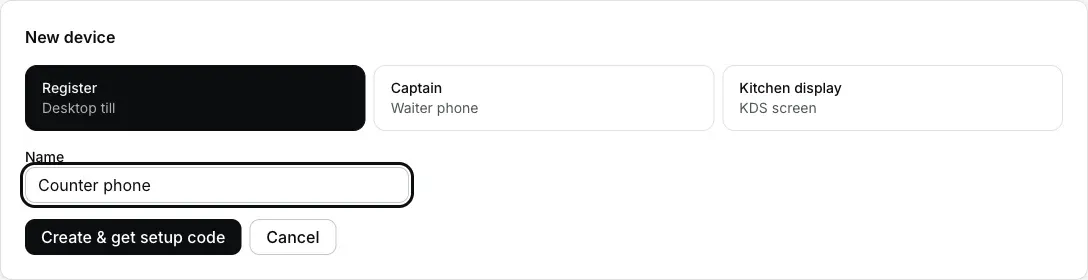
Dashboard → Devices → Add device. Desktop App or counter phone for the laptop running the Desktop App, Captain for a waiter's phone, Kitchen display for the kitchen. The waiter-carried own-table printer role is not in the current public app. A manager can make any joined phone the whole-store printer fallback from Device → Printers.
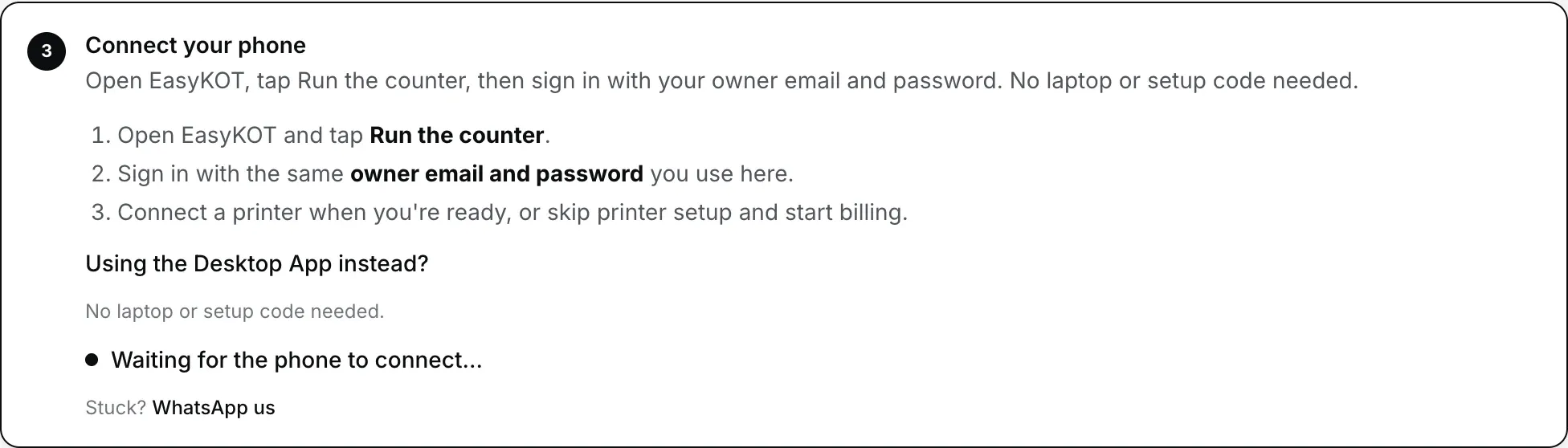
Download Android or choose the already installed app. Connect your phone shows this: the phone signs in, nothing to paste.
Make the first bill with a test order
On Android, tap + Takeaway, add a dish, tap Review order and Send KOT, then Settle and Cash or UPI to record a test payment. On the Desktop App, add a dish, send the KOT and record a test payment. Do not mark UPI until it is verified in the merchant or bank app. Printing is optional; with a printer connected, check a test slip and the test bill layout and total.
Step-by-step for the steps people get stuck on: setting up your restaurant, connecting a thermal printer, and a printer that will not print. The Desktop App itself is on the download page. For the browser option, read browser register setup and limits.
Then, when you're ready.
- Connect captain phones. In Staff & pay, tap Connect their phone. The captain scans the one-use QR and signs in with their own PIN; mobile data or Wi-Fi carries orders, and the local link to the Desktop App is optional. The captain app · step-by-step phone setup.
- Add your staff. Each person gets their own PIN, so the day-end knows who rang what. Desktop App owners choose theirs on Get started; Android owner sign-in does not need one. Staff PINs and roles.
- Put a screen in the kitchen. A supported tablet or laptop connected to the Desktop App on the configured local network can show the kitchen display: tickets, timers and Bump. Android Kitchen uses Done. KDS setup.
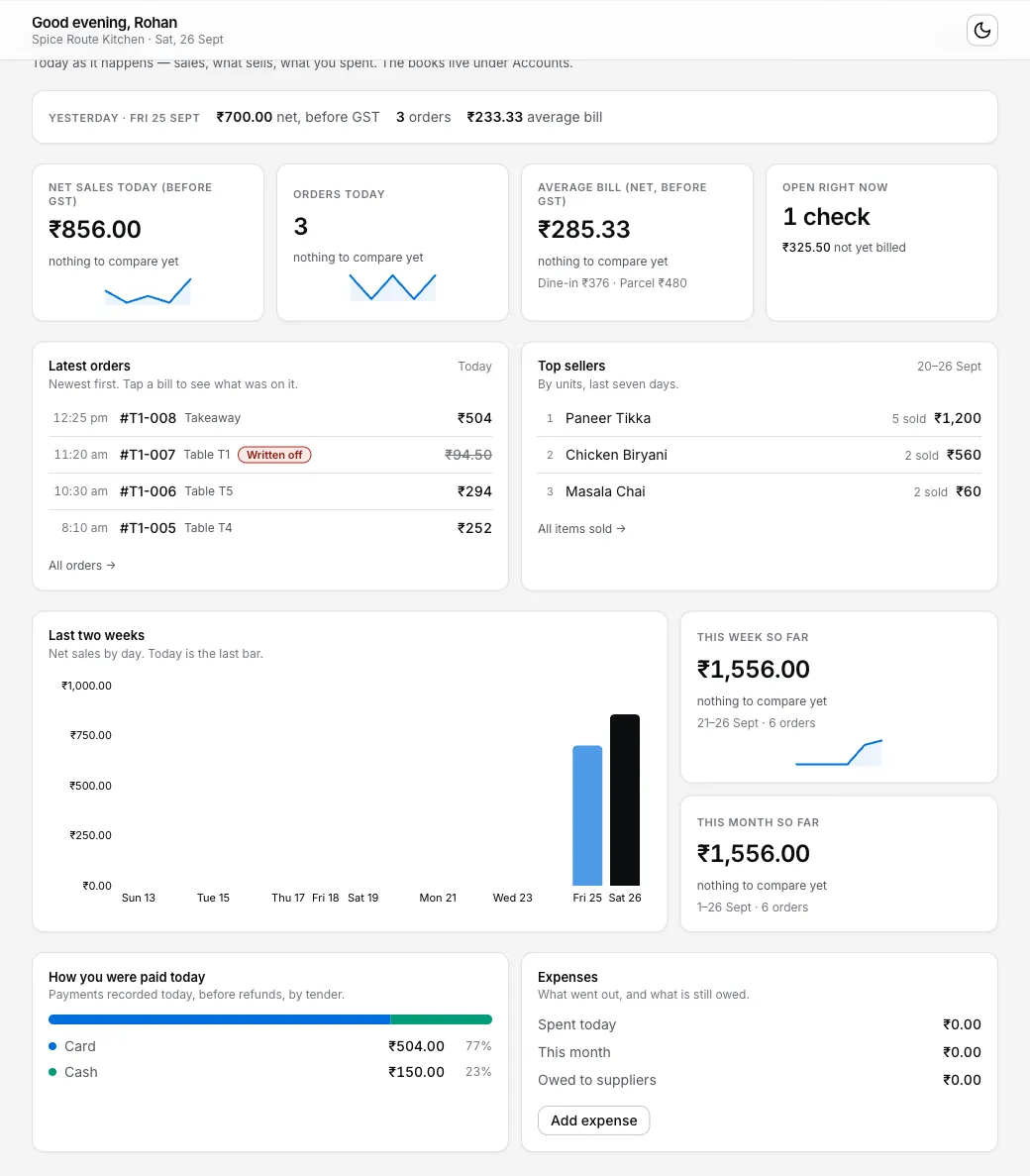
What needs internet, and when.
Once: signup, downloading the Desktop App, the connect code, and the AI menu import (it runs on the dashboard).
Locally during an internet outage: a previously configured Desktop App can record orders and payments. KOT/bill printing still needs the working printer, configured connection and power. Saved locally does not mean delivered.
Whenever it is there: sales reach the dashboard and menu changes reach the Desktop App. The one rule: the Desktop App must reach the internet once every 30 days, and it reminds you on screen from day 20. Watch the cut live in the offline simulator, or read what happens when the internet goes down mid-rush.
Moving from your current POS.
Keep your current POS while you test the menu and printer with separate practice orders. Do not record the same real customer sale in both systems. Choose a clear switch date outside service once the setup works.
- Menu: if your current POS exports the menu to Excel or CSV, drop that file in. If it doesn't, a photo of the printed menu works too.
- One Desktop App first: practise on one Desktop App, then tell staff which system records live sales and when the switch happens.
- Printer: test your existing ESC/POS printer with the device and connection you will use. Check both a test slip and a test bill before service.
Price: 3 months free, then ₹299 + GST a month, with no fee per Desktop App. The full breakdown is on the pricing page.
Straight answers.
How long does setup actually take?
Do I need my card to start?
What internet does setup need?
I already run another POS. Can I try EasyKOT in parallel?
When do waiters and staff come in?
Who helps if I get stuck?
Run it 3 months, then pay for it.
Three months free, full product, no card. Made in India, for the counter: built inside a running restaurant.