The kitchen screen that keeps up with the KOTs.
Send a KOT from the EasyKOT Desktop App or a captain's phone and check its delivery on the kitchen screen. Each ticket has a timer. When the plate leaves the pass, the pickup point between kitchen and floor, the chef presses Bump to clear it. A spare laptop or tablet keeps running on shop Wi-Fi when the internet drops.
Spare laptop or tablet · one screen per station · runs on your Wi-Fi without internet · included in ₹299/month
What a KDS is, in two lines.
A kitchen display system (KDS) shows kitchen orders on a screen instead of, or beside, paper KOTs. The pass or expo is the pickup point or person handing ready plates to the floor. Bump means marking a ticket ready and clearing it from the board.
- Tickets appear the moment they're fired, from the Desktop App or a captain's phone, with the table or parcel, portions and notes.
- Each round is its own ticket. A second round shows only the new items, so the kitchen never re-cooks round one because round two arrived.
- Late tickets change colour. Every ticket carries a running timer. Past half of your “Kitchen order delay” (Settings → Billing & service) it turns amber and the header counts it as aging; past the full time it is late. The chef sees at a glance which table has waited longest.
- Bump when plated. One tap clears the ticket. The screen shows only what the floor is still owed.
- A paid table leaves on its own. Settling a check clears its ticket from the board, because a pass silts up fast when nobody bumps the tables that already paid. If customers pay before the food is cooked, turn off “Clear kitchen tickets when a bill is settled” in Settings → Billing & service and every ticket waits for the chef's bump.
- No internet needed in service. The kitchen screen joins the Desktop App over the shop's own Wi-Fi or LAN, so a broadband cut changes nothing in the kitchen. The multiple Desktop Apps guide covers the pairing.
Three ways to read the same orders.
The rail at the top right switches one board between Tickets, Prep + tickets and All day. Same orders, read three ways; switching is one tap and changes nothing on the floor.
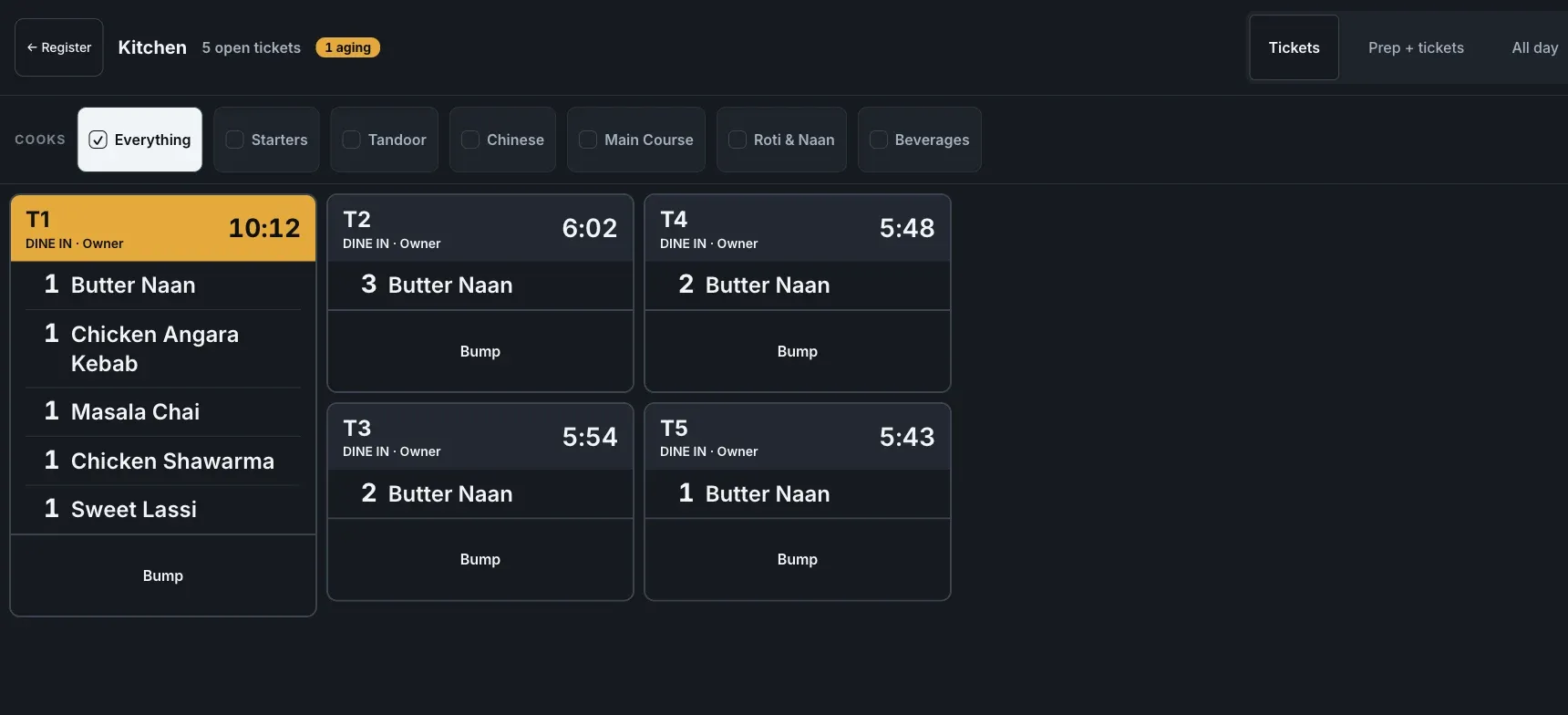
Tickets: the real kitchen display in service. Five tables in, each ticket led by the table the expo will call, with its own timer. T1 has waited longest and has turned amber.
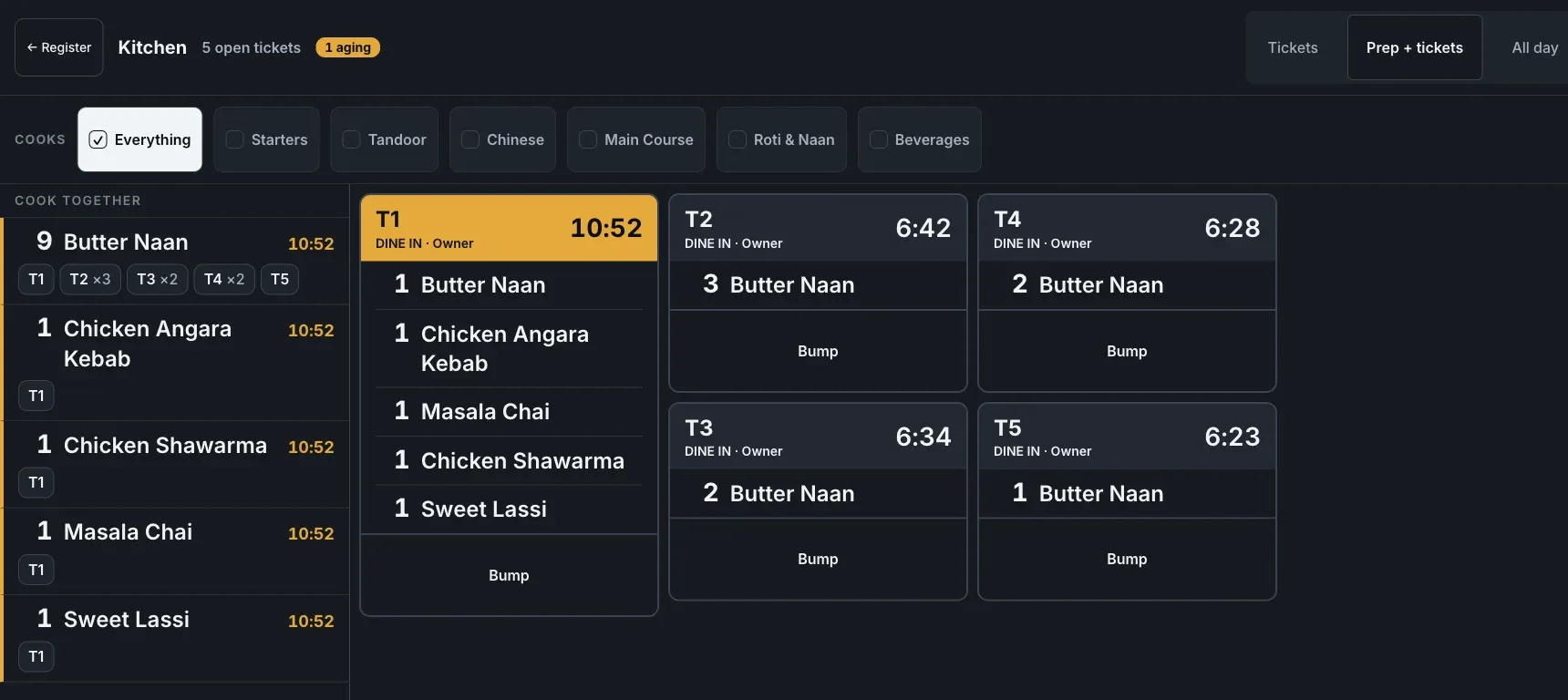
Prep + tickets. Five tables ordered Butter Naan; the Cook together lane says 9 Butter Naan once, and the chips underneath (T1, T2 ×3, T3 ×2, T4 ×2, T5) say where the plates go. The tickets stay beside it, so the expo never loses a table while the tandoor cooks the batch.
Only identical prep merges: “extra spicy” is its own batch, and a line with a cook's note never joins one. A batch carries its oldest table's clock (10:52 in the picture, T1's), so batching can never hide a table that has waited.
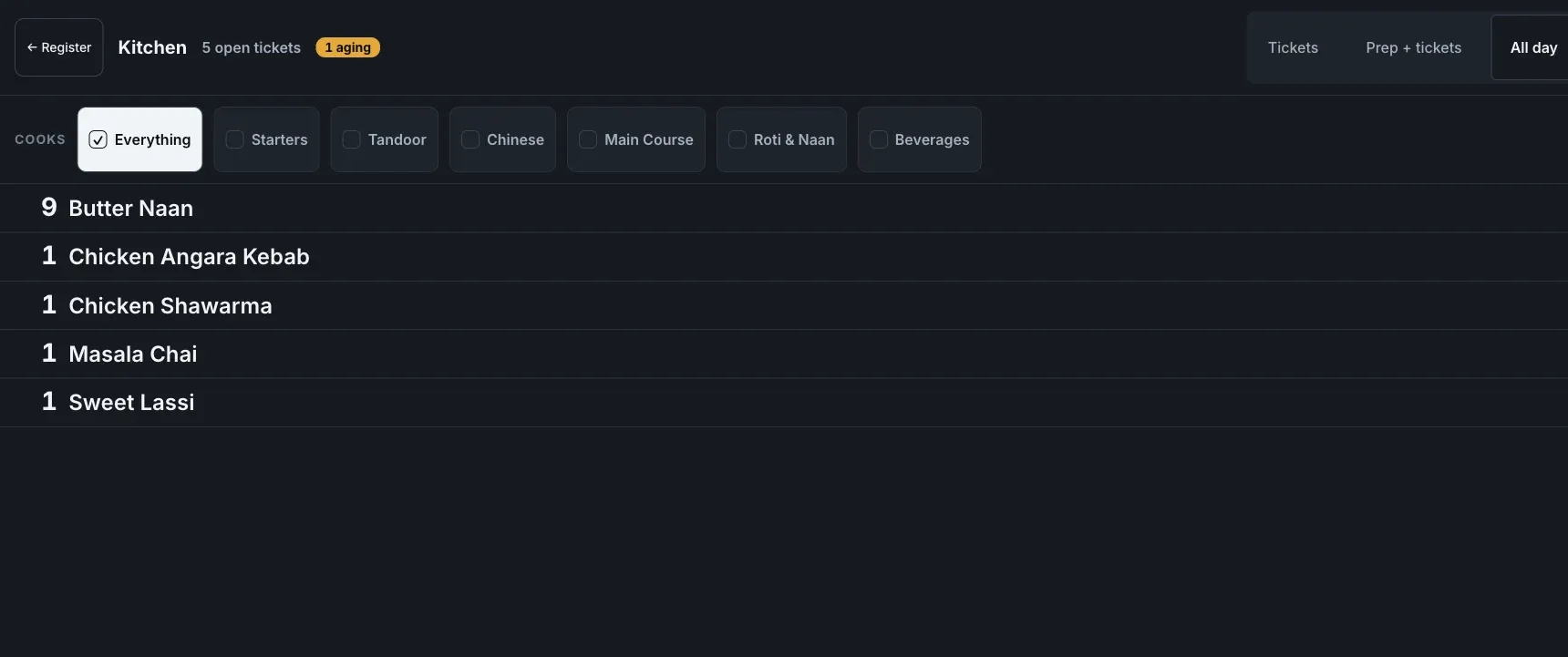
All day: every open ticket collapsed into “how many of each dish do I owe right now?”, with no tables at all. Nine Butter Naan, one each of the rest. This is the view a prep counter works from.
One screen per station.
Every kitchen display has a Cooks row of category checkboxes along the top. Tick Tandoor on the tandoor screen, Chinese on the wok line, Everything at the pass, and each screen shows only its own lines. Ticking a category covers its sub-categories too.
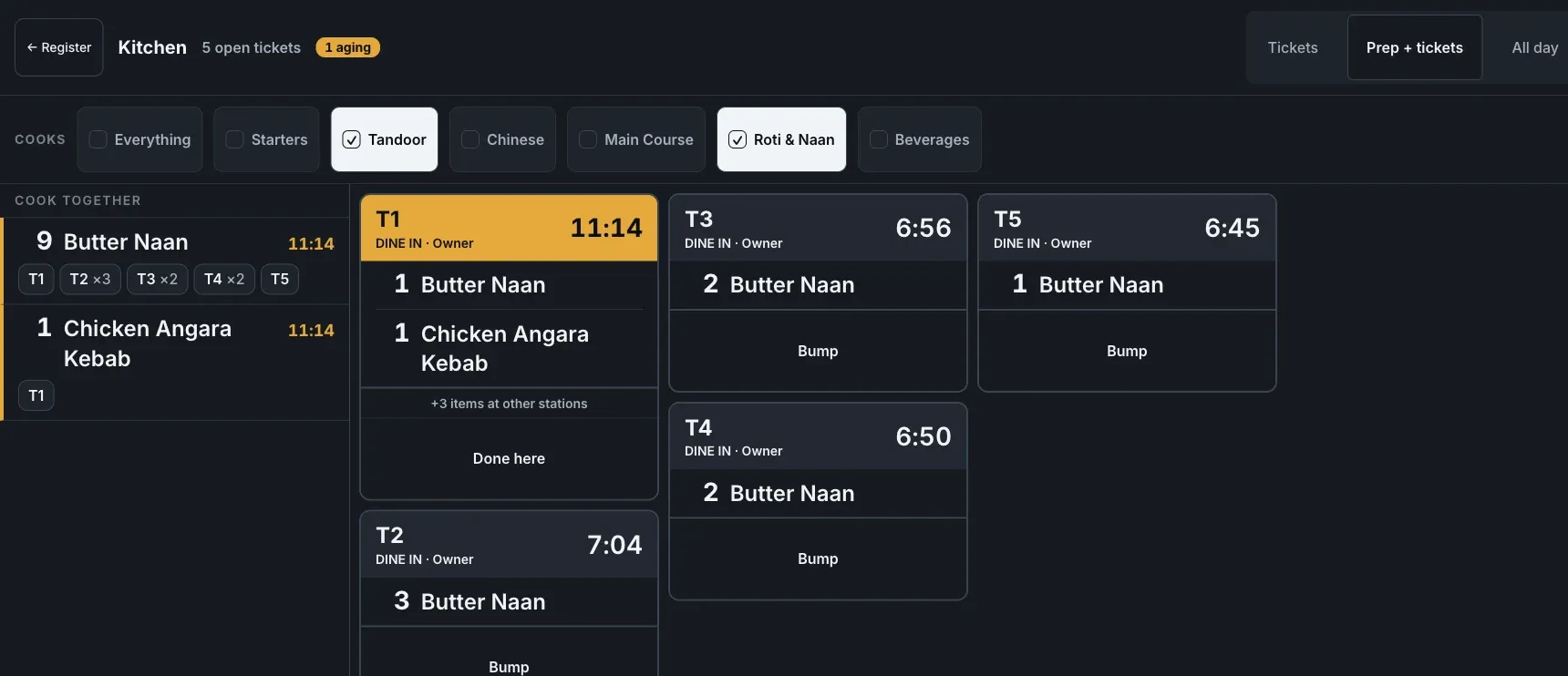
The same service on the tandoor screen: only Tandoor and Roti & Naan ticked, so only those lines show. T1 also ordered a chai, a shawarma and a lassi, so it says +3 items at other stations and offers Done here, not Bump: finishing your share never clears a ticket another station is still cooking.
A dish in no category shows on every screen. Cooking something twice is a conversation at the pass; food no screen ever showed is a guest who never gets fed.
Station map: what each screen ticks
Use your own category names; these are the ones in the screenshots. Print it and keep it with you on setup day.
| Screen | Tick in Cooks | What the chef sees | Button on a mixed ticket |
|---|---|---|---|
| Tandoor corner | Tandoor, Roti & Naan | Kebabs, tikka, every naan and roti | Done here |
| Wok line | Chinese | Everything under Chinese: starters, rice, noodles | Done here |
| Curry range | Main Course | The gravies | Done here |
| Drinks counter | Beverages | Chai, lassi, cold drinks | Done here |
| Pass (expo) | Everything | Every line of every ticket | Bump: clears the ticket on every screen |
Want paper split by station too? Each corner can get its own KOT printer: kitchen stations guide. Pairing the screen itself is in the KDS setup guide.
Printer, screen, or both?
The KOT is the same on paper and on screen, round by round, and Reprint KOT on the order brings back a lost ticket with REPRINT under the number, so the kitchen never cooks it twice. Pick by how your kitchen works:
| Your kitchen | KOT printer only | Screen only | Both |
|---|---|---|---|
| One cook, a short menu | Simplest; paper is enough | More than you need | Not needed |
| Tandoor, wok and curry as separate corners | One printer per station, each corner gets its own slip | Each screen ticks its categories and shows Done here on mixed tickets | Paper where a cook likes paper, a screen at the pass for the whole queue |
| Lots of repeat prep (naan, chai, rolls) | Paper cannot add up across tables | Cook together lane and All day counts | Batch on the screen, paper for the plate |
| Customers pay at the counter before cooking | Works as it is | Turn off “Clear kitchen tickets when a bill is settled” | Same switch |
| You want timers and “who has waited longest” | No timer on paper | A timer on every ticket, amber past half your Kitchen order delay | The screen gives you this |
Printer setup: KOTs on a kitchen printer. Paper not coming out? The printer not printing guide goes through it.
What it costs.
| Option | What you pay for |
|---|---|
| A dedicated KDS terminal | New hardware for every station, paid up front |
| A per-screen KDS subscription | Monthly fee × number of screens × 12, every year |
| EasyKOT | Nothing extra. The kitchen display is in the one ₹299/month plan, plus 18% GST, with no per-screen fee. The screen is a laptop, desktop, tablet or spare Android phone you already own. |
The first 3 months are free. The full breakdown is on the pricing page.
Straight answers.
What screen do I need for the KDS?
Can a phone be the kitchen screen?
Does the KDS replace the kitchen printer?
Does it work when the internet goes?
What does the chef actually see?
Can one screen show only the tandoor, and another only the Chinese?
Does the screen clear itself when the customer pays?
Is the KDS an extra charge?
Setup is part of the normal store setup: signup to first KOT in the getting-started guide.
Run it 3 months, then pay for it.
Three months free, full product, no card. Made in India, for the counter: built inside a running restaurant.