EasyKOT download: account first, then the app, then sign in.
The Desktop App and the Android app cannot create an account. You create it in the browser at app.easykot.com, in about a minute. Then download the app and sign in with that same email and password.
Already have an account?Skip to the downloads ↓Open the owner dashboard →
- Step 1
Create your free account
app.easykot.com · in your browser · nothing to installThe form is called "Start your free trial": your name, the restaurant's name, email, mobile number and a password. Then tick the terms box and that is all.
Create free account · ₹0 today3 months free · no card
This step does not happen inside the app. The Desktop App and the Android app only sign you in. The account is made here, in the browser.
The moment you press "Start my free trial", the owner dashboard opens on "Get started". Add your menu and choose your PIN there.
- Step 2
Download the app for your counter
The Desktop App on a laptop or desktop, Windows or Mac. No laptop? EasyKOT Captain on an Android phone.
Latest release- Windows 10/11Reading the release list…Download .exe
- Mac, Intel and Apple SiliconReading the release list…Download .dmg
- Android counter and captain appGoogle Play · EasyKOT CaptainInstall it on new phones from Google Play. If the old website APK is already installed, update it from Device → Updates; do not uninstall an app with pending orders.Open Google Play
Files come from the latest public release manifests. If the list fails to load, check your connection and reload. Version and file details appear beside each download.
The Desktop App is recommended at the counter. When web access is available for your account, use a supported browser to open the full register in web POS. Complete the first setup and download online; that browser can then keep billing offline. Bills and KOTs open through the normal print dialog. Use the Desktop App for printer discovery, automatic printing and cash drawers.On a Mac, if macOS says EasyKOT "is not open anymore", here is the two-minute fix.
The same download buttons are on the owner dashboard's "Get started", at the "Get the EasyKOT app" step.
- Step 3
Sign in with the same email and password
The Desktop App's first screen, Owner sign-in tappedConnect this Desktop AppI have a setup codeOwner sign-inOwner email · PasswordChoose the "Owner sign-in" tab and type the email and password from step 1. Those two, nothing else.
Or "I have a setup code": copy the code from the "Connect your Desktop App" step on the dashboard's "Get started" and paste it here.
Connected with "Owner sign-in"? The app opens straight on the register, signed in as you. Connected with a setup code? It asks for a PIN: the one you set at "Choose your PIN" on "Get started".
On an Android phone: open EasyKOT Captain, tap "Run the counter" and type the same email and password.
After setup, billing continues through an internet outage. The owner dashboard and menu sync need internet.
Stuck on the sign-in screen? WhatsApp us and we will walk you through it.
What does your device need?
- Windows 10/11 · macOS 13.3+. Use a laptop or desktop, including a 1366×768 screen.
- A compatible ESC/POS thermal printer. 58 mm or 80 mm. Connection support depends on your device and printer. Print a test from Settings; the printer setup guide explains each connection.
No laptop at the counter? See billing on an Android phone with a compatible printer → Set up the phone, step by step See a day on one phone
Menu, PIN, staff and reports all live in the owner dashboard.
The Desktop App is for billing at the counter. The rest of the setup happens in the owner dashboard at app.easykot.com, in any browser, on a laptop or your phone, with the same account and password.
"Get started" asks for these, in this order:
- Add your menu
- Choose your PIN
- Get the EasyKOT app
- Connect your Desktop App
- Ring your first sale
A screenshot of every screen: see the setup guide
- Get started · Menu & stock. Import your menu: drop a PDF, a photo, Excel or CSV, check the grid, save. Or start from a sample menu. Dishes, portions and add-ons are edited here too.
- Devices. The setup code for another laptop or phone comes from here (Add device). Revoke removes an old one.
- Staff & pay. A PIN for every member of staff. Someone forgot theirs? Reset PIN.
- Orders · Reports. Every bill in Orders. Reports holds Sales & collections, Menu performance, Money & costs and Close & exceptions; fixed tables download as Excel or CSV.
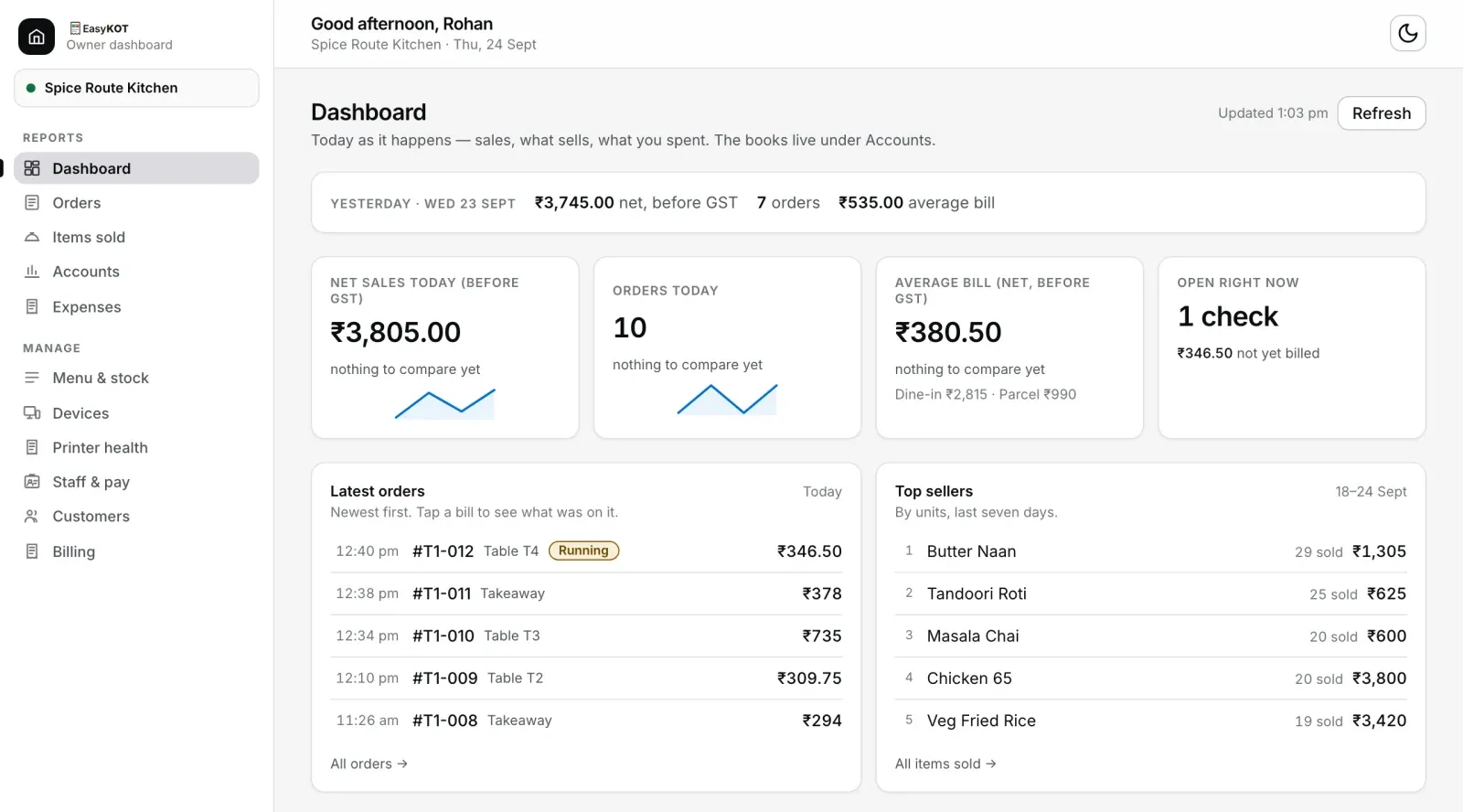
- Dashboard · Accounts · Expenses. Today's sales at a glance. Sales, GST, P&L and expenses for your CA.
- Printer health. Which printer is working and which is not, without walking to the counter.
A saved dashboard menu reaches the Desktop App when its internet and sync connection are available.