Kitchen stations — one order, three corners, three tickets.
A tandoor, a wok line and a bar do not want one shared ticket: each corner wants only the lines it actually cooks. Set the split once in the dashboard: name a station, tick the categories it covers, and choose who covers for it if its printer goes down. On each EasyKOT Desktop App, point a printer at that station. From then on, one fired round becomes one ticket per corner that has a printer bound to it, and anything nobody claimed still prints, on the whole-kitchen printer, so a category you haven't sorted yet is never late.
Store-wide station list · printer binding per Desktop App · unclaimed lines always print somewhere
Set it up in the dashboard, wire a printer on the Desktop App — five steps.
Before stations exist on a store, every fired round is one KOT on one kitchen printer: a starter, a main and a drink all on the same slip, whichever corner happens to be closest to the printer. That works for a small pass. It stops working the moment a tandoor, a wok line and a bar each want to see only their own lines: nobody at the bar wants to scan a full-page ticket for the one mocktail buried in it, and a cook who has to read past six other dishes to find the two that are theirs is exactly where a busy Saturday starts losing tickets on the floor. A station doesn't change how an order is rung up or fired on the Desktop App (the cashier's screen looks the same either way); it only changes which printer each line reaches once that fire happens.
Open Settings → Menu & kitchen → Kitchen stations in the dashboard, and add a station
Sign in to the owner dashboard and open Settings → Menu & kitchen. Kitchen stations is its own card, with the same explanation it shows on screen: "Split a table's order across the corners that cook it — the tandoor gets the kebabs, the bar gets the drinks." Press Add a station and name it after the corner it actually covers (Tandoor, Wok, Bar, Grill) up to twelve stations on one store. A brand-new store shows "No stations yet — every order prints as one ticket on the kitchen printer," and nothing changes until you add the first one.
Tick the categories this station cooks
Every station carries a Cooks these categories checklist pulled from your own menu, showing both parent categories and their children as "Parent › Child", for example Tandoor › Kebabs & Tikka. Tick a child to claim just that one, or tick the parent to claim everything under it in one go: ticking Tandoor claims Tandoor › Tandoori and Tandoor › Kebabs & Tikka without ticking either by hand, and a new child category added later under an already-claimed parent is covered automatically. A category can only belong to one station: the first station that claims it in your own list order owns it, so two stations can't quietly fight over the same dish.
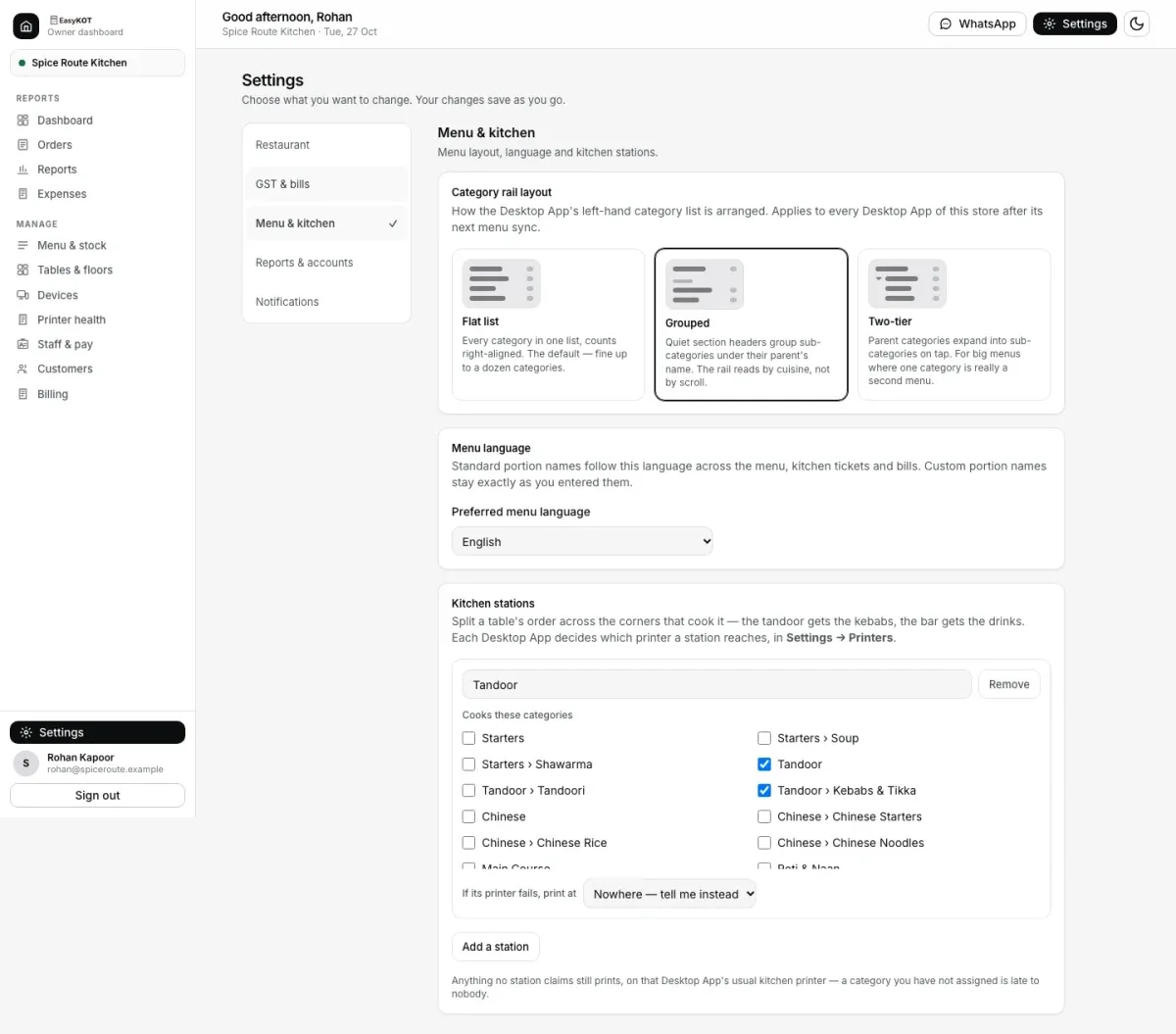
Menu & kitchen: Tandoor and its Kebabs & Tikka category are selected for the Tandoor station.
Decide what happens if its printer fails
Each station carries its own "If its printer fails, print at" choice: pick another station to cover for it, or leave the default, "Nowhere — tell me instead." This is a real decision worth making at setup rather than mid-service: a tandoor with no backup just waits in the print queue until someone notices, while a tandoor backed by the grill station's printer gets its tickets rerouted there automatically before the original fire’s 5-minute window ends. A ticket already older than 5 minutes waits for your choice instead. A station can't be its own backup. Removing a station also clears it from any other station that named it as a backup: there is no unlinking to do first.
On each Desktop App, point a printer at the station
Stations themselves are store-wide: every Desktop App agrees on the names and the categories, because the list lives on the store, not the device. But which physical printer answers for "Tandoor" is a choice made on each Desktop App, because the same tandoor socket is different on every machine. On that Desktop App, open Settings → Printers & KDS, edit (or add) the kitchen printer that sits nearest that corner, and pick the station from the new Kitchen station dropdown next to Role. Leave it on Whole kitchen (everything), the default, and that printer keeps taking every kitchen ticket, exactly as it always has.
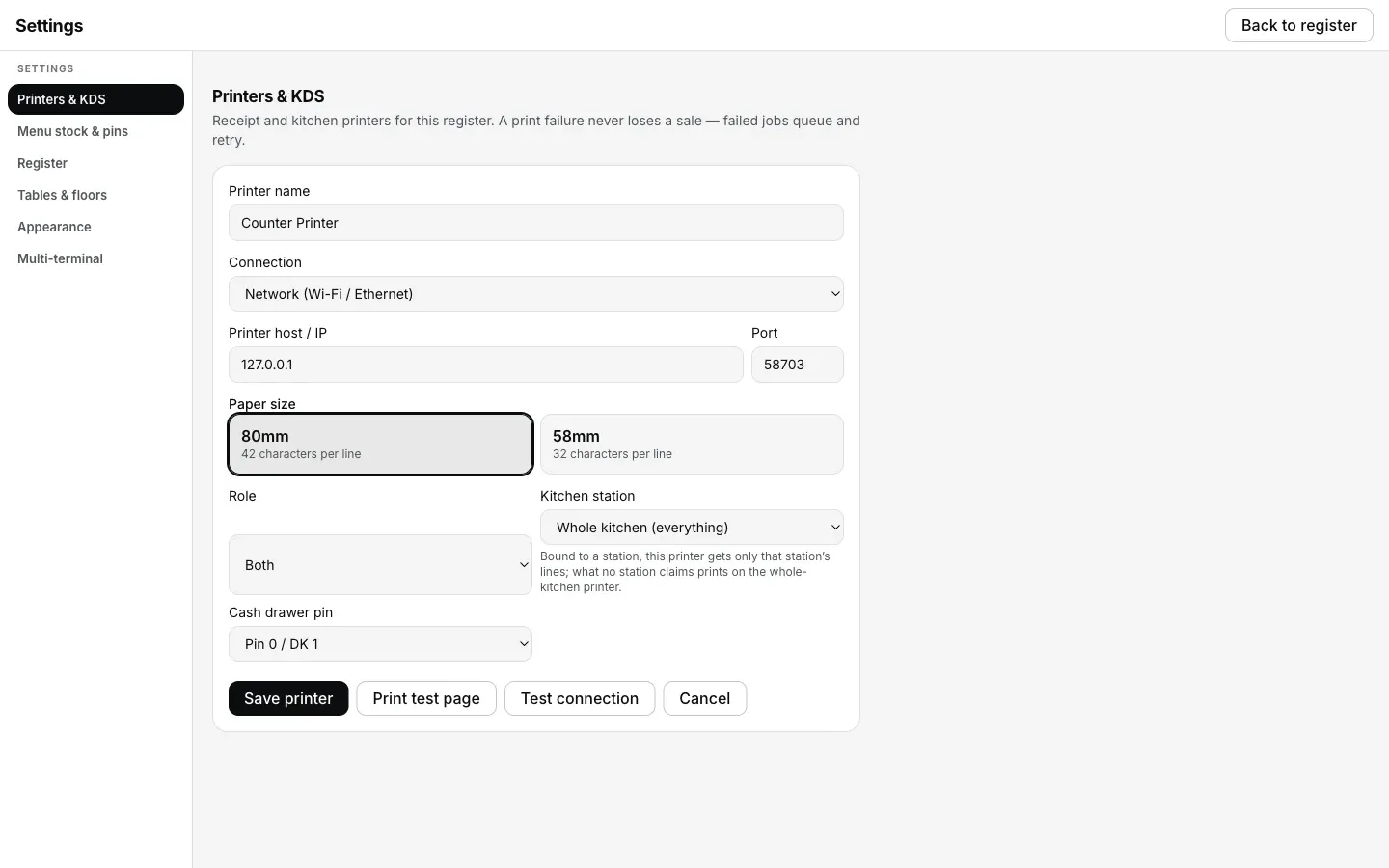
Step 4: Settings → Printers & KDS → edit a printer → Kitchen station. Left on Whole kitchen (everything), this printer keeps every ticket.
Fire an order and watch the ticket split
Ring up a table with items from two different stations (say a starter from the tandoor and a drink from the bar) and fire the round. If both corners have a printer bound on this Desktop App, two tickets come off two rolls at the same moment: the tandoor's ticket carries only the tandoor lines, the bar's only the bar lines. Anything the Desktop App can't route (a category no station claims, or a station with no printer bound here) joins a single ticket on the whole-kitchen printer instead, so nothing is ever held back waiting for a corner that isn't wired up yet.
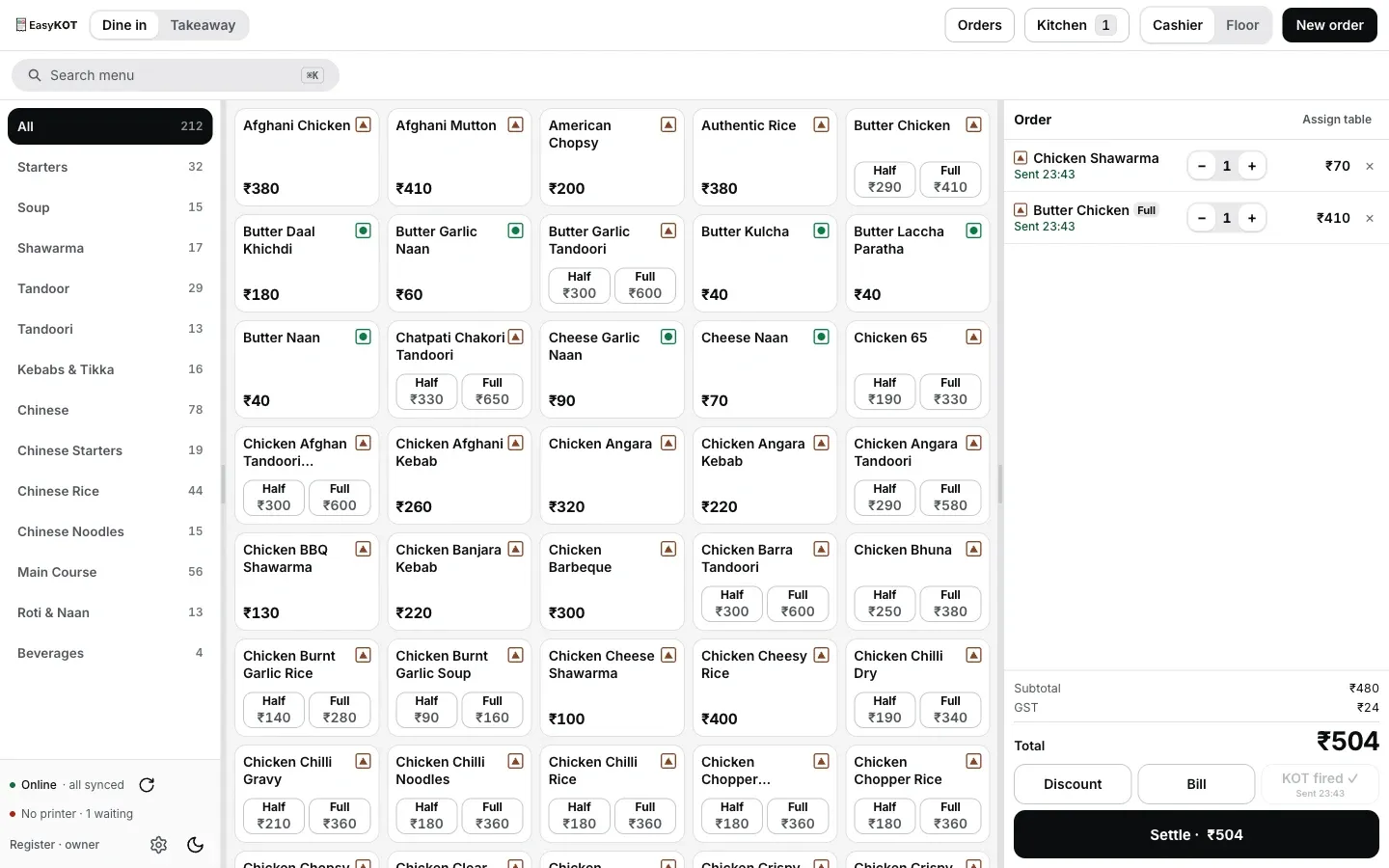
Step 5: a round just fired. The Kitchen badge ticks up the moment the ticket (or tickets) reach the pass.
The station's name rides the ticket number, not a new one. A two-station round is still one KOT number, because it is one fire. Each printed ticket that number produces carries that same number with the station's name added after it: a cook holding two tickets from two corners can tell at a glance they belong to the same round.
One acknowledgement per fire, not per ticket. The round is marked printed on the shared order ledger exactly once, the moment every station's paper (and the leftover ticket, if there is one) has been queued. That is what lets a second Desktop App take over a printer mid-service without the kitchen getting the same round twice.
Every station shares the original 5-minute window. A ticket retries within 5 minutes of its fire. A backup set in step 3 can receive it once before that window ends, marked so the covering corner knows it wasn't originally theirs. The backup gets only the time left in that window. After 5 minutes, the ticket waits in the print queue for your choice: Print, Send to or Discard. The order stays saved.
Straight answers.
Do I need this if I only run one kitchen printer?
What if a station has no printer bound on this particular Desktop App?
I forgot to tick a category on any station — where does it go?
Does the tandoor station need setting up separately on every Desktop App?
What happens when a station's printer runs out of paper mid-service?
Does a two-station order print two different KOT numbers?
Wire the printers this feeds.
Connect a printer
Add the first thermal printer to a Desktop App: network, USB or Bluetooth.
Connect a printer →A printer not printing
The five checks, in order, for when a station's ticket doesn't show up.
Troubleshoot printing →Every Settings card
GST, notifications, invoice identity, trading day: the dashboard Settings sections and the cards inside them.
See owner settings →Every guide in this cluster is listed on the guides hub.
Run it 3 months, then pay for it.
Three months free, full product, no card. Made in India, for the counter: built inside a running restaurant.