Owner settings — GST, when your day ends, every card in one place.
The owner dashboard's Settings page groups the preferences you can change: the name on your bills, the number we reach you on, which emails this store sends, what your bills legally need to say, how the EasyKOT Desktop App's menu rail is arranged, which corner of the kitchen cooks what, and (the one late-night restaurants actually need) when your trading day ends. Existing preferences save as you go. New expense categories use Create category, and nothing you change here ever moves a sale that already happened.
After you sign in, use the labelled Settings button in the top bar on a laptop or phone, or open app.easykot.com/settings directly. The address stays on Settings through sign-in and a reload, so you can save it or send it to the person doing the setup. Inside Settings, choose the section you need. Restaurant opens first.
Settings grouped by task · expense categories included · nothing here rewrites a past sale
Choose a Settings section for what you want to change.
Your restaurant and account: the name on your bills and the number we reach you on
Settings opens on Restaurant. The first card is Restaurant name, the name at the top of every bill. Type a new name and it saves when you tab out of the box or press Enter, and every Desktop App and Captain phone picks it up the next time it is online. Leave it empty and nothing is saved: the line under the box says "Your restaurant needs a name." Under Your account, you see the email you sign in with, and your mobile number with its country picker (India first). The line under the box says "We'll send setup help and videos on WhatsApp." Change the number and it saves the moment you tab out of the box, like every card here. A number too short for the country you picked is refused with "Enter a valid mobile number for the country you picked." and the saved one stays. An account from before sign-up asked for a number also sees a blue banner at the top of every dashboard page, "Add your mobile number so we can help you on WhatsApp with setup and videos.", with Save and Not now; Not now keeps it away for 30 days on every device you use.
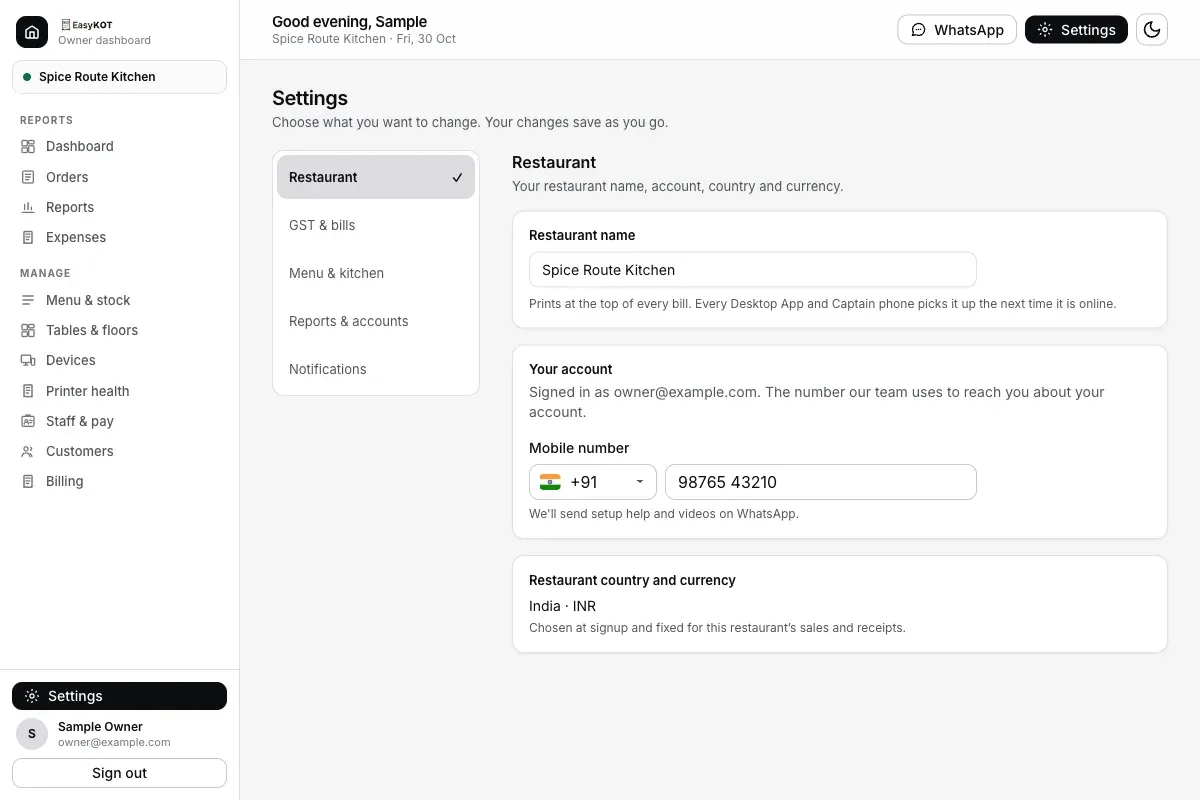
Restaurant name is the first card. It saves when you leave the box.
GST — how your store is registered
Choose GST & bills. The GST card starts with one picker: "How this store is registered. It decides what every Desktop App charges and which document your bills are." It has four choices: Not GST-registered, GST 5%, GST 18% (restaurant in a hotel), and Composition scheme (5% paid by you, no tax on bills). Pick GST 5% and the line under the picker reads "Charging 5% GST on every dish"; pick Not GST-registered and it reads "Not charging GST — bills show no tax." These are the current UI labels, not advice on which rate applies. GST 18% (where applicable) depends on specified-premises rules and applicable declarations, not hotel location alone. Rates are not freely interchangeable: confirm the choice with your accountant. The rate is for the whole menu. Saving it puts every dish that has no rate of its own on the store's rate, so nobody tags 300 dishes one by one. For the exception the card says "A dish that is exempt, or taxed differently, is set on that dish's Edit screen", where the GST slab picker offers your store's rate and No GST. Configure item tax treatment only after your accountant confirms it. Tax treatment may differ when an item is sold separately versus supplied as part of restaurant service. Deliberately not retroactive: the note underneath says "Applies to orders started after every Desktop App's next sync, and bills take their new wording once your Desktop App has updated. Bills already rung up keep the tax they charged, so past receipts and reports still add up". The tax saved on an item stays as rung. Reprinted document wording and supplier details can still follow current settings, so check a duplicate after changing them. A later app update will save the GST scheme when a bill is first issued; older bills without that saved scheme keep their existing reprint behaviour.
Notifications — pick which emails this store sends
Choose Notifications. The card opens with "Emails this store sends to everyone who can sign in to this dashboard. Receipts, renewal notices and password resets always send, so they are not listed here". Those three are never optional. Four switches follow: Daily summary ("each morning, yesterday's orders and the cash/UPI/card split"), Day close ("when a shift is cashed up, with the drawer variance"), Period closed ("when you close a period in Accounts, the short summary to forward: sales, expenses, profit, cash carried forward, your note"), and Kitchen printer down ("once per outage, when a kitchen printer has failed for half an hour mid-service"). A footer note adds two things worth knowing before you touch either: "A day with no sales sends nothing, so a closed Monday stays quiet," and "Printer incidents stay on the Printer health page whether or not they are emailed". Turning the alert off only stops the email, not the record.
Where an outage still shows even with the email off: the dashboard's own Printer health page: a clean week reads exactly like this.
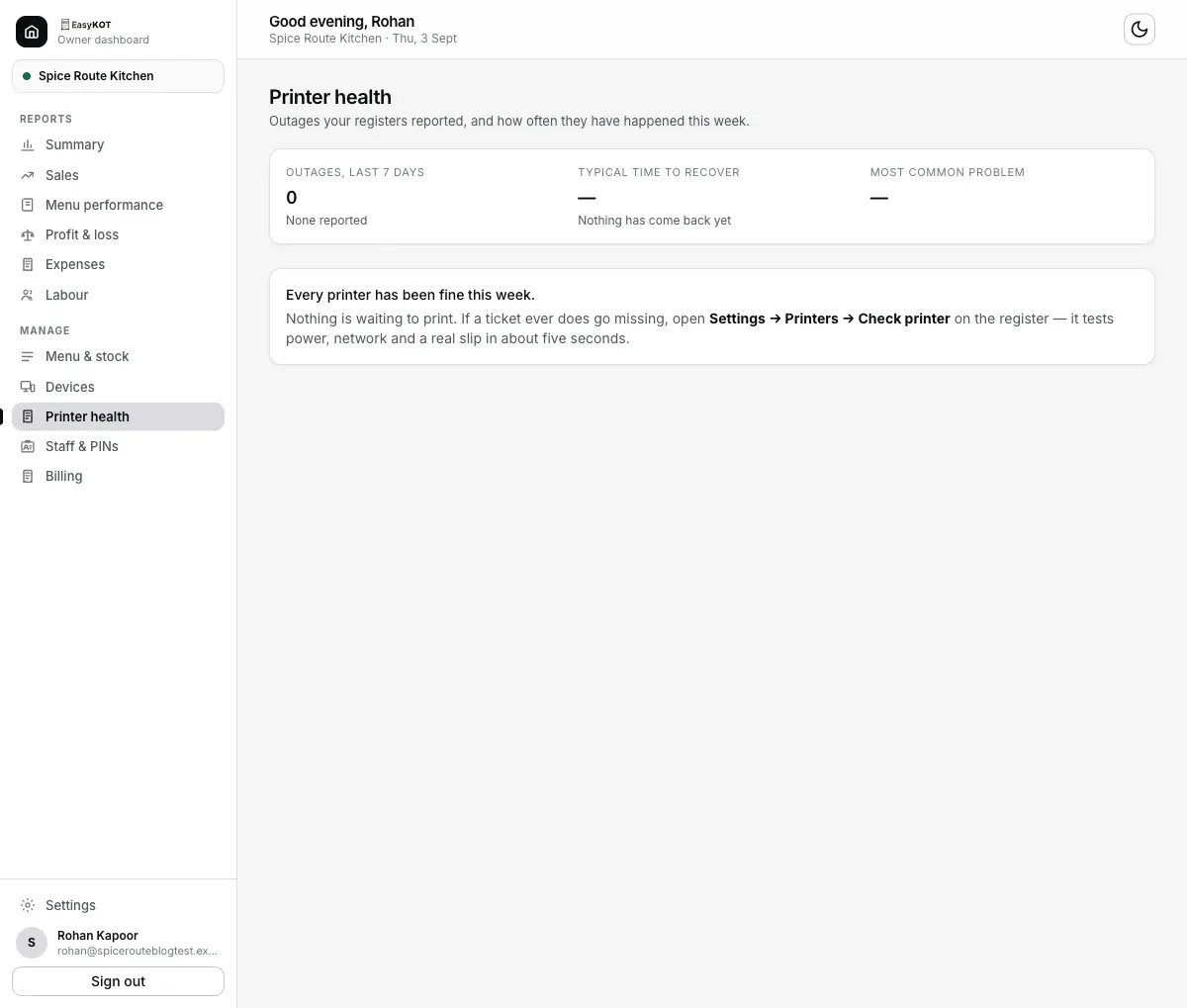
Printer health, reached from the sidebar, where an outage stays on record whether or not the Kitchen printer down email was on.
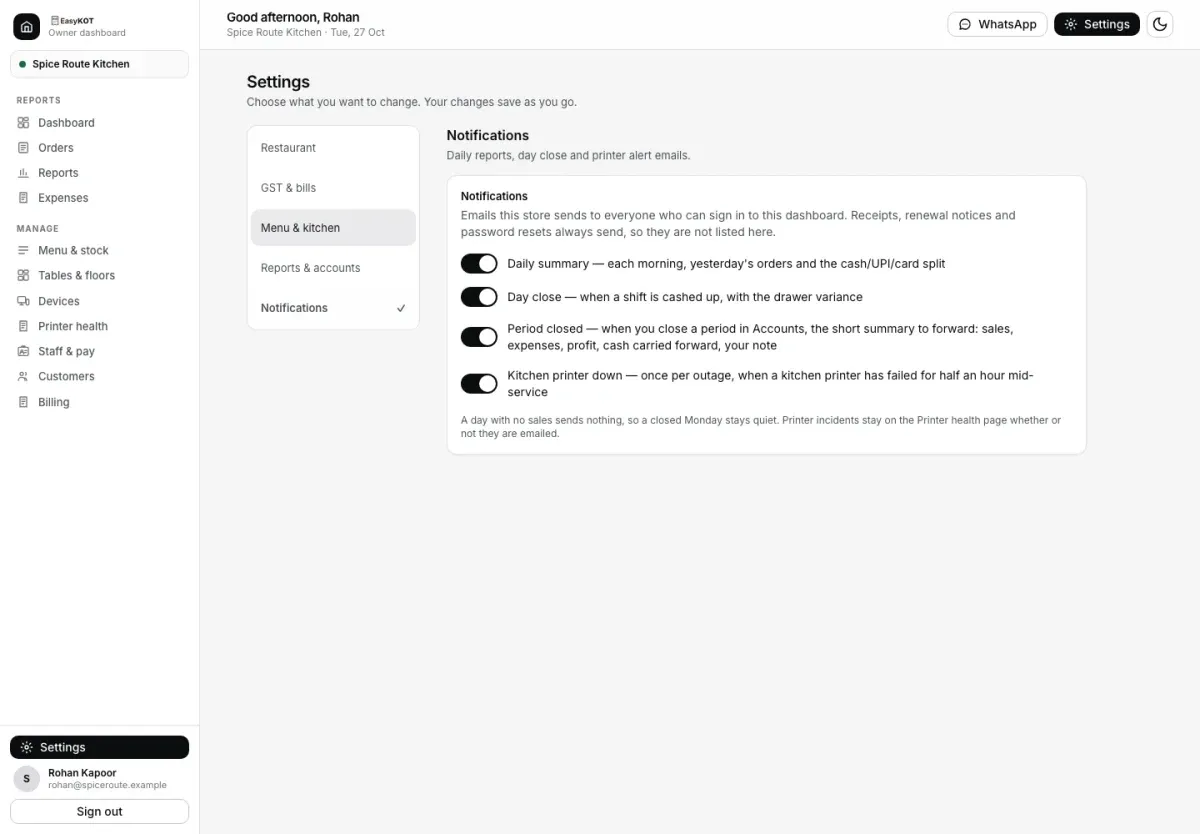
Choose Notifications to manage report and printer alert emails.
Invoice identity — business details on GST documents
In GST & bills, Invoice identity sits below GST registration in the same card. "Who the bill says it is from. GST law wants your GSTIN, address and state on every tax invoice — until these are filled in, bills print without them and are not valid tax invoices." Four fields: GSTIN ("15 characters, as issued — printed on every bill"), Address ("The place of supply, as it should read on paper"), State, and State code ("Two digits — 27 for Maharashtra"). Below these fields, enter your 14-digit FSSAI licence or registration number. It validates before saving and shows the line that will print on your bills. Each field saves the moment you tab out of it: there is nothing to press. Missing details do not block printing. The quoted text is the current UI wording; filling these fields does not by itself establish compliance. GST and composition documents use the configured details. Review a sample bill with your accountant before live sales.
Category rail layout — how the Desktop App's menu list reads
Choose Menu & kitchen. "How the Desktop App's left-hand category list is arranged. Applies to every Desktop App of this store after its next menu sync." Three options, each with a small preview of what the rail will actually look like: Flat list ("Every category in one list, counts right-aligned. The default — fine up to a dozen categories"), Grouped ("Quiet section headers group sub-categories under their parent's name. The rail reads by cuisine, not by scroll"), and Two-tier ("Parent categories expand into sub-categories on tap. For big menus where one category is really a second menu"). A menu of a dozen categories rarely needs to leave Flat list; a menu with real parent/child depth (Tandoor with Tandoori and Kebabs & Tikka under it, as the sample menu has) is what Grouped and Two-tier exist for.
Menu language: standard portion names in your language
Under Menu & kitchen → Menu language, choose English, Hindi or Arabic under "Preferred menu language". The choice saves immediately. Standard Half and Full portions appear as हाफ and फुल in Hindi, or نصف and كامل in Arabic, in the dashboard menu list and dish editor. Dish names, custom portion names and prices stay unchanged. English is the default.
Kitchen stations — split the kitchen across printers
In Menu & kitchen, open Kitchen stations. "Split a table's order across the corners that cook it — the tandoor gets the kebabs, the bar gets the drinks. Each Desktop App decides which printer a station reaches, in Settings → Printers." This card is a whole feature on its own (naming stations, ticking the categories each one cooks, and choosing a backup for when a station's printer fails), covered start to finish in the kitchen stations guide linked below. Skip it entirely if one kitchen printer already covers your whole pass; nothing here is required.
Set up kitchen stations — the full guide →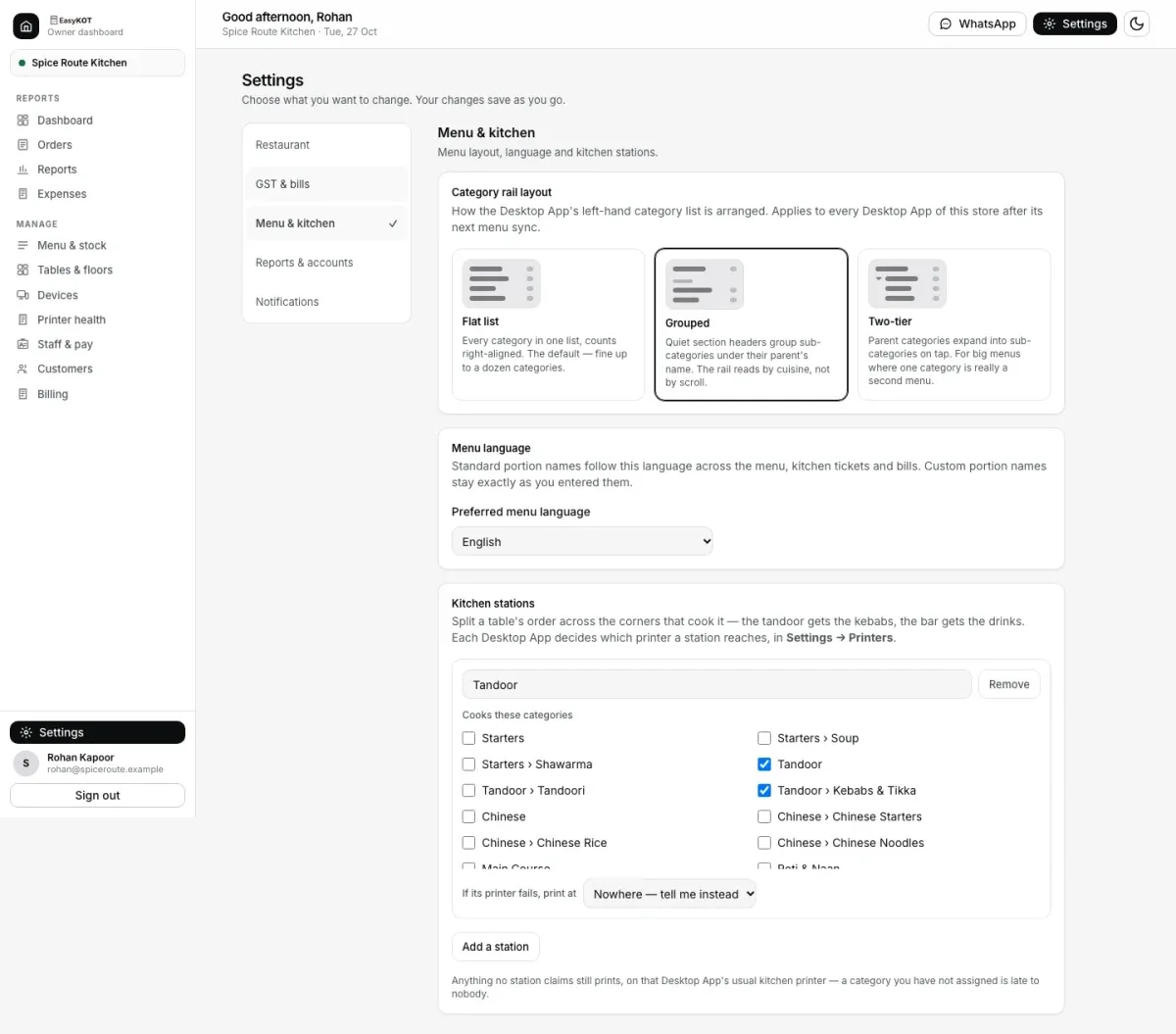
Menu & kitchen keeps category layout, menu language and Kitchen stations together.
When your day ends — set your trading day
Choose Reports & accounts. "If you serve past midnight, your night's takings belong to the night that earned them — not to the next morning's report." A row of times from 12am through 6am, default 4am. Pick one and the card tells you exactly what it means: "Your day runs 4am to 3:59am. A sale rung at 2am on Tuesday counts towards Monday." It's not just a reporting label: the same note explains "This also decides when the Desktop App starts its bill numbers again and when the kitchen display clears the night's tickets, so all three agree on the same night." Changing it later is safe: "Changing it re-dates reports you have already run — no sale moves, only which day it is counted on."
Reporting week — pick the day your week starts
Choose Reports & accounts. "The day each week starts on. Used by This week and Last week on every report." A row of weekday buttons, Sunday through Saturday, with a live summary underneath: "Weeks run Monday to Sunday," for instance, once you've picked one. A store that counts stock on a particular night gets to make that night the seam between reporting weeks instead of a count stranded mid-week. As with the trading day, the change is non-destructive: "Changing this re-slices reports you have already run — no sale moves, only which week it is counted in." One exception: a store already reporting on a fiscal calendar has this locked to the fiscal year's own start date, and the card says so rather than letting you pick a second, conflicting boundary.
Expense categories: add, rename or pin
Choose Reports & accounts and find Expense categories in the Accounts card. Press "Add category", enter its Name, choose the reporting Group and press "Create category". The new category appears in the list immediately. Its reporting group cannot be changed later. Click an existing category name to rename it, or use its star to pin it near the top when entering expenses. The same Accounts card also lets you choose the default period length and manage online-order payout platforms.
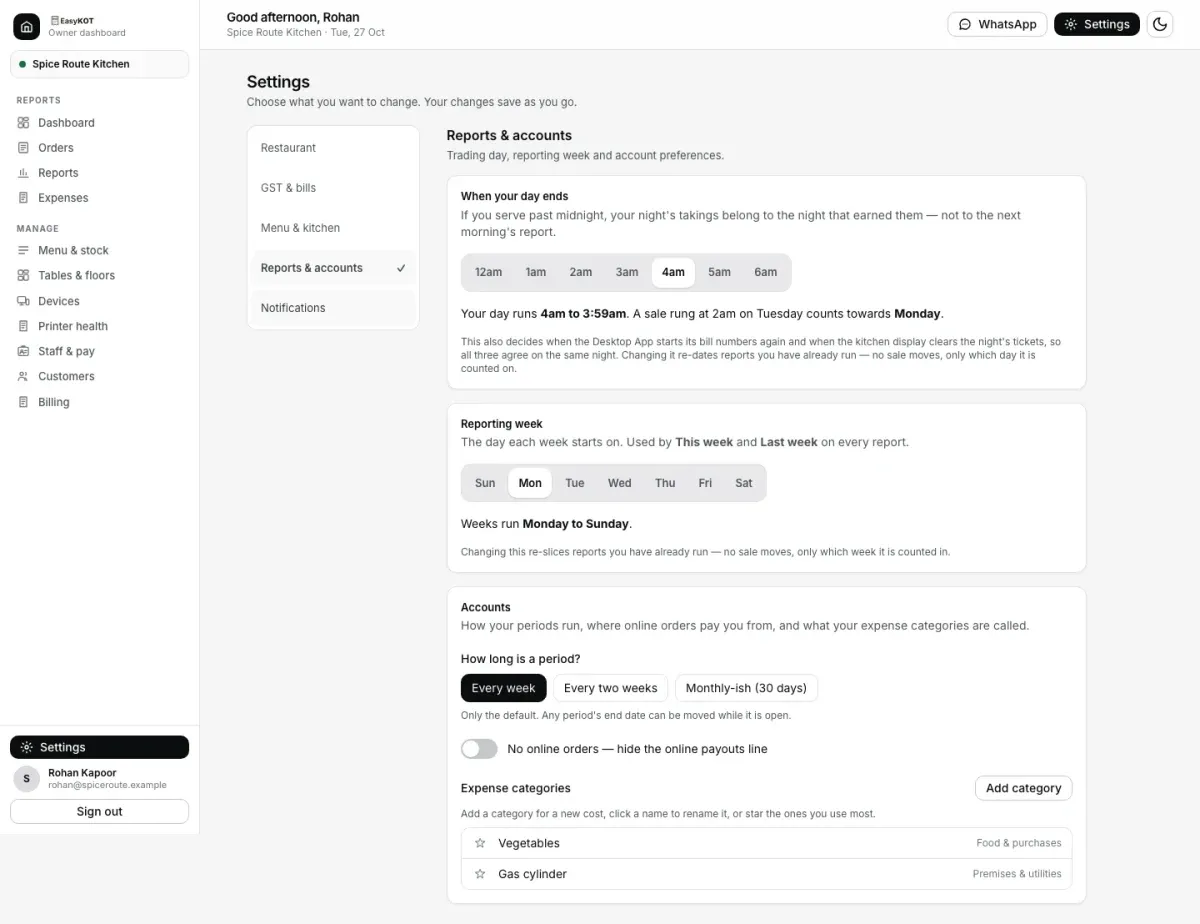
Add a category here without starting an expense.
Straight answers.
Is there a Save button anywhere on this page?
If I change the GST setting mid-shift, does it rewrite the bills already printed today?
I turned off the Kitchen printer down email — do I lose the record of the outage?
What actually happens if I leave Invoice identity blank?
Does Category rail layout change the Desktop App instantly?
Do When your day ends and Reporting week ever move a sale to a different total?
Two cards worth their own guide.
Kitchen stations
Split a fired round into one printed ticket per corner of the kitchen.
Set up stations →Your first GST bill
What the GST choice and Invoice identity add up to on a real printed receipt.
See the GST guide →Reports & the daily email
Where the reporting week and the trading day actually show up: every bill on Orders, then Sales & collections, Menu performance, Money & costs and Close & exceptions in Reports.
See the reports guide →Every guide in this cluster is listed on the guides hub.
Run it 3 months, then pay for it.
Three months free, full product, no card. Made in India, for the counter: built inside a running restaurant.