Printer guide · font size aur layout
Bill ka font chhota hai? KOT ko bada karke dekhe.
Naye printer settings mein bill aur kitchen ticket ka font size alag rakh sakte hain. Ek preset se shuru kare, phir sirf zaroori section bada kare. Layout save karne se pehle sample slip zaroor padhe.
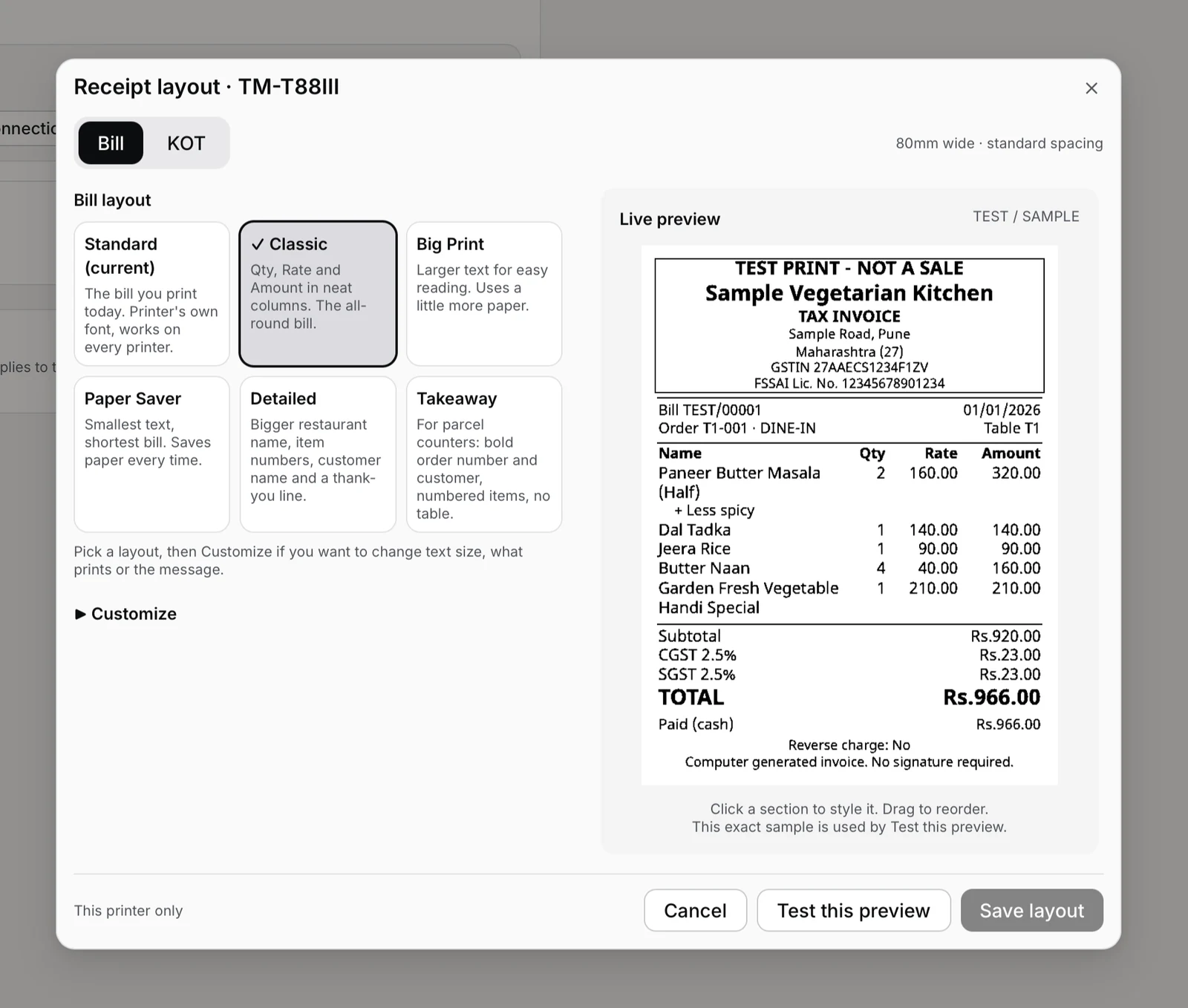
Poora bill bada chahiye, ya sirf dish ka naam?
Pehle decide kare ki dikkat kya hai. Har cheez badi karne se bill lamba hoga aur dish names zyada lines mein toot sakte hain. Kitchen ko dish aur quantity jaldi dikhni chahiye; customer ko amount saaf padhna chahiye.
Standard bill ka overall size
Settings → Printers & KDS mein us printer ka Edit khole. Text size mein Compact, Standard ya Large chune: yeh Standard bill, KOT aur generic Test print ka size hai. Custom layout ke section sizes Receipt layout mein badle. Line spacing Standard aur custom, dono layouts par lagti hai, isliye yeh control abhi bhi kaam ka hai.
Har section ka alag size
Usi printer par Receipt layout khole. Bill ya KOT chune, preset select kare, phir Customize khole. Items bada rakhe aur baaki text medium rehne de. Bill aur KOT ke layouts alag save hote hain. Setting isi device ke isi printer profile ke liye hai; doosre counter ko apne aap nahi milegi.
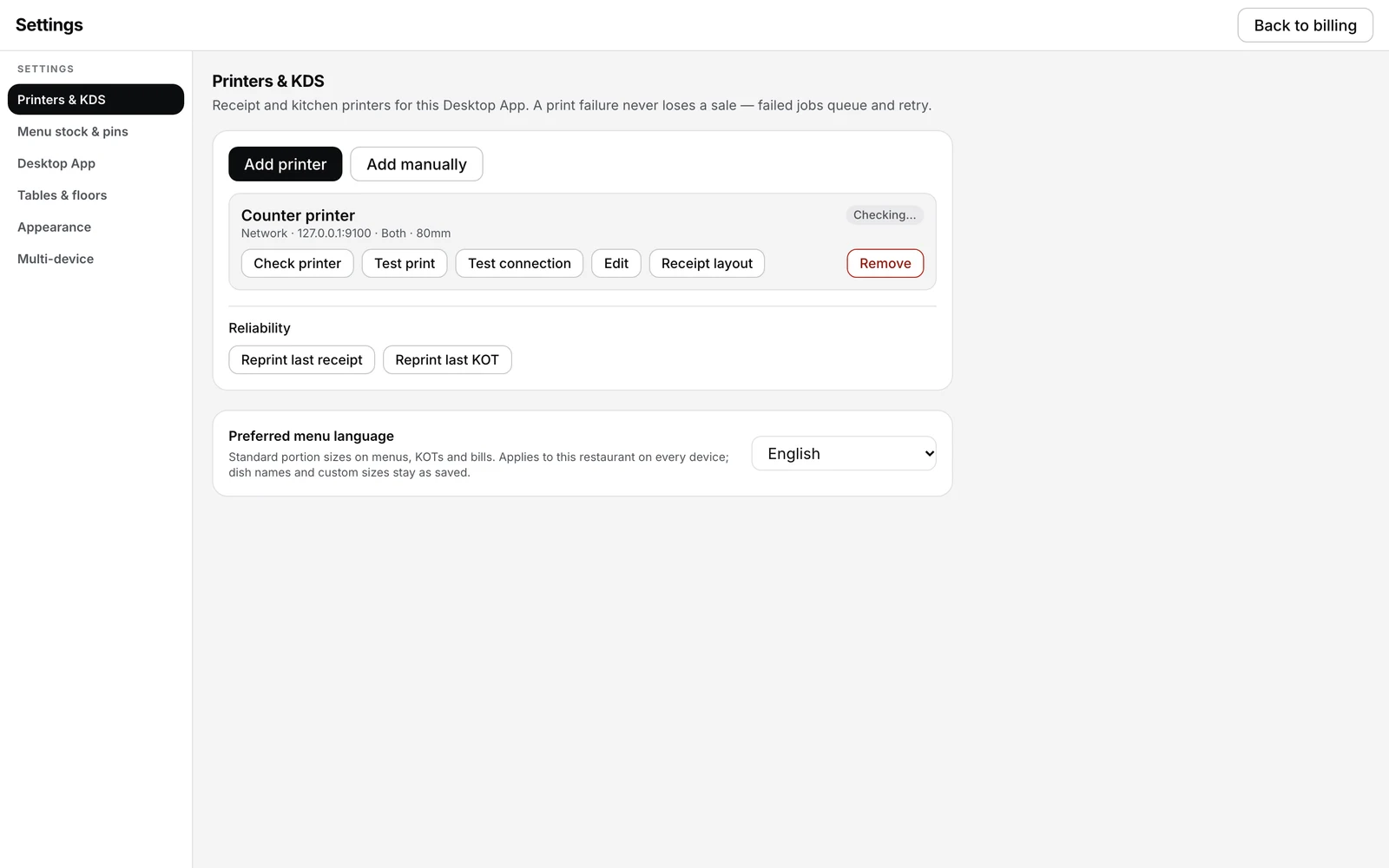
Ready layout se shuru kare, phir zaroorat ho toh badle.
Bill aur KOT ka kaam alag hai, isliye unke presets bhi alag hain. Pehle default sample dekhe; har option kholkar setting karna zaroori nahi.
| Document | Preset | Kab try kare |
|---|---|---|
| Bill | Classic | Seedha, balanced customer bill. |
| Bill | Big Print | Dish names aur amounts ko bada dekhna ho. |
| Bill | Paper Saver | Chhota text aur tighter layout try karna ho. Paper ki bachat order par depend karegi. |
| Bill | Detailed | Bada restaurant name, item numbers, customer name aur thank-you line. |
| Bill | Takeaway | Bold order number, customer aur numbered items; table nahi. |
| KOT | Kitchen Ticket | Kitchen ka regular ticket. |
| KOT | Big Kitchen | Kitchen mein item aur quantity zyada prominent chahiye. |
| KOT | Short Ticket | Chhota kitchen ticket try karna ho; notes ko padhkar check kare. |
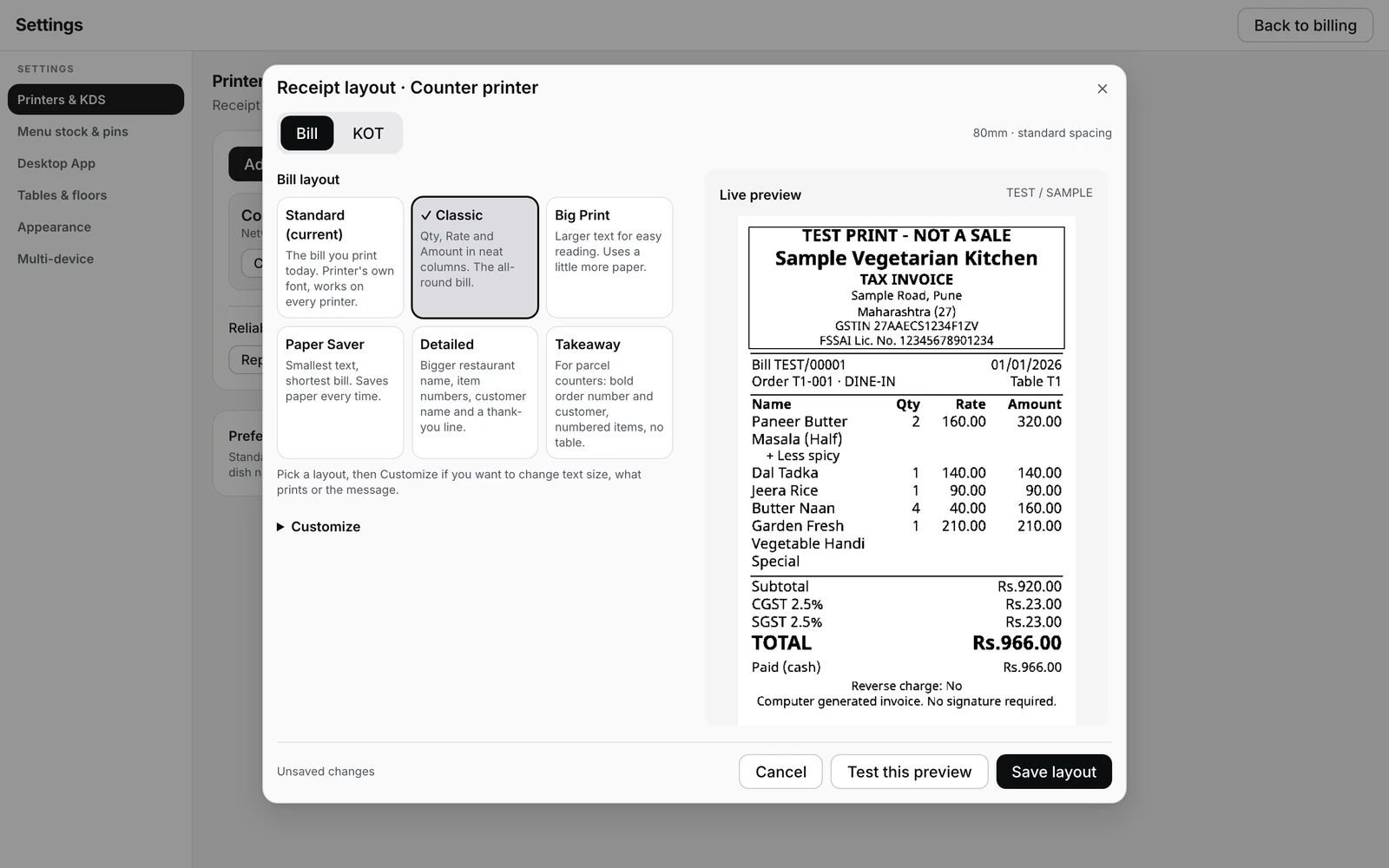
Same sample, do alag bill layouts.
Dono 80mm samples ek hi scale par dikhaye hain. Big Print ki item lines ko Classic se compare kare. Lambe dish names mein wrapping dekhna chhote sample se zyada kaam aata hai.
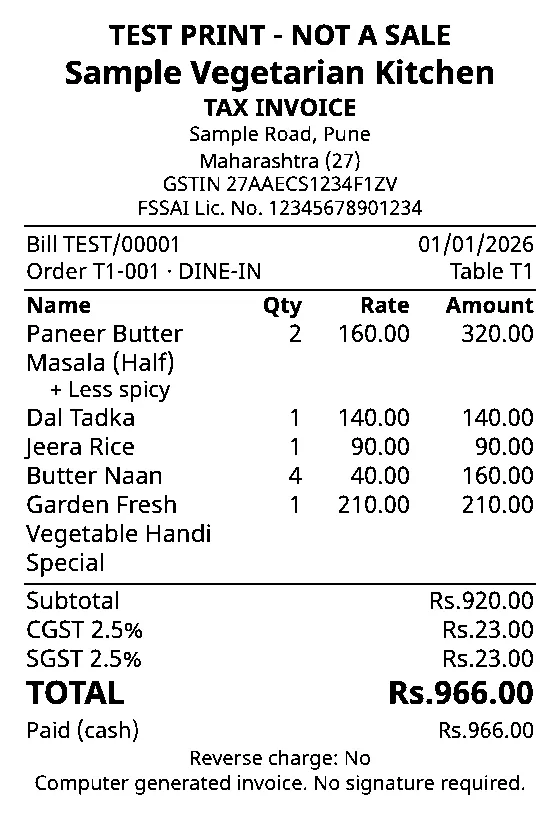
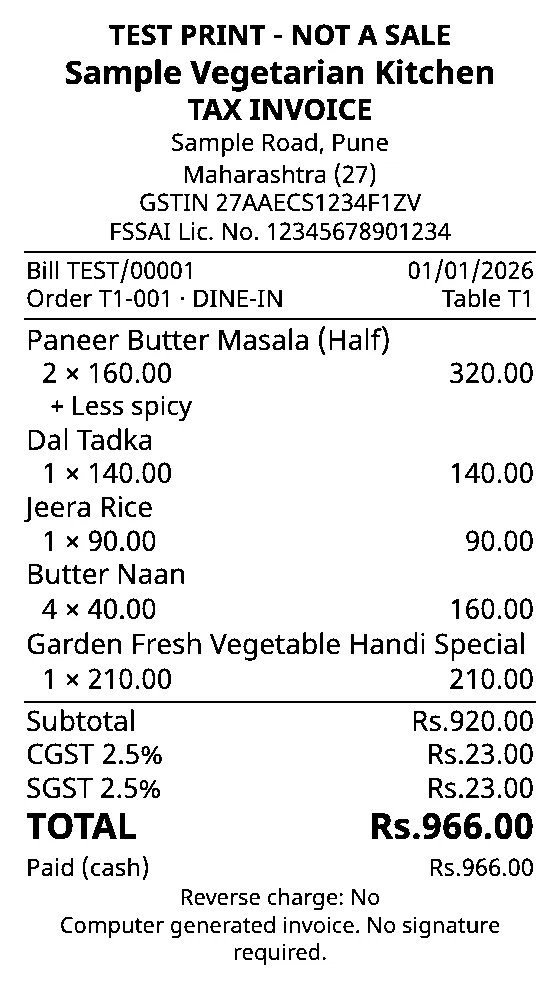
Yeh editor ke full test-preview pixels hain, physical paper ki photos nahi. Dono samples ka content aur printer width same hai. Aapke printer par final slip check karni hogi.
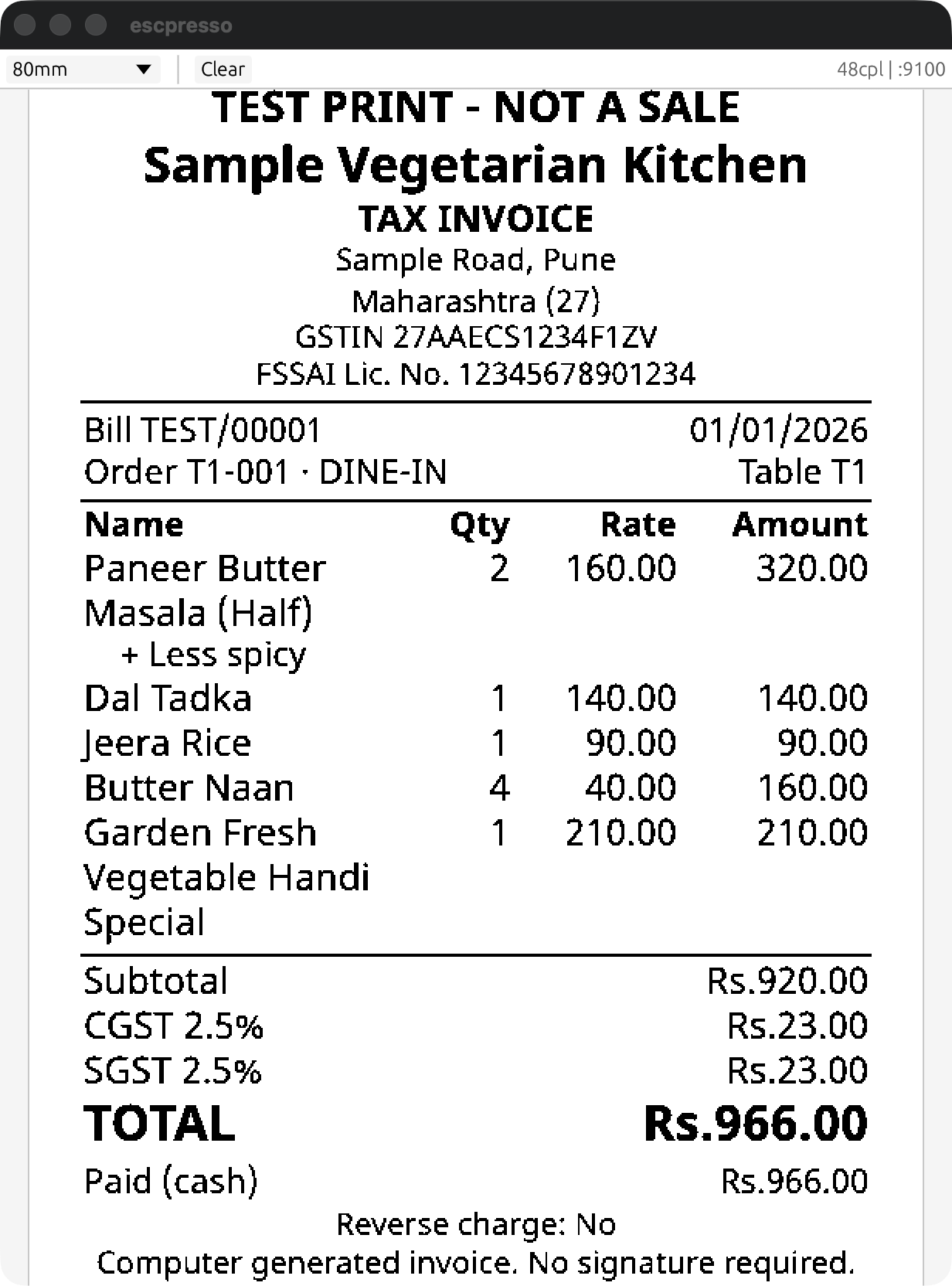
Dish names bade kare, amount ko jagah de.
Customer Bill se shuru kare
Is example ke liye Receipt layout mein Bill chune. KOT ka alag flow neeche hai. Pehle paper size printer settings mein confirm kare. 58mm roll ko 80mm setting se fit mat kare.
Preset khole, phir Items ka size badle
Classic ya Big Print jaisa preset chune, phir Customize → Items khole. Small, Medium aur Large se shuru kare. Bold text alag control hai. Fine-tune text size ke andar Exact size (printer dots) 16 se 48 tak hai. Yeh printer dots hain, Word wale font points nahi. Font family choose karne ka option nahi hai.
58mm aur 80mm par layout compare kare
80mm par Items arrangement mein Clear Table aur Item First compare kare. Clear Table mein columns saath dikhte hain; Item First dish ko pehle rakhta hai. 58mm par Item First use hota hai, taaki narrow paper par amounts ko jagah mile. Clear Table aur Item First arrangements hain, alag preset cards nahi.
Section order aur footer set kare
Section ka alignment aur bold text set kare. Sections ko drag kare ya Move up aur Move down use kare. Heading top par hi rahegi. Custom message mein 160 characters tak multiline text daal sakte hain, jaise: Please check your parcel before leaving. Footer hide karne se sirf aapka custom text hide hota hai; required financial details print hoti rahengi.
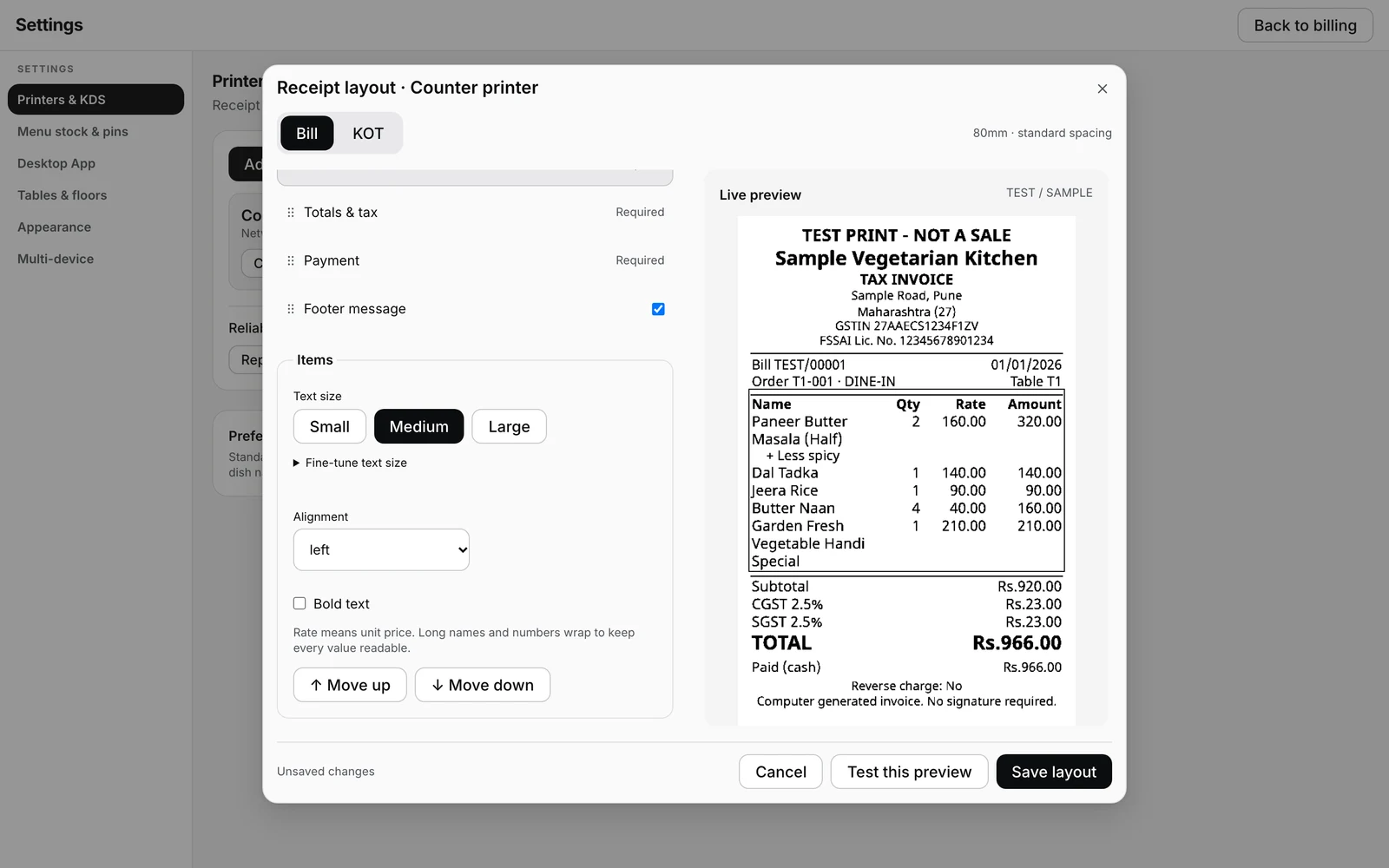
KOT ko kitchen ke hisaab se padhe.
KOT tab mein Kitchen Ticket aur Big Kitchen compare kare. Dish ke saath quantity, portion aur preparation note bhi padhe. Sirf bada heading dekhkar ticket approve mat kare. Item notes aur kitchen references chhupane ke liye layout use nahi hota.
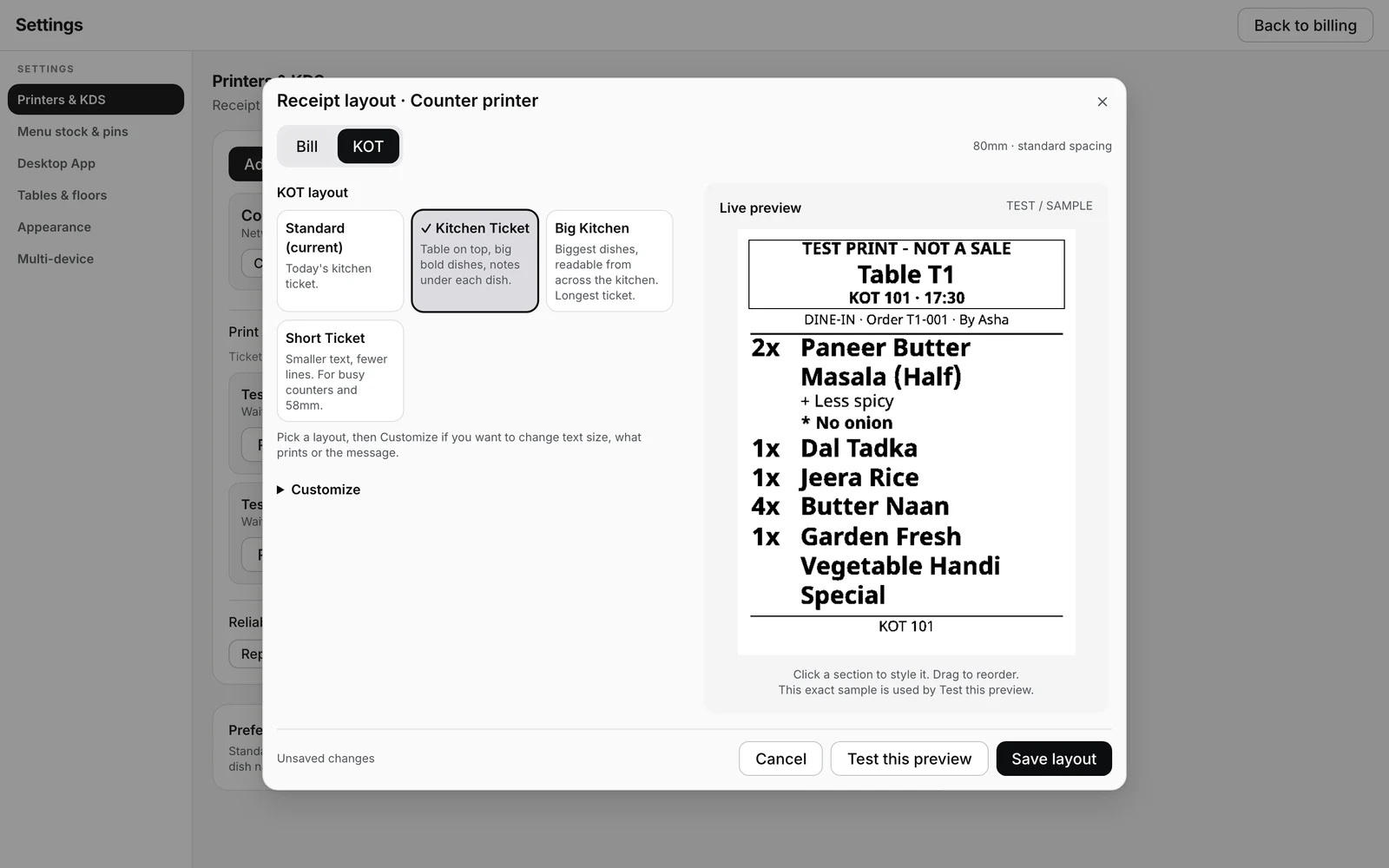
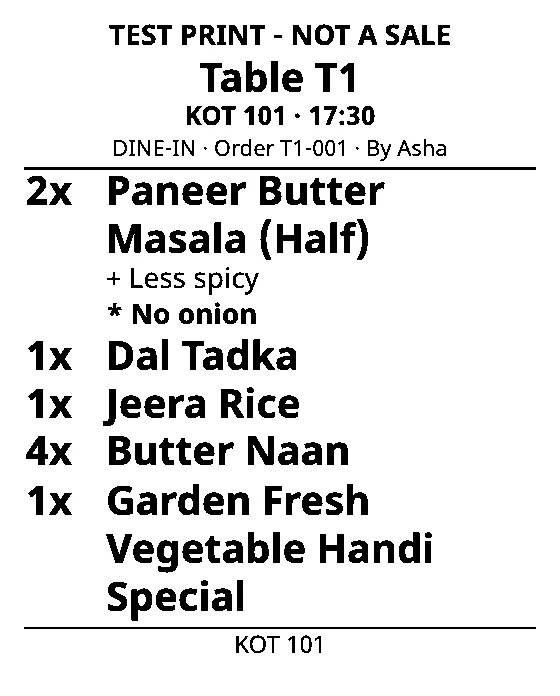
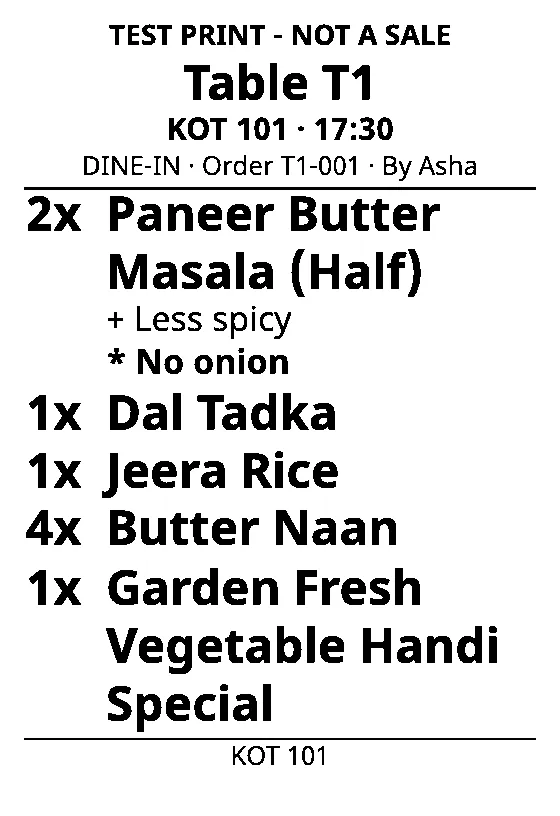
Yeh editor ke full test-preview pixels hain, physical paper ki photos nahi. Dono samples ka content aur printer width same hai. Aapke printer par final slip check karni hogi.
Preview theek hai? Ab slip par check kare.
Test this preview dabaye. Custom layout ka test preview ke pixels bhejta hai; Standard preview approximate hai, kyunki usmein printer apna font draw karta hai. Test sample se sale nahi banti. Save layout alag action hai: test karne se changes save nahi hote.
- Sabse lamba dish name poora padh raha hai? Quantity aur portion sahi item ke saath hain?
- Right edge par amount ya last digit cut toh nahi ho rahi? Customer bill mein subtotal, tax aur total saaf hain?
- KOT ki preparation note, table/order reference aur multiline message poore hain?
- Text faint ya patchy hai toh roll, printhead aur printer settings check kare. Sirf font bada karne se woh fault fix nahi hoga.
- Paper par sab theek ho tab Save layout dabaye. Standard par wapas jaane ka option bhi editor mein hai.
58mm aur 80mm roll size hain. Actual printable width printer model par depend karti hai. Paper-size setting aur width test ko apne printer par confirm kare; har 80mm printer ka print area same nahi hota.