Printer guide · font size & layout
Make bills and kitchen tickets easier to read.
Change receipt printer font size separately for the customer bill and the kitchen ticket. Start with a preset, enlarge the sections that need it, then read a sample slip before you save the layout.
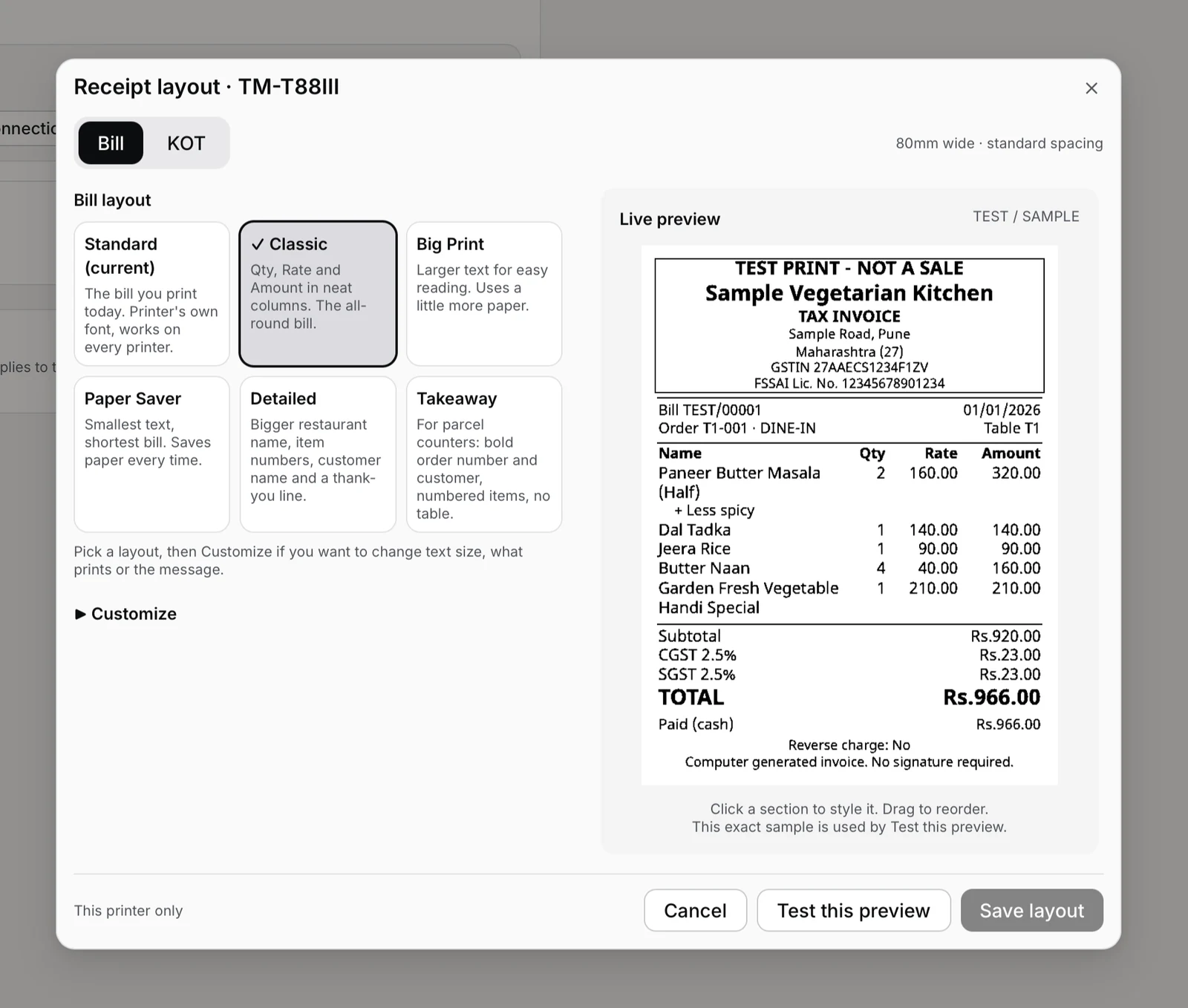
Bigger everywhere, or just bigger dish names?
Decide what is difficult to read first. Making everything larger creates a longer bill and can wrap dish names onto more lines. The kitchen needs clear dishes and quantities; the customer needs readable amounts.
Overall size on a Standard bill
Open Settings → Printers & KDS, then Edit on that printer. Choose Compact, Standard or Large under Text size: this sizes Standard bills, KOTs and the generic Test print. Custom layouts use the section sizes in Receipt layout. Line spacing applies to both Standard and custom layouts, so it remains useful after you customise a bill.
A different size for each section
Open Receipt layout on the same printer. Select Bill or KOT, choose a preset, then open Customize. Enlarge Items while keeping other text medium. Bill and KOT layouts save separately. The setting belongs to this device's printer profile; it does not automatically change another counter.
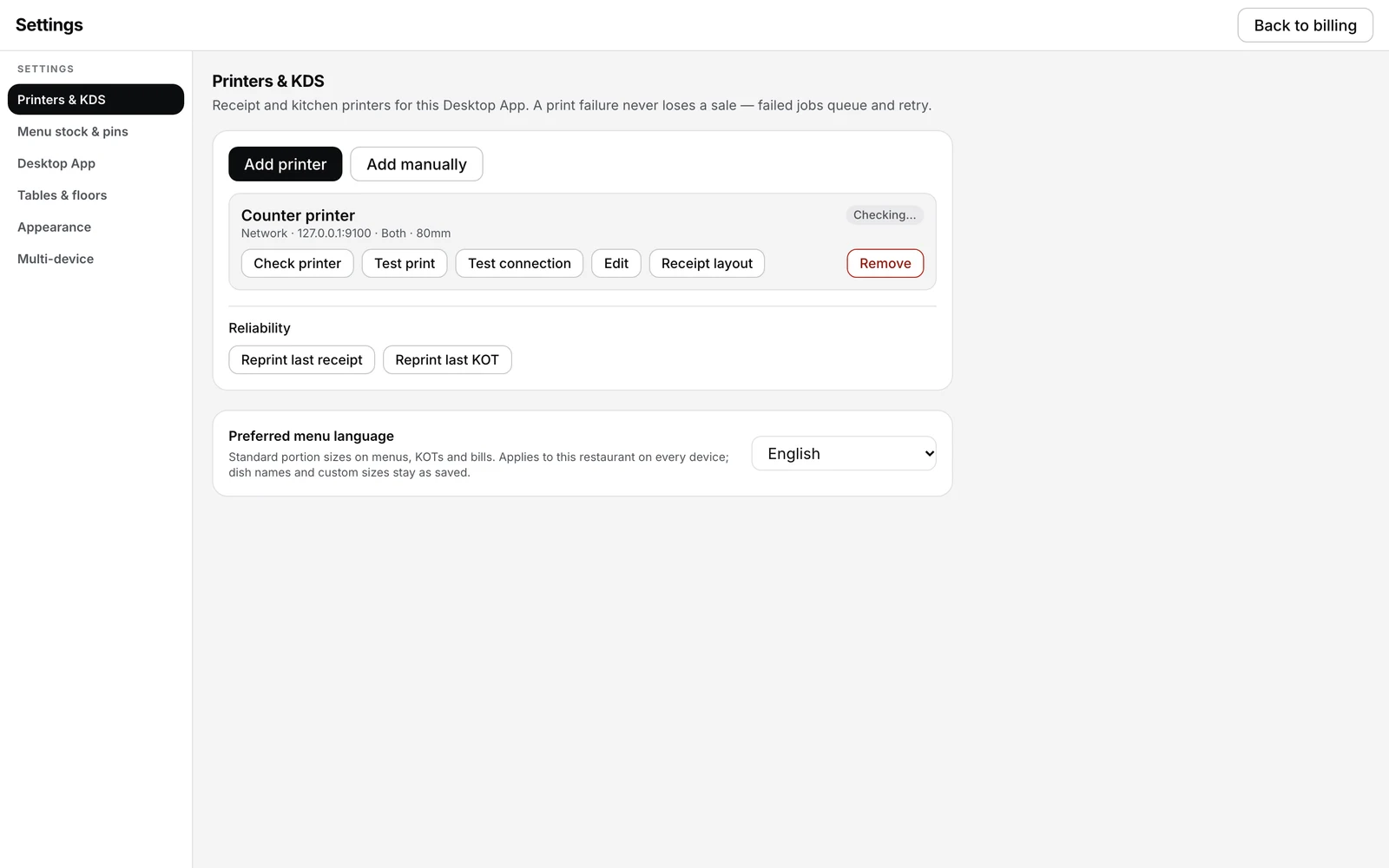
Start with a ready layout. Adjust only what needs it.
Bills and KOTs do different jobs, so they have different presets. Read the default sample first; you do not need to adjust every control.
| Document | Preset | When to try it |
|---|---|---|
| Bill | Classic | A balanced customer bill. |
| Bill | Big Print | More prominent dish names and amounts. |
| Bill | Paper Saver | Smaller text and a tighter layout. Actual paper use depends on the order. |
| Bill | Detailed | A bigger restaurant name, item numbers, customer name and a thank-you line. |
| Bill | Takeaway | Bold order number and customer, numbered items and no table. |
| KOT | Kitchen Ticket | The regular kitchen ticket. |
| KOT | Big Kitchen | More prominent kitchen items and quantities. |
| KOT | Short Ticket | A shorter kitchen layout to try; check that notes remain readable. |
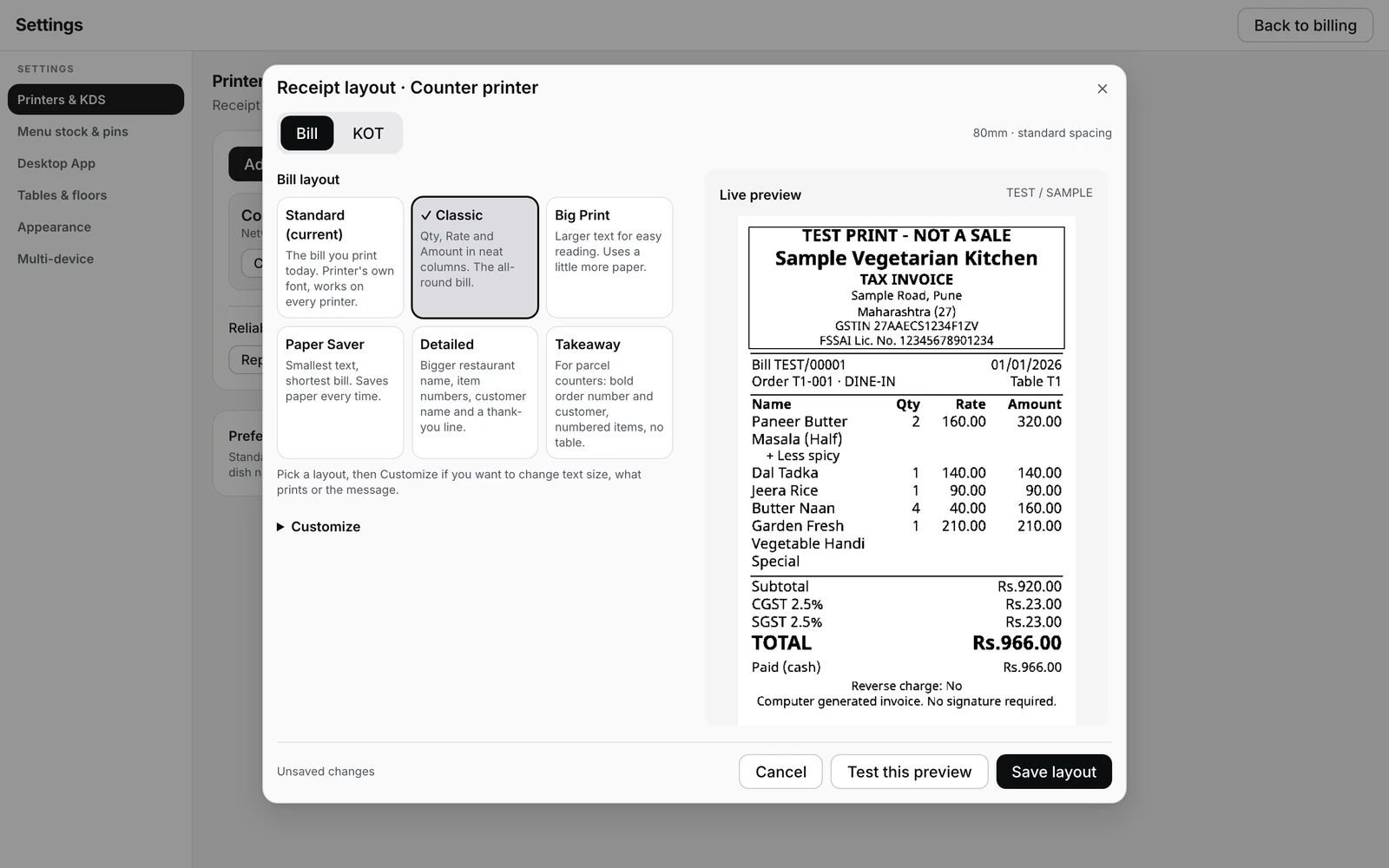
One sample order. Two bill layouts.
These 80mm samples are shown at the same scale. Compare the item lines in Classic and Big Print. A long dish name reveals wrapping more usefully than a short test word.
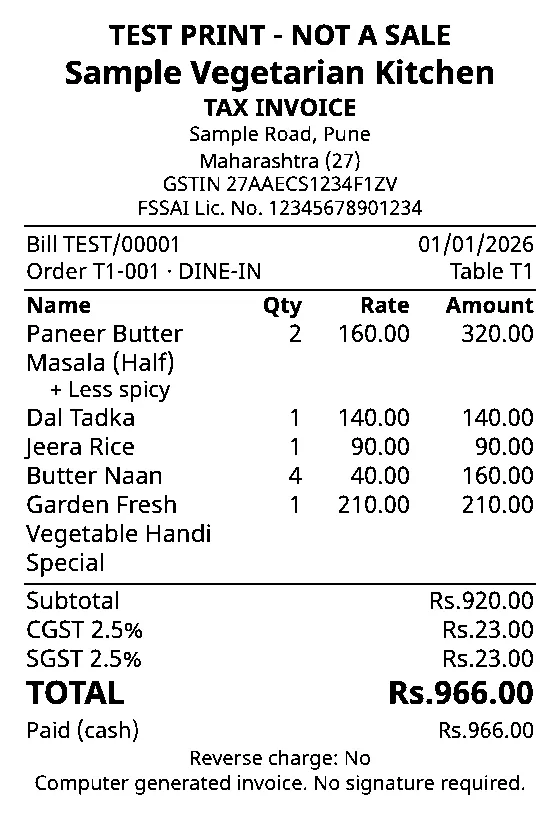
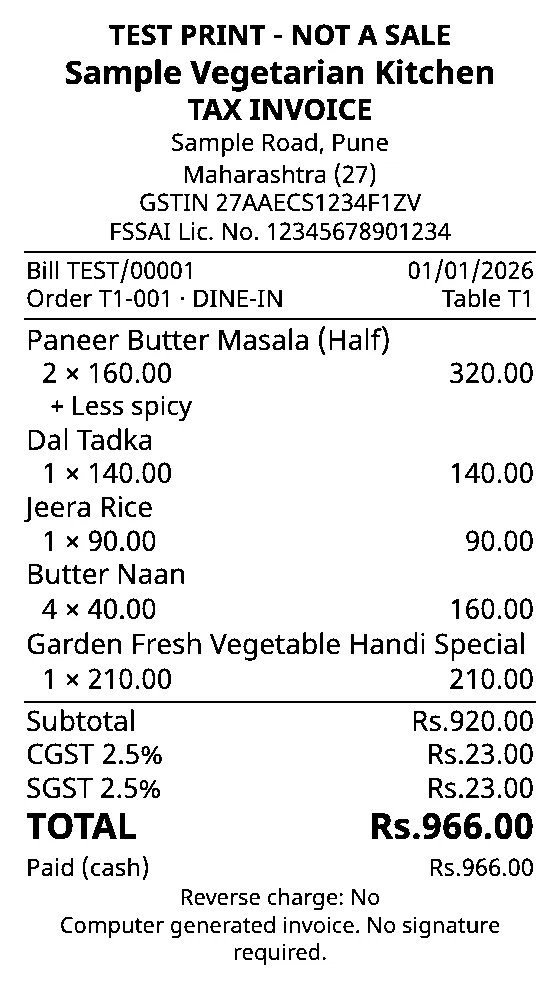
Full editor test-preview pixels, not photographs of physical paper. Both use the same sample content and printer width. Check the final slip on your own printer.
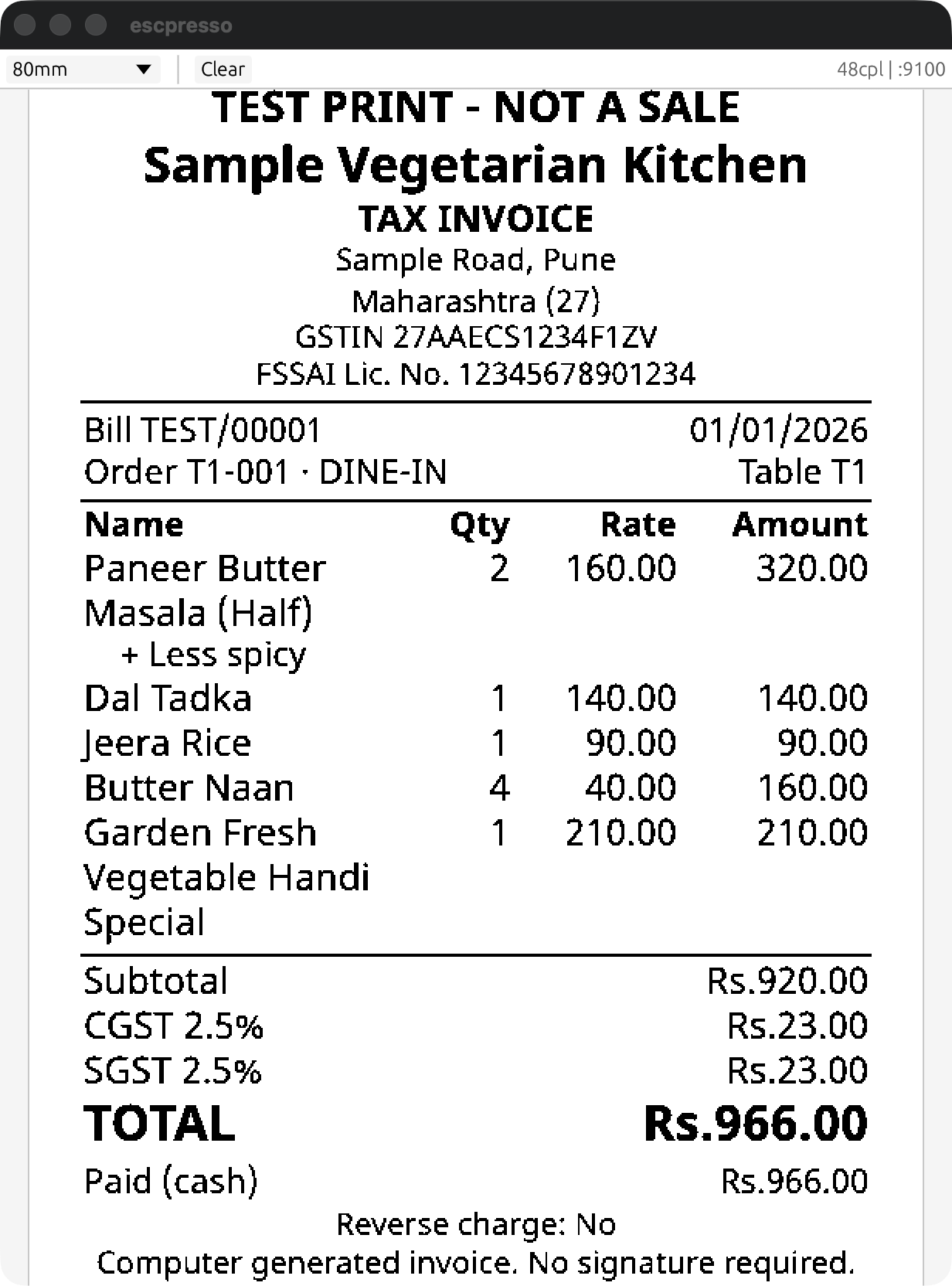
Enlarge dish names. Leave room for amounts.
Start with the customer Bill
For this worked example, select Bill in Receipt layout. The separate KOT flow follows below. Confirm paper size in printer settings first. Do not try to make a 58mm roll fit an 80mm setting.
Pick a preset, then resize Items
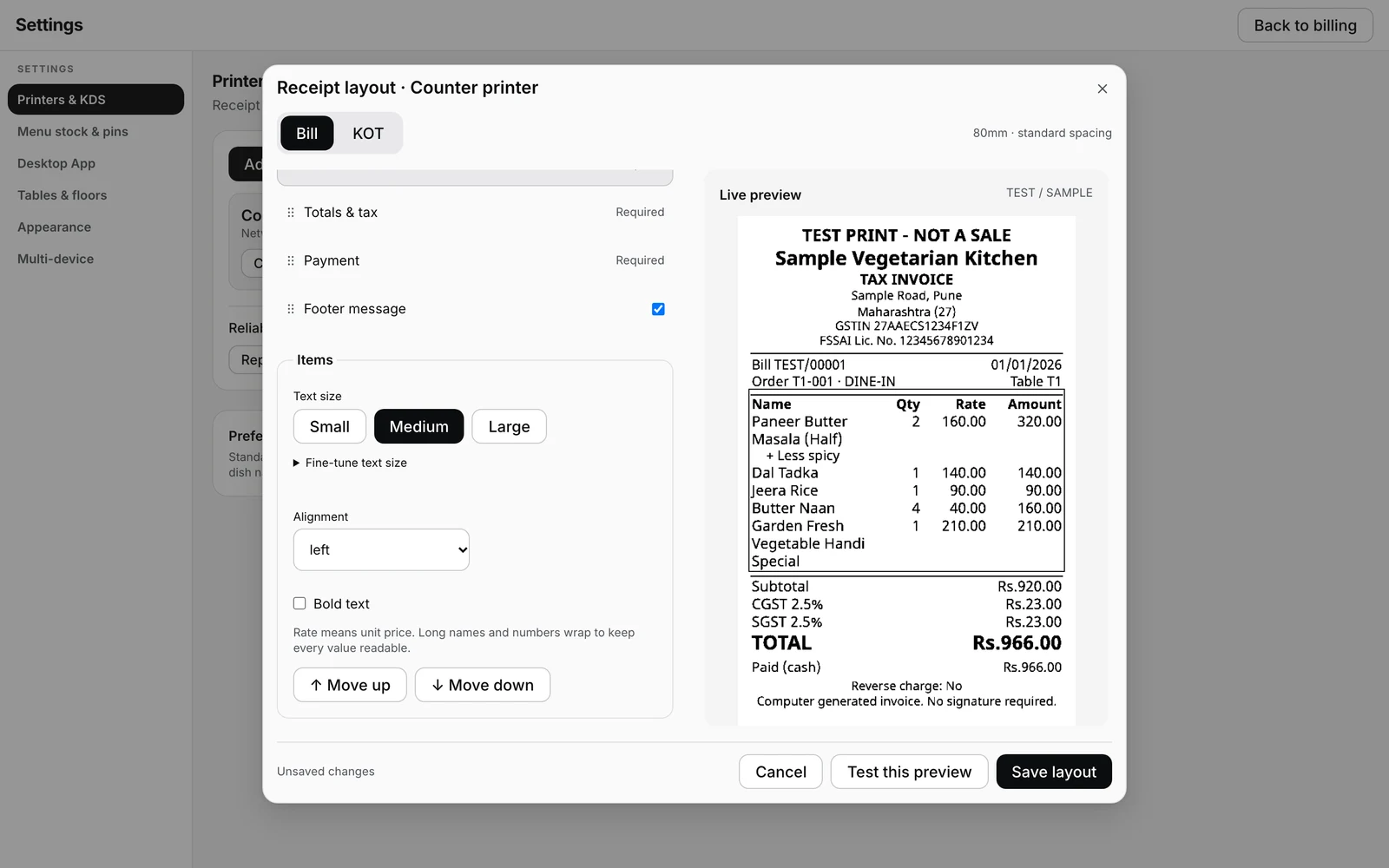
Choose a preset such as Classic or Big Print, then open Customize → Items. Start with Small, Medium or Large. Bold text is a separate control. Fine-tune text size exposes Exact size (printer dots), from 16 to 48. These are printer dots, not word-processor font points. There is no font-family picker.
Compare 58mm and 80mm arrangements
On 80mm paper, compare Clear Table and Item First under Items arrangement. Clear Table keeps columns together; Item First puts the dish first. The narrow 58mm layout uses Item First to leave space for amounts. Clear Table and Item First are arrangements inside Customize, not separate preset cards.
Arrange sections and add a message
Adjust section alignment and bold text. Drag sections or use Move up and Move down. The heading stays first. Custom message accepts up to 160 characters across multiple lines, for example: Please check your parcel before leaving. Hiding the footer hides your custom text; required financial details still print.
Read the KOT as the kitchen will.
On the KOT tab, compare Kitchen Ticket and Big Kitchen. Read quantities, portions and preparation notes alongside the dishes. A large heading alone is not enough. The layout keeps essential kitchen references and item notes visible.
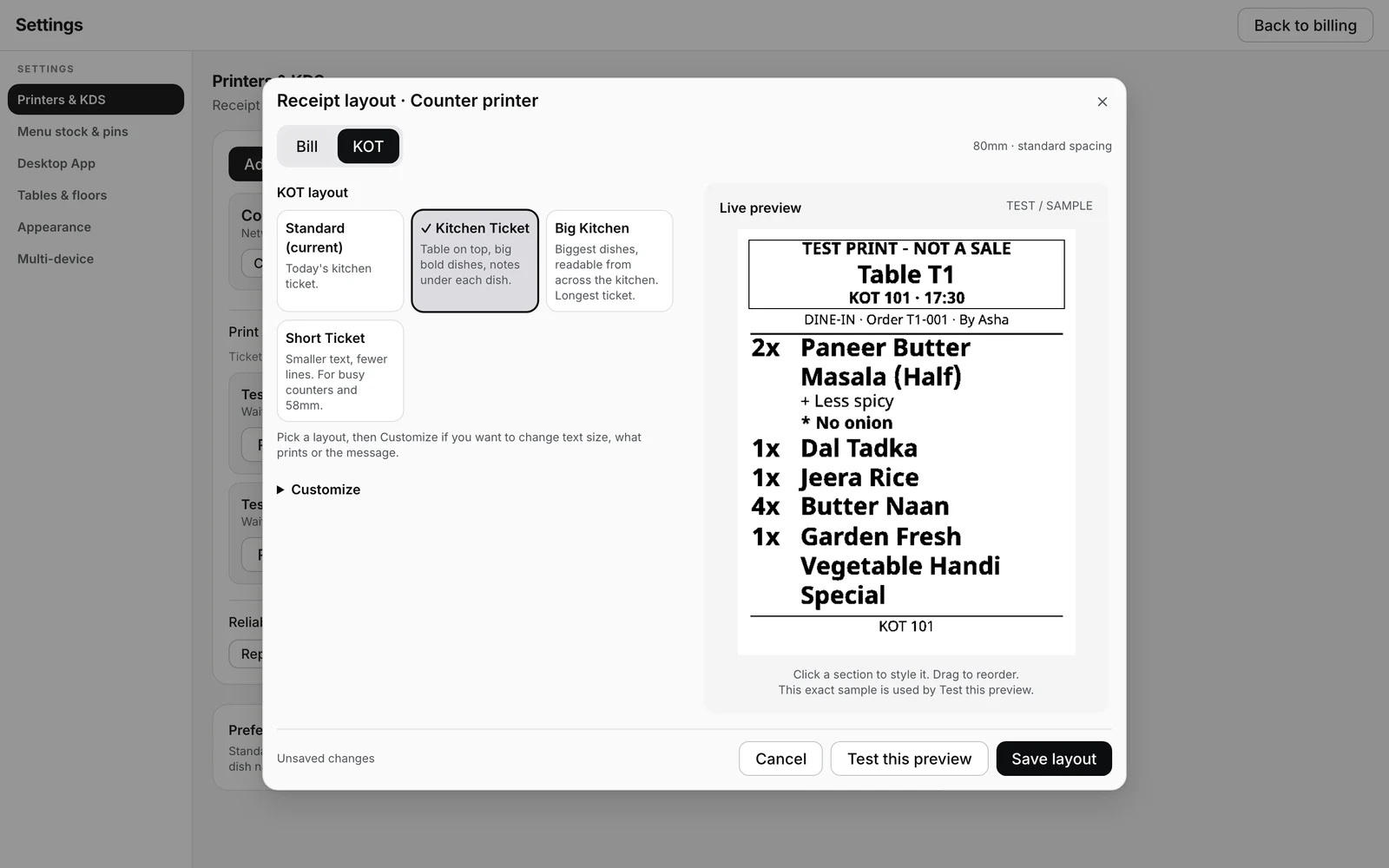
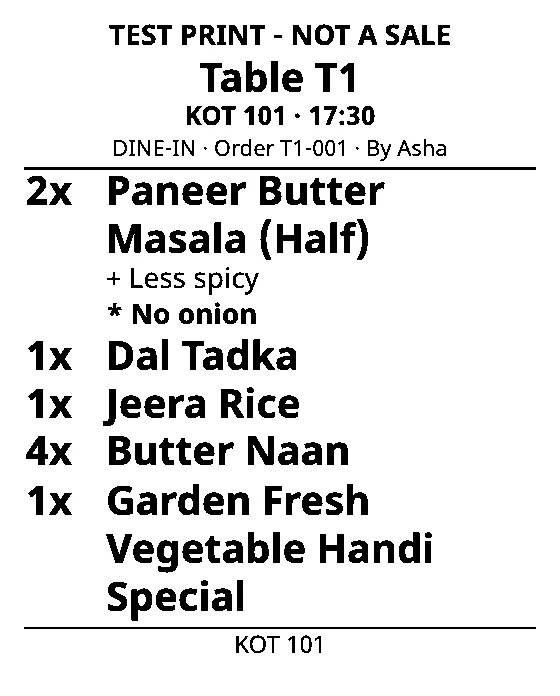
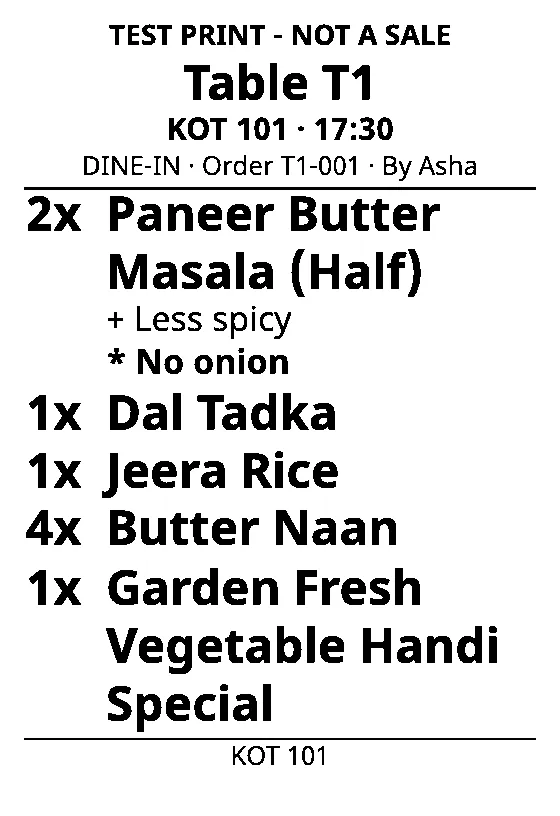
Full editor test-preview pixels, not photographs of physical paper. Both use the same sample content and printer width. Check the final slip on your own printer.
The preview looks right. Read a slip next.
Press Test this preview. A custom-layout test sends the preview's pixels; Standard is approximate because the printer draws its own font. The test sample does not create a sale. Save layout is a separate action: printing a test does not save your changes.
- Can you read the longest dish name? Are its quantity and portion clearly attached to it?
- Does the right edge include every amount and its last digit? Are subtotal, tax and total readable on the customer bill?
- Are preparation notes, table or order references and multiline messages complete on the KOT?
- If output is faint or patchy, check the roll, printhead and printer settings. A larger font alone does not repair that fault.
- Press Save layout once the paper looks right. You can also select Standard again in the editor.
58mm and 80mm describe the roll. Printable width depends on the printer model. Confirm paper size and a width test on your printer; do not assume every 80mm printer has the same print area.