Print a proper receipt from Chrome or Edge on a thermal printer.
The short answer: Chrome lays the bill out as an A4 page and then shrinks it onto an 80 mm roll. So set the roll size in the printer's Windows driver first (80 mm or 58 mm), then in Chrome's print dialog open More settings and set Margins None, Scale 100, Headers and footers off. Edge has the same settings, in the same order.
Web billing, Chrome and Edge, Windows 10 and 11 · 80 mm and 58 mm rolls · plus the “check your printer and try again” error
Why the bill comes out tiny
Billing software that runs in a browser prints the bill the way it prints any web page. Chrome or Edge first asks the printer's driver how big the paper is. If the driver says A4, Chrome builds a page 210 mm wide and squeezes it into the roughly 72 mm a receipt printer can print across. The bill turns into a thin strip that the customer needs reading glasses for.
So the fix runs in one order: the driver's paper size first, the browser second. Do it the other way round and Chrome's Paper size list will not even offer 80 mm. Find your symptom:
| What the slip shows | Cause | Fix |
|---|---|---|
| Tiny text, the bill shrunk into a strip | Paper size is A4 or Letter, or the bill itself was designed for A4 | Roll size in the driver, the same Paper size in Chrome, Margins None, Scale 100. Still tiny? The software's own print format is A4: switch it to its 3-inch (80 mm) or 2-inch (58 mm) thermal format. |
| Half-width, right half empty | A 58 mm layout sent to an 80 mm paper size | Match the software's format, the driver's paper size and Chrome's Paper size to the roll you actually have. |
| Right-hand characters cut off | An 80 mm layout on a 58 mm roll | The same: all three settings to 58 mm. |
| Long blank tail after every bill | Page length is A4 (297 mm), so the printer feeds the rest of the page | A roll size, not A4. Details below. |
| Date and web address on top, page number at the bottom | Headers and footers is ticked | Untick it. |
| Shaded boxes or logo missing | Background graphics is off | Tick it, but only if the bill really has shading or a logo. |
| “Something went wrong when trying to print” | Chrome got no answer from the Windows printer | See the error section. |
The settings, in order.
The first two steps are in Windows, the rest in Chrome's print dialog. Menu names are given exactly as they appear on screen.
Set the 80 mm or 58 mm roll size in the printer driver
Windows 11: Settings → Bluetooth & devices → Printers & scanners → your thermal printer → Printing preferences. Windows 10: Settings → Devices → Printers & scanners → the printer → Manage → Printing preferences. Under paper size, pick the 80 mm (or 58 mm) roll your driver lists; the name varies from driver to driver. If no roll size is listed at all, the maker's driver is not installed, and that comes first.
Make the thermal printer the default printer
On the Printers & scanners page, turn off Let Windows manage my default printer, then open the thermal printer and choose Set as default. Many web billing apps, and kiosk printing, send straight to the default printer.
In Chrome's print dialog, pick the printer and the paper size
Press print in your billing software, or Ctrl+P. Set Destination to the thermal printer, not Save as PDF. Open More settings and set Paper size to the same roll you chose in step 1.
Margins: None
The default margins eat a few millimetres of an already narrow roll and push the bill inwards. Set Margins to None.
Keep the scale at 100
Under Scale, choose Custom and type 100. If the bill opens as a PDF, choose Actual size rather than Fit to printable area; fitting is what shrinks it.
Headers and footers off; Background graphics only if needed
Untick Headers and footers, or the date and the web address print above the bill and a page number below it. Tick Background graphics only if the bill has shaded boxes or a logo, since thermal paper prints grey as a dot pattern.
Print one test bill
Print and look at the slip: full width, readable size, no blank paper trailing after it. Chrome often remembers the last settings, but not always; after a browser update or a new printer, print one test bill before the rush.
Long blank paper after every bill
The printer was handed a page and it is printing the whole page. With the page length set to A4 (297 mm), a bill of 10 cm or 20 cm is followed by blank paper to the end of the page, and the roll is gone by lunch. It is a paper-size setting, not a faulty printer.
- Pick the roll size in the driver, not A4 or Letter. Set the 80 mm or 58 mm roll in Printing preferences. Thermal drivers usually stop feeding once the content ends.
- Use the same roll in Chrome's Paper size. When the driver and the browser disagree, the browser wins.
- Use the software's thermal format. Some web billing apps draw the bill on a fixed tall page. Pick their 2-inch or 3-inch receipt format in their settings.
- Still a tail? Some drivers have a paper-saving or page-end option. The name varies by driver, so look through the tabs in Printing preferences.
“Something went wrong… Please check your printer and try again”
The full message reads “Something went wrong when trying to print. Please check your printer and try again.” It means Chrome's print preview could not get an answer from the Windows printer. Google has no official page on this error, so these are the fixes that usually work, in the order worth trying them:
- Is the printer on, cabled, with paper in? Check Windows does not show it as Offline or paused: fix a printer that shows Offline in Windows.
- Restart the Print Spooler. Press Win+R, type
services.msc, right-click Print Spooler and choose Restart. Or open Command Prompt as administrator and runnet stop spoolerthennet start spooler. - Test with Save as PDF. Choose Save as PDF as the destination. If the PDF is made, Chrome is fine and the fault is in the Windows printer or its driver.
- Pick the thermal printer again as the destination, and make it the Windows default (step 2 above).
- Press Ctrl+Shift+P. That skips Chrome's preview and opens the Windows print dialog. If the bill prints from there, only the preview was stuck.
- Remove and reinstall the driver. Remove the printer in Printers & scanners and install the driver again from the maker's own site: install a thermal printer driver on Windows.
- Close Chrome completely and reopen it, and if that fails, restart the computer.
Kiosk printing: straight to the printer, and its two traps
Many web billing apps tell you to add --kiosk-printing to the Chrome shortcut. After that, pressing print sends the bill straight to the Windows default printer with no dialog. It is a Chrome start-up switch; Google's printing help has no page for it.
To add it: right-click the Chrome shortcut → Properties → at the end of Target, type a space and --kiosk-printing. Target ends up looking like "C:\Program Files\Google\Chrome\Application\chrome.exe" --kiosk-printing. Press OK and always open Chrome from that shortcut.
Two traps catch nearly everyone once:
- The switch is ignored if Chrome is already running. One open window, or Chrome running in the background, and the new shortcut changes nothing. In Chrome's Settings → System, turn off “Continue running background apps when Google Chrome is closed”, close every window, then open it again.
- It prints with the last settings, to the default printer. With no dialog, a wrong setting is invisible. Print one good bill through the dialog using the steps above and make the thermal printer the default before adding the switch.
In the EasyKOT Desktop App: no browser dialog, no driver hunt.
All of the above exists because a browser tab cannot talk to a printer by itself. The EasyKOT Desktop App runs on your computer, not in a browser tab. It sends the bill to the printer in the printer's own language (ESC/POS), laid out for the roll: 42 columns on 80 mm, 32 on 58 mm. There are no margins, no scale and no blank tail to set.
Connecting the printer: press Detect and it is found. In the Desktop App, open Settings → Printers & KDS → Set up a new printer, pick the brand (or Another brand / not sure) and let it scan. Detect runs four rounds and shows which one it is on:
- This computer's USB and Bluetooth ports.
- The printers' factory addresses: many printers ship on a fixed address (Xprinter on 192.168.123.100, TVS on 192.168.0.31, for example), so the Desktop App tries those first.
- Asking the network which printers are there.
- A sweep of the Wi-Fi for anything answering on port 9100.
Each result carries a plain line saying why the Desktop App thinks it is a printer, and the most likely one sits on top. Tap it, choose 80 mm or 58 mm, press Test print. That is the whole setup.
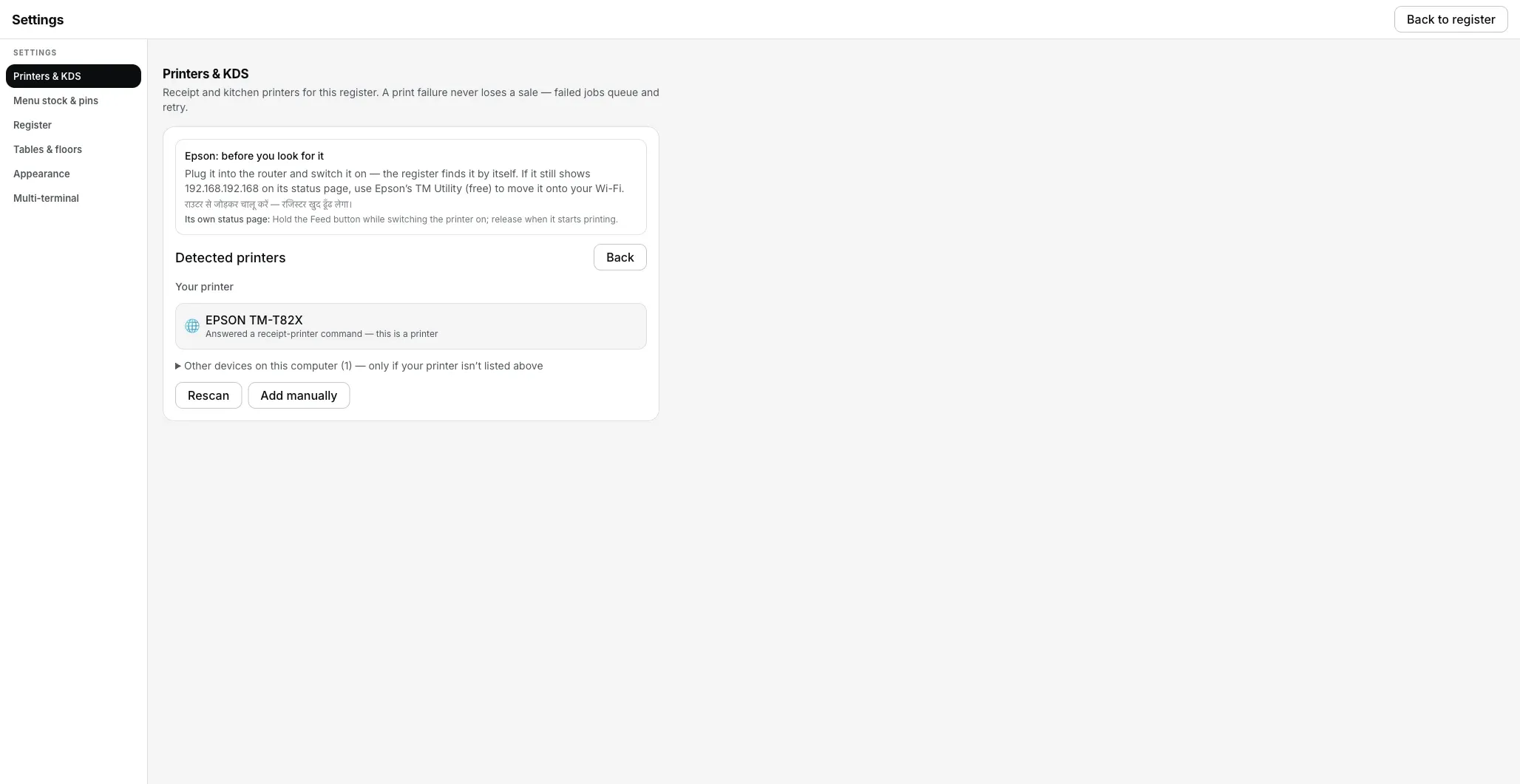
Detect printers: a printer found on the network, with its name and the reason. No IP typed.
A driver? The Desktop App is built to print to network (LAN or Wi-Fi) and USB printers without a Windows driver: straight to the printer's port 9100 on a network, and through Windows' own built-in USB printer path on USB. Printer already installed in Windows for other software? The Desktop App is built to use that too, as a System printer; on that route it cannot read the printer's status (paper, cover).
A sale is never lost to the printer. The bill is saved in the Desktop App first and printed second. If the printer does not answer, the ticket waits in a queue and retries by itself (1, 2, 5, 15, 30, 60 seconds, then every minute) for 5 minutes. Still unprinted after that, it stops and asks for you.
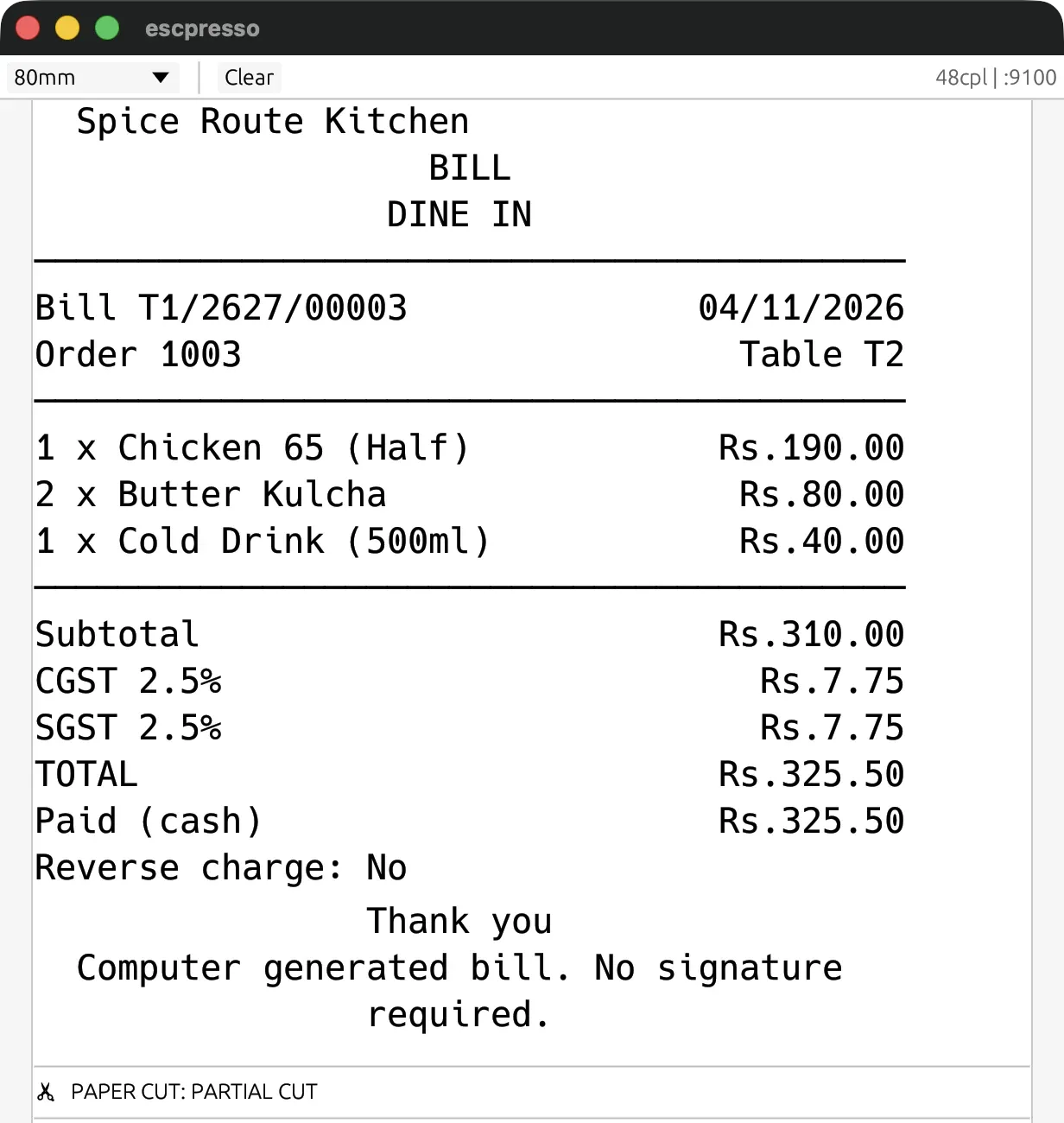
The Desktop App's bill across the full roll width: no margins, no scale, no blank tail.
The honest part: no printer model is certified by us yet, and the one real-hardware print on our record is a USB printer on the Mac Desktop App (17 Sept 2026). Your printer's proof is the test slip: if the slip comes out, bills will too. And if something sticks, Check printer on the printer's row finds where in five steps.
₹299/month or ₹2,990/year, plus 18% GST · 3 months free · ₹0 today, no card
Want a look first? Try the Desktop App in your browser (sample bills and KOTs open through the normal print dialog) · the full printer setup guide
Straight answers.
Chrome's Paper size list has no 80 mm option. What now?
Does Edge have the same settings?
Does “Something went wrong when trying to print” only happen with thermal printers?
How do I turn kiosk printing off?
I fixed the settings and the next day the bill was tiny again. Why?
Do I need any of this with EasyKOT?
Run it 3 months, then pay for it.
Three months free, full product, no card. Made in India, for the counter: built inside a running restaurant.