Printer is on a different network
You typed the address correctly and nothing happened, because the two addresses were never going to reach each other. There is no route from 192.168.1.x to 192.168.29.y. The first three groups of both addresses have to match: that comparison is the entire diagnosis, and it takes ten seconds.
Whatever the printer does, the sale is already saved: the Desktop App writes the bill to its own database first and queues the paper second. The full symptom table covers the rest.
Two private networks, no route between them.
- One of them is on Guest Wi-Fi. A guest network is a separate network with the same name plus the word Guest. Devices on it reach the internet and nothing else in the shop. This is the commonest version by far.
- The laptop hopped onto a hotspot. A laptop that dropped the shop Wi-Fi and joined a phone's hotspot is on the phone's private network: every printer in the building becomes unreachable at once, which is a useful tell.
- There are two routers. A second router plugged into the first hands out its own range. Everything behind it is on 192.168.29.x while the EasyKOT Desktop App is on 192.168.1.x, and neither side can start a conversation with the other.
Do this first.
Read the printer's address off its own status slip
Hold the printer's feed button while switching it on. The slip carries the IP address the printer currently holds. That is the printer's own account of itself, not something the Desktop App guessed.
Read the Desktop App's address
On Windows, Settings → Network & internet → Wi-Fi → Hardware properties; on a Mac, System Settings → Network → Wi-Fi → Details. You want the IPv4 address, which looks like 192.168.1.14.
Compare the first three groups
192.168.1.14 and 192.168.1.50 are on the same network and can talk. 192.168.1.14 and 192.168.29.50 are not, and no amount of retyping will change that. This is arithmetic, not timing, which is why the Desktop App can say it with certainty rather than waiting for a timeout.
Put both on the shop's main Wi-Fi
Rejoin the Desktop App to the main network rather than Guest, or move the printer onto it. If you have two routers, both devices need to be on the same one, or connect the printer with a cable to the router the Desktop App is on, which settles it for good.
What the printer's row says.
Every printer you have added has a row in Settings → Printers & KDS, and the row carries its own status in words rather than a green dot. These are the exact words for this one.
- While it is wrong: “Offline” while the Desktop App is still knocking, then “Your router is keeping devices apart” once its network check has run. The Desktop App groups both network faults (a printer on a different network, and a router keeping its own devices apart) under that one status today, so read this page and the router-isolation one together; the address comparison in step three is what separates them.
- Once it is fixed: “Connected”, and any queued ticket still inside its 5-minute window prints in order without anyone pressing anything; one that has waited longer needs Print.
On a captain's phone this one is spelled out in full: the app names the phone's address and the printer's and tells the waiter to join the same Wi-Fi as the printer, the main network, not Guest.
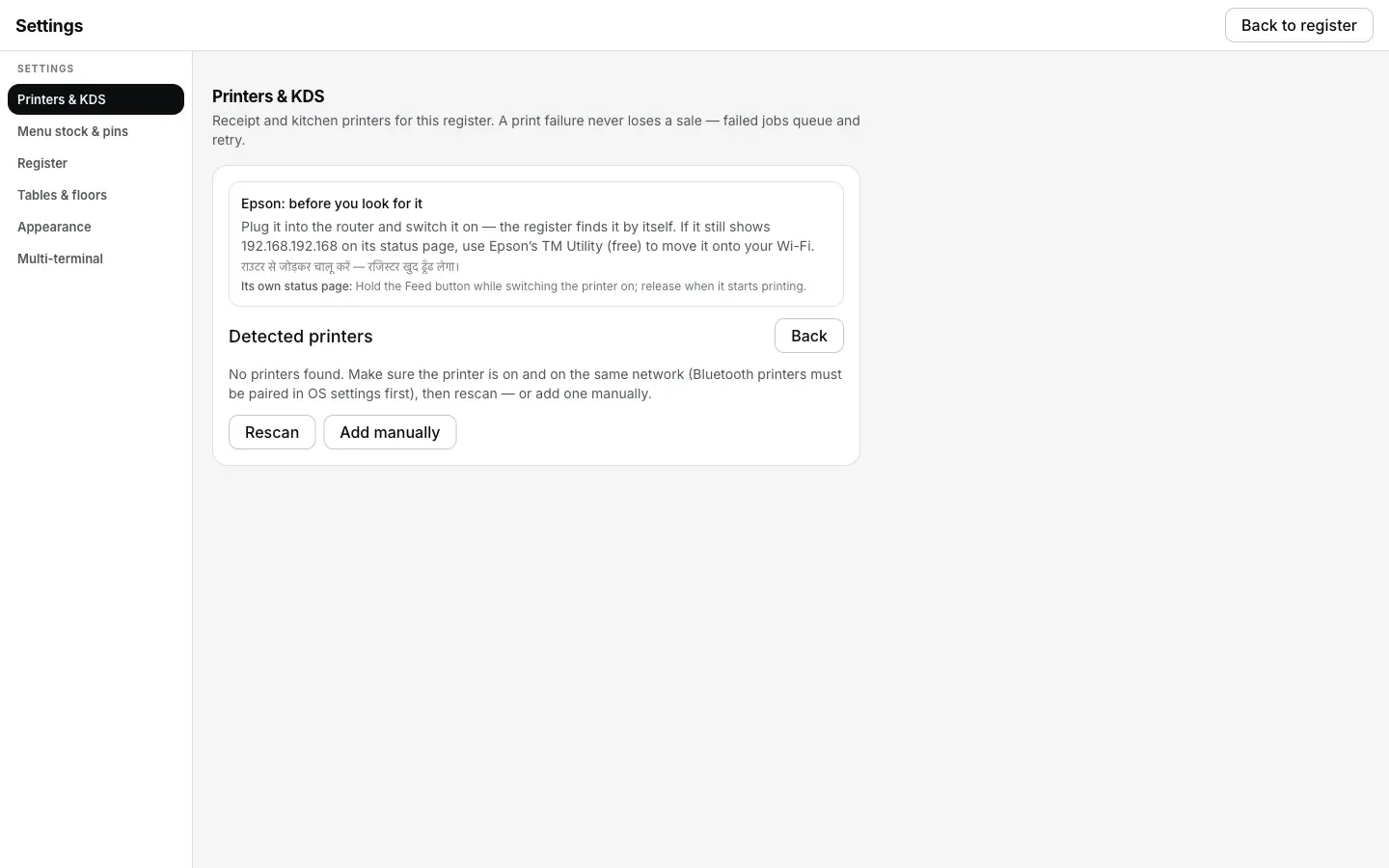
Detect printers finding nothing is the first sign: the Desktop App and the printer are on two networks that were never going to reach each other.
Printing what was missed.
- Nothing printed, and nothing was lost. Every ticket fired while the addresses disagreed is in the print queue in Settings → Printers & KDS, retrying on its own schedule.
- The queue picks up again once the networks match. Any ticket still inside its 5-minute window prints without you pressing anything. One that has been waiting longer needs Print.
- A long backlog can be trimmed. If half of it is no longer wanted (an hour of kitchen tickets for food already cooked), Discard on those rows removes them, and Print sends the ones you still need.
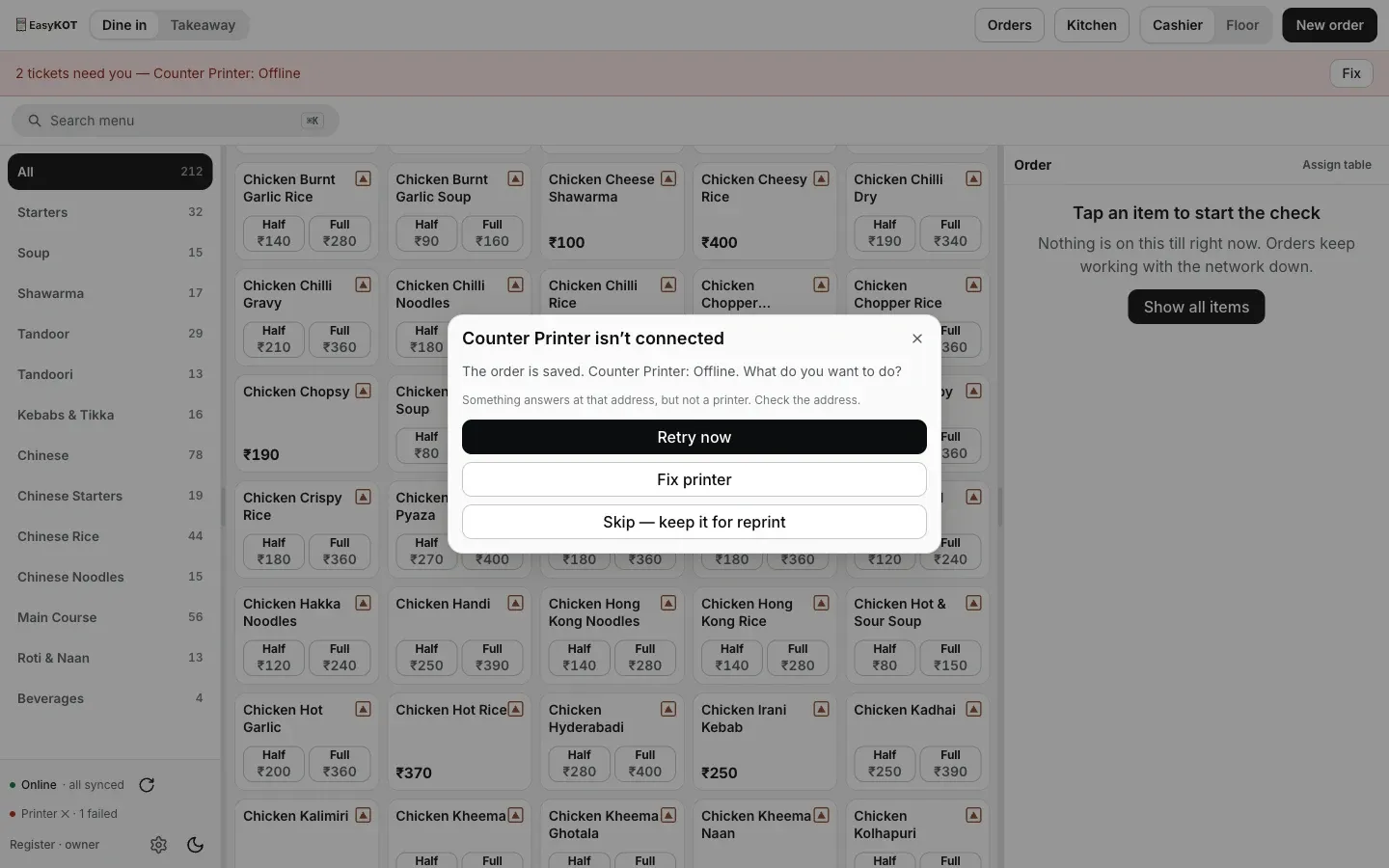
The Desktop App offers the same recovery choices whatever kept the printer unreachable: this dialog's own wording says Offline, though the underlying cause here is the address mismatch, not a dead printer.
Printer on a different network — the questions that follow.
The waiter's phone is on mobile data — is that the same problem?
Why can't I reach the printer if both are on my Wi-Fi?
Can I use a printer over the internet, from another shop?
The Desktop App is on the right network but the waiter phones are not.
If that was not it.
Nothing finds it, even by IP
Same network, still no connection: the router is keeping its own devices apart.
Check the router →Printer shows Offline
The address moved overnight, and what the Desktop App does about it on its own.
Chase the address →Captain app setup
Getting the waiters' phones onto the same network as everything else, with the codes and the PIN.
Set up a phone →Every printer guide is listed on the guides hub.
Run it 3 months, then pay for it.
Three months free, full product, no card. Made in India, for the counter: built inside a running restaurant.