Printer was working, now shows Offline
It worked yesterday and not today, and nothing changed. Nine times out of ten the router handed the printer a new address (a power cut, a router restart, an expired lease) and the EasyKOT Desktop App is knocking at the old one. It looks for the printer by its hardware address first, so this often repairs itself before you get there.
Whatever the printer does, the sale is already saved: the Desktop App writes the bill to its own database first and queues the paper second. The full symptom table covers the rest.
The address moved. The printer did not.
- The router gave the printer a new address. Routers lease addresses for a fixed time. After a power cut everything on the network asks again at once and the order they come back in decides who gets what, so the printer that was on .50 can come back on .63.
- Something else took the printer's old address. A new phone or a smart TV handed the printer's old IP will answer the knock. The row then reads Offline with a different hint: something answers at that address, but not a printer.
- The printer is asleep, or its cable is out. Wi-Fi printers sleep their radio and miss the first knock, which is why the row does not flip to Offline on a single miss: it takes two in a row. If it stays offline, check the power and the network cable at the printer itself.
Do this first.
Give it a moment — the Desktop App is already looking
After a good connect the Desktop App remembers the printer's hardware address, not just its IP. Once the row has gone Offline it asks the network where that hardware address went, saves the new one and tries again on the next check. A DHCP reshuffle overnight is usually a non-event by the time you open the Desktop App: the row goes Offline and then comes back on its own.
If it is still Offline, run Detect printers
Settings → Printers & KDS → Detect printers rescans as it goes, telling you which pass it is on: this computer's USB and Bluetooth ports, then the printers' factory addresses, then a broadcast asking the network which printers are there, then a sweep of the Wi-Fi for anything on port 9100. Candidates appear as they are found. If your printer turns up on an address different from the one saved, that was the whole problem.
Check the address on the printer itself
Hold the printer's feed button while switching it on and it prints a status slip carrying its IP address and its MAC. The first three groups of the IP must match the Desktop App's: 192.168.1.x talking to 192.168.1.y is fine, 192.168.1.x to 192.168.29.y is not.
Reserve the address so it never moves again
In the router's admin page, find DHCP reservation (sometimes Address Reservation or Static Lease), and tie the printer's MAC to the address it has now. Two minutes, once, and the printer keeps that address through every power cut the street throws at it.
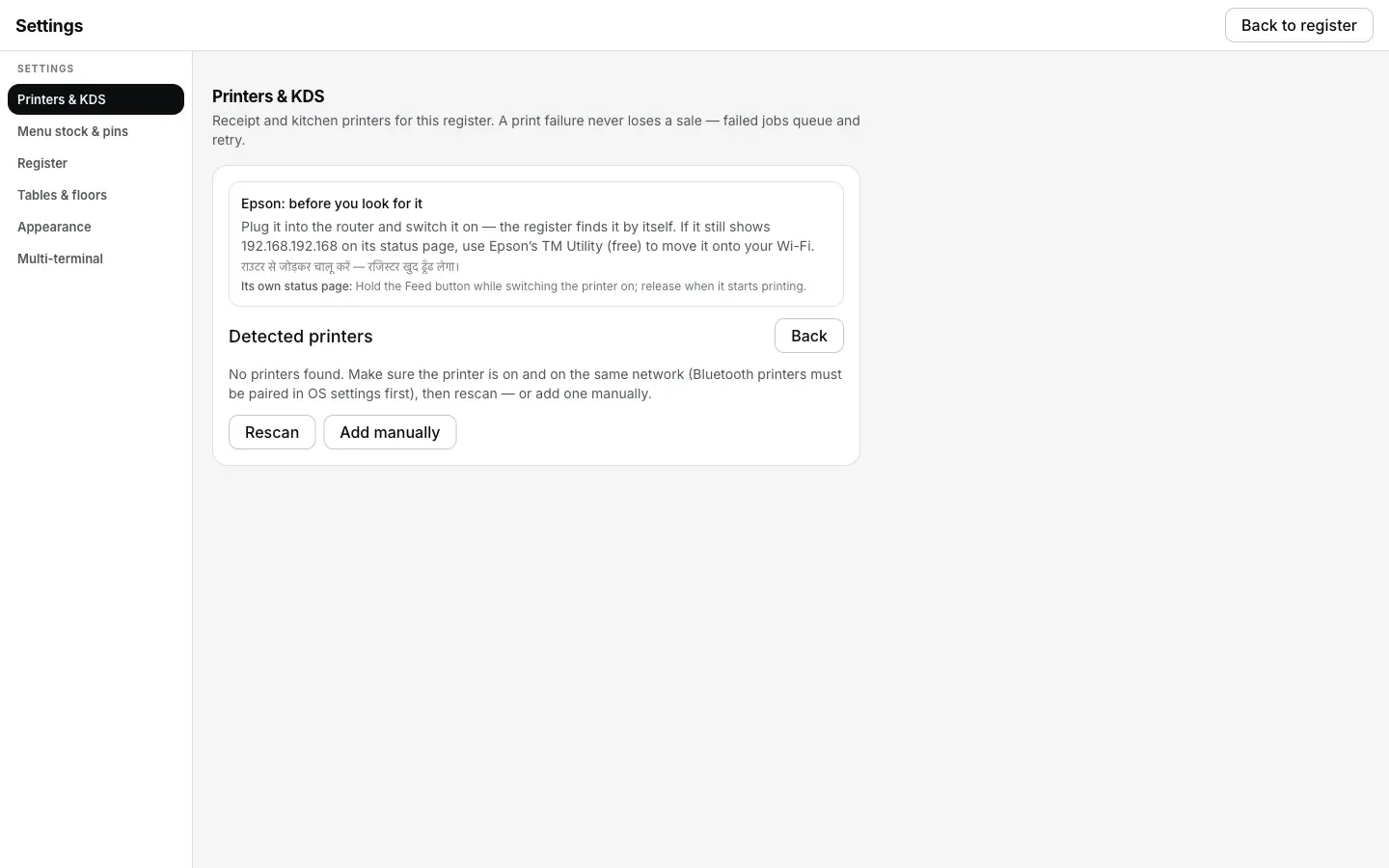
Detect printers rescanning and coming up empty: the address moved, and the printer's own status slip is the next stop.
What the printer's row says.
Every printer you have added has a row in Settings → Printers & KDS, and the row carries its own status in words rather than a green dot. These are the exact words for this one.
- While it is wrong: “Offline”, with the line “Can't reach the printer. Check power and the network cable.” If something else answers at that address instead, the hint changes to “Something answers at that address, but not a printer. Check the address.” A fold-out “How to fix this” under the row carries the same fix as this page.
- Once it is fixed: “Connected”. Tickets fired in the last 5 minutes print in order on their own; anything older had already stopped and waits for Print on its row.
One missed knock is not Offline. A Wi-Fi printer that sleeps its radio misses the first check routinely, so the row only changes after two consecutive misses, which is why a printer that is merely slow to wake never raises a false alarm.

Older tickets stay held when the printer returns. Review them when ready; sales keep working.
Printing what was missed.
- Tickets queue, they do not vanish. Anything fired while the printer was offline sits in the print queue in Settings → Printers & KDS, retrying on its own: after 1 second, then 2, 5, 15, 30 and 60, then every minute, for 5 minutes.
- After 5 minutes it stops and asks for you. The row reads “Not printed — waiting for your choice” and stays visible until you deal with it. Print, Send to <another printer>, or Discard are all one tap on that row.
- At the moment of failure you get four choices. If the printer is unreachable when you settle or fire, the Desktop App offers Retry now, Fix printer, Send to <another printer>, and Skip — keep it for reprint. The sale is already saved by then; every one of those buttons is about paper.
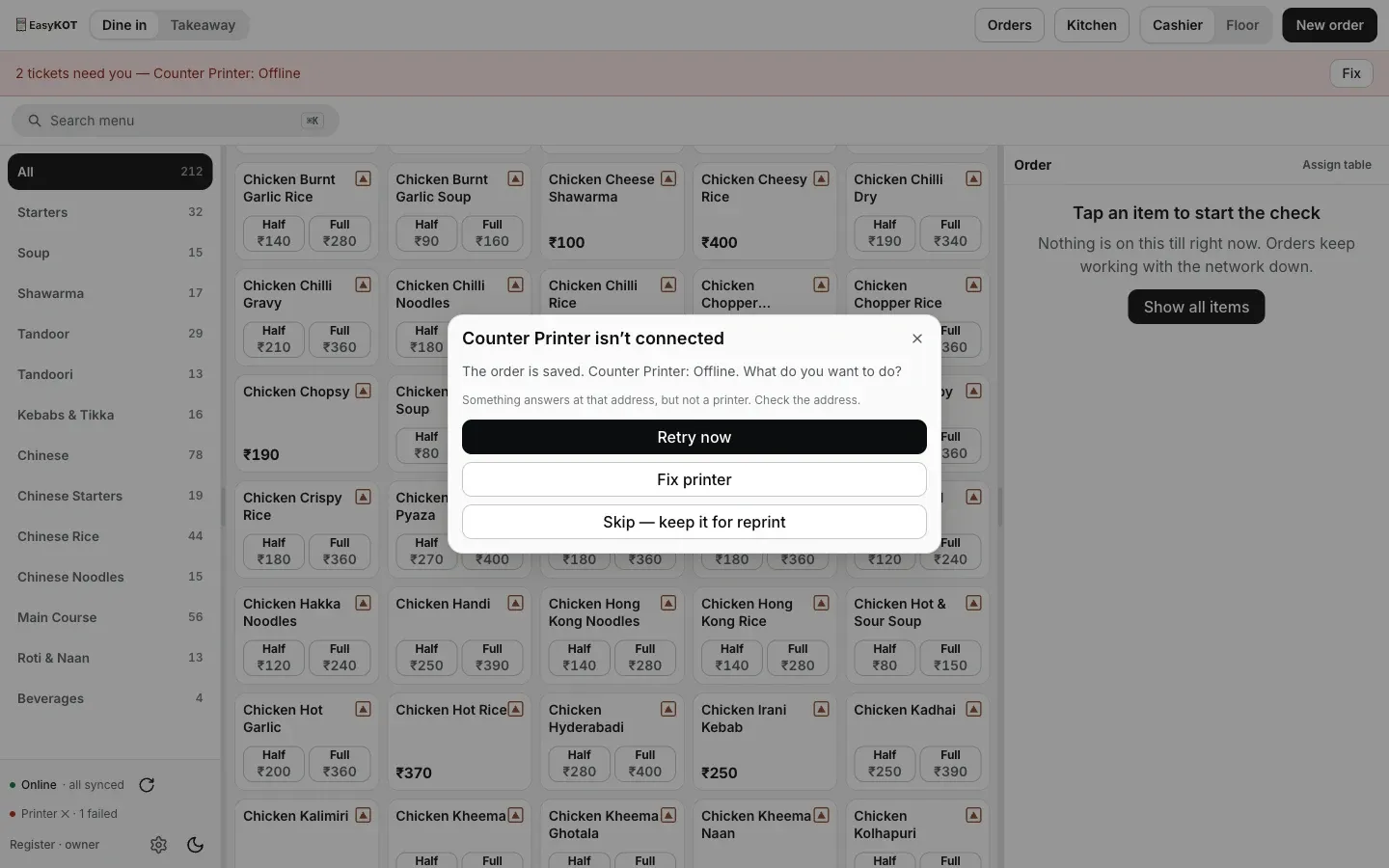
The choices offered the moment a settle or fire hits an unreachable printer: the sale is already saved by the time this appears.
Printer shows Offline — the questions that follow.
Should I set the static IP on the printer or on the router?
Why did my printer stop working after a power cut?
Do I have to re-add the printer?
It says Offline but the printer's light is on.
If that was not it.
Nothing finds it, even by IP
When the router itself is keeping the Desktop App and the printer apart, and the cable that sidesteps the setting.
Check the router →Printer is on a different network
Guest Wi-Fi, a second router, a laptop that hopped onto a hotspot.
Compare the networks →Connect a thermal printer
Detect, the address field, port 9100 and the paper width, with screenshots.
Set the printer up →Every printer guide is listed on the guides hub.
Run it 3 months, then pay for it.
Three months free, full product, no card. Made in India, for the counter: built inside a running restaurant.