Install a thermal printer driver on Windows.
The short answer: get the driver from the printer maker's own site, run it, pick the right port (USB001 for a USB cable, the printer's IP for LAN) and print a Windows test page. Once that works, set the paper to your 80 mm or 58 mm roll and make the printer the default. The steps are the same whatever billing software you use.
58 mm and 80 mm thermal printers · USB, LAN, Wi-Fi, COM · Windows 10 and 11
A thermal printer driver in eight steps.
In a hurry, follow this list. If a step fails, its full section is further down.
Note the printer model and your Windows type
The model is on the sticker under or behind the printer. In Windows open Settings → System → About and read System type. Windows 11 is always 64-bit, so a 32-bit-only driver will not install.
Download the driver from the maker's official site
Check Windows Update and Add device first. If the exact model driver is not offered, use the printer maker's official page linked below. Avoid third-party driver-download sites.
Run the installer, or Add printer with Have Disk
If the download is an .exe, right-click it and choose Run as administrator. If it is a folder of .inf files, add the printer manually in Windows and point Have Disk at that folder.
Pick the right port
USB001 or USB002 for a USB cable. A Standard TCP/IP Port with the printer's IP for LAN or Wi-Fi. The COM number from Device Manager if a USB printer shows up as a COM port.
Print a Windows test page
Printer properties → General → Print Test Page. If the page comes out, the driver and the port are both right, and anything left is a billing software setting.
Set the paper size to your 80 mm or 58 mm roll
In Printing Preferences pick the size that matches the roll. Leave it on A4 and bills come out tiny or trail a long blank tail.
Make it the default printer
Turn off Let Windows manage my default printer, then choose Set as default on the thermal printer. Browser-based billing usually prints to the default printer.
Switch on auto-cut and the cash drawer
The cutter and drawer options sit in Printing Preferences or on the Device Settings tab. Billing software that prints through the driver picks them up from there.
Why your billing software needs the driver
Most billing software, desktop GST programs and browser-based billing alike, prints a bill the way Word prints a page. The page goes to a Windows print queue, and that queue needs a driver to turn the page into something the printer understands. With no driver there is no queue for the printer at all, or a queue that sends A4-shaped output.
Windows' built-in class driver only covers Mopria-certified printers, and budget 58 or 80 mm thermal printers are usually not on that list. So the maker's driver is the normal route. It is often called something like POS-58, POS-80 or POS-80C.
Get the driver from the maker, not a driver site
Search for a printer driver and the first page is mostly driver-download sites. Their installers can be old, for the wrong model, or bundled with other software. Microsoft's own advice is to go to the maker's website. These are the official pages, each opened and checked on 23 Sept 2026.
| Maker / model | Official driver page | Driver as the page lists it |
|---|---|---|
| Xprinter | xprintertech.com | Bill product driver (POS-58 / POS-80) |
| Epson TM-T82X | epson.co.in | EPSON Advanced Printer Driver 6 (APD6) |
| Epson TM-T82 | epson.co.in | EPSON Advanced Printer Driver 6 (APD6) |
| Epson, other TM models | epson.co.in | Pick your model from the list |
| Retsol (RTP-80) | retsol.co.in | Per-model downloads |
| Rugtek (RP76-V, RP326, RP80, RP82) | rugtek.com | RP76VReceipt-driver.zip, RP326.zip, DriverInstall_V2.89.exe |
| Posiflex (PP-8800 Aura) | posiflex.com | AURA PP-8800U driver |
| Hoin (HOP-E801, E58) | hoinprinter.com | POS-80-Series driver |
| Rongta (RP80, RP326, RP58) | rongtatech.com | Thermal Receipt Printer Driver (Windows) |
| Star (TSP100 / TSP143) | starmicronics.com | TSP100 futurePRNT (Windows 11 64-bit) |
| TVS Electronics (RP 3160 Gold, RP 3200) | The official page was not loading on 23 Sept 2026. Use the CD that came in the box, or ask your dealer for the driver. | – |
| Everycom (EC-901, EC-58) | The official page was not loading on 23 Sept 2026. Use the CD that came in the box, or ask your dealer for the driver. | – |
Maker not listed? Check the CD in the box or ask your dealer. If your USB printer shows up as a COM port, it has a USB-serial chip that needs its own driver, such as WCH's CH340/CH341 driver (official page).
A "Windows can't verify the publisher" warning is common with small makers' packages. It is fine when the file came from the maker's own site. Do not switch off Windows' driver signature enforcement to get past it.
Install: the maker's setup, or Add printer and Have Disk
Route 1: the maker's installer (try this first)
- Right-click the downloaded file and choose Run as administrator.
- Pick your model and the port (next section).
- Some makers want the driver installed before the USB cable goes in. Star documents exactly that, so leave the cable out until the installer finishes.
- Epson's APD6 asks for a port type (Serial, Parallel, USB, Ethernet) and creates its own USB port. It cannot add a USB driver while the printer is offline, for example with the cover open or the paper out.
Route 2: the download is only .inf files
- Windows 11: Settings → Bluetooth & devices → Printers & scanners → Add device. Windows 10: Settings → Devices → Printers & scanners → Add a printer or scanner.
- When the printer is not found, next to The printer that I want isn't listed select Add a new device manually.
- Choose Add a local printer or network printer with manual settings and pick the port.
- Press Have Disk, browse to the downloaded folder and select the .inf file. Pick the model, name the printer, Finish.
Pick the port: USB001, COM, IP address or Bluetooth
A correct driver on the wrong port prints nothing. Match the port to the cable:
| Printer connected by | Port to pick |
|---|---|
| USB cable | USB001, USB002… (Virtual printer port for USB), or the maker's own port (Epson's TMUSB). The number changes if the cable moves to another socket. |
| USB cable, but it shows as COM | The COM number in Device Manager → Ports (COM & LPT). Install the CH340 or PL2303 chip driver first. |
| LAN or Wi-Fi | Create a new port → Standard TCP/IP Port → the printer's IP. The IP is on the self-test slip: hold Feed while switching the printer on. |
| Bluetooth (on a laptop) | The Outgoing COM port Windows creates when you pair, listed under More Bluetooth settings → COM Ports. |
| Old parallel cable | LPT1 |
Worked yesterday, dead today? Someone probably moved the USB cable. In Printer properties → Ports, tick the other USB00x and print the test page again, then keep the cable in that one socket. For a counter, Bluetooth is the weakest link: use USB or LAN.
Print a Windows test page
Settings → Printers & scanners → your printer → Printer properties → General tab → Print Test Page. It comes out as one long slip.
- It printed: the driver and port are right. Choose this printer in your billing software.
- Nothing came out: try the other port, and check the cover and the paper. If the job is stuck in the queue, see printer offline or stuck on Windows.
- Strange symbols: the driver or emulation is wrong. See printer prints garbage.
Set 80 mm or 58 mm paper and make it the default
In Printer properties → Printing Preferences → Advanced (or Paper/Quality), pick the paper size that matches your roll. The names differ by driver: Star calls it "72mm x Receipt", POS-80 drivers list an 80 mm width with a long page length, 58 mm drivers a 58 mm width. Choose whatever your driver lists for your roll.
To make it the default, turn off Let Windows manage my default printer in Printers & scanners, then choose Set as default on the thermal printer. Browser billing and Chrome's kiosk printing both print to the default printer, so this matters.
Bill still tiny or half-width from a browser? Chrome has its own settings on top of the driver's: print a proper receipt from Chrome or Edge.
Auto-cut and cash drawer are in Printing Preferences
On POS-80 style drivers the cutter and cash drawer options sit in Printing Preferences or on the Device Settings tab of Printer properties. Wording varies by driver: something like "cut at document end" for the cutter, and "open before printing" or "after printing" for the drawer. When the billing software prints through the driver, switching these on is often the whole fix.
- It never cuts: many 58 mm printers have no cutter, only a tear bar. More in printer does not cut the paper.
- The drawer stays shut: the drawer cable goes into the printer's DK port (RJ11), not the computer. Then switch the drawer option on in the driver.
Generic / Text Only: when it is enough and when it is not
Windows includes a Generic / Text Only driver: in the manual Add printer steps, pick the maker "Generic" and the printer "Generic / Text Only". It passes plain text through, and passes ESC/POS through too when the billing software sends it.
- Enough: when your billing software sends ESC/POS itself, as many desktop POS programs do.
- Not enough: browser billing, or any program that prints a page. No logo, no graphics, no automatic cut, and usually no ₹ sign.
So the maker's driver comes first, and Generic / Text Only only when nothing else is available.
Windows 11 notes: protected print mode and Windows Update
Windows protected print mode. Microsoft says enabling it removes printers that use third-party drivers. Reinstall a compatible Mopria printer with Windows Ready Print. For an incompatible printer, disabling the mode is a security and compatibility trade-off; ask IT when policy controls it. A non-compatible printer does not return automatically after the mode is disabled, so reinstall it manually. Microsoft's current protected-print guide has the supported steps.
Check Windows Update, but do not wait if the exact model is absent. Microsoft is phasing out third-party printer-driver servicing, but “Windows Update never has thermal drivers” is too broad. Use Add device when it recognizes the model; otherwise download the exact-model package from the maker's official site.
"Driver is unavailable" means the queue exists but its driver is missing or broken. Remove the printer, download the driver for your Windows version (64-bit) from the maker again and reinstall.
In EasyKOT: no driver, no port hunting
Everything above exists because your software prints through a Windows driver. The EasyKOT Desktop App does not. It is built to talk to network (port 9100) and USB thermal printers directly: no maker driver to find, no port to pick, no paper-size dropdown.
In the Desktop App open Settings → Printers & KDS and press Detect printers (or Set up a new printer for the guided path). The Desktop App looks for the printer in four rounds and shows each one on screen as it runs:
- “Checking this computer’s USB and Bluetooth ports…”
- “Trying the printers’ factory addresses…”: a new printer often ships on its maker's fixed address (Xprinter 192.168.123.100, Rongta 192.168.1.87, TVS 192.168.0.31), so the Desktop App tries those directly, along with your router's own address.
- “Asking the network which printers are here…”
- “Sweeping the Wi-Fi for anything on port 9100…”
Each device it finds carries a plain reason underneath, such as “Answered a receipt-printer command — this is a printer”. Pick yours, choose 80mm or 58mm, press Print a test slip. That is the setup.
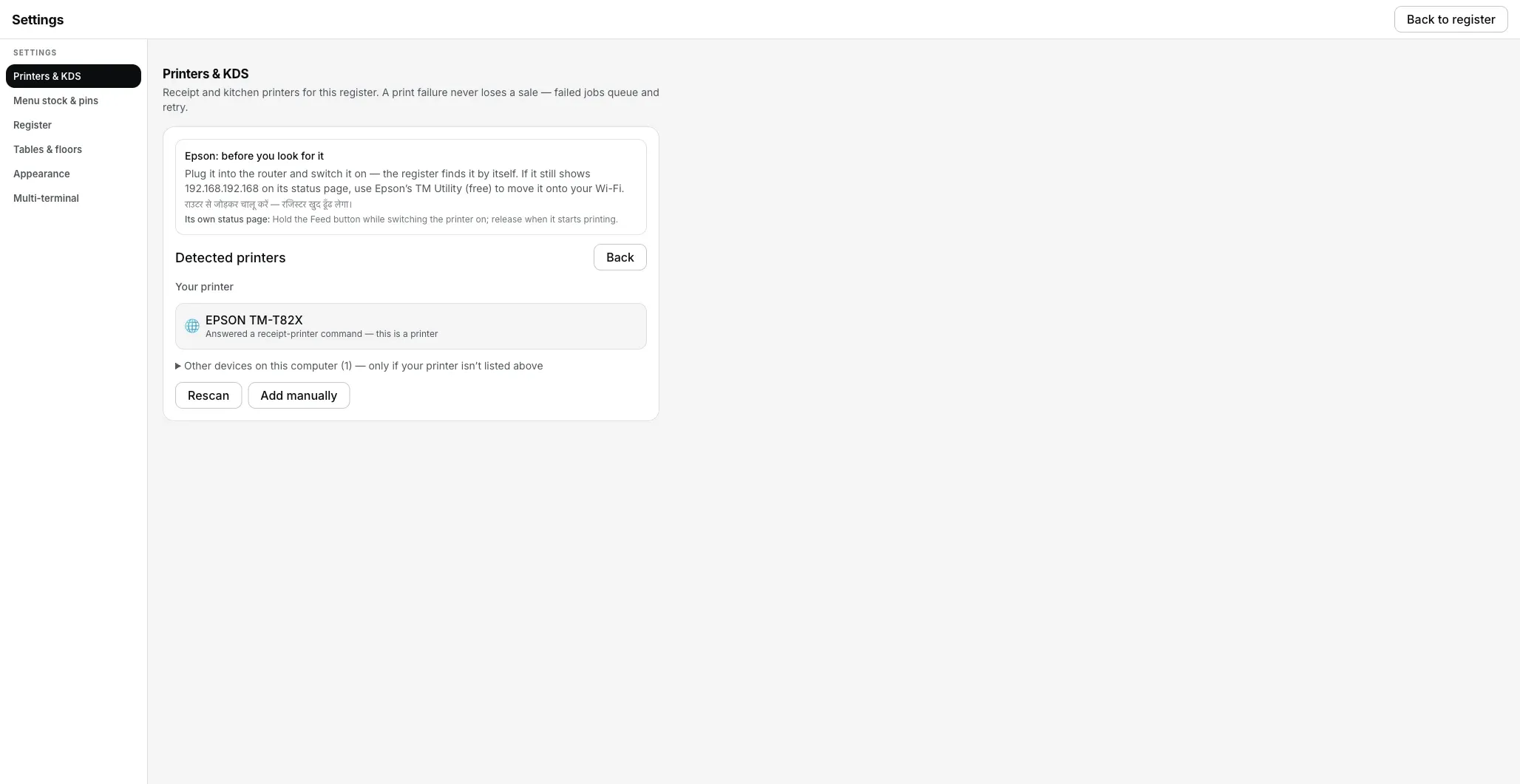
Detect printers found the printer on the network and says why. No driver was installed.
- USB printers: on Windows the Desktop App uses Windows' own built-in USB printing driver, so there is no maker driver to install.
- Already installed in Windows? In Add manually, pick Windows printer (driver queue — no live status). It prints, but through that route the Desktop App cannot see paper-out or an open cover, so Network or USB is better when you have the choice.
- The bill is saved before it prints. If the printer is off, the sale is not lost: the ticket waits in the print queue and retries by itself for 5 minutes. Still stuck after that, it stops and waits for a tap of Print.
- Check printer asks five questions in one go: power and network, cover, language, health and a test slip.
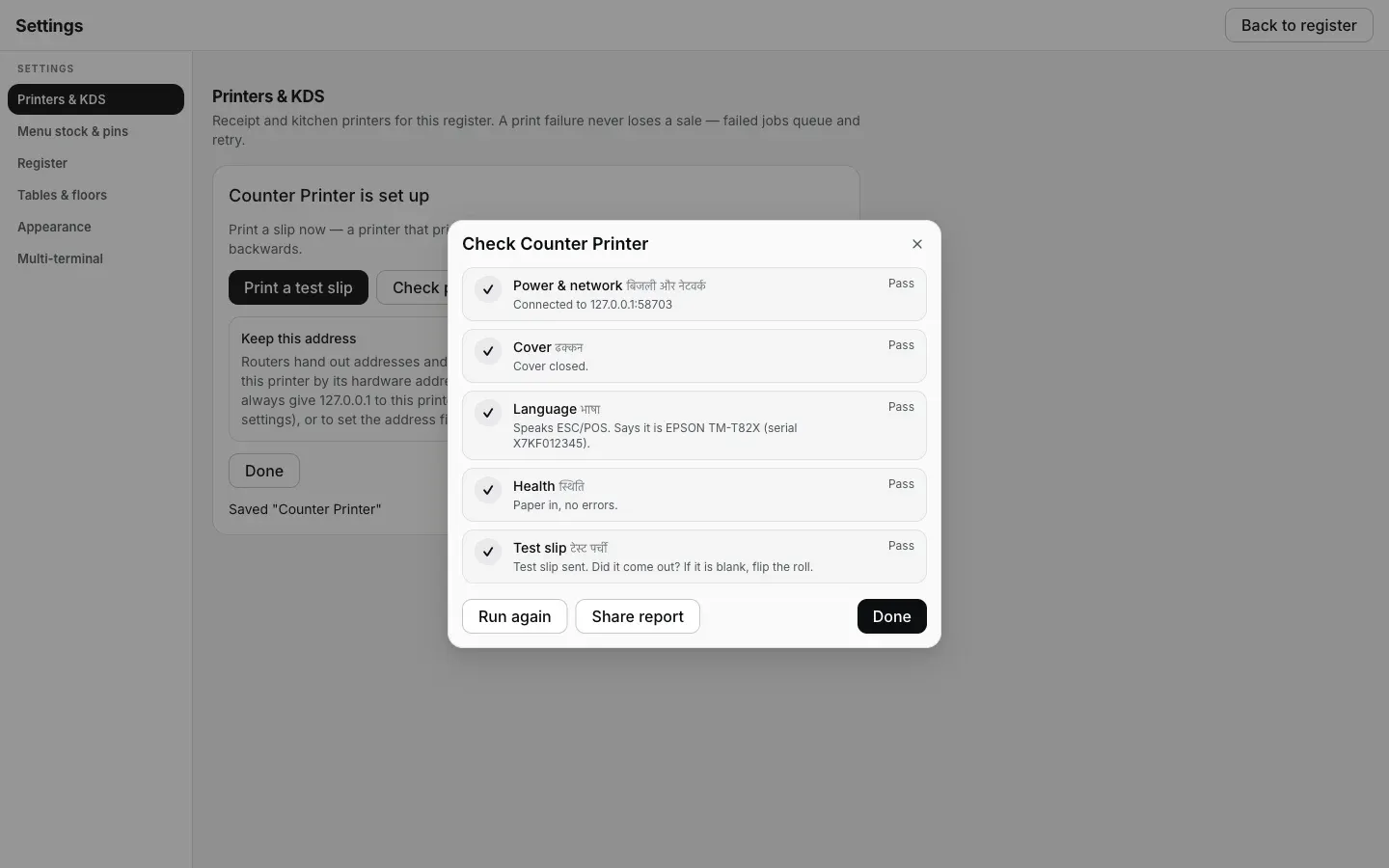
Check printer: five checks, each with a plain result.
Honestly: no printer model is certified by us yet. Our real-hardware record so far is a USB print on the Mac Desktop App on 17 Sept 2026. So we do not say "works with brand X"; the ten-second test slip is the proof for your printer. Full walk-through: connect a thermal printer to EasyKOT. Get the Desktop App from the download page.
₹299/month or ₹2,990/year, plus 18% GST · 3 months free · ₹0 today, no card
Straight answers.
How do I install a thermal printer driver on Windows?
Where do I download my thermal printer's driver?
The driver installed but nothing prints. Why?
Why does my bill print tiny or half-width?
Can I use the Generic / Text Only driver?
My printer disappeared in Windows 11. What happened?
Does EasyKOT need this driver?
Next: thermal printer not printing · printer offline on Windows · receipts from Chrome · USB printer not found · printer on a different network · connect a printer to EasyKOT
Run it 3 months, then pay for it.
Three months free, full product, no card. Made in India, for the counter: built inside a running restaurant.