Thermal printer offline or stuck on Windows.
The short answer: open the printer's queue and clear the Use Printer Offline and Pause Printing ticks. If jobs are still stuck, restart the Print Spooler and empty its folder. For a USB printer, check whether the cable moved to another socket; for a network printer, check its IP and the SNMP setting. The fix is the same whatever billing software you use.
Windows 10 and 11 · any thermal receipt printer · what EasyKOT does differently is in its own section below
The checklist for an Offline printer
The order follows Microsoft's own steps, easiest first. Print a test page after each step and stop as soon as the printer comes back. Each step is explained in detail below.
Switch the printer off, wait 30 seconds, switch it on
Turn it off, unplug it, wait 30 seconds, plug it back in and turn it on. While you are there, check it has paper and the cover is clicked shut.
Untick Pause Printing and Use Printer Offline
Settings → Bluetooth & devices → Printers & scanners → your printer → Open print queue. Open the Printer menu and clear both ticks. These two stop more printers than anything else on this list.
Cancel every stuck job
In the same queue window, cancel all the jobs. One stuck bill holds up every bill behind it.
Restart the Print Spooler
Press Windows + R, type services.msc and press Enter. Find Print Spooler in the list, right-click it and choose Restart.
Still stuck? Empty the spooler's folder
Right-click Print Spooler and choose Stop. In File Explorer open C:\Windows\System32\spool\PRINTERS and delete everything inside it, not the folder itself. Back in services.msc, right-click Print Spooler and choose Start.
USB printer: check the port
Printer properties → Ports tab. Moving the cable to another USB socket makes Windows create a new port (USB002 instead of USB001). Tick the other USB00x, Apply, then Print Test Page on the General tab.
Network printer: check the IP and SNMP
Read the printer's IP off its self-test slip (hold Feed while switching it on). The same IP must be in Printer properties → Ports → Configure Port. In that same window, untick SNMP Status Enabled.
Set it as default, then remove, re-add and restart
In Printers & scanners, choose Set as default. Still Offline? Remove the printer, install the maker's driver again, and restart the PC once.
Two ticks that stop everything: Use Printer Offline and Pause Printing
The printer is fine; Windows has simply been told to treat it as offline. Usually someone clicked it by accident and nobody remembers doing it. While either tick is on, bills wait in the queue.
- Windows 11: Settings → Bluetooth & devices → Printers & scanners. Windows 10: Settings → Devices → Printers & scanners.
- Select your thermal printer and choose Open print queue.
- Open the Printer menu and clear both Use Printer Offline and Pause Printing.
- No Printer menu in your queue window? Open Control Panel → Hardware and Sound → Devices and Printers, right-click the printer and choose See what's printing. That window has the menu.
Source: Microsoft Support, troubleshooting offline printer problems.
Jobs stuck in the queue? Restart and clear the Print Spooler
The Print Spooler is the Windows service that lines up every print job. When one job sticks, every bill behind it sticks too, which is why a single failed print can hold up the whole counter.
The quick version: cancel the jobs and restart the spooler
- Cancel every job in the print queue.
- Press Windows + R, type
services.mscand press Enter. - Find Print Spooler, right-click it and choose Restart.
Still stuck? Empty the spool folder
- In services.msc, right-click Print Spooler and choose Stop.
- In File Explorer, open
C:\Windows\System32\spool\PRINTERSand delete every file inside it. Leave the folder itself alone. - Right-click Print Spooler and choose Start.
- Switch the printer off for 60 seconds, switch it on, and restart the PC once.
The same from a Command Prompt: type cmd in Start, choose Run as administrator, then run net stop spooler, delete the files in the folder above, and run net start spooler. Without administrator rights the command answers "Access is denied".
Source: Microsoft Support, fix print jobs stuck in the queue. The two commands are not on that page; they are the command-line form of the same services.msc steps.
Worked yesterday, not today? The cable moved sockets: USB001 vs USB002
This is the receipt-printer classic. Someone unplugged the cable while cleaning and put it back in a different USB socket. Windows created a new port for the printer, USB002, while the printer's queue keeps sending bills to the old USB001, where nothing is listening.
- Printers & scanners → your printer → Printer properties → Ports tab.
- You will see ports such as USB001, USB002 and USB003. Tick a USB00x other than the one ticked now and press Apply.
- On the General tab, press Print Test Page. No slip? Try the next USB00x.
- Once it prints, leave the cable where it is. One owner fixed it for good by keeping the cable in a front socket, which pinned the port.
Source: Microsoft Q&A, Windows changes the USB printer port on restart. If Windows does not see the USB printer at all, read USB printer not found.
Network printer: a new IP after a power cut, or SNMP calling it Offline
A network printer goes Offline in Windows for two separate reasons, and each takes two minutes to fix.
1. A power cut restarted the router and the printer got a new IP
A router lends each device its address for a while. After a power cut the printer can come back on a new address while the Windows port keeps knocking on the old one.
- Print the printer's self-test slip: hold Feed while you switch it on. The current IP is printed on it.
- Printer properties → Ports → select the printer's Standard TCP/IP port → Configure Port. Put the new IP in Printer Name or IP Address, then OK and Apply.
- The first three numbers of the laptop's and printer's IPs must match (192.168.1.x with 192.168.1.x). If they do not, they are on different networks: see printer on a different network.
- The lasting fix is reserving the printer's address on the router so the next power cut cannot move it. The reservation steps are here.
2. SNMP Status Enabled: the printer works, Windows disagrees
Windows asks a network printer how it is doing over a protocol called SNMP. Most inexpensive thermal printers never answer SNMP, so Windows marks them Offline even though they would print a bill right now.
- Printer properties → Ports → the printer's Standard TCP/IP port → Configure Port.
- Untick SNMP Status Enabled, then OK and Apply.
- Print a test page. The printer should now read Ready.
Source: Xerox knowledge base KB0234323, which applies to any Standard TCP/IP port. The full story after a router restart: printer offline after a router restart.
COM ports, Bluetooth and a vanished printer: the rest of the Offline cases
| What you see | Usual cause | Fix |
|---|---|---|
| Device Manager shows the printer as a COM port or an Unknown device | There is a USB-to-serial chip inside (often a CH340) and its driver is missing | Install the CH341SER driver from WCH, the chip's maker, then use the COM number under Device Manager → Ports (COM & LPT). Baud from the self-test slip, usually 9600. |
| Bluetooth printer paired to the laptop but Offline | The software is sending to the wrong COM port | Bluetooth settings → More Bluetooth settings → COM Ports tab. Give the software the number of the printer's Outgoing port. |
| The printer vanished from the list | Someone switched on Windows protected print mode in Windows 11, which removes printers that use a maker's driver | Printers & scanners → Printer preferences → turn Windows protected print mode off, then install the printer again. |
| Driver is unavailable under the printer's name | The queue exists but its driver is broken or missing | Remove the printer and reinstall the maker's driver for 64-bit Windows from the maker's own site. |
Sources: WCH, CH341SER driver · Microsoft Learn, Windows protected print mode. Where to get the maker's driver and how to install it: install a thermal printer driver on Windows.
In EasyKOT: no driver, no queue. Press Detect and the printer is found.
Every fix above exists for one reason: your billing software hands the bill to the Windows print queue, and the queue depends on a driver, a port and the spooler. Each of those is one more thing to go Offline.
The EasyKOT Desktop App is built to talk to network and USB printers directly. It dials a network printer on port 9100 itself, and on Windows it opens a USB printer through Windows' own built-in USB printing driver. No maker's driver to install, no USB001 versus USB002, no Use Printer Offline tick, no spooler to restart.
Plug the printer in, then in Settings → Printers & KDS press Detect printers. The Desktop App searches in four rounds and tells you which one it is on: this computer's USB and Bluetooth ports, the printer makers' factory addresses, a broadcast asking the network which printers are there, and finally a sweep of the Wi-Fi for anything on port 9100. Every result carries a plain reason for why it looks like a printer, and the surest match is listed first.
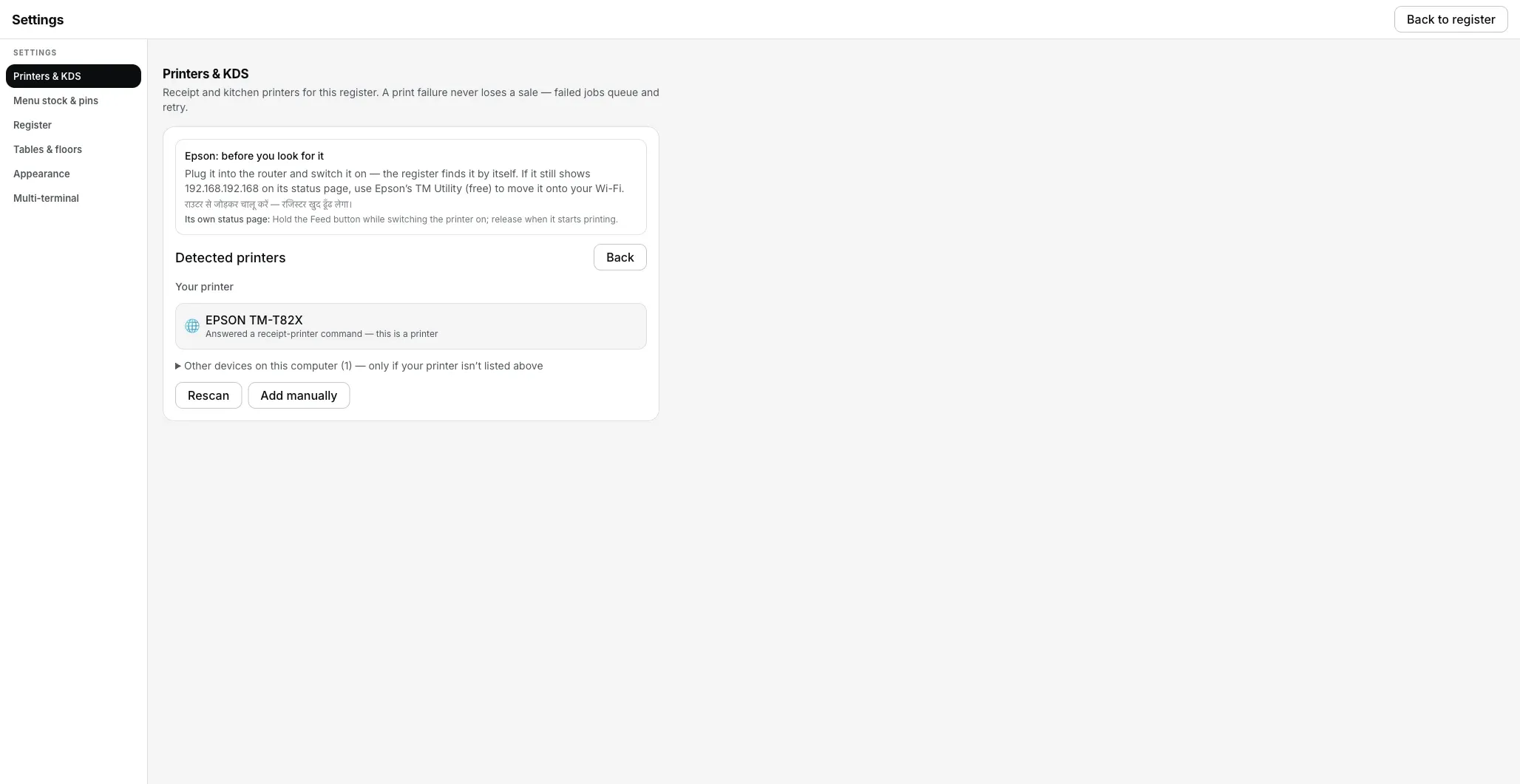
Detect printers: a printer found on the network, with the reason. A real Desktop App screenshot.
- The IP changed? The Desktop App also remembers the printer by its hardware (MAC) address, and when the router moves it, looks for it on the network before asking you.
- A stuck printer never costs a sale. The bill is saved on the laptop first and printed after. A failed ticket retries by itself: 1, 2, 5, 15, 30 and 60 seconds, then every minute — for 5 minutes. Still stuck after that, it stops and waits for Print.
- Offline means one thing. Connected or Offline on the printer row is the Desktop App's own check, not a Windows tick. In doubt, press Check printer: it asks the five questions a support call would ask and names the first one that fails.
- Printer already installed in Windows? You can add it as a System printer too. Bills then travel through the Windows queue and the fixes above apply to it, so pick Network or USB when you have the choice.
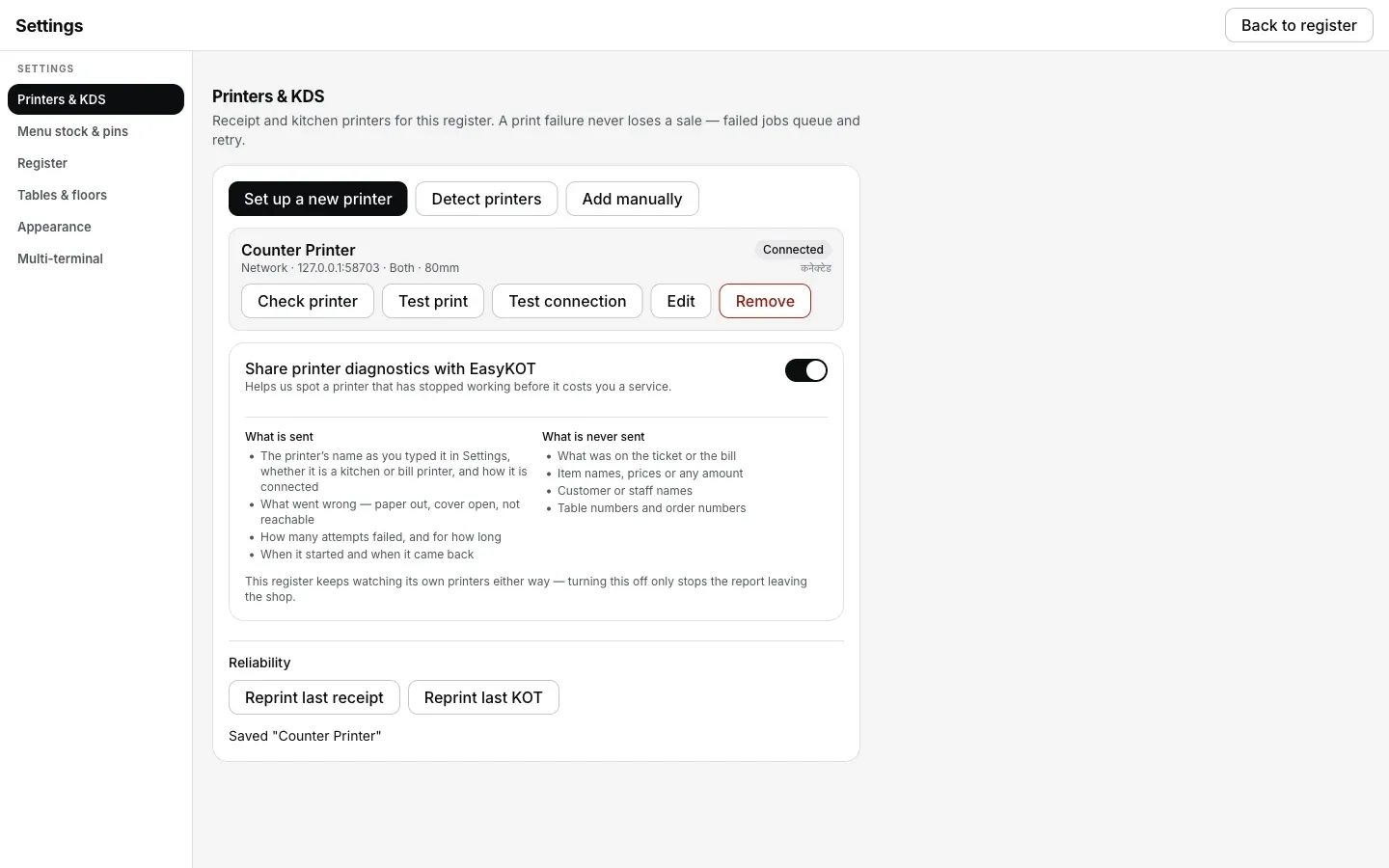
Settings → Printers & KDS: the printer row with the Desktop App's own live status.
To be straight with you: no printer model is certified by us yet, and the Windows path has not been through our hardware runbook on a real Windows machine. Our real-printer record so far is a USB print from the Mac Desktop App. So we name no brand as working: the Test print slip is your proof. If the slip comes out, bills will too.
₹299/month or ₹2,990/year, plus 18% GST · 3 months free · ₹0 today, no card. Want to look first? Run the Desktop App in your browser. Sample bills and KOTs open through the normal print dialog; printer discovery and automatic printing stay in the Desktop App.
Straight answers.
Why does Windows say my printer is Offline when it is switched on?
How do I turn off Use Printer Offline?
How do I clear the print spooler?
I moved the USB cable to another socket and the printer stopped. Why?
Why does my network printer go Offline after every power cut?
Do I need any of this in EasyKOT?
Next: printer not printing · install a thermal printer driver · receipts from Chrome: size and margins · USB printer not found · printer on a different network · connect a thermal printer
Run it 3 months, then pay for it.
Three months free, full product, no card. Made in India, for the counter: built inside a running restaurant.