Windows pe printer Offline dikha raha hai, ya bill queue mein atka hai?
Seedha jawaab: printer ki queue kholo aur Use Printer Offline aur Pause Printing ka tick hatao. Phir bhi atka hai toh Print Spooler restart karo aur uska folder khaali karo. USB printer hai toh dekho cable doosre socket mein toh nahi gayi, network printer hai toh uska IP aur SNMP check karo. Billing software koi bhi ho, fix yahi hai.
Windows 10 aur 11 · kisi bhi thermal receipt printer ke liye · EasyKOT ka section neeche alag se
Offline printer ko wapas laane ki checklist
Order Microsoft ke apne steps pe based hai, sabse aasaan pehle. Har step ke baad ek test print nikaal ke dekho: jahan printer chal pada, wahin ruk jao. Neeche har step detail mein hai.
Printer band karo, 30 second ruko, phir chalu karo
Switch off karo, plug nikaalo, 30 second ruko, phir lagao aur on karo. Paper hai aur cover click hone tak band hai, yeh bhi dekh lo.
Pause Printing aur Use Printer Offline ka tick hatao
Settings → Bluetooth & devices → Printers & scanners → apna printer → Open print queue. Printer menu kholo aur dono tick hatao. Yeh do tick hi sabse zyada printer rok ke rakhte hain.
Atke hue saare jobs cancel karo
Usi queue window mein saare jobs cancel karo. Ek atka hua bill apne peeche ke saare bills rok leta hai.
Print Spooler restart karo
Windows + R dabao, services.msc likho, Enter. List mein Print Spooler dhoondo, right-click karo aur Restart dabao.
Phir bhi atka hai? Spooler ka folder khaali karo
Print Spooler pe right-click karke Stop. File Explorer mein C:\Windows\System32\spool\PRINTERS kholo aur andar ki saari files delete karo, folder nahi. Wapas services.msc mein Print Spooler pe Start dabao.
USB printer hai toh port check karo
Printer properties → Ports tab. Cable doosre USB socket mein gayi toh Windows naya port bana deta hai (USB001 ki jagah USB002). Doosra USB00x tick karo, Apply, phir General tab pe Print Test Page.
Network printer hai toh IP aur SNMP check karo
Printer ki self-test slip pe IP padho (Feed daba ke on karo). Printer properties → Ports → Configure Port mein wahi IP hona chahiye. Wahin SNMP Status Enabled ka tick hatao.
Default banao, phir remove karke dobara add karo, PC restart karo
Printers & scanners mein printer ko Set as default karo. Ab bhi Offline hai toh Remove karo, company ka driver dobara install karo, aur PC ek baar restart karo.
Do tick jo sab kuch rok dete hain: Use Printer Offline aur Pause Printing
Printer bilkul theek hai, bas Windows ko bola gaya hai ki use offline maano. Aksar kisi ne galti se click kar diya, aur kisi ko yaad bhi nahi. Jab tak tick laga hai, bill queue mein baithe rahenge.
- Windows 11: Settings → Bluetooth & devices → Printers & scanners. Windows 10: Settings → Devices → Printers & scanners.
- Apna thermal printer chuno aur Open print queue dabao.
- Upar Printer menu kholo. Use Printer Offline aur Pause Printing, dono ka tick hatao.
- Queue window mein Printer menu nahi dikh raha? Control Panel → Hardware and Sound → Devices and Printers kholo, printer pe right-click karke See what's printing chuno. Wahan menu milega.
Bill queue mein atka hai? Print Spooler restart karo aur saaf karo
Print Spooler Windows ka woh service hai jo har print job line mein lagata hai. Ek job atka, toh uske peeche wale saare bill bhi atke. Friday raat ke rush mein yahi scene sabse zyada hota hai.
Pehle aasaan wala: jobs cancel karo aur spooler restart karo
- Print queue mein saare jobs cancel karo.
- Windows + R dabao,
services.msclikho, Enter. - Print Spooler dhoondo, right-click karo, Restart.
Phir bhi nahi hua? Spool folder khaali karo
- services.msc mein Print Spooler pe right-click, Stop.
- File Explorer mein
C:\Windows\System32\spool\PRINTERSkholo aur andar ki saari files delete karo. Folder ko mat chhedo. - Print Spooler pe right-click, Start.
- Printer 60 second band rakho, phir on karo, aur PC ek baar restart karo.
Command Prompt se yahi kaam: Start mein cmd likho, Run as administrator chuno, phir net stop spooler. Upar wale folder ki files delete karo, phir net start spooler. Admin ke bina yeh command "Access is denied" bolegi.
Source: Microsoft Support, queue mein atke print job. Command Prompt wale do commands us page pe nahi hain, woh services.msc ka hi doosra raasta hain.
Kal chal raha tha, aaj nahi? Cable doosre socket mein gayi: USB001 ya USB002
Yeh receipt printer ka sabse classic locha hai. Kisi ne safai ke time cable nikaal ke doosre USB socket mein laga di. Windows ne printer ke liye naya port bana diya, USB002, aur printer ki queue ab bhi purane USB001 pe bill bhej rahi hai. Printer ko kuch mil hi nahi raha.
- Printers & scanners → printer → Printer properties → Ports tab.
- List mein USB001, USB002, USB003 jaise ports dikhenge. Jo abhi tick hai, uske alawa doosra USB00x tick karo aur Apply.
- General tab pe Print Test Page. Slip nahi aayi toh agla USB00x try karo.
- Chal gaya toh cable ko wahin rehne do. Ek owner ne cable front ke socket mein pakki kar di aur port hamesha ke liye ek hi raha.
Source: Microsoft Q&A, restart ke baad USB printer port badalna. USB printer Windows mein dikh hi nahi raha, toh USB printer not found wala guide dekho.
Network printer: power cut ke baad IP badla, ya SNMP use Offline bol raha hai
Network printer ke Offline hone ki do alag wajah hain, aur dono ka fix 2 minute ka hai.
1. Light gayi, router restart hua, printer ka IP badal gaya
Router har device ko address kuch time ke liye udhaar deta hai. Power cut ke baad printer ko naya address mil sakta hai, jabki Windows ka port purane address pe khatkhata raha hai.
- Printer ki self-test slip nikaalo: Feed daba ke rakho aur printer on karo. Slip pe naya IP likha hota hai.
- Printer properties → Ports → printer ka port (Standard TCP/IP) chuno → Configure Port. Printer Name or IP Address mein naya IP daalo, OK, Apply.
- Laptop aur printer ke IP ke pehle teen number same hone chahiye (192.168.1.x ke saath 192.168.1.x). Nahi hain toh dono alag network pe hain: printer doosre network pe hai wala guide dekho.
- Pakka fix: router mein printer ka address reserve karo, taaki agli baar light jaane pe bhi na badle. Reservation ke steps yahan hain.
2. SNMP Status Enabled: printer chal raha hai, Windows maanta nahi
Windows network printer ka haal SNMP naam ke protocol se poochta hai. Zyada tar saste thermal printer SNMP ka jawaab dete hi nahi, toh Windows unhe Offline maan leta hai, bhale hi printer bill chhaapne ko ready ho.
- Printer properties → Ports → printer ka Standard TCP/IP port → Configure Port.
- SNMP Status Enabled ka tick hatao, OK, Apply.
- Test page nikaalo. Printer Ready dikhne lagega.
Source: Xerox knowledge base KB0234323, jo har Standard TCP/IP port pe laagu hota hai. Router restart ke baad printer ka poora scene: router restart ke baad printer Offline.
COM port, Bluetooth, gayab printer: baaki Offline cases
| Kya dikh raha hai | Aksar cause | Fix |
|---|---|---|
| Printer Device Manager mein COM port ya Unknown device dikhta hai | Printer ke andar USB-to-serial chip hai (aksar CH340), aur uska driver nahi hai | Chip banane wali company WCH ka CH341SER driver daalo, phir Device Manager → Ports (COM & LPT) wala COM number use karo. Baud self-test slip se, aksar 9600. |
| Laptop pe Bluetooth printer paired hai par Offline | Software galat COM port pe bhej raha hai | Bluetooth settings → More Bluetooth settings → COM Ports tab. Printer ka Outgoing port wala number software mein daalo. |
| Printer list se hi gayab ho gaya | Kisi ne Windows 11 mein Windows protected print mode on kar diya. Yeh company ke driver wale printers hata deta hai | Printers & scanners → Printer preferences → Windows protected print mode band karo, phir printer dobara install karo. |
| Printer ke neeche Driver is unavailable | Queue hai par driver kharab ya missing | Printer remove karo aur company ki site se 64-bit Windows wala driver dobara daalo. |
Sources: WCH, CH341SER driver · Microsoft Learn, Windows protected print mode. Driver kahan se aur kaise daalna hai: thermal printer ka driver Windows pe daalo.
EasyKOT mein: bina driver, bina jhanjhat. Detect dabao, printer mil gaya.
Upar ki saari jhanjhat ek hi wajah se hai: aapka billing software bill Windows ki print queue ko deta hai, aur queue driver, port aur spooler ke bharose chalti hai. Beech mein jitni cheezein, utne locha.
EasyKOT Desktop App network aur USB printer se seedha baat karne ke liye bana hai. Network printer ko woh port 9100 pe khud dial karta hai, aur Windows pe USB printer ko Windows ke apne built-in USB printing driver se kholta hai. Company ka driver install karna nahi, USB001 aur USB002 ka chakkar nahi, Use Printer Offline ka tick nahi, spooler restart nahi.
Printer lagao aur Settings → Printers & KDS mein Detect printers dabao. Desktop App chaar round mein dhoondhta hai, aur screen pe batata rehta hai ki abhi kaunsa round chal raha hai: pehle is computer ke USB aur Bluetooth port, phir printer companies ke factory address, phir network se poochta hai ki printer kaun hai, aur aakhir mein poore Wi-Fi pe port 9100 wali har cheez. Har result ke neeche seedhi bhasha mein wajah likhi hoti hai ki use printer kyun maana, aur sabse pakka wala sabse upar.
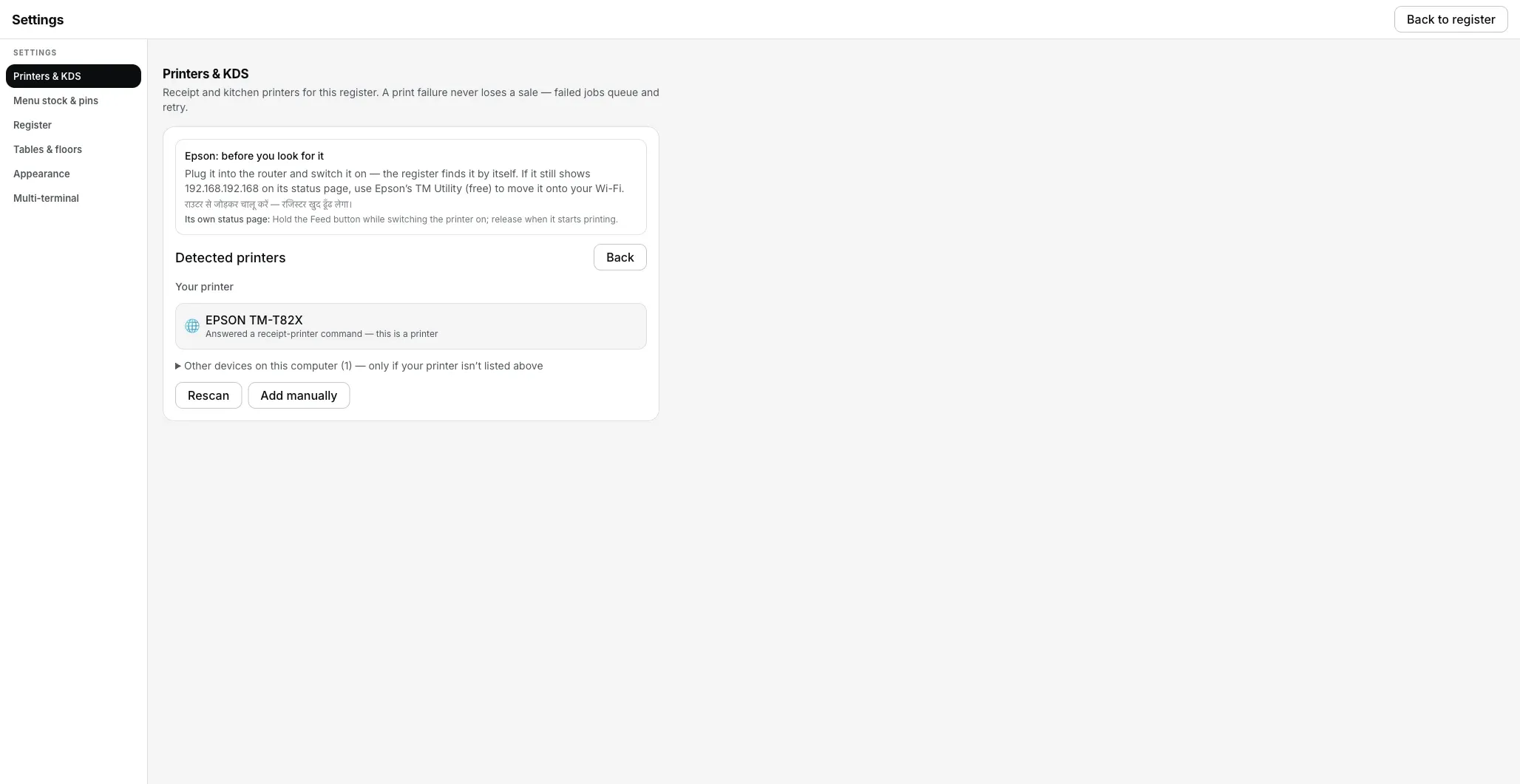
Detect printers: network pe printer mil gaya, wajah ke saath. Asli Desktop App ka screenshot.
- Printer ka IP badla? Desktop App printer ko uske hardware (MAC) address se bhi yaad rakhta hai. Router ne address badla toh aapse poochne se pehle network pe khud dhoondh leta hai.
- Printer atka toh bhi sale safe. Bill pehle laptop pe save hota hai, print baad mein. Fail hua ticket khud retry hota hai: 1, 2, 5, 15, 30, 60 second, phir har minute — 5 minute tak. Phir bhi nahi hua toh ruk jaata hai aur Print ka wait karta hai.
- Offline ka matlab bhi seedha. Row pe Connected ya Offline Desktop App ka apna check hai, Windows ka tick nahi. Shak ho toh Check printer dabao: support call wale 5 sawaal Desktop App khud poochta hai aur pehli dikkat ka naam bata deta hai.
- Printer pehle se Windows mein installed hai? Use System printer ki tarah bhi add kar sakte ho. Tab bill Windows queue se jaata hai, aur upar wale fixes wahan bhi laagu hote hain. Isliye choice ho toh Network ya USB lo.
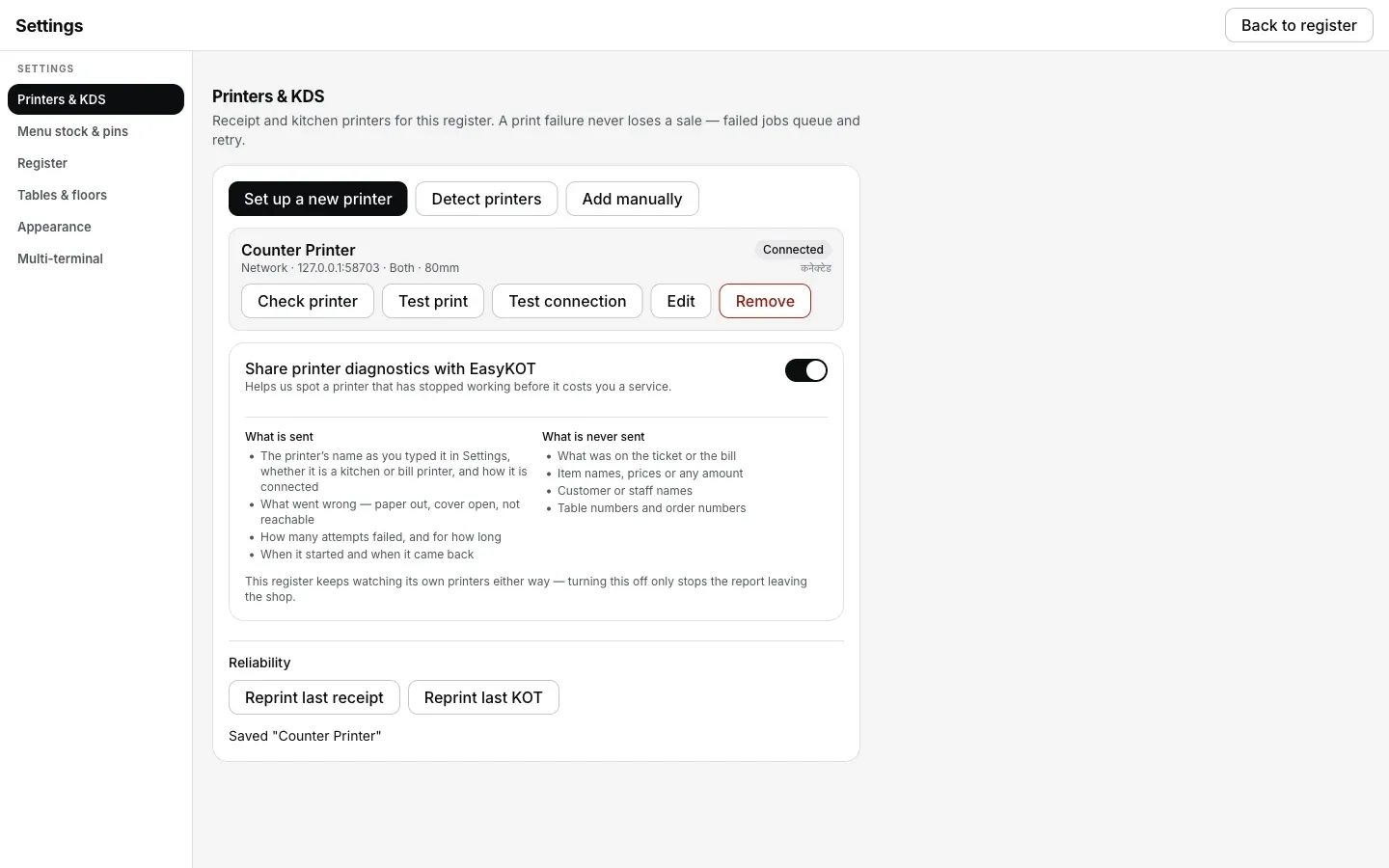
Settings → Printers & KDS: printer ki row, Desktop App ke apne live status ke saath.
Seedhi baat: abhi tak koi printer model hamare yahan certified nahi hai, aur Windows wala raasta abhi asli Windows machine pe hamare hardware runbook se nahi guzra. Asli printer pe hamara record USB ka hai, Mac Desktop App pe. Isliye kisi company ka naam leke "chalega" nahi bolte: Test print ki slip hi aapka proof hai. Slip aa gayi, matlab bill bhi aayega.
₹299/month ya ₹2,990/year, plus 18% GST · 3 mahine free · aaj ₹0, bina card details. Pehle dekhna hai? Desktop App browser mein chala ke dekho. Sample bill aur KOT normal print dialog mein khulte hain; printer detection aur automatic printing Desktop App mein milte hain.
Seedhe jawaab.
Printer on hai, phir bhi Windows Offline kyun dikha raha hai?
Use Printer Offline ka tick kaise hataye?
Print spooler kaise clear kare?
USB cable doosre port mein lagayi aur printer ruk gaya. Kyun?
Network printer har power cut ke baad Offline kyun ho jaata hai?
EasyKOT mein bhi yeh sab karna padega?
Aage: printer print nahi kar raha · thermal printer driver install · Chrome se bill chhota ya aadha · USB printer nahi mil raha · printer doosre network pe · thermal printer laptop se connect karo
3 mahine try kare, phir plan chune.
Restaurant ka kaam hum samajhte hain, kyunki shuruaat bhi wahin se hui. 3 mahine free try kare, bina card details. Hamari kahani padhe.