Printer does not cut
The EasyKOT Desktop App ends every bill, every KOT and every test slip with a standard ESC/POS partial cut, always, with no setting to get wrong. So if the paper is still coming out joined, the question is whether the printer has a cutter at all, and if it does, whether something is stuck in it.
Whatever the printer does, the sale is already saved: the Desktop App writes the bill to its own database first and queues the paper second. The full symptom table covers the rest.
Three possibilities, and the first one is not a fault at all.
- The model has no cutter. A tear-bar printer receives the cut command, has nothing to do with it, and carries on. Common on inexpensive 58mm units and on many portable Bluetooth printers.
- The cutter is jammed. Paper chips and dust build up in the slot until the blade cannot complete its travel. A printer that used to cut and now does not is nearly always this.
- The printer ignores the standard cut. A small number of models expect a vendor-specific sequence, or have been left in an emulation where the standard cut means nothing. Rare, and worth suspecting only after the first two.
Do this first.
Check the printer has an auto-cutter
Look at the paper exit: an auto-cutter is a plastic blade housing running the full width, while a tear bar is a serrated metal strip. The manual is the other check: “auto cutter” or “partial cut” in the specification means it should cut. If there is no cutter, nothing on the software side can produce one, and the tear bar is the intended way to part the slip.
Switch the printer off and clear the slot
Power the printer down, open the cover, and lift out any paper chips or curled offcuts sitting in the cutter channel. Do not force the blade with a metal tool. Close the cover until it clicks and switch it back on: many printers re-home a stuck blade during their own start-up routine.
Read the printer's row in Settings → Printers & KDS
A printer that knows its cutter is stuck says so, and the Desktop App shows “Cutter jammed” with printing paused while it lasts. If the row instead reads Connected while the paper still comes out joined, the printer believes the cut succeeded, which points back to step one, a model that has no cutter or ignores the command.
Run a test print to confirm
The test slip ends with the same partial cut every bill uses, so it is a complete test of the cutter in one key. It also prints the paper width, so you can confirm two things with one slip.
What the printer's row says.
Every printer you have added has a row in Settings → Printers & KDS, and the row carries its own status in words rather than a green dot. These are the exact words for this one.
- While it is wrong: “Cutter jammed” when the printer reports the jam itself: printing pauses and tickets wait in the queue rather than piling into a blocked blade. A model with no cutter reports nothing wrong, and the row stays Connected.
- Once it is fixed: Connected. Clear the jam inside 5 minutes and the held tickets print in order on their own; any longer and they need a tap of Print.
There is no cut setting on the printer form, by design: the Desktop App sends the standard ESC/POS partial cut on every document, so there is no cut option that can be set wrong. What varies is the printer.
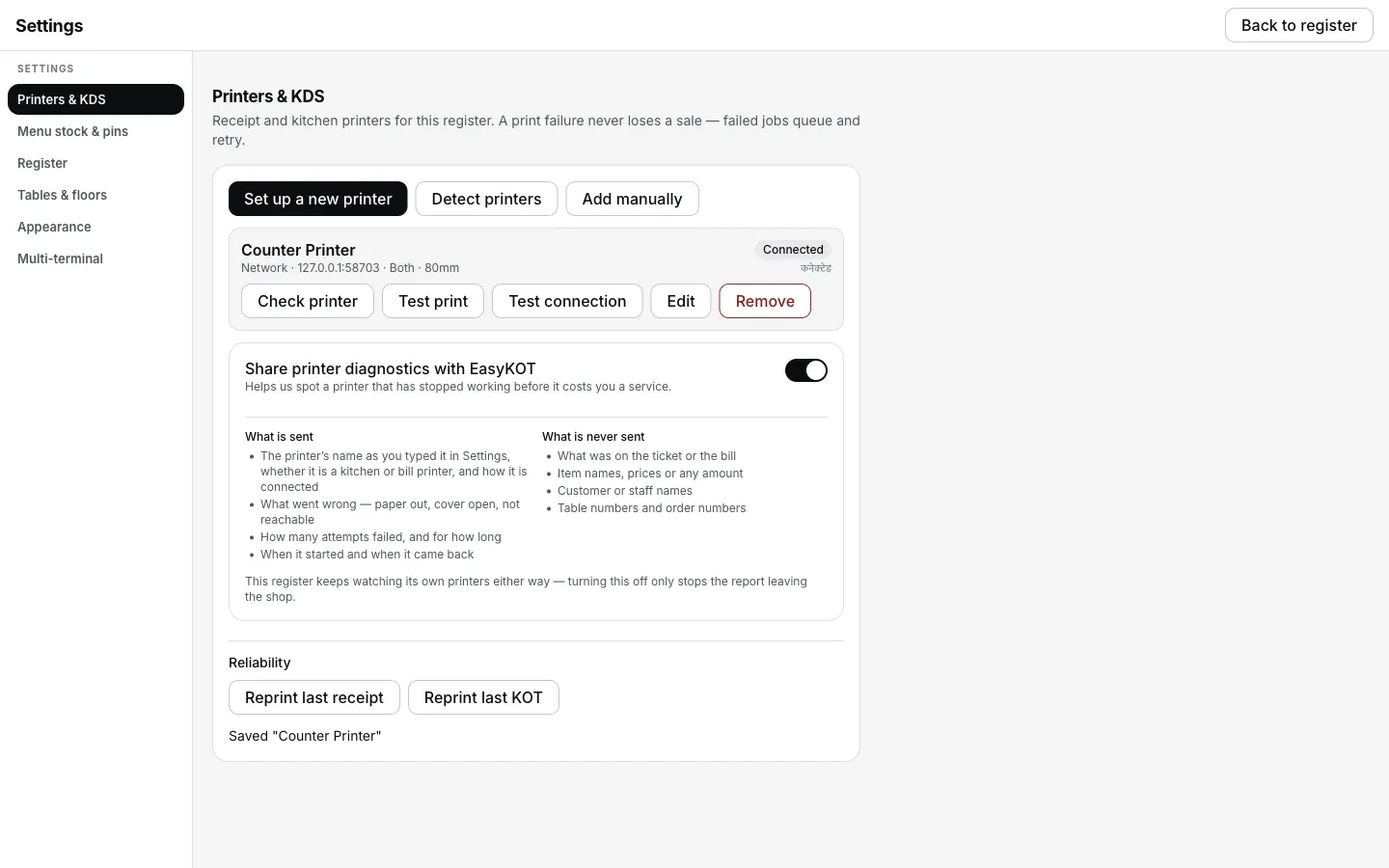
A healthy printer's row stays Connected whether or not the slip actually got cut: the Desktop App cannot see the cut, only whether the printer answered.
Printing what was missed.
- A jam pauses printing, it does not lose tickets. While the printer reports a jam, jobs sit in the print queue in Settings → Printers & KDS with what they are waiting on written next to them. Clear the jam within 5 minutes and they print in order on their own; any longer and Print sends them.
- A ticket that half-printed can be sent again. Failed tickets offer Retry now; older tickets offer Print, and Send to <printer> if you have a second printer. Discard is there too, for the ticket you no longer want.
- Uncut slips are still valid bills. Two bills joined at the perforation are two printed bills with their own numbers. Tear them apart: nothing needs reprinting for the record's sake.
Printer does not cut — the questions that follow.
I bought a cheap 58mm printer — does it even have a cutter?
Can I turn the cut command off?
Why partial and not full?
The cutter cuts but the last line is missing.
If that was not it.
Printer prints garbage
Readable paper, unreadable words: the width, the baud rate and the emulation switch.
Fix the characters →Printer prints once, then stops
One good slip, then a queue that stops draining: sleep, a full buffer, or a quiet paper-out.
Fix the stall →Nothing comes out at all
Every symptom in one table: the cause, the fix, and whether the Desktop App can see it.
Work through the checks →Every printer guide is listed on the guides hub.
Run it 3 months, then pay for it.
Three months free, full product, no card. Made in India, for the counter: built inside a running restaurant.