Printer prints once, then stops
The first ticket came out and nothing since. It is one of three things: the printer went to sleep, its buffer filled up, or it ran out of paper quietly. Start with the print queue in Settings → Printers & KDS (it says what each waiting ticket is waiting on) before walking to the printer.
Whatever the printer does, the sale is already saved: the Desktop App writes the bill to its own database first and queues the paper second. The full symptom table covers the rest.
Something stopped the printer after the first job, and the queue is holding the rest.
- The printer went to sleep. Battery-powered and Wi-Fi printers drop their radio when idle. The first ticket of a quiet hour wakes them and fails; the next one succeeds. Between rushes this is the most common version by far.
- The buffer is full. A printer that has accepted more bytes than it has printed stops accepting more. It usually clears itself once the paper catches up, but a printer that has stalled mid-slip stays full until it is power-cycled.
- The paper ran out quietly. On a printer that reports its paper sensor, the EasyKOT Desktop App shows “Paper out” and pauses printing. On one that reports nothing, the roll simply ends and the Desktop App has no way to know: the printer keeps accepting jobs and heating nothing.
Do this first.
Read the print queue first
Settings → Printers & KDS shows every job that is not finished, what it is, which printer it is aimed at, and its state: Waiting, Printing…, Retrying in 15s (attempt 3), Not printed — waiting for your choice, Not printed — stopped trying, or Needs you — may have printed. That line tells you whether the Desktop App is being refused or is not being answered at all, which is a different problem.
Read the printer's own status on its row
The same screen carries the printer's health in words. “Paper out”, “Cover open” and “Cutter jammed” each pause printing and each have an obvious fix. “Can't verify — will still try to print” means this printer answers no status questions, so the paper in the kitchen is the only evidence. Go and look.
Power-cycle the printer
Switch it off, wait five seconds, switch it on. This clears a full buffer and a stalled cutter, and wakes a sleeping radio. It is the right second step precisely because it fixes two of the three causes at once.
Let the queue drain, and push it if you are in a hurry
Once the printer answers, tickets requested within the last 5 minutes print in order. Choose Print for older tickets still needed, or Discard the rest. If you would rather not wait for the next scheduled attempt, Retry now on the queue row sends it immediately, and Send to <another printer> moves it to a printer that is working.
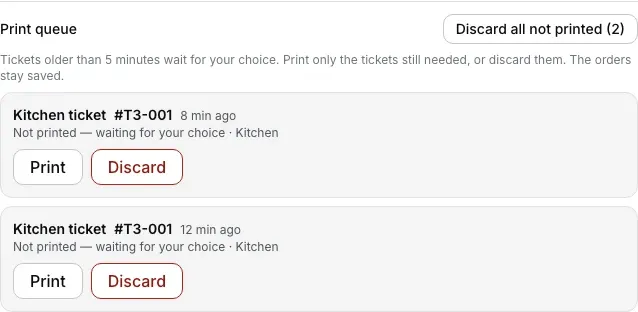
The print queue shows each held ticket and its age. Choose Print for paper still needed, or Discard; the order stays saved.
What the printer's row says.
Every printer you have added has a row in Settings → Printers & KDS, and the row carries its own status in words rather than a green dot. These are the exact words for this one.
- While it is wrong: Usually “Connected” or “Can't verify — will still try to print”, with tickets stacking up in the queue below: a printer that accepts a connection and does nothing with it looks healthy from outside. If the printer reports its own fault you get the specific word instead: “Paper out”, “Cover open”, “Cutter jammed”, “Printer paused” or “Printer cooling down”.
- Once it is fixed: “Connected”. Tickets requested within the last 5 minutes print automatically; older tickets wait for your choice.
“Printer cooling down” is not a fault and needs nothing from you: a thermal head that has printed a long run protects itself and resumes in a moment. The Desktop App says so rather than showing a red state you would act on.
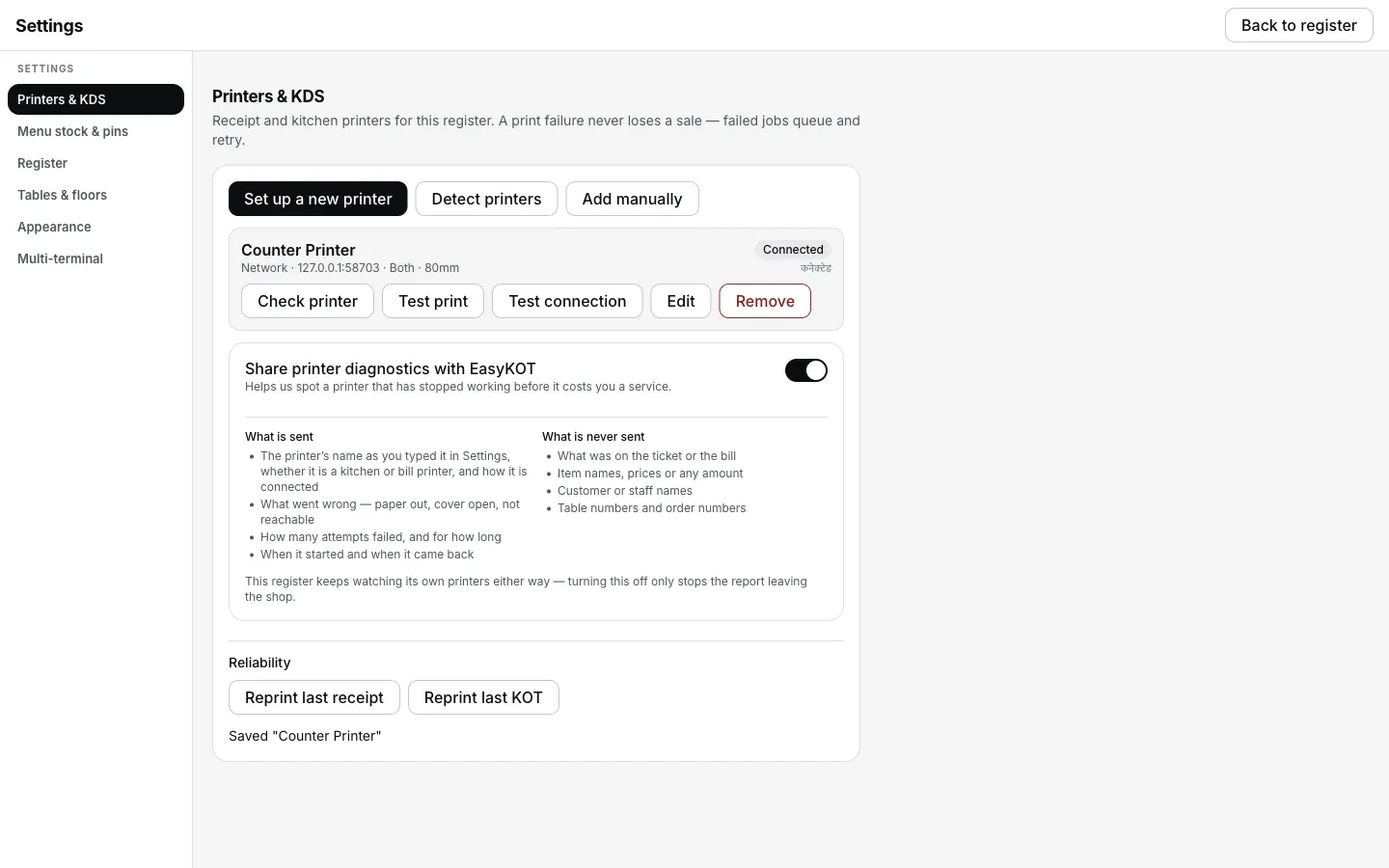
Once the printer answers again, the row reads Connected and tickets requested within the last 5 minutes print in order; older tickets wait for your choice.
Printing what was missed.
- Nothing in the queue is lost. Jobs survive the app being closed and the laptop being restarted; they are stored on the Desktop App itself, not held in memory.
- After 5 minutes it asks for you. The row reads “Not printed — waiting for your choice” and stays visible with Print, Send to <another printer> and Discard on it. A ticket for food already cooked and served is a reasonable Discard.
- A ticket that may have printed is never retried automatically. If the link died after the bytes were sent, the job is parked as “Needs you — may have printed” and waits for a human, because a blind retry is exactly how a customer ends up with two bills.
Printer prints once, then stops — the questions that follow.
The tickets are in the queue — will they print by themselves?
Why does my thermal printer stop after one receipt?
Does the Desktop App keep trying, or do I have to?
The KOT screen shows the ticket but the kitchen printer never printed it.
If that was not it.
Two bills came out
The other side of the same coin: what “may have printed” means and why the copy says DUPLICATE.
Read about duplicates →Printer does not cut
Joined slips, a jammed blade, and the status the Desktop App shows for it.
Fix the cutter →Nothing comes out at all
Every symptom in one table: the cause, the fix, and whether the Desktop App can see it.
Work through the checks →Every printer guide is listed on the guides hub.
Run it 3 months, then pay for it.
Three months free, full product, no card. Made in India, for the counter: built inside a running restaurant.