Every bill, and what sold best, in one tap.
The owner dashboard has two new pages. Orders lists every bill in the dates you pick: the table, the items, how it was paid, the total. Tap a bill and the whole bill opens, row for row what the register printed. Items sold ranks every dish by how much it sold, best seller first. No more calling the counter to ask.
From the bill list to your best sellers, in five steps.
Open Orders in the dashboard
Sign in at app.easykot.com. In the left menu, under Reports, "Orders" sits right below Dashboard. Pick the dates at the top: Today, Yesterday, This week, This month, or your own From and To. Four tiles lead the page: how many bills settled, what they came to with GST, how many checks are running now, and how many were written off.
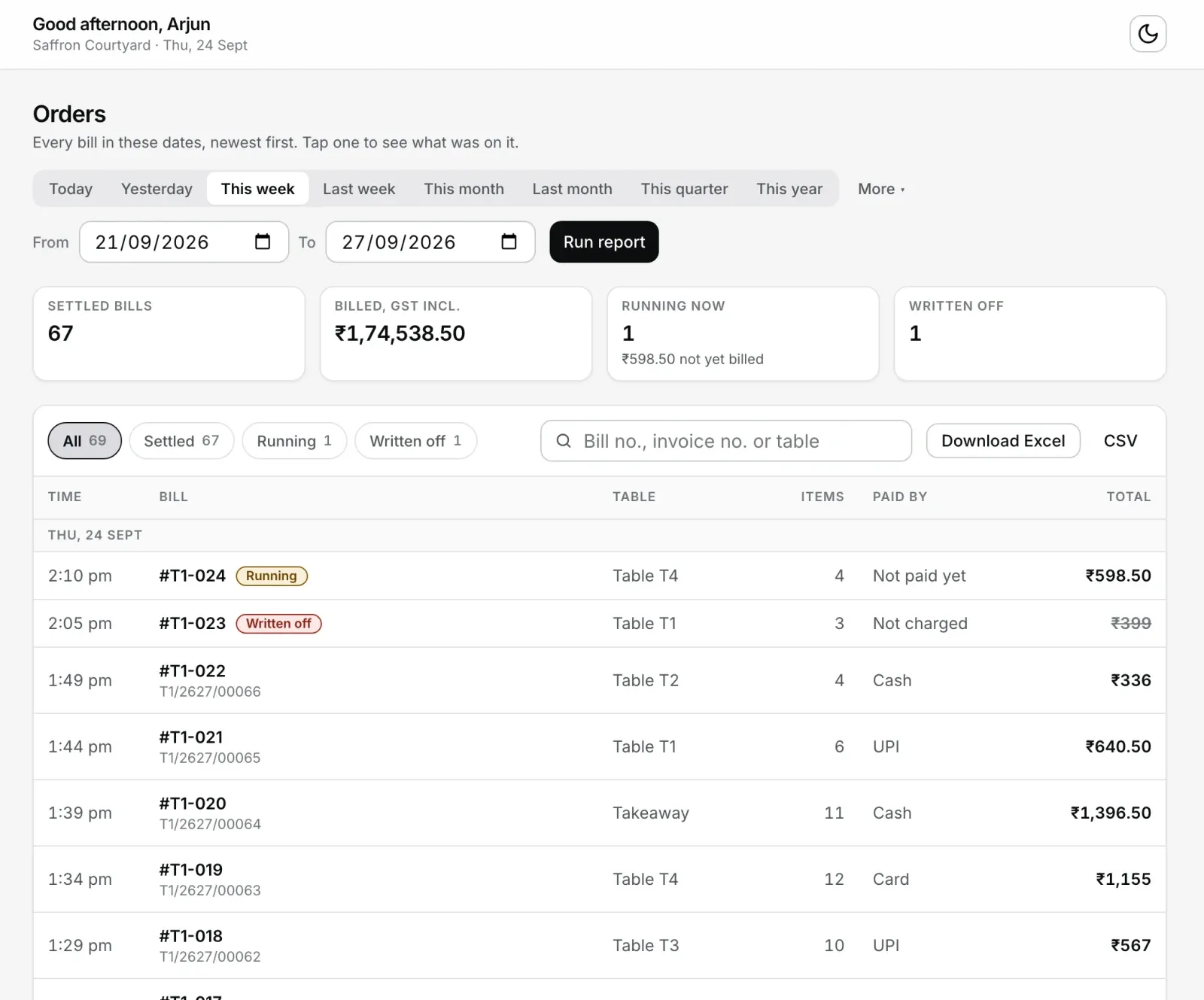
Steps 1-2: every bill in one table, grouped by day, counts and totals on top.
Find a bill: filter or search
Above the list are four buttons: All, Settled, "Running" and "Written off", each with its count. Press one to see only those bills. Type a bill number, an invoice number or a table's name into the search box to find one bill. Bills are grouped by day, and a bill closed at 1 AM sits under the night before, because a restaurant's day turns over at 4 AM. Fifty bills load at a time; "Show more" at the bottom brings the rest.
Tap a bill to see the whole bill
The bill shows every item and what it cost, Half or Full, add-ons and kitchen notes. A cancelled item is struck through and marked "Cancelled". Below come Subtotal, Discount, CGST, SGST, Round off, Total and how it was paid, such as Paid (UPI), with the invoice number, when the bill opened and settled, and the customer if one was added. It is the same calculation the register prints with, so the two never disagree. A written-off check says nothing was charged, and why.
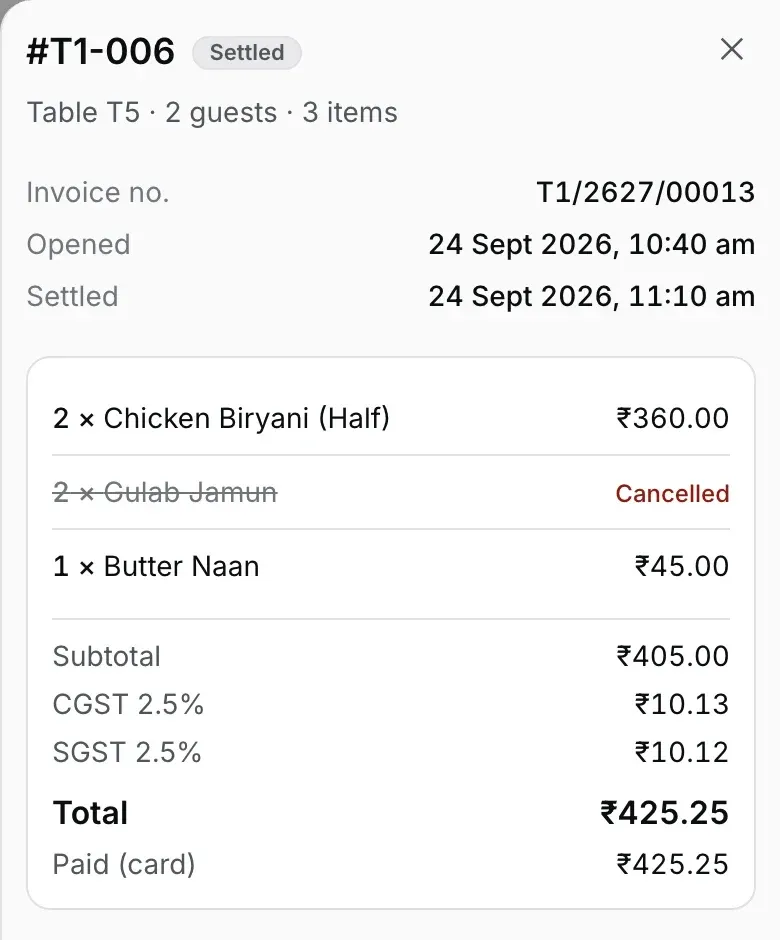
Step 3: the same rows the paper printed.
Open Items sold for your best sellers
"Items sold" sits under Orders in the menu. Every dish, how many sold and for how much, best seller first. "Most sold" ranks by quantity, "Highest sales" by rupees: the chai may sell 200 cups while the biryani brings in the money. On a laptop it is a table: click any column heading to sort by it. Press "By category" for a row per category (Starters, Main Course and the rest) with its totals, and click a category to fold it. A 200 or 300 dish menu scrolls inside the table, so the page stays short. Search for a dish and it keeps its rank. At the bottom: the dishes that did not sell once in these dates.
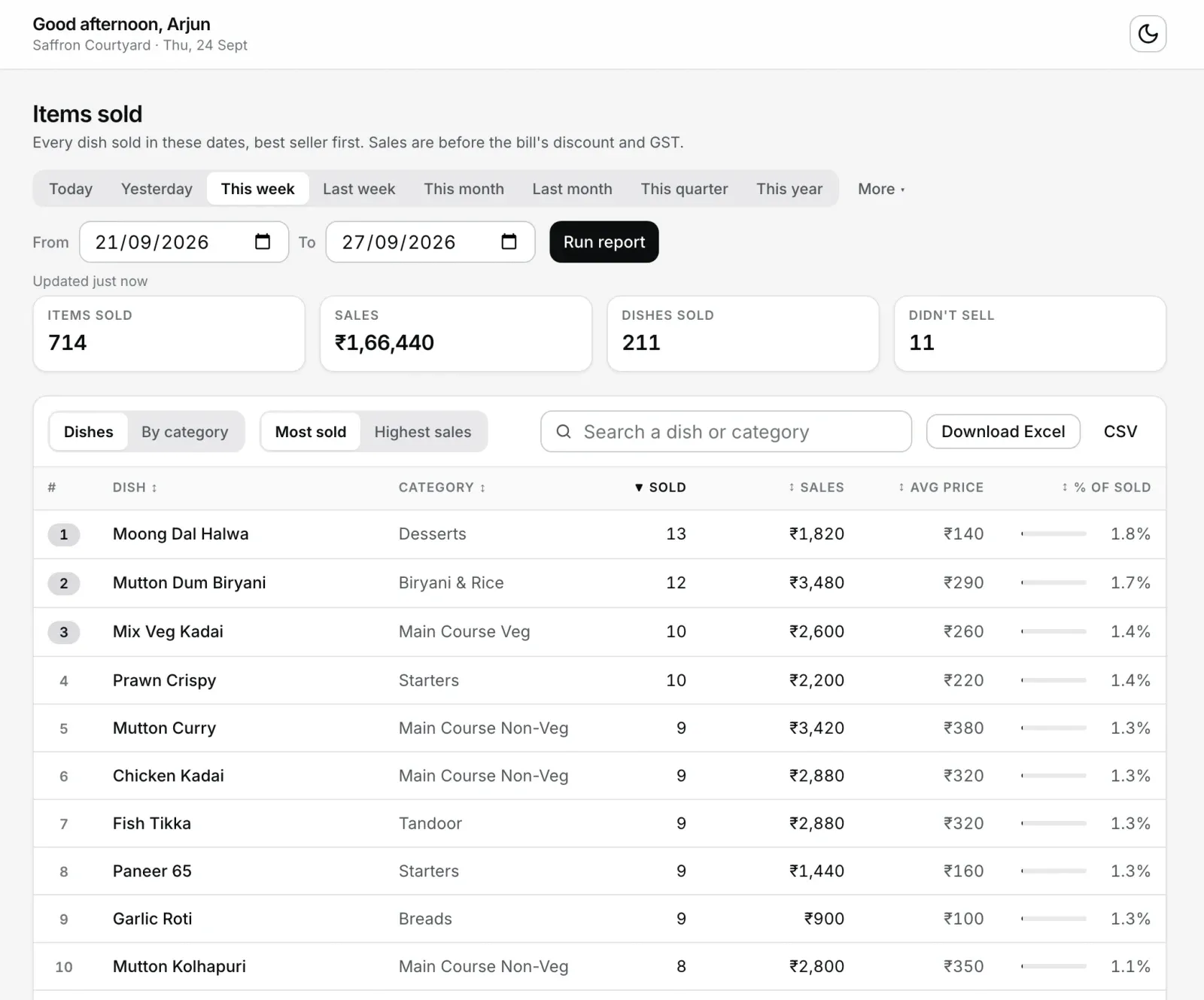
Step 4: the best seller on top. Click a column heading to sort by it.
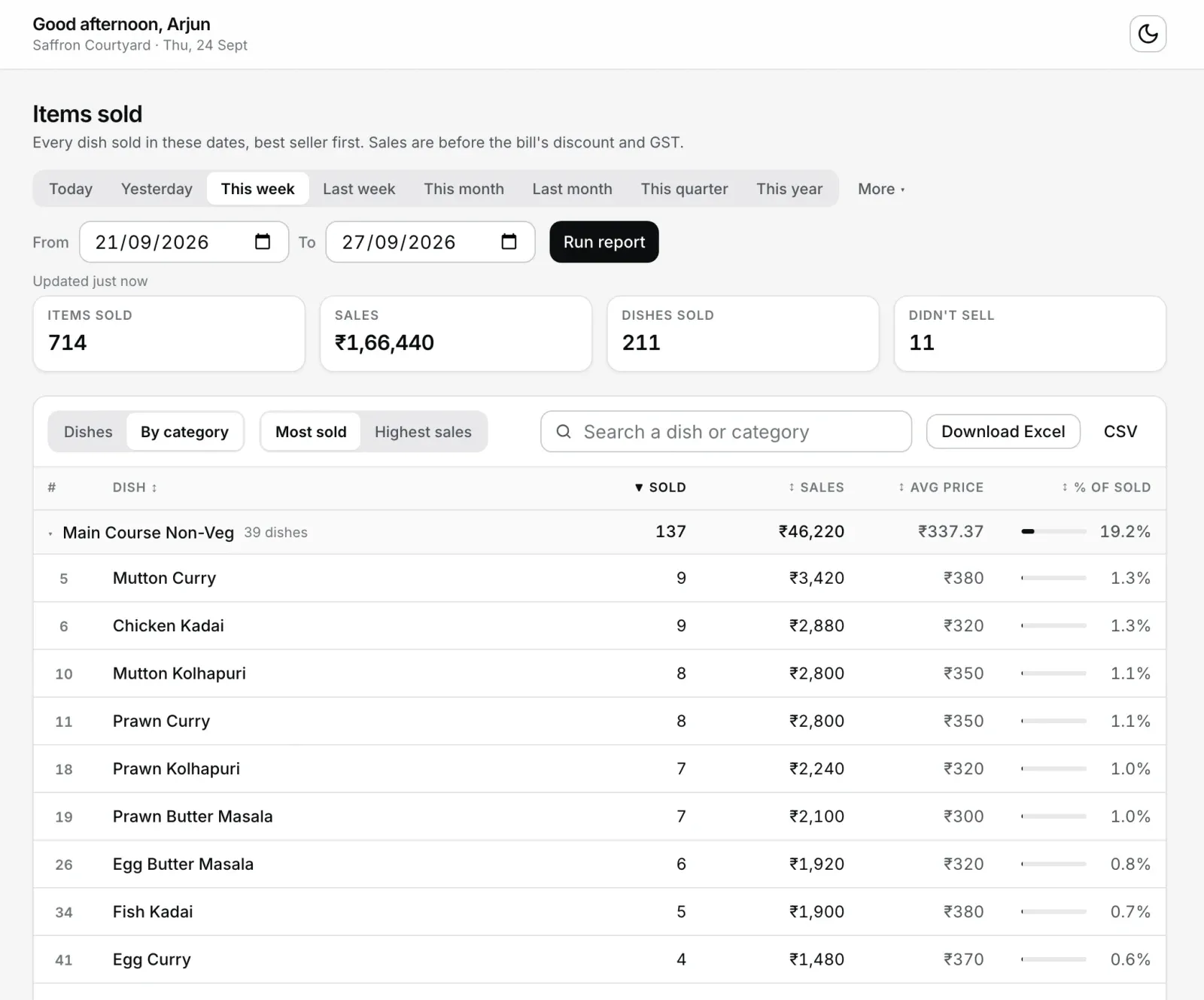
By category: one row per category with its totals. Click it to fold.
Or just glance at the Dashboard
The Dashboard now carries a "Latest orders" card: today's five newest bills, newest first. Tap one and the bill opens right there. "All orders →" goes to the full list, and "All items sold →" under Top sellers opens every dish.
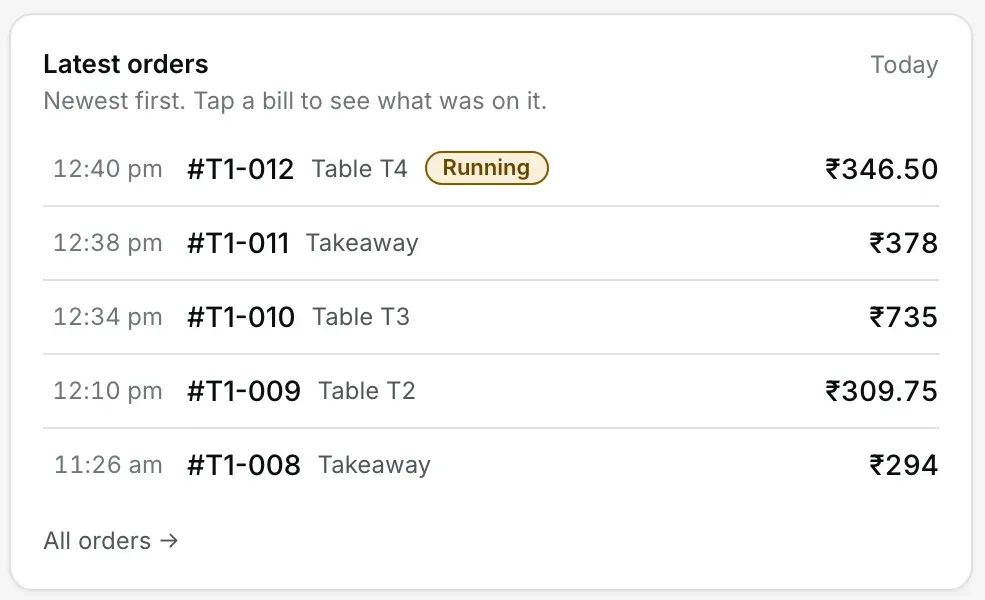
Step 5: today's newest bills, the moment the dashboard opens.
It is the same dashboard on a phone: open app.easykot.com in the browser and sign in. Tap the menu button at the top and pick Orders or Items sold. On a phone the date range becomes a dropdown and the list is one column, so nothing scrolls sideways.
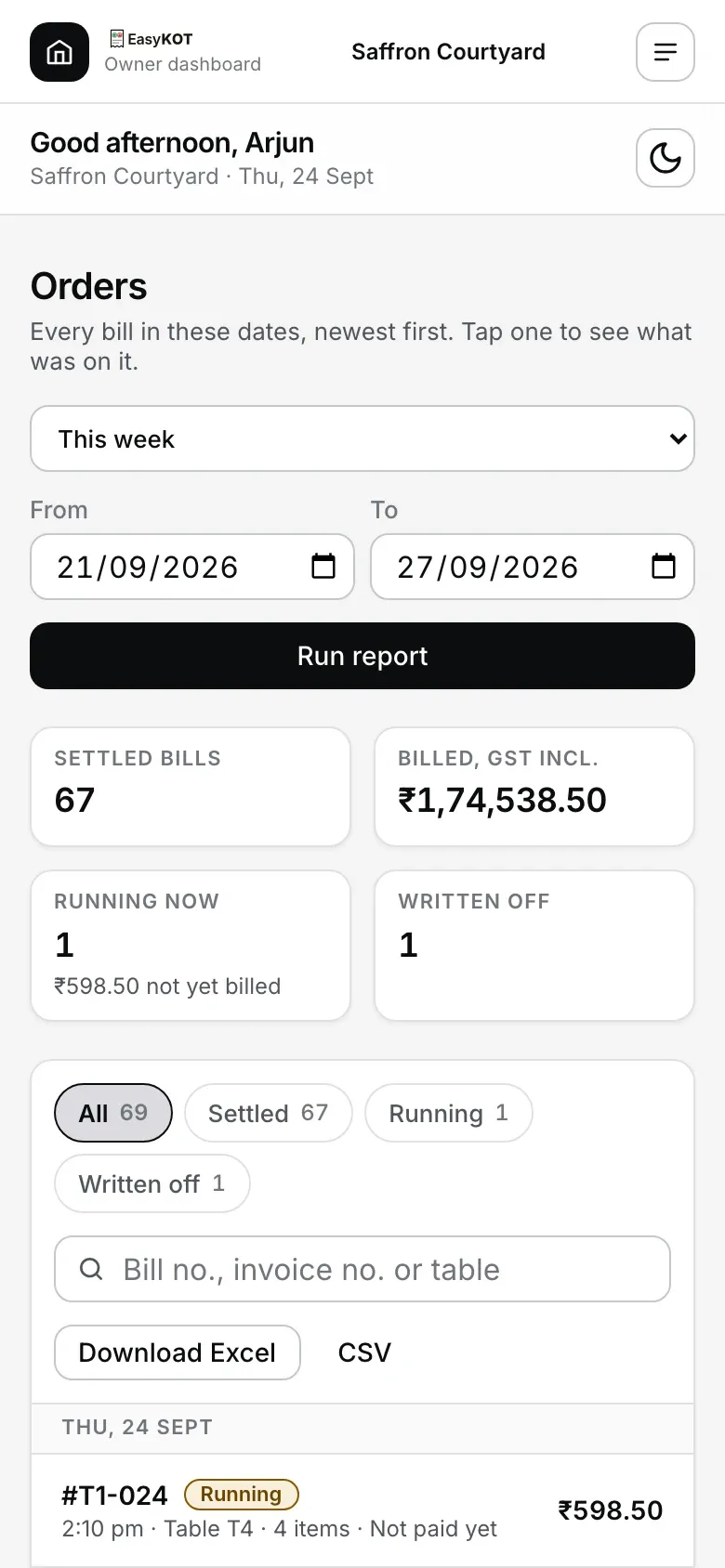
The same page on a phone, in one column.
Straight answers.
A bill was made at the register. When does the dashboard show it?
Why is the Items sold total different from the Orders total?
Does it work on a phone?
Can I download the list or export it to Excel?
Where do I see the profit on each dish?
Read next.
Reports & the daily email
The morning summary email, and the deeper reports: Summary, Sales, P&L.
See the reports →Discounts, voids & refunds
How a line gets cancelled or a check written off at the register.
See the money controls →Day close
Close the running checks at night so the morning's list is clean.
Close the day →Every guide is listed on the guides hub.
Run it 3 months, then pay for it.
Three months free, full product, no card. Made in India, for the counter: built inside a running restaurant.