Bluetooth printer is paired but nothing prints
Pairing and connecting are two different things. On Windows, pairing has to be followed by an outgoing COM port: that port is what the EasyKOT Desktop App writes to. On a phone the usual cause is that the printer is still holding a connection to a different phone, because only one device can own it at a time.
Whatever the printer does, the sale is already saved: the Desktop App writes the bill to its own database first and queues the paper second. The full symptom table covers the rest.
Paired is not connected — and on a phone, only one device gets the printer.
- Windows made no outgoing COM port. Windows pairs the printer and then waits to be told to create a serial port for it. Without that port there is nothing for the Desktop App to open, however healthy the pairing looks.
- Another phone still has it. A Bluetooth thermal printer serves one device at a time. A waiter's phone that connected this morning keeps the link until it is told to forget the printer, and every other device gets silence.
- The radio is asleep. Battery-powered printers drop their radio to save power and take a moment to come back. The first print after an idle spell can fail while the second succeeds, which reads as unreliability rather than sleep.
- On Android, the Nearby-devices permission was never granted. Android 12 and later require it before an app can even read the list of paired devices. Refuse it once and the printer list is empty with no obvious way back.
Do this first.
On Windows, create the outgoing COM port
Settings → Bluetooth & devices → Devices → More Bluetooth settings → COM Ports tab → Add → Outgoing, and choose the printer. Windows gives you a port number such as COM5. Then, in EasyKOT, Settings → Printers & KDS → Add manually → Serial, and enter that port. Baud is ignored for a Bluetooth printer, because the operating system fixes the link speed itself.
Free the printer from whatever is holding it
On every other phone that has ever used it, open Bluetooth settings and forget the printer. Then switch the printer off and on. A printer that will not accept a second connection is behaving correctly: it simply cannot serve two devices at once.
On an Android phone, grant Nearby devices
The captain app asks for the Nearby-devices permission before it reads the list of paired printers. If it was refused, the list stays empty: Android Settings → Apps → EasyKOT Captain → Permissions → Nearby devices → Allow, then open the printer list again.
Print twice — the first try wakes the radio
Run a test print. If nothing happens, run it again straight away: on a sleeping printer the first attempt is what wakes it and the second is the one that lands on paper. If the second try also fails, go back to step one or two rather than repeating this.
What the printer's row says.
Every printer you have added has a row in Settings → Printers & KDS, and the row carries its own status in words rather than a green dot. These are the exact words for this one.
- While it is wrong: “Offline” on the Desktop App: a Bluetooth printer is a serial port as far as the computer is concerned, so a port that does not answer reads exactly like an unplugged serial cable. The fold-out fix under the row names the COM port and the phone that is holding the printer.
- Once it is fixed: “Connected”, or “Can't verify — will still try to print” on a printer that takes jobs without answering status questions.
On a captain's phone the honest answer is different again: a Bluetooth link is not opened just to ask a question, so the app says Bluetooth status is only known when printing. Run a test print. Opening the link to check would be as slow and as disruptive as printing.
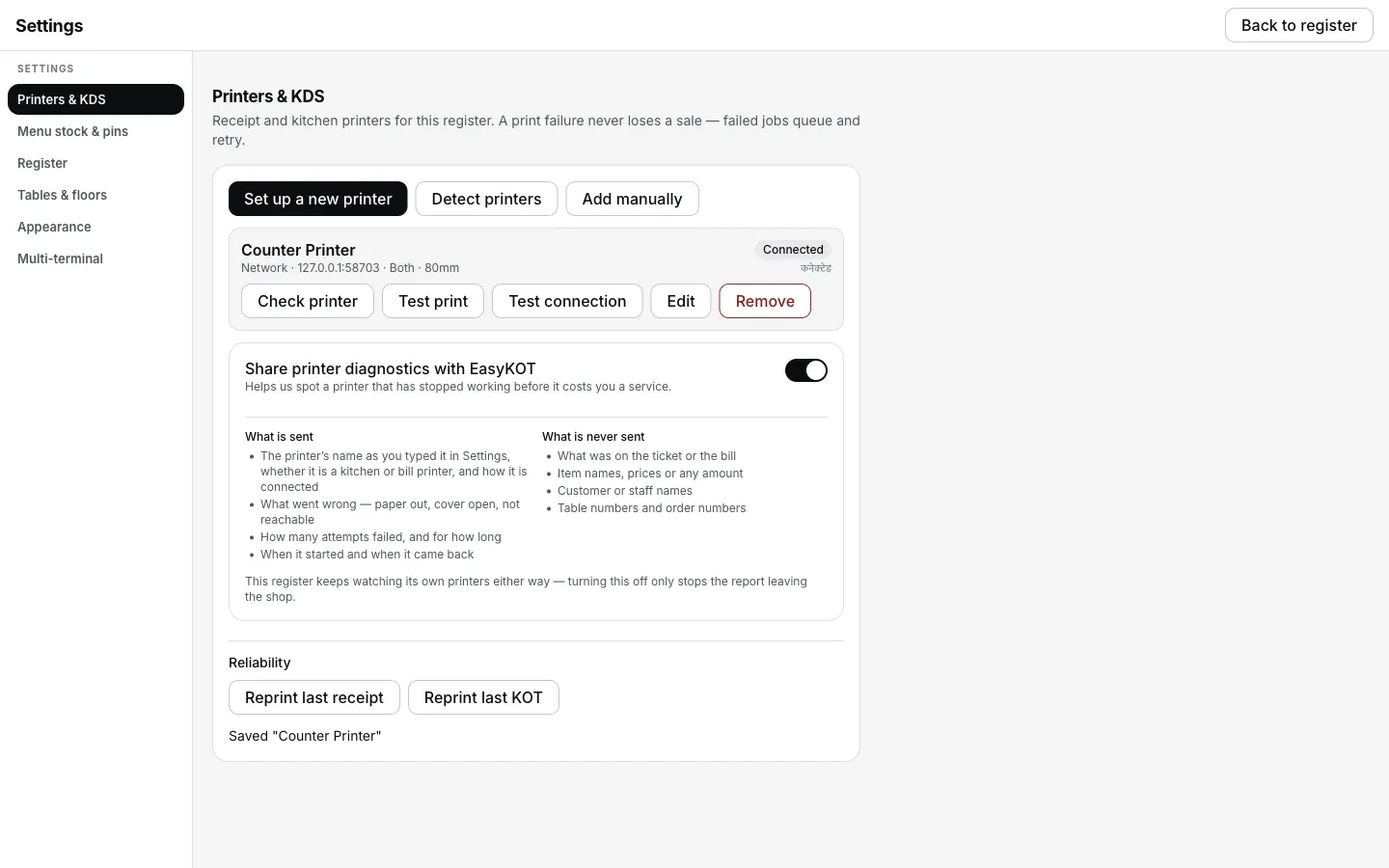
The row once the COM port is created and the printer answers again: Connected, or Can't verify on a Bluetooth printer that takes jobs without reporting status.
Printing what was missed.
- The bill was saved before any of this. The Desktop App and the captain app both write the sale first and queue the paper second, so a silent printer never costs a sale.
- Queued tickets drain when the link comes back — inside 5 minutes. The queue retries on its own for 5 minutes from the KOT fire or bill-print request (1, 2, 5, 15, 30, 60 seconds and then every minute), so a printer that wakes up mid-service catches up without anyone pressing anything. Older tickets wait for your choice: on the Desktop App, choose Print for those still needed, or Discard the rest.
- Reprint by hand when you want the paper now. Settings → Printers & KDS has Reprint last receipt and Reprint last KOT. Failed tickets offer Retry now; older tickets offer Print. Send to <another printer> is there if you have one.
Bluetooth printer is silent — the questions that follow.
Can an iPhone print to a Bluetooth thermal printer?
Which Bluetooth printers work with EasyKOT?
Do I pair the printer with the Desktop App or with the phone?
It prints from my phone's own test app but not from EasyKOT.
If that was not it.
Bluetooth printer on Android
The full pairing walkthrough on a phone, from Bluetooth settings to a printed KOT.
Pair on Android →USB printer not found
The cable that only carries power, and the driver holding the port.
Fix USB →Prints once, then stops
The sleeping radio's other symptom: one good slip and then a queue that stalls.
Fix the stall →Every printer guide is listed on the guides hub.
Run it 3 months, then pay for it.
Three months free, full product, no card. Made in India, for the counter: built inside a running restaurant.