Build your table layout — the screen matches your hall.
Five minutes in the builder and the EasyKOT Desktop App's Floor tab stops being a list and becomes your hall: the round family table drawn big by the window, the two-tops along the wall, Terrace on its own tab. From then on a waiter taps the table the guests are actually sitting at, and every open check shows up exactly where it lives.
Setting up without the Desktop App? Open the owner dashboard in your phone’s browser. Tables & floors lets you add tables, choose their floor, seats and shape, and arrange the layout. Changes reach connected phones and Desktop Apps when they sync. Finish open checks and bring offline devices online before removing a table.
No account yet? The live demo runs the real Desktop App in your browser, the Floor tab included.
Empty canvas to live floor — five steps.
Open the builder
In the Desktop App, open Settings and pick 'Tables & floors'. A brand-new store starts with an empty canvas ('No tables on Ground yet') because your room is yours to draw, not ours to guess. Only an owner or manager sees Settings at all; a cashier's PIN never can.
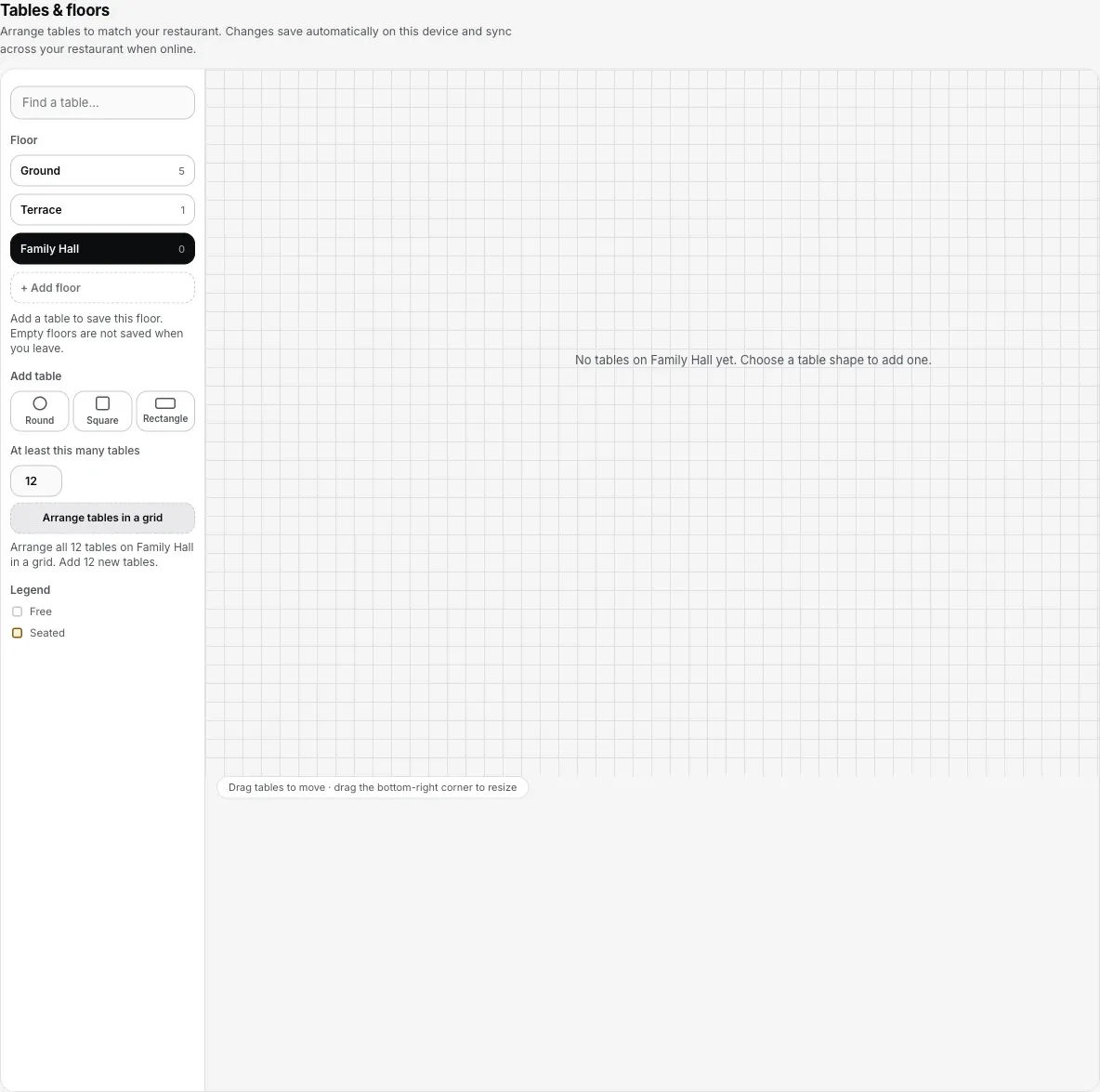
Step 1: a new floor starts empty. Add a table to save it; an empty floor remains a draft.
Add tables — one by one, or a dozen at once
Tap Round, Square or Rectangle and a table appears, named T1, T2, T3 in sequence. For a grid, enter the minimum table count and choose 'Arrange tables in a grid'. It arranges every existing table on the floor and adds any needed to reach that count. Existing tables are never removed to meet a smaller number. If tables are already placed, the confirmation explains that their positions and sizes will change before you apply it.
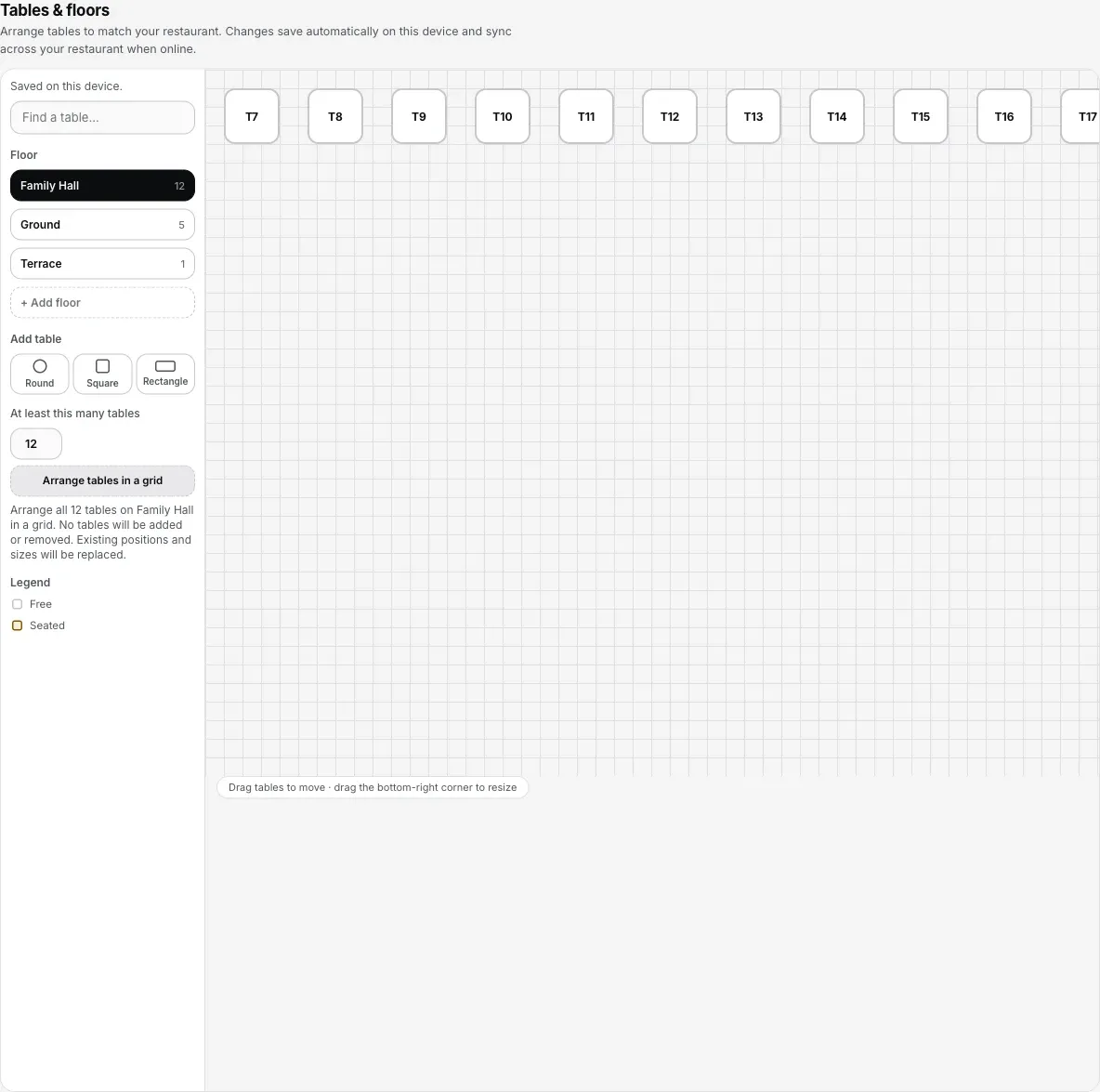
Step 2: arrange the floor in a grid, then drag tables into place. An existing arrangement requires confirmation before replacement.
Drag it into the shape of your room
Drag a table to move it: it snaps to a neat grid so rows stay straight. Drag the bottom-right corner to resize: the family six-seater gets drawn bigger than the window two-top, and the Floor tab will show them at that size. Tap a table to rename it, set its seats (up to 40) or change its shape.
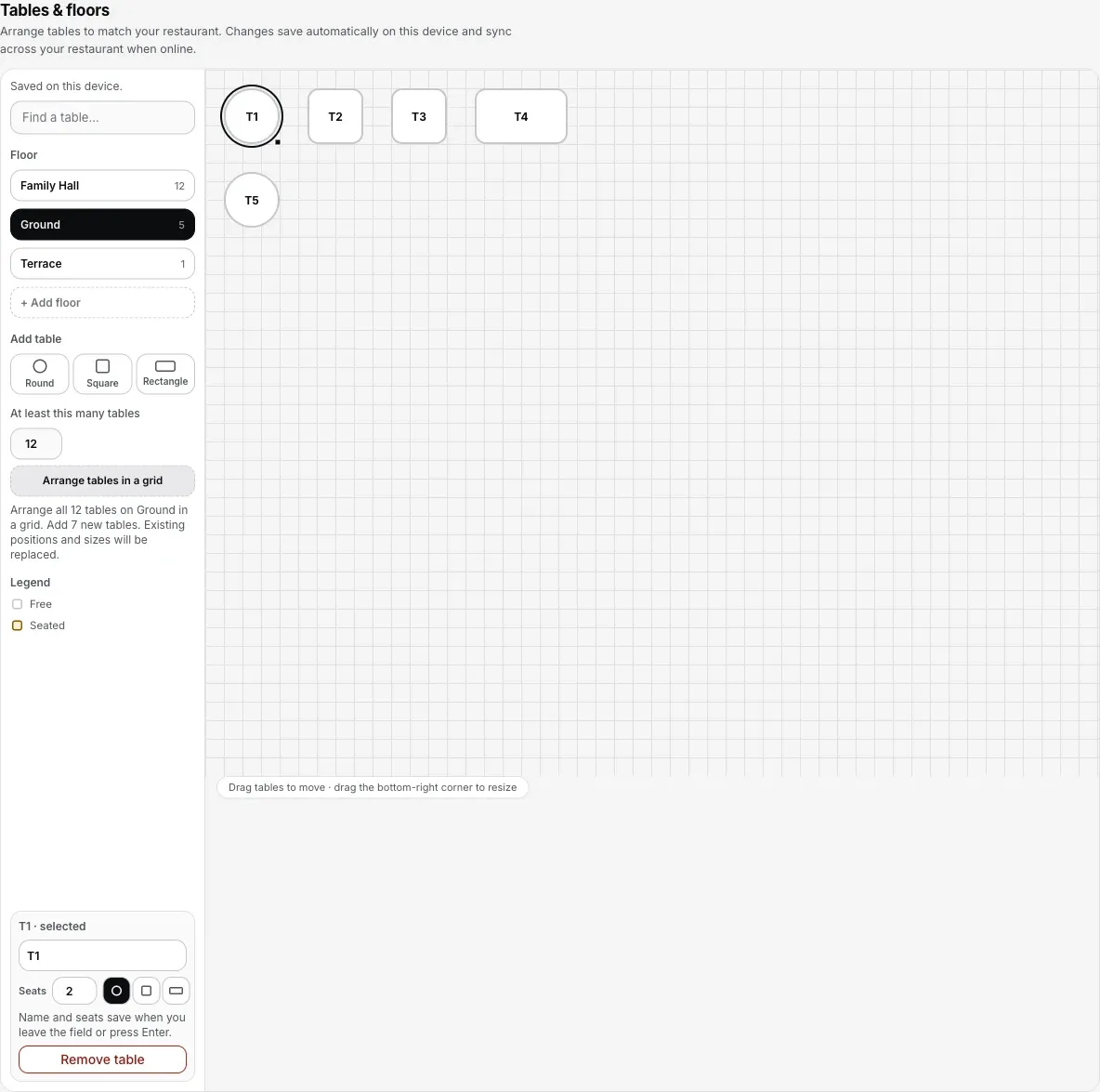
Step 3: select a table to change its name, seats or shape. A table with an open check cannot be removed.
Split the room into floors
Press '+ Add floor' and name it: Terrace, Family Hall, AC Section, whatever the waiter actually says. Each floor is its own canvas, and the Desktop App's Floor tab gets one tab per floor. Every change saves the moment you make it and syncs to every Desktop App and captain phone in the store.
Use it live on the Floor tab
Back on the Desktop App, the Floor tab now draws your room. A free table is an outline; a seated one fills in with how long the check has been open. Tap a free table and a new dine-in check opens right there; tap a seated one and you are in its cart. Past eight tables you also get a 'Find a table' search that jumps straight to the one you pick.
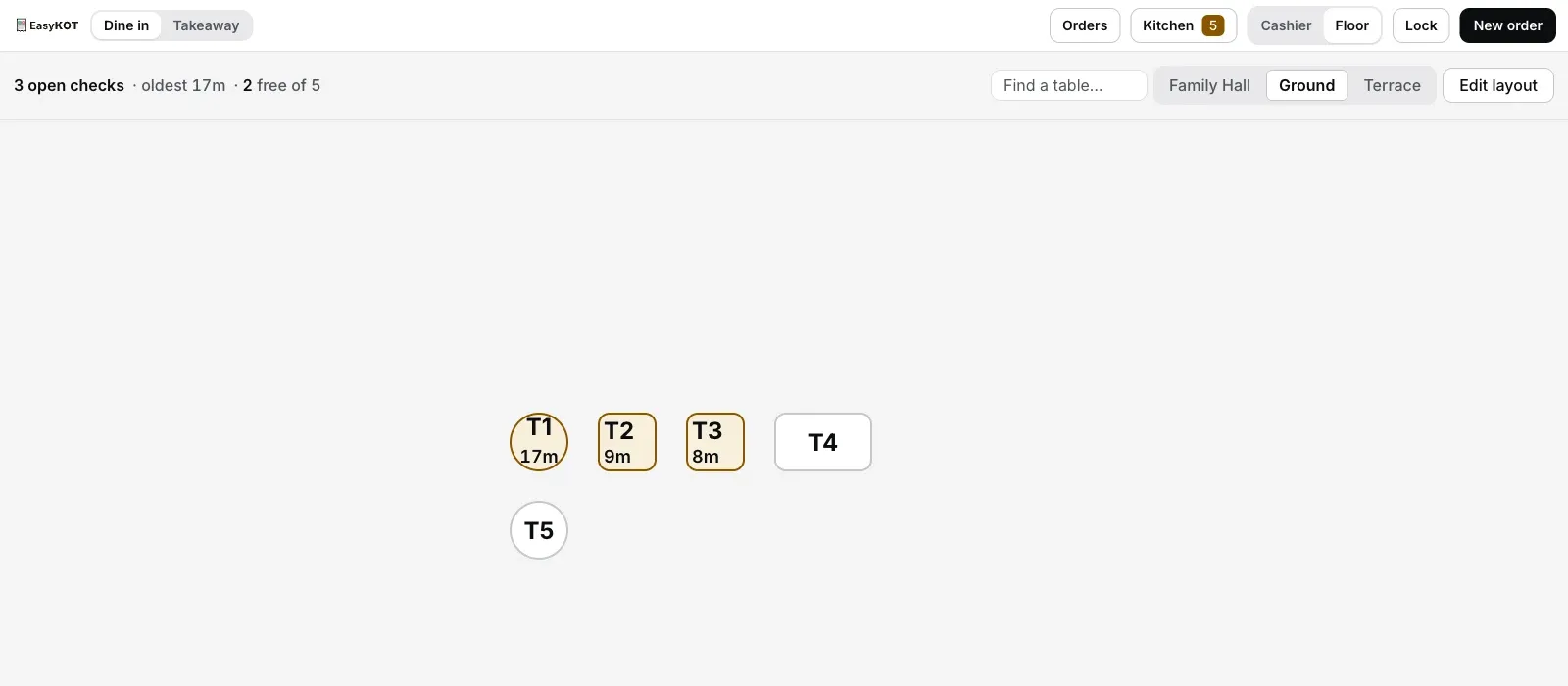
Step 5 (service view): outlines are free, filled tables are running checks with their clocks.
What the floor tells you at a glance.
- Free or seated, one glance. A free table is a plain outline; a running check fills the table in and carries a clock: how long since it opened. The header keeps the totals honest: 5 open checks · oldest 26m · 3 free of 12.
- Tap a free table, the check opens there. No "assign table" detour: the table you tapped is the table the order belongs to, and the kitchen ticket says so.
- Tap a seated table, you are in its cart: add the second round, print the bill, settle. The floor is the navigation; nobody scrolls a list asking "which T7 was that?"
- Parcels stay off the room. Takeaway and counter checks collect in their own strip below the floor, so the hall view never fills up with orders that have no table.
- Big rooms stay usable. Past eight tables the floor gains a "Find a table" search that jumps straight to the table you pick, and the layout centres itself in the canvas whatever the room's size.
Captains see the same truth. The captain app's table list reads the same floors and the same open checks, live: a table seated on the Desktop App is seated on every phone in the store, and the other way round.
Straight answers.
Do I have to set up a floor plan before I can bill?
Can a waiter or cashier change the layout?
Can I delete a table that has people sitting at it?
Do layout changes reach the captain phones and other Desktop Apps?
How many tables and floors can I create?
The room on screen looks squashed in a corner — can I fix it?
After the floor is drawn.
Put the floor in a waiter's pocket
The captain app reads the same tables: orders fire from beside the guest, not from a queue at the Desktop App.
Set up the captain app →Kitchen screen setup
Fired tables land on the kitchen display with the table name the floor gave them.
Set up the KDS →Your first GST bill
Punch, fire, settle, print: the four steps from a seated table to a legal tax invoice.
Make the first bill →The Desktop App itself is described on the billing page, and every guide in this cluster is listed on the guides hub.
Run it 3 months, then pay for it.
Three months free, full product, no card. Made in India, for the counter: built inside a running restaurant.