Cutter jammed
The printer has reported its own blade stuck part-way through its travel: nearly always paper chips or dust built up in the cutter channel. The EasyKOT Desktop App pauses printing so tickets are not thrown at a blocked blade, and everything prints itself once the slot is clear.
Whatever the printer does, the sale is already saved: the Desktop App writes the bill to its own database first and queues the paper second. The full symptom table covers the rest.
Something is in the blade's way, and the printer knows it.
- Paper chips in the cutter channel. Every partial cut leaves a little dust and the occasional curled offcut. On a busy counter that builds up over months until the blade cannot complete its travel.
- A slip pulled while it was cutting. Tearing the paper away mid-cut can leave a wedge of paper jammed against the blade, and a printer that used to cut and stopped today is usually this.
Do this first.
Switch the printer off before you touch anything
A cutter that re-homes while your fingers are in the slot is exactly the injury this step exists to prevent. Power down first, every time.
Open the cover and lift out the debris
Take out the roll and clear paper chips and curled offcuts from the channel the blade runs in. Do not lever the blade with anything metal. If it will not move freely, look for the manual release dial at the front rather than forcing it.
Switch it back on and let it re-home
Most printers run a start-up routine that returns a stuck blade to its parked position, so the power cycle is often the whole repair. Reseat the roll, close the cover until it clicks, and the printer reports itself ready.
Let the queue drain, then run a test print
Tickets still inside their 5-minute window print in order in Settings → Printers & KDS on their own; anything older needs Print. The test print on the printer's row ends with the same partial cut every bill uses, so it confirms the cutter in one tap.
What the printer's row says.
Every printer you have added has a row in Settings → Printers & KDS, and the row carries its own status in words rather than a green dot. These are the exact words for this one.
- While it is wrong: “Cutter jammed”, with the line “Clear the cutter slot and power-cycle.” Printing pauses while it lasts, so the waiting tickets are held rather than fired at a blocked blade.
- Once it is fixed: “Connected”. Tickets still inside their 5-minute window print in order on their own; anything older needs Print.
If slips come out joined but the row says nothing is wrong, this is not your page: that is a printer with no auto-cutter, or one ignoring the cut command, and it has its own guide.
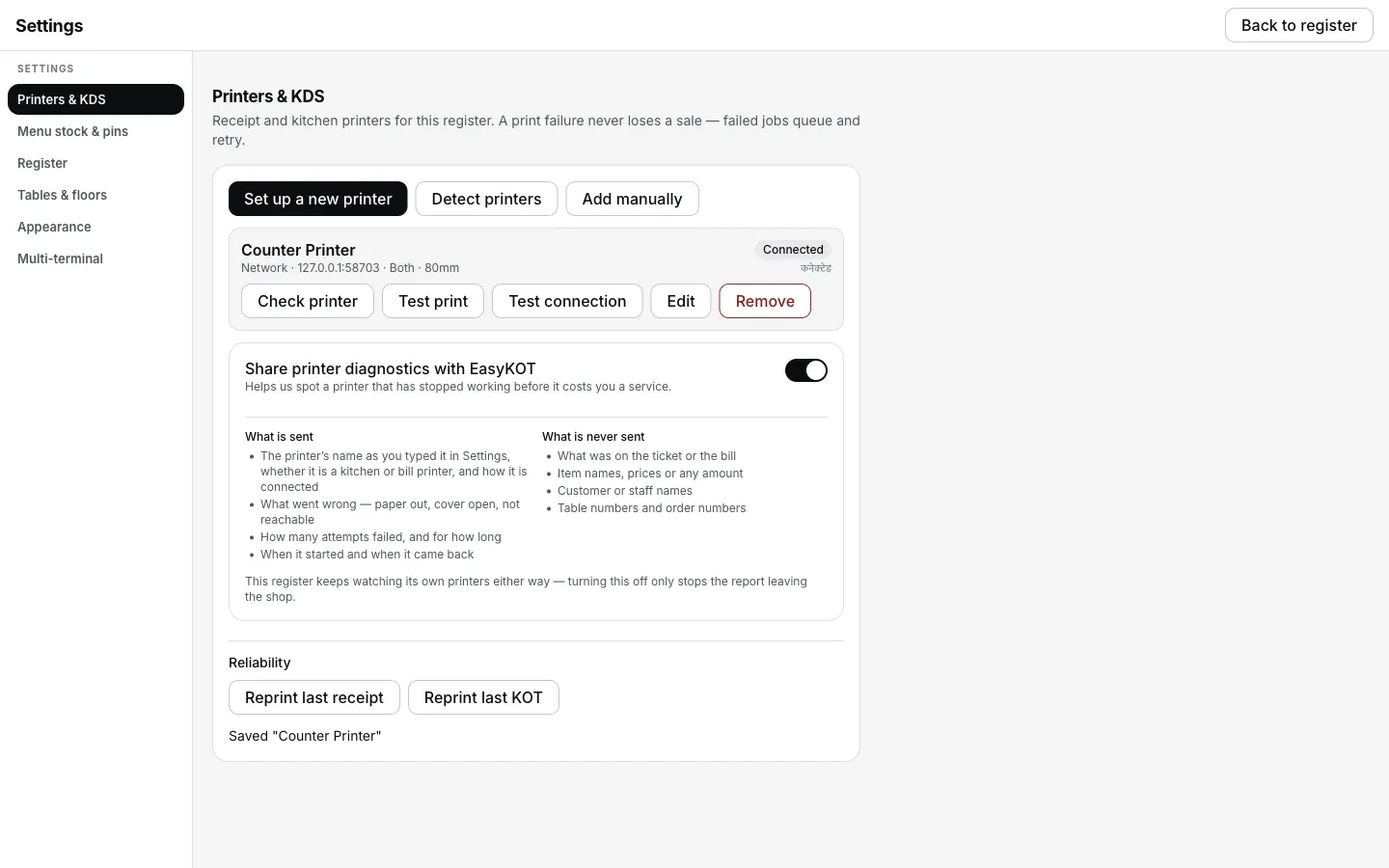
The row once the cutter re-homes on power-up: Connected, nothing else to press.
Printing what was missed.
- A pause holds tickets, it does not fail them — but not forever. Held jobs keep their place. Clear the jam within 5 minutes and they print themselves; any longer and they need a tap of Print. Nothing needs re-firing from the order.
- Half-cut slips are still valid bills. Two invoices joined at the perforation are two printed bills with their own numbers. Tear them apart: nothing needs reprinting for the record's sake.
- Send it elsewhere to get through service. Send to another printer on the queue row moves a ticket to anything else that is connected, so the kitchen keeps getting paper while you deal with the blade afterwards.
Cutter jammed — the questions that follow.
Can I pull the blade free by hand?
How do I stop the cutter jamming again?
It says jammed but I cannot see anything in the slot.
If that was not it.
Printer does not cut
Joined slips with no fault reported: a model with no cutter, or one ignoring the command.
Check the cutter →Paper out
The other reported pause: reloading the roll and letting the queue catch up.
Reload the roll →Cover open
A lid a millimetre open stops most printers silently. The Desktop App does not.
Close the cover →Every printer guide is listed on the guides hub.
Run it 3 months, then pay for it.
Three months free, full product, no card. Made in India, for the counter: built inside a running restaurant.