The customer's name and number, on the bill.
Tap the person icon, type a number or a name, and the order knows who it is for. The bill prints the name with the full number, a parcel's KOT carries the name so the bag can be called out, and the Orders list finds the bill again weeks later by either one. It works on the Desktop App, on the waiter's phone and with the internet off.
Person icon to printed bill, in five steps.
Tap the person icon at the top of the cart
The cart header reads Order, with a small person icon beside it. Tap it and a sheet slides up over the cart with one box that takes a number or a name. The rest of the EasyKOT Desktop App dims behind it and a tap outside does nothing, so a stray finger cannot ring a dish onto the order while you type. On a store with no customers yet, the sheet says so: "No customers yet. Type a number or a name, or add the first one."
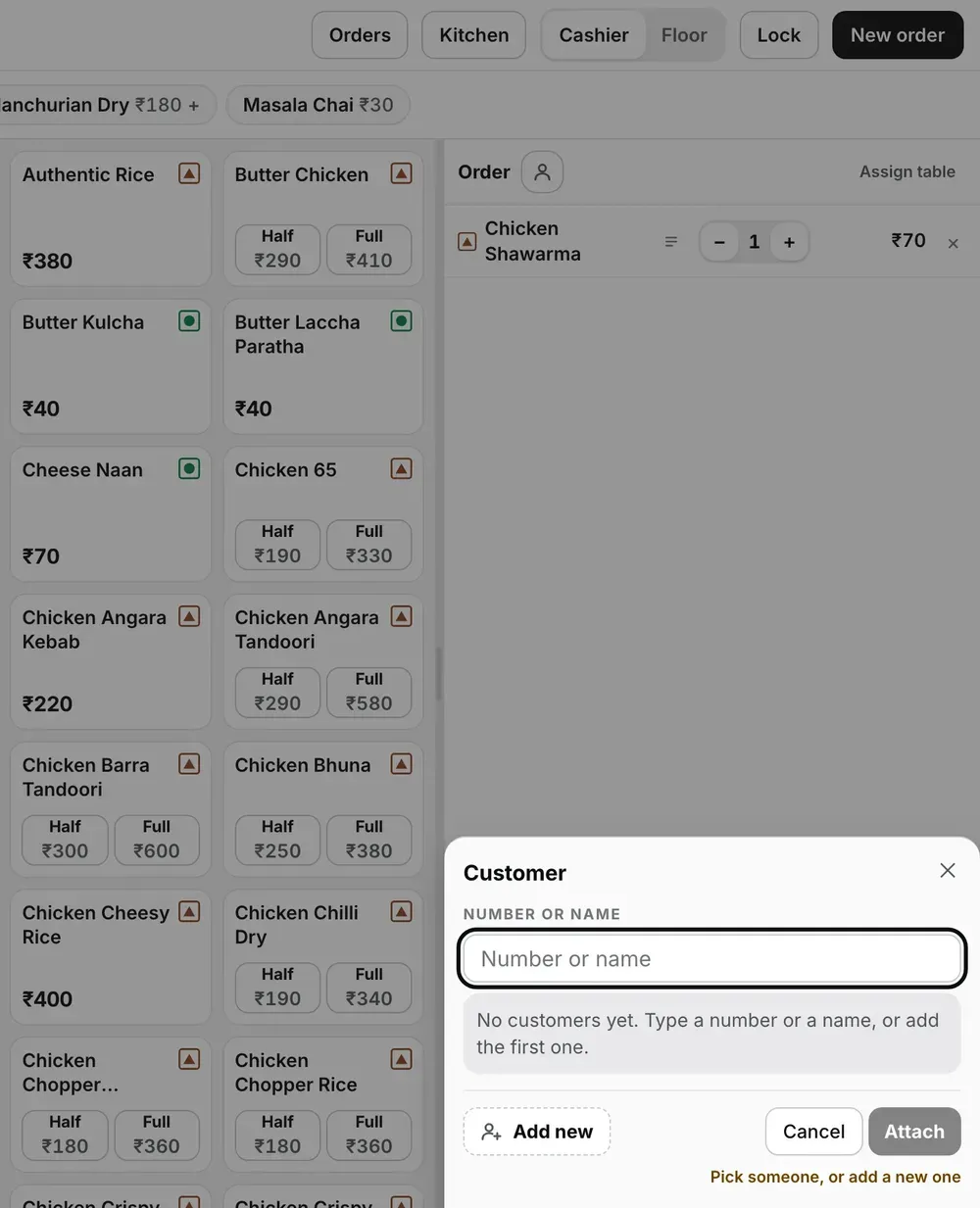
Step 1: the icon sits beside Order; on a new store the sheet says the book is empty.
Type a number or a name, then Attach
Digits search the number and letters search the name, and any part of either works: 98200 finds Neha Kapoor, and so does Neha. When exactly one customer matches, that row is already highlighted, so a regular takes two taps: type, then Attach. There is no list of recent customers to scroll through; the sheet stays empty until you type.
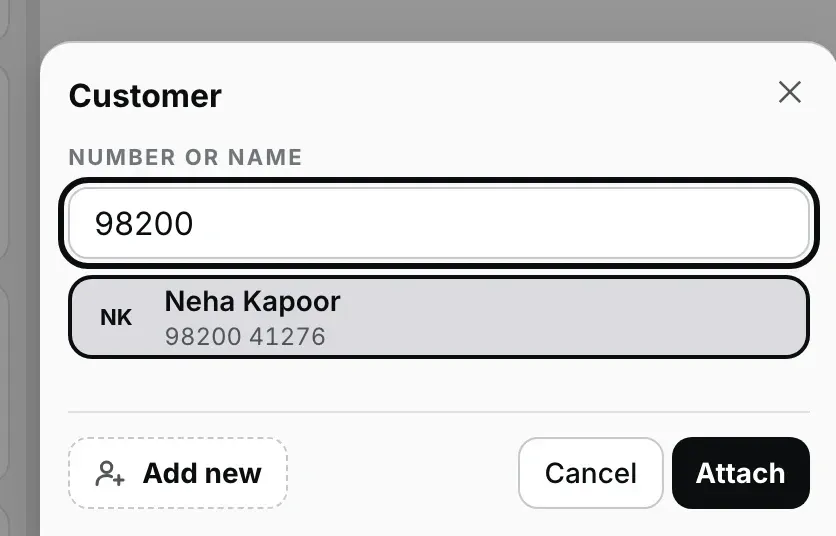
Step 2: five digits, one match, already picked. Attach.
New diner? Add new, then Save and attach
Add new turns the sheet into two boxes, Number and Name, and moves whatever you had typed into the right one. Either box alone is enough ("A number or a name is enough."), so a regular who will not give a number can be saved as Sharma ji, and a phone order can be saved as just the number. A number has to be a 10-digit mobile; a +91 or a leading 0 is taken off for you. If the number is already saved, the form says whose it is and offers to attach that person instead, because one number is one customer.
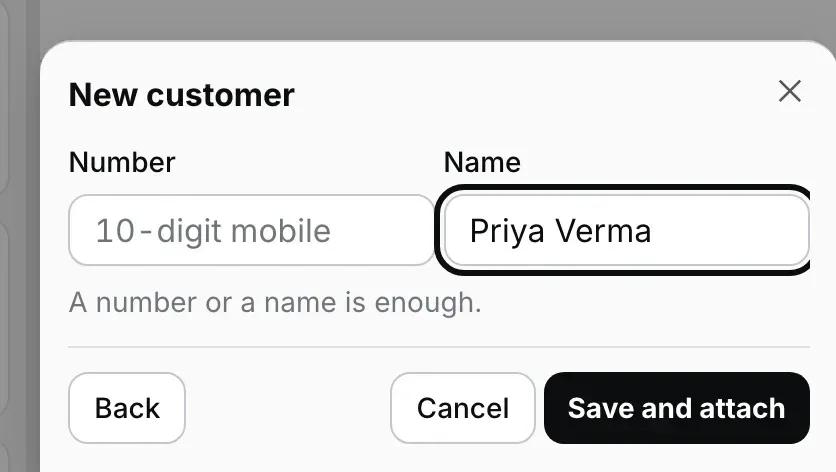
Step 3: a name alone is enough to save.
Check the customer label, then fire and settle as usual
Back in the cart, the person icon has become a customer label with the customer's name, or the number when that is all you have. The × on the customer label takes the customer off the order; tapping the name opens the sheet to pick someone else. Nothing else about the order changes: fire the KOT, print the bill and settle the way you always do.
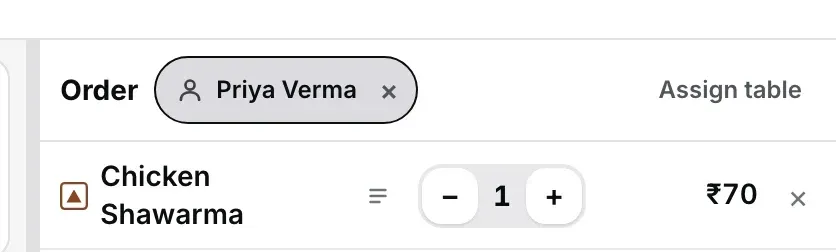
Step 4: the customer label tells everyone at the counter whose order it is.
Or take the details at settle
The settle dialog always carries a Customer box with Name and Number, marked optional. With nobody attached, type either one and settling saves the customer and attaches them before the bill prints; the line under the button says "Settling will save this customer and attach them". Type nothing and nothing is saved; the hint under the fields reads "Leave both empty and the bill simply has no customer." With somebody attached, the two fields show their details, read-only, and Change opens the customer sheet and brings you back to settle. Saving a balance as Udhaar requires the customer's name and a valid 10-digit mobile number. The bill closes and the unpaid balance stays against that customer.
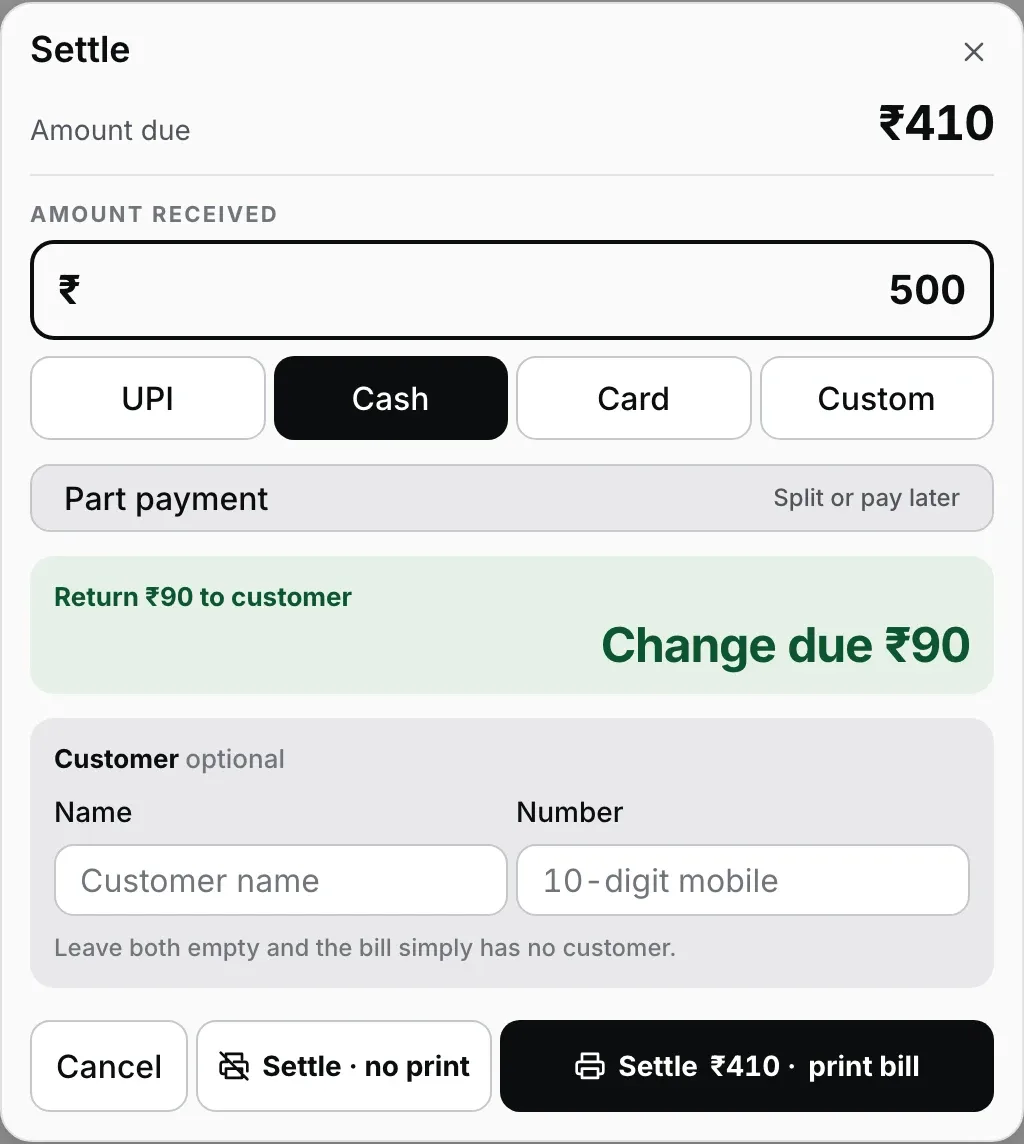
Sample bill in Web POS. If no customer is attached, you can enter a name or number here. Both fields are optional.
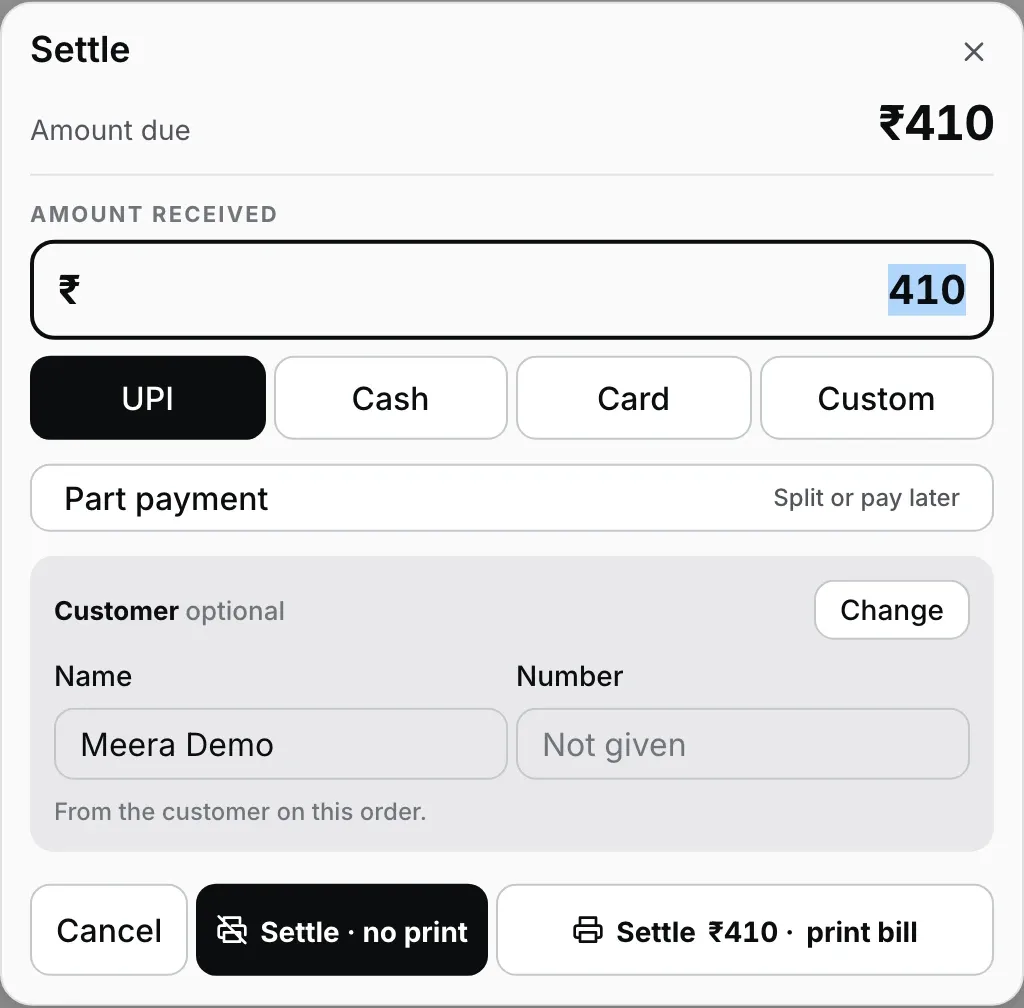
Sample bill in Web POS. An attached customer's details appear in read-only fields.
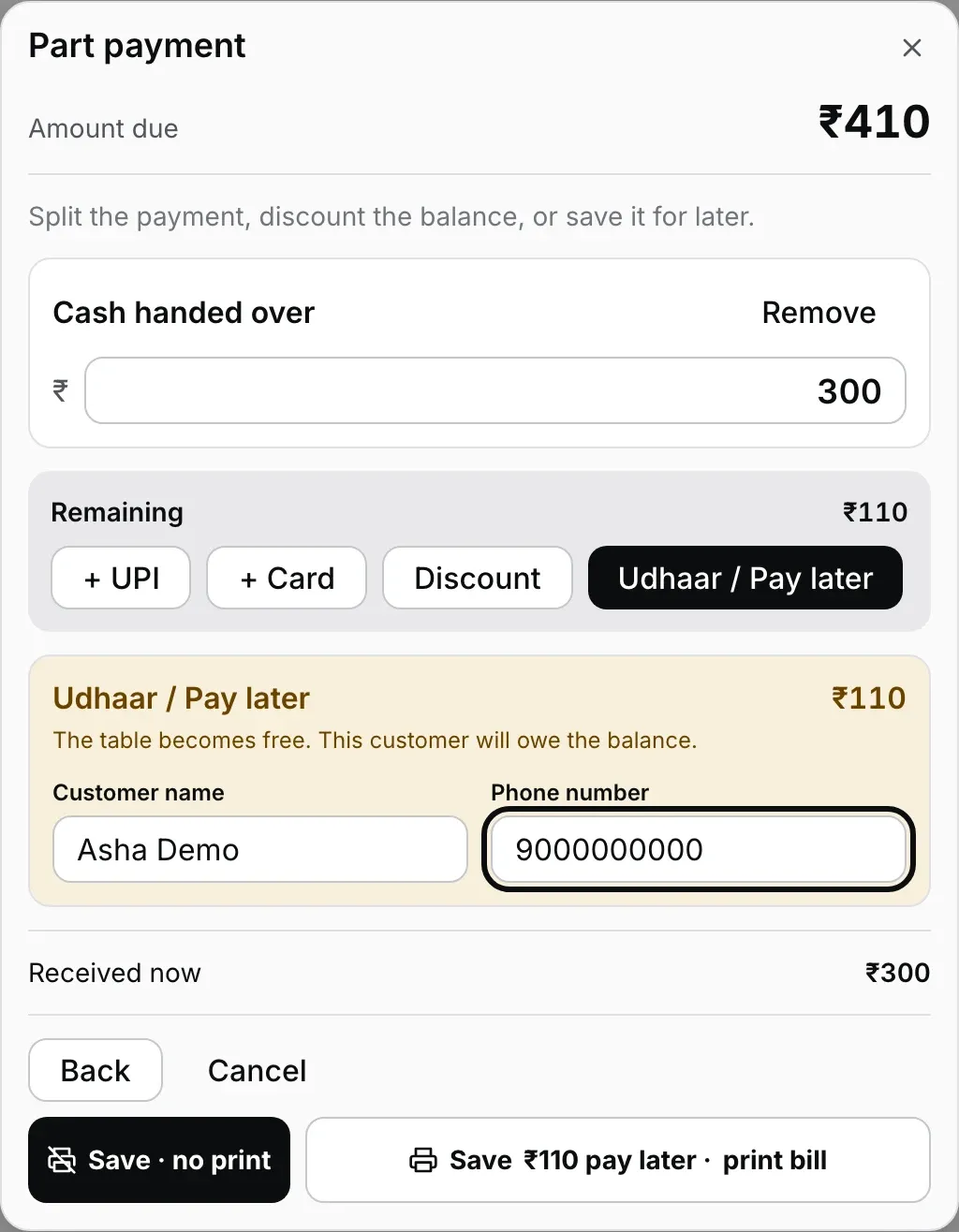
Sample bill in Web POS. Saving ₹110 as Udhaar requires both the customer's name and mobile number.
What the bill and the KOT print.
- The bill gets one row under its header: the name on the left, the number on the right, written in full. A customer saved with only a name or only a number gets a row that starts with Customer. The on-screen receipt shows the same row as the paper.
- A parcel's KOT prints the name in bold under the KOT number (For Neha Kapoor), because a bag has no table to be found by. A dine-in KOT never prints the customer, and no KOT ever prints the number.
- Reprints follow corrections. An order remembers which customer it belongs to, not a copy of their details, so a typo fixed today is fixed on every past bill and every reprint of it.
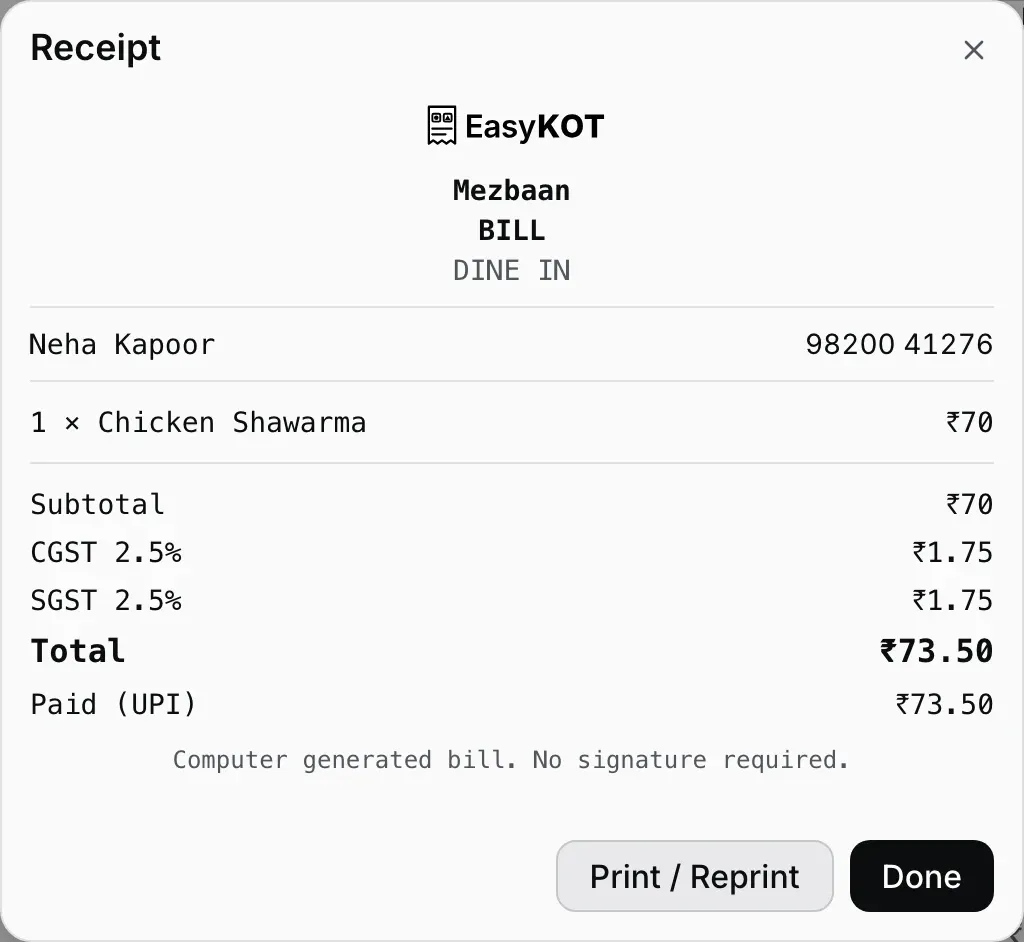
The receipt preview: the customer row sits between the header and the dishes, laid out like the money rows.
Find the bill again, and fix a typo after settle.
Open Orders from the Desktop App's top bar. The search box says what it covers ("Search table, bill, dish, amount, or a customer's name or number"): type part of a name, or four digits from anywhere in the number, and the list narrows to the bills that match. Each row shows the customer's name under the order type. For a bill from another day, switch to Earlier and pick the date first.

The last four digits of her number, and there is her bill.
Open a settled bill and its customer sits in a box of their own, with three buttons. Edit contact fixes the name or number, on this bill and on every other bill that customer is on. Remove customer takes them off this bill and keeps them in your customer list. Change customer puts somebody else on this one bill. A settled bill with nobody on it offers Add customer instead. None of the four touches the amount, the payment or the invoice number. Edit contact will not move a number onto one that already belongs to another customer; it names that customer and offers to attach them to the bill instead.
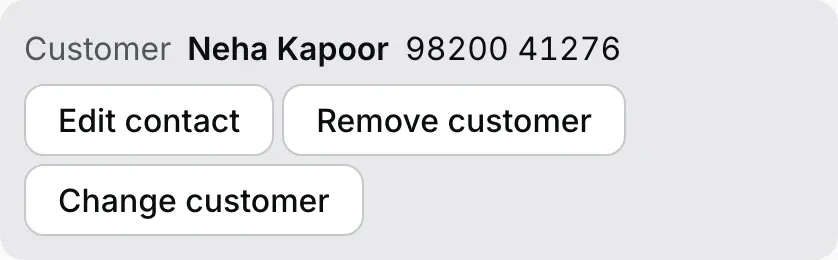
On a settled bill: fix the contact, take the customer off, or change who it was for.
The captain app does the same, at the table.
On the captain app, the person icon sits next to ‹ Floor at the top of the order screen. It opens the same search, with the same rules: digits find the number, letters find the name, and Add new customer saves someone with either one. Once attached, the name shows as a customer label with an ×; to put someone else on the order, take the first one off with the × and tap the icon again.
The phone's settle sheet has Customer · optional with a Name and a Number box, and the number box brings up the phone keypad. A short number is flagged before you settle ("Enter a 10-digit mobile number") and Cash and UPI stay greyed until it is finished or cleared; a good one is saved and attached when you settle. With a customer already on the check, the sheet shows their name and number instead of the boxes.
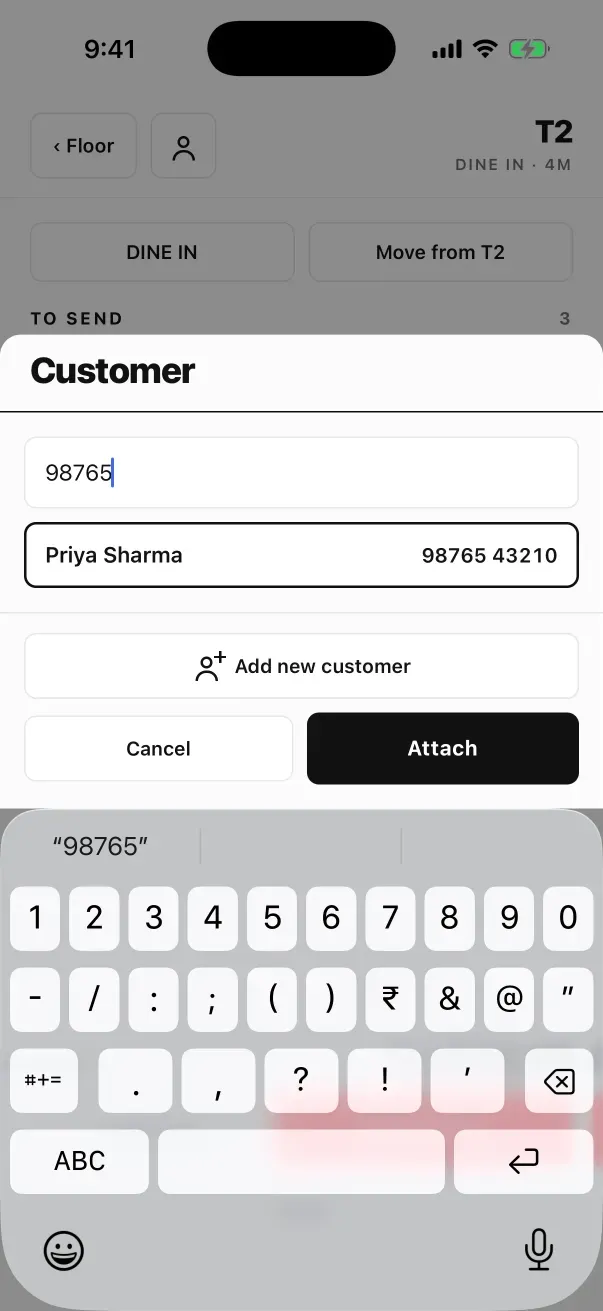
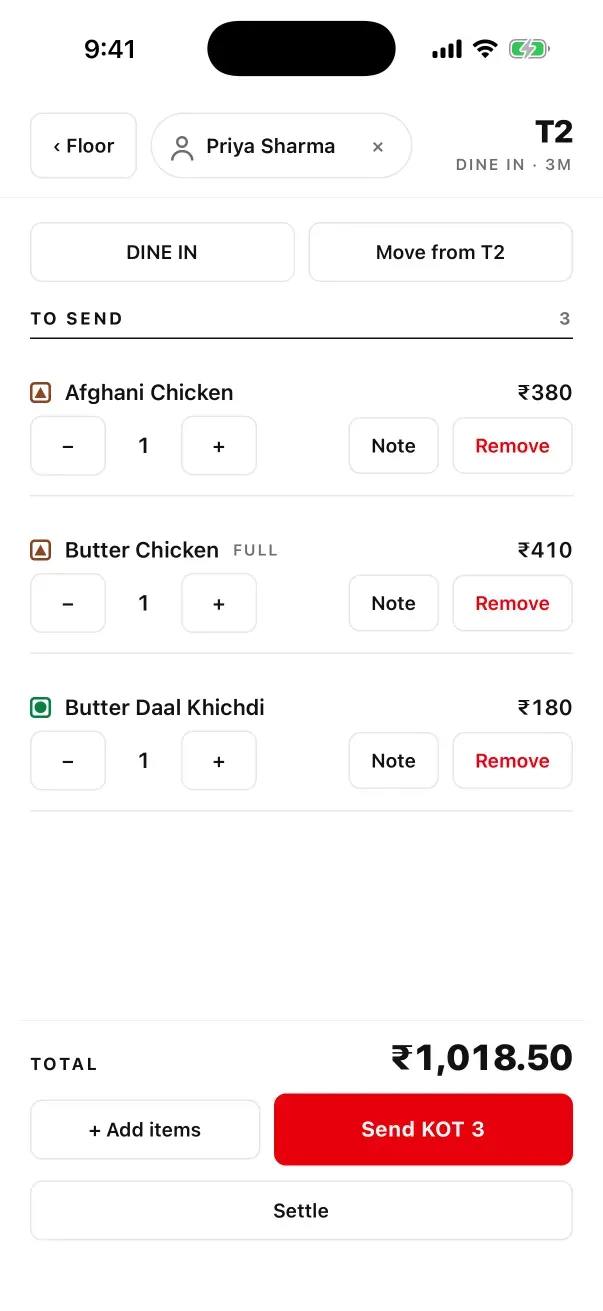
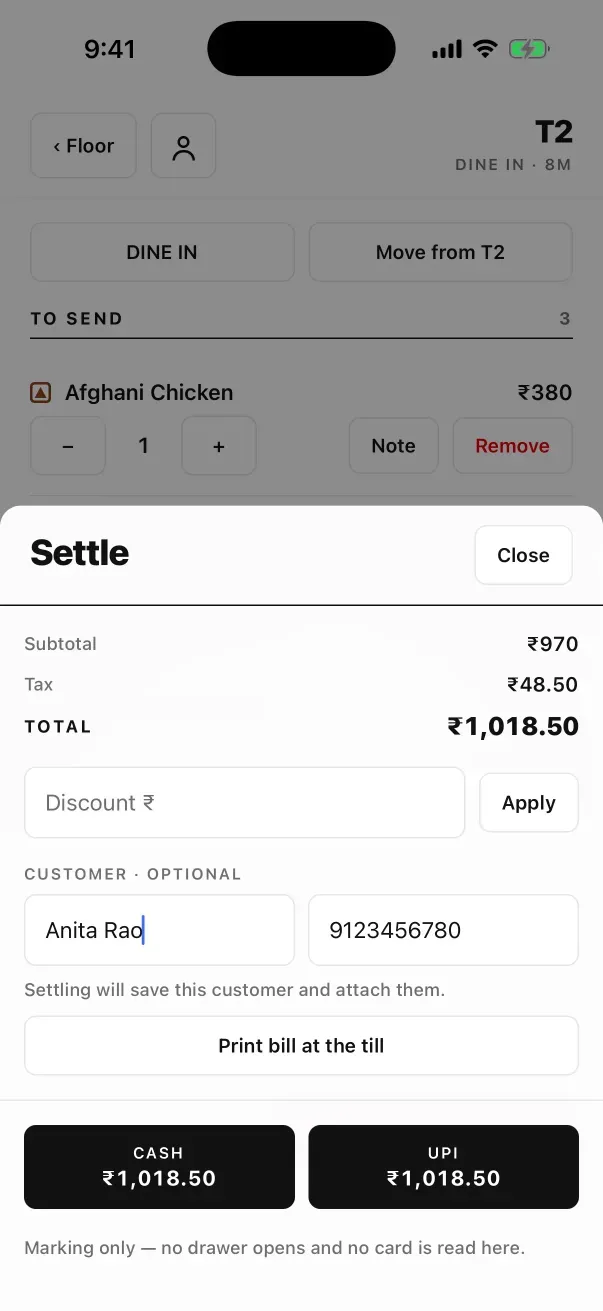
Every customer, on one page of the dashboard.
In the owner dashboard, Manage → Customers lists everyone your cashiers and captains have saved: the name, the number, how many visits, the last visit and what they have spent. Visits and spend count settled bills only. The search box takes a name or a number.
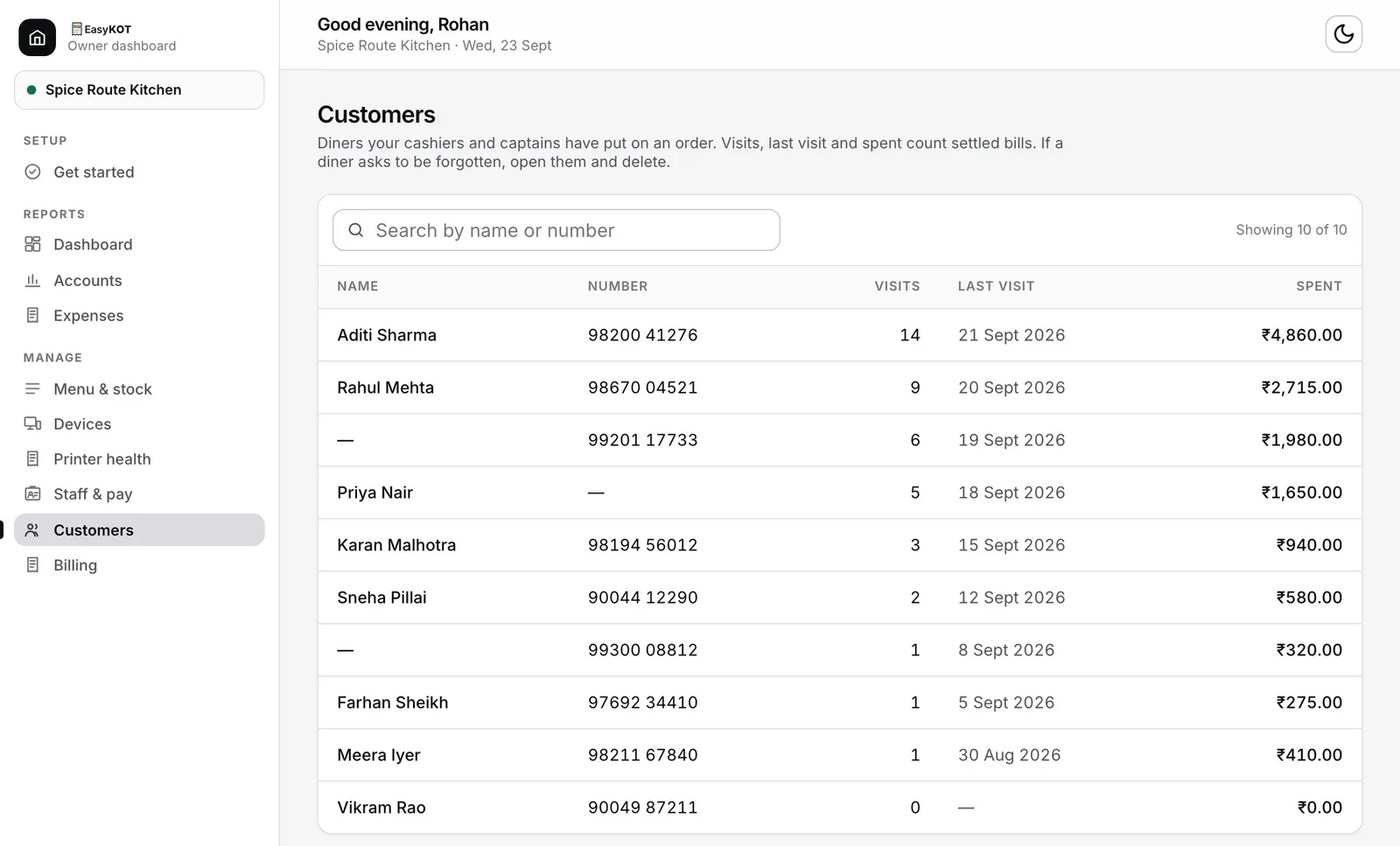
Regulars at the top, with the numbers that make them regulars.
Click a customer to see their orders, with Edit contact and Delete customer above them. Editing onto a number that someone else already has is refused, and the page names who has it with a link to open them. Deleting asks once more, then takes the name and number off every past bill; the orders and their money stay. The page itself says when to use it: "If a diner asks to be forgotten, open them and delete."
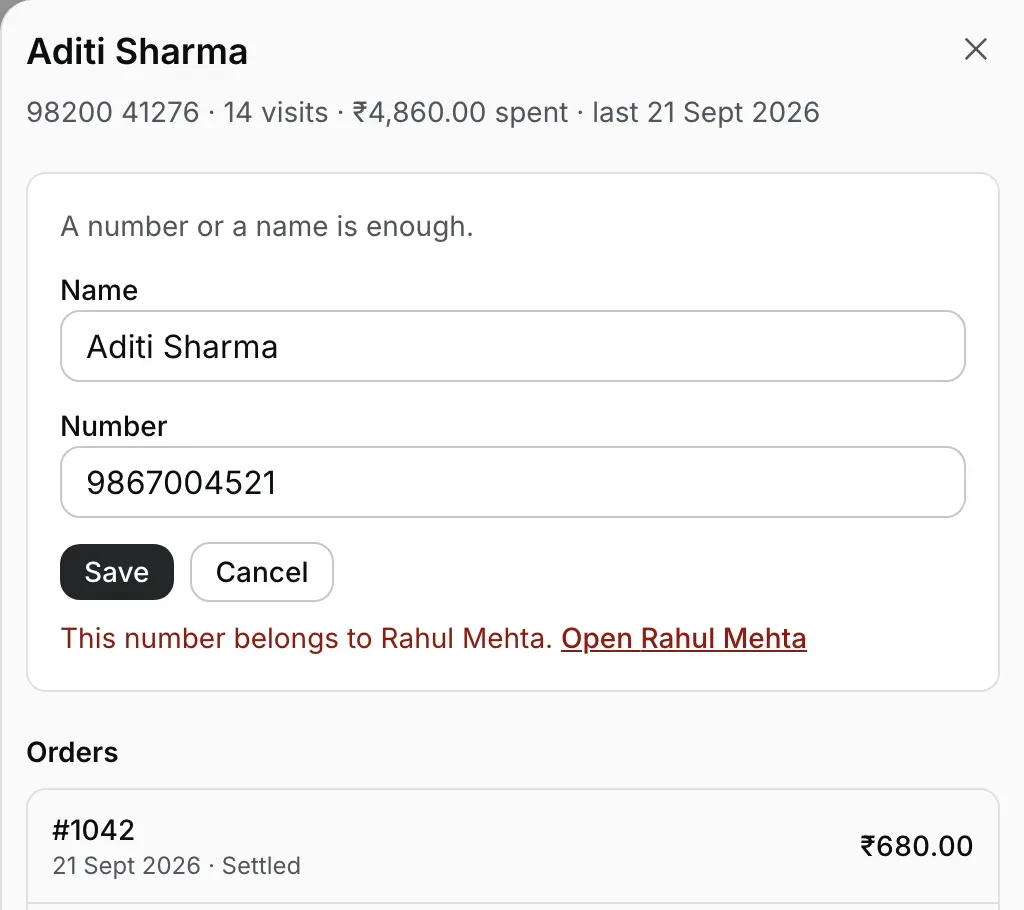
One number, one customer: the dashboard will not make a second.
Offline, and across Desktop Apps and phones.
The customer book lives on each Desktop App and phone, like the menu does, so searching, saving, attaching and printing never wait for the internet. When the line comes back, new customers sync with the orders. When your Desktop Apps and captain phones are connected over the shop's Wi-Fi, customers travel between them with the orders, internet or not, so a name saved on a waiter's phone prints on the counter's bill. How that connection works is in the second Desktop App guide and the offline billing guide.
What it does not do yet.
- No messages to the guest. EasyKOT does not send a WhatsApp, an SMS or an e-bill. The number is saved so that you can call, and nothing is sent to it.
- No address. There is no address field, and no birthday, note or loyalty points either. The GST rules ask for a guest's name and address on the bill only when they are GST-registered or the bill is ₹50,000 or more (the GST bill post explains); EasyKOT cannot print an address on those bills.
- One outlet, one list. Customers belong to the restaurant that saved them. Each EasyKOT restaurant keeps its own list, so a regular at two of your outlets is saved once at each.
- On the phone, change means remove and re-pick. The captain's settle sheet has no Change button, and a phone cannot change the customer on a bill once it is settled. Fix those from the Desktop App's Orders list.
- Older part payments stay where they were. Names and numbers typed for a part payment before customers arrived were not copied into the customer list.
Straight answers.
Do I have to ask every guest for a number?
What if two people give the same number?
Is the number hidden on the bill?
Does the kitchen see the customer?
Can a cashier delete a customer?
Does any of this need the internet?
The rest of the counter.
Takeaway & parcel billing
The toggle that makes a check a parcel, and the KOT that now carries the name on the bag.
Bill a parcel →Settling & payments
Cash change, split payments and customer balances.
See the settle guide →Taking an order on the phone
The captain's whole round at the table, from a free table to Send KOT.
Take an order →Every guide in this cluster is listed on the guides hub.
Run it 3 months, then pay for it.
Three months free, full product, no card. Made in India, for the counter: built inside a running restaurant.