A full service day on one phone — kholne se day-close tak.
Yes, one Android phone and one thermal printer will run a small restaurant end to end: table orders, KOTs, GST bills, cash and UPI, and the shift's cash count. That product is EasyKOT on an Android phone. This guide is the other half of the answer: what a whole service day actually looks like on it, and where it stops working.
Reading this on a phone? See EasyKOT on an Android phone, poora restaurant, ek phone · Android 8+ · works offline
A phone, a printer, and your own Wi-Fi.
- One Android phone. The phone that runs the shop must be Android, on Android 8 or newer: it keeps printing with the screen off. The iPhone build is not in the App Store yet, so this setup runs on Android only, for now.
- One thermal printer. Bluetooth Classic, paired once in Android's own Bluetooth settings, or Wi-Fi/TCP. Type the printer's IP, port 9100. 58mm or 80mm paper, your choice. EasyKOT speaks ESC/POS, the standard these printers use; the honest check is always the test print, not a compatibility list.
- Your own Wi-Fi. Not for us, for the printer, and for any waiter phones you add later. The billing itself does not need the internet.
- No cash drawer. There is no drawer to kick from a phone. What replaces it is a cash box on the Device tab: float in, paid-outs with a reason, and a count at the end.
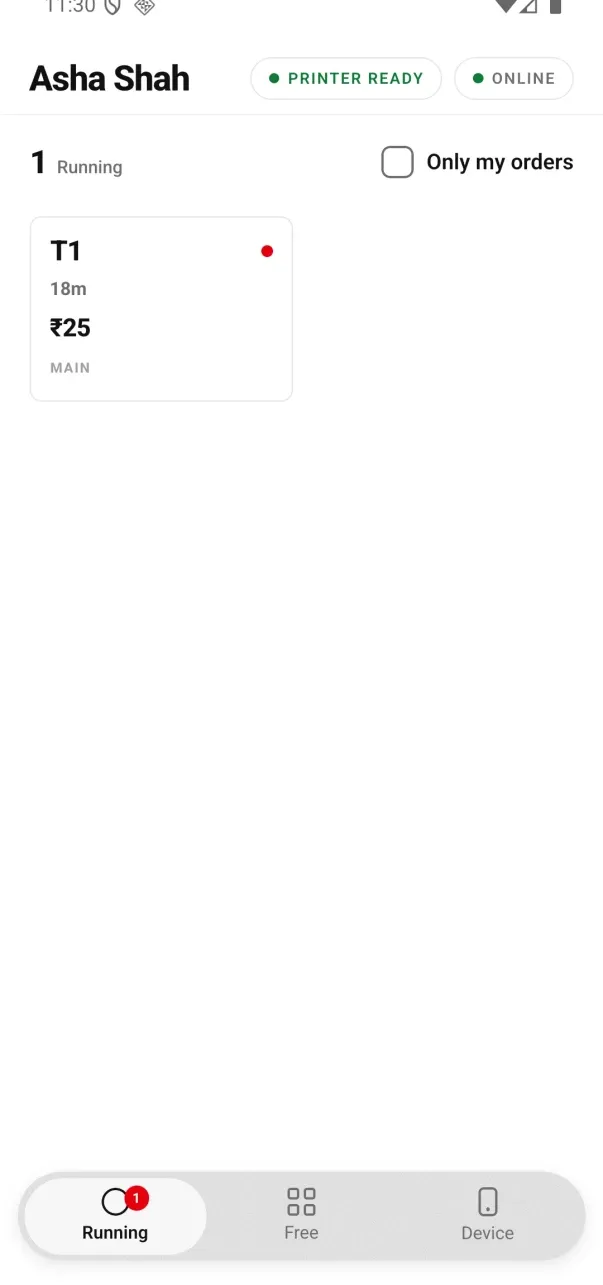
Signed 0.2.12 testing build, with the compact Running filter.
A basic Kitchen screen is available on Android. A chef can see every open store ticket, tap Done and switch to a Prep list. A phone-only counter does not host the desktop browser KDS board, so a separate chef phone receives those tickets over internet sync and can be out of date while offline. The desktop KDS adds category station filters and the All day view.
Tap Run the counter — not Take orders at the tables.
The app's first screen asks what this phone will do: Run the counter, Take orders at the tables, or on Android Take orders and print them. If this phone is going to run the whole shop, tap Run the counter and sign in with your owner email. That choice is what carries your GST invoice series. The dashboard's Devices page can still do it the long way, as a Desktop App or counter phone kind setup code, but you no longer need it. (Take orders and print them gets its own series from the Connect phone QR in Staff & pay, but it does not run the shop: it is for a captain carrying a small printer, and it prints only the tables he takes.)
Choose Run the counter when this phone will run the whole shop. To choose its first-screen job again, use Start over — reset this phone on Device. Adding a carried printer is different: since Captain 0.2.12, an existing order phone can open Device → Printing and tap Carry a printer for my orders, keeping its restaurant and shift. Bill numbers must finish setting up online before a bill can be issued; KOTs can print while that setup finishes.
- Then turn printing on. On first-run setup this is switched on with no PIN — you are already the owner signing the phone in. Later, open Print from this phoneon the Device tab and follow the prompts. Stop the old printing phone before enabling another one for the store.
- Add the printer. Bluetooth is paired in Android's own Bluetooth settings first, then picked up in the app; Wi-Fi printers take an IP and port 9100. Step by step: pair a Bluetooth thermal printer to an Android phone.
- Say what it prints. Each printer on the phone has a Prints setting: Everything, KOTs or Bills. One printer doing everything is the normal phone-only setup.
- Run the test print before service. It is the only honest proof that this printer, this cable-less link and this paper width work together. If the layout is cut off, switch 80mm to 58mm and print it again.
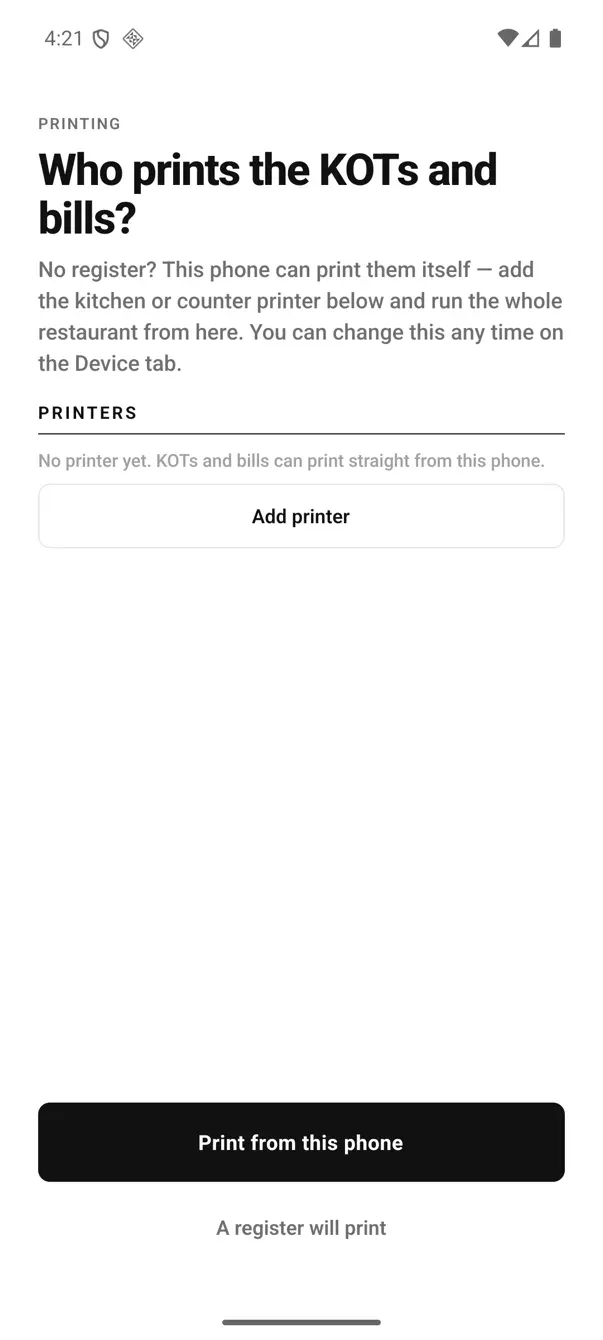
The printing decision, asked during setup. Pick "Print from this phone" here.
Morning: the float goes in the box.
The cash box lives on the Device tab, and the app opens the day the way a cashier would: Start the day by putting the opening cash in the box. Type what you actually put in (₹2,000, ₹500, whatever the drawer holds) and the shift is open. It is gated by the cash permission, so on a phone a captain is asked for a manager PIN; the owner is not.
Menu changes come down on their own. Anything you edited in the dashboard last night (a price, a new dish, a portion) is on the phone by the time you open. Nothing to import, nothing to press.
Lunch: the same phone takes the order and prints the KOT.
Table 4 from the Free tab, dishes from the menu, portions and notes where they matter, then Send KOT. Because this phone is the printer, the ticket does not travel anywhere: it goes straight down the Bluetooth link to the kitchen printer. The taps are identical to a waiter's: how a waiter takes an order and fires a KOT.
No tables on the Free tab? Open the owner dashboard in your phone's browser. Tables & floors lets you add tables and arrange the layout. Bring the phone online to sync them. The Desktop App can set up tables too. Until then the Free tab still offers + Takeaway. The setup from signup to the first takeaway bill: set up EasyKOT on an Android phone.
- It keeps printing with the screen locked. An Android foreground service does the work, and its notification reads "EasyKOT is the printer" / "KOTs and bills print from this phone". That permanent notification is expected: do not swipe it away, and do not let a battery optimiser kill it.
- Paper never blocks a sale. Every ticket is a durable job in the phone's own database. The sale is written first, the print is queued second, and a failed job retries on its own for 5 minutes (1 second, then 2, 5, 15, 30, then every minute). Still stuck after that, it stops trying and waits on the Device tab with Retry now and Discard. If the link instead died mid-print, the ticket is parked on the Device tab, where you tell it whether it printed or print it again as a marked duplicate. Nothing is thrown away.
- Round two prints only the new items. A second fire carries just what was added, headed Round 2+ with the previous count, so the kitchen never cooks the first round twice.
The bill: configured GST details, then cash or UPI.
- A numbered tax invoice, because the phone was enrolled to run the whole shop. Your GSTIN, the invoice series, CGST and SGST on their own lines, round-off. A reprint keeps the same invoice number and date and is stamped as a duplicate copy, with a record of who asked for it.
- Settling from the phone is marking, not taking. Cash and UPI only. No drawer opens, no card is read. If you take cards, the machine stays a separate machine and you mark the payment here.
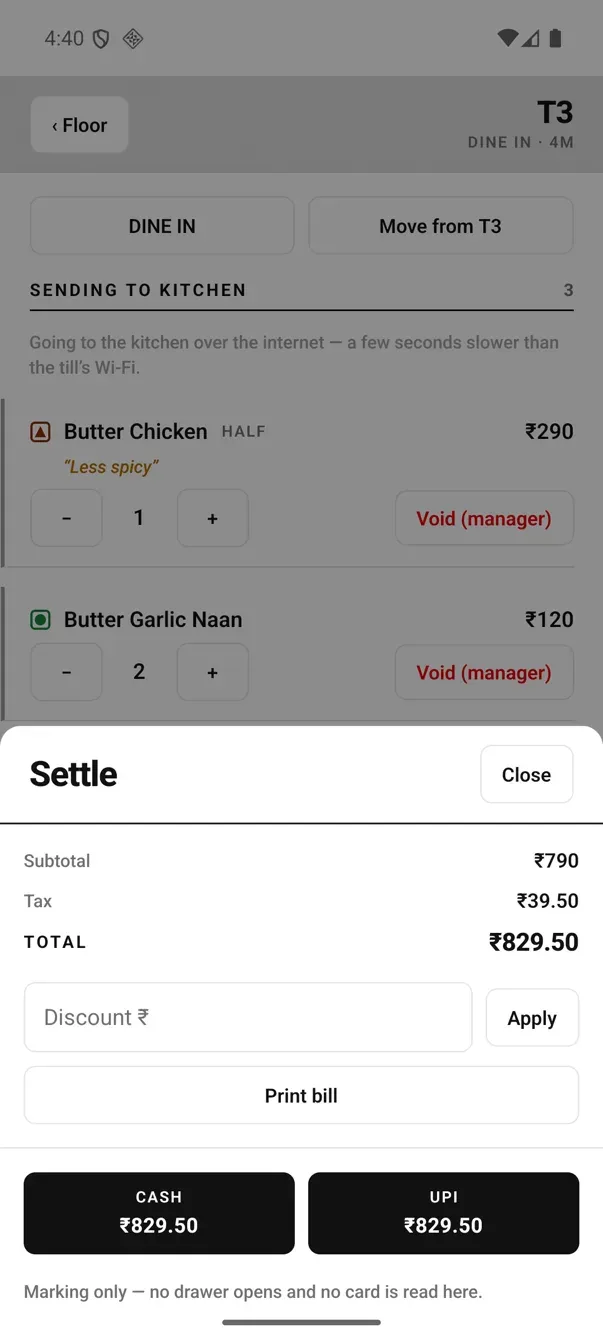
Cash or UPI: the footer says exactly what marking is and is not.
- Paper width is a layout, not a label. 80mm gives you 42 characters per line, 58mm gives 32, which is why a bill that looks cut off is usually a width setting, not a broken printer.
- Printed money reads "Rs." The ₹ sign does not exist in the ESC/POS character sets thermal printers use, so the slip says Rs. That is deliberate, not a bug: it is the same on every thermal printer you have ever been handed a bill from.
Step by step, from a punched order to the printed slip: make your first GST bill on EasyKOT.
Adding a second phone.
The next phone does not run a second shop: it is a waiter's phone, enrolled as Captain, taking orders that come back to this one to print. There is no per-waiter or per-phone charge, so adding hands costs nothing but the enrolment. If that waiter carries his own small printer, choose Take orders and print them and connect the handset with the one-use QR from Staff & pay. His tables' KOTs and bills come out of his printer and never queue on this one.
One thing to know before you do it. A phone cannot host the LAN hub: that is a Desktop App's job. So captain phones in a phone-only shop reach the printing phone over the internet rather than the one-hop path on your own Wi-Fi: a few seconds instead of about one, and it needs the connection to be up. It works; it is just not the fast road.
A second, waiter's phone joins the same way as any waiter phone: set up the captain app on a waiter's phone.
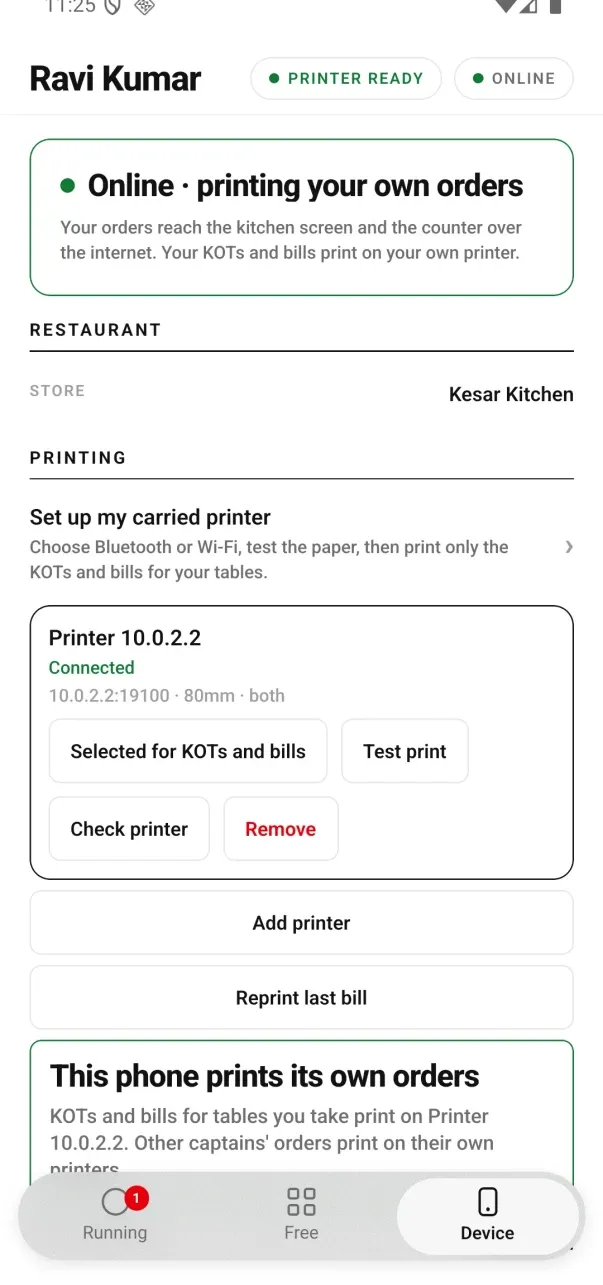
Signed 0.2.12 testing build: Ravi's carried printer handles only the KOTs and bills for his own tables.
Evening: count the box, close the shift.
Back on the Device tab: the box shows the Float you put in, the cash it counted from the day's settles, any paid-outs you recorded (each with its own What for? note: "vegetables", "gas"), and Should be in the box. Then Count & close shift: you type what is actually there, and the app tells you the variance instead of making you work it out at midnight.
- It closes a shift, not a calendar day. A place that runs lunch and dinner as two shifts closes twice, and each close stands on its own. That is the honest unit: a day boundary at midnight has never matched how a restaurant actually hands over cash.
- UPI is counted separately from cash, so "should be in the box" means notes, not turnover.
- The owner sees it wherever they are. Whenever the phone next has a connection, the day pushes up to the dashboard: sales, orders, average order, and the close.
When you should add a laptop.
A phone-only shop is a real setup, not a demo, but it has edges, and you should know them before service teaches you. None of these are things we plan to argue away.
- Two people cannot bill at once on a phone. One phone is one queue. The moment a cashier and a waiter both want the phone, the phone becomes the bottleneck. A fallback phone can take over printing for the whole store, and since Captain 0.2.12 a captain can print their own tables on a printer they carry.
- The phone Kitchen screen is the basic board. It shows the whole store's open tickets, Done and a Prep list. In a phone-only store, a separate chef phone depends on internet sync because the counter phone does not host the desktop LAN KDS board. Desktop adds station filters and the All day view.
- No USB or serial printers. A phone drives Bluetooth and network printers only. If the printer you own is a USB one, it belongs on a Desktop App.
- No LAN hub. Captain phones cannot take the fast one-hop path to a phone; they go over the internet instead.
- No cards, no refunds from the phone. Cash and UPI marking only.
- A long menu on a small screen. Forty dishes is comfortable. Three hundred, at 8pm, with a queue at the counter, is where a laptop's grid starts winning by seconds a ticket.
- One device is one point of failure. Keep it on a charger, and enrol a second device before you need it, not during the rush where you discover you needed it.
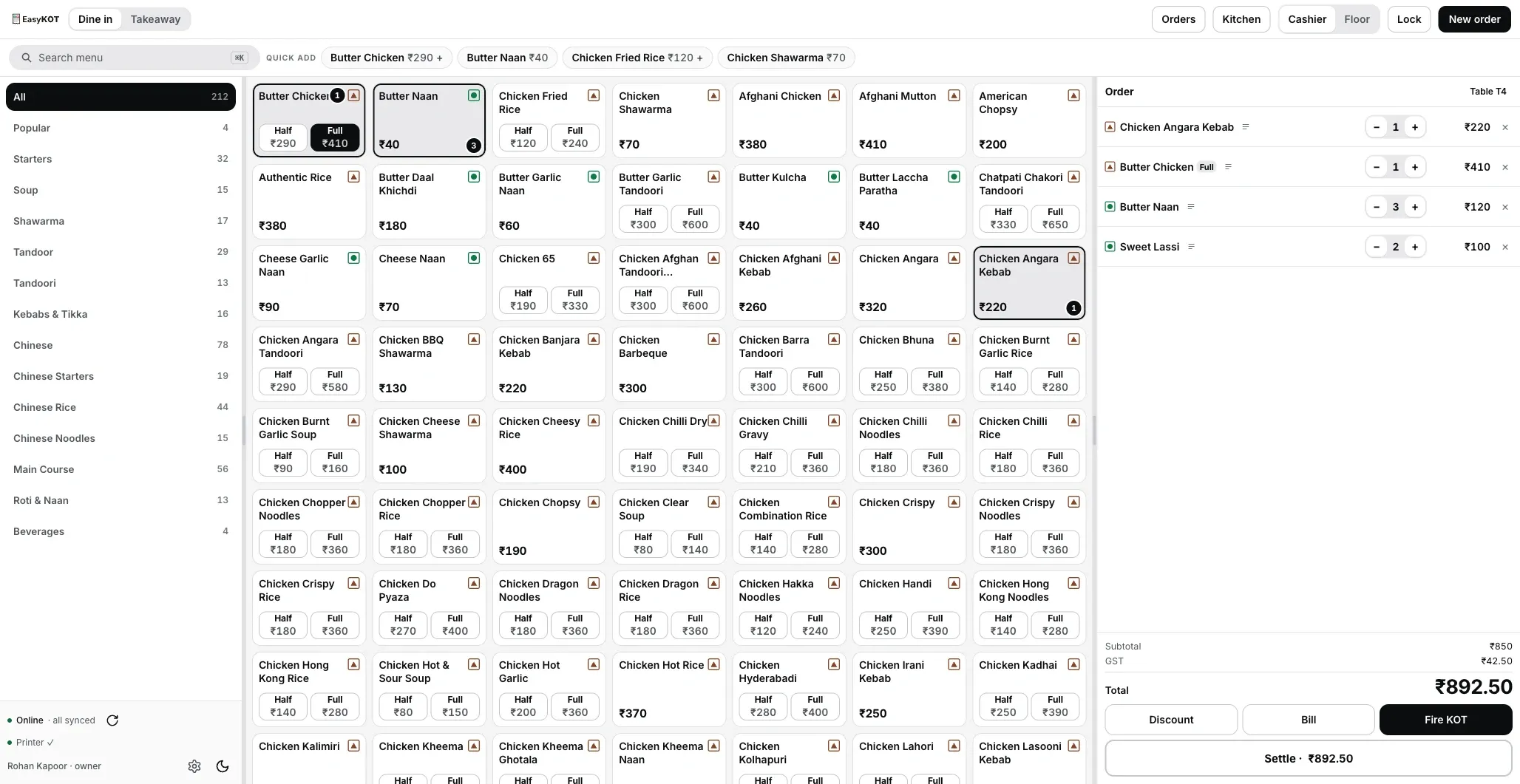
What the Desktop App adds: a full menu grid and the check side by side, and a second person able to bill.
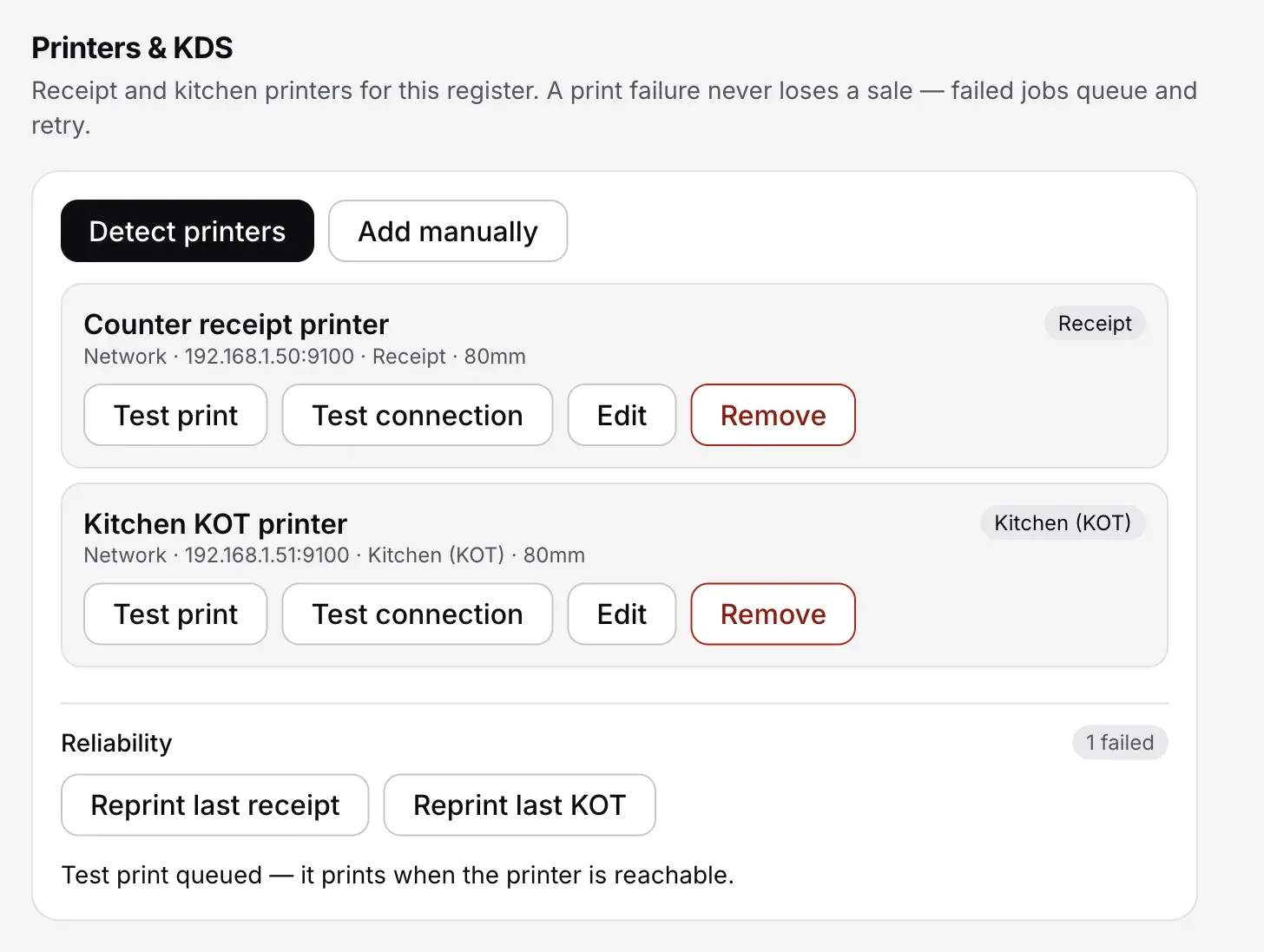
Settings → Printers & KDS on the Desktop App: two printers, each with its own role, plus the reliability panel. The phone has printer roles too, worded "Prints": Everything / KOTs / Bills.
Adding the laptop later costs nothing extra. Same account, same ₹299/month, same store: the Desktop App for Windows or Mac signs in with a connect code and picks up your menu, tables and history. Nobody has to re-key anything. The Desktop App's own case is on the billing page.
On a laptop already? Try the Desktop App in the browser: it is the real Desktop App, and it needs a laptop-size screen, so on a phone the nearer door is EasyKOT on an Android phone.
Straight answers.
Can one phone really run a whole restaurant?
How many tables before I need a laptop?
Which phone is good enough?
Does it work without internet?
Can I add a laptop later without losing my data?
Bina laptop ke GST bill ban jayega?
What happens if the phone breaks?
Next: pair the Bluetooth thermal printer, add a waiter's phone with two codes, or read the product case on the Android phone page.
3 mahine try kare, phir plan chune.
Restaurant ka kaam hum samajhte hain, kyunki shuruaat bhi wahin se hui. 3 mahine free try kare, bina card details. Hamari kahani padhe.