Set up EasyKOT for a Singapore restaurant.
Enter your GST details once, mark the drinks that carry the 10-cent deposit, then ring checks as usual. This guide follows the owner dashboard and the register in the order you will use them. For why each line is on the bill, read EasyKOT for Singapore restaurants. Free for your first 3 months, then S$9 a month or S$90 a year, paid once per period.
EasyKOT in Singapore, at a glance
EasyKOT is a restaurant point-of-sale (POS) system for Singapore restaurants, cafes and hawker stalls that keeps billing offline, prints receipts with 9% GST, the service charge and the 10-cent BCRS drink deposit on separate lines, and costs S$9 a month or S$90 a year after 3 free months.
| What it is | Restaurant POS: register, kitchen tickets (KOT), captain app for waiters, kitchen display and an owner dashboard |
|---|---|
| Price | S$9 a month or S$90 a year, paid once per period, no automatic renewal; first 3 months free, no card |
| GST | 9%, with menu prices entered including or excluding GST; registration number on every receipt; works for stalls not registered for GST |
| Service charge | Any percentage, dine-in and/or takeaway, GST charged on it; can be waived on one check |
| Drink deposit (BCRS) | 10 cents per covered plastic bottle or can on its own line, outside GST; Return Right F&B outlets can mark containers kept at the table |
| Offline | Billing, printing, payments and refunds keep working without internet and sync later |
| Runs on | Windows or Mac Desktop App, a browser, and Android phones for waiters; ESC/POS thermal printers |
| For the accountant | Singapore GST records export (Excel or CSV): each bill and refund with GST, service charge and deposit in separate columns |
| Payments | Cash, PayNow and card at the register; cash and PayNow on a waiter's phone. PayNow and card are marked by the cashier: the guest pays your own PayNow/SGQR code or your bank's terminal |
| Not yet | No PayNow QR with the amount shown by the till, no card-terminal link, no 5-cent rounding, no full tax invoice with the customer's details, not an InvoiceNow-Ready Solution |
Screenshots show the working app with a sample restaurant, Kampong Kitchen, and sample GST and UEN numbers, captured on 6 November 2026 with the register offline (the GST export table is the same sale rung on 4 November). No customer data.
Sign up with Singapore as your country
When you create your account, choose Singapore as the restaurant's country. EasyKOT then bills in SGD and prints Singapore receipts, with no CGST, SGST or FSSAI lines, no UPI button and no Indian veg / non-veg symbols on the menu.
The country cannot be changed later. Settings shows it under Restaurant with the line “Chosen at signup and fixed for this restaurant’s sales and receipts.”
Fill in GST & bills before connecting a register
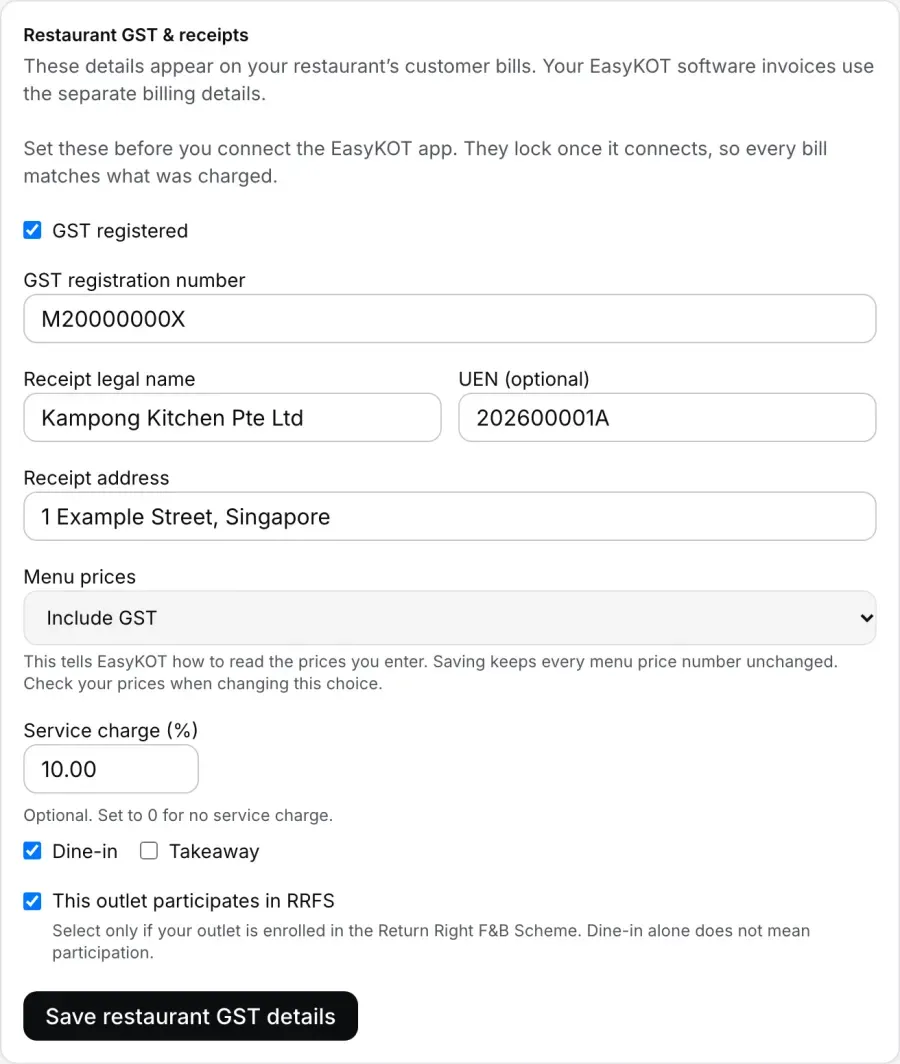
In the owner dashboard, open Settings → GST & bills. Tick “GST registered” if you are, then enter your “GST registration number”, the “Receipt legal name”, your UEN if you want it printed, and the “Receipt address”. Choose whether your “Menu prices” include or exclude GST, enter the “Service charge (%)” and tick where it applies. Tick “This outlet participates in RRFS” only if NEA has enrolled your outlet in the Return Right F&B Scheme. Press “Save restaurant GST details”.
Do this first. Get started asks for it as “Set GST & service charge”, right after your menu and before the register steps, and Settings says “Set these before you connect the EasyKOT app.” Once a register is connected or sales have started, the card shows “These details are locked”, with a WhatsApp button if they need to change. Not registered for GST? Leave the box unticked; the address becomes optional and bills carry no GST.
Price your menu and mark the drinks that carry a deposit
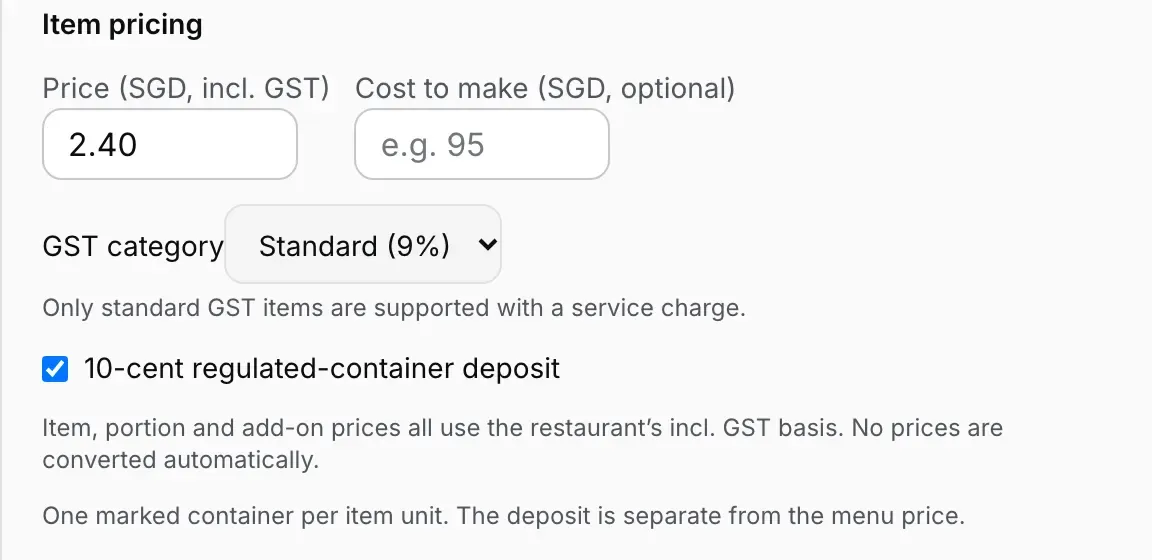
Add dishes on Menu & stock as usual, entering prices on the basis you chose. Changing that choice later never converts a price, so check your prices if you switch. In a dish's editor, a GST-registered restaurant picks its “GST category”; most food is “Standard (9%)”.
For every bottled or canned drink covered by the Beverage Container Return Scheme (plastic or metal, 150 ml to 3 litres; not glass, cartons or drinks you make yourself), tick “10-cent regulated-container deposit”. The deposit is added on the bill, outside GST, one per unit sold. With a service charge on, only standard-rated items can be sold; the editor says “Only standard GST items are supported with a service charge.”
Connect the register and ring a check
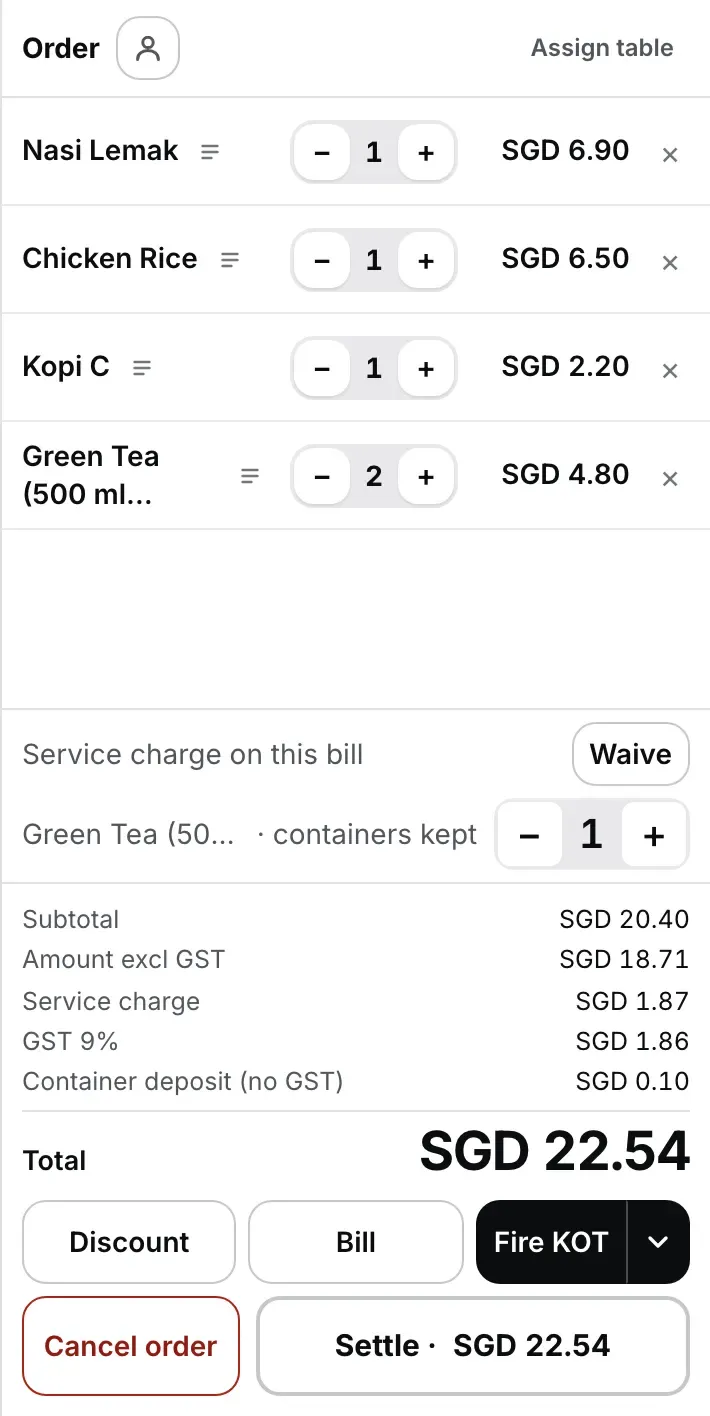
Connect the Desktop App or a browser register as in the setup guide, then ring a check as usual. The order panel shows Subtotal, “Amount excl GST”, Service charge, GST 9% and “Container deposit (no GST)”, each worked out on the till, with or without internet.
At an RRFS outlet, a dine-in check shows a “containers kept” counter for each deposit drink. Set it to the number of bottles or cans the guests leave behind; those carry no deposit. Takeaway always carries it.
New to connecting a register? The restaurant setup guide covers installing the Desktop App and printers, and the browser register guide covers running it in a browser.
Waive the service charge on one check when you need to
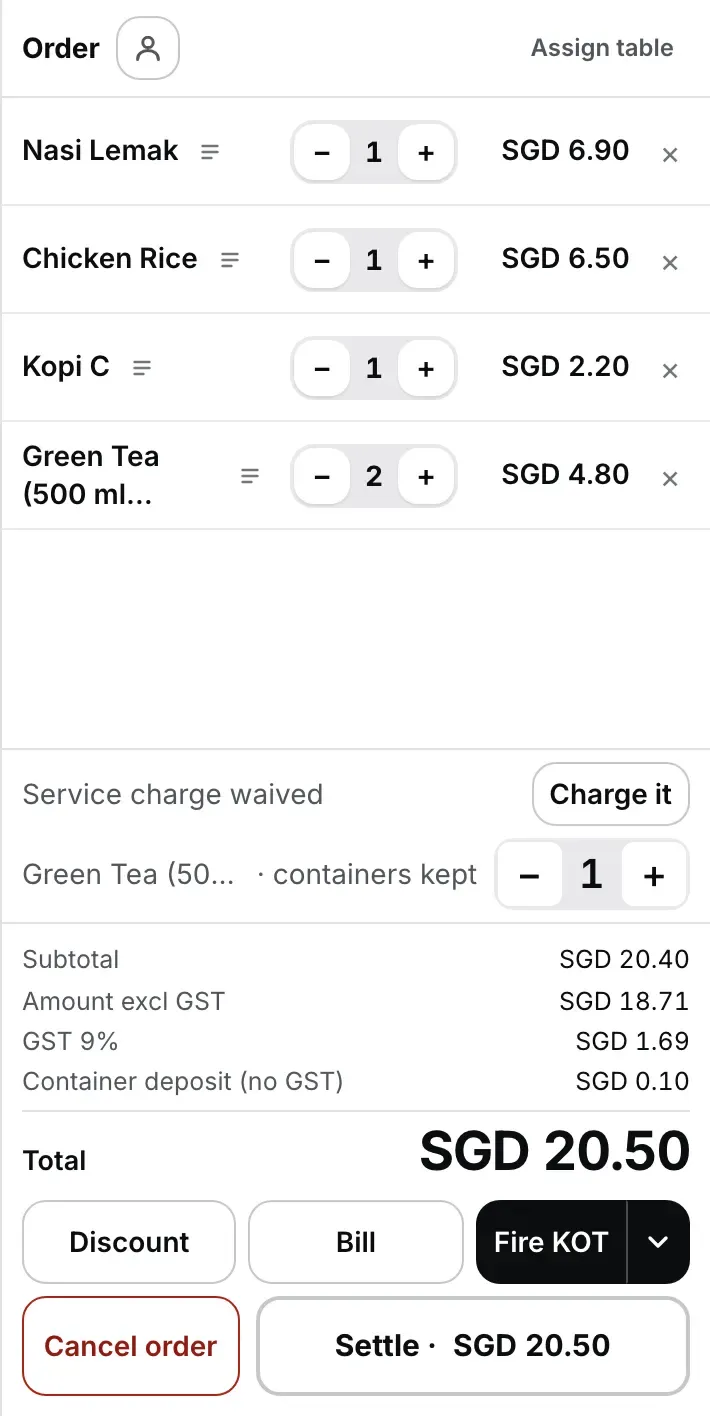
Next to “Service charge on this bill”, press Waive. The service charge and the GST on it come off this check only, and the line reads “Service charge waived”. Press “Charge it” to put it back.
Owners, managers and cashiers can waive; other roles see “A cashier or manager can waive the service charge.” The check records who pressed it.
Print the bill and settle
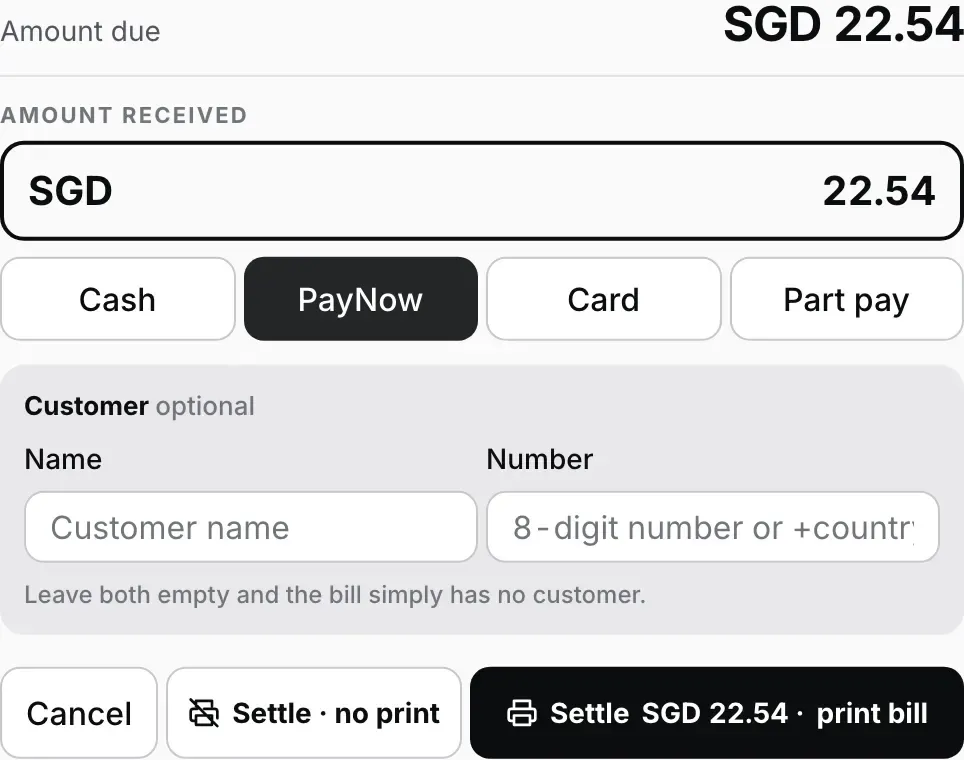
Press Bill to print it for the table. To take payment, press Settle and choose Cash, PayNow, Card or Part pay. PayNow records a transfer the guest made to your own PayNow or SGQR code: mark it once your bank's notification arrives. Card records a payment your separate card terminal has approved; EasyKOT does not connect to the terminal.
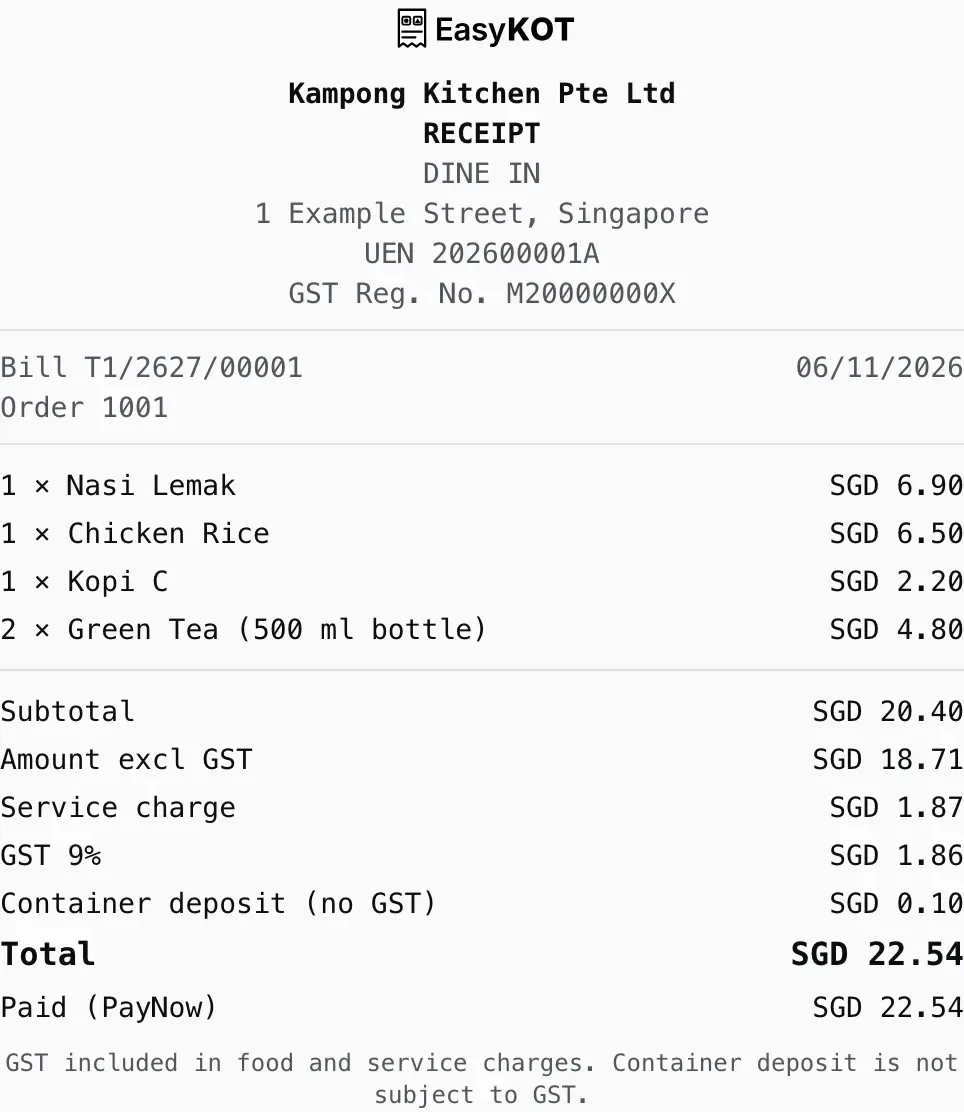
The receipt prints your legal name, address, UEN, GST registration number, the bill number and date, each line, the GST and deposit lines and the two statements “GST included in food and service charges.” and “Container deposit is not subject to GST.” A stall without GST registration gets the same receipt without GST.
Refund a settled bill
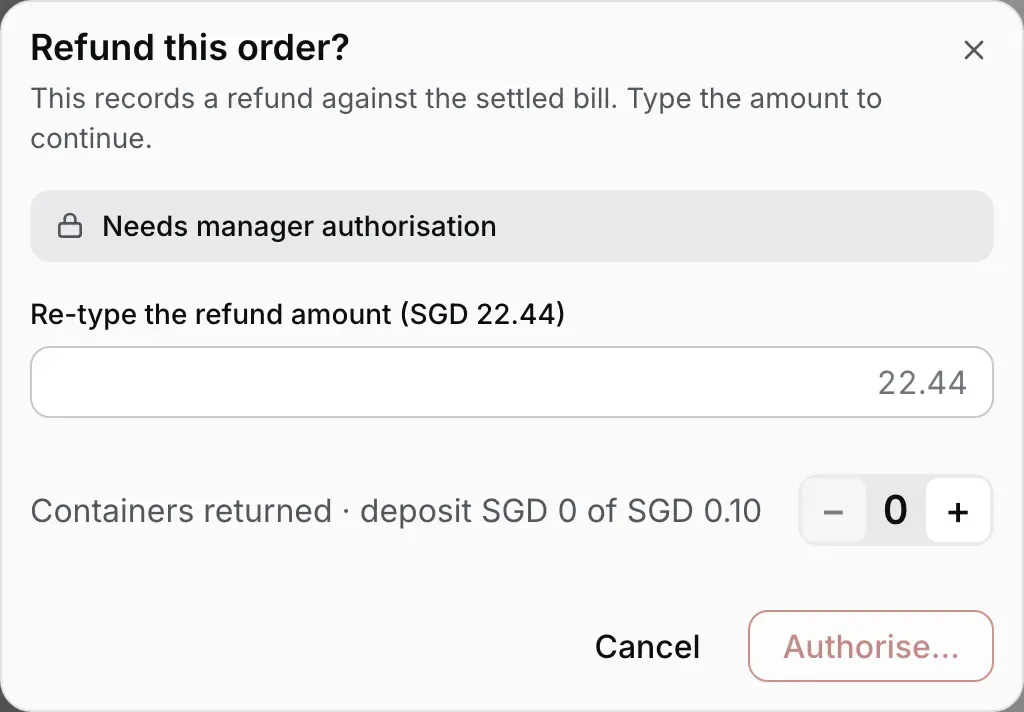
Open Orders, find the bill, and press Refund. Type the amount shown after “Re-type the refund amount”. If the check had deposit drinks, set “Containers returned” to the bottles the guest actually brought back; a deposit is refunded only with its bottle. A manager or owner then signs with their PIN.
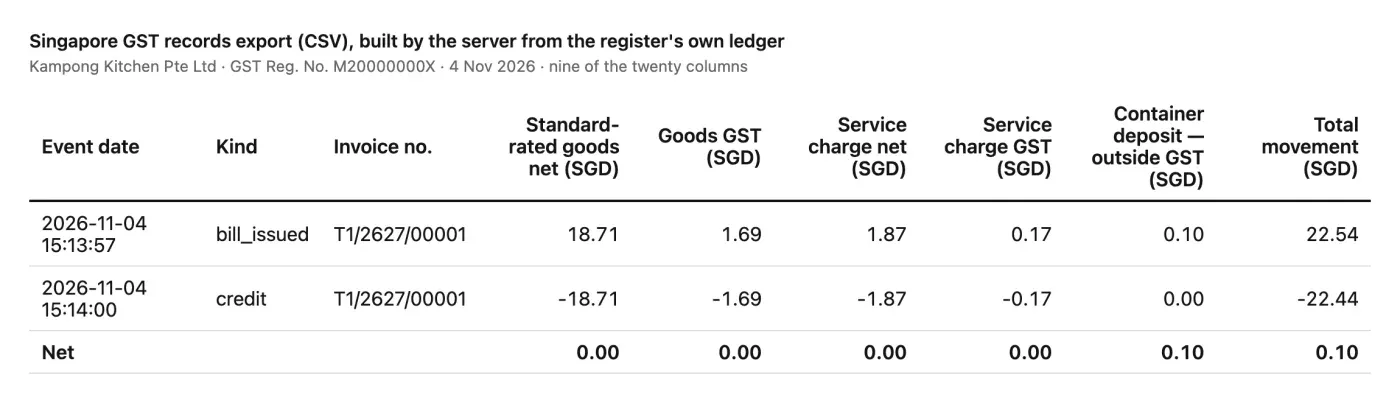
The GST on what you refund is credited automatically and shows as its own row in the GST export.
Download the GST records for your accountant
In the owner dashboard, open Reports → Sales & collections → Daily sales, pick the dates, and use the buttons beside “Singapore GST records” to download Excel or CSV.
Each bill and each refund is a row, with standard-rated, zero-rated, exempt and out-of-scope amounts, GST, service charge, its GST and the deposit in separate columns. EasyKOT does not file your GST return or send InvoiceNow data; give this file to whoever does.
Questions Singapore owners ask.
We are a stall without GST registration. What changes?
Should the service charge apply to takeaway?
What is RRFS, and should I tick it?
Does the till need internet?
What does EasyKOT cost in Singapore?
Run it 3 months, then pay for it.
Three months free, full product, no card. Made in India, for the counter: built inside a running restaurant.