Turn a supplier bill photo into an expense you have checked.
EasyKOT can read one supplier-bill photo and suggest the supplier, bill date, purchase amount and expense category. You review the details and choose the payment status before saving. The photo starts the entry; you decide what goes into the books.
Read the bill, then make the entry
A delivery arrives while the kitchen is busy. The supplier leaves a bill, and the bottom line includes last week's balance. Typing that line quickly can put the wrong cost in your accounts. A useful scan needs a review step, especially when the supplier gives you credit.
Recorded in an EasyKOT test restaurant with a sample supplier bill. The walkthrough stops before Save expense; it does not create a purchase. Tap a screenshot to enlarge it.
In the owner dashboard, open Add expense and choose Scan bill. Select a photo, drop it into the upload area, or use Tab to focus the area and paste a copied image with Ctrl+V on Windows or ⌘V on Mac. That stages a preview. Upload and scan is the separate action that sends it for reading.
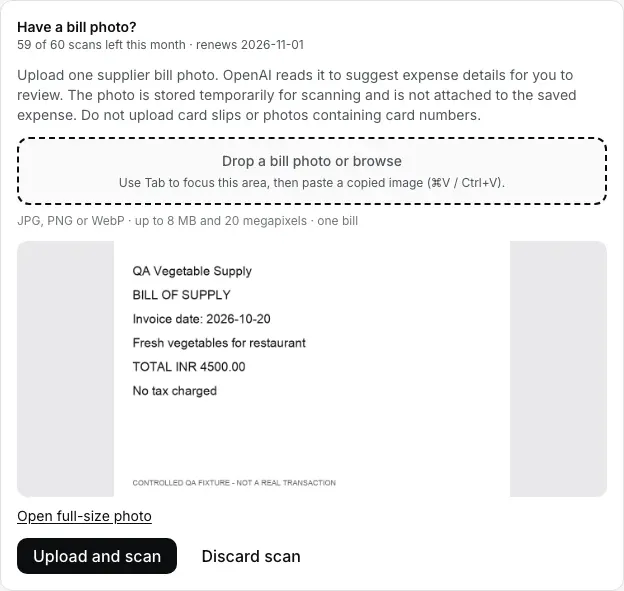
The result stays separate from the form until you press Apply scanned values. Open full-size photo lets you read the source more closely. Check the supplier, date, currency, amount and category against the original. Fields the scanner cannot read safely may be blank. It can also return a plausible value that is wrong, so a filled field still needs checking.
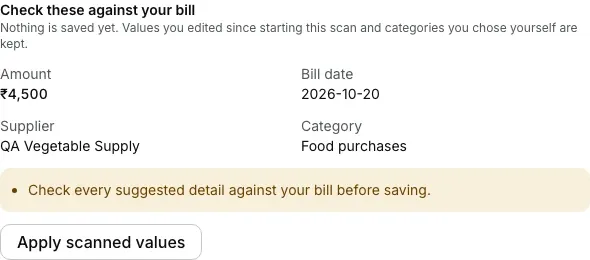
If you keep typing while the scan runs, applying it preserves values you changed after starting the upload and categories you chose yourself. You can correct the form before saving. Scanning does not save an expense by itself.
The amount due may include an older purchase
Suppose you already recorded a ₹500 purchase last week. Today's delivery is ₹200, but the supplier prints ₹700 as the total due. Another ₹700 expense would count the earlier ₹500 twice. The new expense needs this purchase's amount, not the supplier's running balance.
When the scan detects an earlier balance, it leaves the suggested amount blank and asks you to enter the current purchase amount. Uncertain amounts are also left blank. Detection is not a guarantee: look for an opening balance, arrears or a carried-forward amount yourself. Check an unclear or old bill date against the original too.
A purchase bill is not proof of payment
After applying a scan, choose how the bill was paid, or choose Not paid yet. EasyKOT requires this choice even when the photo looks like an ordinary cash bill. A purchase date and a payment date can be different; record what actually happened.
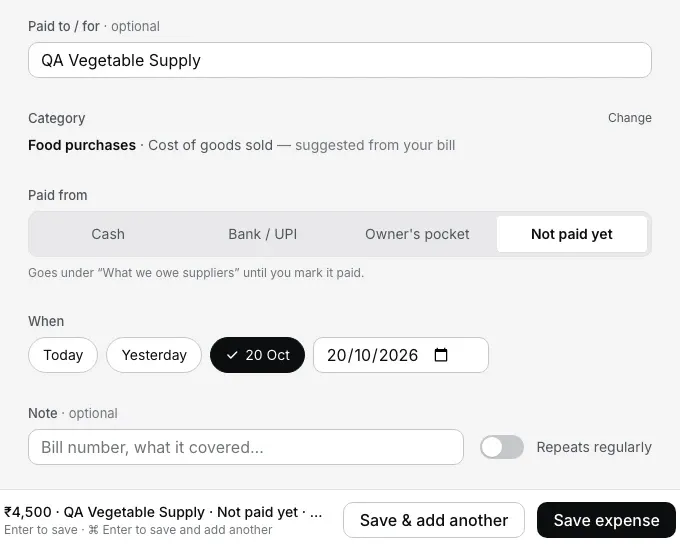
Use this flow for supplier purchase bills. Payment screenshots, supplier statements and credit notes need separate review, not a new positive purchase expense. The helper does not extract GST fields, calculate an input-tax claim or replace your accountant's checks.
One photo, with a monthly allowance
Upload one JPEG, PNG or WebP image, up to 8 MB and 20 megapixels. PDFs, multi-photo batches and permanent bill attachments are not part of this flow. If one bill spans several pages, enter it manually so you can check the whole document.
Each restaurant has 60 accepted bill scans per UTC calendar month. The form shows the remaining allowance and renewal date. Accepted scans still count if they later fail or are discarded; retrying the same accepted upload does not count twice. Manual expense entry stays available when scanning fails, is unavailable or reaches the limit. Scanning needs an internet connection.
Keep the original bill
Before upload, the form names OpenAI as the processor and explains why the photo is sent. Only upload purchase bills you are authorised to process. Do not include card slips, card numbers or unrelated personal details.
EasyKOT uses a private temporary image for extraction and attempts to remove it after processing or cancellation, with scheduled cleanup for abandoned scans and failed deletions. The saved expense has no permanent bill attachment. OpenAI has its own API retention rules; deleting our copy does not mean its logs vanish at the same moment.
Keep your original supplier records and check the saved expense during your regular accounts review. The useful saving is less retyping, with the purchase amount and payment decision still in your hands.
Straight answers.
Does scanning a bill save the expense automatically?
Does EasyKOT keep the photo with the expense?
What if the scan reads the wrong amount?
Run it 3 months, then pay for it.
Three months free, full product, no card. Made in India, for the counter: built inside a running restaurant.